Settings
The settings tabs: channels, main menu, commerce, integrations, billing, referrals, team, workspace & links, notifications, security, API & webhooks, Profile.
Sidebar: Account → Settings. Up to thirteen categories: Channels, Main menu, Commerce, Billing & usage, Refer & earn, Team & roles, Workspace, Notifications, Security — plus Integrations, where integrations or Meta conversion reporting are turned on for your workspace, API & webhooks, where API keys and webhooks are turned on for your workspace, Templates, where template packages are turned on, and Profile, where interface languages or account sign-in settings are.
On a computer the categories run down the left of the page and stay in view as you scroll; on a phone they are a row you scroll sideways above the page. Choosing one takes you to the top of it, with its name as the heading. From the keyboard, the arrow keys move along the categories and Enter (or Space) opens the one you're on.
Most tabs show their state to everyone and gate only the controls. Which controls you see depends on your role — see Roles and permissions.
Channels
Where you connect the places HyperDM talks.
Every connection — on Channels, Commerce and Integrations — is one row: its name, one status word with its icon, a line on why it's in that state, the way in (Connect or Reconnect), and a More actions menu (⋯) with Disconnect. Disconnect always asks first. Where disconnecting is all a row still offers — a channel switched off for your workspace with a connection still stored, or Meta conversion reporting switched off — Disconnect is a button on the row instead.
The card shows one of these badges:
| Badge | Means |
|---|---|
| Connected | Working |
| Needs attention | Connected, but Meta isn't delivering events — offers Retry subscription |
| Reconnect needed | The token expired, was revoked, or scopes are partial — offers Reconnect |
| Not connected | No connection yet — offers Connect Instagram |
| Not on your plan | Your Free plan's one channel slot is already used elsewhere — offers See plans |
To connect: click Connect Instagram, authorise on Instagram, and you are returned here. You need a professional Instagram account: the line under the button links Switch to a professional account, and so does every notice a failed connect leaves at the top of the tab. Connecting — and More actions (⋯) → Disconnect on a connected row (with a confirm dialog; disconnecting drops the stored token and stops inbound DMs until you reconnect) — needs manage_connections, owner or admin.
Extra states worth knowing:
- Instagram didn't confirm the account identity — nothing changed, including an existing working connection. Try Connect Instagram or Reconnect again.
- Webhook subscription failed / gone quiet — DMs and comments won't arrive until this succeeds. Click Retry subscription.
- Profile drift — "Instagram may have changed how your ice breakers/menu appear." Click Re-sync to push yours back. Re-sync tells you how it went, and the warning only clears when the push actually reached Instagram — if it didn't, the warning stays up and the message says which part failed and what to do:
- Instagram refused some of your ice-breaker prompts — open the automation, reword the prompt and save it.
- Instagram wouldn't clear your old prompts — they may still show in your DM opener and do nothing when tapped; try Re-sync again shortly.
- Couldn't re-sync just now — nothing on your account changed; try again, and reconnect Instagram if it keeps failing.
Every one of those messages starts with the Instagram handle it applies to (e.g. @yourstore), because your active workspace can change between opening Settings and clicking — and "Re-synced" with no account named reads the same whichever account it ran against. Check the handle matches the account you meant.
Re-sync needs manage_connections — owner or admin, the same as Connect, Reconnect, Disconnect and Retry subscription. Everyone still sees the warning, so a member can tell an owner what's wrong.
WhatsApp is in a small pilot. The card depends on your workspace: where WhatsApp isn't on for yours it says so and offers nothing to connect — while the pilot runs without your workspace, owners and admins see Tell us you want it instead. Either way, the card answers "does WhatsApp work here" in four rows, each with its status in words and when that was last known:
| Row | What it tells you |
|---|---|
| Availability | Available, Not in the pilot, Not offered yet, Not on your plan (your plan runs one DM channel and another already uses it — See plans), or Not set up on our side (ours to fix, nothing for you to do). |
| Connection | Connected, Not connected (Connect WhatsApp), Reconnect needed (Reconnect), Number not registered (Finish setup), Not receiving messages or Nothing received lately (Retry subscription), Waiting on Meta's verification, Number in use elsewhere, or Two-step verification PIN doesn't match. |
| Meta account | What Meta says about sending from your WhatsApp Business Account: OK, Limited (with which restriction), Blocked, Payment problem, or Not confirmed — with Meta's own error code and suggested fix when there is one. It is checked once a day; an answer more than a day and a half old reads Not confirmed, never OK. If HyperDM couldn't read the stored answer, the row says so — and holds back any repair that depends on it — until a reload can. |
| Templates | How many message templates are ready to send, in Meta's review, or can't be sent. If HyperDM couldn't read your templates, the row says so — it never says you have none — and a reload tries again. |
Where WhatsApp isn't on for your workspace, the card says which: WhatsApp is only in a small pilot and this workspace isn't in it yet — or, for a workspace taken off the pilot while connected, that WhatsApp is paused here and your number stays on file with nothing sending from it (you can still disconnect).
Only the action that can work is offered — at most one. While Meta is still verifying your business there is nothing to press: retrying can't help, and the row says so. When the number is registered to another WhatsApp account, or has a two-step verification PIN HyperDM doesn't have, the row tells you what to change first instead of offering a retry that would fail. While Meta blocks the account, nothing is offered — HyperDM can't lift it. When nothing has arrived from WhatsApp lately, Retry subscription opens the WhatsApp setup page at Nothing has arrived from WhatsApp lately: that is often just quiet traffic, and if you know messages came in, retrying is safe — the page says so when Meta confirms it.
Below the rows, where WhatsApp is on for your workspace (the first two need a connected number):
- Message templates — every template with its status, Meta's reason when it rejected, paused or disabled one, its quality, and whether HyperDM can send it; Refresh from Meta, Create a template, and Edit and resubmit on a rejected one. The full walkthrough is Send WhatsApp templates.
- Test contacts — up to five WhatsApp contacts who have messaged your number; a broadcast's Send test goes only to one of them, and it is a real message, billed by Meta to your WhatsApp Business Account at its template rate when Meta delivers the template (Send WhatsApp templates).
- What works on WhatsApp here — each part of WhatsApp in HyperDM, saying whether it has been Seen working on a live account or is Built — not yet seen on a live account, and a What doesn't work here yet list, so nothing is implied by its absence.
- WhatsApp pilot — what has actually been seen — for owners and admins in a pilot workspace: five checks (a customer's WhatsApp name filled in a contact that had no name — a name you typed doesn't count — a person replied from the Inbox, a template message was sent and billed, Meta's status updates were applied — sent, delivered, read or failed, so a message Meta failed counts too — disconnected then connected again), each with when it was last seen. Times only — no message content, names or numbers.
Disconnecting WhatsApp holds what was scheduled. The dialog says first what is waiting — for example "2 scheduled broadcasts will be held · 1 scheduled reply won't send" — and asks you to type your WhatsApp number to confirm. Disconnecting stops HyperDM replying at once, holds those broadcasts, tells Meta to stop sending your account's messages to HyperDM (unless another workspace still uses the same WhatsApp Business Account) and deletes the access HyperDM stored. It does not delete your WhatsApp Business Account or unregister your number — both stay yours. Your automations, flows and broadcasts stay saved, and your contacts and history are untouched. A held broadcast stays held when you reconnect: resume it from Broadcasts when you're ready — Resume isn't offered on any paused broadcast while WhatsApp is disconnected. For a workspace taken off the pilot while connected, the dialog says what is true there: nothing sends from the number already, disconnecting also stops incoming messages being saved to your Inbox, and connecting again — or resuming a held broadcast — waits until the workspace is back in the pilot. If Meta didn't confirm it stopped sending your number's events to HyperDM, the dialog says so and tells you how to remove HyperDM in Meta Business Suite to be sure.
Only owners and admins connect, repair, refresh templates, choose test contacts or disconnect; everyone else sees the card and who to ask.
Telegram
Telegram's card is driven by real state, not a decoration. It resolves to a coming-soon state today and offers no connect button.
Telegram's card works differently from the other channels when it is switched on, because Telegram does: there is no permission screen to send you through. You create a bot in Telegram by messaging @BotFather, and paste the token it gives you straight into the card. The card then says whether Telegram is actually delivering messages to HyperDM — a saved token whose delivery could not be set up reads Not receiving, never "Connected", and offers a Retry.
Disconnecting deletes the token we stored and stops Telegram sending us messages. It does not switch the token off — we have no way to do that. Send /revoke to @BotFather if you want the token itself to stop working.
TikTok
TikTok isn't switched on for any workspace yet. When it is, this card will depend on your workspace rather than on the product as a whole — it goes on one workspace at a time. Until TikTok is switched on for yours it reads coming soon, with nothing to press.
Where it is switched on, the card offers Connect and takes you to TikTok's own permission screen. Allow every permission TikTok lists there — sending messages, reading your inbox, reading your account type, and managing your inbox — or HyperDM can't answer your DMs.
TikTok only lets apps handle DMs for TikTok accounts with Advanced Access or Verified Business Accounts. If yours is neither, nothing is connected and the card reads Account not eligible: upgrade the account in TikTok (TikTok recommends a Verified Business Account), then press Connect TikTok again. If TikTok doesn't tell us the account type, the account connects but the card won't show a green Connected — we can't promise messaging will work for it.
Set your TikTok DMs to accept messages from Everyone. In the TikTok app, under your account's direct-message settings, choose Everyone. Otherwise each new person's message waits as a request, and HyperDM hears nothing about it until you accept it in TikTok. The card reminds you of this as soon as you connect.
Once an account is connected the card lists what that connection can and can't do — replies to people who messaged you, within TikTok's messaging limits, and no comment-to-DM — so the card is the honest answer rather than a badge. If the account you reconnected isn't the one older conversations were held with, the card says so, instead of letting those replies fail on send.
Disconnecting TikTok deletes the reply addresses. The dialog tells you first how many conversations lose the ability to be answered by hand and how many scheduled replies won't go, then disconnects. We delete every TikTok reply address kept in this workspace — including any from an account you connected earlier — because deleting that data when you disconnect is our obligation to TikTok, not a TikTok restriction. Reconnecting the same account starts with none; they come back one by one as people message you again. Your TikTok contacts and the whole message history stay. If we can't finish or can't confirm the deletion, the dialog says which of the two happened and asks you to contact support — it never reports a deletion it didn't make.
SMS
Coming soon. SMS isn't switched on for workspaces yet. Until it is switched on for yours, the SMS card reads Coming soon — "Text customers from your own Twilio number. SMS isn't switched on for this workspace yet." — with no controls, and nothing else in this section applies.
Where it is switched on, the SMS card lets you text US customers from your own Twilio number. HyperDM uses your Twilio account; Twilio bills you directly for every text, carrier fees included, and HyperDM charges nothing per text. You need, in Twilio, a US 10DLC Messaging Service with an approved brand and campaign, or one US toll-free number with approved verification. The step-by-step:
- In your Twilio Console, copy your Account SID (it starts with
AC) and Auth Token. - Paste them into Account SID and Auth Token on the card and click Look up my numbers. Nothing is saved yet.
- Under Choose the number to text from, pick your Messaging Service or toll-free number. Anything HyperDM can't text from is listed but can't be chosen, with the reason after Can't use: — for example a Canadian number, a short code, a service that mixes toll-free and local numbers, or a toll-free number that sits inside a Messaging Service. A service with Twilio's MMS Converter or Smart Encoding on carries a warning: HyperDM handles encoding itself, so turn MMS Converter off in Twilio.
- Click Connect. HyperDM stores the Auth Token encrypted and never shows it again.
- Copy the address the card shows — all of it, including the part after
#— with Copy, and paste it into Twilio: your Messaging Service → Incoming messages, or your toll-free number → Messaging → A message comes in. The#part tells Twilio to retry a text HyperDM couldn't take at once. - Text your number once from any phone. That first text is what proves HyperDM is receiving; the number can't send until it arrives.
- An owner sets the Monthly SMS spend limit below. Nothing can be texted until there is one.
Connecting, looking up numbers, Refresh and Disconnect need manage_connections — owner or admin. Everyone else sees the card's state and checklist, not the controls or the address.
The badge is always a word, and only Ready means texts can go:
| Badge | Means |
|---|---|
| Coming soon | SMS isn't switched on for this workspace |
| Unavailable | SMS can't be set up here yet |
| Not connected | Nothing connected — the Account SID and Auth Token form is shown. After a refused try it says why ("That doesn't look like a Twilio Account SID…" or "Twilio didn't accept those details…") |
| Not on your plan | Your Free plan's one channel slot is used elsewhere — offers See plans |
| Disconnected | Disconnected on a date; your texting history is kept. Connect again from the form |
| Finish setup / Needs action | Your Twilio details are saved but no number is chosen yet, or something on the number needs fixing — the line under the badge says what |
| Reconnect needed | Twilio no longer accepts the saved Auth Token. Paste your current one — nothing texts until you do |
| Restricted | Your Twilio account is a trial, restricted or suspended, or carriers blocked the number |
| Not receiving yet | Connected, but HyperDM hasn't received a text on the number yet — text it once |
| Registration pending | Connected, but the 10DLC campaign or toll-free verification isn't approved yet. Texts can go out once it's approved |
| Ready | Texts can go |
Once a number is connected the card shows two lines: "Credentials verified · Sending from +1 (415) 555-0100 (10DLC)" and the registration on its own line — "Registration: approved", "Registration: pending since 12 Sep", or "Registration: rejected" followed by Twilio's reason and the date you can edit it by. A pending registration is never shown as ready.
The checklist says Done, Waiting, To do or Blocked for each step: Twilio credentials, Number supported, Registration approved, the address pasted into Twilio, Retries configured (the # part of the address), "Text your number once from any phone to confirm we're receiving", "Keep Twilio's default STOP/HELP replies on" (HyperDM can't read that setting, so it always says to check it in Twilio), and Monthly SMS spend limit set. Warnings appear when the address was pasted without its # part, or when Twilio's messages keep failing their signature check — usually a changed Auth Token or the wrong address.
- Refresh checks the number with Twilio again ("Checked with Twilio."), for example after your registration is approved.
- Last 30 days shows Delivered, Sent to carrier, Not delivered, Opt-outs, and how close the cost estimates were to the real price.
- More actions (⋯) → Disconnect asks you to type the number (or the sender's ID) to confirm. HyperDM stops texting from it at once — anything still queued is not sent — and deletes the stored Auth Token. Automations, flows, sequences and broadcasts stay saved; contacts, conversations, opt-outs and spend history are kept; your Twilio account and numbers are unchanged. Remove the address from your Twilio number too: texts sent to it afterwards won't be recorded.
Monthly SMS spend limit
Owner only. Under the SMS card, Limit per calendar month (US dollars) — up to $100,000 — then Save limit. The line under it shows "This month so far".
- With no limit, nothing is texted ("No monthly limit — SMS can't send until an owner sets one").
- Every text reserves its estimated maximum before it goes, and a text that would take this month past the limit isn't sent: "This month's SMS spend limit is used up. An owner can raise it in Settings." Paused broadcasts need Resume sending; sequence texts wait up to 24 hours, then are skipped.
- Lowering it below this month's spend blocks new texts until next month or until you raise it.
- The limit is HyperDM's; the charges are on your own Twilio bill. See Plans and billing.
Quiet hours
Owners and admins. Texts go out only inside this window, in each recipient's own time zone. Set Send from and Until — between 8:00 and 21:00, at least 2 hours apart; the default is 9:00 to 20:00 (marked Default) — then Save quiet hours. Stricter state rules (for example Florida, where texts stop at 20:00, and Texas, which starts at noon on Sundays) apply automatically. HyperDM uses the contact's time zone when it has one, otherwise the zones of the number's area code; when those disagree it uses a window that is inside your hours everywhere the number could be, and if there is none it doesn't text them ("No safe sending time" — widen your hours or add their time zone).
Quiet hours always apply to texts HyperDM starts — broadcasts, sequences, scheduled texts, flow steps after a delay — and to test texts. A reply to someone who texted you in the last 24 hours isn't held, unless you tick Also hold automatic replies during quiet hours. Ticked, every such reply waits for the window: HyperDM's automatic replies, and a reply typed in the Inbox too (the reply box says when quiet hours end, and you can schedule it). A held message or question from a flow waits and is sent when their window opens (see Flow builder); an AI or automation reply held this way is not sent later, and the conversation stays open for your team.
Both forms save by revision: if someone else saved a moment before you, theirs is shown and your value stays in the box — "Someone changed these settings a moment ago. Theirs are shown — your value is still in the box."
Shopify
Sits with the channel cards because this is where you look for "connect a thing", but it is not a channel: it consumes no Free-plan slot. It grounds the agent and fills your catalogue.
More actions (⋯) → Disconnect (owners and admins) asks you to confirm first. It removes the synced catalog from HyperDM; past orders keep their revenue. Checkout nudges for this store stop, and their history in HyperDM is deleted — except nudges sent (or possibly sent) in the last 25 hours or still sending. Those are kept so nobody gets a second nudge within 24 hours, even if you connect a store again straight away. Follow-ups still waiting in a flow stop at their next step, and the store's numbers leave a checkout flow's Checkout results, apart from the nudges kept. It does not uninstall the app from your Shopify admin; do that there if you want it fully removed. If something goes wrong, it says "Couldn't disconnect — your store is still connected. Try again." Your store stays connected, and trying again is safe.
Connecting your store again — with Connect Shopify after a disconnect, or with Reconnect — stops every checkout nudge from a checkout that began before, even when it's the same store: one not sent yet isn't sent, and a follow-up still waiting stops at its next step. HyperDM can't be sure it heard about every order placed in between, so it doesn't risk messaging someone who already bought. The nudges this kept from sending are listed under Not sent, and why in a checkout flow's Checkout results, as Shopify reconnected after this checkout began. Checkouts that start after you reconnect aren't affected.
Google Sheets
Only where Google Sheets steps are switched on. Connects one Google account for the workspace's Google Sheets steps — not a channel, and it uses no plan slot.
- Click Connect Google Sheets and sign in to Google.
- Leave the permission for only the specific Google Drive files you use with this app ticked.
The card then shows Connected as your address and what HyperDM can reach — only the spreadsheets someone chooses on a step. Check connection confirms Google still accepts the access; Reconnect signs in again (the same account is pre-selected — a different account sends every step back for review); More actions (⋯) → Disconnect stops every Google Sheets step and removes HyperDM's access from your Google account too. Reconnect needed means Google stopped accepting the access; steps take their Didn't work branch until you reconnect. Owners and admins only. Setting up a step is in the flow builder — see Add or find rows in Google Sheets.
Customer email is coming soon. It isn't switched on for most workspaces yet.
The Customer email card, only where email is switched on (and, after email is switched off for your workspace, only while your key or its delivery-updates connection is still stored — then it says Coming soon and offers Disconnect alone). Sends marketing email from your own domain, through your own email provider account — so your sending reputation stays yours. It is not a DM channel and uses no plan slot, but it is on paid plans only (Starter and up); on Free the card says Not on your plan.
The card is a checklist and will not let you skip a step. Its seven steps are Provider key → Sending domain → DNS records → DMARC → From address → Delivery events → Ready to send, each marked Done, Now or Waiting: paste the key (Connect email), add the domain (Add domain), publish its DNS records and a DMARC record (Re-check), fill in the from name and address, an optional reply-to, your postal address and an optional Footer note — one line of plain text above the address in every email's footer (Save sender), press Connect delivery events, then Send test. The badge says where the domain is — Waiting on DNS (wait, or check the records still waiting), Re-checking (your provider is retrying; change nothing), DNS not found (fix the records) or DNS expired.
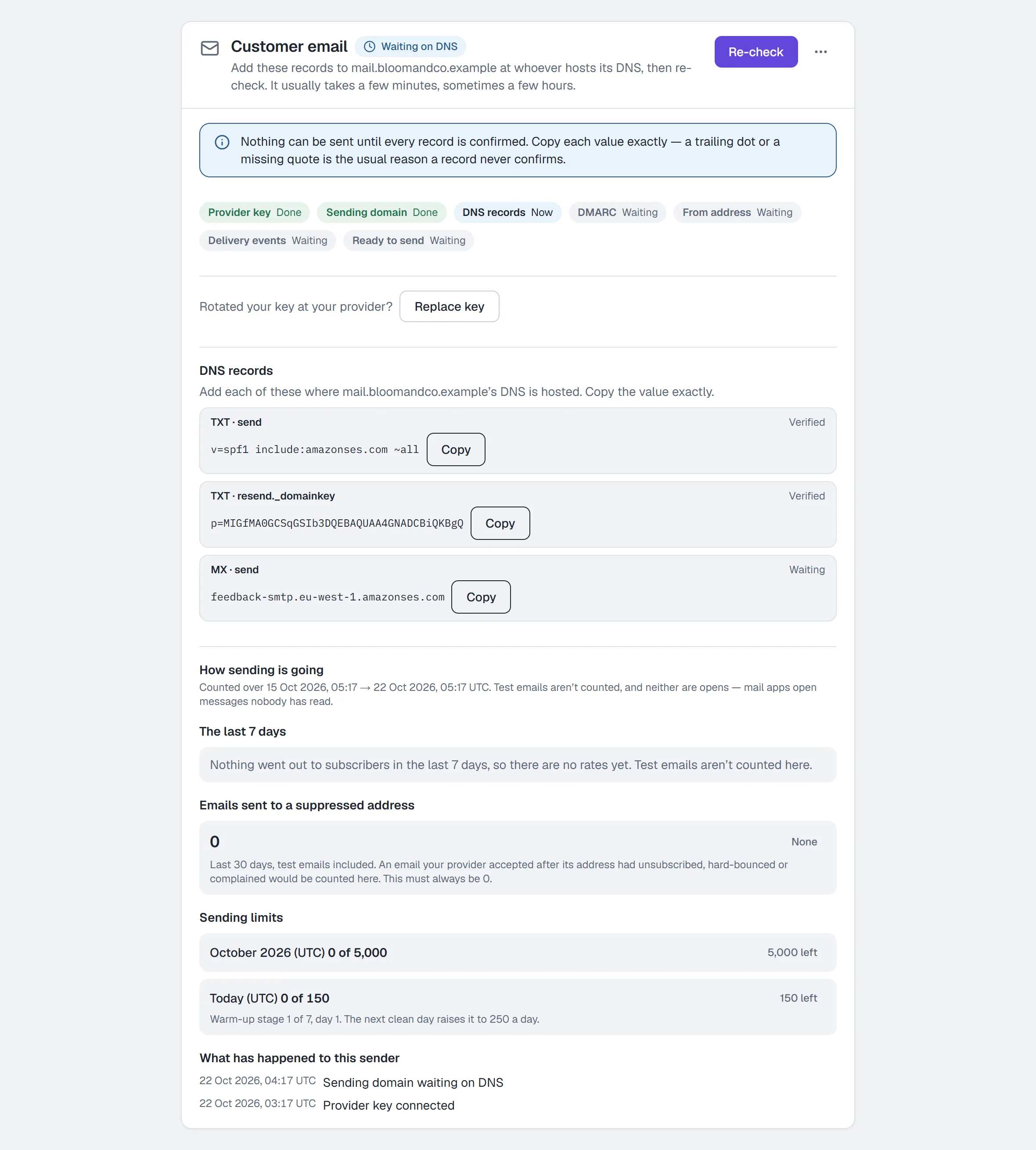
From the delivery-events step on, the owner sets the Monthly limit (Save limit) — the most emails this workspace may send in a calendar month. Nothing sends until one is set. That is deliberate: it means a mistake costs you a stopped campaign rather than a bill.
Once it says Ready, the card shows today's sending limit and which day of the warm-up you're on. A new domain starts at 150 emails a day and earns a higher limit each clean day. A connected card also offers Replace key for a key you rotated, and Reconnect delivery events if bounces or unsubscribes stop arriving. At the bottom, How sending is going shows the last 7 days — your hard-bounce and spam-complaint rates next to the 2% and 0.05% lines where sending pauses, how much of this month's limit and today's limit is used, how many emails reached someone who had already unsubscribed or bounced (it should always be 0), and the sender's history. Your own test emails aren't counted in the rates. If either rate reaches its line (with at least 200 emails accepted that week), sending pauses: the badge says Paused and the card says which one; Resume sending asks you to tick a box confirming you've looked at why.
More actions (⋯) → Disconnect asks you to type your sending domain, then stops sending, cancels every email campaign that hasn't finished, removes the delivery updates at your provider and deletes the key. Your templates, your sending history and your unsubscribe list all stay — disconnecting never forgets who asked you to stop.
Owners and admins only; the monthly limit is the owner's alone (it needs the billing permission). Everyone else sees the card and How sending is going without the controls. The full walkthrough is Set up email from your own domain; writing and sending is Write and send an email.
Agent knowledge
A shortcut card: "Paste your FAQs and policies, add a link, crawl your site, or sync Shopify — whichever you have." Manage knowledge takes you to Agent → Knowledge.
Keywords
The opt-out and opt-in words that override every automation you build.
The built-in STOP (opt out) and START (opt in) always work — this card adds your own words on top. By default both lists are empty; words like UNSUBSCRIBE, PAUSE or RESUME only take effect if you type and save them.
- Opt-out keywords — comma-separated. A match revokes consent: no more automated replies.
- Opt-out reply (optional) — what to send when someone opts out.
- Opt-in keywords — a match re-grants consent.
- Opt-in reply (optional).
- Click Save keywords.
Keywords need manage_automations — owner, admin or agent.
On text messages (SMS), STOP, START and HELP are handled for you — including STOP in other words, like "please stop texting me" or "no más", which opts the number out at once. Your own opt-out keywords opt a number out of texts too. Your opt-in keywords do not re-subscribe a number that opted out of texts — only START can — and otherwise they are ordinary messages, so an automation listening for them still runs. When someone opts out in their own words, HyperDM sends one confirmation, using your Opt-out reply if you set one.
Main menu
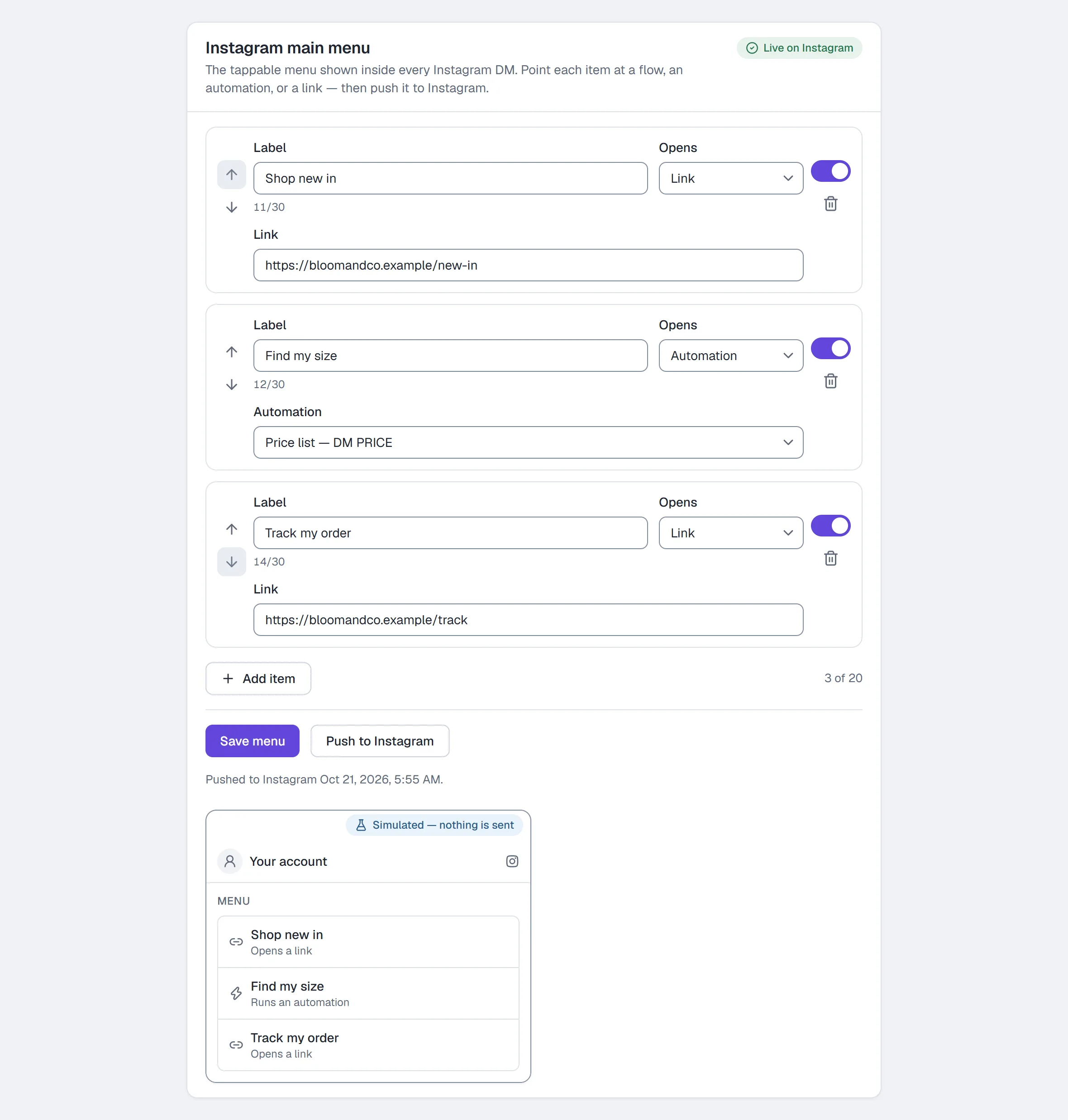
The persistent menu on your Instagram profile's DM surface.
- Click Add item.
- Give it a Label (e.g.
Shop now) — up to 30 characters, counted under the field. - Choose what it Opens: Link (a URL), Flow, or Automation, then the link or the live flow or automation. A Shopify checkout follow-up isn't offered as a Flow target — only a Shopify checkout starts one — and Save menu refuses a menu that still points at one.
- Reorder with the up and down arrows on the item (Move “Shop now” up to a screen reader); switch an item off with its Show switch; remove it with the bin (Delete “Shop now”).
- Click Save menu — saving also pushes to Instagram automatically (best-effort); the card shows "Pushed to Instagram" with the time, or the push error.
- Push to Instagram re-sends the saved menu — use it after a failed push. While you have unsaved changes it waits, and says so: Save first, then push.
The counter reads N of 20 (N of 3 on Free — Free shows 3 items; paid plans show 20); at the limit Add item says why it can't add another.
The chip in the card's header says where the menu stands: Unsaved changes, Pushing…, Push failed, Not on Instagram yet (no Instagram connected — there is nowhere to push), Saved · not pushed, or Live on Instagram.
Beside the editor (under it on a smaller screen) a preview shows what a customer sees: your Instagram handle and the menu as it stands on screen, saved or not — each switched-on item with what tapping it does, and a long label cut short the way a phone does. It is simulated: nothing in it sends, saves or pushes. With no items it reads "No menu items yet — customers see no menu".
Commerce
Stripe, for selling in the DMs. Owner only — this guards your Stripe secret key.
Connect Stripe
- Paste your Secret key.
- Save. The card shows Connected and whether you're in Live mode or Test mode.
Revenue webhook
So HyperDM knows when an order is paid:
- In Stripe: Dashboard → Developers → Webhooks → Add endpoint.
- Use the endpoint URL shown on this card.
- Subscribe it to these events:
checkout.session.completedcheckout.session.async_payment_succeededcharge.refunded
- Copy the endpoint's signing secret and paste it into Webhook signing secret here.
- Click Save webhook secret.
Until this is done, revenue attribution and the Revenue tiles stay empty.
Hotmart
Where Hotmart is turned on for your workspace, this tab also has a Hotmart card — for starting flows when Hotmart reports a purchase or an abandoned checkout. Unlike Stripe, owners and admins set it up; everyone else can read it. The full walkthrough is Start flows from Hotmart purchases.
- Click Set up Hotmart and copy the webhook URL into Hotmart's webhook settings (version 2.0.0).
- Paste your Hotmart hottok and click Save. The card shows only a fingerprint afterwards.
- Send a test event from Hotmart. The badge turns Verified and Events Hotmart has sent ticks what arrived.
- It starts in test mode: events are recorded and previewed under Recent events, and nothing is sent. Switch to live when the matches look right.
Create a new URL and a replaced hottok keep the old one working for 24 hours. More actions (⋯) → Disconnect refuses events at the old URL, erases the hottok, cancels flows waiting to start and keeps past events.
Integrations
Send contacts from your flows to Flodesk, HubSpot, ActiveCampaign, Klaviyo, Mailchimp or Kit, and — where it's turned on — report your conversions to your own Meta dataset (Meta conversion reporting). The tab appears only where integrations or Meta conversion reporting are turned on for your workspace — or where Meta conversion reporting was switched off while your dataset is still connected; with only Meta conversion reporting, it holds just that card. Every role can see it; only owners and admins can connect or disconnect, and anyone who can edit automations (owner, admin, agent) can read and retry the runs.
Each card says, in words, where that integration stands:
| Badge | Means |
|---|---|
| Connected | HyperDM can write to the account named under the badge. |
| Needs reconnecting | The provider stopped accepting HyperDM's access — the key was deleted, the app was removed on their side, or a permission was taken away. Flow steps that use it don't run until you reconnect; runs waiting from the last day resume when you do. |
| Disconnected | You disconnected it. Flow steps set up for it don't run. |
| Not connected | Ready to connect. |
| Setup needed on HyperDM's side | This provider connects through its own sign-in, and HyperDM's app for it isn't registered yet, so it can't be connected. |
| Not available yet | Not offered in your workspace yet. |
Open What … gets, and what it never does on a card to see exactly what that integration writes, when it subscribes someone, and what happens to people who unsubscribed there.
Connect Flodesk or ActiveCampaign
- Open Settings → Integrations and find the card.
- Paste the API key (for ActiveCampaign, also the API URL from ActiveCampaign's Settings → Developer, like
https://youraccount.api-us1.com). Where to find this opens the provider's page. - Click Connect Flodesk or Connect ActiveCampaign. HyperDM checks the key with the provider first; if it's refused, nothing is saved and what you typed stays so you can fix it.
Connect HubSpot, Klaviyo, Mailchimp or Kit
- Click Connect with HubSpot (or Klaviyo, Mailchimp, Kit).
- Sign in on the provider's page and approve HyperDM's access. Allow every permission it asks for — if one is missing, the connection is refused and the tab says so.
- You come back to Settings → Integrations with the result at the top.
Check, reconnect or disconnect
- Check connection asks the provider whether HyperDM's access still works. If you fixed something on the provider's side, Check again on a card that needs reconnecting brings it back — and any runs from the last day that were waiting on it start sending again, which the confirmation counts for you.
- Reconnect uses the same key form or sign-in as connecting. Reconnecting to a different account marks every flow step that used the old one for review, because its lists and fields belong to the old account.
- More actions (⋯) → Disconnect asks first and names how many flow steps use it. It deletes HyperDM's access, stops runs that were waiting, and changes nothing already in the provider. Flow steps keep their setup, so reconnecting brings them back.
Recent runs
Open Recent runs on a card to see what happened each time a flow reached one of its steps: Done, Skipped (for example, the contact had no email, or unsubscribed in the provider), Not run (the connection needed reconnecting, or the step needs review), Waiting (the provider asked HyperDM to slow down, or didn't answer — it retries on its own) or Failed. Click Retry on a failed or not-run run to send it again — a retry never creates a second contact or tag.
Meta conversion reporting
Where it's turned on for your workspace, this tab has a Meta conversion reporting card: it sends the leads and purchases HyperDM records — leads your automations or the AI capture, Stripe payment link purchases, Shopify orders, Hotmart purchases and a flow's Send Meta CAPI event step — to your own Meta dataset through Meta's Conversions API. It's on the paid plans. Owners and admins connect, test, switch events on and off, retry and disconnect; only the workspace owner confirms who may be reported; everyone else can read the card. The full walkthrough is Report conversions to Meta.
The card is five steps, each marked Done, To do, Waiting, Blocked, Not yet or Active:
- Connect your dataset — paste the Dataset ID and a Conversions API access token from Meta Events Manager (Settings → Conversions API → Generate access token) and click Connect dataset. If it doesn't connect, the Dataset ID stays and the token field is cleared — paste the token again.
- Review what is sent — a table of every event: its Meta event, where the value comes from, the identifiers (a hashed email and/or phone number and a hashed HyperDM contact reference, only when an email or phone number is known — never message text, names or products), its action source and who is included, and under it the event ID each event carries and a purchase's order ID. A Stripe purchase — and a Shopify order that didn't come from a HyperDM checkout link — is reported for a contact only when they are the one contact whose DM link to that product was tapped in the 7 days before the payment (whoever tapped it), and no link to that product was tapped without being tied to a contact; otherwise it's recorded but not sent. Only product links count (Send product in a flow, Send a product in the inbox, the AI agent's product cards and product links). A Hotmart subscription is reported for its first payment only, never a renewal (which contact a purchase is reported for). The owner then chooses Only contacts whose yes/no field says yes or Every contact, ticks the confirmation and clicks Confirm. Changing the rule later applies from then on: widening it never sends a conversion the earlier rule held back.
- Send a test event — save the Test event code from Events Manager → Test events, then click Send test event. Meta counts test events as real events in your dataset. Only an event Meta accepts verifies the connection.
- Switch events on — each Report: switch is off until you tick it, and applies to conversions that happen from then on — a purchase made before is never sent, even if Stripe, Shopify or Hotmart tells HyperDM about it later. Shopify order and Hotmart purchase also need I understand this can count a purchase twice, because your store may already send the same purchase.
- Monitor deliveries — the last 30 days' totals (among them Possibly received twice by Meta: deliveries Meta accepted after more than one attempt) and each recent delivery's status and reason, with Retry where the reason can be fixed; then Change history — the latest changes to the connection, who made each and when, kept after you disconnect.
| Badge | Means |
|---|---|
| Not connected | No dataset connected yet. |
| Not verified | Connected, but Meta hasn't accepted an event with this token yet — send a test event. After any reconnect it reads this again. |
| Verified | Meta accepted an event sent with this token. Nothing is reported until you switch an event on. |
| Reporting | Verified, confirmed, and at least one event switched on. |
| Reconnect needed | Meta stopped accepting the token or lost access to the dataset, or HyperDM couldn't open the saved token. Reconnect with a token from Events Manager; events that were waiting resume until they're 7 days old. |
| Disconnected | An owner or admin disconnected it. The delivery history and the change history stay; each switch that's on reads On — resumes once you reconnect this dataset and send a test event, and nothing that happens while disconnected is ever sent. |
| Not on your plan | Reporting is on the paid plans — See plans. A switch left on reads On — paused while reporting isn't on this workspace's plan, and nothing is sent. You can still switch events off and disconnect. |
| Switched off | HyperDM switched reporting off for your workspace while your dataset is still connected, and nothing is sent to Meta. A switch left on reads On — nothing is sent while reporting is switched off: what it records may be sent once reporting is back, for up to 6 days and 20 hours after it happened, so switch it off if you don't want that. Owners and admins can switch events off and Disconnect — nothing else shows until reporting is back (more). |
| Unavailable | The card couldn't be loaded, so nothing is shown as connected and nothing was changed — Try again. |
More actions (⋯) → Disconnect asks you to type the dataset ID, deletes the stored token and stops every event still waiting, then reports what it stopped — for example 3 events stopped · up to 1 was already on its way. Nothing in your Meta dataset is changed.
AI model providers
Coming soon. AI model steps aren't switched on for workspaces yet, and until they are for yours this section isn't shown. Where they are, this tab has an AI model providers section — and the tab appears for it even where CRM and email tools aren't on; with both on, a short note at the top says which section is which.
Here you connect your own ChatGPT (OpenAI), Claude (Anthropic) or DeepSeek account for the flow builder's Ask an AI model step. You bring your own API key: each provider bills your account directly, at its own prices, for what your steps use. HyperDM charges nothing for these steps, and HyperDM's own AI agent never uses these keys — its replies never count toward these limits.
| Badge | Means |
|---|---|
| Connected | The provider accepted the stored key. Steps on it can run once a monthly token limit is set (below) — without one, they read No token limit and don't run. |
| Needs reconnecting | The provider stopped accepting the key — it may have been revoked, limited to certain IP addresses, or lost a permission — or HyperDM can no longer read its stored copy. The line under the badge says which. Steps on it take their Didn't work branch until you reconnect. |
| Disconnected | HyperDM deleted the stored key. Steps on it take Didn't work until you connect again. |
| Not connected | Ready to connect. |
| Not available yet | Not offered in your workspace yet. Steps on it don't run, and nothing of it is deleted. |
Each card also says what HyperDM sends — the instruction you write on each step and only the inputs you choose on it, nothing else from your workspace — who bills, a link to the provider's data policy (or a dated quote from it), the account the key belongs to, how many models the key can use and when that was checked, and this month's tokens, runs, requests not sent because of the limit, and the cost estimate — "price not known" once a step or a test has run on a model HyperDM has no dated price for (with none yet this month, it reads ≈ $0.00).
Owners and admins connect, check and disconnect. Only the owner sets the monthly token limit. Owners, admins and agents can open Recent runs. Everyone else reads the cards.
Connect ChatGPT, Claude or DeepSeek
- Open Settings → Integrations and find the provider's card under AI model providers.
- Click Where to create a key to open the provider's page, and create an API key there. For OpenAI, a key with restricted permissions needs the Models permission.
- Paste it into the API key box on the card (for example OpenAI API key) and click Connect ChatGPT (OpenAI), Connect Claude (Anthropic) or Connect DeepSeek. The button reads Checking with the provider… while HyperDM checks the key with the provider.
- If the provider refuses it, nothing is saved, what you typed stays in the box, and the reason is shown under it. If it accepts it, HyperDM stores the key encrypted and never shows it again, and the card turns Connected.
Set the monthly token limit
Owner only. On each provider's card, Monthly token limit: type a whole number into Tokens per calendar month on the provider (from 1 to 1,000,000,000; 1,000,000 is fine) and click Save limit. The box shows a suggested starting number, and the line under it shows this month's use so far.
- With no limit, no step runs and no test is sent ("No limit set — steps won't run until one is").
- The limit counts the tokens every step sends and receives on this key, per calendar month (UTC). A step that would go over it isn't sent and takes its Didn't work branch. Tests count too.
- Lowering it below what's already used this month is allowed: steps on that provider stop until you raise it or the month ends, and nothing already used is undone.
- If someone else saved a moment before you, theirs is shown and your value stays in the box.
- Everyone else reads the limit in words, with "Only a workspace owner can set the monthly token limit."
Check, reconnect or disconnect a provider
- Check connection asks the provider whether the stored key still works and refreshes the list of models: "OpenAI accepted the stored key." or "… didn't accept the stored key — reconnect it to keep steps running." If HyperDM can no longer read its own copy of the key, nothing is sent to the provider and the card says "HyperDM can no longer read the stored key — paste it again to reconnect."
- Needs reconnecting: paste a key again and click Reconnect (for example Reconnect ChatGPT (OpenAI)), or click Check again if you fixed it at the provider. If the key belongs to a different account and HyperDM can tell, every step that used the old one needs review.
- To replace a key that still works, More actions (⋯) → Disconnect, then connect the new one.
- More actions (⋯) → Disconnect asks first and says how many flow steps use the provider. HyperDM deletes its copy of the key; nothing changes at the provider (you can delete the key there too). The steps keep their setup and take Didn't work until you connect again.
- If a provider, or AI model steps as a whole, are switched off while HyperDM still stores your key, its card stays and reads Not available yet with Disconnect as its only button, so you can always delete the key.
Recent runs on a provider
Open Recent runs on a card to see the last five runs and tests on that provider: Answered, Didn't work, Retrying or Running, which flow and step, when, how many attempts, the reason in words, the tokens and the cost estimate — never the instruction, the inputs or the answer. Setting up a step is in the flow builder — see Ask an AI model in a flow.
API & webhooks
Connect HyperDM to Zapier, Make, n8n or your own code. Owners and admins — everyone else sees who can. The tab appears only where API keys and webhooks are turned on for your workspace; it isn't on for every workspace yet.
Zapier today. HyperDM does not have its own app in Zapier's app directory — nothing has been submitted. You connect with Zapier's built-in Webhooks by Zapier steps instead, and the Zapier and webhooks card at the top of the tab says so and shows your API address.
Create an API key
A key lets another app act on this workspace. Make one per app, so you can revoke one without breaking the others.
- Click Create API key.
- Give it a Name — what uses it, for example "Zapier: new leads".
- Under Permissions, tick only what that app needs:
- Find contacts — look a contact up by id, username, phone number or a field value.
- Update contact fields and tags — on contacts that already exist. It can't create contacts, change who has given permission, or send anything.
- Start automations — start a live automation for one contact who can be messaged right now.
- Subscribe webhooks — for an app that adds its own endpoints.
- Click Create key, then Copy the key. It's shown once — HyperDM keeps only a fingerprint of it. Click I've saved it.
Each key shows its permissions, when it was created and when it was last used, and for what. Up to 10 keys per workspace.
Revoke a key the moment you stop using it or think it has leaked. Its very next request is refused, and any endpoints it added are turned off.
Send events to Zapier (webhook endpoints)
- In Zapier, start a Zap with Webhooks by Zapier → Catch Hook and copy its URL.
- Here, click Add endpoint. Give it a Name, paste the URL (it must start with
https://), and tick the Events to send:- Contact created — someone new messages you, is imported, or is added by hand.
- Contact updated — a contact's name, permission, tags or field values change. Several changes close together arrive as one event.
- Automation step — an automation reaches a Send to webhook step that names this endpoint (see Flow builder).
- Click Add endpoint. Copy the Signing secret — shown once — if your receiver checks signatures.
- Pick a Test event and click Send test. HyperDM sends a made-up sample (no real customer) and tells you what the endpoint answered. In Zapier, use it to set up the rest of the Zap.
Each endpoint says in words whether it's active, paused or turned off (and why), and when it last delivered. Its buttons:
- Edit — change the name, URL or events. If someone else changed it while you were editing, your changes stay in the form and you see what's saved now; Save my version saves yours over it.
- Pause / Resume — pausing cancels the events waiting for it.
- New secret — the old secret stops signing right away, so update your receiver.
- Delete — no more events are sent, waiting ones are cancelled, and automation steps that named it stop sending. Its history stays in the log.
HyperDM only sends to public addresses — never to a private network. An endpoint that answers 410 Gone is turned off; one that fails 25 events in a row is paused.
Change contacts or start an automation from Zapier
- Create a key with Update contact fields and tags or Start automations.
- In Zapier, add a Webhooks by Zapier → POST action to your API address followed by
/contacts/updateor/automations/start. - Add the header
Authorizationwith the valueBearerfollowed by a space and your key, and send the details as JSON.
A repeat of the same request a few minutes later — a retry after a timeout — is answered once, so an automation is never started twice by accident. Nothing sent this way can give permission to message someone, start a draft, or get past your plan's conversation limit.
If a start answers first_message_refused saying HyperDM couldn't confirm whether its first message reached them (WhatsApp didn't confirm it in time), the message may have arrived, and HyperDM never sends it a second time. Check the conversation before you run the Zap again — a new run of the Zap is a new start, and its first message would go out again.
Delivery log and API changes
- Delivery log — every event sent to an endpoint (filter by Endpoint), whether it was delivered, and why not in one sentence. Open Delivery id and attempts for each try. A busy endpoint is tried again after 1 minute, 5 minutes, 30 minutes, 2 hours and 6 hours, then stops; Retry sends a failed one again. The endpoint's reply is never stored.
- API changes — every contact update, automation start and webhook subscription made with a key, and what happened.
Both are kept 30 days.
Logs
What failed in this workspace, how often, and what to do about it. Owners and admins — everyone else sees who can. The tab appears only where the error log is turned on for your workspace; it isn't on for every workspace yet.
Log lists each failure once with a count: a message that didn't send, a flow step that stopped, a webhook delivery that failed, an integration or Google Sheets run that failed, an API request that was refused, and a connection that was lost. Each entry shows its level, where it happened (and on which channel), how many times, when it last happened, and one line on what to do.
- Level — Critical: sending or a connection has stopped, so fix this first. Error: something didn't go through, and HyperDM won't try it again. Warning: something went wrong, but HyperDM is retrying or working around it. Info: something recovered, such as a lifted restriction; nothing for you to do.
- Filter with Level, Source, Channel and Time range (Last 24 hours, Last 7 days or Last 30 days). The filters are part of the page address, so you can bookmark or share a filtered view with a teammate. The counts above the list show how many entries each level has in that view.
- Load more shows the next 50. If something new happened since the page loaded, a note offers Refresh.
- Select an entry's title to open it. The panel shows what to do, how often it happened, when it was first and last seen, and any numbers that help (such as the response code or the attempt number). Its links go to where it happened: Open the automation, Open the contact, and the delivery log or Integrations page the failure came from. For a failed webhook delivery or integration run, Retry tries it again and tells you whether it was accepted, or why it can't be (say, the integration needs reconnecting first); other entries have no Retry. The panel's address can be shared with another owner or admin of the workspace. If an entry can't load, the panel says Couldn't open the entry: try again in a moment. It only says Entry not found when the entry is no longer in the log.
- Email alerts at the top of the page opens the switches that decide which entries are emailed to you — see Error log emails.
- A red count on Logs in the menu shows how many critical and error entries arrived since you last opened the unfiltered log (9+ past nine). When the Settings section is closed, a red dot on Settings shows instead, and on a phone a red dot on More. Opening Logs with no filters clears it straight away — unless the time range you chose hides one of those entries (an older one than Last 24 hours shows, say): then the page says so and offers Show the last 30 days, so nothing unseen is ever cleared.
Restrictions is the history of Instagram, Facebook and WhatsApp limiting, blocking or warning an account, and of those restrictions being lifted. Where the platform gave a reason, it's shown under In the platform's own words, exactly as they wrote it. It shows the latest 100 events and says so when there are more.
Entries are kept for 30 days, and restriction history for a year. The log records what failed and where — never a message's text, a customer's name or a password.
Billing & usage
- Your current plan and usage against the cap.
- Upgrade (on Free) — opens the plan picker over the page rather than sending you out to the public pricing site, and goes straight to Stripe Checkout.
- Change plan (when you already have a subscription, Pro included) — opens the same picker as Change your plan: Starter, Growth and Pro, smaller plans too. Switch to {plan} shows what will happen before anything changes — a bigger plan starts at once and your card is charged for the change; a smaller plan, a move from annual to monthly billing, or your own plan switched to annual billing starts when the current period ends with nothing charged and no credit — then Confirm and pay or Schedule the change. A scheduled change can be undone with Keep {plan} on your current plan's card. It's not offered during a Growth trial, while a payment is past due, while billing is paused, or once the subscription is set to cancel; the picker says which. You are never charged for two subscriptions at once. Step by step: Change plan.
- Manage subscription / Open billing portal for invoices and payment method, and for cancellation too (where the tab has its own Cancel subscription, the portal may leave Cancel out) — not for changing plan, which is Change plan above. See Plans and billing for the other ways to reach the picker.
- What happens at the cap: "On Free, new automated conversations stop at your monthly allowance until the next month starts (UTC) or you upgrade to a paid plan. Nothing past the allowance is billed. Conversations already open follow their own rules." That is also why Free has no Overage protection toggle: the stop can't be turned off. If you had turned Overage protection on before, the line says so: it applies again once you're on a paid plan, where you can turn it off here in Billing & usage. If your plan couldn't be read just now, the line says so instead of naming a stop or a price. While billing is paused it says new conversations stop at the Free allowance until the next month starts or billing resumes — on the date in the paused banner, or when you click Resume billing. On your agency's Free plan it names the shared allowance and the agency's plan instead of an upgrade of your own. On paid plans, conversations past the cap are metered at $0.05 each, unless… (During a Growth trial the tab quotes no overage price for the trial itself, only from your plan's first charge — see the trial below.)
- Overage protection (paid plans only) — a toggle: "Pause new replies at your cap instead of billing a surprise." On, new conversations stop at your plan's included allowance. Off, new conversations past it can keep going, billed at $0.05 each on a paid subscription — unless something else stops them first: your monthly ceiling, a failed payment, or HyperDM's credit limit. On a credit or a plan HyperDM set for you nothing past the cap is billed, and during a Growth trial it reads just "Pause new replies at your cap." (see the trial below).
- Pause billing — while paused you aren't charged and nothing is deleted, but the workspace runs on the Free allowance (cap and channel limit) until you Resume billing. Not offered during a Growth trial.
- On the 14-day Growth trial, the plan line reads "Growth trial · ends {date}, then $49/mo ($492/yr if you chose annual billing) — first charge on {date}" instead of a renewal date: Growth is first charged the day the trial ends, and renews on that date from then on. Your allowance still resets on the 1st (UTC), not on the trial's end date, and the usage line says so. Where a paid plan states its overage price, the tab says instead that during your trial replies keep going past your included conversations unless Overage protection is on — no overage price is quoted for the trial itself — then that from your plan's first charge each conversation past your cap is $0.05. Typing a Monthly ceiling above your cap during the trial shows how far replies go, not an overage amount. To stop before it ends: click Cancel subscription if the tab has it, otherwise Manage subscription and cancel in the Stripe portal, and the line reads "Growth trial · cancels on {date} — you keep Growth until then"; the Growth price is never charged. See the 14-day Growth trial.
- If a payment failed: "Your last payment didn't go through" plus Update payment method.
- On Free, a note about the "Powered by HyperDM" badge shown on every reply, and the 3-item Instagram menu limit (20 on a paid plan).
If you claimed a Pro credit from an emailed link, a Pro credit card (marked Credit) sits above your plan: "Pro credit · ends {date} at {time}" in your workspace's timezone, how many days are left ("29 days left", then "Ends tomorrow at …" and "Ends today at …") over a bar of the days used, what happens on that date, and "No overage is billed on a credit — there's no card on file." For the owner it also shows a button per paid plan — Starter, Growth and Pro, each with its monthly price — which goes to Stripe Checkout; choosing one starts your subscription that day, and the rest of the credit doesn't carry over. Billing starts that day too, unless choosing Growth started your 14-day trial — you come back to "Card saved — your 14-day Growth trial has started" — and then Growth is charged when the trial ends. While the credit runs, Pause billing, Manage subscription and the renewal date aren't shown (there is no subscription to pause, manage or renew), and the usage line resets on the 1st of the month. The Overage protection toggle is hidden too, because nothing past the cap is billed — unless you had already turned it on: then it stays, since it still pauses replies at your cap, and you can turn it off there. After the end date the card reads "Pro credit · ended {date}" for up to an hour, until the workspace is back on Free. See "If you received a Pro credit link" in Plans and billing.
At the top of the tab:
- Your plan says where it comes from — "Paid — renews {date}", "Cancels on {date} — you keep {plan} until then", "Cancelled on {date} — you're on Free", "Growth trial · ends {date}, then $49/mo ($492/yr if you chose annual billing) — first charge on {date}", "Set for your workspace by HyperDM", "Paid by your agency", or "Free" — and Manage subscription appears only when there is a subscription you can manage.
- Usage in conversations — "312 of 2,000 conversations this month · as of 2:04 PM" — then "Counts per calendar month (UTC) — resets Oct 1." with your renewal date on its own line.
- What happens past your included conversations, and, when something will stop replies, the stop point: "Replies stop at 2,100 this month — your ceiling."
- On Starter or Growth paid by your own subscription, while it is active and on the plan's standard allowance, with Overage protection off and overage not paused by your credit ceiling, where the next plan up gets cheaper than overage: "Past 1,100 conversations in a month, Growth costs less than Starter plus overage." (on Growth: past 3,000 conversations, Pro costs less than Growth plus overage). It compares both plans on the same billing interval, so it holds whether you pay monthly or annually. Upgrade is on the same card.
- AI-assisted conversations, last on the same card, on Starter, Growth, Pro and Agency: a second bar and "312 of 500 AI-assisted conversations this month" — the month and the reset are the same as for your conversations. On a workspace your agency pays for, it is the agency's pooled figure: "1,204 of 3,000 AI-assisted conversations this month · shared with your agency's other clients". The agency's owner sees the same line. What counts: "An AI-assisted conversation is a conversation the AI agent opens or answers directly. It is a subset of your plan's conversations, never an extra one. A keyword automation's or a flow's conversation is not AI-assisted, even when that flow contains an AI step." On Free there is no separate number — Free's AI-assisted conversations are simply its conversations, whatever your conversation cap is, and also when your agency pays for your workspace while its plan is Free — so there is no smaller, separate AI conversation-count allowance. Other payment, consent, delivery and monthly AI safety guards still apply. The same card says "AI agent on every conversation — no separate AI-assisted allowance on Free."
- When they're used up, a line under that bar: "This month's AI-assisted conversations are used up. Automations and your Inbox keep working; this conversation-count allowance resets on Nov 1 (UTC). AI credits extend this conversation-count allowance; other account limits may still pause replies." The date is the 1st of next month. "AI credits" appears on every paid plan you pay for yourself — Buy AI credits is just below. Upgrade on the same card on Starter and Growth moves you to a plan with more conversation units, once active. A separate monthly AI safety pause does not lift when you buy conversation credits. The count-stop line shows only while the workspace holds no credits: with a balance, the agent spends a credit instead of refusing this count reservation. Only new conversations are affected: one the agent already has open carries on. This line is the only place the tab says they're used up, and it goes away as soon as they aren't — after an upgrade, for example. On a workspace your agency pays for, the line says your agency's workspaces share the allowance — ask your agency. If you own the agency, you see that same line: the allowance is shared by every workspace your agency pays for, and that conversation-count allowance resets on the 1st; other account limits may still pause replies. If your conversations themselves are stopped, the stop point above says so instead, because then automations pause too.
- AI credits, just below, on every plan: "AI credits: 200 remaining · Buy 100 for $10" — the pre-paid AI-assisted conversations this workspace holds (see Buying AI credits). While it holds any, the bar's line ends with them too: "312 of 500 AI-assisted conversations this month · 200 credits". On a workspace that pays for its own plan, the owner buys them here:
- Pick how many in the list under the line, from "100 credits — $10" to "1,000 credits — $100".
- Click Buy AI credits. Stripe Checkout opens with the amount; pay there.
- Back on this tab, the balance updates once Stripe confirms the payment — refresh if it hasn't yet.
Under the list: "One credit is one AI-assisted conversation past your plan's monthly number — spent only once those are used up. Credits don't expire." Everyone else sees the balance and "Only the workspace owner can buy AI credits." On Free the list and Buy AI credits are there but greyed out, with "Credits are used once your plan's AI-assisted conversations are used up." — on Free a credit could never be spent. On a workspace your agency pays for there's no buy control: "Your agency buys AI credits for this workspace."
- Invoices & payment method says honestly whether there are any: in your Stripe portal, "No subscription yet — your card details are saved in Stripe", "This plan was set for your workspace by HyperDM — there's nothing to invoice", or "Your agency pays for this workspace." Where there is a portal, Open billing portal opens Stripe's billing portal in the same tab — you come back to this tab when you're done. Before your first upgrade the row shows No invoices yet.
- Monthly ceiling — see Plans and billing.
- What stopped replies this period — each limit that stopped new conversations this month, how many, when, and what to do; "Nothing has stopped a reply this period." otherwise. When your AI-assisted conversations paused the agent, that row is a record of what happened: "The AI agent was paused by this month's AI-assisted conversation allowance", with how many new conversations got no automated reply and when. It stays for the rest of the month, even after an upgrade; the AI-assisted conversations part of the card above says whether the agent is paused now.
Full plan detail: Plans and billing. Owner only.
Refer & earn
Give a free month, get a free month — both sides qualify on the referred workspace's first paid invoice. The store you referred gets a month of account credit. You get a free month too: on Free, a month of Pro — your workspace moves to Pro straight away and back to Free 30 days later (each referral adds another month; anything Free doesn't include is paused, never deleted, when it ends) — and on a paid plan, a month of account credit valued at your plan price, floored at Starter ($19) and capped at Growth ($49), that applies to your next invoice automatically. Self-referrals (shared workspace members, same customer, card or billing email) don't qualify.
- Copy Your referral link.
- Share it.
- Track Referred, Became customers, Credit earned and Pending on the card.
- Read any qualified-reward notice below the stats. A reward that would exceed $588 in total banked invoice credit waits in full until there is room. Credit earned includes recorded credit only; provider uncertainty needs reconciliation or support. If a fact says Unavailable, refresh Settings to check again.
Partner program
Below the referral card, Partner program is the cash program for creators, educators and agencies with an audience. You share your own discount code, and you earn 30% of what each customer who pays with it spends on their plan, for 12 months (your approval can set a different rate). It is for workspaces on a paid plan: on Free the card asks you to upgrade first. Only the owner can apply or change the payout details.
- While applications are open, fill in Your name or brand, Where you post, Get paid by (PayPal or Wise) and Payout email, tick I accept the partner terms, and select Apply. While the program is invite-only, the card says so instead.
- Once you're approved, select Copy code beside Your code and share it. A customer counts for you when their first paid invoice uses it.
- Track Customers, On hold, Ready to pay and Paid to you, and each payment's status (On hold until a date, Ready to pay, Paid or Refunded) in the table.
- To change where you're paid, select Change beside Payout details, then Save.
- Before your first payout, select Add beside Tax details: your Legal name, the Country you pay tax in and, in Australia, your ABN (anywhere else, tick I'm not an Australian resident for tax purposes). Select Save. We check them before paying you; changing them means we check them again.
Share Your link (select Copy link) rather than just the code: anyone who opens it gets your code applied at checkout without typing it.
Each commission is held 30 days in case the payment is refunded, then it's ready to pay. Payouts go out once a month by PayPal or Wise when you have $50 or more ready. A customer who uses your code doesn't also earn a refer-a-friend month, and you can't earn on your own workspaces. The full rules are the Partner Program Terms.
We email the workspace owner (never your payout email) when your application is received and decided, when your first customer pays, when $50 or more is ready to pay (or when we need your tax details first), when we send a payout, when a refund takes money off your balance, when your payout details change, and once a month with last month's summary. Reply to any of them and it reaches us.
Team & roles
Invite a teammate
- Enter their Email, e.g.
teammate@yourbrand.com. - Choose a Role — Admin or Agent (Client appears only where the client role is enabled for the deployment; Editor and Viewer only where they're turned on for your workspace). Owner cannot be invited; ownership comes from creating the workspace.
- Click Create invite.
- Copy link on the pending invite and send it to them.
Owners may invite every role but Owner. Admins may invite the roles below them — editors, agents, clients and viewers. Anyone else sees the form and Create invite greyed out, with the reason: "Only owners and admins can invite, remove or revoke teammates."
Members and pending invites
Two lists. Each member shows their role and when they joined; each pending invite shows its role and how long ago it was sent ("Invited 3 days ago").
- Remove on a member's row asks first — "Remove {email}?" with what happens — and removes them only when you click Remove member.
- Revoke on a pending invite asks first too, and the link stops working when you click Revoke invite.
A workspace must always keep at least one owner. If you can't manage the team, Remove and Revoke are greyed out with the same reason as the invite form.
Change a teammate's role
Where Editor and Viewer are turned on for your workspace:
- On the teammate's row under Members, click Change role.
- Pick the new role — one you can't give is greyed out with the reason.
- Click Change role in the confirmation.
The new role applies the next time they load a page. Owners change anyone but the owner; admins change only the roles below admin, to roles below admin; nobody changes their own role; a teammate your organization placed keeps the role it gives them. Walkthrough: Give teammates the right role.
Join link and requests to join
Where join links are turned on for your workspace, owners and admins see two more lists on this tab: Join link and Requests to join.
- Under Join link, click Create join link.
- Click Copy link and share it wherever your team will find it. The link itself is never shown on the page.
- To stop the old link working — say it was posted somewhere public — click Replace link, then Replace link in the confirmation, and share the new one.
Anyone with the link can ask to join, with an optional note. Nobody gets in until an owner or admin approves them, and the owner gets an email for each new request. Under Requests to join, each request shows the person's email, when they asked and their note:
- Pick a role in the role box on their row. Choosing a role other than Agent is on Pro and up.
- Click Approve — they're in, with that role, and they use a seat. Or click Decline, then Decline in the confirmation; they can ask again after 7 days.
If every seat is taken, Approve is greyed out with the reason. A request nobody answers lapses after 14 days. Walkthrough: Give teammates the right role.
Transfer ownership
Where handing a workspace over is turned on, the owner can make one of the workspace's admins the owner. Someone who isn't an admin can't take over — make them an admin first (Change role). A workspace that has more than one owner can't be handed over this way: Transfer ownership is greyed out and says to contact support. Nor can an admin who already owns as many workspaces as they're allowed: their Transfer ownership is greyed out and says they'd need to hand one over or delete one first.
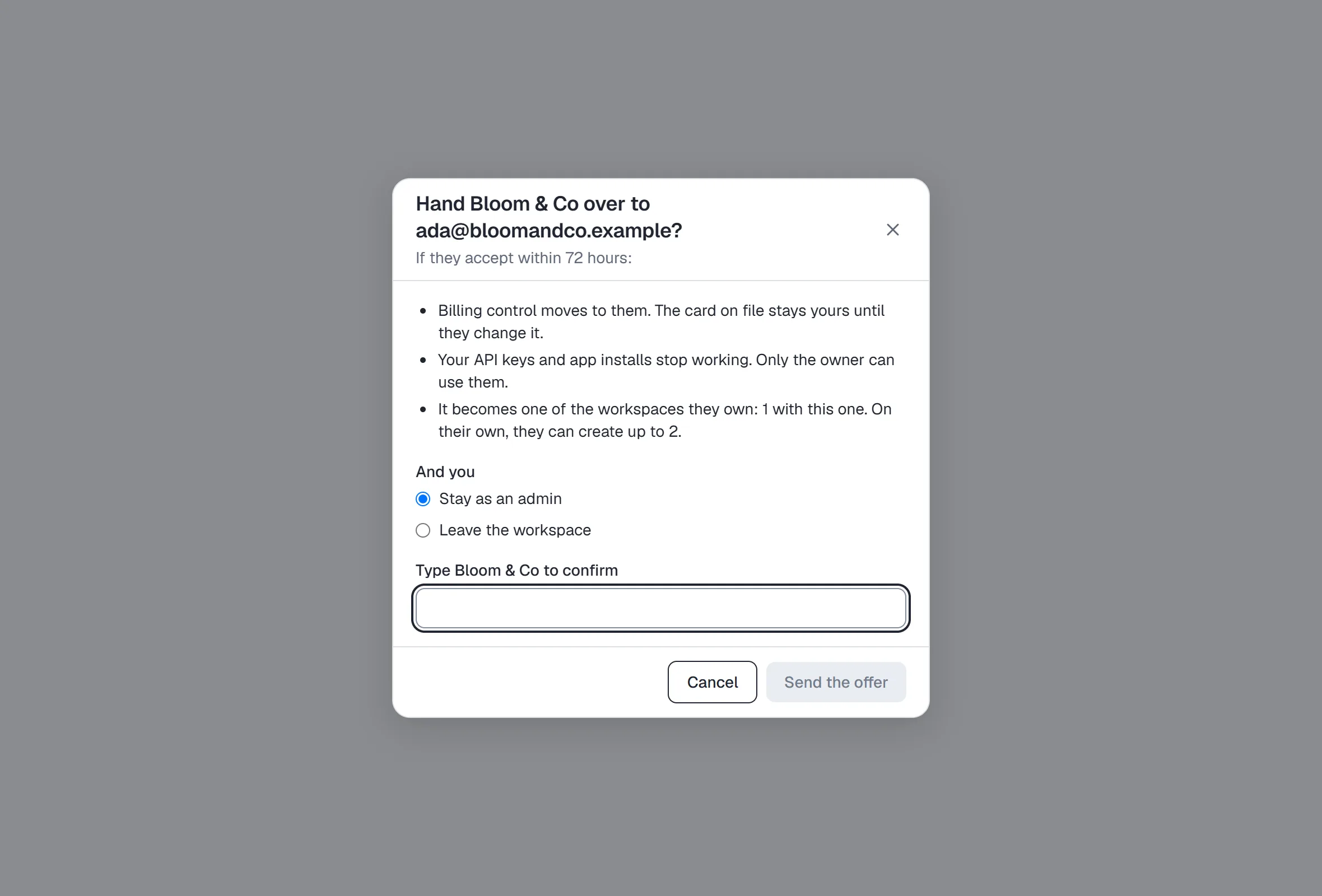
- Open Settings → Team & roles.
- On the admin's row under Members, click Transfer ownership.
- Read what changes: billing control moves to them and the card on file stays yours until they change it; your API keys and app installs stop working; and it counts as one of the workspaces they own.
- Choose Stay as an admin or Leave the workspace.
- Type the workspace's name, then click Send the offer. If you signed in more than 10 minutes ago, Confirm it's you opens first; the offer sends right after.
- They have 72 hours to accept. Until then the offer shows under Ownership offer, where Withdraw offer cancels it.
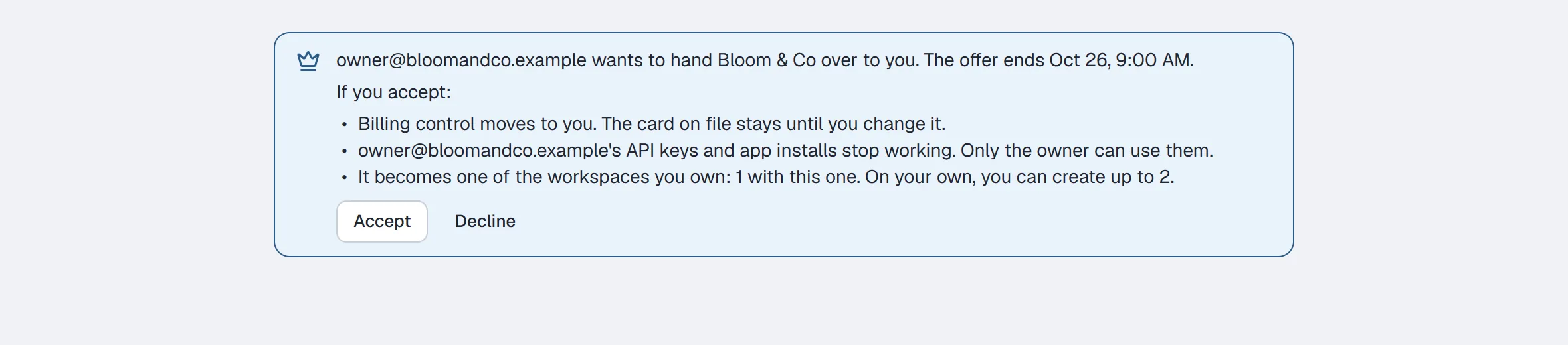
If you're offered a workspace: a banner at the top of HyperDM (and an email) says who's offering, until when, and what changes. Click Accept — you may be asked to confirm it's you — or Decline. If the workspace requires two-factor sign-in, sign in with your authenticator first. If you're working in another of your workspaces, the banner says which workspace is offered and has an Open button with its name: click it (or the link in the email) to switch there, then Accept or Decline.
Leave workspace
In the tab's Danger zone, at the bottom.
- Click Leave workspace.
- Read what happens, then type the workspace name in the dialog.
- Click Leave workspace in the dialog.
The last owner cannot leave — a workspace with no owner is unadministerable — and the section says so instead.
Seats
Seats count people, including the owner — so the numbers below are total seats, and a pending invite holds one:
| Plan | Seats (incl. owner) | Invitable teammates |
|---|---|---|
| Free | 1 | 0 |
| Starter | 1 | 0 |
| Growth | 2 | 1 |
| Pro | 10 | 9 |
| Agency | unlimited | unlimited |
Below Growth the invite form says "Team seats start on Growth. Upgrade to invite teammates into this workspace."
Who can do what: Roles and permissions.
The team inbox: groups, inbox behaviour, auto-assignment and labels
Where the team inbox is turned on for your workspace, four more cards sit below your members. Everyone can read them; owners and admins change them. How the Inbox uses them: Work the Inbox as a team.
Groups are queues: a conversation sent to a group waits there until someone in it takes it.
- Type a name in New group, e.g. Support and click Create group.
- Click Members… on the group, tick who is in it, and click Save group.
Unticking someone hands back the open conversations they own in that group — they return to its queue. Delete says first what moves: conversations waiting in its queue go to Unassigned, conversations someone owns stay with them, and auto-assignment that uses the group is switched off. Only teammates can be in a group, and someone who leaves the workspace leaves every group.
Inbox behaviour — each choice has its consequence written under it:
| Setting | Choices |
|---|---|
| Conversations open | Any message from a customer (the default), or Only when someone opens it. |
| Reopened conversations | Back to the same person (the default) — if they're still on the team and in its group — or Back to the queue. |
| Who sees what | Everyone sees every conversation (the default), or Agents and clients see their own: the conversations they own, the unassigned ones and their groups' queues. Owners and admins always see everything. It's enforced on the server, and the change is written to the audit trail. |
| A reply by hand pauses HyperDM | Until someone resumes it (the default, the same as before), or For 30 minutes up to For 1 day. The time applies to a conversation HyperDM handed to your team too, once someone replies there. It never shortens a takeover someone chose. |
Click Save inbox behaviour. Take over in the Inbox, Pause all on the Workspace tab and a flow's Pause automations step are separate controls; nothing here changes them.
Auto-assignment hands conversations to people automatically — when a customer's message opens one, or HyperDM hands one to a human — to whoever has the fewest open. A later message in a conversation that's already open doesn't reassign it, so one someone sent back to Unassigned stays there until it next opens.
- Choose On — balance by open conversations.
- Under Assign to, choose Everyone on the team or the members of one group.
- Optionally set Most open conversations per person (1 to 500; blank = no limit), tick the inboxes it covers (none ticked = all), and choose When everyone is full: Wait in the group's queue or Stay unassigned.
- Read What it will do: the inboxes, who is eligible and how many each has open, the capacity rule, where overflow goes, and what happens to conversations already waiting (they stay where they are).
- Click Turn on auto-assignment and confirm.
Conversation labels mark conversations — "Refund", "VIP" — and are not contact tags. Type a name in New label, pick a colour and click Create label. Rename and Archive are on each row; archiving takes a label out of every picker and view, and each conversation's history keeps the lines that it was added or removed.
Workspace
Name and timezone
- Edit Workspace name — shown across the app, and it is the name you type to confirm deletion.
- Pick a Timezone. The bar at the foot of the section now says Unsaved changes.
- Click Save changes — or Discard changes to put the saved values back.
It says Saved only once the change has actually been stored. If the save is refused, your edits stay exactly as you typed them and the bar says why, next to Try again. A blank name is flagged when you click Save, with the cursor put back in the field.
The timezone is load-bearing. It decides every analytics week boundary, what "tomorrow morning" means for an Inbox snooze (09:00 your time), the date, time and days-left count on a Pro credit card under Billing & usage, and the renewal date and the "won't be charged until" date there too — and whether the plan badge's tooltip (top of every page) and the Upgrade window say "next billing date": they do on a paid plan billed on the 1st in your timezone. (A plan billed on another day there — after a Growth trial, on annual billing, or a renewal that falls on the evening of the 31st in your timezone — names "the 1st of the month" instead, which is the UTC month boundary in every timezone.) It is never the viewer's browser timezone. One exception it does NOT govern: sequence send windows run in UTC, because Instagram doesn't expose contact timezones.
Pause everything
Stops every automation, flow and agent reply at once — handy while you edit.
- Choose a duration: Until I resume, or For 30 minutes / 1 hour / 3 hours / 6 hours / 12 hours / 1 day.
- Click Pause all automations.
While paused, a banner says so and offers Resume now.
What still happens while paused: DMs and comments still land in your Inbox, and STOP still works. The AI Playground also still answers — that is the point of it.
Links
How the links in your messages go out, and whether taps are counted. Link tracking controls are being turned on one workspace at a time: where they're offered, this section sits between Pause everything and Workspace variables. Where they aren't offered yet, the section isn't there and the links HyperDM adds for you are tracked — apart from the ones that always go out as written (Track link taps lists them).
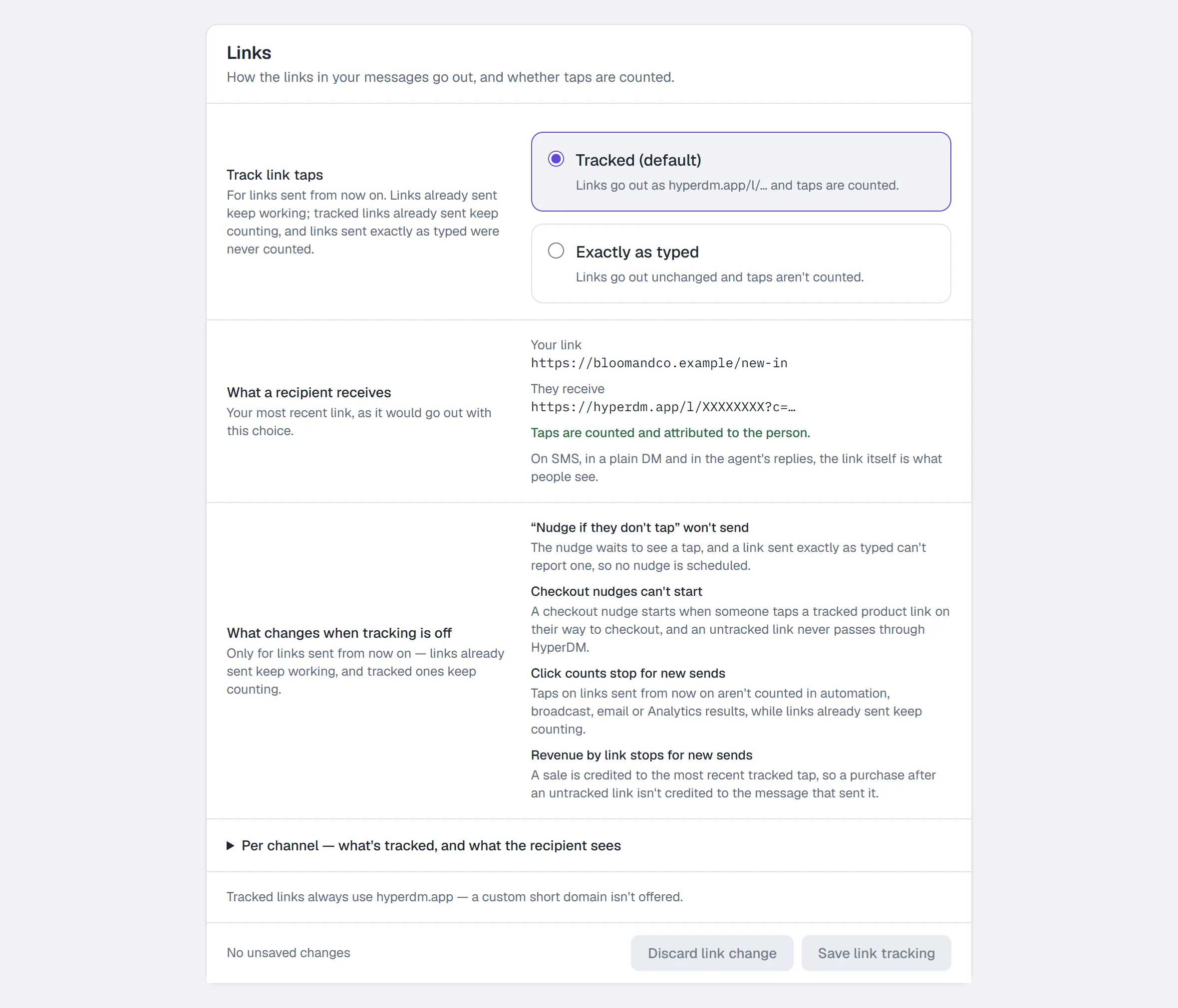
- Under Track link taps, choose Tracked (default) — links go out as
hyperdm.app/l/…and taps are counted — or Exactly as typed — links go out unchanged and taps aren't counted. The section's own bar, at its foot, now says Unsaved changes — it is separate from the workspace details' bar above, and it stays at the bottom of the section rather than following you down the page. - Read What a recipient receives. Your link is your most recent link (or an example, if you haven't sent one yet); They receive is how it goes out with the choice you've made, and the line under it says whether taps are counted. It follows the choice as soon as you move it, before anything is saved.
- Read What changes when tracking is off: "Nudge if they don't tap" won't send, Checkout nudges can't start, Click counts stop for new sends and Revenue by link stops for new sends — each with the reason under it.
- Optionally open Per channel — what's tracked, and what the recipient sees for every place a link can go — automation links, buttons on each channel, product links, email, and the places a link is always sent as written — under the choice you've made. Each row's explanation follows the choice too: under Exactly as typed none of them speaks of a tracked link.
- Click Save link tracking — or Discard link change to put the saved choice back.
It says Saved only once the choice has actually been stored. If the save is refused, your choice stays selected and the bar says why, next to Try again. If someone else already saved the same choice, it says Saved with "Someone already saved this choice — nothing else changed." The change shows in the Activity log — filter by Link tracking changes.
It only changes links sent from now on. Links you've already sent keep working, whichever you choose. Taps on tracked links already sent still count; links sent exactly as typed were never counted and won't be, even after you switch back. Nothing already sent is changed. The choice covers the links HyperDM tracks for you — automation links, flow and broadcast link buttons, product links, email buttons, the AI's buy links and a goal's Share a link. A link typed into the body of a message, and the other links Track link taps lists as sent as written, go out as written under either choice.
There is no separate link shortener and no custom short domain: "Tracked links always use hyperdm.app — a custom short domain isn't offered." The short link exists only because it counts the tap.
If the page can't read your current choice, the section says "Couldn't read the current setting — reload to try again." with neither choice selected and nothing to save: reload the page. Until it can read the choice, the per-link hints in the message editors stay hidden too, rather than guess.
Needs manage_workspace — owner or admin. Everyone else sees the current choice with the choices greyed out, "Only owners and admins can change workspace settings." under them, and no Save bar.
Workspace variables
Reusable values you can drop into any message as a merge tag.
- Enter a Variable name (e.g.
support_email) and a Value (e.g.help@yourshop.com). - Click Save variables.
Use them anywhere a merge tag works, so changing your support address is one edit, not forty.
Needs manage_automations — owner, admin or agent. (The name/timezone card above is manage_workspace, and so is Links where it's offered.)
Contact data
Custom fields and tags belong to your contacts, so they're managed on the Contacts page rather than here. Manage fields and Manage tags open the matching manager there directly. Both managers show where each field or tag is used before you archive, rename or delete it, and Manage tags is where you file tags into folders.
Conversion events
Settings → Conversion events (also Manage events in Workspace → Contact data) is where you name the results your flows count: create an event with a Name, an optional Description and, if it carries a value, a Currency; Rename it; Archive it once you've seen which flows use it. Everyone can see the list; owners, admins, editors and agents can change it. A workspace can hold up to 500 events, archived ones included. The walkthrough is Count conversions with conversion events.
Notifications
Where HyperDM sends your alerts, who in the workspace gets them, and what happened to each one. The newer Notifications settings are being turned on one workspace at a time: where they're offered, the tab has the five sections below. Where they aren't offered yet, it has two switches instead — see the last part of this section.
Where we reach you
Yours to set, whatever your role. Your alert email and your browsers belong to your account, so every workspace that offers these settings uses them.
Alert email. Until you choose another address, alerts go to the email you sign in with. To send them somewhere else:
- Click Use a different address, type it in Alert email address, and click Send link.
- Open the email that arrives at that address, open its link, and press Confirm on the page it opens. The link works once, for 30 minutes. Opening the link on its own changes nothing, so a mail scanner that opens every link can't confirm an address for you.
- The address now reads Confirmed, and alerts go there. Until you confirm, they keep going wherever they went before.
While an address is Waiting for confirmation, Resend sends a new link (once a minute; links sent before it stop working) and Cancel change drops it. Adding the same address again does what Resend does, on the same minute. Up to three addresses can wait at once, and you can send 6 links an hour. A confirmed address has Send a test, Change (confirm a different address; this one keeps getting alerts until you do) and Stop using (alerts go back to your sign-in email). Your sign-in email itself can't be added — alerts already go there.
If mail to your alert address bounces. When the address refuses mail for good (it doesn't exist, or refuses mail), it reads Bounced with the reason, and alerts go to your sign-in email until you confirm an address again: click Try again, type that address or another, and click Send link. When the mailbox turns one mail away only for now (it's full, say), the address stays Confirmed and alerts keep going to it; that mail reads Bounced under Recent deliveries. Check the mailbox, then Send a test.
This browser. Click Turn on in this browser, then allow notifications when your browser asks. Popups show on this computer only while HyperDM is open in a tab, on a workspace where these settings are offered: nothing arrives while every HyperDM tab is closed, or while the only one open is on a workspace without them (switch it to one that has them if you belong to several). They work in desktop browsers; phones and tablets aren't supported yet, and the tab says so. If you block notifications, the tab explains how to allow them in the browser's site settings (the icon beside the address bar) and shows no button — HyperDM never asks again on its own. Your other browsers lists the others you turned on, each with Remove. Two of the same browser on the same kind of computer are told apart by the day you added them.
Clicking a popup opens the page it's about. If you're in the flow builder or setup, or the page you're on says Unsaved changes, that page opens in a new tab instead, so nothing you were doing is lost.
Send a test (on a confirmed address or a browser that's on) sends one test there and follows it: the line reads "Checking what happened…", then what really happened, in the same words as Recent deliveries. You can send 3 tests every 10 minutes.
This workspace's alerts
Everyone can see this section; only an owner or admin can change it (manage_workspace).
| Group | Sent when | Can it be switched off? |
|---|---|---|
| Escalations | The AI agent hands a conversation to a person | Yes |
| Allowance | The workspace nears or passes its conversation allowance, nears its AI-assisted conversation allowance, or usage jumps | Yes |
| Connection health | A channel disconnects, goes quiet or needs attention | No — always on |
| Billing | A payment fails, billing changes, or a trial is two to four days from its end (one reminder) | No — owner only, always on |
For Escalations, Allowance and Connection health, tick who gets them, then click Save escalations, Save allowance or Save connection health. The workspace's earliest owner always gets these three: they're ticked, and marked Always. The teammates you tick are added to them. Each person's own email and browser switches, quiet hours and mute still apply. While Escalations or Allowance is switched off, nobody gets those alerts, not even the owner, and the section says so. If a teammate changed the list while you were editing, your choice stays on screen — save again to replace theirs. Removing someone from the workspace stops their alerts straight away.
Billing alerts go to the earliest owner only, and nobody can switch them off for the workspace. The owner's own switches under How you get them here still apply, though: with Email off there, a failed payment isn't emailed to them.
How you get them here
Your own settings in this workspace. They don't change what your teammates get. Change any of these, then click Save my settings:
- Email and Browser notifications — whether this workspace's alerts reach your alert email and the browsers you turned on, billing alerts included: with Email off, none of them come by email. Browser notifications needs a browser turned on first.
- Quiet hours — a Quiet hours start and a Quiet hours end, in the workspace's time zone. Escalations that arrive in the window wait, then come as one summary when it ends. Allowance, connection and billing alerts still come at once.
- What popups show — Only what happened, or What happened and the contact's name. Emails always name the contact; this is only about what shows on your screen.
Mute escalations for 24 hours works at once, without Save my settings: escalation alerts to you stop for a day, and nothing else is muted. Unmute ends it early.
Recent deliveries
The last 20 alerts, tests and links sent to you here: when, what, where it went, and what happened, in these words:
- Sending — on its way.
- Sent — the email left HyperDM.
- Didn't go yet, trying again (with a time) — the send failed; HyperDM tries again on its own at its first check after that time (it checks every five minutes).
- Failed after 4 tries — it couldn't be sent, even after three more tries over roughly the next 40 to 50 minutes.
- Bounced — the address refused it. Only a lasting refusal moves your alerts to your sign-in email; the address then reads Bounced above. After a refusal for now, it stays Confirmed.
- Shown — the popup appeared.
- Waiting for an open HyperDM tab — a popup under two minutes old that no tab has shown yet.
- Not shown (no open HyperDM tab showed it) — two minutes on, no open HyperDM tab had shown the popup.
- Held for quiet hours (with a time) — an escalation waiting for your quiet hours to end.
- Included in a quiet-hours summary — an escalation that went out in the one summary sent when your quiet hours ended.
- Muted — it came while you had those alerts muted.
- Duplicate — the same alert already reached you within the same clock hour (UTC). It's not sent twice: the row that was sent says how many repeats weren't.
- The link's email may not have gone out — the email carrying a confirmation link may not have been sent. Resend on the waiting address sends a new one.
- Not sent: switched off in your settings — your Email or Browser notifications switch was off.
- Not sent: address not confirmed — the address or browser stopped being confirmed while it waited.
- Not sent: the browser blocks notifications — that browser blocks HyperDM's popups.
- Not sent: no longer a member or Not sent: no longer a recipient — you left the workspace, or were taken off that group of alerts, while it waited.
- Not sent: email sending isn't set up — HyperDM couldn't send any email when it was due; it isn't tried again.
- Not sent: it waited more than 48 hours — an alert that couldn't go out for two days is dropped rather than sent late.
Product updates
Occasional emails about new HyperDM features and improvements, off unless you turn it on. It's your account's own choice: nothing else on the page changes it, and it changes nothing else.
Error log emails
Where the error log is turned on (see Logs), owners and admins see this section under Notifications on either version of the tab. Each switch saves the moment you flip it:
- Critical — sending or a connection stopped — on unless you turn it off. Emailed straight away, at most once an hour for the same problem. A problem that already has its own alert, like a disconnected channel, isn't emailed twice.
- Errors and Warnings — off unless you turn them on. Together they make one email an hour, sent only when something new failed, with how many times each thing happened. Turning them on starts from the current hour: nothing from while they were off arrives as new.
The emails go to the workspace's owner (not to everyone who gets Connection health alerts: the log is only for owners and admins), name what failed and how often, and link the error log. They never name a customer. See the error log opens Settings → Logs, and Email alerts at the top of that page brings you back here. If the switches can't load, the section says why; Try again reads them again.
Where these settings aren't offered yet
The tab has two switches, each saved as you flip it: Escalations (when the agent flags a conversation for you) and Product updates (new features and improvements). Alerts go to the sign-in email of the workspace's earliest owner. Escalations turns off hand-off alerts only; connection, allowance and billing alerts can't be switched off here.
Both need manage_workspace — owner or admin. Note this is why pausing the AI was split into its own capability: the workspace's alert switches can silence the owner's own alerts, and a client who needs to stop the AI should not also be able to do that.
Security
Two-factor authentication
A code from your authenticator app, required when you change how you sign in — your sign-in email, your sign-in methods, or signing out other sessions. Signing in itself doesn't ask for it, except where two-factor sign-in is turned on for your workspace (see Signing in with two-factor).
Once it's on, that code is the only way to confirm those changes: you won't be offered your password instead. Keep your authenticator app safe — if you lose it, turn two-factor off from this screen while you're still signed in, or use a recovery code (below).
- Click Set up.
- Scan the QR code with your authenticator app — or use the manual key shown under "Can't scan? Enter this key manually".
- Enter the 6-digit code.
- Click Verify & turn on.
Recovery codes and a backup authenticator
Where two-factor sign-in is turned on for your workspace, two more rows appear under Two-factor authentication once your authenticator is on. You need to have entered your authenticator code in this session to use them.
Recovery codes get you back in if you lose your authenticator. Each one works once.
- Click Make recovery codes, then Make new codes in the confirmation. A new set stops any codes you saved before.
- Save the ten codes: Copy codes, or Download codes for a text file.
- Click I've saved them. You won't see these codes again.
Backup authenticator — a second authenticator app, on another device, so losing one phone doesn't lock you out.
- Click Add a backup authenticator.
- Scan the code with the app on your other device, or enter the key shown under it.
- Enter the 6-digit code it shows, then click Verify & turn on.
Signing in with two-factor
Where it's turned on for your workspace, a new sign-in on an account that has an authenticator asks for its code before the app opens.
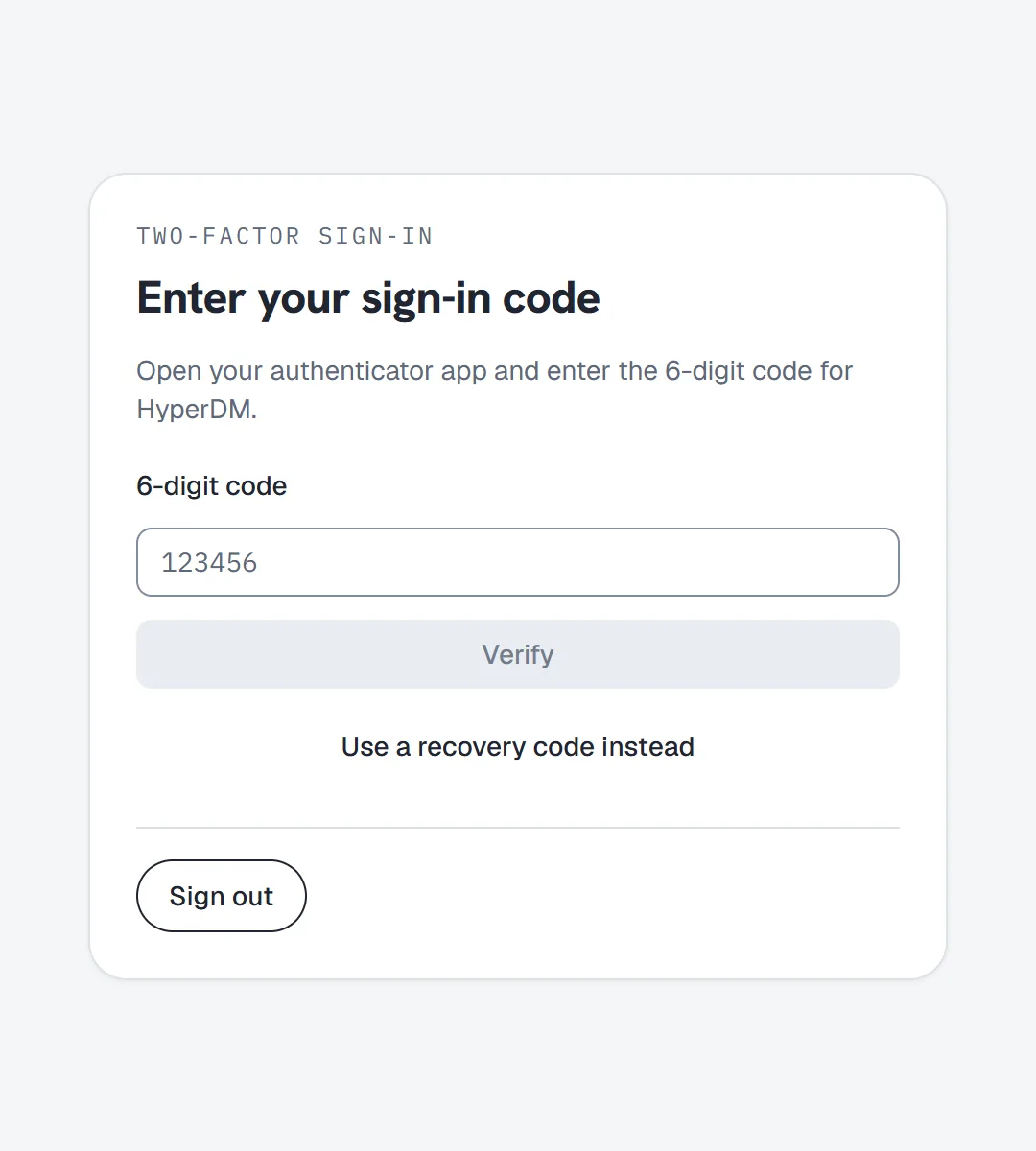
- At Enter your sign-in code, open your authenticator app and enter the 6-digit code for HyperDM.
- Click Verify.
Lost your phone? Click Use a recovery code instead, enter one of your saved codes and click Use recovery code. That removes two-factor sign-in from your account, so set it up again straight away. Sign out is always on that page. Lost both your authenticator and your codes? See I lost my authenticator.
Require two-factor for everyone
Where two-factor sign-in is turned on for your workspace, the owner can require it for everyone. It's free on every plan. The card says exactly what it covers:
Everyone in this workspace needs a code from their authenticator app to open its pages, and to read its data through the API with their own sign-in. API keys, connected apps, scheduled jobs and webhooks don't ask for one. Members already here get 7 days to set it up; anyone who joins after it's turned on sets it up before they get in.
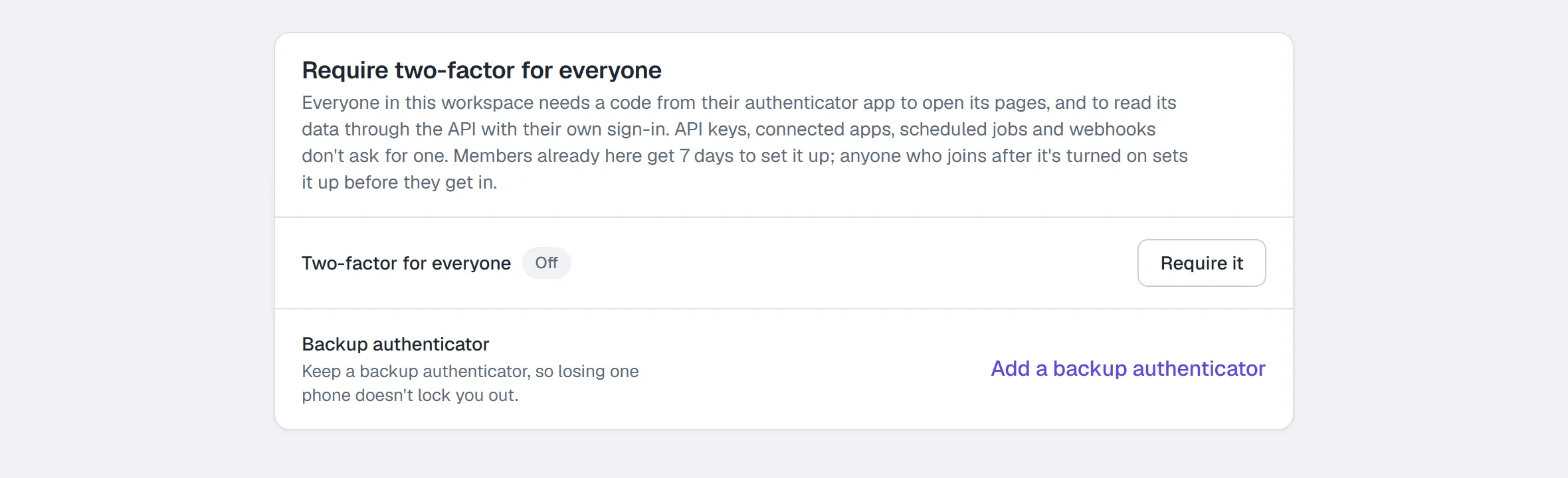
Before you start, you need three things: your own authenticator turned on (Set up, above), recovery codes (Make recovery codes), and to have signed in with your authenticator code. Until then Require it stays greyed out and says which one is missing.
- Under Require two-factor for everyone, click Require it.
- Read what happens — members without it get 7 days, new members set it up first — and click Require two-factor.
- The row reads On, with the date you turned it on.
To stop requiring it, click Stop requiring it. You only need to be signed in with your authenticator code.
If your workspace requires two-factor and you click Turn off under Two-factor authentication, HyperDM asks first: the next time you open the workspace you'll have to set it up again before you can get back in. Click Turn off in the confirmation to go ahead, or Cancel to keep it.
Only the owner can change this. Everyone else sees whether it's on, and the button greyed out: "Only the workspace owner can change this."
If your workspace requires it and you haven't set it up: you get one email, and a banner across the top of the app says the date and time to set it up before. Click Set it up and follow Two-factor authentication.

After those 7 days — or straight away if you joined after it was turned on — HyperDM opens on Set up two-factor sign-in until you do. That page also has Sign out, and a Leave button with the workspace's name if you'd rather leave than set it up (the workspace's only owner can't leave). If you belong to other workspaces that let you in without it, the page also has an Open button with each one's name, so you can carry on working there.
Danger zone
Only the workspace owner can delete a workspace. Anyone else sees Delete workspace… greyed out: "Only the workspace owner can delete it."
- Click Delete workspace….
- The dialog says what goes — contacts, conversations, automations, flows and analytics — and that everyone loses access.
- Type the workspace name in the dialog, exactly.
- Click Delete workspace. It stays greyed out until the name matches.
This is irreversible. If the delete is refused, the reason shows under the button.
If you switched workspaces since the page loaded, the delete is refused and nothing is touched — you are asked to reload first. The same applies to renaming a workspace and to leaving one. Two workspaces are allowed to share a name, so the typed name alone is not enough to tell them apart; the check is on the workspace itself.
Templates (template packages)
Template packages are not turned on for most workspaces yet. Where they are, Settings shows a Templates tab; where they aren't, there is no such tab and nothing below applies.
A template package is a set of automations plus the custom fields, tags, sequences and workspace variables they need, published as a numbered version you can install into another workspace you belong to — or download as a .package.json file for someone else to install.
Your packages — the ones this workspace made:
- Type a name under New package (and one line under What it sets up), then click Create package.
- Tick the automations to include. Ticking one also ticks every automation it jumps into, and the screen names them — a package without them would arrive with a gap. An automation that is in only because another one needs it can't be unticked on its own; untick the one that jumps into it. Select all copies every Instagram automation in the workspace (automations on other channels can't be packaged yet; the screen says how many were left out). A package holds up to 40 automations: the screen shows how many are included, and past 40 it says how many to untick before you can publish — split a bigger account across more than one package.
- Under Workspace variables it needs, tick the ones whose value should travel too. The name always travels; the value only if you tick it. A variable whose name or value looks like a password, key or token has no tick box, and the screen says which — its value never leaves your workspace.
- Optional: under What travels with it, click Show me to see every field, tag, sequence and variable the version will carry.
- Click Publish v1 (then v2, v3…). A version never changes afterwards. If a step's own text contains something that looks like a key, token or private link (a Zapier or Slack hook, say), publishing is refused and the step is named — remove it and publish again. Ordinary share links your followers are sent (Google Drive or Docs, Loom, Notion, Dropbox) are fine. Renaming an automation later doesn't break updates: the next version still updates the same installed draft.
- Download saves that version as a file. Install it somewhere installs it into another of your workspaces.
A package never contains your contacts, conversations, team members, connected accounts, voice notes, videos, documents or products.
Installing — from a package's screen, or Install from a file:
- Choose the workspace (and the version), then click Check what it will do. Nothing is written yet: you see what will be added, what already exists, what arrives under a new name, what's missing, and every link your followers would be sent.
- Optional: under What it needs — use yours, or let it create them, point a field, tag or sequence at one you already have (Use my “…”) instead of leaving it on Automatic (a field only at one of the same type), or pick The package's own “…” to use the package's name (for a field, only possible when yours of that name holds the same kind of value). Each Workspace variables row can be pointed at one of your variables the same way — the automations then use yours, including inside AI steps. Where a step jumps to an automation that isn't in the package, choose which of yours it should go to under send it to, or Choose later. If you have an automation with the same name, it's pre-selected and marked "Matched by name — check it"; Choose later stays chosen even then. When you install a newer version of the same package, the choices you made last time — including "the package's own" and "Choose later" — are pre-selected and marked "remembered from your last install of this package" (a jump's choice is only remembered while the step still jumps to the same automation). The preview updates with each choice.
- Click Install into …. If the package would take the workspace past its plan's automation limit, or uses steps its plan doesn't include, it says so and installs nothing.
- Read the result. Everything arrives as a draft — nothing sends until you open it and click Set live. Anything marked with ⚠ needs something from you first (connect Instagram, pick a product, record a voice note, choose which flow a step jumps to, build a missing sequence, or fill in a workspace variable). Set live refuses with that reason until it's fixed, and stops refusing by itself once it is. If a workspace variable the package needs is used by automations you already have, it's created empty rather than with the package's value, so nothing you already send changes without you choosing it.
A package file can be up to 800 KB. A file never updates automations that came from somewhere else: a different file arrives as new drafts, beside anything with the same name. Installing the SAME file again — say, to finish an install that stopped half-way — picks up what already arrived instead of copying it. Install from the author's workspace to get new versions.
Installing again is safe. Clicking Install twice, pressing Install again on the same screen after "We couldn't confirm the install finished", or Try the rest again after a problem never makes a second copy of anything. Installing a newer version updates an installed automation only if nobody has changed it and it's still a draft; if you've edited it or it's live, yours is kept exactly as it is and the new version arrives beside it as Name (2) for you to compare. A workspace variable you already have keeps your value, and an automation's channel stays whatever you set.
Installed packages lists what has been installed into this workspace, with its version, where it came from, how many things it still needs today, and how many new versions are there to compare with yours. What it did shows each item: what it still needs, Open it for each automation, and — where yours was kept and a new version landed beside it — Open yours too. Something that didn't finish says so (install the package again to finish it); once a later install has finished it, it's marked Finished later and no longer counted.
Each install adds one line to the workspace's Activity: "Installed …" or, if it stopped part-way, "Partly installed …" — followed by "Finished installing …" once it's completed. A package from a file is described as "from a file that says it's from …", because a file can't prove who made it.
Creating and installing packages needs manage_automations — owner, admin or agent. Only Instagram automations can be packaged.
Profile
Settings that belong to you, not to the workspace. The tab appears only where interface languages or account sign-in settings are turned on for your workspace; every role sees it, because it changes nothing anyone else sees. It can show five sections: Interface language, Sign-in email, Sign-in methods, Where you're signed in and Recent account changes.
Interface language
The language HyperDM's screens, buttons and messages are written in, and the account alerts it emails you (a conversation handed to you, a connection that stopped working). The choices are English, Español (Latinoamérica) and Português (Brasil) — Latin American Spanish and Brazilian Portuguese specifically, not European Spanish or Portuguese.
- Open Settings → Profile.
- Under Language, choose one. How it will look shows a sample in that language right away — navigation, a count, an amount and a date — and nothing changes yet.
- Click Apply. The page switches in place, and anything you had typed elsewhere stays.
- To go back at any time, click Switch back to English (shown whenever you're not in English), or choose English and Apply.
What it does not change: the workspace's timezone (dates are still shown in it, just written in your language), the language your contacts write in, the language the AI agent replies in, and anything a customer receives. Your teammates keep their own language.
Worth knowing:
- A language marked Preview hasn't been reviewed by a fluent speaker yet, and some screens — the flow builder, analytics and the help centre among them — are still in English. Billing emails stay in English in every language, except the reminder before a trial ends, which arrives in yours.
- Your choice is saved to your account, so it applies in every workspace that offers it. In a workspace that doesn't offer that language, HyperDM shows English — the Profile tab says so where it appears — and your choice comes back in the workspaces that do.
- If you changed your language in another window since the page loaded, Apply tells you and saves nothing — choose again.
- Names, messages, tags and anything else you or your contacts wrote are never translated.
Confirm it's you
Changing how you sign in — your email, your sign-in methods, signing out other sessions — needs a recent sign-in. If you signed in more than 10 minutes ago, Confirm it's you opens first:
- with an authenticator app set up (Settings → Security): enter its 6-digit code;
- otherwise your Password, or Continue with Google if you sign in with Google. Anything you had typed on the page is kept while you go to Google and back.
Then the change you asked for carries on. You stay confirmed for 10 minutes.
Sign-in email
The address you sign in with and where HyperDM sends account emails. It's yours, not the workspace's: changing it keeps every workspace, role and plan you have exactly as it is.
- Open Settings → Profile, find Sign-in email and click Change email.
- Type the new address under New email address and click Send confirmation links.
- HyperDM emails a confirmation link to your current address and one to your new address. The section now says Waiting for confirmation — you still sign in with your current address.
- Open both links. After the first, Profile says one address is confirmed; after the second, it says Your sign-in email is now …. From then on, sign in with the new address.
Worth knowing:
- Didn't get the email? Check spam, then click Resend links (available a minute after the last send). Links sent before that stop working.
- Links expired? They last an hour. The section says Confirmation links expired and nothing has changed — click Send new links.
- Wrong address? Click Use a different address and send links for the right one.
- "That address is already used by another HyperDM account." Each address belongs to one account. Choose a different one.
- If you open a link on a phone or computer where you aren't signed in, the sign-in page says the confirmation was received — sign in with the new address once both links are opened.
- Signing in with Google? Your Google account doesn't change; you keep signing in with Google.
Sign-in methods
The ways you can sign in: Email and password, Google. Each shows its address, when it was added, when it was last used, and whether it Can sign in. Switched off means that sign-in option isn't available right now, so it doesn't count as a way back in; No password set means you signed up with Google — use Forgot password on the sign-in page if you want one.
Adding or removing a sign-in method isn't available yet — the section says so, and your methods keep working. When it is, you'll never be able to remove the last method that works, so you can't lock yourself out.
Where you're signed in
Every browser and device signed in to your account: the browser and system, its IP address, when it signed in and when it was last active. This browser marks the one you're using; Two-factor marks a session that passed your authenticator.
To sign out everywhere else — a lost phone, a shared computer — click Sign out everywhere else. Those sessions stop renewing straight away; a page that's already open elsewhere can keep working for up to an hour. Your own session stays signed in.
Recent account changes
A short history of changes to how you sign in — an email change asked for or completed, a confirmation, a sign-in method added or removed, other sessions signed out — newest first. Addresses are shortened (h•••@example.com), and passwords, codes and links are never recorded.
Developers
Sidebar: Account → Settings → Developers, under Settings, where the developer platform is switched on for your workspace — owners and admins only. It holds the apps installed in this workspace, its API keys, the apps it builds and the access log. Full guide: Developers, the API and installed apps.
Shared flows
Lives at the direct URL /settings/shares (share notifications link to it — no tab or button on the Settings screen does): everything you've shared with a link or submitted to the community gallery, with the option to withdraw it. Empty state: "You haven't shared a flow yet."
Common questions
Why can't I see a tab's controls? Your role. Channels and connecting Integrations need manage_connections (owner/admin), and on Meta conversion reporting only the owner confirms who may be reported; Commerce's Stripe card and Billing are owner-only (the Hotmart card is owner/admin); the name/timezone card and the workspace's alert switches and recipients under Notifications need manage_workspace (owner/admin) — where the newer Notifications settings are offered, your own (alert email, browsers, quiet hours, mute, Product updates) are yours in any role; Keywords and Workspace variables need manage_automations (owner, admin or agent); and Pause everything needs pause_agent — owner, admin or client (a client CAN stop and resume the AI). The page explains each absence where the control would have been.
I connected Instagram but nothing arrives. Look for Needs attention on the Instagram card and click Retry subscription. See Troubleshooting.
How do I stop everything right now? Workspace → Pause everything, with Until I resume.
Where's the Instagram menu? Main menu, and remember to click Push to Instagram after saving — saving alone doesn't publish it.
More in Account & billing
- Plans and billingEvery plan and what it includes, each gate, overage protection, a monthly ceiling, AI credits, what stopped your replies, and how to upgrade, pause or cancel.Read
- Roles and permissionsThe six workspace roles, what each may do, what you see instead of a control you lack, inviting teammates, changing a role and how seats are counted.Read
- Give teammates the right rolePick a role for each teammate, change a role in place, and see who can do what — including the Editor and Viewer roles.Read
Try HyperDM for free
50 free conversations a month, no card. Connect Instagram and follow the guide you just read.