How to report conversions to Meta
Connect your own Meta dataset, review what is sent, send a test event, then report the leads and purchases HyperDM records through Meta's Conversions API.
HyperDM can send the conversions it records to your own Meta dataset through Meta's Conversions API, so they appear in Meta Events Manager with the rest of your data: a lead an automation or the AI captured, a Stripe payment link purchase, a Shopify order, a Hotmart purchase, or a flow's Send Meta CAPI event step.
Where it's on: Meta conversion reporting is being turned on workspace by workspace. If Settings → Integrations has a Meta conversion reporting card, it's on for yours — unless the card's badge reads Switched off (see When the badge says Switched off). It's on the paid plans — on the Free plan the card reads Not on your plan and offers See plans.
Who can do what: owners and admins connect, test, switch events on and off, change the reporting settings, retry and disconnect. Only the workspace owner confirms who may be reported. Everyone else can read the card. See Roles and permissions.
What it will never do:
- Send anything before you've set it up. Every event starts switched off, and none can be switched on until your dataset is connected, the owner has confirmed who may be reported, and Meta has accepted a test event.
- Send what already happened. Switching an event on applies to conversions that happen from then on. What counts is when the conversion happened — when the payment was made, the order paid or the lead captured — not when HyperDM hears about it, so a purchase made before you switched the event on is never sent, even if its payment notice reaches HyperDM afterwards.
- Send message text, names or products. An event carries a hashed email or phone number the contact gave you, a hashed contact reference and — for a purchase — its value, currency and order ID. The full list is under What is sent, and what never is.
- Report someone who unsubscribed, or whose contact was merged into another, whichever rule you choose.
- Report to any dataset but yours. Events go only to the dataset you connect, with the access token you created for it.
Before you start
- A dataset in Meta Events Manager that you can generate an access token for.
- The conversions you want to report already happening in HyperDM: an automation that captures an email, an AI conversation goal that captures a lead, Stripe connected on Settings → Commerce with its revenue webhook, a Shopify store, or Hotmart.
- If you'll report only the people who said yes: a Yes/No custom field on your contacts that records it. A flow can ask the question and set the field. See Contacts.
Step 1: connect your dataset
- Open Settings → Integrations and find Meta conversion reporting.
- In Meta Events Manager, open your dataset, then Settings → Conversions API → Generate access token, and copy the token. The dataset ID is at the top of the same page. Where do I find these? on the card says the same, and Read the step-by-step guide beside it opens this page.
- Paste the ID into Dataset ID and the token into Conversions API access token.
- Click Connect dataset.
The card says Dataset connected. Send a test event to verify it. and the badge reads Not verified — connecting on its own never counts as working. HyperDM stores the token encrypted and never shows it again.
- Meta refused the token, or the connection didn't go through: nothing is saved. Your Dataset ID stays in the form, but the token field is emptied — the card says The access token field was cleared — paste the token again before you retry. Paste it again, then click Connect dataset (or Reconnect) again.
- Meta wouldn't let HyperDM read the dataset's name: the connection is saved anyway, unconfirmed. The test event in step 3 is what verifies it.
Step 2: review what is sent and confirm who may be reported
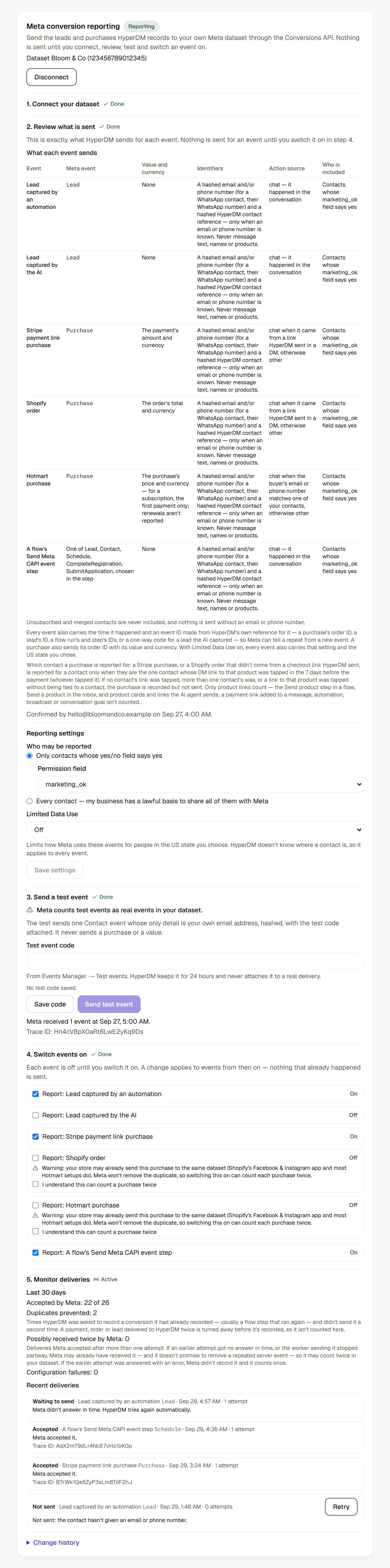
The table under 2. Review what is sent shows exactly what each event sends. It's there in every state, so you can read it before you connect, and nothing can be switched on without it:
| Event | Meta event | Value and currency | Action source |
|---|---|---|---|
| Lead captured by an automation | Lead | None | chat — it happened in the conversation |
| Lead captured by the AI | Lead | None | chat — it happened in the conversation |
| Stripe payment link purchase | Purchase | The payment's amount and currency | chat when it came from a link HyperDM sent in a DM, otherwise other |
| Shopify order | Purchase | The order's total and currency | chat when it came from a link HyperDM sent in a DM, otherwise other |
| Hotmart purchase | Purchase | The purchase's price and currency — for a subscription, the first payment only; renewals aren't reported | other — always, because nothing shows a DM led to a Hotmart sale |
| A flow's Send Meta CAPI event step | One of Lead, Contact, Schedule, CompleteRegistration, SubmitApplication, chosen in the step | None | chat — it happened in the conversation |
Every event sends the same identifiers: a hashed email and/or phone number (for a WhatsApp contact, their WhatsApp number) and a hashed HyperDM contact reference — only when an email or phone number is known. Never message text, names or products. Every event also carries the time it happened and an event ID made from HyperDM's own reference for it — a purchase's order ID, a lead's ID, a flow run's and step's IDs, or a one-way code for a lead the AI captured — and a purchase also sends its order ID with its value and currency. Unsubscribed and merged contacts are never included, and nothing is sent without an email or phone number.
Which contact a purchase is reported for. A purchase is reported for one of your contacts, and it's that contact's hashed email or phone number that's sent with it:
- Shopify order — when a checkout link HyperDM sent in a DM became the order, the contact it was sent to. Otherwise HyperDM uses the same rule as for Stripe, below.
- Stripe payment link purchase — Stripe doesn't tell HyperDM who paid, so HyperDM reports it only when exactly one contact's DM link to that product was tapped in the 7 days before the payment, and reports it for that contact. A tap counts for the contact the link was sent to, whoever tapped it. If no contact's link was tapped in those 7 days, more than one contact's was, or a link to that product was tapped without being tied to a contact (a copy shared without its contact reference, or a contact erased since), the purchase is recorded but not sent. Only product links count: the Send product step in a flow, Send a product in the inbox, and the product cards and product links the AI agent sends. A payment link you add yourself — a button in a flow message or a broadcast, an automation's link, or a Share a link goal — is tracked for that feature's own stats but doesn't count here, and one typed into message text isn't tracked at all.
- Hotmart purchase — the one Instagram contact whose email or phone number matches the buyer's exactly. It's reported as
other: a matching email or phone shows who bought, not that a DM led to the sale. For a subscription, only the first payment is reported; renewals aren't, and don't appear under Recent deliveries.
Even when only one contact's link was tapped, that tap isn't proof of who bought. If the same payment link is also shared another way — in your bio, on your website, or added to an automation, a flow message, a broadcast or a goal — or a DM link was forwarded, a purchase can still be reported for a contact who didn't make it — with that purchase's value. A Shopify order picked this way is reported as other, not chat, but it still carries that contact. If your payment links are shared anywhere other than HyperDM's product sends, think about that before you switch Stripe or Shopify purchases on.
A purchase with no contact to report it for — a Stripe purchase, or a Shopify order that didn't come from a HyperDM checkout link, when no contact's DM link to that product was tapped in the 7 days before the payment, more than one contact's was, or a link to that product was tapped without being tied to a contact; or a Hotmart buyer no single contact matches — is recorded but never sent. Its delivery reads Not sent: there is no contact for this conversion — HyperDM couldn't tell who bought, or the contact was erased. This only decides what's sent to Meta: the order itself, and how HyperDM's own Analytics credits it, don't change.
Then the workspace owner chooses who may be reported, under Who may be reported:
- Pick Only contacts whose yes/no field says yes and choose the Permission field — or pick Every contact — my business has a lawful basis to share all of them with Meta.
- Tick the confirmation: that your business has the permission and lawful basis Meta's Business Tools Terms require to share these contacts' conversions with Meta, and won't report sensitive details such as health or financial information.
- Click Confirm. The card shows Confirmed by and the date.
An admin sees Waiting for the workspace owner … to confirm who may be reported in its place.
What "says yes" means. A Yes/No field that's Yes, or a text field that says yes or true (capitals don't matter). A blank, no or maybe is not a yes — permission is never guessed. HyperDM checks again just before each event is sent, so someone who unsubscribed or changed their answer since is not reported.
Changing it later. Under Reporting settings, change the rule, the permission field or Limited Data Use, then click Save settings. Switching to Every contact is the owner's alone and needs the confirmation ticked again — HyperDM refuses it otherwise. Going back to the yes/no rule needs a field chosen. Once a save goes through, the form shows the saved settings — and if a teammate changes them afterwards, their change shows there too rather than looking like something you haven't saved.
A change applies from then on, never backwards. Each conversion keeps the rule that was in force when HyperDM recorded it, and HyperDM sends it only if the contact passes both that rule and the current one. So widening the rule — to Every contact, or to another permission field — doesn't send a conversion the earlier rule held back, while narrowing it also holds back conversions still waiting to send. Turning Limited Data Use off doesn't remove it from conversions recorded while it was on.
Step 3: send a test event
Meta counts test events as real events in your dataset. The test sends one Contact event whose only detail is your own email address, hashed, with Meta's test code attached. It never sends a purchase or a value.
- In Meta Events Manager, open Test events and copy the test code.
- Paste it into Test event code and click Save code. HyperDM keeps it for 24 hours and never attaches it to a real delivery.
- Click Send test event.
When Meta accepts it, the card says Test event sent, and your dataset is verified., shows Meta received 1 event at the time with a Trace ID, and the badge turns Verified. Only an event Meta accepts verifies the connection — nothing you type, and no order HyperDM receives, does.
If it doesn't go through, the card says The test event didn't go through, so your dataset isn't verified. — or, when your dataset was already verified, The test event didn't go through. Your dataset is still verified — a failed test changes nothing. Underneath is the reason. When Meta refused the event or the token's access to the dataset, it reads Meta's answer: followed by HyperDM's summary of the refusal — that Meta refused the event, or that the token can't send to the dataset. Otherwise HyperDM explains what went wrong — for example that Meta no longer accepts the saved access token, or that Meta was busy and you should send the test again in a moment. Meta's own error text isn't shown; its Trace ID is, when Meta gave one. A test is never retried on its own. If the answer says the token can't send to the dataset, check the dataset ID and the token's access in Events Manager. To connect a different dataset ID or token, Disconnect and connect again.
Step 4: switch events on
- Under 4. Switch events on, tick Report: beside each event you want — for example Report: Lead captured by an automation. Each one is off until you do.
- For Shopify order and Hotmart purchase, read the warning first, tick I understand this can count a purchase twice, then tick the switch.
The card says Switched on. Events from now on are reported., and once an event is on the badge reads Reporting. Conversions are usually sent within a minute or two.
Why Shopify and Hotmart need an extra tick. Your store may already send the same purchase to the same dataset — Shopify's Facebook & Instagram app and most Hotmart setups do — and Meta won't remove the duplicate, so switching these on can count each purchase twice. If your store already reports purchases, leave them off. Stripe payment link purchases don't carry this warning.
If the switches are greyed out, the step they're waiting for is named under 4. Switch events on:
- Blocked: send a successful test event first (step 3).
- Blocked: the workspace owner has to confirm who may be reported first (step 2).
- Blocked: reconnect your dataset first (step 1).
Switching an event off takes effect straight away: nothing more is recorded for it, and events of that kind still waiting are not sent. You can always switch an event off, even when your plan no longer includes reporting, or reporting is switched off for your workspace.
Report from a flow with the Send Meta CAPI event step
A flow can report one of Meta's standard events at the point you choose — for example Schedule when someone books.
- On the card, switch on Report: A flow's Send Meta CAPI event step (step 4 above).
- In the flow builder, select an Action step, click + Add action, and choose Send Meta CAPI event in the new action's list.
- Open the event list (Choose an event…) and pick Lead, Contact, Schedule, Complete registration or Submit application.
- Click Set live.
- Never a purchase. A flow can't send
Purchase— a purchase's value only ever comes from a recorded order. There's no free-text event name either. - You add it yourself. Create with AI never puts this step in a flow it drafts: reporting to your Meta dataset is your choice to make.
- Only for contacts who may be shared, under the same rule as every other event, and only when the contact has an email or phone number.
- Once per run. A retried run doesn't report the step twice.
- It never stops the flow. If the event can't be reported, the flow carries on with its next step as usual.
- Go-live checks it. Until your dataset is verified and the step's event is switched on, the step says This flow can't go live until your Meta dataset is connected and verified, with Send Meta CAPI event steps switched on in Settings → Integrations — or remove this step. On a flow that's already live, adding the step or changing its event is refused until setup is finished; other edits save as usual. If setup lapses later — for example after a reconnect that isn't verified yet, or a move to a plan without reporting — a live flow keeps running and the step records nothing until it's back.
- Where it isn't on — the feature isn't turned on for your workspace, or your plan doesn't include it — the action reads coming soon: it saves but reports nothing, and the flow still goes live without it. See Flow builder.
Monitor deliveries and retry
5. Monitor deliveries shows the Last 30 days:
- Accepted by Meta — how many of the deliveries that were decided Meta accepted.
- Duplicates prevented — times HyperDM was asked to record a conversion it had already recorded — in practice a flow's Send Meta CAPI event step run again — and didn't send it a second time. A payment, order or lead that Stripe, Shopify, Hotmart or a DM delivered to HyperDM twice is turned away before it's recorded, so it makes no second delivery and isn't counted here — for purchases and leads this usually reads 0.
- Configuration failures — deliveries stopped by your setup: a token Meta refused, no access to the dataset, an event Meta rejected, or an order amount or currency that can't be sent.
- Possibly received twice by Meta — deliveries Meta accepted after more than one attempt. If an earlier attempt got no answer in time, or the worker sending it stopped partway, Meta may already have received it — and it doesn't promise to remove a repeated server event — so it may count twice in your dataset. If the earlier attempt was answered with an error (or turned away until you reconnected, or sent again with Retry), Meta didn't record it and it counts once, so the real number can be lower.
These count deliveries. They don't say what an ad caused. Test events aren't counted.
Change history, at the bottom of step 5, lists the latest 20 changes to the connection, newest first: connecting, reconnecting and disconnecting, the owner's confirmation, events switched on and off, settings and test codes saved, test events sent, deliveries sent again with Retry, the dataset being verified, and the connection needing a reconnect (Meta no longer accepting the token or no longer giving access to the dataset, or HyperDM unable to open the saved token). Each says who made it — a teammate's email, HyperDM for what HyperDM noticed itself, or someone no longer in this workspace — and when. Everyone on the workspace can open it, and it's kept after you disconnect. It never shows a token or a contact's details.
Recent deliveries lists each one with its status — Waiting to send, Sending, Accepted, Not sent, Failed, Stopped or Expired — the event, when it happened, the attempts, the reason, and Meta's code and trace ID when Meta gave them. The reasons you'll see:
| Reason on the card | What to do |
|---|---|
| Not sent: the contact hasn't said yes to being shared. | Nothing — this one is never sent, not even if their field says yes later or you widen who may be reported. Once their field says yes, their conversions from then on are reported. |
| Not sent: the contact unsubscribed or was merged into another. | Nothing — this one is never sent. If they subscribe again, their conversions from then on are reported. |
| Not sent: the contact hasn't given an email or phone number. | Once they give one, Retry. A 10-digit phone number saved without its country code — (415) 555-1234, say — isn't used, because HyperDM can't tell which country it belongs to: save it with + and the country code (+1 415 555 1234), then Retry. |
| Not sent: there is no contact for this conversion — HyperDM couldn't tell who bought, or the contact was erased. | The conversion couldn't be tied to one contact — for example a Stripe purchase, or a Shopify order that didn't come from a HyperDM checkout link, when no contact's DM link to that product was tapped in the 7 days before the payment, more than one contact's was, or a link to that product was tapped without being tied to a contact; or a Hotmart buyer no single contact matches — or the contact was erased. It can't be sent. |
| Not sent: the order's amount isn't a usable value. / …currency isn't one Meta accepts. | The order won't change, so it can't be sent. |
| Not sent: it happened more than 7 days ago, and Meta refuses older events. | Nothing — it can't be sent. |
| Not sent: this event was switched off. | Switch it back on, then Retry if you want this one sent. |
| Waiting: Meta stopped accepting the access token. Reconnect to resume. | Reconnect — see below. |
| Meta says this token can't send to the dataset. | Waiting to send: the badge says Reconnect needed — reconnect with a token that has access to the dataset, and waiting events resume on their own. Granting access in Meta alone doesn't restart them. Failed: Meta couldn't find the dataset — check the dataset ID in Events Manager; if it was wrong, disconnect and connect the right one. |
| Meta refused this event. | Meta's code is shown. It isn't retried on its own — Retry sends it again once you've fixed the cause. |
| Meta didn't answer in time. HyperDM tries again automatically. | Nothing — it retries on its own. If it still reads Failed after 6 attempts, Retry sends it again. |
| Waiting: reporting is paused for this workspace. | HyperDM has paused reporting for your workspace. Waiting events are sent if it resumes before they're 7 days old. |
| Not sent: reporting isn't on this workspace's plan. | Reporting is on the paid plans — See plans. This delivery can't be sent again; conversions after you upgrade are. |
| Expired: it couldn't be sent within 7 days. | Meta refuses events older than 7 days. |
| Stopped: the dataset was disconnected. | Nothing — the dataset was disconnected. |
Retry appears on a delivery that wasn't sent for a reason you can fix, while it's under 7 days old. It runs every check again before sending. It's never offered on a test event, on an accepted delivery, on one the rule of who may be reported left out, or on one recorded for a dataset you've since replaced — and not at all while the dataset is disconnected or needs reconnecting.
Automatic retries. When Meta doesn't answer in time, HyperDM tries again — after 1 minute, 5 minutes, 15 minutes, 1 hour and 3 hours, up to 6 attempts in all, and never once the event is 7 days old. An event Meta refuses is not retried on its own. Rarely, when Meta doesn't answer, HyperDM can't tell whether the event arrived, so the retry can put it in your dataset twice with the same event ID. Every delivery Meta accepted after more than one attempt is counted under Possibly received twice by Meta.
When the badge says Reconnect needed
Meta stopped accepting the saved access token — it was deleted, expired, or lost access to the dataset. The card says so, and Reconnect is the only repair it offers — no test, no retry, no switching on. New conversions aren't recorded until you reconnect.
- In Meta Events Manager, generate a new access token for the same dataset.
- On the card, paste the Dataset ID and the new token into Conversions API access token.
- Click Reconnect.
Events that were waiting resume, as long as they're under 7 days old.
After any reconnect, verify the new token. The badge goes back to Not verified and the card says You reconnected, so the new token has to be verified. With the same dataset your switches stay as they were, but new conversions aren't recorded until Meta accepts an event sent with the new token — send a test event (step 3) to do that straight away.
Connecting a different dataset switches every event off, and the card says This is a different dataset, so every event was switched off. Nothing recorded for the old dataset is ever sent to the new one: events still waiting for it show Not sent: this event was switched off., and Retry is no longer offered on the old dataset's deliveries. Test the new dataset, then switch back on the events you want.
When the badge says Switched off
HyperDM has switched Meta conversion reporting off for your workspace while your dataset is still connected. The card says Meta conversion reporting is switched off for this workspace, so nothing is sent to Meta while it is. Events can still be switched off, and the dataset disconnected. Nothing is sent to Meta while it reads this.
An event you left on is still recorded, and what it records may be sent once reporting is switched back on — for up to 6 days and 20 hours after it happened. The card lists your events, and each one that's on reads On — nothing is sent while reporting is switched off. Owners and admins can do two things here:
- Switch an event off — untick its Report: switch. Nothing more is recorded for it, and what was waiting isn't sent when reporting comes back. You can't switch events on while it reads Switched off.
- Disconnect — as under Disconnect: type your dataset ID and click Disconnect dataset. HyperDM deletes the stored token and stops every event still waiting. You can't reconnect while reporting is switched off, so the card then goes.
Nothing else shows while it's switched off — no steps, test, settings, deliveries or change history. They come back when reporting does.
Disconnect
- Click Disconnect at the top of the card.
- Read what it does, type your dataset ID where it asks, and click Disconnect dataset. Cancel leaves everything as it was.
HyperDM deletes the access token it stored and stops every event still waiting to send. An event already on its way to Meta may still arrive, so the card reports both: for example 3 events stopped · up to 1 was already on its way.
- The delivery history and the record of every change (Change history) are kept.
- Your switches stay as they were: each one that's on reads On — resumes once you reconnect this dataset and send a test event. Nothing that happens while you're disconnected is ever sent — reconnecting starts reporting again from that moment.
- Nothing in your Meta dataset is changed or deleted, and HyperDM doesn't revoke the token on Meta's side — remove it in your Meta business settings if you no longer need it.
- You can reconnect whenever you like with a new access token. Connect the same dataset and your switches are as you left them, waiting on a new test event (save the Test event code again first — disconnecting removed it with the token), and they report conversions that happen from the reconnect on; connect a different one and they start off.
- Disconnect works even if your plan no longer includes reporting, or reporting is switched off for your workspace.
What is sent, and what never is
Each event HyperDM sends to your dataset contains:
- the Meta event name and when the conversion happened;
- an event ID — one per conversion, the same on every attempt, so HyperDM never records the same conversion twice;
- the action source:
chatwhen it happened in the conversation or came from a link HyperDM sent in a DM, otherwiseother— a Hotmart purchase is alwaysother; - a hashed email address — from the contact's
emailfield, or the email an automation captured for that lead — and/or a hashed phone number, from the contact'sphonefield or, for a WhatsApp contact, their WhatsApp number. Save phone numbers with+and the country code: a 10-digit number without them, like(415) 555-1234, isn't sent, because HyperDM can't tell which country it's from; - a hashed contact reference, sent only alongside an email or phone number;
- for a purchase: its value, currency and order ID;
- with Limited Data Use on: that flag and the US state you chose.
It never contains message text, names, usernames, what was bought, an IP address or browser details. An event with no email or phone number isn't sent at all. HyperDM's own record of each delivery keeps which kinds of identifier were sent — never the email, the phone number or their hashes. When you erase a contact, their deliveries stay in the history without any link to them.
Limited Data Use. Under Reporting settings, choose Off, or On, for a US state, and click Save settings. It limits how Meta uses these events for people in that state. HyperDM doesn't know where a contact is, so it applies to every event, including the test.
Ad referral IDs on your contacts. Where Meta conversion reporting is turned on for your workspace — whether or not you've connected a dataset — the first time someone reaches you from a Meta click-to-message ad, HyperDM keeps the IDs Meta sends with it in three text fields on their contact: Meta referral ad ID, Meta referral source and, for WhatsApp, Meta referral WhatsApp click ID. Never the ad's text. They show on the contact like any other field and are deleted when the contact is erased. Conversion reporting doesn't send them to Meta.
Common problems
The badge says Unavailable. HyperDM couldn't load the card, so it shows nothing as connected, and nothing was changed. Click Try again.
There's no Meta conversion reporting card. It isn't turned on for your workspace yet. It's being turned on workspace by workspace. (If it was switched off for your workspace, the card stays — reading Switched off — only while a dataset is still connected.)
Nothing shows up in my dataset. Only conversions that happen after you switched an event on are sent, and only for contacts who may be reported and have an email or phone number. Open Recent deliveries — each one names its reason. In Events Manager, test events appear under Test events.
My purchases are counted twice. Your store is probably sending the same Purchase itself. Switch off Report: Shopify order or Report: Hotmart purchase.
I can't choose Every contact. Only the workspace owner can, and it needs the confirmation ticked.
The switches were on, and now nothing is recorded. After a reconnect the new token has to be verified. Send a test event.
More in Account & billing
- SettingsThe settings tabs: channels, main menu, commerce, integrations, billing, referrals, team, workspace, notifications, security, API & webhooks, Profile.Read
- Plans and billingEvery plan and what it includes, each gate, overage protection, a monthly ceiling, AI credits, what stopped your replies, and how to upgrade, pause or cancel.Read
- Roles and permissionsThe four workspace roles, what each may do, what you see instead of a control you lack, inviting teammates and how seats are counted.Read
Try HyperDM for free
50 free conversations a month, no card. Connect Instagram and follow the guide you just read.