Contacts
Your audience: tags, custom fields, filters, segments and bulk actions, each contact's permission, and adding, importing, exporting or erasing contacts.
Sidebar: Daily → Contacts. Everyone who has ever messaged you, plus anyone you added by hand or imported. Tag them, set custom fields on them, build audiences, and save those audiences as reusable segments.
Read a contact's row
Each row shows the contact's name and, under it, their channel and identity in words — for example Instagram · @maya.makes or WhatsApp · +447700900123. Two people with the same name on two channels are two rows, told apart by that line.
The Messaging column shows their permission on their own channel:
- Subscribed — HyperDM may message them, within the channel's own rules.
- Unsubscribed — they opted out, and nothing is sent to them on that channel.
- No permission — nothing is recorded, and nothing is sent to them until they message you or permission is recorded.
Unverified under it means the channel has never confirmed this identity: a contact you added by hand or imported who hasn't messaged you.
An SMS contact (where SMS is switched on — it's coming soon) shows their number, like SMS · +1 (415) 555-0100, and a texting chip in words: Opted out of texts, Possible opt-out, Express consent (documented permission is on file) or No documented consent. "Texting permission unavailable" means it couldn't be read just now — never that they haven't opted out.
An email address someone gave you — in a flow, on an import, or added to their contact — is not a row of its own. It belongs to the contact it came from. Where customer email is switched on, that contact's row shows a small Email marker beside their name: Email · Subscribed (you may email them), Email · No permission (you have the address, but nobody has asked) or Email · Unsubscribed (they unsubscribed, or their address was put on your do-not-email list). The address itself is in their drawer's Email section.
Add a contact by hand
- Click Add contact in the page header.
- If WhatsApp is on for your workspace, choose Instagram or WhatsApp.
- Type their Instagram username (with or without the
@, or a link to their profile), or their WhatsApp number in international form, starting with+and the country code. - Optionally, type a Name.
- Click Add contact.
A contact you add is a record, not a conversation. It has no permission on record and is marked Unverified, so HyperDM can't message it: Instagram only allows messages to people who messaged you first. When that person messages you, their conversation arrives as its own contact.
If the contact can't be added — the username has characters Instagram doesn't allow, the number isn't in international form, they're already in this workspace, or your connection dropped on the way — the box stays open with what you typed and says why.
Where SMS is switched on, SMS is a third choice: type a US Mobile number, like +1 415 555 0100. "Adding a number doesn't give permission to text it. They'll need to text you first, or you can import their consent evidence." A number that is already a contact links you to that contact instead of adding it twice.
Import contacts from a file
Owners and admins can bring contacts in from a CSV: click Import in the page header. The file is checked in a dry run first, the import runs as one step, and the rows that didn't import can be downloaded with the reason on each. Import contacts walks through it. Where customer email is switched on, the file can also have an Email address column: each address is linked to the contact on its row, and a yes for it needs where and when.
Import appears where importing is turned on for your workspace.
Import SMS consent evidence
SMS is coming soon — this choice appears only where it is switched on. Texting someone who hasn't just texted you needs documented permission: when they agreed, how, what they were told, and a reference you can produce. There is no "I have consent" checkbox anywhere, because "A 'yes' column isn't evidence."
- Click Import and choose SMS (with consent evidence). The dialog becomes Import SMS consent.
- Download the template and fill one row per person. The columns are
phone,name,consent,consent_captured_at,consent_method,disclosure_text,disclosure_url,source_reference,program_nameandcapture_ip. - Choose the CSV (up to 5,000 rows and 900 KB). A dry run shows Rows in the file, Ready to import, Can't be imported and With consent evidence, and lists every row that won't import with its column and the reason. Nothing is saved yet.
- Click Import SMS consent.
What a row needs:
- phone — a US mobile number.
- consent —
yesorno(also subscribed/unsubscribed, opted in/opted out, or stop). Blank means you don't know: the contact is added with no permission to text them. Anorow is imported as opted out. - For a
yes: consentcapturedat (a date or date and time, not in the future), consent_method (website_form,checkout,paper_form,other_written,text_keywordorqr_code), what they were told — disclosure_text (20 to 2,000 characters) or anhttps://disclosure_url — and a source_reference (a form submission id, an order number, a signed form's page) that no other contact and no other row already uses. - More than three people sharing one consent time to the second are refused as a bulk claim — use each person's own time.
- A number that has opted out of your texts can't be imported as subscribed.
The import checks every row again when it runs. Importing the same file twice imports nothing twice. Download the rows that didn't import gives the file back with the reason on each row. Owners and admins only.
Search and filter
The search box sits in the toolbar under the page title, with More beside it and, at the toolbar's end, one count — "128 contacts", or "12 of 128 shown" while a search or filter is narrowing the list. The Filters bar sits under it. Click Filters to open the controls. Everything in it combines. While a filter is active, the button shows how many conditions are in force, and open or closed each condition stays visible as a chip you can remove with its ×.
Search box
Searches handle or name — for a WhatsApp contact, the number is its handle. Where customer email is switched on it also searches each contact's email addresses (Search by handle, name or email): type an address, or part of one, and you find the contact it belongs to.
Segments row
Your saved segments, as chips. Click one to apply it (it shows a check while it is applied); click again to stop filtering by it.
Tags row
Every tag in the workspace, as chips. Click to include (a check marks each one included). Selecting more than one means "has all selected" — the line · has all selected appears to say so.
The chips sit under their tag folders (Unfiled last), and the Search tags box beside them finds a tag in any folder — type a folder's name to see all of its tags.
Field condition
Three controls: Field…, an operator, and a value. Operators depend on the field's type:
| Field type | Operators |
|---|---|
| Text | is, is not, contains, is set, is empty |
| Number | =, ≠, >, <, is set, is empty |
| Yes / No | is, is set, is empty |
| Date | on, after, before, is set, is empty |
| Date & time | at, after, before, is set, is empty |
| List | includes, doesn't include, is set, is empty |
is set and is empty take no value; the value box disappears for them.
For a List, includes matches a whole value, ignoring case: red matches a list holding Red, not one holding reddish. Doesn't include matches contacts whose list lacks the value, not contacts with no list at all.
Opted in
A toggle chip. On = only contacts who have granted Instagram opt-in consent.
Messaging window
Any window / Reply window open / Window closed. No number here: the filter spans every channel at once and they don't share a window length — TikTok's is 48 hours, Instagram's and WhatsApp's are 24, and SMS and Telegram have none.
Lead score
All / Hot ≥50 / Warm 20–49 / Cold <20 / Unscored. Lead score is a reserved numeric field; contacts have no score until something sets one — a flow's Increment field action, or a rule. Unscored is the honest default, not zero.
Email (where customer email is switched on)
Any / Has email / Subscribed / No permission / Unsubscribed — the same words as the Email marker on each row. Has email keeps everyone with an address, whatever its permission. If the permissions couldn't be read, the row says so instead of showing nobody.
Click Clear all to drop every filter at once. When nothing matches, the page says so and offers Clear search and filters.
Combine conditions ("this or that")
The Filters panel has a Combine conditions button. It builds one filter out of groups, so you can say things like "(tagged VIP or spend over 100) and subscribed on Instagram".
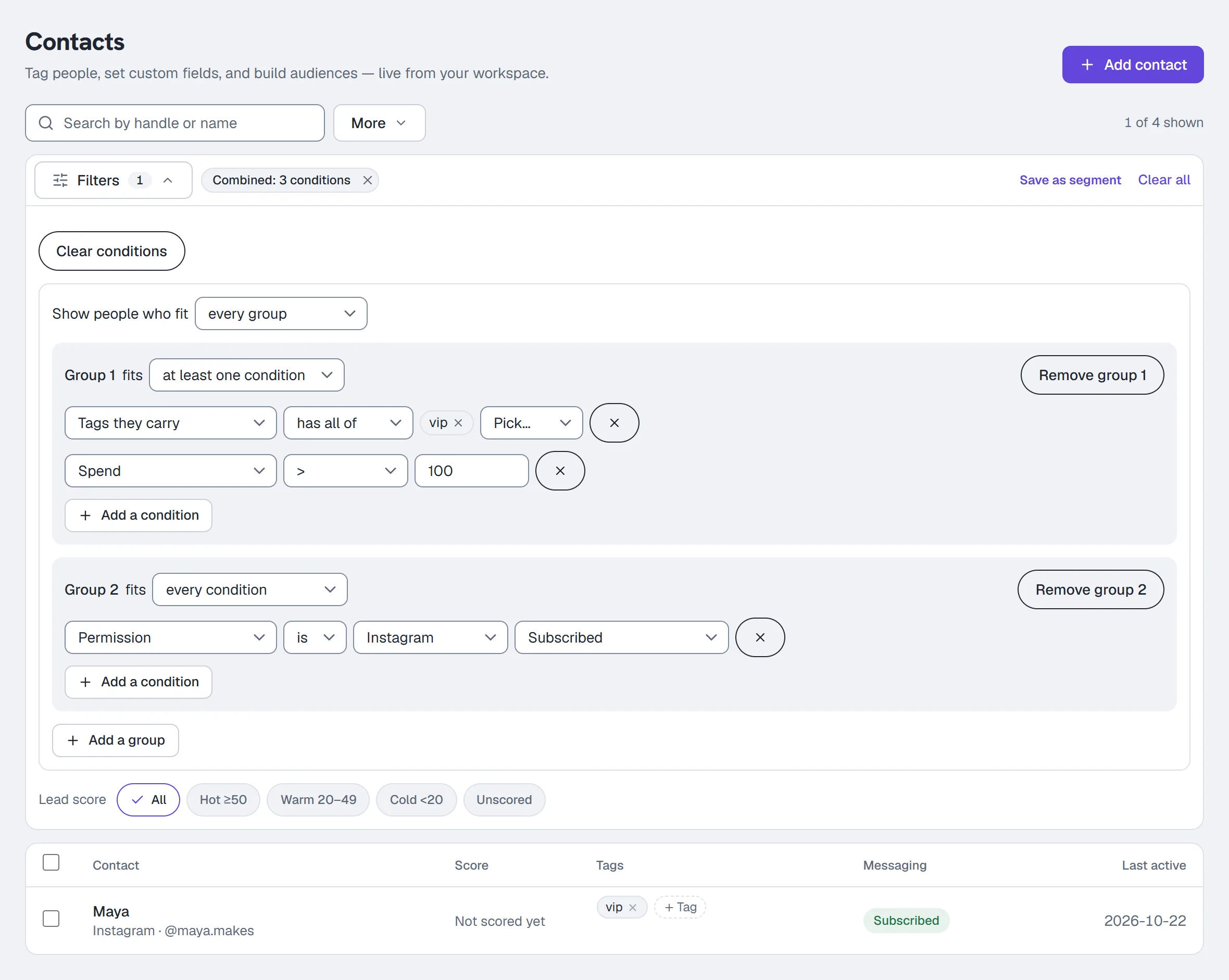
- Click Filters, then Combine conditions. Whatever the bar (or an applied segment) held moves into it, so there is one place that says what's in force.
- Next to Show people who fit, pick every group or at least one group.
- In Group 1, after fits, pick every condition or at least one condition.
- In the condition, open Pick what to check and choose Tags they carry, one of Your fields, or one of the Contact details. Then pick the comparison and type or pick the value.
- Click Add a condition for another condition in the same group, or Add a group for a new group.
- The list updates as you go, and the filter shows as a Combined: chip. Save as segment saves it; Clear conditions puts the plain bar back.
Up to 5 groups, 10 conditions in a group and 25 in all. A condition you haven't finished isn't used yet, and says so; a group with nothing in it is dropped when you save.
The extra comparisons. Text fields add doesn't contain and starts with. Number fields add ≥, ≤ and is between (both ends included). Date fields add is between (pick two dates; both days count, whatever the time on them), in the last … days and more than … days ago. Days are counted in your workspace's time zone with today as day 1, so "in the last 7 days" and "more than 7 days ago" never overlap. Tags offer has all of, has any of and has none of.
The contact details you can check. Permission on one channel (Subscribed, Unsubscribed or No permission on record — the same permission the send check reads), Channel, Reply window, Opted in on, Sequence and Segment (is in / isn't in — someone who finished or left a sequence isn't in it; a segment that itself uses a segment can't be used here, a segment that another one already uses can't start using one, and a segment another segment or a campaign still to send uses this way can't be deleted until you remove that condition), How they were added (They messaged you, Added by hand, Imported), Added on, Last interaction, Automations paused, Follows you, Follower count and Username.
Contacts with no value. For your fields, is not and doesn't contain never include a contact who has no value there — the builder says so beside them. Use is empty to find those contacts. Tags work differently: has none of includes contacts with no tags at all, because someone with no tags carries none of the ones you named.
A segment built this way works anywhere a segment does in a DM broadcast. Text (SMS) and email campaigns can't use "at least one" groups yet: their composers refuse such an audience, and a segment one of them uses can't be changed into one.
Save a filter as a segment
- Build the filter you want.
- Click Save as segment (it only appears when a saveable filter is active — a segment with no conditions would mean "everyone", which the server refuses).
- Type a name into the inline box and press Enter (or click Save).
A segment can capture tags, one field condition, Opted in, and the messaging window — or, with Combine conditions, everything you build there — but not the lead-score band, the Email filter or the search box, which narrow the table on screen only (a lead-score filter alone shows no Save control). Saved segments then appear as chips here, and as an audience option in the Broadcast composer.
Saving segments needs Growth or above — below it the save is refused with the broadcasts/sequences upgrade message.
Tags
Apply or remove a tag
On a row or in the drawer, use the tag field. Typing a name that doesn't exist yet and pressing Enter creates it and applies it in one step.
Manage tags
- Click More in the toolbar, then Manage tags. (Settings → Workspace → Contact data links here too, and to the custom fields manager.)
- The dialog lists every tag with how many contacts carry it and where it's used — Used in 3 places, or Not used anywhere we check (see Where a field or tag is used). From here you can:
- Rename a tag. The list of where it's used appears under the name box. Flows and rules that add or remove a tag store its name, so the dialog reminds you to update them after renaming.
- Merge one tag into another — you confirm first, and the confirmation names both tags.
- Delete a tag — the list of where it's used appears first, with how many contacts it will be removed from. Click Delete tag. If a live flow uses the tag, a second question names the flow; click Delete anyway to go ahead.
The dialog opens for everyone, including roles that cannot edit: the counts are a fact about your workspace and are worth seeing on their own. They count every contact in the workspace, not just the ones on screen, and they're re-read each time you open the dialog, so a tag you just applied or removed is already counted. If they can't be refreshed, the dialog says so and shows Retry; if they can't be read at all, each tag says Usage unavailable rather than 0.
Tag folders
Manage tags puts tags in folders — one level, like "VIP" or "Leads" — so a long list stays easy to scan. A folder only organises: it never changes who a filter, a segment or an automation reaches.
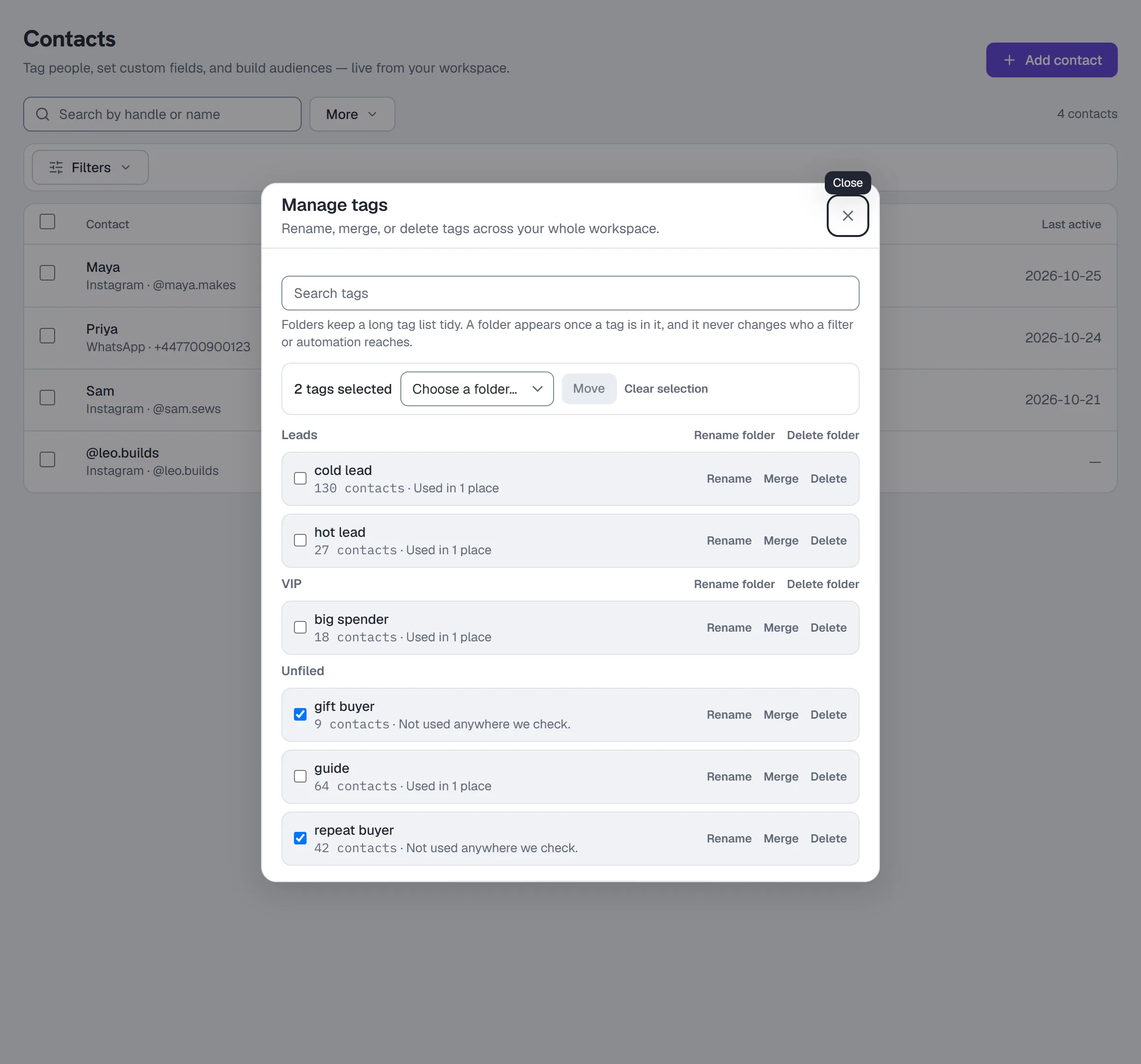
- Click More in the toolbar, then Manage tags. Tags are listed under their folders, with Unfiled last, and Search tags finds a tag in any folder.
- Tick the tags you want to move. A bar shows how many are selected.
- Pick a folder in Move to folder, or New folder… and type its name (up to 40 characters, without
*), or No folder to take them out. Click Move. - To rename a folder, click Rename folder on its heading, type the new name and click Save.
- To delete a folder, click Delete folder on its heading and confirm. Its tags stay, unfiled, and every contact keeps every tag.
A folder appears once a tag is in it — there's no empty folder. "VIP" and "vip" are one folder. The tag pickers for filters, bulk actions and a flow's tag step group tags by folder too.
Custom fields
Custom fields are the per-contact data you define — shoe size, plan, renewal date, whatever your business needs. They are available as {{merge_tags}} in messages, as conditions in flows and rules, and as filters here.
Create a field
- Click More in the toolbar, then Fields.
- Enter a Label (e.g.
Shoe size) and a key in snakecase (e.g. `shoesize`). - Choose a type: Text, Number, Yes / No, Date, Date & time, or List.
- Optionally, give it a Group (fields in one group are listed together) and a Description (what it's for, shown beside the field).
- Click Add field.
List, Group and Description appear where they're turned on for your workspace. Once a field exists its key and type are fixed; click Edit on it to change its label, description or group.
Fields are archived, not deleted, so historical values survive. Every field in the manager says where it's used — click Show where for the list. Click Archive and the list appears first; click Archive field to archive it, or Cancel.
How a List field works
A List holds several text values — interests, sizes, products.
- It holds up to 20 values, each up to 100 characters. Commas and semicolons separate values, so a value can't contain them.
- The same value twice is kept once, ignoring case; the first spelling wins.
- An empty list is no value.
- In a message, a merge tag reads the values with commas between them:
red, blue. - A flow's or rule's Set field replaces the list with the value it sets, split on commas. A value that breaks these rules is not written.
Set a value on one contact
Open the contact drawer and edit the field inline. The input is typed to match the field — a date picker for a date, a Yes/No select for a boolean, and for a List, values separated by commas. A List saves only when its values change.
Where a field or tag is used
Before you archive a field or rename or delete a tag, HyperDM shows what uses it, so nothing breaks by surprise. The field manager (More → Fields) and Manage tags say Used in N places for each one. Each place links to the thing: a flow opens on the step, a rule or a sequence on its editor, a segment on the list filtered by it. Live marks something running now.
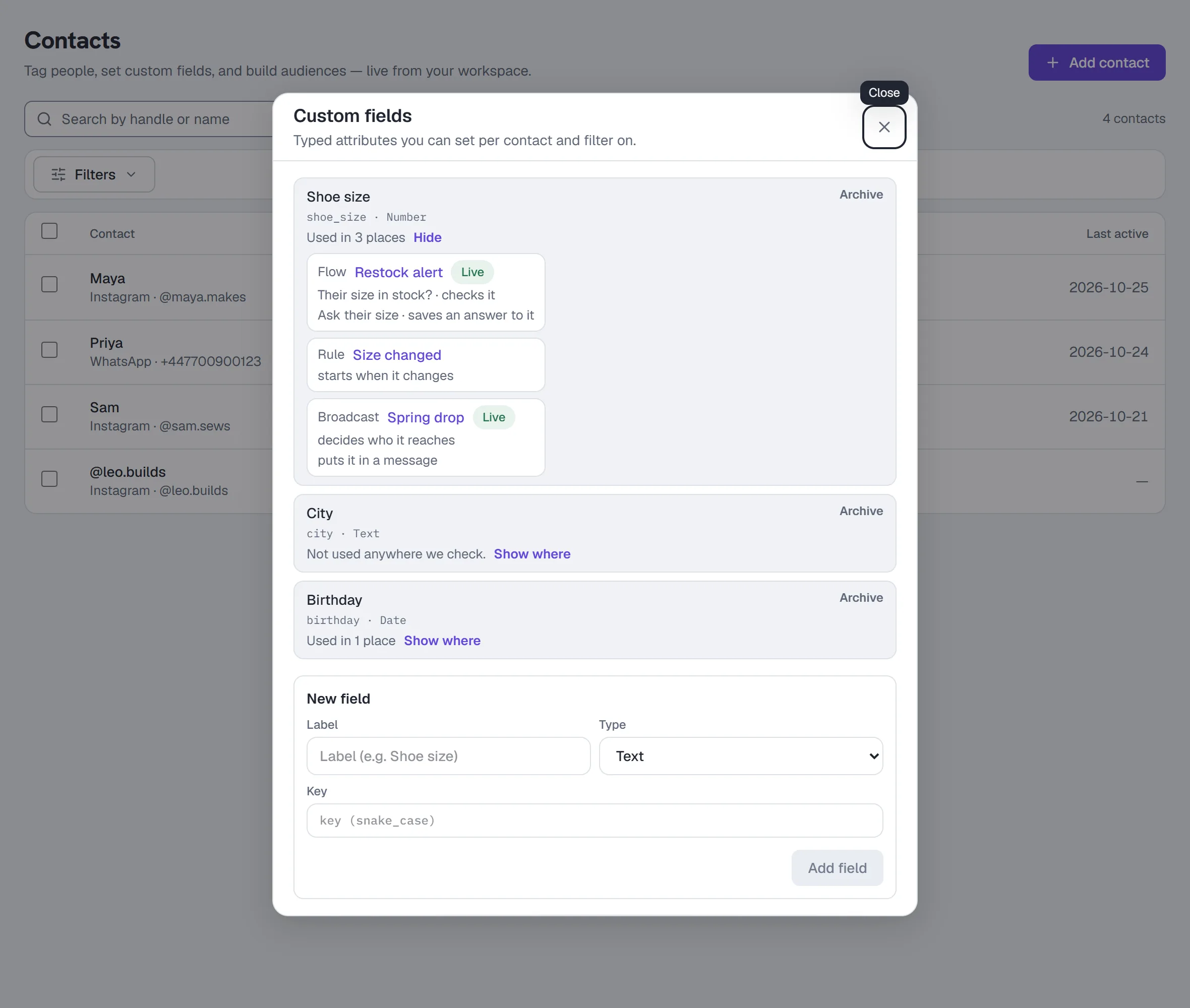
What's checked: flows (including an unpublished draft of a live flow), automations, rules, sequences, draft and scheduled broadcasts, segments, the AI's lead capture, integration and Google Sheets steps, AI steps and email templates. A field counts when it's set, checked, saved to, used to choose an audience, or written into a message as a merge tag like {{shoe_size}}. A flow's email step or an email broadcast counts by the version of the email template it actually sends. Sent broadcasts are history and aren't listed. Something in the trash still counts while you can restore it, marked In the trash.
"Couldn't check" is not "Not used". If one of these can't be read, the list says Couldn't check your flows, so it may be used there, and the summary reads Not found in what we could check instead of Not used anywhere we check. Deleting a tag when the flows couldn't be checked asks you a second time.
Every role can see where something is used, including roles that can't change it.
Bulk actions
- Tick the checkbox on each row you want (or use the header checkbox for all visible rows).
- The bulk toolbar appears, naming exactly which set is selected.
- With every visible row ticked, a further link offers "Select all N contacts matching this filter" — that targets the entire audience the filter resolves on the server, not just the rows loaded on this page. A highlighted bar confirms the wider scope, and "Select just the N on this page" steps back down. While the search box, the lead-score band or the Email filter is narrowing the table, that link isn't offered: those narrow what's on screen only.
- Choose Apply tag or Clear field.
When it finishes, the message says how many contacts were newly tagged (or cleared) and how many already had the tag (or were already empty), so running it again changes nobody twice and says "Nothing to do". If a teammate tags some of the same people at the same moment, those count as already having it, and everyone else is still tagged. When tagging, a contact erased while it runs is skipped, and the message says how many no longer exist. If either action stops part-way, it tells you how many it finished, and the contacts it already tagged show the tag right away — run it again and it picks up the rest.
The checkboxes are hidden entirely from roles that cannot bulk-edit, so nobody can select twenty rows and arrive at a toolbar with nothing on it.
More actions
Where it's turned on for your workspace, the bulk bar also has More actions…: Remove a tag, Add to a sequence, Take out of a sequence, Pause automations, Resume automations, Set a field, Unsubscribe from messages and Delete contacts (the last two for owners and admins, with a typed word to confirm). Each runs in the background for up to 5,000 contacts, one at a time per workspace, shows its progress, and ends with an outcome: how many were updated, already that way, skipped and why, or no longer exist. None of them triggers your rules. The walkthrough is in Bulk actions on contacts.
Export contacts
Where it's turned on for your workspace, owners and admins can download contacts. Export… in the toolbar makes a CSV of the ticked rows (or, with none ticked, every contact matching your filter) with their tags, fields and permission on each channel. More actions… on the bulk bar adds Facebook custom audience and Instagram custom audience: Meta's customer file, with only the contacts Meta can match, and a count of who was left out. Create the link gives a 24-hour link; the file is made when you open it, up to 50,000 contacts and 5 exports an hour. The walkthrough is in Export your contacts.
One person on several channels
When the same person talks to you on two channels, each channel is its own contact. Where it's turned on for your workspace, owners and admins can join them with Link another channel… in the drawer: both records stay as they are — their own messages, permission and reply window — and from then on they share tags and custom fields, and a broadcast reaches the person once. Permission never crosses channels. A linked contact says Linked · also on … in the list, and its drawer shows the other channels, with Unlink. Exporting or deleting a linked contact covers the whole person. Two records on the same channel are duplicates: use Merge for those. The walkthrough is in Link one person's channels.
The contact drawer
Click a row — or Tab to a contact's name and press Enter — to open the full profile. Press Esc or the × to close it, and focus goes back to that row.
Identity
Channel; Handle (or Number); Source — From Instagram (they messaged you), Added by hand, Imported, or Source not recorded for contacts from before HyperDM recorded it; and Verification — Verified by Instagram or Unverified. An unverified contact says why HyperDM can't message it. An email address is always Not verified — nobody has confirmed an address belongs to the person who typed it — and one captured by an automation's question says Typed into an automation as its source. Whether an address is emailed depends on its permission, in the Email section, not on this line.
Messaging permission
Their permission on their own channel, what it means for sending, and where it came from — for example "They sent a stop keyword · 3 Sep 2026".
To record that someone asked you to stop:
- Click Unsubscribe.
- Confirm. Nothing more is sent to them on that channel, and messages already queued are stopped when they come due.
Made a mistake? Undo unsubscribe appears for whoever unsubscribed them, for 10 minutes, if nothing has changed since. A STOP from them counts as a change even though they were already unsubscribed, so their STOP always stands.
Re-subscribe… (owners and admins) works only if they've written to you since they opted out — HyperDM checks their messages. Otherwise they can send START.
Unsubscribing is not pausing. Pausing automations (below) stops HyperDM replying for a while; unsubscribing stops every message on that channel until they opt back in.
An email address (email is coming soon) isn't listed as a contact: it's in the Email section of the contact it came from, and a link straight to an address opens that contact. The one exception is an address no contact is linked to any more — a link to it opens the address's own drawer. Where customer email is switched on, that drawer shows the Email section (below) instead of this one. Where it isn't, its Unsubscribe here puts the address on your do-not-email list, and needs an owner or admin. There's no Undo unsubscribe or Re-subscribe… for an address: getting it back on your list takes a record of where and when they agreed, which the Email section asks for. An address's drawer has no Pause automations, tags, custom fields, sequences or Merge with another contact… — those belong to the contact the address came from — but you can still export or erase it.
Email (where customer email is switched on)
The Email section sits under Messaging permission in a contact's drawer. It lists each email address linked to this contact — captured by a flow, imported, or added by hand — with its state: Subscribed, No permission on record (you have the address, nobody is emailed), Unsubscribed, or Suppressed with the reason (they unsubscribed, the address bounced, or they marked an email as spam). Under each is where its permission came from and when, and its recent history.
To add an address by hand (owners and admins):
- Click Add an email address….
- Type the Email address.
- Leave They've given permission to email them unticked to save the address with no permission on record — nothing is emailed to it. Or tick it and choose Where permission was given and When permission was given (both required; the date can't be in the future), with an optional Note.
- Click Add address.
An address that is already on your do-not-email list stays there when you add it — even one whose contact was erased; to subscribe it again, use Subscribe with evidence… on it, which warns you first. A When permission was given of today counts from the moment you record it, so a customer who unsubscribed by mistake this morning and asked this afternoon to be put back can be.
Subscribe with evidence… records permission for an address that has none, and Unsubscribe stops every email to it and puts it on your do-not-email list, where it stays even if the contact is erased. Neither is the automation pause, and neither changes their permission on the channel they messaged you from. An email address's own drawer shows its own Email section, without Add an email address….
Texting permission (SMS contacts)
An SMS contact's drawer adds Texting permission (SMS is coming soon; this shows where it is switched on, and stays readable if it's switched off again):
- Replies: "allowed for 24 hours after they text you — until …", "one reply from your team, to ask what they meant — until …" after a possible opt-out, or "none right now".
- Express consent: each piece of consent evidence on file — the date, how it was given, the reference, the programme, and What they were told — or "No documented consent" with Import their consent evidence.
- Any opt-out, in words: "They texted STOP on …", "Their carrier reported an opt-out on …", a possible opt-out with the time it becomes a full one unless they text START, or "Your import marked them opted out".
Only they can undo a STOP or a carrier opt-out, by texting START — there's no button for those. An opt-out that came from your import is different: once they've texted START, an owner or admin sees Re-subscribe here ("Your import marked them opted out, and they've texted START since."). Unsubscribing an SMS contact from the drawer says "They can opt back in by texting START."
Every role can unsubscribe a contact, except an email address, which needs an owner or admin. The buttons appear where they're turned on for your workspace; the permission itself is always shown.
System fields (read-only)
First name, Last name, Username, Opt-in, the reply window (Open/Closed), Last interaction, Follower count. The window row names the channel's own number — 24h window on Instagram, 48h window on TikTok — and reads Reply window · — on SMS and Telegram, which have no window at all. A missing name or username shows a dash; a Follower count Instagram doesn't provide reads Not available.
Custom fields
Every field you've defined, in its group and with its description, editable inline.
Pause automations for this contact
- Choose a duration: Until I resume, or 30 minutes / 1 hour / 3 hours / 6 hours / 12 hours / 1 day.
- Click Pause automations.
To undo, click Resume now. This is the same state the Inbox's Take over sets, read from the same two columns — both surfaces always agree.
This control needs the pause_agent capability, held by owner, admin and client — notably not agent. Tags, fields, sequences and adding contacts need manage_automations, held by owner, admin and agent — notably not client. This is the one page in the product where those two roles invert, and it is deliberate: a client who has to be able to say "stop replying as me, now" gets that and nothing else. The pause state is always visible to everyone; only the ability to change it is gated.
Conversions
The drawer lists the conversions your flows logged for this person — the event, its value, the flow and when — across any records merged into them.
Sequences
Every live sequence is listed as its own row with its status for this contact — an active one shows "On step N · next <date>", a finished one Completed, a left one Unsubscribed.
An active row can carry one more line:
- Waiting on the flow “…” to finish (or Waiting on a flow to finish when the flow's name can't be shown) — their current step runs a flow, and the sequence moves on when that flow ends or the step's time limit passes.
- On hold: … — their next step can't go out yet, with the reason in words (for example, the automation it sends was paused). They keep their place and get it once the reason clears; see Troubleshooting.
Click Subscribe on the row you want, or Unsubscribe on an active one. This is the sharpest control on the page: it starts automated DMs going out on your account.
A contact can enter a given sequence once, ever. After they have been through it — completed or unsubscribed — the button shows a disabled Entered and they cannot be re-enrolled. Subscribing needs Growth or above.
Export or erase their data
Owners and admins can download everything HyperDM holds about one contact, or erase it. The buttons appear where this is turned on for your workspace.
To export:
- In the drawer, click Export their data. The dialog lists what HyperDM holds about them — messages, tags, field values, permission changes, sequence enrolments, public replies under their comments and more — with counts.
- Click Create download link, then Download the file.
The file is made when you download it and is never stored. It includes any records merged into this contact. It also has each public reply an automation or flow posted under one of their comments: the words as HyperDM sent them, with merge tags like {{first_name}} filled in, and whether the reply posted. If AI Comments replied under one of their Instagram comments, the file has that too, listed as AI replies under their comments: the comment it answered, the words the AI posted, and when. The link works for 24 hours, only for owners and admins of this workspace, and stops working once the contact is erased.
To erase:
- In the drawer, click Erase contact…. The dialog lists what will be deleted; what is kept without their link (orders and delivery records, for your own records); what stops (remaining sequence steps, flows waiting on them, queued comment replies); and what erasing can't reach (the platform's own copy of the conversation, public replies already posted under their comments, exports already downloaded, and anything already sent to a connected CRM or email tool — remove the person there too).
- Type ERASE and click Erase contact.
Erasing is all or nothing: if it fails, nothing is erased and it says so. It can't be undone. For an SMS contact, their texts, consent evidence and texted pictures are part of the export. If you send email campaigns, the export also has every email address captured from them, with its email permission and its permission history, and each email sent to it (when, why and what happened to it — never its words). Erasing deletes the consent evidence and picture references, but an opt-out stays on your list as a scrambled form of the number (not the number itself), so a later import or text can't start texting them again without their START. Files you sent them from the Inbox are deleted with them. HyperDM's record of each public reply under their comments is deleted too, but the reply itself stays under the comment until you delete it on Instagram or Facebook. The same goes for AI Comments replies under their Instagram comments. Records merged into this contact are erased with it, because a merge said they're the same person. If they message you again, they arrive as a new contact.
Merge duplicate contacts
When the same person is in your contacts twice — usually because you added them by hand before they messaged you — merge the two records. Merging needs the owner or admin role.
- Open either of the two contacts.
- Click Merge with another contact… at the bottom of the drawer.
- Type part of the other record's name, @username or the ID from a DM, and pick it from the list. Only merge records that are the same person — a matching name isn't proof.
- Click Review merge. Check which record Stays, and for every value that differs between the two, pick the one to keep under Choose what to keep.
- Click Continue, tick I've checked that these records are the same person, and click Merge contacts.
The drawer then shows Merged records: the record you merged, its Receipt — what moved and what you chose — and the latest messages across both records. A link to the merged record now opens the one that stayed.
What moves, and what doesn't
- Moves to the record that stays: tags, custom-field values (with the choices you made) and sequence memberships. If both were in the same sequence, the progress of the record that stays is kept.
- Consent can only get stricter. An opt-out on either record carries over; an opt-in on the merged record doesn't. If either record's automations were paused, they stay paused.
- Nothing is deleted. The merged record is kept, hidden, with its channel ID and its message history, which shows in the timeline. Its automations are paused.
- Email addresses keep their own permission. If you send email campaigns, the review lists under Email addresses each address either record gave and whether it's subscribed. After the merge, the record that stays reaches all of them. A merge never subscribes or unsubscribes an address.
- A merge can't be undone automatically. The receipt is how support traces it.
Merges that are blocked
- Two contacts that have both been in touch through a channel — for example the same person on Instagram and on Facebook. Each channel keeps its own consent and messaging window on its own record, so they stay separate for now.
- A contact with an automation in progress — a flow waiting for a reply, a queued comment reply, a pending checkout reminder. Merge once it has finished.
- An email address. An address stays linked to the contact it was captured from, with its own email permission, so it can't be merged into a contact. It isn't a row of its own — search for it and you find the contact it belongs to.
- Which record stays isn't always your choice. When one record came from a channel and the other was added by hand, the channel's record stays, because it's the one that channel delivers messages to.
Common questions
Why is the same person in my contacts twice? Usually because you added them by hand before they messaged you, or because they reached you on two channels. A hand-added record can be merged into the real one — see Merge duplicate contacts. Two channel records stay separate for now.
What is the difference between a tag and a field? A tag is a label a contact either has or doesn't. A field holds a value — text, a number, a yes/no, a date, or a list of values. Filter on tags for membership, on fields for values.
Why can't HyperDM message a contact I added or imported? Instagram only allows messages to people who messaged you first, and a WhatsApp number needs recorded permission. A contact you added or imported is a record with No permission until then. See Consent, opt-out and opt-in.
What does No permission mean? HyperDM has no permission on record for that channel, so it sends nothing — not even an automation. It changes when they message you, when a keyword or an automation records it, or, for WhatsApp, when an import documents where and when permission was given.
Why is my contact list capped? The table loads your most recent contacts up to a server page-size limit, so a very large audience may not all be listed at once — but the filters, saved segments and "Select all matching this filter" all resolve against the full audience on the server. (The Inbox's list is separately capped at its 200 most recent conversations, which is why its search overflow line sends you here.)
Why can't I see the Add contact button? Your role lacks manage_automations. The page explains the absence where the button would have been. Import, Export and Erase need an owner or admin. See Roles and permissions.
Where does lead score come from? Nothing sets it automatically. Use a flow's Increment field action or a rule to score contacts on the behaviour you care about.
More in Inbox & contacts
- Import contactsBring contacts in from a CSV: match the columns, check a dry run that lists every problem, import, then download the rows that didn't make it.Read
- Bulk actions on contactsSelect rows or everyone matching a filter, pick an action under More actions, confirm the count, then watch it run and read the outcome.Read
- Work the Inbox as a teamShare the Inbox with a team: assign conversations to people or groups, complete and reopen them, write internal notes, label them and save views.Read
Try HyperDM for free
50 free conversations a month, no card. Connect Instagram and follow the guide you just read.