How to bulk actions on contacts
Select rows or everyone matching a filter, pick an action under More actions, confirm the count, then watch it run and read the outcome.
Do one thing to many contacts at once: remove a tag, add them to a sequence or take them out of one, pause or resume their automations, set a field, unsubscribe them, or delete them. Each action runs in the background, up to 5,000 people at a time, and tells you exactly what happened to everyone it covered.
Where it's turned on for your workspace, the Contacts bulk bar has a More actions… menu next to Apply tag… and Clear field…. Owners, admins and agents can use the list edits; only owners and admins can Unsubscribe from messages and Delete contacts, and those two ask you to type a word to confirm.
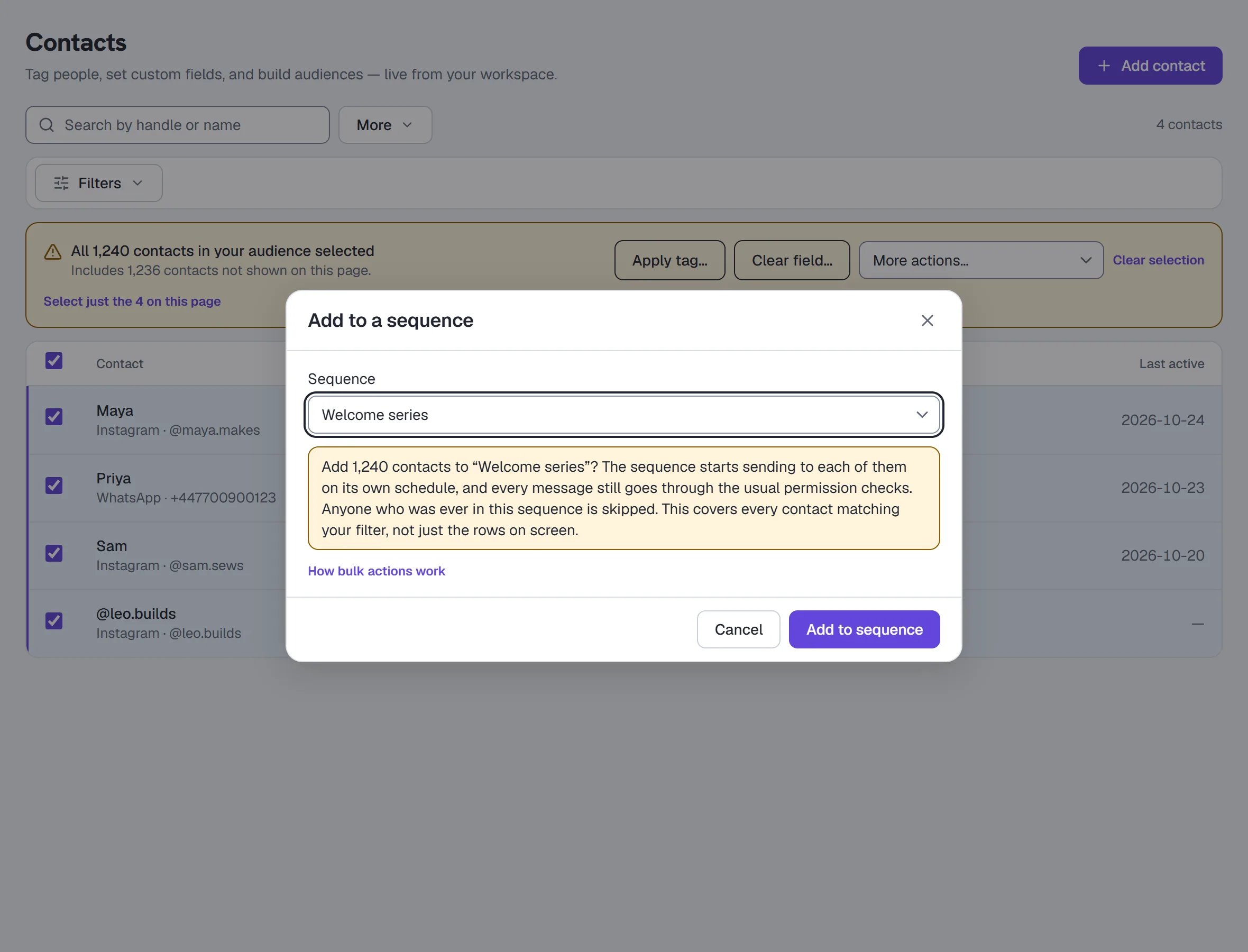
Run a bulk action
- On Contacts, tick the rows you want, or tick every visible row and choose Select all N contacts matching this filter to cover the whole audience. The bulk bar says which set is selected.
- Open More actions… and pick the action.
- Choose what it acts with:
- Remove a tag — the Tag.
- Add to a sequence or Take out of a sequence — the Sequence. Adding lists live sequences; taking out also lists paused (draft) ones, so you can empty a drip you've stopped.
- Pause automations — For how long, from 30 minutes to Until you resume them.
- Set a field — the Field and its New value, typed the way the contact panel takes it (a number for a number field, true or false for a yes/no field).
- Unsubscribe from messages and Delete contacts — type STOP or ERASE in the box.
- Read the question: it names the action, the number of contacts, and whether it covers only the rows you ticked or everyone matching your filter. Then press the button under it (Remove tag, Add to sequence, Take them out, Pause, Resume, Set field, Unsubscribe them or Delete them).
- Watch the progress: N of total done. You can close the dialog; the action carries on, and the link under the bulk bar ({action}: … done) opens it again with the same numbers.
- Read the outcome when it finishes.
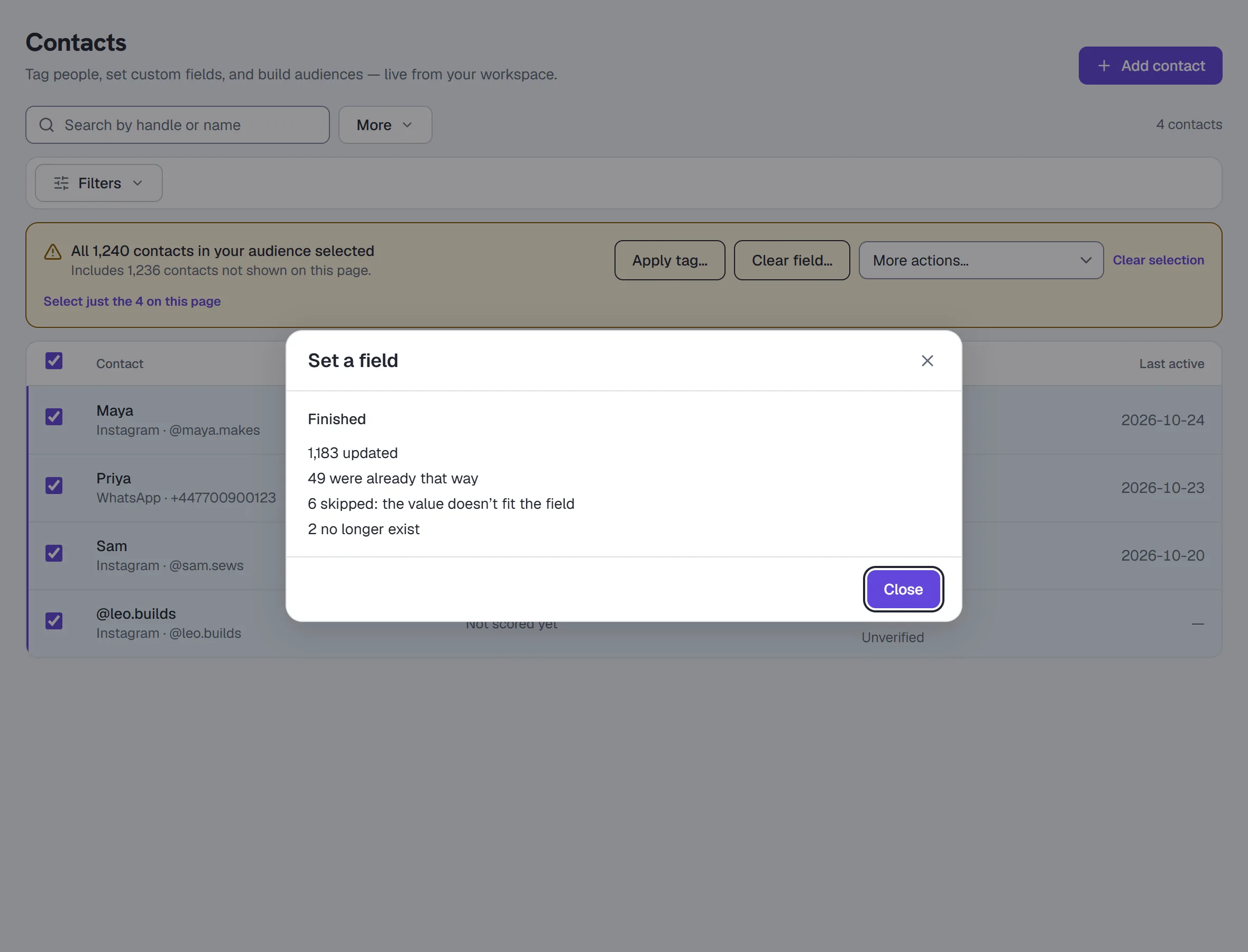
Reading the outcome
- Updated (or unsubscribed, deleted) — this action made the change.
- Already that way — they were already in that state: no tag to remove, already in that sequence (someone who was ever in a sequence is never added again), already paused, already holding that value. Running an action twice changes nobody twice.
- Skipped, with the reason — the change doesn't apply to them: the sequence or field was deleted while it ran, the value doesn't fit the field, or the contact is an email address (those have their own unsubscribe).
- No longer exist — deleted since you started.
- Couldn't be changed — that one contact's change was refused and nothing of it was saved.
- Merged records deleted with them — for a delete, the records merged into the people you deleted.
Stop this action stops it after the batch it is working on. Everything listed as done stays done; run the action again to do the rest. If it stops on its own, the dialog says why. The list on screen updates at once only for an action that ran to the end; after one that stopped part-way, reload the page to see who changed.
Send an automation to the contacts you picked
Where it's turned on for your workspace, owners and admins also see Send an automation… under More actions… (Growth and up).
- Tick the rows, or select everyone matching your filter.
- Open More actions… and choose Send an automation…. The dialog says who it covers (Start it for the N ticked contacts.).
- Pick an automation, then press Continue. The broadcast composer opens with that automation and The N contacts you picked as the audience — your list stays on HyperDM's side and never goes into a link.
- Review who it reaches, then start it — see Send an automation to a list. Only people whose reply window is open can be started; nobody is queued for later, and permission is never assumed from a booking or a skipped question.
Good to know
- One bulk action at a time per workspace. Starting another while one runs shows the running one's progress.
- Up to 5,000 contacts per action. A bigger selection is refused with the real number — narrow the filter and run it in parts.
- Bulk actions don't trigger your rules. Removing a tag or setting a field in bulk is your edit, not something the contact did, so no "tag added" or "field changed" rule fires.
- Adding people to a sequence starts sending to each of them on the sequence's own schedule, and every message still goes through the usual permission checks. It needs a plan that sends messages first (Growth and up). The other bulk actions are on every plan.
- Unsubscribing is per channel and can't be undone here. Each person is unsubscribed on their own channel; only a new message from them can opt them back in. Their permission history reads "Unsubscribed by a teammate in a bulk action".
- Deleting erases everything HyperDM holds about each person, as Erase in the contact panel does, including records merged into them. It can't be undone.
- Every bulk action writes one line in the Activity log: the action and its counts, never anyone's name.
More in Inbox & contacts
- Import contactsBring contacts in from a CSV: match the columns, check a dry run that lists every problem, import, then download the rows that didn't make it.Read
- Work the Inbox as a teamShare the Inbox with a team: assign conversations to people or groups, complete and reopen them, write internal notes, label them and save views.Read
- Export your contactsDownload your contacts as a CSV with their tags, fields and permission, or as a file for a Facebook or Instagram custom audience.Read
Try HyperDM for free
50 free conversations a month, no card. Connect Instagram and follow the guide you just read.