How to work the Inbox as a team
Share the Inbox with a team: assign conversations to people or groups, complete and reopen them, write internal notes, label them and save views.
With the team inbox on, every conversation has a status — Open or Completed — and an owner: a teammate, a group's queue, or nobody (Unassigned). Your team can also leave internal notes, put labels on conversations and save views.
None of this changes whether HyperDM answers, whether someone can be messaged, or a snooze. Take over, Set reminder (both in the thread's Conversation menu) and Pause all work exactly as before.
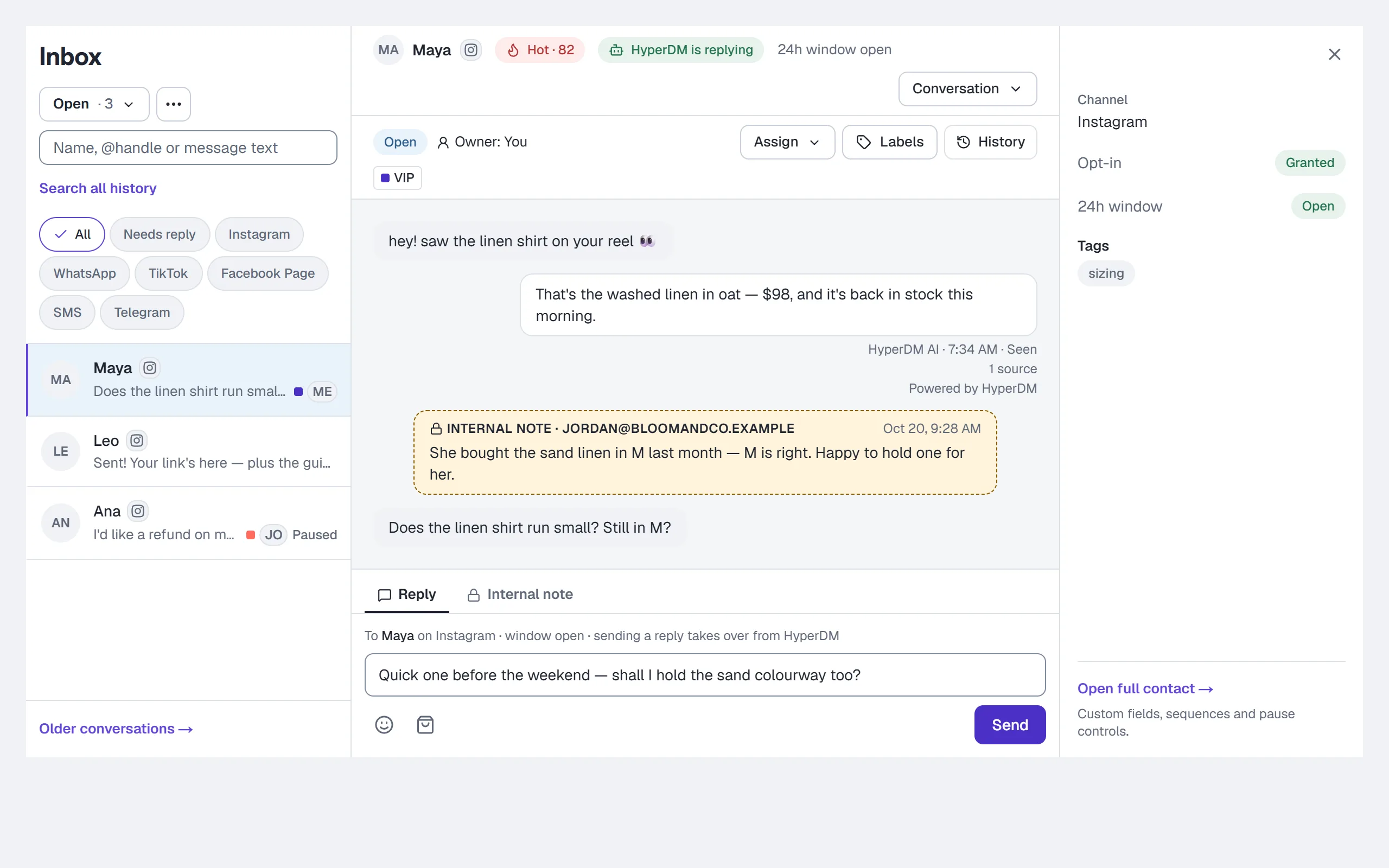
Where it's on: the team inbox is being turned on workspace by workspace. If the Inbox list has a menu above the search box that reads Open · 3 (or another number), it's on for yours.
Who can do what: everyone on the team can take a conversation, complete or reopen it, write notes, use labels and save their own views. Owners, admins and agents can also assign conversations to other people. Owners and admins set up groups, labels, shared views and the inbox's behaviour. See Roles and permissions.
Before you start: set up the team (owners and admins)
Everything is in Settings → Team & roles, below your members — see Settings.
- Under Groups, type a name such as
Supportand click Create group. Click Members…, tick who is in it and click Save group. - Under Inbox behaviour, check how conversations open, where a reopened one goes, who sees what, and how long a reply by hand pauses HyperDM. Click Save inbox behaviour if you change anything.
- Under Conversation labels, add the labels your team will use, such as
VIPorRefund. - To hand conversations out automatically, set up Auto-assignment (below).
Groups and labels are optional: queues, owners and notes work without them.
Step 1: choose a queue
- Open Inbox.
- Click the menu above the search box. It shows the queue you're in and how many open conversations it holds.
- Choose a queue:
- Open — every open conversation.
- Mine — the ones you own.
- Unassigned — open, and nobody owns them. The list also says how long the oldest has waited.
- A group under Groups — what's waiting in that group's queue for someone in it to take.
- A view under Saved views — your own, and the ones shared with the team.
- Completed and All conversations, which aren't counted.
Counts are open conversations, and they refresh as your team works. The filter chips narrow the current page. To find an older conversation in the selected queue:
- Enter the customer's name, @handle or words from a message in Name, @handle or message text.
- Click Search all history or press Enter. Open any matching row directly in the Inbox.
- Click Older conversations → for the next page of matches, or Most recent to start again. Click Clear search to return to the queue without a search.
Search includes older messages, even when the latest preview is different. It respects the queue and your team's visibility rules. Choose All conversations before searching when you want completed conversations too. The Older conversations → control also pages the unsearched queue beyond its first 200 rows.
Step 2: take a conversation, or assign it
Above the thread, a bar shows the conversation's status and who owns it.
- Click Assign.
- Choose Assign to me. Owners, admins and agents can instead choose a teammate under Teammates, or a group under Groups — the conversation then waits in that group's queue. Unassign sends it back to Unassigned.
The change shows at once. If a teammate took the conversation a moment before you, nothing changes and the bar says who owns it now. Owners, admins and agents can then click Take it anyway; a client asks one of them. If a teammate changed the conversation some other way at the same moment, the bar shows it as it is now, and you can make your change again.
Assigning doesn't change what HyperDM does. To stop the AI answering, click Conversation, then Take over — or reply by hand, which pauses HyperDM until someone resumes it, or for the time an owner or admin set under Inbox behaviour. That time applies to a conversation HyperDM handed to your team as well, once someone replies there. A takeover someone chose — before the hand-off or after it — is never shortened.
Step 3: complete it when it's handled
- In the thread's header, click Conversation, then Complete.
- To bring it back, click Conversation, then Reopen.
A customer's next message reopens a completed conversation too, where your workspace opens conversations on customer messages. It goes back to the same person or to its queue, as set under Inbox behaviour.
Completing moves the conversation to Completed and keeps its owner, labels and notes. It doesn't unsubscribe anyone, end a snooze or resume HyperDM.
To finish several at once, owners, admins and agents can open Queue actions (the ⋯ beside the queue menu) and choose Complete all N open here…. It lists what happens and asks first.
Write an internal note
- Under the thread, click Internal note beside Reply. The box turns amber and says: "Only your team sees internal notes. They're never sent to the customer and never shown to the AI."
- Type the note.
- Click Add note, or press Ctrl+Enter.
The note appears in the thread in amber, with who wrote it and when. Notes can't be edited or deleted. If a note doesn't save, your text stays in the box so you can try again. Click Reply to go back to replying.
Label a conversation
- Click Labels in the bar.
- Tick a label to add it; untick it to take it off.
Owners and admins can click New label… to add one. Labels belong to the conversation: they aren't contact tags, and rules, segments and broadcasts don't read them.
Save a view
- Open the queue closest to what you want, then Queue actions (⋯) → Save these filters as a view….
- Enter a Name.
- Set the filters you need: Status, Owner, Queue, Needs a reply, HyperDM (answering or paused), Only when the 24-hour window is open, Channels, and Labels — with Any of them or All of them when you tick more than one.
- Owners and admins can tick Share with the team. Everyone sees a shared view; only owners and admins can change it.
- Check the Shows: line — the view's rule in words — and click Save as a view.
The view appears under Saved views with its count, which always uses exactly the view's filters. To change or remove it, open the view, then Queue actions → Edit this view…, and click Save view or Delete view. If a group a view uses is deleted, the view matches nothing until you edit it. If a label it uses is archived, the view still lists the conversations that have that label, and says the label is archived: a view never widens to every conversation.
See a conversation's history
Click History in the bar. Conversation history lists, newest first, who opened, handed off, assigned, completed and reopened the conversation, and when labels and notes were added. History starts when the team inbox arrived in your workspace; nothing earlier is reconstructed.
Hand conversations out automatically
Owners and admins can turn this on in Settings → Team & roles → Auto-assignment:
- Choose On — balance by open conversations.
- Under Assign to, choose Everyone on the team or the members of one group.
- Optionally set Most open conversations per person, tick the inboxes it covers, and choose what happens When everyone is full.
- Read What it will do: the inboxes it covers, who is eligible and how many each has open, the capacity rule, where overflow goes, and what happens to conversations already waiting.
- Click Turn on auto-assignment, and confirm.
From then on, a conversation that a customer's message opens — or that HyperDM hands to a human — goes to whoever has the fewest open. Conversations already waiting stay where they are, and a later message in a conversation that's already open doesn't reassign it: one someone sent back to Unassigned stays there until it next opens.
Who sees which conversations
By default everyone sees every conversation. An owner or admin can set Who sees what to Agents and clients see their own under Inbox behaviour. Agents and clients then see the conversations they own, the unassigned ones and their groups' queues. Owners and admins still see everything.
It's enforced on the server: a hidden conversation's messages, notes, files and scheduled replies never reach the browser, and nobody can reply in, snooze, take over or start an automation in a conversation they can't see. That stays true if the team inbox is switched off again later — set Who sees what back to Everyone sees every conversation first to show everything. Contacts, their names and their tags are still visible to the whole team.
When a teammate leaves
When someone is removed from the workspace, or leaves it, each open conversation they owned goes back to its group's queue if it was in one, and to Unassigned otherwise, with a line in its history. They're taken out of every group, and their personal saved views are deleted.
Nothing new is ever assigned to someone who isn't on the team. If a flow's Assign conversation step names a teammate who has left, or a group that was deleted, the conversation is left unassigned. Auto-assignment only picks current members, and uses the overflow you chose under When everyone is full once they're all at their limit.
When HyperDM hands a conversation to a human
When the AI hands off, a guardrail stops it, a customer asks for a refund, a flow's Assign conversation step runs, or a goal ends in a hand-off, the conversation opens in the Inbox and its history says why. A flow can send it to a teammate or to a group's queue — see Flow builder. A flow you export or share leaves the teammate or group out: in another workspace, that step hands the conversation to the team.
Common problems
| What you see | What it means |
|---|---|
| "… owns this conversation now." | A teammate took it first. Owners, admins and agents can click Take it anyway; a client asks one of them. |
| "Someone changed this conversation a moment ago, so nothing was changed. Here's where it is now." | Look at the bar again, and make your change if it's still needed. |
| "The team inbox isn't switched on for this workspace." | It hasn't been turned on for your workspace yet. |
| Assign to someone else is greyed out | Your role is Client: you can assign conversations to yourself only. |
| A conversation you had open disappeared | Your workspace shows agents and clients only their own conversations, and it was assigned to someone else. |
Everything else about the Inbox is in The Inbox.
Read incomplete or unavailable history
- Select the conversation in Inbox. A successful empty read is different from an unavailable history read.
- If Older messages available appears, choose Load earlier. Repeat to read further back; each page uses your current conversation permissions.
- If the read is unavailable or the displayed messages are last known, choose Retry history. Changing threads/workspaces discards late results from the old selection.
- If the conversation is no longer available, refresh the list and choose a visible conversation. Cached messages, notes and reply controls do not restore permission.
- For an account explanation notice, choose Retry facts after recovery. Review knowledge only through Review current knowledge with owner/admin permission; the notice does not approve content or send a reply.
More in Inbox & contacts
- Import contactsBring contacts in from a CSV: match the columns, check a dry run that lists every problem, import, then download the rows that didn't make it.Read
- Bulk actions on contactsSelect rows or everyone matching a filter, pick an action under More actions, confirm the count, then watch it run and read the outcome.Read
- Export your contactsDownload your contacts as a CSV with their tags, fields and permission, or as a file for a Facebook or Instagram custom audience.Read
Try HyperDM for free
50 free conversations a month, no card. Connect Instagram and follow the guide you just read.