The Inbox
Working conversations by hand: emoji, files, voice messages, scheduled replies, saved replies, starting an automation, taking over and snoozing.
Sidebar: Daily → Inbox. Every conversation across every connected channel, live. New messages appear without a refresh.
The sidebar row carries a red count badge when conversations need a human. Above 99 the pill reads 99+, but the screen-reader label keeps the true number.
The layout
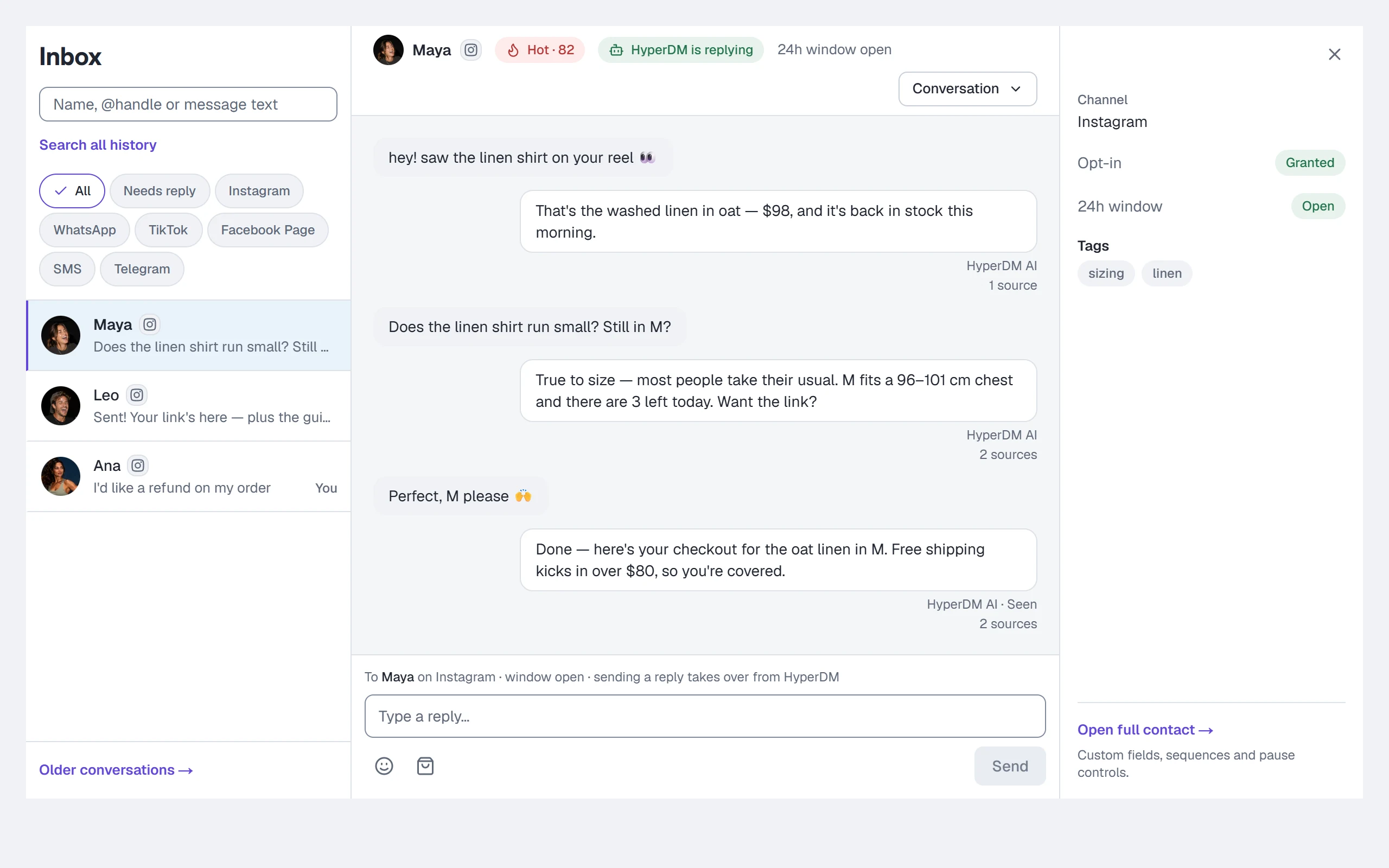
Three panes on desktop:
- List (left) — search, filter chips, and every conversation newest-first.
- Thread (middle) — one header (who it is, who is answering, the reply window and the Conversation menu), the messages, and the reply box with its tools.
- Context (right) — channel, opt-in, window state, tags, and a link to the full contact. From 1280 px wide it is a column; on a narrower screen it folds to a slim rail — click Show contact details to open it, and Hide contact details to fold it again.
On a phone it is list-first, like a native messenger: tap a row and the thread covers the screen; the ← button returns you; the ⓘ button raises the context pane as a bottom sheet.
Before the first conversation arrives, the whole screen is a single "No conversations yet" state. If Instagram is not connected yet it points you to Settings to connect; if it already is, it simply confirms the connection and tells you incoming DMs will appear here in real time.
In the list, a conversation where the customer sent the last message shows its name in bold (a screen reader hears "Needs reply"). Each row shows its channel's logo (hover it for the name) and when its last message arrived, and the open conversation is highlighted. Rows you've taken over say You; where the team inbox is on, that word reads Paused — whoever took the conversation over, HyperDM isn't answering it.
Find a conversation
Filter chips
All, Needs reply, then one chip per channel — Instagram, WhatsApp, TikTok, Facebook Page, SMS, Telegram (on a phone, the short marks IG, WA, TT …). The chip in force shows a check. Needs reply shows conversations where the customer sent the last message; it clears when a reply goes out (yours or the agent's), not when you open the thread. The chips scroll sideways on a phone rather than wrapping.
Search
- Type a name, @handle, channel id, linked email address or words from a message in Name, @handle or message text.
- Click Search all history or press Enter. Matching conversations appear directly in the Inbox, including threads older than the first page. Click a row to open it.
- Click Older conversations → to see the next page of matches, or Most recent to return to the newest matches. Clear search returns to the unsearched list.
Names and handles match partial text; message text matches whole words, in any language, without stemming. Several words must all occur in the same message. A matching older message does not have to be the thread's latest preview. The thread still opens at its recent messages; search does not jump to or highlight an older matching message.
Each page holds up to 200 conversations. Older conversations → also works without a search, so there is no 200-conversation visibility ceiling. Search and paging keep your selected team queue and only show conversations your role is allowed to see. Choose All conversations in the queue menu to include completed conversations.
Read a thread
- Customer messages sit left, on a light grey.
- Your messages and the agent's sit right, in one white bubble with a border. The line under each says who sent it and when — HyperDM AI · 2:14 PM or You · 2:14 PM.
- Under an agent message you may see the sources it answered from — click 2 sources to list them — or unsourced — review with a warning sign. Read the unsourced ones — the agent could not trace that answer to your knowledge. See Core concepts.
- Seen is added to that line under the most recent outbound message the recipient actually opened. It is stamped once, on the latest read message — the watermark covers everything before it. "Sent" means Instagram accepted it; "Seen" means the person opened it.
- Files you sent from the Inbox show in the thread: a photo as a picture, a voice message or a video with a player, and a PDF as a link. Sent files are kept for 30 days; after that the message says the file is no longer available.
- On the Free plan, agent messages carry the "Powered by HyperDM" note, matching what is actually appended on the wire.
The header shows the contact's name and channel, a lead-score chip if they have one (Hot / Warm / Cold with the number), one status chip — HyperDM is replying or You're handling, followed by reminder and its time when one is set — then 24h window open or outside 24h window (with the channel's own number, so a TikTok thread reads 48h window open), and the Conversation menu: Take over or Resume HyperDM now, Set reminder or Wake now, and, with the team inbox, Complete or Reopen.
Facts with nothing to do sit at the end of the thread as quiet lines: when the window closed, when a timed takeover hands back to HyperDM, and when a reminder brings the conversation back.
Reply by hand
- Select the conversation.
- Read the line above the reply box. It says who the reply goes to, on which channel, and whether it can go — for example "To Maya on Instagram · window open for 5 more hours". When nothing can be sent, it says why instead.
- Type in the reply box (Type a reply…). Enter sends and Shift+Enter starts a new line. On a phone or tablet, Enter starts a new line and you tap Send. Ctrl+Enter (⌘+Enter on a Mac) sends on any device.
- Press Send.
The box grows to eight lines as you type. A reply can be up to 1,000 characters on Instagram and Facebook, and 4,096 on WhatsApp; the box tells you when you're over.
Replying by hand takes the conversation over automatically — HyperDM stands down on that thread until you click Resume HyperDM now. The line above the box reminds you before you send. Sending a file, a voice message or a product does the same. Where the team inbox is on, an owner or admin can make that pause last a set time instead, in Settings → Team & roles → Inbox behaviour — including on a conversation HyperDM handed to your team.
Your reply goes through the same compliance gate as everything else — the 24-hour window, consent and rate caps all apply to a human reply too.
Your draft stays put. Each conversation keeps its own unsent draft, text and files, while you move between threads in the same browser tab, and a message that didn't send stays in the box. Drafts belong to the tab, not your account: closing the tab clears them.
You can reply to a TikTok thread by hand, where TikTok is switched on for your workspace. HyperDM keeps the reply address from the message they sent you, so the box works like any other conversation's.
Five things are different, and the box says which one applies instead of failing on send:
- They have to have written to you first, and recently. TikTok only carries a reply inside 48 hours of their last message — and until they've replied to you once, at most 10 messages in that window. After 48 hours, if they've replied to you before, TikTok allows up to 3 more messages until they write again, and the box says how many are left. Otherwise the reply is refused with that reason.
- Some older conversations have no reply address. A conversation that started before HyperDM kept TikTok reply addresses — or one where they have not written since — can't be answered until they message you again. The notice says so rather than guessing.
- If you reconnect a different TikTok account, conversations held with the previous one can't be answered from the new one. Those people need to message the account you have connected now. Going back is not the fix either — reconnecting the previous account would strand everyone who has messaged the current one since.
- A saved reply address can stop working. When TikTok refuses the address we kept for a conversation, we stop using it rather than failing into the same refusal again, and the box says that address has stopped working. The send that ran into the refusal did not go. They need to message you again; their next message replaces the address.
- And when we couldn't check, the box says so instead of guessing. A read that failed is not a no, so the box asks you to try again in a moment rather than offering you a reply that would be refused. Nothing was sent.
Text only, and a reply claims only what TikTok confirmed. TikTok DMs can't carry a picture from HyperDM, a voice message, a video or a document. A reply you send reads TikTok accepted it straight away, and TikTok sent it once TikTok echoes the message back to us; if no echo arrives it settles on TikTok accepted this, but hasn't confirmed it. None of them says "Delivered" — TikTok never tells us that, and the echo only proves TikTok sent the message, not that anybody read it.
A reply you type in the TikTok app shows up here too, marked Sent from TikTok, so the thread is the whole conversation rather than only HyperDM's half.
Reply to a text message (SMS)
SMS is coming soon. It isn't switched on for workspaces yet; until it is switched on for yours, you won't have text conversations. Where it is on and your SMS number is connected (Settings), a text from a customer lands here like any other message, with an SMS chip, and you reply from the same box. What is different:
- The line above the box reads "Texting +1 (415) 555-0100 from your SMS number · ≈ $0.0128 per text" — the estimate uses your number's own prices. Your Twilio account is charged for each text; HyperDM charges nothing per text.
- A meter under the box counts what you type: how many texts it will go out as, whether it uses standard characters (160 in one text, 153 each once it's split) or Unicode (70, then 67 — one emoji or a letter like á switches the whole message), how many characters are left in this text, and the estimated cost. HyperDM swaps curly quotes and similar look-alikes for plain ones before sending, and the meter says when it did. Send and Schedule turn off over 1,600 characters.
- There is no reply window. SMS has no 24-hour window. Instead:
- you can reply to someone who texted you in the last 24 hours;
- after that, only if there's documented permission to text them on file — imported with its evidence in Contacts;
- never to someone who opted out: "They opted out of your texts, so nothing can be sent to them. Only they can undo it, by texting START."
- Quiet hours. A reply to someone who texted you in the last 24 hours can go at any hour, unless your workspace also holds replies during quiet hours (Settings → Channels → SMS). Anything else — a text after that, or a scheduled one — goes only inside your sending hours in their time zone. When a reply is held the line says, for example, "It's 10:30 PM for them — quiet hours until 9:00 AM. Schedule it instead." — the box can't send, and Schedule opens at the next allowed time.
- A possible opt-out. When their last text may have been a request to stop ("can you stop sending me these?"), a notice says so and you can send one reply to check what they meant. HyperDM's automations and campaigns stop for them at once. If they don't text START within 24 hours, they're unsubscribed.
- Only US numbers can be texted, and only from a number that is ready: when yours isn't, the line says why.
- Pictures. Where picture messages (MMS) are available on your number, Attach takes a JPEG or PNG photo up to 5 MB; otherwise it tells you pictures can't be sent by text. Voice messages, videos and PDFs never go by text. Pictures a customer texts you show in the thread.
- Replying by hand takes the conversation over, exactly as on the other channels.
See whether a text was delivered
Every text you or HyperDM sends shows where it stands under the bubble, in words:
| Under the text | What it means |
|---|---|
| Checking whether it went out… | HyperDM is waiting to hear whether it was sent. It is never sent a second time on its own. |
| Accepted | The text provider took it. That is not delivery yet. |
| Sent to carrier | The customer's mobile network took it. |
| Delivered | The network says their phone has it. |
| Not delivered — … | It didn't arrive, and the reason follows: for example "Their phone is off or unreachable" or "They've unsubscribed from your texts". |
| Not sent — nothing was charged | It never left. |
| Couldn't confirm it went out — check with them before resending | HyperDM couldn't find out, even after checking with the provider. |
Labels move forward as news arrives; a reload shows the latest. Accepted never means delivered.
See when a WhatsApp message wasn't delivered
Where WhatsApp is on for your workspace, Meta can accept a message and fail it later. When it does, a line appears under the bubble — nothing shows while a message is on its way or has been delivered:
| Under the message | What it means |
|---|---|
| Not delivered — … | Meta failed it, and the reason follows in words: for example "Meta paused this template after negative feedback from the people receiving it", or "this contact hadn't messaged you in the last 24 hours, so WhatsApp only allows an approved template here". It is not retried on its own. |
| Not delivered | Meta failed it without a reason HyperDM recognises. |
| Not delivered — the reason is unavailable right now | Meta failed it, but HyperDM couldn't read why just now. A reload tries again. |
It appears without a reload when you have the conversation open.
Telegram threads have no reply window. On Instagram and WhatsApp the reply box closes 24 hours after the customer's last message. Telegram has no such clock: you can write to anyone who has pressed Start on your bot, whenever you like, until they block it. If someone has blocked your bot, a reply to them fails with a note saying so — your other Telegram conversations are unaffected, and there is nothing to reconnect. If Telegram refuses a photo or file you attached — too large, an unsupported format, or a link it can no longer reach — the note says that instead, and it means the message text did not go either: fix or re-upload the file and send again. Neither of those is a problem with your connection, so don't reconnect the bot to clear them.
The tools under the reply box
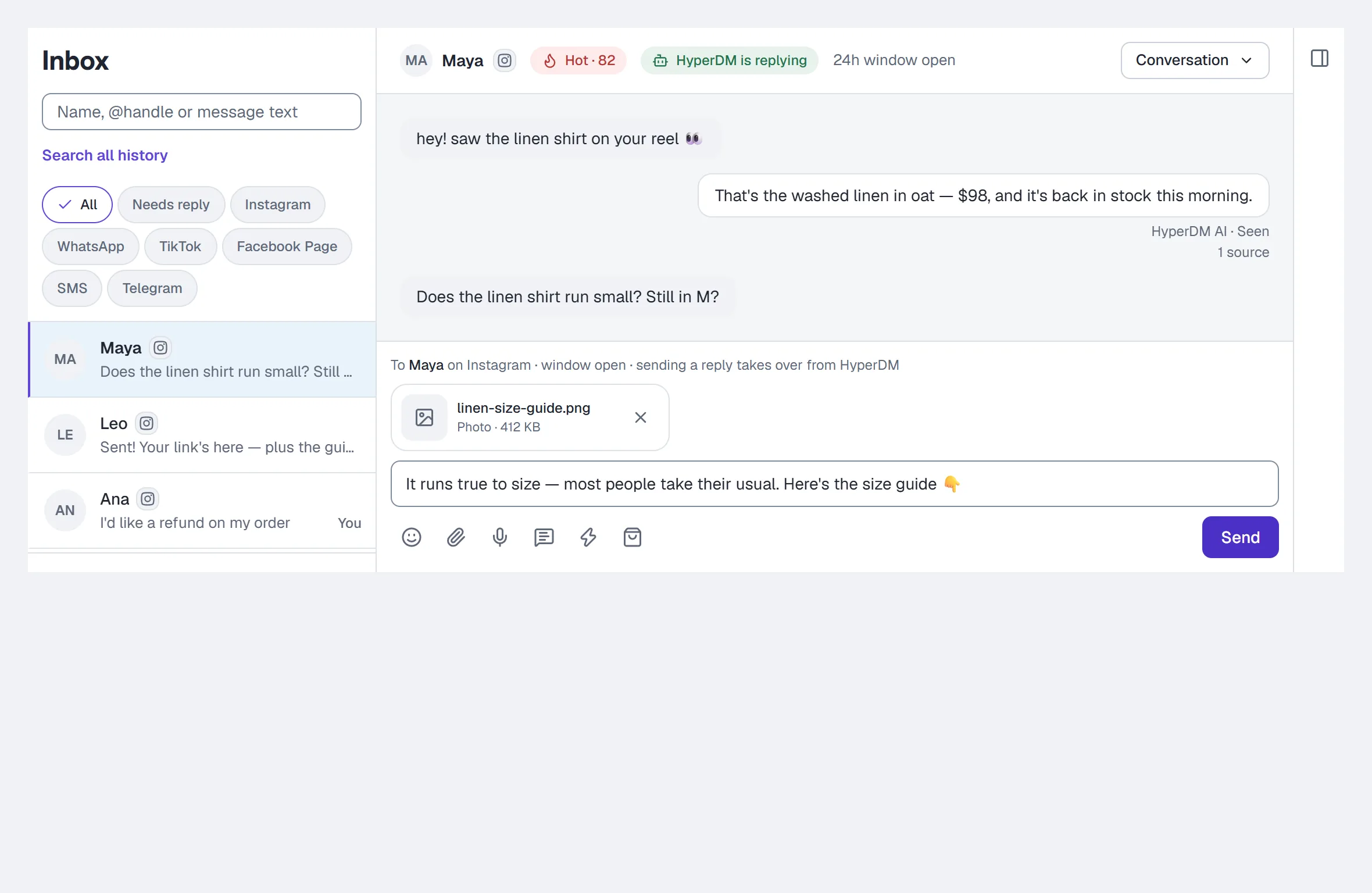
From left to right:
| Tool | What it does |
|---|---|
| Emoji (smiley) | Adds an emoji where your cursor is. |
| Attach (paperclip) | Adds a photo, a video, a voice or audio file, or a PDF to the reply. |
| Record a voice message (microphone) | Records up to 2 minutes and attaches it. |
| Saved replies (speech bubble) | Inserts one of your saved replies into the box. |
| Start an automation (lightning bolt) | Starts one of your live automations for this person. |
| Send a product (bag) | Sends a product card. |
Beside Send, Schedule (the clock) sends the reply later instead — see Schedule a reply.
Attaching files and recording voice messages are on the paid plans. On the free plan those two tools are greyed out; pressing one says why.
When a tool can't be used right now, it stays visible but greyed out, and pressing it (or hovering over it) says why: the window is closed, they opted out, there's no permission on record to message them, your plan, or your role.
Add an emoji
- Click Emoji (the smiley) under the reply box.
- Pick one, or type in Search emoji to find it by name.
It goes in where your cursor was, and you carry on typing. Escape closes the picker.
Attach a file
- Click Attach (the paperclip).
- Choose Photo, Video, Voice or audio or PDF. Each shows its size limit for this conversation's channel.
- Pick the file. It uploads with a progress bar; × removes it.
- Add a message if you like, then press Send.
| Photo (JPEG or PNG) | 8 MB | 5 MB | 5 MB |
| Video | 25 MB | 16 MB | 16 MB |
| Voice or audio | 25 MB | 16 MB | 16 MB |
| 25 MB | 25 MB | 25 MB |
- Up to 3 files per reply. Your message goes first, then each file as its own message.
- Send waits until every upload has finished. If one fails, remove it and attach it again.
- Video and audio in other formats are converted in your browser before they upload, as in the Media library.
- A PDF that contains scripts, launch actions or embedded files is refused.
- A file you attach but never send is deleted after 24 hours. A sent file is kept for 30 days; its message stays in the thread after that. Erasing the contact deletes their files straight away.
- Inbox files don't appear in the Media library and don't count against its storage.
- Attachments and voice messages are on the paid plans. On Free, Attach and Record say so.
Record a voice message
- Click Record a voice message (the microphone). The first time, your browser asks to use the microphone; allow it.
- Talk. The bar shows the time against the 2:00 limit and a level meter, and counts down the last 15 seconds.
- Click Stop to attach it, or Cancel to throw it away.
- Press Send.
If the browser refuses, you'll see "HyperDM needs microphone access — enable it in your browser's site settings, then try again." If there's no microphone, or the browser can't record, it says that instead. The reply box stays usable, and you can attach an audio file instead. The message goes away when you type or send.
Use saved replies
A saved reply is an answer you send often, with a name and an optional shortcut. Inserting one puts its text in the box. It never sends by itself: you can edit it, and nothing goes until you press Send.
Insert one:
- Click Saved replies (the speech bubble), or type
/at the start of the box or after a space. - Pick the reply. After
/, keep typing its shortcut or name to narrow the list, move with the arrow keys, and press Enter or Tab to insert it; Escape closes the list.
It goes in where your cursor is, and anything you'd already typed stays.
Tags are filled in for the person. A reply that says {{first_name}} goes in with their first name. If there's no value for this person, the tag stays in the box and Send is disabled with "Replace or delete {{first_name}} — there's no value for this person", until you type the value or delete the tag.
Create one:
- Click Saved replies, then New saved reply.
- Fill in Name (what you'll look for in the list) and Message (up to 1,000 characters). Shortcut is optional: letters, numbers,
-and_, typed after/. - Under Who can use it, choose Only me or Everyone in this workspace.
- Click Save.
To change or delete one, click the pencil beside it in the Saved replies list; Delete is in the dialog.
- Only me replies are private: nobody else in the workspace sees them.
- Everyone in this workspace replies are shared. Everyone can insert them; owners, admins and agents can create, change or delete them. A client sees "Your role can use the team's saved replies but not change them."
- The Saved replies list marks each reply Only me or Team.
- A shortcut can be used once among your own replies and once among the team's.
- If someone changed a reply while you were editing it, you can Use their version or Save mine over it.
Start an automation for this person
Starting an automation by hand runs one of your live automations for this one person, from its first step — for example, the one that sends your price list.
- Click Start an automation (the lightning bolt).
- Pick the automation. The list shows only live automations on this conversation's channel that don't need a comment or a checkout to start.
- Read the preview. What [name] gets first is the first message as they'll see it, with their details filled in; below it is what happens when you start.
- Click Start automation.
The dialog tells you before you start:
- It sends now, as HyperDM — not as you.
- If you're handling the conversation, HyperDM stays paused: taps on the automation's buttons carry it on, and anything they type comes to you. Tick Hand the conversation back to HyperDM once its first message is delivered to resume HyperDM as well.
- If its first message asks them a question while you're handling the conversation, that box is ticked for you. Otherwise their answer would come to you instead of the automation, which would wait for it indefinitely — and couldn't be started for them again. Untick it and the dialog warns you.
- If HyperDM is handling it, their replies carry the automation on as usual.
- A tag with no value for this person goes out blank, and the preview warns you.
When it starts, the dialog closes and the line under the reply box says what happened:
| Result | What it means |
|---|---|
| Started — its first message went out. | It's running. If you ticked the box, HyperDM is handling the conversation again. |
| Started — it opens with a step that doesn't send anything | It begins with a condition, a delay or an action, so nothing has gone out yet. |
| Started, but its first message was held by the sending limit | You'd reached the channel's sending limit, so that message won't be sent. The automation went on to its next step; check the conversation. |
| Had already started for them | An earlier click started it, so nothing was sent twice. |
When it can't start, the dialog stays open and says why. It won't start when they're already in that automation, when the window is closed, when they opted out or there's no permission on record to message them, when automations are paused for the whole workspace, or when the automation changed since you opened it — then the dialog shows the new version to check again. If its first message is refused ("Not started — its first message was refused, so the automation stopped. Nothing went out."), click Start automation again to try once more. On WhatsApp, if HyperDM couldn't confirm whether the first message reached them ("Stopped — we couldn't confirm whether its first message reached them…", or "…whether its WhatsApp message reached them…" when WhatsApp didn't answer in time), it may have arrived and it won't be sent again: check the conversation before you start the automation again. Starting an automation needs an owner, admin or agent; a client sees "Your role can read automations but not start them from the Inbox."
Automations that start from a comment, a comment on a live video or a Shopify checkout aren't listed: their first message answers that comment or checkout, and there isn't one here.
Send a product
- Click Send a product (the bag) under the reply box.
- Pick a product from the list. If you have 12 or more, a search box appears at the top of the picker. The picker holds up to 100 active products (your hand-added ones first, then Shopify-synced alphabetically), and its search looks only within those.
- The product card — image, price and buy link — is sent into the thread. Like a typed reply, this takes the conversation over.
If you have no active products the picker says so and links to Add one. When nothing can be sent to the thread, the button is greyed out with the reason.
Products come from Products; only Active ones appear here.
Schedule a reply
Scheduling saves a reply to go at a time you choose — a follow-up for tomorrow morning, say — instead of now.
- Type your reply (attach files if you like), then click Schedule — the clock beside Send.
- Pick a time: a quick pick (In 1 hour, Tomorrow, 9:00 AM, Monday, 9:00 AM), or set Date and Time yourself.
- Check Time zone. It starts on your workspace's zone (Settings → Workspace); when your browser is in a different one, you can pick yours instead. The line below says exactly when it goes — for example "Sends Tue, Sep 15, 9:00 AM GMT+7 · in 16 hours".
- Under If it can't go on time, choose how late it may still go: up to 15 minutes, 1 hour or 6 hours late.
- Click Schedule.
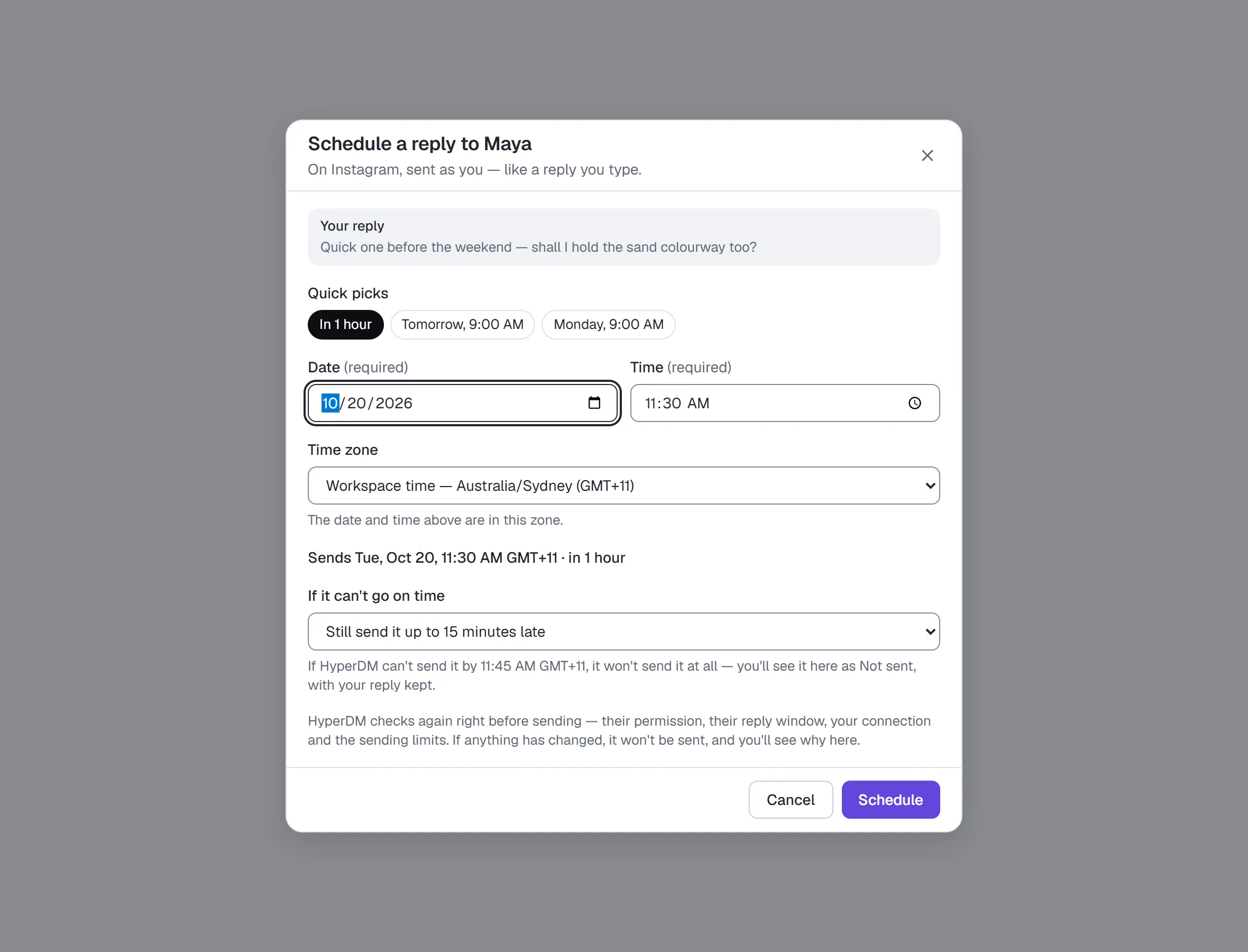
The reply leaves the box and waits in the conversation as a card — Scheduled for Tue, Sep 15, 9:00 AM GMT+7 — with "If it can't go by 9:15 AM GMT+7, it won't be sent." It's sent as you, like a reply you type, and like one it takes the conversation over when it goes.
- You can schedule from 2 minutes to 7 days ahead, and up to 10 replies per conversation.
- When the clocks go back, a time that happens twice that night asks which one you mean, and Schedule stays off until you choose.
- When the clocks go forward, a time that doesn't exist that night is refused, and the dialog offers the next one that does (for example Use 3:30 AM instead).
- If their 24-hour window closes before then, the dialog says so. Tick I understand it may not be sent to schedule it anyway: it goes only if they message you again first.
- HyperDM checks again right before sending — their permission, the 24-hour window, your connection and the sending limits. If anything changed, it isn't sent, and the card says why.
- A scheduled text (SMS) needs documented permission to text them: "Scheduled texts need documented permission — they don't count as a reply." A time inside their quiet hours is refused with the next time it can go ("use that instead"). It can't be scheduled to someone who opted out, after a possible opt-out, to a number that isn't a US number, or while your number isn't ready. The dialog shows the meter and "Scheduled texts need documented permission and respect quiet hours." Right before sending, HyperDM checks their texting permission, their quiet hours, your number and your SMS spend limit again. If it's held for quiet hours or the daily carrier limit, it waits, within its late-send limit.
Change or cancel a scheduled reply
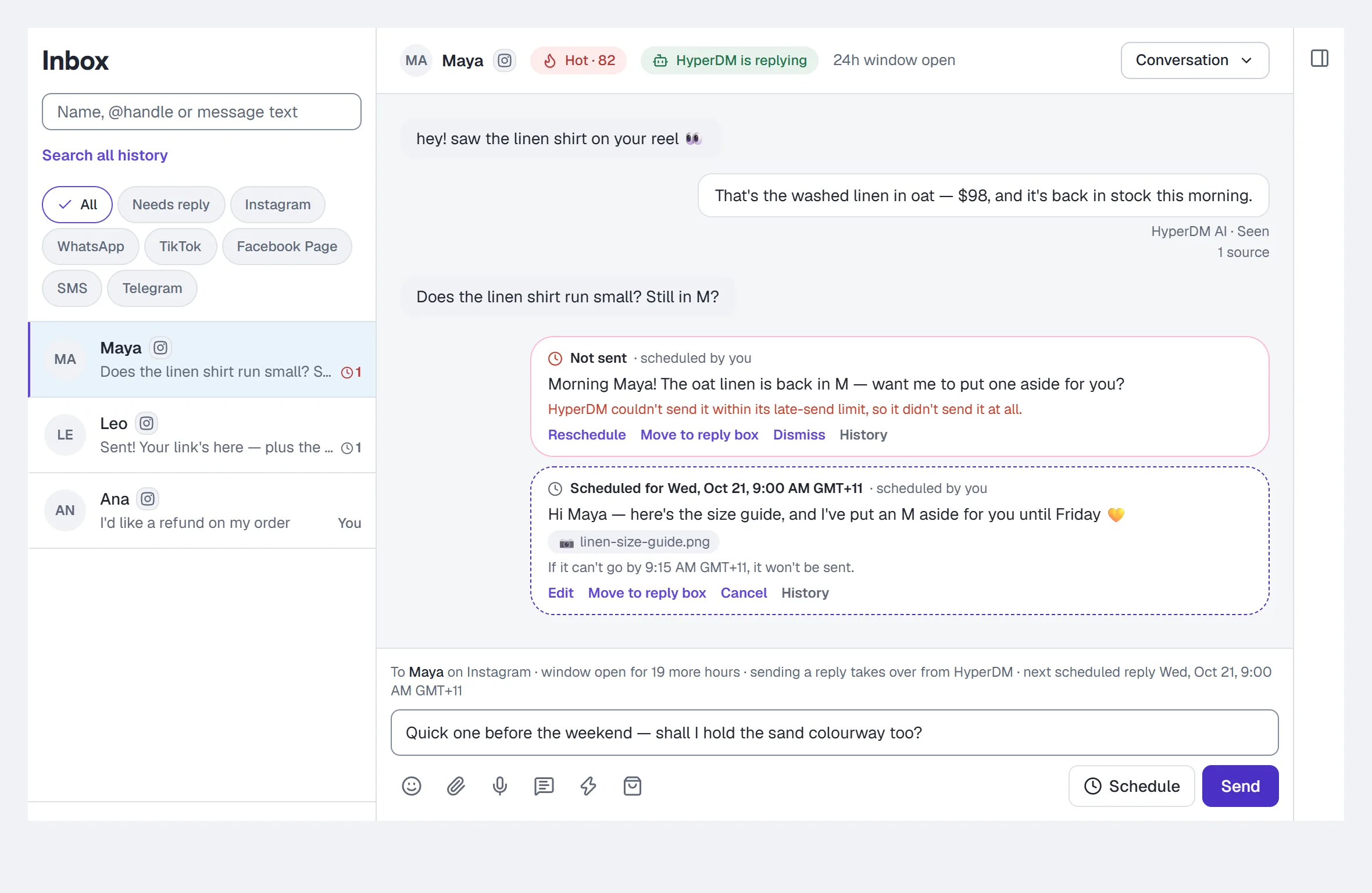
Everything is on the reply's card in the conversation:
- Edit changes the words, the time or the late-send limit. Only the person who scheduled it can.
- Move to reply box puts its words and files back in your reply box, after anything you've already typed. Nothing is sent. Only the person who scheduled it can.
- Cancel stops it. Anyone who can reply can. If it's already being sent, it's too late: the card says so, and nothing is recalled.
- History lists who scheduled, edited or cancelled it, and each time HyperDM tried to send it.
A clock with a number on a conversation in the list shows how many replies are waiting there. The line above the reply box names the next one.
When a scheduled reply isn't sent
The card turns into Not sent, says why, and keeps your reply for a week. The reasons include: they opted out, there's no permission on record to message them, their 24-hour window had closed, the channel was disconnected, a file isn't available any more, and HyperDM couldn't send it within its late-send limit. Then you can:
- Reschedule it for a new time (with new words, if none of it went yet);
- Move to reply box and send it yourself, or change it first;
- Dismiss it to clear it from the conversation.
A reply is never sent after its late-send limit, so if HyperDM is ever interrupted, a pile of stale messages doesn't go out when it comes back. If a sending limit holds it, HyperDM tries again over the next few minutes, within that limit.
Why didn't my message send?
After you press Send, the line under the box says what happened. When a reply has files, each part gets its own result:
| Result | What it means |
|---|---|
| Sent | It went out. |
| Still sending | It's already being sent, from another tab or an earlier try. Check the conversation in a moment before sending it again. |
| Held — not sent | You've reached the channel's sending limit for your account. Nothing went out; try again in a few minutes. |
| Not sent | Nothing went out, and the line says why: the 24-hour window closed, they opted out, there's no permission on record to message them on that channel, or the channel refused it. |
| Couldn't confirm | The channel didn't answer in time — or, on WhatsApp, the connection broke mid-send or WhatsApp answered without saying which message it was — so it may have arrived. HyperDM never re-sends it on its own. Check the conversation on the channel before sending it again. |
On a text message, the reasons include no documented permission to text them, quiet hours in their time zone, your SMS number not being ready, and your monthly SMS spend limit being used up — "This month's SMS spend limit is used up. An owner can raise it in Settings." If quiet hours or the daily carrier limit start between the moment you typed and the moment you pressed Send, it says Not sent and nothing retries it; schedule it instead. A text whose answer never came says Checking… and is never sent twice.
- Whenever something didn't send, your draft stays in the box. Try again never sends anything twice: whatever already went out is skipped.
- "Couldn't reach HyperDM" means the connection dropped before an answer came back. Your draft is still there, and Try again is safe.
- A reply you send is never quietly queued: if it says it didn't send, it didn't. To send one later on purpose, schedule it.
Take over a conversation
Taking over stands the AI down for that one thread so you can handle it yourself.
- In the thread's header, click Conversation, then Take over.
- Choose how long: until I resume (the default), or for 30 minutes / 1 hour / 3 hours / 6 hours / 12 hours / 1 day.
- Click Take over.
The status chip then reads You're handling, and for a timed takeover a line at the end of the thread says "Auto-resumes in N min / N hours / N days". If the takeover didn't save, the reason stays under the header.
To hand back, click Conversation, then Resume HyperDM now. That clears both the forever flag and any timer.
The durations are the same vocabulary as everywhere else in the product — "3 hours" means the same thing here, in a flow's Pause automations step, in the Contacts drawer, and in Settings' pause-everything control.
Snooze a conversation
Snoozing is "bring this back in front of me later". It is a different axis from taking over, and it deliberately does not pause the AI.
- In the thread's header, click Conversation, then Set reminder.
- Choose for 1 hour or until tomorrow morning.
- Click Snooze.
"Tomorrow morning" means 09:00 in your workspace's timezone — the start of a working day, not midnight. The timezone is the one set in Settings → Workspace, never your browser's.
To bring it back early, click Conversation, then Wake now.
Because the two axes are separate: snoozing does not silence the agent, and taking over does not cancel a reminder. The status chip names both — who is answering, and the reminder — and the line at the end of the thread says who covers the conversation until then, so "snoozed" never quietly reads as "handled".
The context pane
| Row | What it tells you |
|---|---|
| Channel | instagram / whatsapp / tiktok, or SMS |
| Opt-in | Granted or None |
| {hours}h window | Open or Closed, headed by the channel's own number — 24h window on Instagram and WhatsApp, 48h window on TikTok. On SMS instead: "No reply window — texting permission and quiet hours apply" |
| Tags | Every tag on this contact, or "None yet" |
At the bottom, Open full contact → takes you to the contact drawer in Contacts, where the custom fields, sequence subscriptions and pause controls live. The pane is deliberately a thin slice — the full profile is one click away rather than duplicated here.
Work the Inbox as a team
Where the team inbox is turned on for your workspace, every conversation also has a status (Open or Completed) and an owner — a teammate, a group's queue, or nobody (Unassigned):
- A menu above the search box picks the queue: Open, Mine, Unassigned, each group's queue, saved views, Completed and All conversations.
- The row under the thread's header shows the status and owner, with Assign, Labels and History; Complete / Reopen is in the header's Conversation menu.
- An Internal note tab beside Reply writes a note only your team sees — never sent to the customer, never shown to the AI.
- Each row shows the owner's initials, a dot for each label (named for screen readers), and Done once it's completed.
The step-by-step is in Work the Inbox as a team.
Common questions
Why is a conversation not in the list? Each page holds up to 200 conversations. Click Older conversations → for more, or use Search all history to find a name, handle or message. In a team inbox, choose All conversations to include completed threads; your workspace's visibility rules still apply.
Does replying by hand pause the agent? Yes — a hand-typed reply, a file, a voice message or a hand-sent product automatically takes the conversation over, and HyperDM stands down on that thread until you click Resume HyperDM now. Starting an automation doesn't: it sends as HyperDM.
Why can't I send to someone? The reply box says why — a closed window in a note right above the box, anything else on the line above it. Usually their 24-hour window has closed, and you cannot reach them until they message you again — see Core concepts. It also says so when they opted out of messages on that channel. A text message (SMS) has no window: the line names the SMS reason — no documented permission, quiet hours in their time zone, an opt-out, or your number not being ready — see Reply to a text message.
A text says "Accepted" — did they get it? Not necessarily. Accepted means the text provider took it; Delivered is the only label that means their phone has it. See See whether a text was delivered.
Where did my draft go? Drafts are kept in the browser tab, one per conversation. Closing the tab, or opening the Inbox in another browser, starts fresh. A file you attached but never sent is deleted after 24 hours.
Who can work the Inbox? Every role, including client. Replying as a human — with files, voice messages, your own saved replies and scheduled replies — and pausing the AI are both available to client, the role a merchant pays to sit in the inbox all day. Changing the team's saved replies and starting an automation need an owner, admin or agent. Attachments and voice messages need a paid plan. Where the team inbox is on, giving a conversation to someone else needs an owner, admin or agent; a client takes conversations for themselves. See Roles and permissions.
Can a scheduled reply go out in the customer's time zone? Not automatically: HyperDM doesn't know the customer's time zone. Pick the time in your workspace's zone or your own, and the dialog shows exactly when that is.
Can a teammate change a reply I scheduled? No — only you can edit it or move it back to your reply box. Anyone who can reply can cancel it, so a teammate can always stop a message that shouldn't go.
History availability and account explanations
A selected conversation loads its own permitted history, independent of the list's preview. Older messages available means the loaded page is incomplete: choose Load earlier to read the next page while keeping your scroll position. Conversation history is unavailable means the read failed; choose Retry history. It does not mean the customer has never written. After a failed refresh, messages already shown are labelled last known. A conversation that is deleted or no longer visible is cleared and cannot be replied to from that stale thread.
The compact account explanation notice, when available, shares Billing and Agent's count/monthly/payment/knowledge facts. Knowledge requiring review is a context warning, not a universal Inbox pause. Retry facts refreshes that observation; follow the permitted recovery link or ask the named owner/admin/agency. Buying future-use AI units does not lift another pause, and refreshing never sends or replays a customer message.
If an Instagram or Facebook reply says We couldn't confirm it was delivered, check the conversation on that platform before composing another reply. HyperDM keeps the original send as unknown and does not automatically resend it, including a retry of the unchanged draft. A new draft is a separate message. A positive provider receipt can confirm the original send even if recording it briefly failed; a missing receipt is never shown as a confirmed delivery.
More in Inbox & contacts
- Import contactsBring contacts in from a CSV: match the columns, check a dry run that lists every problem, import, then download the rows that didn't make it.Read
- Bulk actions on contactsSelect rows or everyone matching a filter, pick an action under More actions, confirm the count, then watch it run and read the outcome.Read
- Work the Inbox as a teamShare the Inbox with a team: assign conversations to people or groups, complete and reopen them, write internal notes, label them and save views.Read
Try HyperDM for free
50 free conversations a month, no card. Connect Instagram and follow the guide you just read.