Products
The catalogue the agent quotes and sells from: add a product, the Active checkbox, buy links, Stripe payment links and syncing from Shopify.
Sidebar: Content → Products. The catalogue the agent quotes from and sells from. Each product is a name, a price, an optional image and description, and a buy link.
Products fill three jobs:
- The agent quotes them and can send a real product card into a DM.
- The Inbox product picker sends one by hand.
- Flows send them via the Send product action, and buttons link to them with Buy product.
Viewing the catalogue is open to every role. Adding, editing, hiding, deleting and creating payment links need owner, admin or agent (manage_automations) — a client sees the catalogue read-only with a note saying so. Changing payment settings (the Stripe secret key) is owner-only.
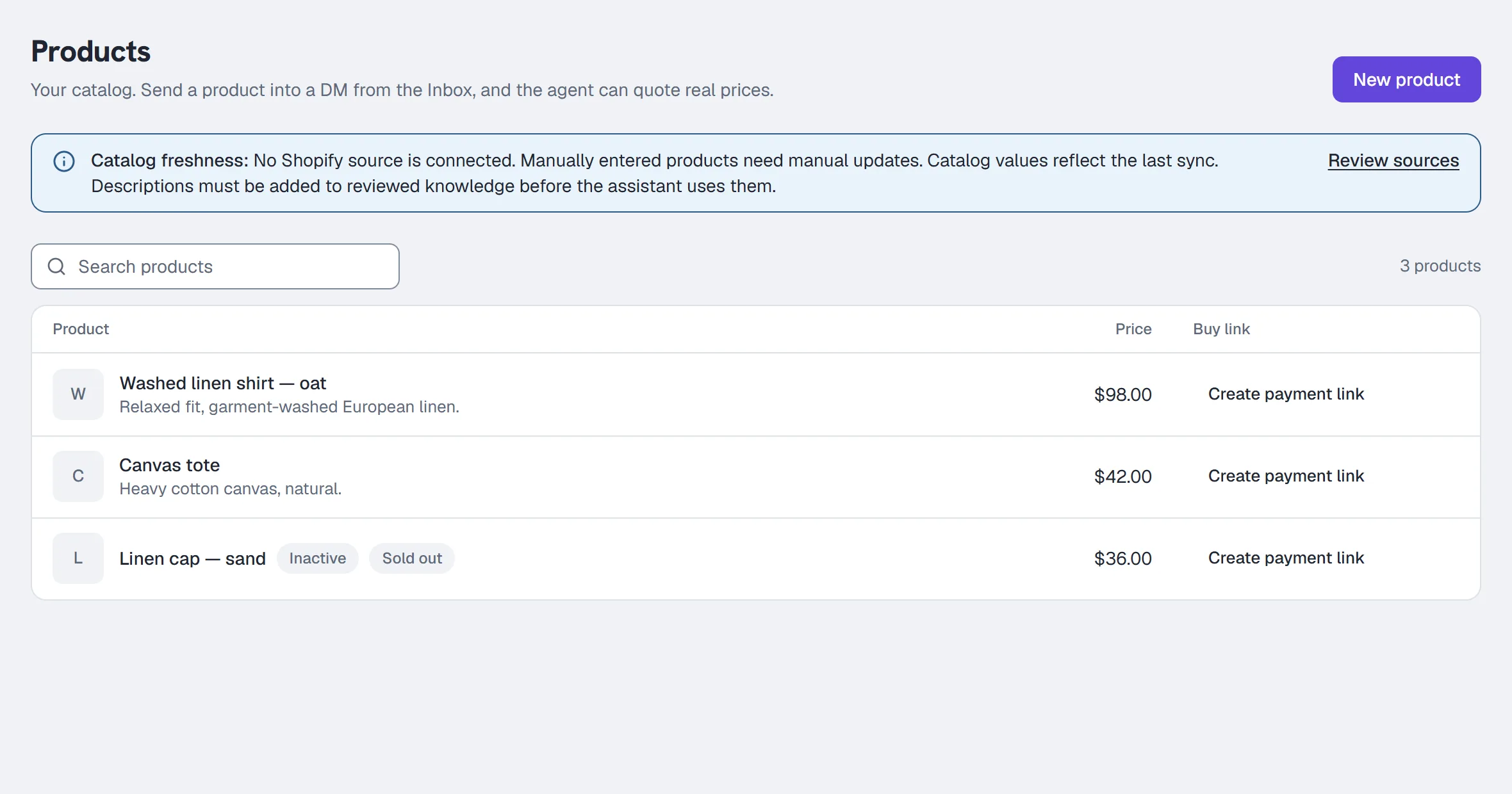
Under the page heading, a Catalog freshness note says when your Shopify source last synced (or that the last sync failed, or that no Shopify source is connected), with Review sources to open the Agent's Knowledge tab. Beside it you may also see the client note and, for hand-typed products without Stripe, Connect Stripe to sell.
Add a product
- Click New product at the top right (on an empty catalogue, Add your first product).
- Fill in:
- Name — e.g.
Aurora Serum - Price — e.g.
42.00 - Currency
- Description (optional) — e.g.
A vitamin-C brightening serum. - Image URL (optional) —
https://…/product.jpg
- Name — e.g.
- Leave Active ticked so it is shown in the Inbox picker and quoted by the agent.
- Click Add product. It stays switched off until the product has a name — the line beside it says "Add a name to save".
To change one later, open the row's More actions menu (at the end of the row), choose Edit, and click Save changes. If a save is refused, the form stays open with what you typed and says why.
Above the list, the search box finds a product by name, and the count beside it says how many are shown.
Shopify-synced products are read-only here — Edit, Delete and Create payment link are refused on a synced row ("change it in Shopify and re-sync"). The one control that works on them is Hide (in the row's More actions menu), which sticks through future syncs. Synced rows carry a Shopify tag.
Deleting a product (More actions → Delete) confirms first: past orders keep their revenue but lose the link to the product, and an existing Stripe payment link stays live in your Stripe account until you deactivate it there.
The Active checkbox
Active is what makes a product usable: only active products appear in the Inbox picker and are quoted by the agent. Inactive ones stay in the list with an Inactive badge — useful for seasonal items you don't want deleted. Hide and Show in the row's More actions menu switch it without opening the form.
Products that are out of stock show a Sold out badge.
Buy links
There is no free-text buy-link field. A product gets its link one of two ways:
- A hand-typed product gets one by creating a Stripe payment link (below).
- A Shopify-synced product arrives with its storefront/cart link already attached.
Create a Stripe payment link
- Connect Stripe first in Settings → Commerce. Until you do, the Create payment link button is greyed out — hovering it says "Connect Stripe in Settings first".
- On the product row, click Create payment link in the Buy link column.
- Wait for confirmation that the link was generated and attached at the current price.
Copy link puts it on your clipboard; the button says Copied for a moment.
Changing a product's price or currency clears its existing payment link — a payment link locks in the price it was created at, so recreate it at the new price. The edit form warns you before this happens.
If the product changes while a link is being created, HyperDM shows a conflict and leaves the older result unattached. Refresh Products, check the current price and currency, then click Create payment link again. A deleted product cannot return a ready link.
If the result says the earlier request needs checking or reconciliation, contact support before another attempt. Stripe may have accepted the request even when its response was lost; repeated clicks do not create a replacement while that outcome is unknown. A known link whose attachment failed can be recovered after support checks the original request. Links already shared remain live in your Stripe account until you deactivate them there; past order amounts stay unchanged.
By default, HyperDM tracks the links it adds for you — automation links, flow and broadcast link buttons, product buy links and email buttons. These go out as written: a link typed into a message, an automation or email link with a variable in it, a WhatsApp template's link button, a main-menu link, and a buy link quoted by a flow's AI step or the Playground. A product's buy link on a "Tap to buy" line (a flow's product step, the Inbox picker, the agent's product card) or in the agent's own reply is tracked, so you can see who tapped — that is what feeds the click counts on the Automations list and the revenue attribution in Analytics. (Where your workspace sends links exactly as typed — Settings → Workspace → Links — new buy links go out unchanged and aren't counted.)
Sync from Shopify instead
If you have a Shopify store, don't type your catalogue by hand. Two paths:
- Quick sync (no install): Agent → Knowledge → Sync your Shopify catalog, enter
store.myshopify.com, click Sync catalog. Reads Shopify's public storefront feed — drafts and live inventory are not included. See The AI agent. - Full connection: Settings → Channels → Connect Shopify (OAuth). Uses the Admin API: Shopify pushes product changes by webhook (with a daily re-sync as a safety net), drafts excluded explicitly and so are products not published to your Online Store, large catalogues handled, and Sync now on the card (with Disconnect in its More actions menu). The agent answers from that synced copy.
If you unpublish a product or set it to draft, HyperDM switches it off in Products; after you publish it again, turn it back on with Show.
Common questions
Why is my product not offered in the Inbox? It isn't Active, or this thread isn't open to a reply at the moment. Which of the two you see depends on how firmly the thread is shut:
- The button is greyed out and carries the reason when the thread is only temporarily shut — on a TikTok thread, once their last message is more than 48 hours old.
- The reply box is replaced by an explanation when nothing typed could reach them: while TikTok isn't switched on for your workspace, or where the conversation has no usable reply address. The product picker isn't offered at all there — only Start an automation, which says the same reason on itself (Reply by hand).
Why won't the agent send a product card on its own? Two things must both be true: your plan allows it (Starter and up), and the toggle Let the agent send product cards on its own is on in Trust & Guardrails. It only ever sends active products from your Products catalogue — hand-typed or synced, never invented ones.
Where do I connect Stripe? Settings → Commerce. It needs your secret key and a webhook signing secret — see Settings. Only the workspace owner can change payment settings.
Does the price here charge the customer? Only through the buy link. HyperDM does not take payment itself — the link does, whether that's Stripe or your own store.
More in Campaigns
- Track link taps and see what convertsThe links HyperDM adds are tracked by default: where the taps show up, how to read them honestly, and how to send links exactly as typed where offered.Read
- Build a drip sequenceBuild a drip sequence step by step: write or reuse each message, run a flow, set waits and send windows, check the timeline, go live and read Results.Read
- BroadcastsSend a one-off message to opted-in contacts in four steps: compose, choose the audience, decide on the 24-hour window and schedule it.Read
Try HyperDM for free
50 free conversations a month, no card. Connect Instagram and follow the guide you just read.