The AI agent
Configuring the AI agent: the master switch, the voice you draft, test and activate, the objectives it nudges toward, and the knowledge it answers from.
Sidebar: AI agent → Agent. Where you configure what the AI says, what it knows, and whether it runs at all. Five tabs, each answering one question:
| Tab | The question it answers |
|---|---|
| Overview | Is my agent on, and what is it answering with? |
| Voice | How does it talk — and do its sample replies sound like us? |
| Goals | What business objective should a reply nudge toward? |
| Knowledge | What can it answer from, and what is still waiting on me? |
| Preview | What would it actually say, and what do I do when that is wrong? |
The open tab is in the page's address (/agent?tab=knowledge), so a reload or a shared link opens the same tab.
Two sub-pages hang off it in the sidebar: AI Playground and Trust & Guardrails. Each has an ← Agent link above its title back to this page.
Changing anything on this page needs the manage_agent capability — owner and admin only. The master switch is the one control that hides itself from other roles (they see its On/Off state plus a note naming who can change it); the other cards still show their controls, and pressing Save on them is refused with "Only owners and admins can change what the AI says or knows."
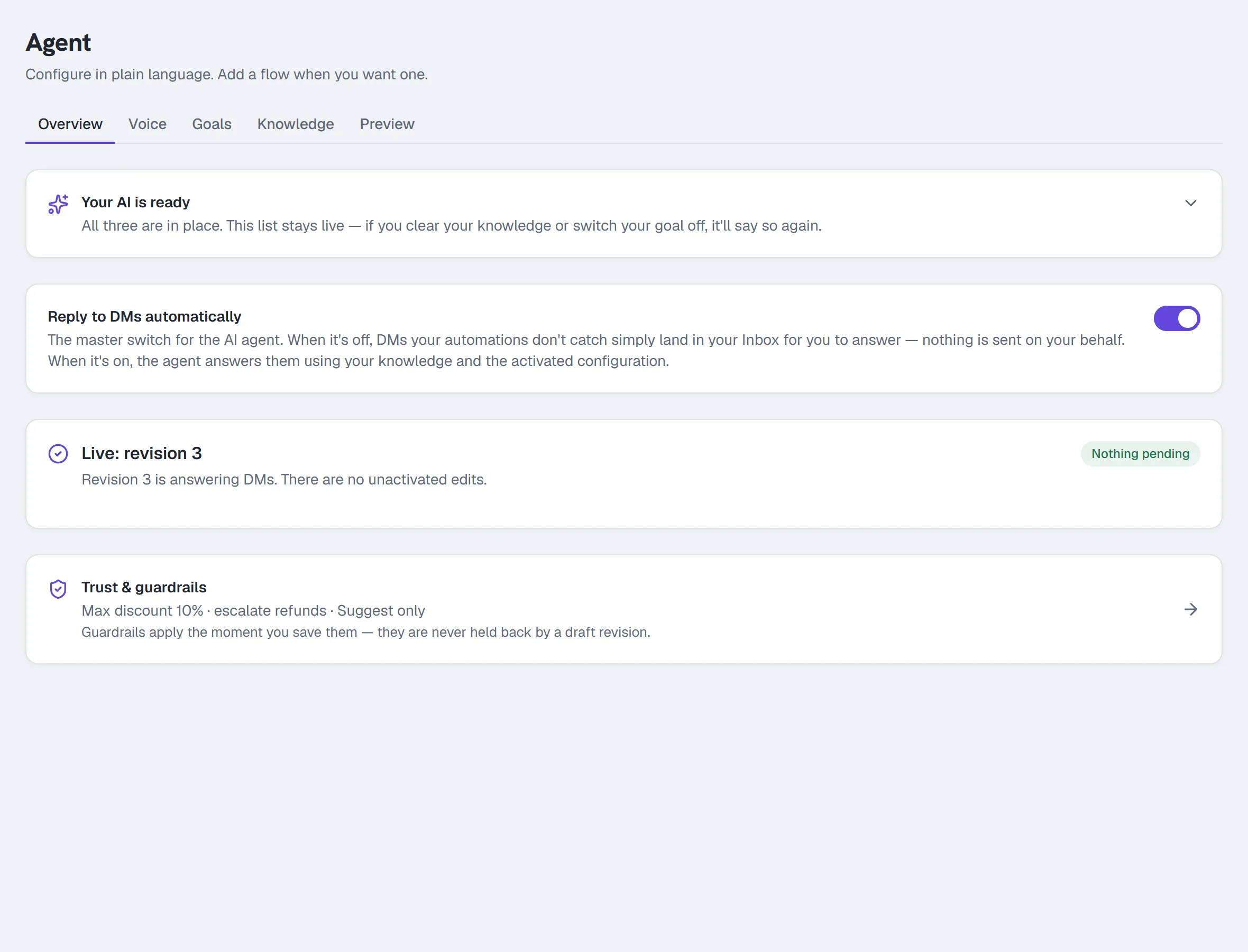
Overview tab
The setup card
At the top, Let's get your AI working — or Your AI is ready once all three are done. While a step is left the card is open on its list; once all three are done it folds to that one line — click it to see the steps again. It never disappears, and it never counts. Three things the agent needs from you:
- Teach it about your business — knowledge to answer from.
- Give it your voice — so replies sound like you rather than like a bot.
- Point it at a goal — so it moves people toward a link, a lead, or a follow.
The list reads your live setup and ticks itself off as you go. It stays live: clear your knowledge or switch your goal off and it says so again.
This card answers "is my AI configured?". The full go-live path, including connecting a channel, lives at /onboarding.
Reply to DMs automatically (the master switch)
The single most important control on the page, and it ships off.
- On — the agent answers DMs your automations don't catch, using your knowledge and instructions.
- Off — those DMs land in your Inbox for you to answer. Nothing is sent on your behalf.
The line under the switch when it's off is the important one: your keyword automations, flows and comment replies still run; only the open-ended AI fallback is off. Turning the agent off does not turn HyperDM off.
To change it: flip the toggle. It saves immediately — there is no Save button for this one.
The activated revision
Your voice, reply length, response pacing, lead-capture confirmation and what the agent handles are revisioned. Editing them on the Voice tab saves a draft; the revision you last activated keeps answering customers until you test the draft and activate it here.
The card says which state you are in:
| It says | What that means |
|---|---|
| Live: revision N · Nothing pending | What is configured is what is answering. |
| Draft revision N — not tested yet | Your edits are saved and NOT live. Revision N−x is still answering DMs. Test a question in Preview first. |
| Draft revision N — tested | An answer was produced with this draft. The card lists what changes, old → new, and offers Activate revision N. |
Two refusals you may see, both deliberate:
- "This draft hasn't been tested yet." — activation binds to a revision an answer was actually produced with.
- "Your configuration changed since that test…" — you (or a teammate in another tab) edited after the test, so the tested revision no longer exists as a draft. Test the new one and activate that.
Editing again never stands the agent down: it goes back to an untested draft, and the last activated revision carries on answering.
Trust & guardrails summary
A one-line summary of your current guardrails — discount cap, refund escalation, and the product-card setting — linking through to Trust & Guardrails. Guardrails are not part of the revision: they apply the moment you save them, and are never held back waiting for a test.
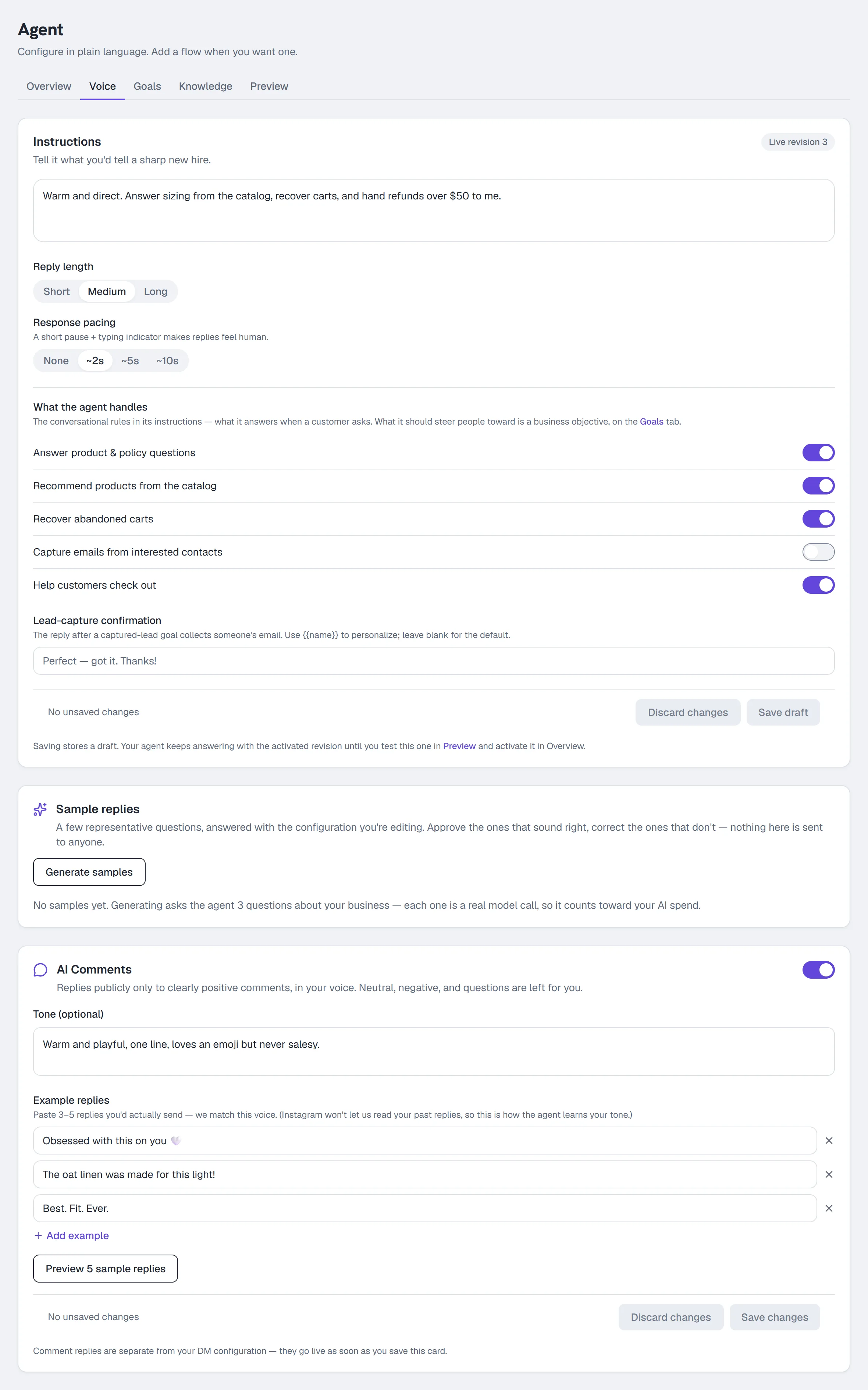
Voice tab
Instructions
A free-text box: "Tell it what you'd tell a sharp new hire."
Example: Recover carts, answer sizing from the catalog, and hand refunds over $50 to me.
This is your brand voice and your standing orders in one. It is fed into every reply.
Reply length
Short (one short sentence) / Medium (1–3 short sentences) / Long (up to 5 short sentences). Medium is the default.
Response pacing
None / ~2s / ~5s / ~10s. A short pause plus a typing indicator before the reply, so it doesn't land machine-instant. None is the default; ~10s is the longest the picker offers.
What the agent handles
The conversational rules in its instructions — what it answers when a customer asks:
| Rule | Default |
|---|---|
| Answer product & policy questions | On |
| Recommend products from the catalog | On |
| Recover abandoned carts | On |
| Capture emails from interested contacts | Off |
| Help customers check out | On |
These are not the same thing as the business objectives on the Goals tab. A rule shapes the answer; an objective is what a reply nudges toward afterwards.
Lead-capture confirmation
The message sent after a goal-capture email lands, e.g. "Perfect — got it. Thanks!" Leave it blank for the built-in default. Merge tags like {{first_name}} work here.
Save draft
Save draft stores everything above as a new draft revision. It does not change what your agent is saying — the line under the button says so, and Overview says which revision is still answering. Saving a draft identical to what is already live clears it instead: there would be nothing to test and nothing to activate.
Sample replies
A small set of representative questions — drawn from your own catalog and knowledge sources, not from a generic list — answered with the configuration you are editing.
- Click Generate samples. Each question is a real model call and counts toward your AI spend, which is why the set is small.
- Read each reply with its sources, support check and the revision that produced it.
- Approve the ones that sound right, or Write a better reply to record what it should have said.
- Regenerate when you change the voice. Approved and corrected examples are kept, and the outcome says so: "2 samples generated · 1 approved example kept as they were."
A failed generation never overwrites what you approved. An example generated with an older revision is labelled as such, so an approval from before your latest edit cannot be mistaken for a fresh one.
A correction you write is stored with the question as the answer you wanted. It does not train a model and does not change a live reply on its own.
AI Comments
Public replies under your Instagram posts, in your voice. Growth and up.
It replies only to clearly positive comments. Neutral comments, negative comments and questions are left for you — that boundary is the whole design.
- Toggle AI Comments on.
- Optionally set a Tone: e.g. "Warm and playful, one line, loves an emoji but never salesy."
- Add Example replies — paste up to five replies you'd actually send (three to five works well). Instagram won't let us read your past replies, so these examples guide the reply's tone — they don't train a model.
- Click Preview 5 sample replies. You see what it would say on sample positive comments. The sample comments themselves aren't shown with the replies yet — the preview says so above the list rather than pairing a reply with a comment it didn't answer.
- If it looks right, save below to switch it on.
AI Comments reply under your own posts and reels. They never post under an ad on their own, and they stay out of any comment a Comment → DM automation has answered — on a post or on an ad. See Comment-to-DM on Instagram ads. Comment replies are separate from your DM configuration: they go live as soon as you save that card.
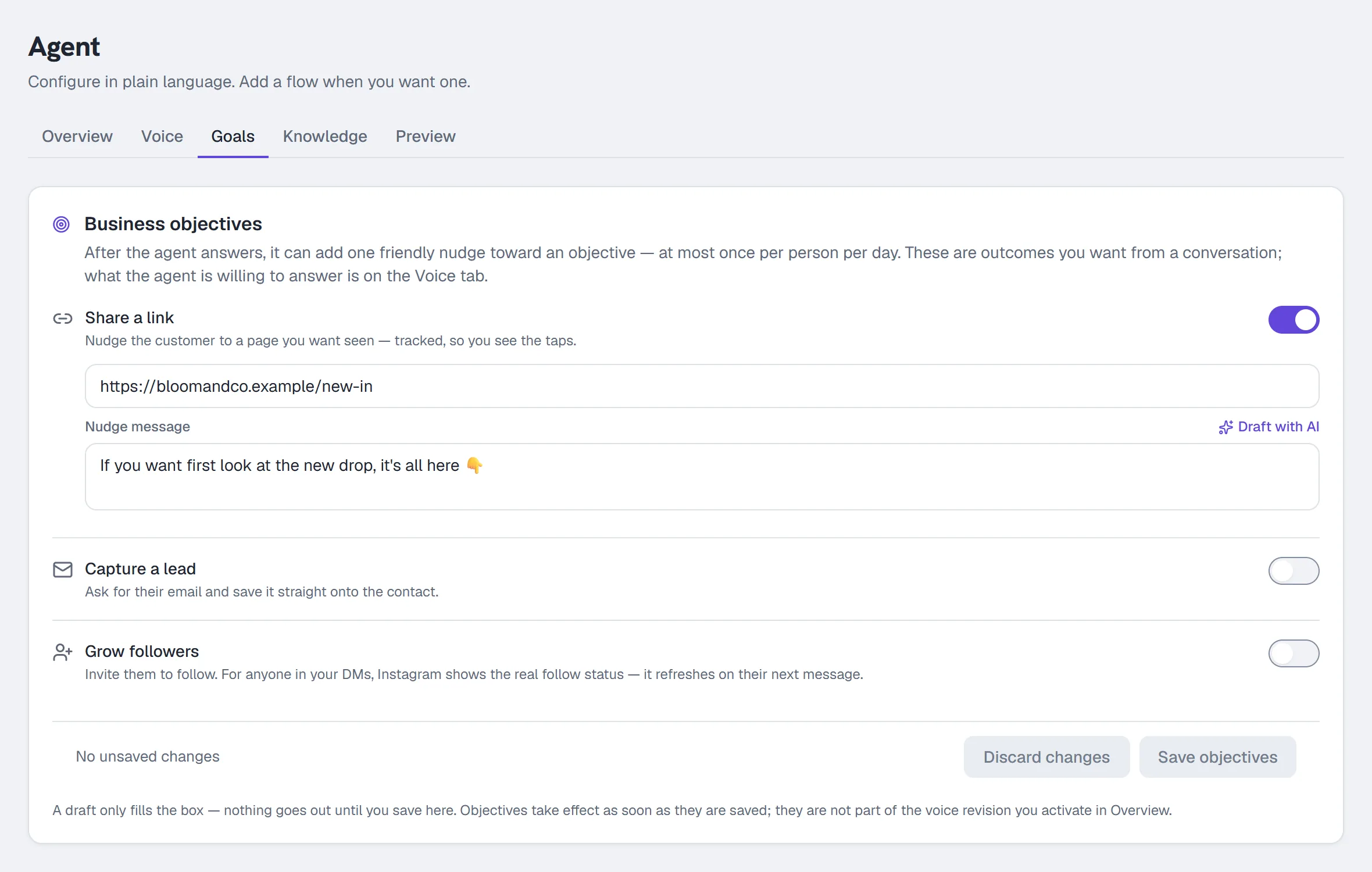
Goals tab
Business objectives. After the agent answers a question, it can append one friendly nudge toward an objective — at most once per person in any 24 hours. It sends the copy you configure here; it does not compose a new one at send time.
Goals are available on all plans with an active AI assistant.
Three kinds:
| Objective | What it does | What you configure |
|---|---|---|
| Share a link | Nudges the customer to a page you want seen — tracked, so you see the taps. | The URL |
| Capture a lead | Asks for their email and saves it onto the contact. | The field to save under (default: email), and what happens next |
| Grow followers | Invites them to follow. For eligible contacts who have messaged you, Instagram can share whether they follow you; HyperDM saves that and refreshes it on their next message. Anyone saved as already following is skipped; an unknown status may still get the ask. | Just the nudge copy |
To set one up:
- Toggle the objective on.
- Fill in its field (URL for Share a link, field key for Capture a lead).
- Write the Nudge message, or click Draft with AI to have one written for you. The draft lands in the box — it is not saved and nothing is sent until you review it and click Save.
- For Capture a lead, choose When the email lands, then…:
- Nothing more (just save it)
- Send a follow-up message — and write it
- Hand the thread to a human
- Click Save objectives. Objectives take effect as soon as they are saved; they are not part of the voice revision you activate in Overview.
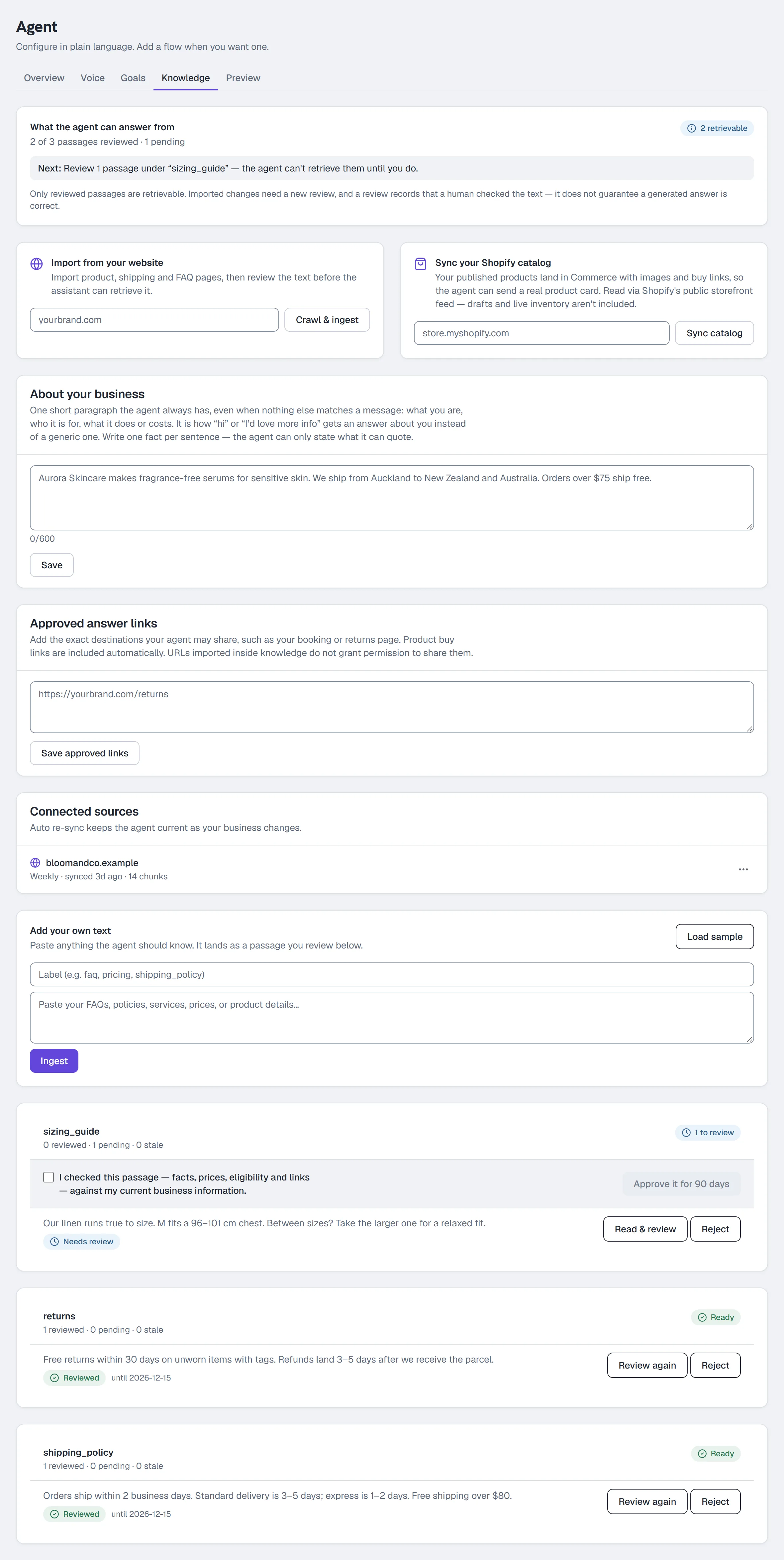
The Knowledge tab
Everything the agent's answers come from.
Readiness, and the one next thing to do
The card at the top reads your live state: "1 of 46 passages reviewed · 45 pending", and under it a single Next line naming the source that needs the work — "Review 45 passages under "yourbrand.com" — the agent can't retrieve them until you do." A source whose last import FAILED is named first, because nothing new came in from it. Four main ways in, ordered by how little you need to already have — plus a fifth, Add a single link: when a Preview or Playground answer comes back ungrounded, the inline shortcut offers Add link, which teaches the agent one page (not a whole-site crawl); re-adding the same URL refreshes it rather than duplicating it.
About your business
One short paragraph the agent has on every reply, even when nothing you imported matches the message. It is how "hi" or "I'd love more info" gets an answer about you — what you are, who it is for, what it does or costs — instead of a generic "how can I help". Type it in the About your business section and click Save (the counter under the box shows how much of the 600 you've used); it is your own words, so it needs no review. Up to 600 characters; write one fact per sentence, because the agent can only state what it can quote.
Paste it (works for everyone)
- In the Knowledge card, enter a Label —
faq,pricing,shipping_policy. - Paste your FAQs, policies, services, prices or product details in the box below.
- Click Ingest.
Import from your website
- Enter your domain, e.g.
yourbrand.com. - Click Crawl & ingest.
HyperDM crawls your product, shipping and FAQ pages and learns them.
Sync your Shopify catalog
- Enter your store domain, e.g.
store.myshopify.com. - Click Sync catalog.
Your published products land in Products with images and buy links, so the agent can send a real product card. It reads Shopify's public storefront feed — drafts and live inventory are not included.
Load a sample
Click Load sample to seed demo knowledge (catalog, shipping policy, returns policy) so you can see the agent work before writing anything real. Replace it before going live.
Connected sources
Sources that can re-sync appear under Connected sources. Each row says how often it re-syncs and when it last did, with one status in words: Ready, N to review, Import failed (the review count then moves into the row's line) or Syncing…. Its ⋯ menu holds:
- Sync now — allowed once per source every 15 minutes.
- Change frequency — Manual, Daily, or Weekly; it saves as soon as you pick one.
- Remove — asks first, naming the source: every passage imported from it is deleted (and a store's synced products leave Commerce). It waits while that source is syncing.
Auto re-sync keeps the agent current as your business changes.
Everything you've imported, grouped by source
Passages are listed by source, with the group that needs work first. Each group header counts them:
| Count | Meaning |
|---|---|
| reviewed | Approved, unexpired, and retrievable right now. |
| pending | Never reviewed. The agent cannot retrieve it. |
| stale | Reviewed once, but the text changed since — or the 90-day approval expired. Read it again. |
A group whose last import failed says Import failed, with the error.
Every passage shows a preview of its extracted text on the row, so a navigation strip or a cookie banner can be Rejected without opening it; text that reads like one is flagged "Looks like navigation or a footer — reject it rather than approving it". Read & review opens the full passage with the confirmation you tick to approve it for 90 days. Reject deletes the passage — that is also how you clear the sample data before going live.
Approve all N for 90 days sits at the top of a source that has passages waiting. Tick the confirmation — the button stays off until you do — and every pending or stale passage of that source is approved in one go — each one checked against the exact text on your screen, so a passage re-imported while you were reading is reported rather than approved. Rows flagged as navigation or a footer are left out; approve or reject those one by one. A very large source goes in batches of 500 — the button says Approve the first 500 of N and comes back for the rest.
Ingest has a workspace-wide ceiling of 2,000 chunks per day (resets midnight UTC); hitting it shows the exact limit message rather than silently dropping content.
How much knowledge you can have
The Free plan allows one knowledge source of your own — and two things never count toward it: your Shopify catalog and the Load sample demo data. Re-pasting under the same label (or re-crawling the same site) replaces that source rather than using a second slot, which is how you update the one you have. Every paid plan is unlimited. The chunk count is shown on the Knowledge card: "N chunks the agent grounds its answers on."
The Preview tab
Ask the agent anything and read the real answer. It answers with the configuration you are EDITING — your draft, when you have one — so what you test is what you would activate, and the badge at the top says which revision that is. Starter questions are drawn from your own catalog and knowledge sources rather than from a generic list.
Every answer carries the same four diagnostics as the AI Playground: Grounding, Sources (with the knowledge revision), Draft support check and Spend. If no channel is connected, or the master switch is off, a line says so — previews still run, they just cannot reach a customer yet. A preview checks an answer exactly the way a live reply would be checked, so when a reply that looks like it might mention a price, a discount or availability goes to the stricter price check, the Draft support check row says … · stricter check and Spend splits the total into the reply's share and that check's share.
Retest the same question
When an answer can't be grounded, the inline Add text / Add link shortcut imports the material for review. Nothing is retrievable until you approve it in Knowledge — so the repair is not instant, and the console does not pretend it is. Press Retest this question when you are ready: the question was kept, and the new turn names the knowledge revision before and after.
Say what was wrong
Something's wrong with this answer files a correction against that exact answer. Pick what was wrong (a wrong fact, a gap, the tone, something unsafe) and what you are doing about it:
| Resolution | What actually changes |
|---|---|
| Add or fix a knowledge source | Nothing until you import the passage AND review it. |
| Change the instructions | Nothing until you edit, test and activate that revision. |
| Just record it for now | Nothing at all. It is stored with the question, the reply and the revision so you can review it later. |
The record keeps the question, the reply, the sources behind it and the configuration revision. It does not train a model — HyperDM answers from your reviewed knowledge and your activated instructions, and nothing else. Records are kept for 180 days and then deleted.
Common questions
I turned the agent on and nothing happened. The agent is the last thing to see a message. Anything your automations catch never reaches it. Also check that Instagram is connected and that the person's 24-hour window is open. See Troubleshooting.
The agent said "I don't know". That is the designed behaviour when it cannot ground an answer — it hands off rather than inventing one. Add the missing fact in the Knowledge tab. The Analytics Knowledge gaps card lists exactly what to write.
Can I stop it replying to one person without turning it off for everyone? Yes — Take over in the Inbox, or Pause automations in that contact's drawer in Contacts.
Can I stop everything at once? Yes — Settings → Workspace → Pause everything. See Settings.
Why can't I change anything here? Configuring the agent needs manage_agent — owner and admin only. This is deliberate: agent is the role team invites hand out by default, and without the gate a support hire could turn the AI on for the whole customer base on their first day.
Reviewing imported knowledge before the agent uses it
Imported text needs owner/admin review in Agent → Knowledge before the assistant uses it. Read each chunk and approve its exact revision for 90 days — one at a time with Read & review, or a whole source at once with Approve all (rows flagged as navigation or a footer excepted); changed text, expiry or revocation removes approval. Add approved answer links there too. Product descriptions need reviewed knowledge; direct catalog fields still supply price/stock/link. Preview and Playground show retrieval separately from the draft support check. AI can make mistakes, including repeating a false approved source. Enable human review for detected uncertainty.
The support check accepts faithful paraphrases; the answer does not have to copy a passage word for word. Its citations must quote actual source text. A separate check holds invented prices, currencies and quantities, and ordinary claims cannot skip evidence by being labeled as a greeting. Ambiguous evidence or a failed check produces a human-review outcome. These checks can still miss semantic errors or repeat a false approved fact: review your knowledge and test policy and price questions in Preview before enabling replies.
Connection errors in Preview, Playground and Knowledge keep the controls available to retry. An import is pending review: expand a passage and check its current facts before approval. Teammates without agent-management permission can read knowledge but cannot approve or change it.
Account explanations and Preview execution details
When account explanations are available for your workspace, the notice on Agent uses the same facts as Billing and Inbox. It distinguishes the AI conversation allowance, monthly native-AI safety pause, other conversation/payment limits and knowledge needing review. A knowledge warning applies to answer context; it does not mean every automation or Preview is stopped. Retry facts refreshes the observation. A failed refresh labels the displayed facts last known; permission changes remove operative links. Owners/admins can choose Review current knowledge; other roles ask the permitted teammate. Credits can be held for future use without lifting another limit.
After running a question on Preview, expand Execution details. The summary gives the passages actually included and distinct sources, rather than assuming five. Characters and approximate context tokens differ from provider prompt usage. The stage table distinguishes query embedding, generation, any tool follow-up and standard/premium checking; missing usage is unavailable. An inventory revision is an adjacent observation, and passage hashes describe the answer that ran. A retest creates a new answer; opening details does not run another test or send a customer message. Historical answers can have Details unavailable.
More in AI agent
- Set up the AI sales agentTeach the agent, draft its voice, check its sample replies, set its guardrails, test it, activate the revision you tested, then let it answer DMs.Read
- Add knowledge and sync your catalogGive the agent something true to answer from: paste FAQs, crawl your site or sync Shopify, review the passages, and add the products it can quote.Read
- Set up conversation goalsGive the agent one nudge to add after it answers — a link, an email ask or a follow invite — at most once per person in any 24 hours. On all plans.Read
Try HyperDM for free
50 free conversations a month, no card. Connect Instagram and follow the guide you just read.