How to set up the AI sales agent
Teach the agent, draft its voice, check its sample replies, set its guardrails, test it, activate the revision you tested, then let it answer DMs.
The agent answers the DMs your automations don't catch, from knowledge you gave it, in a voice you chose, inside limits you set. It ships off: nothing is sent on your behalf until you flip the switch at the end of this guide.
Before you start
The setup page also offers Help me write my facts prompts and saved-fact question buttons. Review your own information before Save these facts, then choose a question and press Run preview. One supported preview shows first value; it does not prove every fact or switch AI on. Turn on AI replies remains an explicit Review action, and Your AI sent its first reply requires a real Instagram send for that configuration.
- Only an owner or admin can change what the agent says or knows. Other roles see the settings and are refused on Save.
- Instagram does not have to be connected to do steps 1–4. The Playground works with no channel at all.
1 — Teach it about your business
Go to Agent → Knowledge and add at least one source: paste your FAQs and policies, crawl your website, sync your Shopify catalog, or load the sample. Imported passages need a quick review before the agent answers from them. Fill in About your business on the same tab too — the one paragraph the agent has on every reply, even when nothing you imported matches the message. The whole tab is covered in Add knowledge and sync your catalog.
2 — Draft its voice
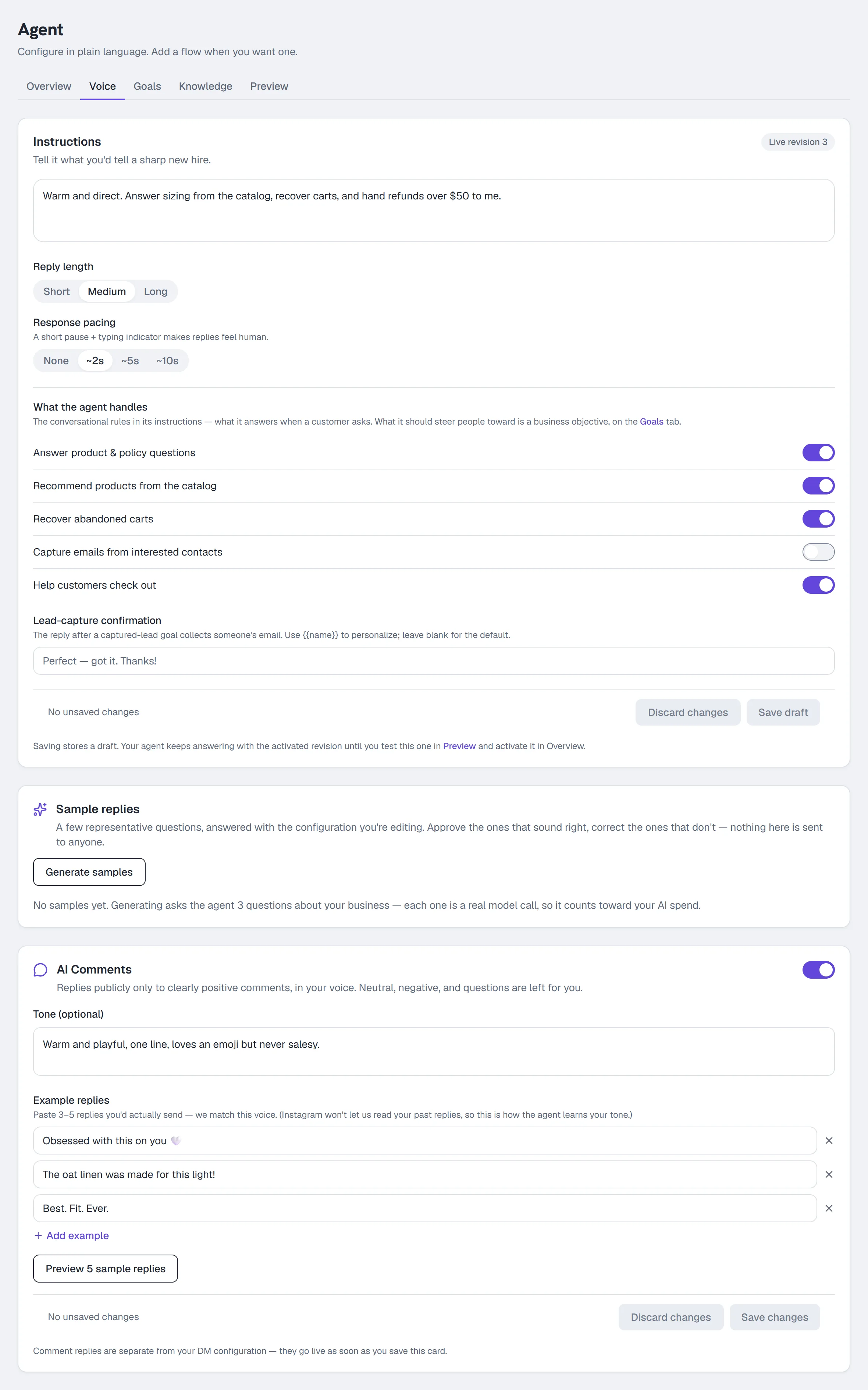
- Go to Agent → Voice.
- Under Instructions, write what you'd tell a sharp new hire — for example
Recover carts, answer sizing from the catalog, and hand refunds over $50 to me.This is your brand voice and your standing orders in one; it is fed into every reply. - Choose a Reply length: Short (one short sentence), Medium (1–3, the default) or Long (up to 5).
- Optionally set Response pacing — None, ~2s, ~5s or ~10s. A short pause plus a typing indicator stops replies landing machine-instant.
- Under What the agent handles, toggle the conversational rules it works to. The defaults:
| Rule | Default |
|---|---|
| Answer product & policy questions | On |
| Recommend products from the catalog | On |
| Recover abandoned carts | On |
| Capture emails from interested contacts | Off |
| Help customers check out | On |
- Optionally write the Lead-capture confirmation — the message sent after a captured email lands. Blank uses the built-in default.
- Click Save draft.
Saving does not change what your agent is saying. This is a draft: the revision you last activated keeps answering until you test this one (step 5) and activate it (step 6). On a brand-new workspace there is nothing live yet, so nothing is at risk either way.
3 — Check its sample replies
On the same tab, under Sample replies:
- Click Generate samples. HyperDM asks the agent a few questions drawn from your own catalog and knowledge, answered with the draft you just saved. Each one is a real model call, so it counts toward your AI spend.
- Approve the replies that sound like you.
- For one that doesn't, click Write a better reply, type what it should have said, and Save correction. That is recorded as your answer to that question — it does not train the model and does not change a live reply.
- Change the instructions and click Regenerate to see the difference. Approved and corrected examples are kept, and the outcome line says how many.
4 — Point it at an objective
Go to Agent → Goals and switch on what a reply should nudge people toward — a link, an email, or a follow. Full detail: Set up conversation goals.
5 — Set your guardrails
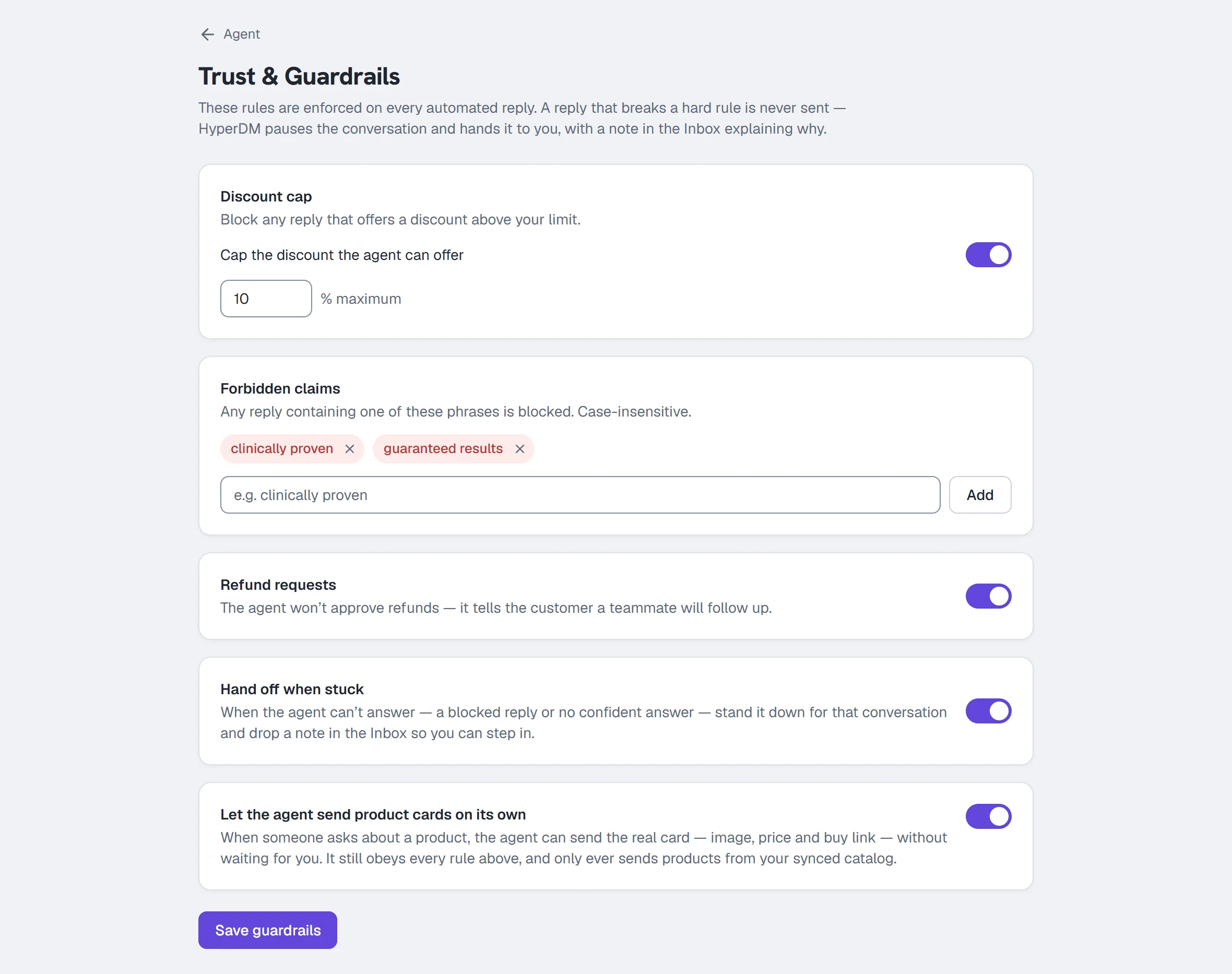
- Go to Agent → Trust & Guardrails.
- Toggle Cap the discount the agent can offer on and enter a percentage.
- Under Forbidden claims, type a phrase such as
clinically provenand press Enter or click Add. Any reply containing one of these is blocked, case-insensitively. Up to 30 phrases. - Leave Refund requests on: a clear refund or chargeback request pauses the agent for that conversation and flags it in the Inbox before any reply is sent.
- Turn Hand off when stuck on. When the agent can't answer confidently it stands down and drops a note in your Inbox so you can step in.
- On a paid plan, decide whether to Let the agent send product cards on its own. It saves on flip.
- Click Save guardrails. The confirmation reads "Saved — enforced on every agent reply now", and that is literally true.
A reply that breaks a hard rule is never sent. The conversation is paused and flagged in the Inbox with a note saying why. Full detail: Trust & Guardrails.
6 — Test it before a customer does
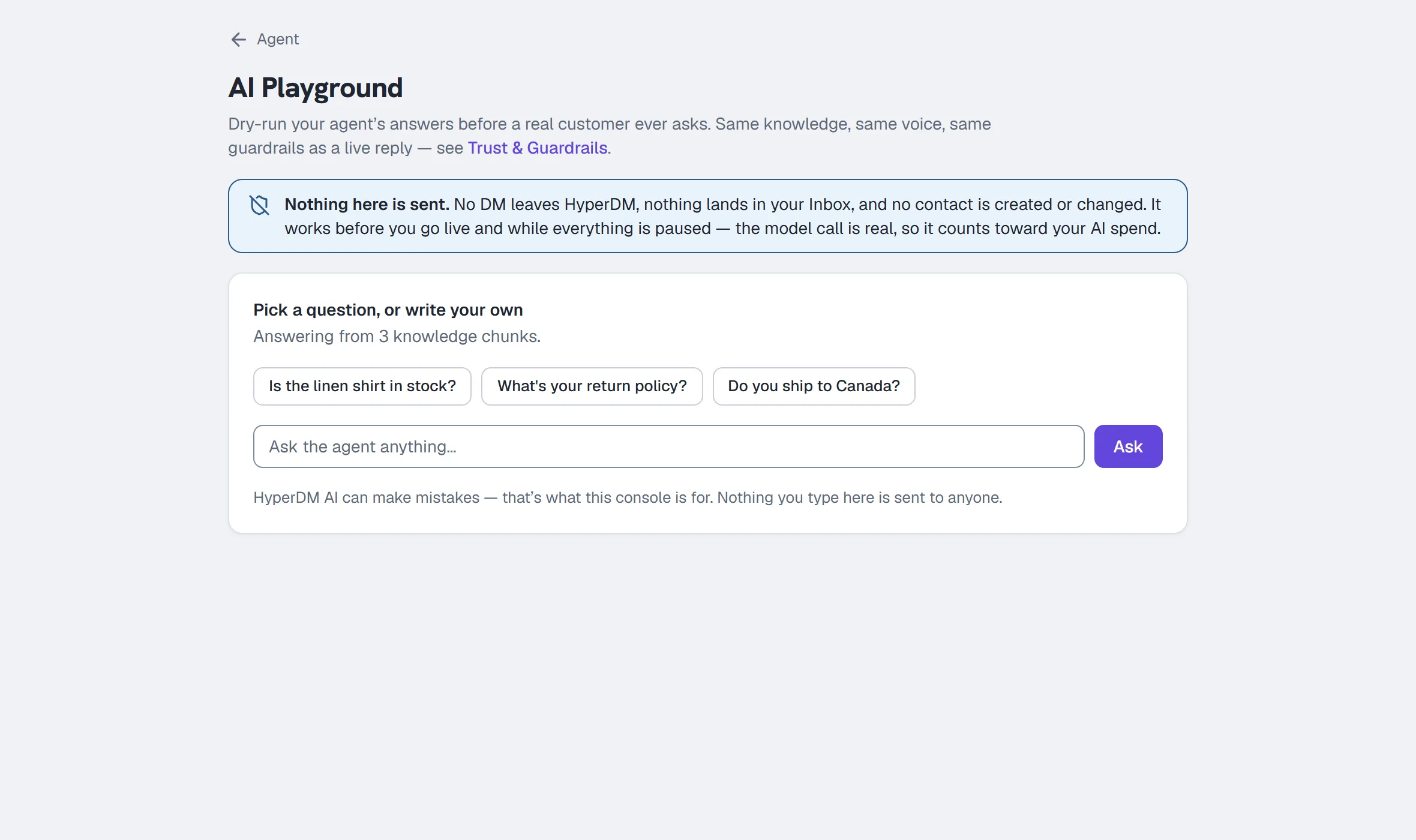
- Go to Agent → Preview (or Agent → AI Playground for a running transcript — same engine, same diagnostics).
- Click a starter question — they come from your own catalog and sources — or type your own and click Ask.
- Read the four diagnostics under the answer: Grounding, Sources (with the knowledge revision behind it), Draft support check and Spend. A … · stricter check verdict means a reply that looked like it might mention a price, a discount or availability was checked by the stricter price check, exactly as it would be live.
- If an answer could not be grounded, use the inline Add text / Add link shortcut, review the import in Knowledge, then press Retest this question. The before and after name both knowledge revisions.
- If an answer is wrong for another reason, click Something's wrong with this answer and record what was wrong and what you're doing about it.
A faithful paraphrase can pass Draft support check; exact answer wording is not required. Prices and quantities must agree with cited evidence. If the check cannot confirm the facts, the live agent uses its human-review outcome instead of sending the draft. Test changed prices and ambiguous policies too; a passed check is not a guarantee that the source is true.
Nothing here is sent: no DM leaves HyperDM, nothing lands in your Inbox, no contact is created. The model call is real, so it counts toward your AI spend. A failed check may follow a paid answer or embedding: only spend confirmed unused is released. If the provider's usage is unknown, that part stays reserved while accounting is checked. Pressing Ask again is a new metered attempt. A preview never proves a live send.
7 — Activate the revision you tested
- Go to Agent → Overview.
- The card in the middle reads Draft revision N — tested and lists what changes, old → new.
- Click Activate revision N. From that moment your agent answers with it.
If you edited again after testing, activation is refused — "Your configuration changed since that test" — and you test the new draft first. Editing never takes your live version down: it goes back to an untested draft while the activated one keeps answering.
8 — Turn on AI replies
- Go back to Agent → Overview.
- Find Reply to DMs automatically at the top and flip the toggle on. It saves immediately; there is no Save button for this one.
What the switch does and does not do:
- On — DMs your automations don't catch are answered by the agent, using your knowledge and instructions.
- Off — those DMs land in your Inbox for you to answer. Your keyword automations, flows and comment replies still run; only the open-ended fallback is off.
You can say not yet on the setup page and still count the step as done. A merchant running comment-to-DM and keyword automations gets real value with this switch off.
What to do next
- Give it one nudge per conversation toward a link, a lead or a follow: Set up conversation goals.
- Let it reply to positive comments under your posts: Set up AI comment replies.
Common problems
It said it doesn't know. There is nothing in your knowledge that answers the question. Analytics → Knowledge gaps lists the questions it could not answer; paste the answers into Agent → Knowledge.
It went quiet on a conversation. A guardrail fired or it handed off. Open the conversation in the Inbox: the note says why, and the thread is yours until you resume it.
Save is refused. You are not an owner or admin of this workspace.
I saved my instructions but replies haven't changed. A save stores a draft. Test it in Preview, then Activate revision N on Overview — until then your agent keeps answering with the revision you last activated.
Activate is refused as stale. The draft moved on after the test — usually a second edit, or a teammate editing in another tab. Ask a question in Preview again, then activate.
Full reference: The AI agent.
After a supported onboarding preview, the optional tool chips let you say which other tools you use. Choose any or none and continue. These choices connect nothing, do not turn on AI answers and do not confirm a real Instagram send. Editing your facts or rerunning the preview keeps your selected chips.
Read a pause or inspect a test
- On Agent, read the account explanation notice if it is available. It names the scope of an AI allowance, monthly safety, conversation/payment or knowledge-review reason.
- Choose Retry facts after a plan/payment/review change or when facts are unavailable. A successful return from Checkout is not itself proof that credits were granted.
- For a knowledge warning, an owner/admin chooses Review current knowledge, reads the full current passage and confirms that exact content. Other roles ask the owner/admin; notices never approve a passage.
- On Preview, run your question and expand Execution details to inspect the retrieved/included passage count and stage usage. Opening details alone does not run Preview again. Retest to obtain a new answer from current knowledge.
Conversation credits are future-use count units. They do not lift a monthly native-AI safety pause or an independent total/payment limit, and a refreshed notice never guarantees the next customer reply.
More in AI agent
- Add knowledge and sync your catalogGive the agent something true to answer from: paste FAQs, crawl your site or sync Shopify, review the passages, and add the products it can quote.Read
- Set up conversation goalsGive the agent one nudge to add after it answers — a link, an email ask or a follow invite — at most once per person in any 24 hours. On all plans.Read
- Set up AI comment repliesLet the agent reply publicly to clearly positive comments under your posts, in your voice, from a tone note and a few example replies. The rest stays yours.Read
Try HyperDM for free
50 free conversations a month, no card. Connect Instagram and follow the guide you just read.