How to add knowledge and sync your catalog
Give the agent something true to answer from: paste FAQs, crawl your site or sync Shopify, review the passages, and add the products it can quote.
Everything the agent says comes from two places: the Knowledge tab, where it gets your policies, FAQs and pages, and Products, where it gets prices, stock and buy links. This guide sets up both.
Before you start
- Only an owner or admin can add, review or remove knowledge. Other roles can read it.
- On the Free plan you get one knowledge source of your own. The Shopify sync and the sample data never count toward it, and re-pasting under the same label (or re-crawling the same site) replaces your source rather than using a second slot. Paid plans are unlimited.
Add knowledge
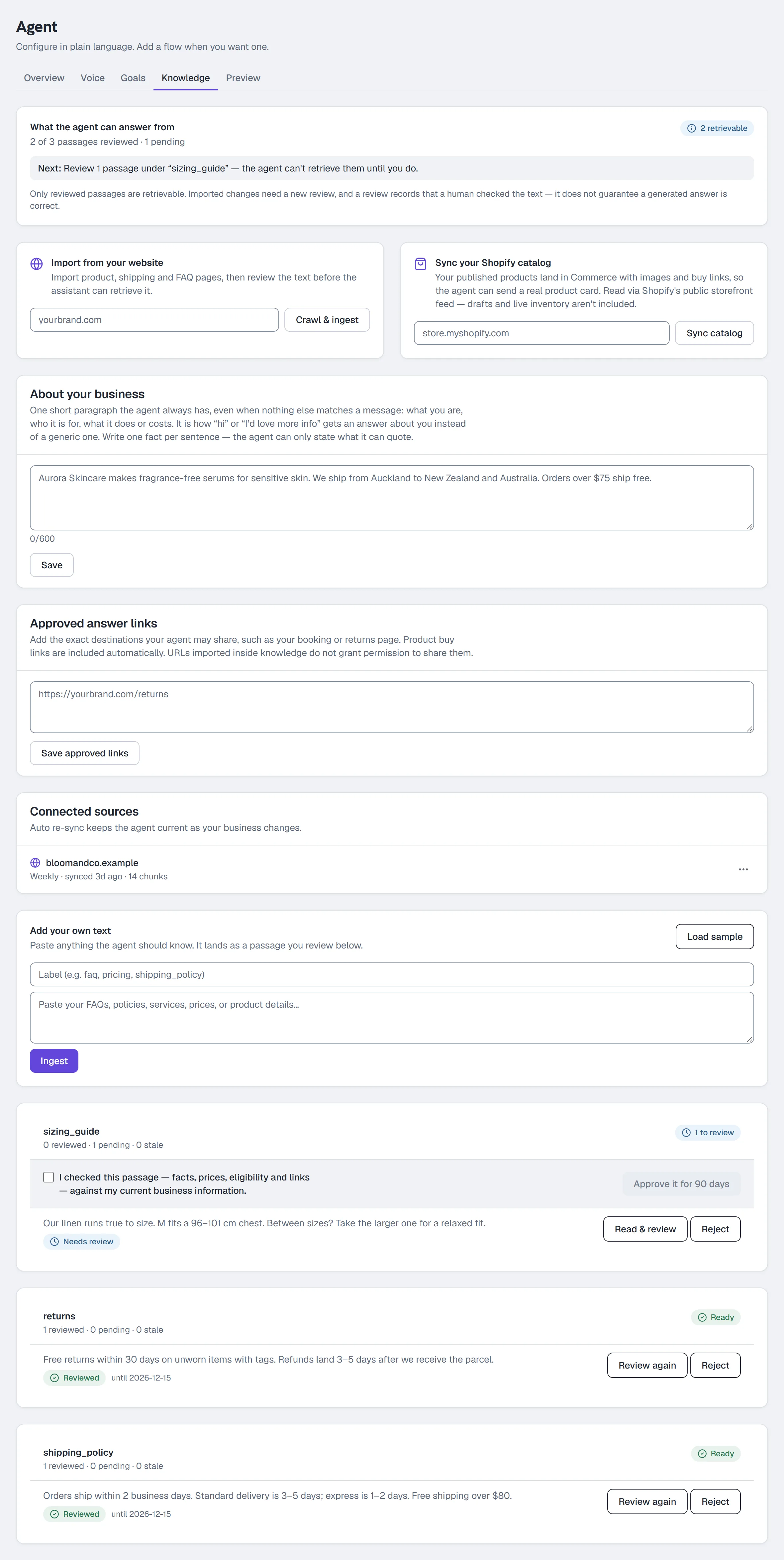
Go to Agent → Knowledge and use whichever way in fits. You only need one.
Paste it
- In the Knowledge card, enter a Label —
faq,pricing,shipping_policy. - Paste your FAQs, policies, services, prices or product details in the box below.
- Click Ingest.
Import from your website
- In Import from your website, enter your domain, e.g.
yourbrand.com. - Click Crawl & ingest. HyperDM reads your product, shipping and FAQ pages.
Sync your Shopify catalog
- In Sync your Shopify catalog, enter your store domain, e.g.
store.myshopify.com. - Click Sync catalog. Your published products land in Products with images and buy links. This reads Shopify's public storefront feed — drafts and live inventory are not included. For product changes pushed by Shopify webhooks (plus a daily re-sync), connect Shopify fully under Settings → Channels → Connect Shopify.
Load a sample
Click Load sample to seed demo knowledge so you can see the agent work before you write anything real. Remove it before you go live.
Add a single link
When a Playground or Preview answer comes back ungrounded, the inline shortcut offers Add link. It teaches the agent one page, not a whole site, and re-adding the same URL refreshes it rather than duplicating it.
Review what you imported
Imported passages are listed under the Knowledge card with a Needs review · excluded from answers tag until an owner or admin has read them. The card counts them: "N of M passages reviewed for retrieval."
- Expand a passage and check its current facts.
- Approve it. Approval covers that exact revision for 90 days; changed text, expiry or revocation removes it.
- Or approve a whole source at once: tick the confirmation under its header (the button stays off until you do) and click Approve all N for 90 days (a very large source goes in batches of 500). Passages flagged as navigation or a footer are left out — approve or reject those one by one — and a passage re-imported while you were reading is reported, not approved.
- Fill in About your business — one short paragraph (up to 600 characters, one fact per sentence) the agent has on every reply, so "hi" or "I'd love more info" gets an answer about you instead of a generic one — and click Save.
- Add any Approved answer links — the exact destinations the agent may share, such as your booking or returns page — and click Save approved links. Product buy links are included automatically; a URL that appears inside imported text does not grant permission to share it.
Product descriptions need reviewed knowledge; the catalog's own price, stock and link fields are supplied directly.
Keep it current
Sources that can re-sync appear under Connected sources, each with one status in words — Ready, N to review, Import failed or Syncing…. Open a source's ⋯ menu to:
- Click Sync now (once per source every 15 minutes).
- Click Change frequency and pick Manual, Daily or Weekly — it saves as soon as you pick.
- Click Remove, then confirm in the dialog that names the source. Its passages go with it.
Below that, passages are grouped by the source they came from, the group needing work first, each counting its reviewed / pending / stale passages. The card at the top of the tab gives you the state in one line — "1 of 46 passages reviewed · 45 pending" — and names the single next thing to do. Every row shows a preview of the extracted text, so a navigation strip or a cookie banner can be Rejected without opening it; Reject is also how you delete pasted text or clear the sample.
Ingest has a workspace-wide ceiling of 2,000 chunks per day, resetting at midnight UTC. Hitting it shows the exact limit message rather than dropping content silently.
Put your products where the agent can quote them
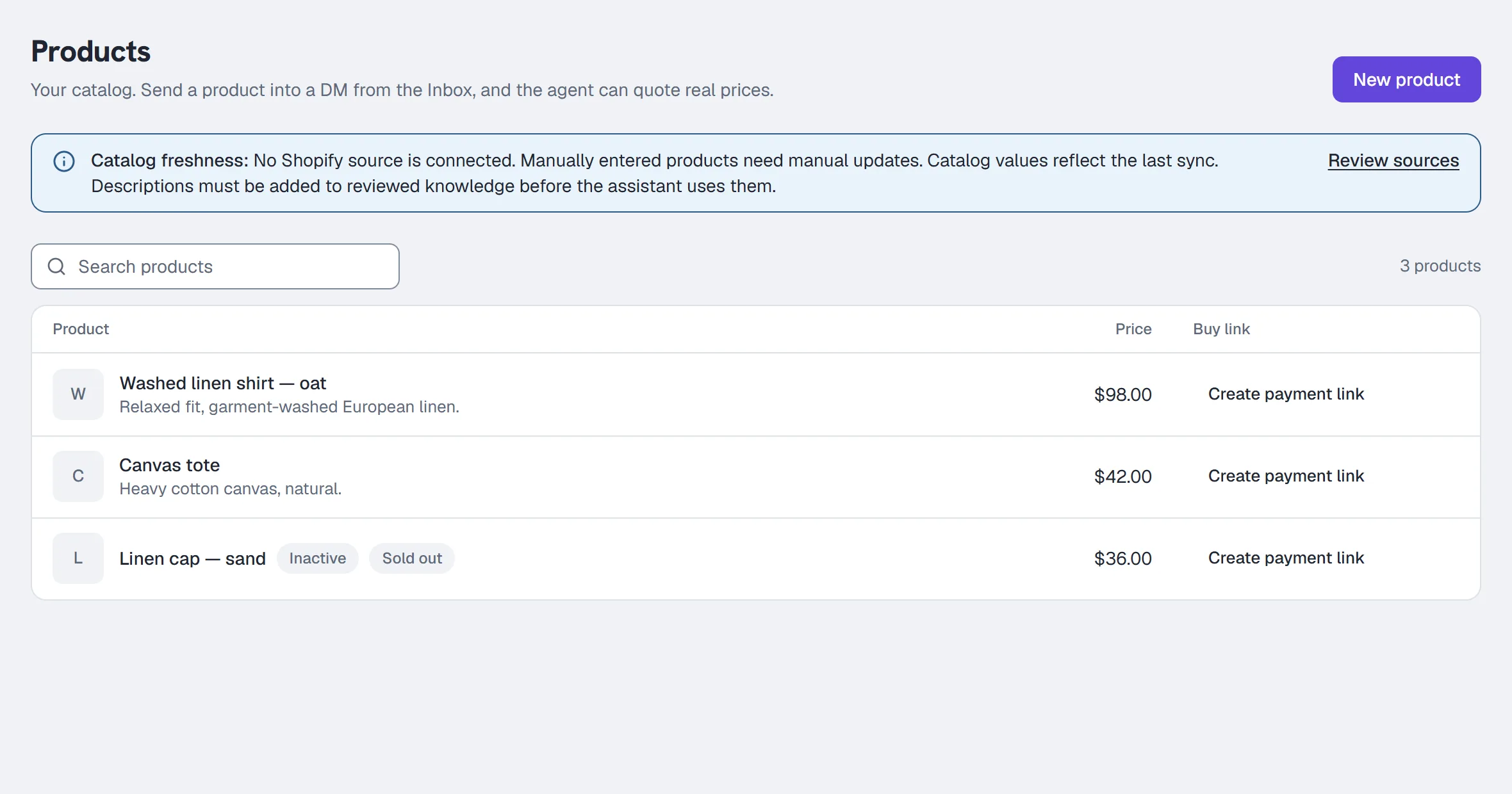
If you synced Shopify, your products are already here. To add one by hand:
- Go to Content → Products and click New product.
- Fill in Name, Price, Currency, and optionally a Description and an Image URL.
- Leave Active ticked so it appears in the Inbox picker and is quoted by the agent.
- Click Add product.
To give a hand-typed product a buy link, connect Stripe first under Settings → Commerce, then click Create payment link in the product's Buy link column. To edit, hide or delete a product, use its row's More actions menu. Changing a product's price or currency clears its payment link — recreate it at the new price.
If creation reports that the price or product changed, refresh Products, check the new price and currency, then click Create payment link again. If it says an earlier request needs reconciliation or support recovery, contact support before another attempt. The request may already have reached Stripe. Existing shared Stripe links and past orders are kept; clearing the current catalog link does not deactivate an older link.
Check it
Go to Agent → AI Playground and ask a question your knowledge answers. The label under the reply should read grounded and name the source. Nothing is sent from the Playground.
Common problems
The agent ignores something I pasted. It is still marked Needs review · excluded from answers. Review and approve it.
I pasted an update but the old text is still there. Re-paste under the same label to replace it, or Remove the old chunk.
Shopify products show no stock. The quick sync reads the public feed, which carries no inventory. Use the full connection under Settings → Channels.
Full reference: The AI agent and Products.
More in AI agent
- Set up the AI sales agentTeach the agent, draft its voice, check its sample replies, set its guardrails, test it, activate the revision you tested, then let it answer DMs.Read
- Set up conversation goalsGive the agent one nudge to add after it answers — a link, an email ask or a follow invite — at most once per person in any 24 hours. On all plans.Read
- Set up AI comment repliesLet the agent reply publicly to clearly positive comments under your posts, in your voice, from a tone note and a few example replies. The rest stays yours.Read
Try HyperDM for free
50 free conversations a month, no card. Connect Instagram and follow the guide you just read.