Broadcasts
Send a one-off message to opted-in contacts in four steps: compose, choose the audience, decide on the 24-hour window and schedule it.
Sidebar: Automate → Broadcasts. A one-off message to a chosen audience. Where a sequence is timed from when each person joins, a broadcast goes out to everyone at once.
Growth and up. Sending needs the send_broadcast capability — owner and admin only. This is the one gate that genuinely changes what an agent sees, and deliberately: sending to your whole audience has always been an owner/admin action, so the sidebar row is hidden from a role that would be refused at send.
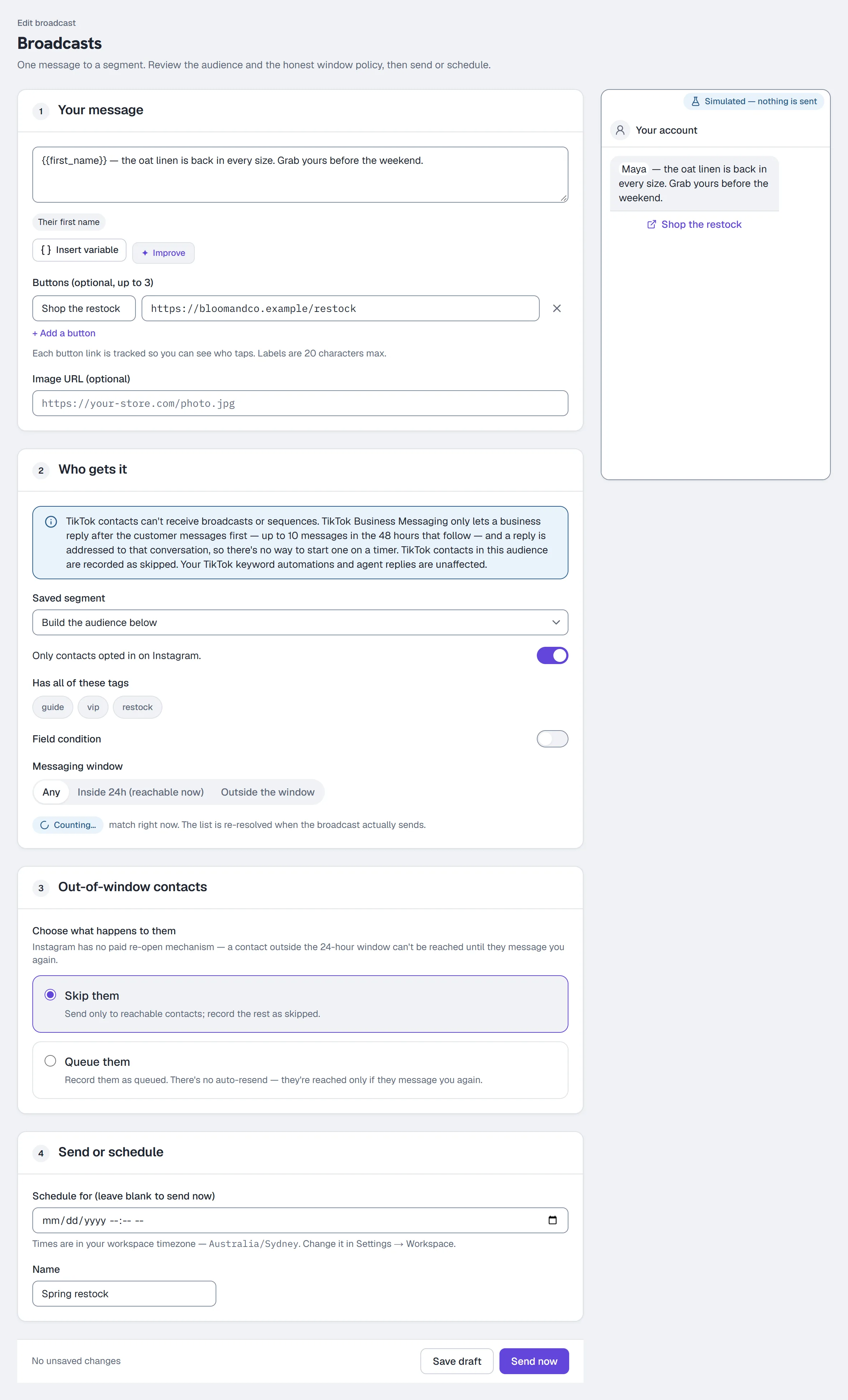
Compose a broadcast — the four steps
The page is headed Broadcasts, with New broadcast (or Edit broadcast) above the title. The composer has four numbered sections — Your message, Who gets it, Out-of-window contacts and Send or schedule — with a live phone preview beside them. The preview is marked Simulated — nothing is sent, shows the message coming from Your account (it goes out from whichever account each contact is on), and fills merge tags in for a sample contact, Maya. The buttons sit in a bar pinned to the bottom of the form, which also says where your edits stand: Unsaved changes, Saving…, Saved, or Couldn't save with the reason.
1 — Your message
- Write the message, e.g.
We just restocked your size — grab it before it's gone. - Use merge tags — First name, Last name, Username, plus your custom fields.
- Optionally add up to 3 buttons. Each has a label (20 characters max, e.g.
Shop now) and a URL (https://your-store.com/new). Each button link is tracked, so you can see who taps — unless your workspace sends links exactly as typed (Settings → Workspace → Links, where it's offered — and there, each button says under its URL how its link goes out). A link typed into the message text is sent as written. - Or send an image instead: a broadcast is EITHER text (+ buttons) OR one image — setting an Image URL turns it into an image-only message, the button editor disappears, and the text is not sent. Clear the image to get text back.
- WhatsApp template (shown where WhatsApp is on for your workspace): pick one of your approved templates for WhatsApp contacts who are outside the 24-hour window. Contacts inside the window get the message above; those outside get the template. Fill each
{{1}},{{2}}slot — merge tags work there too, and a contact with no value for a tag gets "there", because a slot can't be empty. Each value says where it comes from and what a sample contact gets, and the preview is made by the same step that sends it. Only templates HyperDM can send are offered: approved ones it can't fill — a media header, a dynamic link button, named variables and the others in What HyperDM can't send — are listed underneath with the reason. Meta bills each template delivery to your WhatsApp Business Account at its template rate; HyperDM adds nothing. A template's own link button goes out exactly as Meta approved it, so taps on it aren't counted in clicked. Save first, and you can Send test to one of your WhatsApp test contacts — a real message, billed only if Meta delivers it (Send WhatsApp templates); with a test contact set up, the broadcast stays open after you save so the test is one click away. If every approved template has a part HyperDM can't fill, the section says so and lists why. If WhatsApp isn't connected, it says so too: no template is offered, and a broadcast with a template can be saved as a draft but not scheduled or sent until you reconnect in Settings → WhatsApp.
2 — Who gets it
Either apply a Saved segment from the dropdown, or build the audience inline:
- Opted-in only — a toggle, on by default. You can switch it off to widen the count, but consent is still enforced by the compliance gate at send. With WhatsApp connected it becomes a channel choice: Instagram, WhatsApp, or Any channel (each contact's consent is still checked on their own channel at send). If you attached a template, choose WhatsApp or Any — an Instagram-only audience has no WhatsApp contacts in it, and the composer says so.
- TikTok contacts can never receive a broadcast (TikTok only lets a business reply after the customer messages first) — any in the audience are recorded as skipped, and the composer says so above the audience count.
- Telegram contacts can, and with no window to worry about: a bot may write to anyone who has pressed Start on it, whenever you like. Their consent is still checked at send like everyone else's — on Telegram, pressing Start is the permission, so a contact who never did receives nothing. Someone who has blocked your bot is recorded as failed with a note saying so.
- Has all of these tags — click a tag to switch it on (it shows a check); click it again to switch it off. A contact needs all of them.
- Field condition — a field, an operator and a value, same vocabulary as Contacts.
- Messaging window — click Any, Inside 24h (reachable now), or Outside the window.
To reach "this or that" (for example, tagged VIP or spent over 100), build it with Combine conditions on Contacts, save it as a segment and pick that segment here. Those audiences work for Instagram, WhatsApp and the other DM channels; text (SMS) and email campaigns can't use "at least one" groups yet.
A live count under the audience builder (e.g. 12 contacts) shows how many contacts match right now, and the sentence beside it says plainly that the list is re-resolved when the broadcast actually sends — so the number is a preview, not a promise.
If your audience is too large to resolve in one pass the counter says so and the send is refused until you narrow it. That is deliberate: a send that reached only part of your intended audience, silently, would be worse than a refusal.
3 — Out-of-window contacts
Instagram has no paid re-open mechanism. A contact outside the 24-hour window cannot be reached until they message you again — there is no template message that buys you back in. WhatsApp is different: with a template attached in step 1, WhatsApp contacts outside the window get the template, and the choice below applies to them only when no template is attached. So you must choose, under Choose what happens to them:
| Option | What happens |
|---|---|
| Skip them | Send only to reachable contacts; record the rest as skipped. |
| Queue them | Record them as queued. There is no auto-resend — they're reached only if they message you again. |
Neither option can deliver to a closed window. The difference is only how it is recorded.
4 — Send or schedule
- To schedule it, pick a date and time in Schedule for (leave blank to send now).
- Name the broadcast in Name, e.g.
Spring restock. - In the bar at the bottom of the form, either:
- Send now — with no time set
- Schedule — the same button once a time is set
- Save draft — keep it without sending
Scheduled times are read in your workspace timezone (Settings → Workspace) — the composer names the zone under the picker.
A broadcast paused for its WhatsApp template opens with Save changes and Resume in the bar instead: save your edits, then Resume sends the saved version (Send WhatsApp templates).
The broadcasts list
Rows show the broadcast, its audience, when, and actions. Statuses:
| Status | Means |
|---|---|
| Draft | Saved, not sent |
| Scheduled | Will send at the chosen time |
| Sending | In progress |
| Sent | The run completed — this counts messages sent; Instagram doesn't report delivery |
| Canceled | You cancelled it |
| Didn't send | It failed — the row shows why |
| Paused | Held, and nothing more is sent until someone presses Resume — the row says why. A WhatsApp broadcast pauses itself when its template can no longer be sent, or when WhatsApp is disconnected (Send WhatsApp templates); an SMS broadcast pauses on its spend limit, its sender or an out-of-date review (Send an SMS broadcast) |
Draft and scheduled rows offer Send now, Edit and Cancel; finished rows offer Delete. Once a broadcast is Sending it can no longer be canceled. Sent rows show a funnel — sent → skipped → clicked (clicked appears when the message carries a tracked link or buttons). A broadcast sent while your workspace sends links exactly as typed counts no clicks: where it is set that way (Settings → Workspace → Links, where it's offered), a broadcast that went out with no tracked link reads taps not counted instead of a zero, and one sent while tracking was on keeps its clicked count, with a note that broadcasts sent from now on aren't counted.
Send an SMS broadcast
SMS is coming soon. It isn't switched on for workspaces yet, and until it is switched on for yours the choice below doesn't appear. Where it is on, a new broadcast asks Send it by: Instagram, WhatsApp and other channels, or SMS text message. An SMS broadcast is its own kind — one text to your SMS contacts, and you see who gets it and what it costs before it can go. (An ordinary broadcast skips SMS contacts: "SMS contacts are skipped in this broadcast — create an SMS broadcast to reach them.")
- Under Send it by, choose SMS text message. The line above the title becomes New SMS broadcast, and the form has five numbered sections: Your text, Who gets it, Review audience and cost, Send a test and Save and launch.
- In Your text, write your text. The meter under it shows how many texts it goes out as, the characters it uses and the estimated cost per person. It's a text or one picture, never both; pictures need picture messages (MMS) on your number. Merge tags work, and the estimate then uses sample values. Over 1,600 characters it can't be saved.
- In Who gets it, build the audience — tags and a field condition, like any broadcast. It is always people whose channel is SMS and whose permission is recorded.
- Click Review audience and cost. Nothing is sent from here. The review shows SMS contacts matched, Can be texted, each group Left out and why (Opted out, No texting permission recorded, No texting permission on file, Possible opt-out, Not a US number, No safe sending time), In quiet hours now, the characters, Texts per message, Estimated total, Monthly limit left and Time to send at your number's pace.
- In Save and launch, fill in Name and, under When, choose Send now or Schedule for and a date and time. Then press Launch… (or Schedule…) in the bar at the bottom of the form — Save draft is beside it. The confirmation repeats the recipients, texts per message, estimated total, the limit left, quiet hours and the pacing. Confirm, and sending starts within a minute — or at the scheduled time.
Launching is refused, with the reason, when the review is missing, more than 30 minutes old or for an older version of the broadcast ("You changed the broadcast since the last review. Review it again before launching."); when the audience is too large to resolve in one pass; when the estimate is more than what's left of this month's SMS spend limit; or when nobody can be texted. Saving any change takes a scheduled SMS broadcast off the schedule until you launch it again.
Who can be texted. Only people with documented permission to text them — imported with its evidence in Contacts. A recent text from them doesn't count for a broadcast, and nobody who opted out or may have is ever included.
Test it on your own phone first
Tests go only to a teammate's phone that has been verified:
- In the Send a test section, under Test phones, click Add a test phone. HyperDM shows a code.
- From your phone, text TEST and the code (for example
TEST 12345678) to your SMS number within 15 minutes. The panel says "Test phone verified — you can send tests to it now." - Open the broadcast and click Send test beside that phone. A test goes through the same checks as the real thing, quiet hours and your spend limit included, and counts toward the limit.
A workspace can have up to 5 test phones. Your SMS number has to be ready to receive the code.
A verification lasts 90 days. After that, tests to that phone are refused ("Test phone not verified") even though it is still listed — and it still counts toward the 5. Remove it and add it again to verify it for another 90 days.
While it sends, and stopping it
An SMS broadcast sends at your number's pace (a few texts a second for most numbers), so the list can say "Sending at 3 texts a second". People in quiet hours wait for their own window — "Waiting for quiet hours until …" — and the list shows it. If your number hits its daily carrier limit, it waits until midnight Pacific.
- Stop sending halts it before the next text: "Stopped — no more texts will start." Up to about 30 seconds of texts already handed to your SMS provider can't be recalled.
- Held — nothing more is texted until someone presses Resume. An SMS broadcast pauses itself when your spend limit is reached or not set, your number stops being ready, or SMS is switched off. Fix the cause, then open it and press Resume sending (in the last section, titled Resume while it is paused) — every recipient is checked again as it sends. If the audience or the cost grew more than 10% since the review, it pauses too: review it again, then Resume.
- The row shows where the texts are, in words: Accepted, Sent to carrier, Delivered, Not delivered, Checking, and Held or Not sent with each reason. It never counts a text as delivered because it was sent.
- A draft SMS broadcast's row offers Review & send, which opens it.
Sending SMS broadcasts needs send_broadcast (owner, admin) and a plan with broadcasts, like any broadcast.
Send an automation to a list
Coming soon. Sending an automation to a list isn't switched on for workspaces yet; until it is on for yours, none of this appears. Where it is on, you can start one of your live automations for a whole list — each person gets one run of it — instead of sending a single message. Growth and up, owners and admins.
Two ways in:
- Under a new broadcast, the line Want to start an automation for a list instead of sending one message? — press Send an automation.
- In Contacts, tick the rows (or select everyone matching your filter) and choose Send an automation… under More actions….
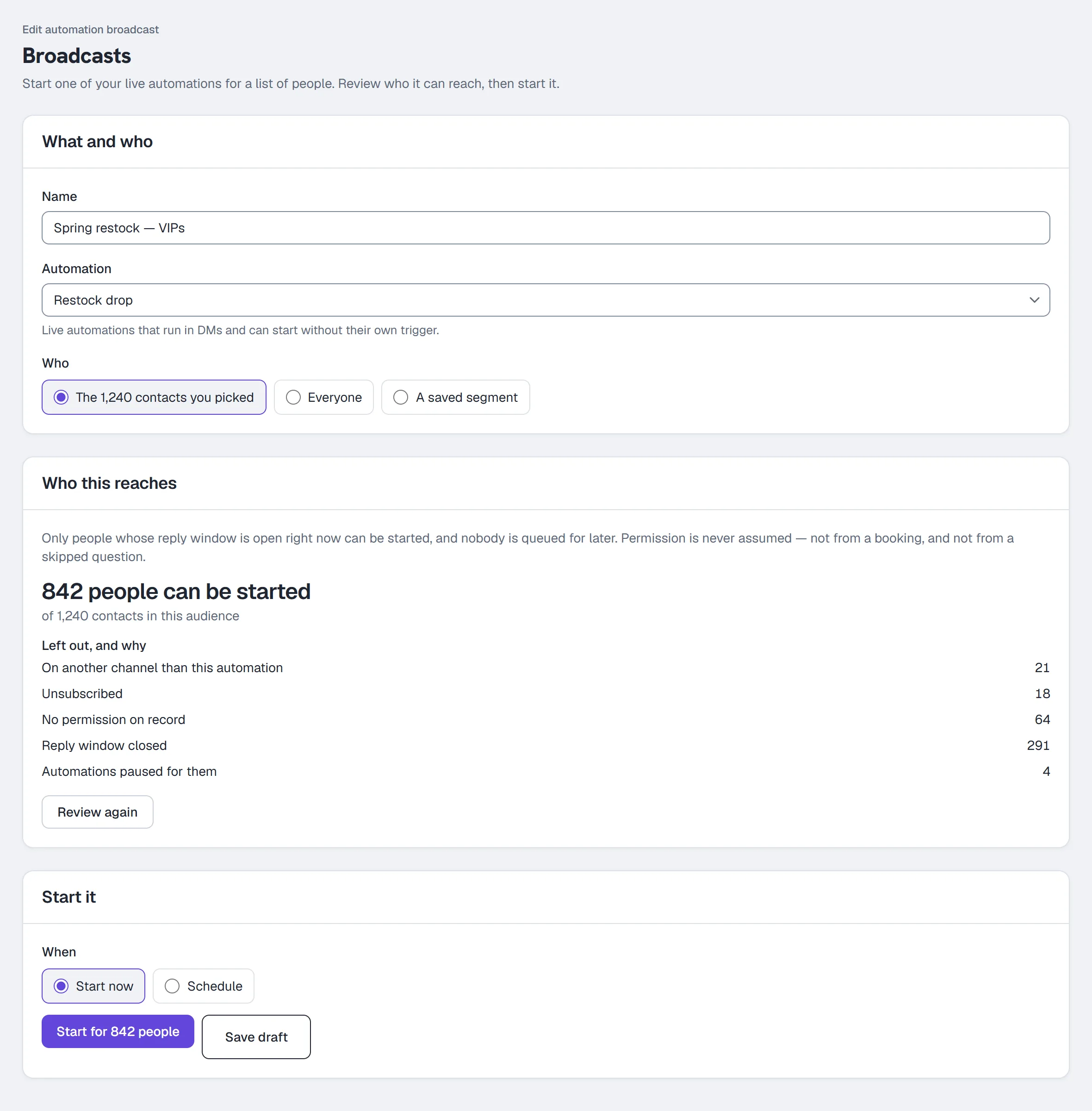
- Under What and who, fill in Name and pick the Automation. Only live automations that run in DMs and can start without their own trigger are listed — not SMS or email ones, and not one that starts from its own event (a checkout, say). An automation whose content can't be sent as it stands isn't listed either.
- Under Who, choose Everyone, A saved segment, or — if you came from Contacts — The N contacts you picked.
- Under Who this reaches, press Review who this reaches. Nothing starts from here. You see how many people can be started out of the audience, and under Left out, and why, each group: Email addresses (a DM automation can't reach them), On another channel than this automation, Unsubscribed, No permission on record, Reply window closed, Automations paused for them, Already in this automation, Over your plan or this month's limit.
- Under When, choose Start now or Schedule and a time, then press Start for N people. The confirmation reads This starts this automation for N people. Confirm, and it starts — a short list at once, a longer one within five minutes — or at the scheduled time.
Only people whose reply window is open can be started, and nobody is queued for later. Someone whose window has closed is left out under Reply window closed. Permission is never assumed: a booking request isn't permission, and neither is a question someone skipped — those people are left out under No permission on record until they say yes. Every message the automation sends afterwards still checks permission and the reply window, like any other send.
Starting is refused, with the reason, when the review is missing, more than 30 minutes old or for an older version ("This changed since its review. Review it again, then send."); when the audience is too large to review in one pass; when nobody can be started; or when the workspace has reached its conversation limit for the month. It is refused too when a teammate changed or reviewed it again after you did ("This changed since its review."), and when the automation it names can no longer be sent to a list (it isn't live, or no longer passes its checks) — pick another. Any edit clears the review — review it again before you start.
If it pauses. A broadcast that is already scheduled checks everything again when it starts. It pauses — and says why in the list — if sending an automation was switched off, if who it reaches changed by more than 10% since the review (review it again, then start it), or if the month's conversation limit was reached. People already started keep going. To continue a paused one, review it again and press Start for N people — Start now, or Schedule to continue at a later time. Stop sending stops it before anyone new starts.
Every send still passes the gate
A broadcast message goes through the same compliance gate as everything else: consent, the 24-hour window, and per-channel rate caps. Broadcasts are unavailable below Growth — on Free and on Starter; from Growth up, the gate still governs delivery.
Results land in the Activity log and the Analytics compliance row.
Common questions
Why is my audience count smaller than my contact count? Broadcasts only go to contacts opted in on the channel, and your tag/field/window filters narrow it further.
Can I stop a broadcast that is already sending? Yes — Stop sending on the broadcasts list. It is not instant: a handful already on their way still land, because messages go out in small batches and the stop takes effect between them. Nothing that has gone out can be recalled, and everyone not yet reached is simply not messaged. The row then shows how many actually went.
Can I send to people outside the 24-hour window? Not on Instagram, by any mechanism — you can record them as queued, but nothing is sent until they message you. On WhatsApp, yes: attach an approved template in step 1 and those contacts receive it (Meta bills each one to your WhatsApp Business Account at its template rate). On Telegram the question does not arise: there is no window, so anyone who has started your bot can be reached at any time. Templates are submitted in Settings → WhatsApp and reviewed by Meta first.
Why does my WhatsApp broadcast say Paused? Its template can no longer be sent — Meta rejected, paused or disabled it, it was edited in WhatsApp Manager after you saved, or it now has a part HyperDM can't fill — or WhatsApp was disconnected. HyperDM checks before the first message goes out, so it pauses instead of failing for everyone — and if Meta refuses the template partway through, the contacts not reached yet wait too. The row names the template and the reason; fix it, save, and press Resume, which checks again first (Send WhatsApp templates). While WhatsApp is disconnected, Resume waits until it is connected again.
Why can't I see Broadcasts in the sidebar? Your role lacks send_broadcast (owner/admin only). Plan never hides the row — a below-Growth owner still sees it, and saving or sending is refused with the upgrade message instead.
Sequence or broadcast? Sequence = timed from when each person joins, personal clock. Broadcast = everyone, one moment. See Sequences.
Why isn't everyone with a phone number in my SMS broadcast? An SMS broadcast goes only to people with documented permission to text them, who haven't opted out, have a US number and have a safe time to receive it. The review lists everyone left out and why. See Send an SMS broadcast.
Can I schedule in a specific timezone? Yes — the time you pick is read in your workspace timezone, set in Settings → Workspace. Scheduling 9:00 AM sends at 9:00 AM in that zone, wherever the servers run, and daylight-saving changes are handled for you. The composer shows which zone applies right under the picker; if it's wrong, fix it in Settings before scheduling.
More in Campaigns
- Track link taps and see what convertsThe links HyperDM adds are tracked by default: where the taps show up, how to read them honestly, and how to send links exactly as typed where offered.Read
- Build a drip sequenceBuild a drip sequence step by step: write or reuse each message, run a flow, set waits and send windows, check the timeline, go live and read Results.Read
- SequencesBuild a drip campaign: steps and waits, the send window, reusing a message or running a flow, the timeline, step results, and how people join and leave.Read
Try HyperDM for free
50 free conversations a month, no card. Connect Instagram and follow the guide you just read.