How to build a drip sequence
Build a drip sequence step by step: write or reuse each message, run a flow, set waits and send windows, check the timeline, go live and read Results.
A sequence sends each subscriber a series of messages, each a set time after the last. This guide builds one from start to finish. The full reference is Sequences.
Before you start. Sequences need the Growth plan or above to go live (any plan can save a draft). Steps 5–8, 11 and 14 — reusing a message, running a flow, the preview, the timeline and step results — and the go-live check in step 12 are rolling out to selected workspaces: if your step cards show a Change button, you have them; if not, write each step's message on its card and skip those steps.
- Go to Automations, open the Sequences tab and press New sequence (or open
/sequences/new). - Type a name in Name — e.g. Welcome drip.
- On the first card, set the wait: Send N minutes / hours / days after they subscribe (0 sends it as soon as they join).
- Write the first message in the card's message box. Use Insert variable or type
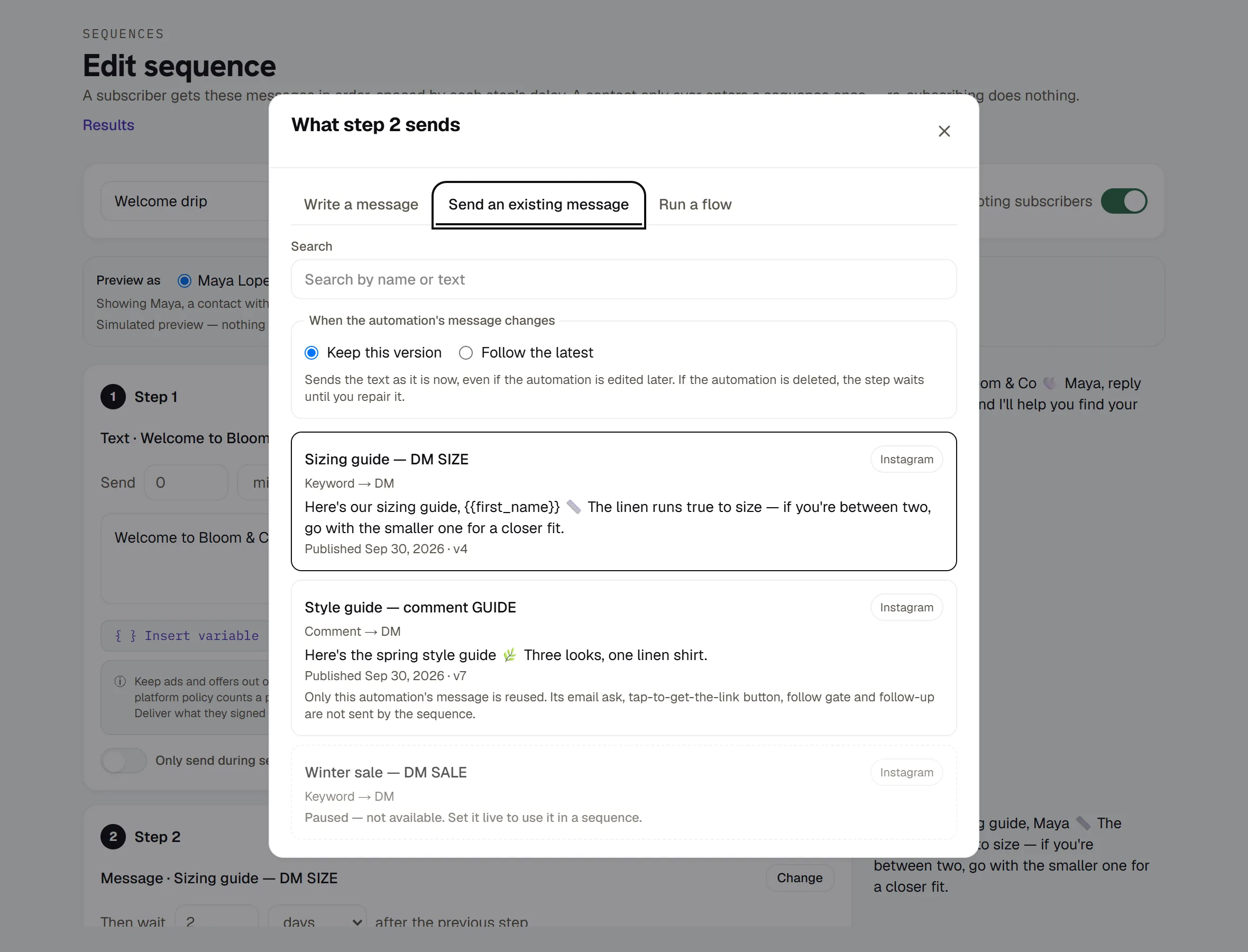
{{first_name}}to personalise it. - To send something else instead, press Change on the card. The dialog has three tabs: Write a message (the text on the card), Send an existing message and Run a flow.
- Send an existing message: first choose what happens when the automation's message changes — Keep this version (sends the text as it is now) or Follow the latest (sends its latest published message each time) — then click the automation in the list (or move to it with the arrow keys and press Enter). Only live automations can be picked; paused ones say Paused — not available.
- Run a flow: choose Follow the latest or Keep this version, set If the flow is still running after this many hours, continue anyway (1 to 168; leave it blank for 24), then click the flow. Subscribers on a different channel from the flow's skip this step. The sequence waits for the flow to finish, or for that time limit, before the next step.
- Read the preview beside each step. Preview as switches between a contact with a name and one without, so you can see how merge tags come out. It's a simulation — nothing is sent.
- Press + Add a step for the next message. On later cards the wait reads Then wait N … after the previous step. Reorder with Move up / Move down, remove a step with ×, or switch one off with its toggle (it shows Paused).
- Optional: turn on Only send during set hours on a card and choose the hours and days. The hours are UTC, and the window must end after it starts on the same day.
- Check the Timeline under the steps: pick If someone joins Now or Next Monday, and read when each step would go out at the earliest, in UTC, and what each wait counts from.
- Flip Live on and press Save & go live (or leave it off and press Save draft). Going live checks every step that's on. If the automation or flow a step points at was deleted, an automation it follows or a flow it runs is paused, or a flow it keeps a version of was edited, the save is refused and the step says what to do: Pick other content, Use the current version, Open it or Restore it. A message step set to Keep this version goes live even if its automation was paused or edited since — it sends the text you kept; only a deleted automation stops it.
- Get people in: subscribe a contact from their drawer in Contacts, or use a rule's or a flow's Subscribe to sequence action.
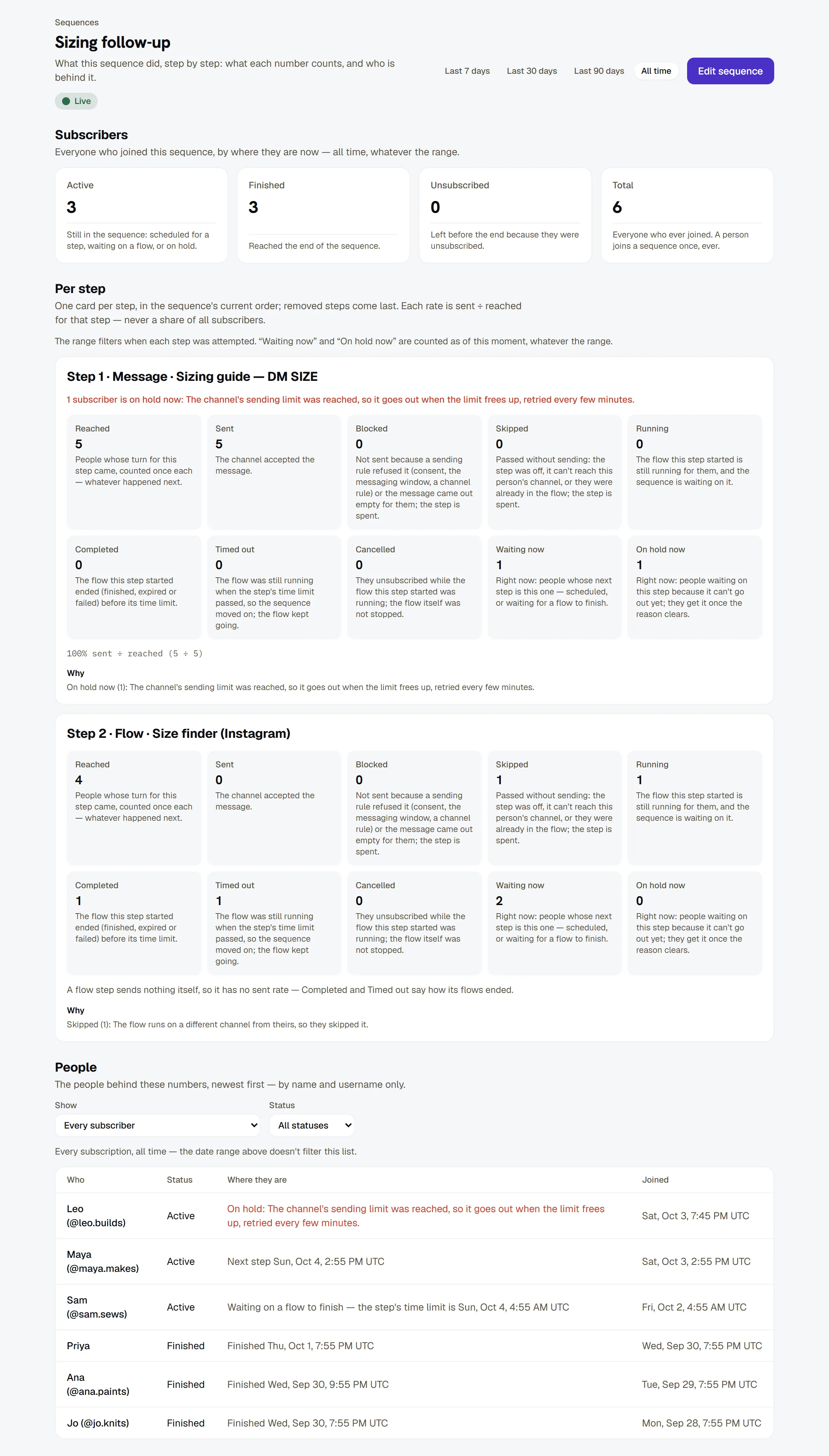
- Open Results (in the editor's header, or on the sequence's row) to see, per step, how many people it reached and what happened — sent, blocked, skipped, running, completed, timed out or cancelled — who is waiting or on hold right now, and the people behind each number.
If something doesn't look right
- A step says On hold — see Troubleshooting.
- You reordered steps while people were mid-sequence — what each subscriber gets next is in Sequences.
- "Someone else saved this sequence" — a teammate saved it after you opened it. Nothing was overwritten: choose Reload the saved version or Save my version anyway.
More in Campaigns
- Track link taps and see what convertsThe links HyperDM adds are tracked by default: where the taps show up, how to read them honestly, and how to send links exactly as typed where offered.Read
- BroadcastsSend a one-off message to opted-in contacts in four steps: compose, choose the audience, decide on the 24-hour window and schedule it.Read
- SequencesBuild a drip campaign: steps and waits, the send window, reusing a message or running a flow, the timeline, step results, and how people join and leave.Read
Try HyperDM for free
50 free conversations a month, no card. Connect Instagram and follow the guide you just read.