Write and send an email
Build an email template, check who will actually receive it, send or schedule it — and read what happened afterwards, including who unsubscribed.
Once your domain is set up — see how-to-connect-email.md — there are two ways to send:
- an email broadcast, a one-off send to everyone matching an audience; and
- a Send email step inside a flow, which emails one person at the point they reach it.
Both use the same templates, and both check permission for every single recipient at the moment of sending, not when you pressed the button.
Where it's on: if Broadcasts has an Email templates link and a New email campaign button, it's on for your workspace.
Who is allowed to receive an email
This is the part worth reading twice, because it is different from DMs.
Permission to email someone is separate from permission to DM them. Somebody who messages you on Instagram has not joined your mailing list. HyperDM keeps the two apart on purpose, and will only email a person whose address is marked subscribed with a record of how and when they agreed.
A contact's Email section shows each address in one of these states:
- Subscribed — they agreed, and it's recorded. These are the only people who get emails.
- No permission on record — you have their address but no record of consent. They are not emailed. This is the normal state for an address you captured without asking.
- Unsubscribed — they opted out.
- Suppressed — they unsubscribed, their address bounced for good, or they marked an email as spam; the section says which.
An opt-out, a hard bounce and a spam report all put the address on a do-not-email list that is permanent by design. Importing a file will never put someone back on your list once they're on it, and neither will someone typing the address into a flow — anyone can type anyone's address. Only a teammate, by hand, with a record of where and when they agreed.
Where addresses come from
- A flow's question — a Message step's Data collection block set to
email. Turn on Ask permission to email them and write the Consent line — a sentence telling people what they'll receive — and the address arrives subscribed, with that sentence kept as the record. If you don't, it arrives with no permission on record, and you'll need to ask separately. An address already on your do-not-email list stays on it. The question and the consent line go out as one message, so together they must fit what the channel carries (1,000 characters on Instagram) — the flow can't go live until they do. - An Automation's email ask, or the agent's goal to collect an email. When someone replies with just their address, it's kept as their email address with no permission on record — those asks don't show a consent line — so it's counted in a campaign's audience as "never subscribed" rather than "no address". Record permission with Subscribe with evidence… if you have it. A reply with words around the address is saved on the lead as before, but not as an email address.
- An import. Match a column to Email address, and the file's permission columns describe each address: a "yes" needs where and when or the row won't import (it's listed in the rows you can download), a "no" puts the address on your do-not-email list, and a blank means no permission. A "yes" for an address already on that list is refused. See how-to-import-contacts.md.
- By hand, from a contact's drawer in Contacts: Email → Add an email address…. Tick They've given permission to email them and say where and when they agreed to add it subscribed; leave it unticked to add it with no permission on record. Any address that isn't subscribed gets Subscribe with evidence… in the same place (owners and admins).
An address is kept as its own record, linked to the contact it came from rather than merged into it, which is what keeps email permission separate. So it isn't offered when you merge contacts, sequences skip it, and a DM broadcast leaves it out altogether — it is neither counted in the audience nor listed as skipped.
Where to find an address
In Contacts, an address is never a row of its own — it lives on the contact it came from:
- Type the address, or part of it, into the search box (Search by handle, name or email). The contact it belongs to is the row that stays.
- That row's Email marker says where its permission stands: Email · Subscribed, Email · No permission or Email · Unsubscribed. To see everyone with an address, open Filters and pick Email → Has email (or one of the three states).
- Click the row. The drawer's Email section lists the address, where its permission came from, and Subscribe with evidence… / Unsubscribe.
Contact counts — on the dashboard, in Analytics, in the API and under a DM broadcast's audience — count people, so an address is never counted as a second contact. So does the Inbox search's line about matches outside the loaded conversations: an address you type counts as the contact it belongs to.
Build a template
- Go to Broadcasts → Email templates → New template.
- Fill in the Template name — only you and your team see it.
- Write the Subject and, optionally, a Preview line — the grey line most inboxes show beside the subject.
- Add blocks with Add heading, Add text (a paragraph), Add image, Add button and Add divider. Each block can be moved up or down, or removed.
- Click a variable under Variables — {{first_name}} and your other fields — to drop it into the box you were last typing in. Every one needs a fallback under Fallbacks — what to use when that person has nothing in that field — except the few that are always filled. The editor won't let you save without one, so nobody ever receives "Hi {{first_name}}". A field inside a button's or an image's link is encoded into the address, so a value can only ever be that value — it can't add a parameter or a second link; if someone's value can't make a working link, that person is skipped and the history says so.
- The preview shows exactly what will be sent, for the Sample contact you pick. Switch between Formatted and Plain text — every email carries a plain-text version too.
- Press Save.
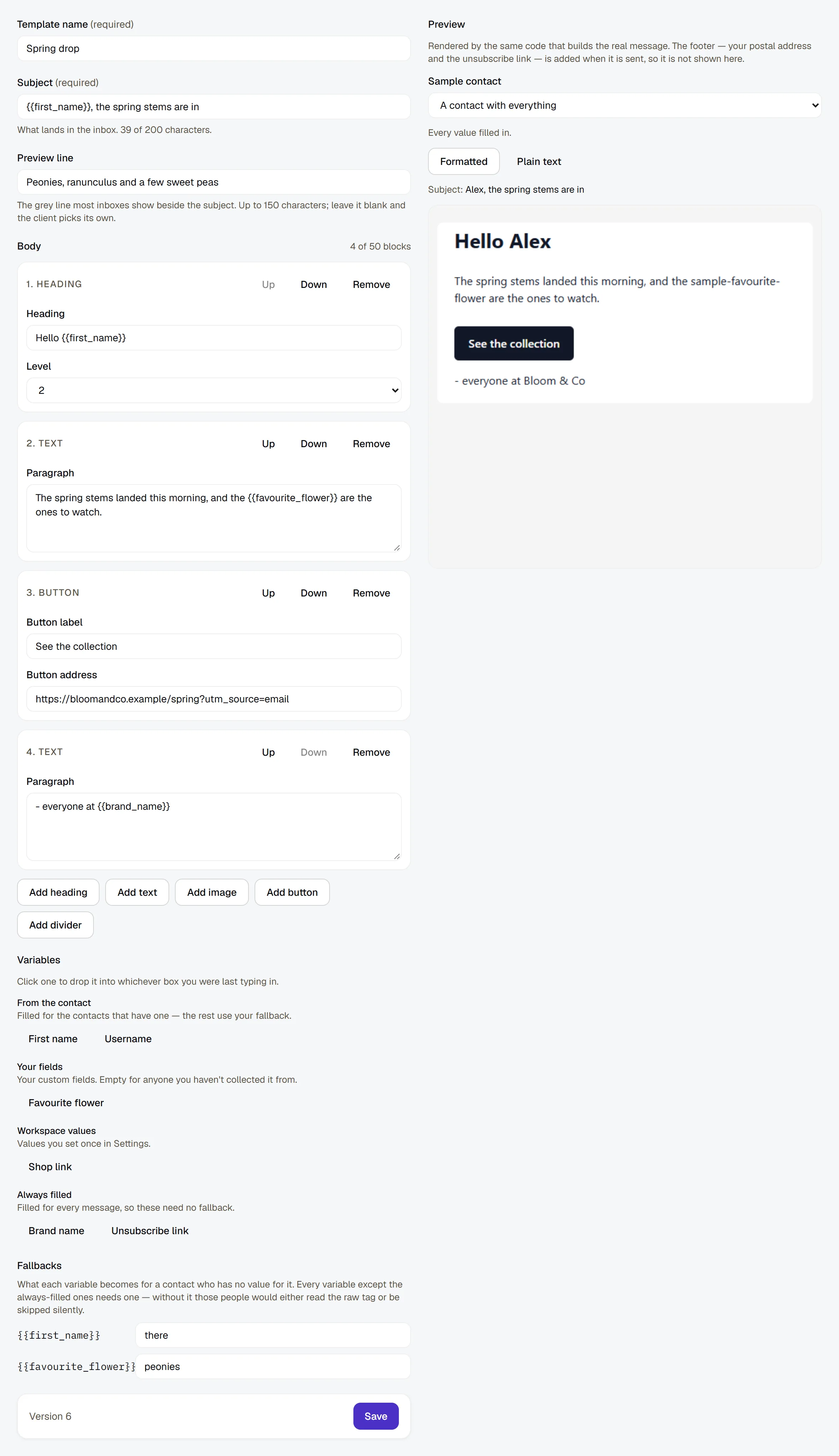
Each save creates a new version ("Saved as version 2"). A campaign or a live flow remembers the version it was checked against, so editing a template never changes an email that is already scheduled. A template you Archive stops being offered for new campaigns and flow steps; the ones already using it keep the version they pinned.
Send a broadcast
- Broadcasts → New email campaign.
- Give it a Campaign name and pick the Email — one of your saved templates. Send a test to yourself sends it to your own sign-in email and nobody else.
- Choose who it goes to: a Saved segment, or Tags. With no segment and no tags it goes to everyone who has subscribed to email from you, and the editor says so. A filter is judged on the contact each address was captured from, so a segment like "hasn't bought yet" leaves out someone who has, even though their email address has no fields of its own.
- Press Count the audience. This is the important step: it says how many people will receive it, and lists who is Left out, and why — no email address, an address that never subscribed, unsubscribed, suppressed, or a merge tag nothing fills. Send now stays off until you've counted.
- If your audience is larger than today's sending limit, the count tells you roughly how many days it will take.
- Send now (it asks you to confirm) or pick a time under Or schedule it for and press Schedule — the time is in your workspace's time zone. Send now sends the first emails straight away; if it says how many were sent so far and that the rest go out over the next few minutes, the campaign carries on by itself — you can close the page. If it says the campaign is on its way rather than how many it was sent to, HyperDM couldn't read everything it needed at that moment — the campaign starts by itself within a couple of minutes. Don't press Send now again. If it says Paused instead, it stopped for something only you can fix — no monthly limit set, your sending domain, or a paused sender. The editor says which, and how many had already gone out. Fix it, then press Resume there — not Send now.
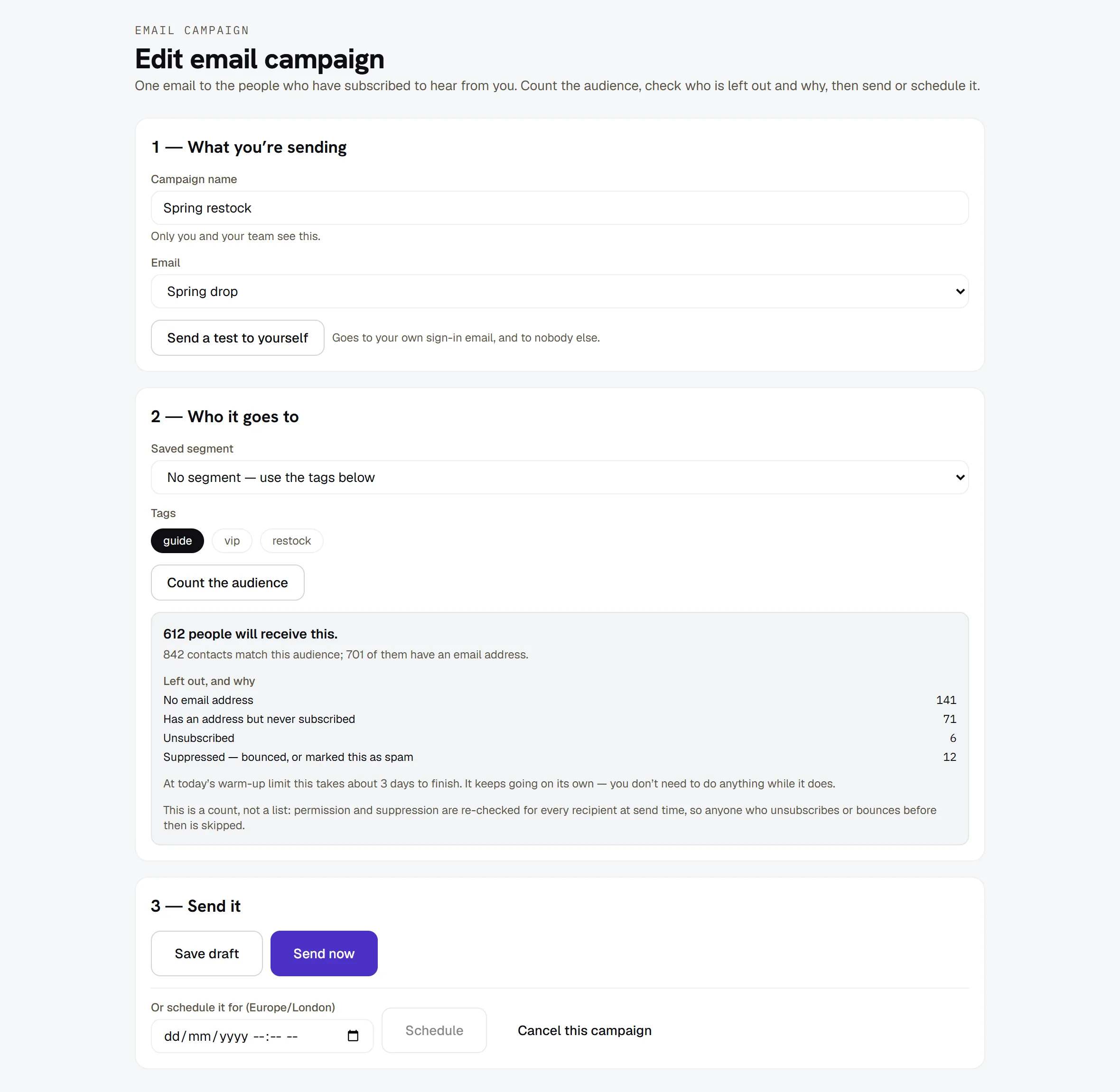
The count is a snapshot. Permission and the do-not-email list are checked again for every single person at the moment their email is about to go out — so somebody who unsubscribes between your check and their email does not receive it, and the history says so.
Open, change or stop a saved campaign
- On Broadcasts, an email campaign's row says Email campaign. For a draft or a scheduled one, press Review & send (or Edit). It opens in the email campaign editor with its name, email and audience, and a scheduled one shows the time it's booked for, in your workspace's time zone.
- Pressing Save draft, or Count the audience again, puts a scheduled campaign back in Draft — the editor says so. Count it and press Schedule to book it again.
- Cancel on the list cancels one that hasn't started. On one that is sending, Stop sending stops it before its next batch. Either way you're told how many emails had already gone out.
- A campaign that has sent, stopped or failed keeps See what happened on its row. Bounces, spam reports and unsubscribes for what already went out can still arrive after you stop it.
A campaign that says Paused stopped for something only you can fix: the monthly limit (reached, or never set), your sending domain, a paused sender, your plan, or email being switched off. The list and the campaign's own page say which, and nothing more goes out until someone presses Resume. Fix the cause, then press Resume on the Broadcasts list, on the campaign's page or in the reopened editor (owners and admins). Anyone who unsubscribed or bounced while it was paused is still skipped; if the cause is still there, it pauses again with the same sentence. If it paused because its audience count no longer matches and nothing had gone out yet, press Review it again, then Count the audience, then Resume. If part of your list already had it, it isn't counted again: press Resume and it carries on with the email it was sending.
Email one person inside a flow
Add a Send email step to a flow and pick a template. When somebody reaches it:
- the email goes to the address linked to that contact;
- if they have no address, or no permission, the step is skipped and the flow carries on to the next step — it does not stop or fail. Under the step, the canvas shows how many people it skipped and why: no email address, a personalised value missing, never subscribed, unsubscribed, suppressed, or something on your side such as a sending domain that isn't ready or a monthly limit that's reached;
- if today's sending limit is reached, that person's email waits until tomorrow and the flow picks up where it left off.
A flow with an email step can't be set live until your email setup is finished and the template it points at exists and has been saved. The step sends the version of the template that was current when you set the flow live — edit the template, then set the flow live again to send the new one.
Read what happened
Open a campaign from Broadcasts to see What happened, separately:
- The big number — labelled Accepted for sending — counts every email your email provider accepted to send. It says nothing yet about the recipient's side; that is Delivered. Of those:
- Delivered — accepted by the recipient's mail server.
- Bounced — permanently rejected. That address goes on the do-not-email list.
- Marked as spam — also permanent, and the most damaging to your domain.
- Still settling — On their way, and Outcome we couldn't confirm: your provider was asked to send it, and HyperDM never got a clear answer. See Common problems below.
- Not sent — Failed to send, and everyone skipped, with the reason for each.
- What people did — Clicked a link and Unsubscribed (they used the unsubscribe link in that email). A click is a tap on a button or a linked image in that email. Those links go out as short HyperDM links (
hyperdm.app/l/…) so the tap can be counted, and each person is counted once however often they tap. A link with a variable in its address is sent exactly as you wrote it and is not counted.
While a campaign is still sending, the page says its numbers are still moving. If any part of it can't be read at that moment, the page says so — "We couldn't open this campaign just now", "We couldn't read the outcomes for this campaign", or that the skip reasons couldn't be read — rather than showing zeros. That says nothing about whether the campaign sent; try again in a minute.
Why there is no "open rate"
Apple Mail opens every email automatically before anyone reads it, and Gmail loads images through its own servers. A large share of "opens" in any email tool are software, not people. Rather than show you a number that looks like engagement and isn't, HyperDM doesn't measure opens at all and says so here. Clicks are counted, because a click takes a tap — though a company's mail filter can occasionally follow a link to check it before the person sees the email.
The unsubscribe link
Every email carries one, in two places: an Unsubscribe link in the footer, and the built-in Unsubscribe button Gmail and Apple Mail show at the top of a message. The inbox's button works in one tap. The footer link opens a short page with one Unsubscribe button — opening the page alone changes nothing, so a link checker that opens every link can't unsubscribe anyone. Neither needs the person to log in, and both take effect straight away and for good.
You cannot turn this off. Your business's postal address is in the footer for the same reason: both are legally required in marketing email, and an email without them is more likely to be marked as spam anyway.
Common problems
"Nothing sends and it says no monthly limit is set." The workspace owner sets one on the Customer email card in Settings → Channels. It is a deliberate stop: nothing is sent until somebody has decided the maximum. Then press Resume on any campaign it paused.
Far fewer people are emailable than I expected. That's usually permission, not a bug. The count breaks it down under Left out, and why — "Has an address but never subscribed" is the most common, and the fix is to ask them, not to import them again.
A campaign says "Paced by your sending domain's warm-up". You reached today's sending limit. The row says when the next batch goes out, and it carries on by itself; nobody is missed. The limit rises as your sending stays clean — see how-to-connect-email.md.
A campaign stopped and says sending is paused. Your bounce or spam-complaint rate crossed the safety threshold. The Customer email card says which one, and its How sending is going section shows the rate against the line. Fix the cause, then resume the sender on the card — after that only what you send from then on counts, so the pause won't come straight back. Then press Resume on the campaign itself: a paused campaign waits for that, so nothing goes out behind your back.
Someone says they unsubscribed but got another email. Check the history for that send — if their email had already been accepted by your provider before they unsubscribed, it was already on its way. Nothing sent after their unsubscribe can reach them.
Some emails say "Outcome we couldn't confirm". HyperDM handed those emails to your provider, but the answer never came back clearly — usually a timeout. It asks again, safely, for up to a day, and stops asking sooner if the person unsubscribed or bounced in the meantime, or your email setup stopped being ready. What it never does is send the email a second time on a guess. So the email may well have arrived: search your Resend account's logs for the recipient's address around the time of the send. These emails still count toward your monthly limit, because nobody can say they didn't go out.
More in Campaigns
- Track link taps and see what convertsEvery link HyperDM sends is tracked. Here is where the taps show up — the Automations list, sent broadcasts and Analytics — and how to read them honestly.Read
- BroadcastsSend a one-off message to opted-in contacts in four steps: compose, choose the audience, decide on the 24-hour window and schedule it.Read
- SequencesBuild a drip campaign: steps and waits, the send window, how people join and leave, and why every send still passes the compliance gate.Read
Try HyperDM for free
50 free conversations a month, no card. Connect Instagram and follow the guide you just read.