Analytics
The seven Analytics tabs, the range control, every metric and card, the activity log and CSV downloads, and which parts each plan or role unlocks.
Sidebar: Daily → Analytics. Seven tabs, one shared time window, and CSV downloads.
The controls in the header
The date-range button sits beside the Analytics title, with Export CSV next to it on the tabs that have one (see Export CSV); Activity has neither. The tabs are on their own row underneath, in the same place on every tab. On a phone the page fits the screen: the tabs scroll sideways on their own row, Export CSV shows as a download icon, and the number tiles sit two to a row.
Tabs
Each tab is named by the question it answers:
| Tab | Answers |
|---|---|
| Overview | Is it working, and is it getting better? The page opens here. |
| Automations | Which automation should I copy, fix or stop? |
| Content | Which posts get comments, and which should I automate next? |
| Audience | Who are my contacts, who comments, and where do they come from? |
| AI agent | How is the AI agent doing? |
| Activity | Did my DM send, and if not, why? |
| Team | Your team's own work: first teammate replies, completions and assignments. The tab is there for everyone; its report is on Growth and up, see the Team view. |
There is no Reports tab any more. Its cards moved to Audience and AI agent, and an old link to Reports opens Audience.
Range
The date-range button names the window you're looking at, for example Last 14 days. Click it and pick Last 7 days, Last 14 days, Last 30 days or Last 90 days (every plan). The page opens on the last 14 days.
On Pro and Agency the menu also offers Last 6 months and Last 12 months, and your own start date:
- Click the date-range button, then Custom start date….
- Pick a Start date. It can be up to a year back.
- Click Show this range. The page shows that day through today, and the button says Since and the date.
On other plans the 6- and 12-month ranges and a custom start date aren't offered, and a link to one opens the 14-day view.
Two tabs work differently:
- Team stops at Last 90 days: no 6 or 12 months and no custom start date. A longer window you picked on another tab opens Team on 90 days.
- Activity has no date-range button. It goes back as far as your plan keeps (see Activity), one page at a time.
The window lives in the page's address, so it is shareable and bookmarkable, and picking a range keeps you on the tab you're on.
Every window is counted on your workspace's clock, in the time zone set under Settings → Workspace. The line under the header names it, for example "Showing the last 30 days, by your workspace's clock (Europe/London)." A day on these charts is your day, not a UTC day.
A few things don't follow the range, on purpose:
- Revenue on the Overview is always the last 14 days.
- Delivery this week, Answered vs. held and Compliance activity use your workspace's week, and print that week on their face.
- Do your contacts come back? always shows the last 8 weekly cohorts.
- The Automation activity log goes as far back as your plan keeps it (see Activity).
Export CSV
On Overview, Automations, Audience and AI agent, click Export CSV. The file holds four sections: the daily counters (every plan), inbound messages per day, first-response times, and new contacts by source (those last three need Growth; below it they are simply absent from the file, not zeroed). Customer questions and contact identities are never exported.
The file covers 7, 14, 30 or 90 days: the shortest of those that covers your window. A 6- or 12-month window, or a custom start date more than 90 days back, exports the last 90 days.
On Activity the log has its own Download CSV (Growth and up), and on Team, Export CSV exports the team report.
Before there's data
Until the first DM or contact arrives, the whole page is a single "No analytics yet" state — no tabs, no controls. It fills in once Instagram is connected and messages flow.
If Instagram is not connected yet, that state's button is Connect Instagram. If it already is, the button becomes Create an automation — the page will never ask you to connect an account that is already live.
Overview
The answer to "is it working, and is it getting better", on every plan.
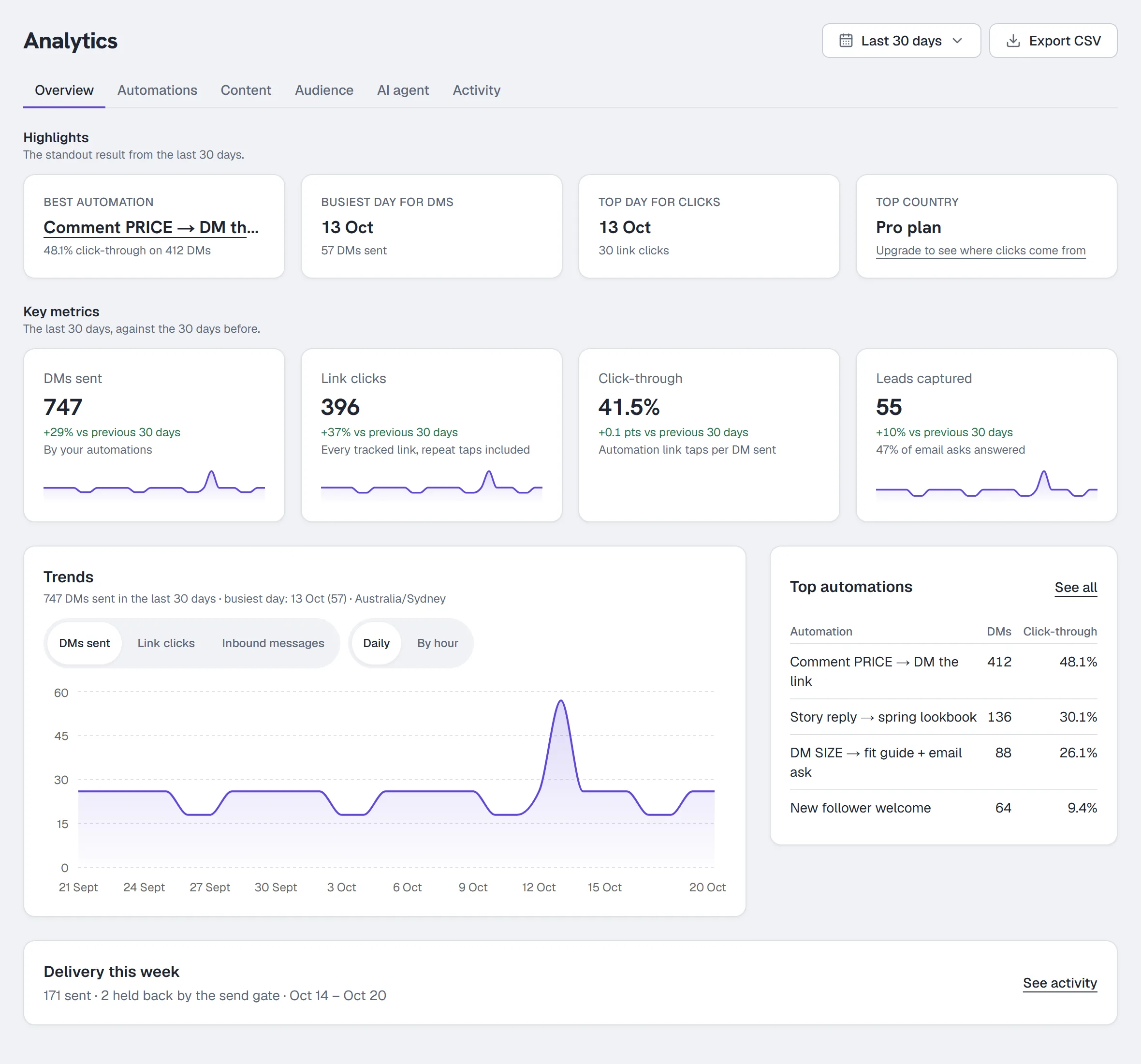
Highlights
Four tiles, the standout results from your window:
- Best automation — the automation with the best click-through among those that sent at least 5 DMs in the window (a tie goes to the one with more clicks). Click its name to open it on the Automations tab. With fewer than 5 DMs it says so instead of naming one.
- Busiest day for DMs — the day your automations sent the most DMs.
- Top day for clicks — the day with the most link clicks.
- Top country — on Pro and Agency, the country most located taps came from, with its share. On other plans the tile reads Pro plan, with a link to upgrade.
Key metrics
Each tile shows the number for your window and how it changed against the window of the same length just before it ("+18% vs previous 30 days"). When there is no earlier window to compare with, the tile says so instead of showing a flattering 0%.
| Tile | Counts |
|---|---|
| DMs sent | DMs your automations delivered. |
| Link clicks | Taps on your tracked links, repeat taps included. |
| Click-through | Taps on your automations' links per DM sent, as a percentage. Its change is in percentage points ("+2 pts"). |
| Leads captured | Emails your automations captured, with "N% of email asks answered" underneath. |
| Revenue | Paid order value in the last 14 days. |
DMs sent, Link clicks and Leads captured each draw a sparkline over your window.
Two honesty rules built into these tiles:
- Revenue appears only once you have a paid order AND are on Growth or above — revenue attribution is a Growth feature, so on Free and Starter the tile is absent even with paid orders. A
$0.00tile would read as "we tried to sell and failed" rather than "commerce isn't set up". - A number HyperDM couldn't read says "Not available yet", never 0. A rate with nothing under it (no DMs sent, no email asks) reads "—", never 0%.
Trends (Starter and up)
One chart with two switches:
- DMs sent, Link clicks or Inbound messages.
- Daily, or By hour: each hour of the day, 0 to 23, added up over your window, on your workspace's clock.
The line above the chart gives the total and marks the busiest day or hour. On Free the card says Trends is on Starter and up, with Upgrade to Starter. The daily inbound-messages chart that used to need Growth is now part of Trends.
Top automations
Your top 5 automations by DMs sent in the window, with their click-through. See all opens the Automations tab. When none sent a DM in the window it says "No automation sent a DM in this window. Set one live to see it here."
Delivery this week
One line: how many DMs were sent and how many the send gate held back this week, in your workspace's week. See activity opens the Activity tab, which has the full cards and every held reason.
Automations
The automation table (every plan)
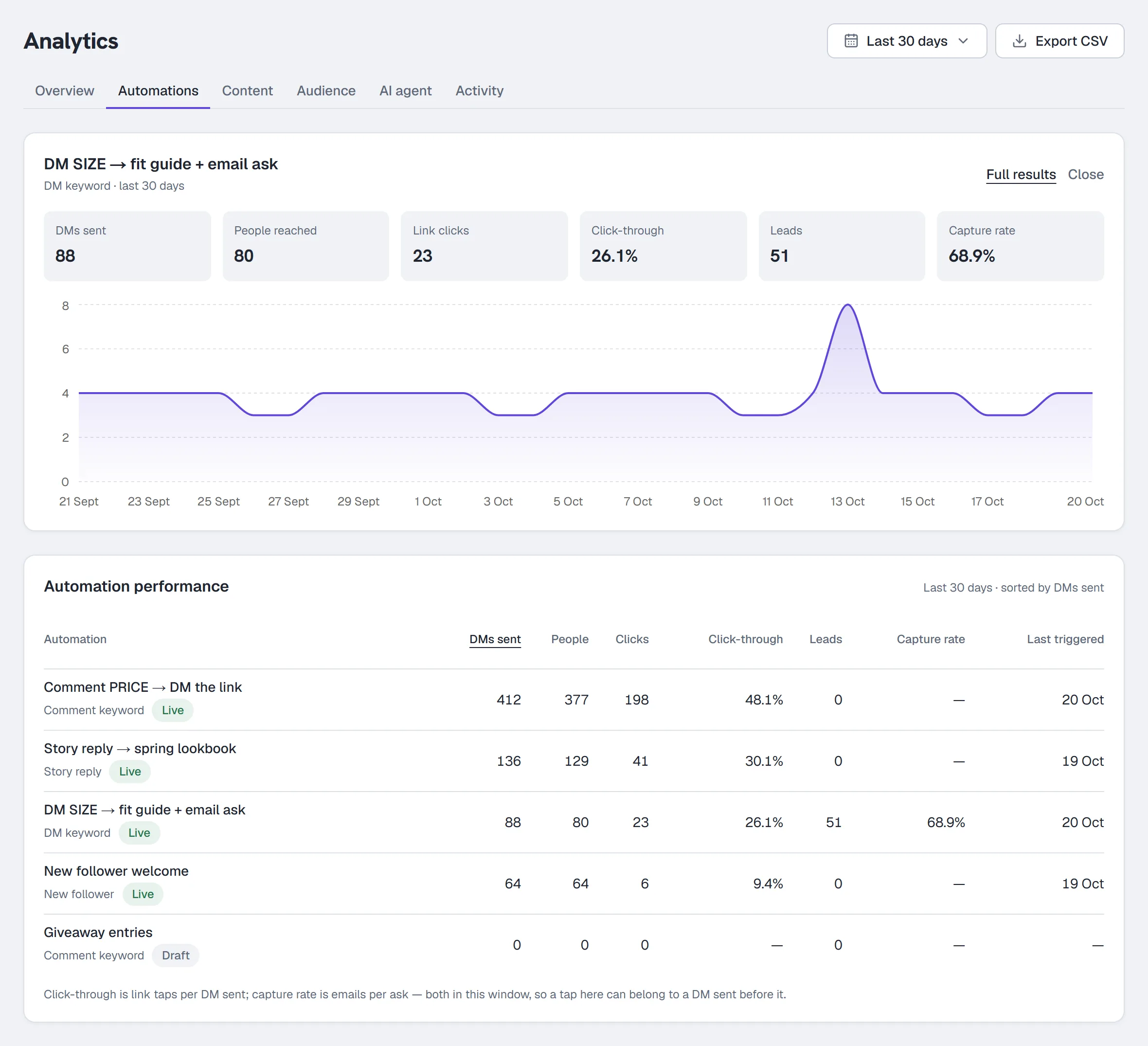
Automation performance lists every automation over your window:
| Column | Counts |
|---|---|
| DMs sent | DMs it delivered. |
| People | Different contacts it sent to. |
| Clicks | Taps on its links, repeat taps included. |
| Click-through | Its link taps per DM sent. |
| Leads | Emails it captured. |
| Capture rate | Emails captured per email ask. |
| Revenue | Sales credited to it. Growth and up; below Growth the column isn't there. |
| Last triggered | When it last ran. |
It opens sorted by DMs sent. Click a column heading to sort by it: Automation (by name), DMs sent, Clicks, Click-through, Leads, Revenue or Last triggered.
A rate with nothing under it (no DMs, no email asks) reads "—". Both rates count what happened inside the window, so a tap can belong to a DM sent before the window started.
One automation in detail
- Click an automation's name in the table.
- A panel opens above the table with its DMs sent, People reached, Link clicks, Click-through, Leads and Capture rate for the window. On Starter and up it also charts its DMs sent day by day.
- Click Full results for its own Results page (Automations: 7, 30 or 90 days or all time, and the people behind each number), or Close to hide the panel.
By folder (Growth and up)
If your automations are in folders, By folder adds up DMs sent and click-through for each folder, plus Not in a folder. Click a folder to filter the table to it, and All folders to go back. It appears once your automations are spread across more than one folder. Below Growth, a card says folder totals are on Growth and up.
Revenue by automation (Growth and up)
Which automation the money came from. A sale is credited to the most recent tracked tap, so where your workspace sends links exactly as typed (Settings → Workspace → Links, where it's offered) the Revenue by automation card says sales from links sent from then on can't be credited to an automation.
Conversions (Growth and up)
A Conversions card follows: one row for each conversion event that had conversions in the range you picked — Conversions, People (different people: merged contacts and a person's linked channels count once) and Value in the event's own currency. It counts on your workspace's calendar days, in your workspace's timezone, which the card names. It needs Growth or above.
Content
Content performance (Growth and up)
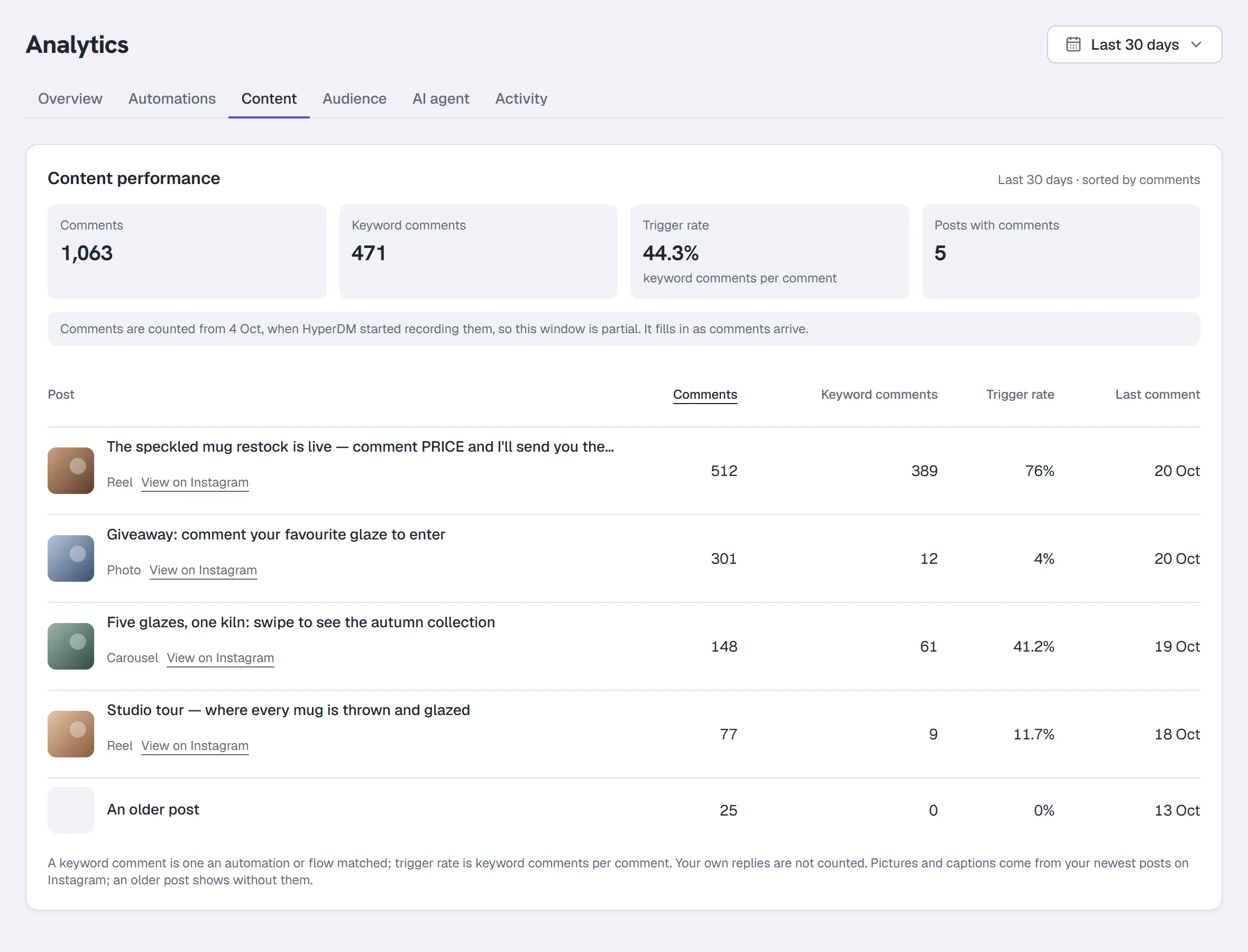
The Instagram posts and reels that got comments in the range you picked, most comments first: up to 50 of them, picked by the column you sort by. When more posts got comments, a line under the table says so ("The top 50 of 120 posts, by trigger rate") — the Posts with comments tile always counts them all.
| Column | Counts |
|---|---|
| Comments | Comments people left on the post. Your own replies aren't counted. |
| Keyword comments | Comments one of your automations or flows matched — the ones that asked for your keyword. |
| Trigger rate | Keyword comments per comment, as a percentage. "—" when there were no comments. |
| Last comment | When the newest comment arrived. |
The four tiles above the table add up every post: Comments, Keyword comments, Trigger rate and Posts with comments. Choose a column's name to sort by it; changing the date range keeps your sort.
A post with plenty of comments and a low trigger rate is the one to automate next: people are talking, and nothing answers them. A high trigger rate means your keyword is doing its job.
Each row shows the post's picture, caption and a View on Instagram link when it's one of your 50 newest posts. An older post shows as An older post, without a picture; its numbers are still right.
When counting started. HyperDM began recording comments on the day this report shipped. Nothing from before can be recovered, so when your range starts earlier, a note under the tiles says the window is partial and names the first day counted. It goes away once there's a full window of history. On a range longer than 90 days, dates show the year.
While automations are paused, comments are still counted, but none of them count as keyword comments: nothing was checked against your keywords while paused.
What's recorded. For each comment: which post, which comment, the commenter's Instagram ID, which automation or flow matched it (if one did), and when. Never the words of the comment. Comments are recorded on every plan, Free included, so when you move to Growth the card shows your history straight away. Records are kept for 13 months.
On Free and Starter the card is locked. Choose Upgrade to Growth on the card, or go to Settings → Billing & usage.
Audience
Contacts (every plan)
Your total contacts, how many are new in your window, and a sparkline of new contacts per day.
Where your contacts came from (Growth and up)
New contacts split by first touch: comment, automation, flow or direct.
Where your link taps come from (Pro and Agency)
Where the people tapping the links in your DMs are: countries and cities, for the range you picked at the top.
- The line under the title gives the range, how many taps there were, and how many countries and cities they came from. Top country names the one most taps came from, with its share.
- Top countries and Top cities switch the chart. Each bar is one place, with its taps and its share of the taps that had a location. The ten biggest are shown.
- The note at the bottom says how many of the range's taps had a location. Some never do: a private relay or VPN that hides where someone is, or a tap from before this card existed. A link preview (Instagram, WhatsApp and other apps open your link once to draw the preview) isn't counted as a tap at all.
This is where each tap came from, not where your followers live. Instagram doesn't share follower locations, and the people who tap are the ones acting on what you sent. Cities are approximate — often the nearest big city. HyperDM reads the place from its hosting provider when someone taps a tracked link; it never stores their IP address.
On Free, Starter and Growth the card is locked. HyperDM still records where each tap comes from on every plan, so when you move to Pro or Agency the card shows your history straight away. Choose Upgrade to Pro on the card, or go to Settings → Billing & usage.
Links you send exactly as typed aren't tracked, so their taps can't have a location either.
Who comments (Pro and Agency)
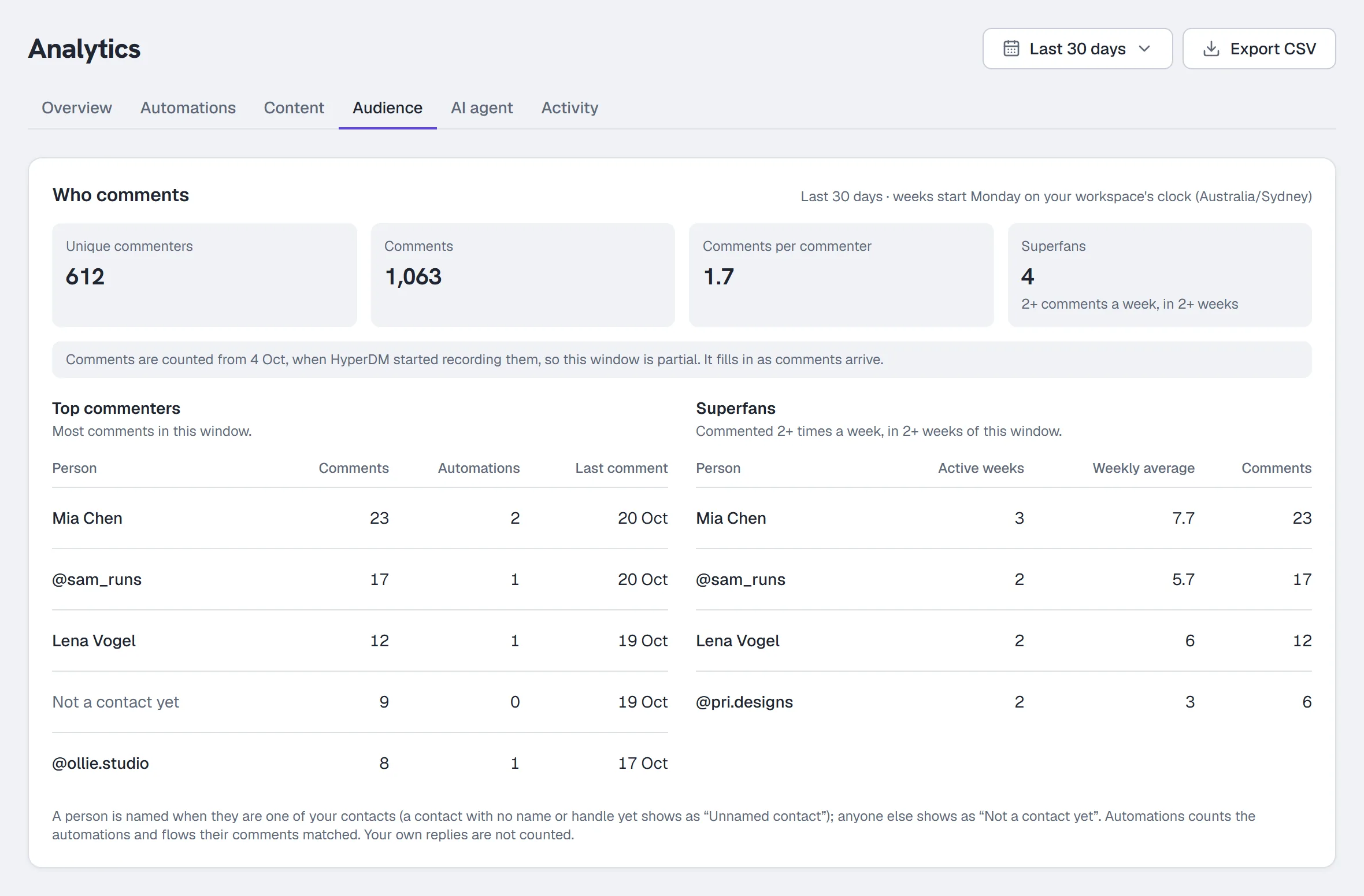
The people commenting on your Instagram posts in the range you picked.
- Unique commenters — different people who commented. Comments — every comment. Comments per commenter — the two divided. Superfans — how many people count as superfans (below).
- Top commenters — the people who commented most: their comments, how many of your automations and flows their comments matched, and their last comment.
- Superfans — people who commented at least twice in a week, in at least two weeks of your range. Active weeks is how many weeks they did that; Weekly average is their comments per week they commented. Weeks start on Monday in your workspace's timezone.
Someone who is one of your contacts is shown by name (or @handle) and opens their conversation in the Inbox; a contact with neither yet shows as Unnamed contact. If two of your contacts were merged, the one you kept names them. Anyone else shows as Not a contact yet: HyperDM doesn't keep a name for people who have never been a contact.
The note about when counting started, and what's recorded, is the same as Content performance. On Free, Starter and Growth the card is locked; choose Upgrade to Pro on the card.
When your customers message (Growth and up)
A weekday-by-hour heatmap of when people message you, in your workspace's timezone. Use it to decide when someone should be watching the Inbox.
Do your contacts come back? (Growth and up)
Weekly cohorts "by the week they arrived": how many of each week's new contacts message you again. Always the last 8 weeks, whatever the range.
AI agent
How the AI agent is doing (Starter and up)
How the agent is doing: answer quality, grounding, where it fell short, and what it cost to run per conversation (informational — not a charge on top of your plan). A "Counting from <date>" note appears when the window is wider than the collected history.
What your agent couldn't answer (every plan, including Free)
The questions the agent could not answer from your knowledge, collected into a list of things worth writing down. Ungated on purpose — it is an activation surface, not a report. Go from here to Agent → Knowledge and paste the answers.
How fast you reply (Growth and up)
How long customers wait for a first reply, counted once per exchange, whoever answered: the AI, an automation or a teammate.
Activity
Automation activity (every plan)
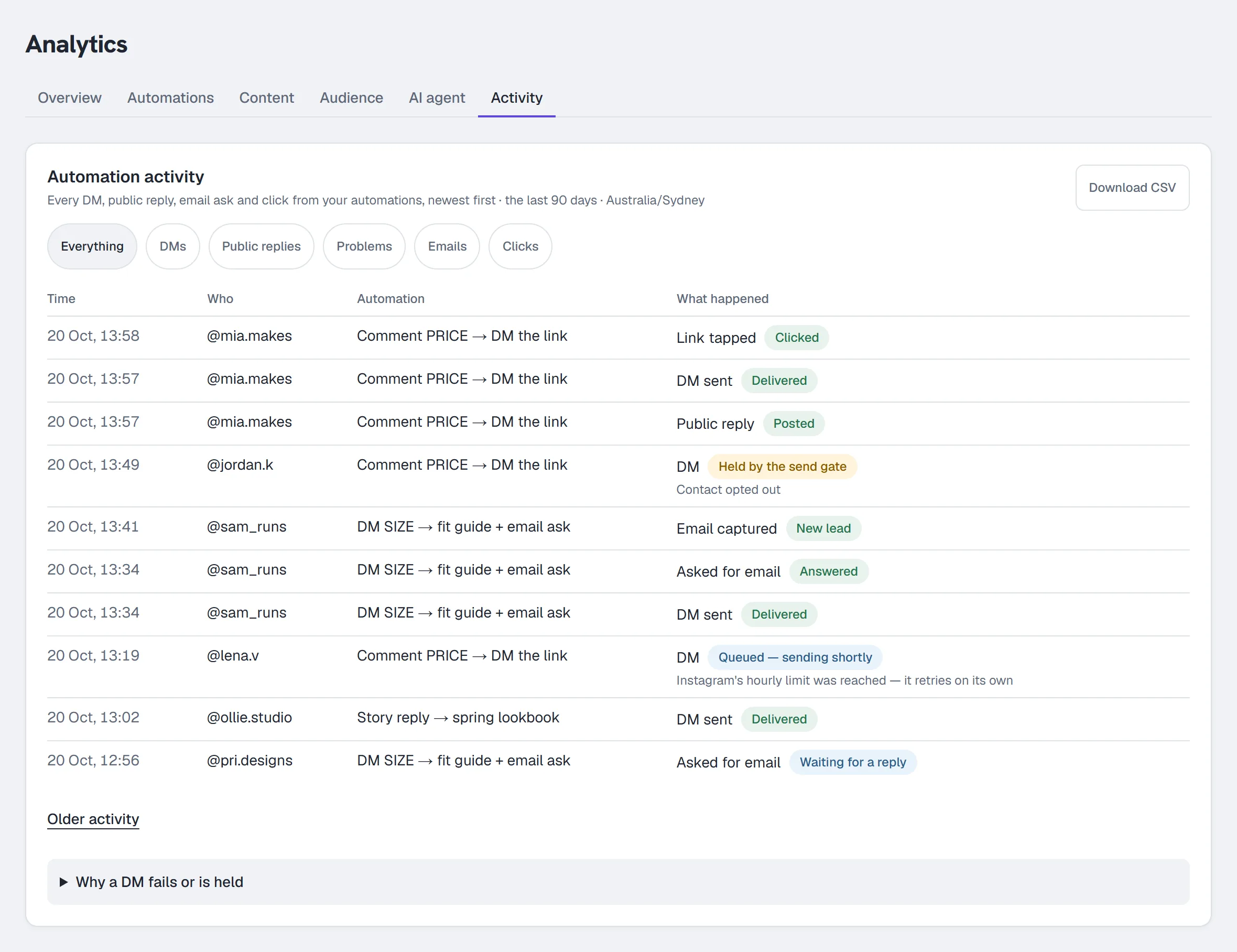
Everything your automations did, newest first, one row per event: the Time (on your workspace's clock), Who (the contact's @handle or name), the Automation, and What happened:
| What happened | Outcome |
|---|---|
| DM sent | Delivered |
| Public reply (under the comment) | Posted, Not posted with the reason, or Not confirmed (HyperDM started posting it but never heard back — check the comment on Instagram) |
| DM (a private reply to a comment that hasn't been delivered) | Queued — sending shortly, Expired before it could send, Delivery unconfirmed or Not delivered |
| DM held by the send gate | Held by the send gate, with the gate's reason (for example "Contact opted out"), or Held — retries on its own |
| DM that failed | Failed, with the reason |
| Asked for email | Answered, or Waiting for a reply |
| Email captured | New lead |
| Link tapped | Clicked |
A held DM is shown as held, not failed: holding is the send gate doing its job.
To narrow it, pick Everything, DMs, Public replies, Problems (failed or held), Emails or Clicks. The log shows 50 entries at a time; Older activity loads the next 50 back. A filter narrows the page you're on, so if a filtered page looks short, click Older activity.
How far back it goes depends on your plan (Activity has no date-range button):
| Plan | History |
|---|---|
| Free | 7 days |
| Starter | 30 days |
| Growth, Pro, Agency | 90 days |
The line under the title says how far back yours goes and, below Growth, which plan keeps more.
Download CSV (Growth and up) saves the log as a spreadsheet: time (UTC), automation, the contact's @handle or name, event, outcome and detail, newest first, up to 5,000 rows. It holds no message text and no email addresses. Below Growth the button reads CSV download on Growth.
Why a DM fails or is held opens a short explainer: held by the send gate (the reason beside it says why, such as a closed reply window, someone who opted out, or a limit), Instagram's hourly limit (the DM waits and sends on its own), expired (Instagram allows a private reply to a comment for a limited time) and Instagram disconnected (reconnect it in Settings and new DMs go out again).
The trust row (every plan)
Below the log, two cards:
- Answered vs. held — how many replies went out, and how many the compliance gate stopped.
- Compliance activity — the gate's own reporting. It lists the reasons that happened this week; Show every reason (N) opens the rest, so you can see what never happened too.
They use your workspace's week and print it on their face. They are on every plan including Free, deliberately: safety is not sold as a feature.
Team
The Team tab is there on every plan; below Growth it says its report is part of full analytics, on Growth and up. On Growth and up, Team shows the work your team does in the Inbox, counted from the team inbox's history — so it needs the team inbox on:
- First teammate reply — the median time from a customer's message to the first reply a teammate sent, how many were answered and how many are still waiting. It's labelled Teammates only: HyperDM's AI and automations never count here, and a conversation they answered isn't waiting on your team. How fast you reply on the AI agent tab is the one that counts every reply, AI included.
- Completed, Assigned and Unassigned now (right now, not the range), then the replies by how long they took, Day by day, By teammate and Open right now.
Filter by Team, Teammate (owners and admins), Channel and Time zone, then click Apply. Every underlined number opens the conversations behind it, and Export CSV exports exactly the report on screen. Owners and admins see the whole team; everyone else sees their own work. The full walkthrough, and how each number is counted, is in See how your team replies.
What each plan shows
- Free: the highlights (except top country), the key metrics with the change against the previous period, top automations, the automation table and panel numbers, delivery this week, contacts, what your agent couldn't answer, a 7-day activity log, and the trust row.
- Starter adds Trends, the day-by-day chart in an automation's panel, how the AI agent is doing, and a 30-day activity log.
- Growth adds full analytics (how fast you reply, where your contacts came from, when your customers message, do your contacts come back), revenue (the tile, the table's column and revenue by automation), folder totals, a 90-day activity log with Download CSV, Content performance, the Team report and Conversions.
- Pro adds where your link taps come from, Who comments (unique commenters, top commenters and superfans), the top country highlight, 6- and 12-month ranges and a custom start date.
- Agency shows everything Pro does on this page.
A locked card names the plan it needs and links to upgrade. See Plans and billing.
Feedback
At the bottom of the Overview and Team tabs there is a single textarea asking what's missing from these numbers. It is deliberately absent from the empty states — "what's missing?" only means something once there are numbers to be missing from. It's a note to the team that builds HyperDM, not a report being prepared: sending it says so, and if it can't be saved, your words stay in the box.
Common questions
Why is a card replaced with an explanation? It needs a higher plan. The card says which. See Plans and billing.
Where did Reports go? Its cards moved: Where your contacts came from, When your customers message and Do your contacts come back? are on Audience, and How fast you reply is on AI agent. A saved link to Reports opens Audience.
Why does Content or Who comments say the window is partial? HyperDM started counting comments on the day those reports shipped and can't recover earlier ones. The note names the first day counted and disappears once there's a full window of history.
Does HyperDM keep what people wrote in their comments? No. Content and Who comments record which post, which comment, the commenter's Instagram ID, whether a keyword matched and when — never the words. A person's records are included in their data export and deleted when you erase them, or when they ask Meta to delete their data.
Why do the delivery cards ignore my range? They use your workspace's week on purpose: "what did we hold back this week" is a different question. Each card prints its window so the two can't be confused.
Why don't these numbers match my automation's Results page? A DM sent, a click and a lead are counted the same way on both. Check the window: Results offers 7, 30 or 90 days or all time, and Analytics counts on your workspace's calendar days.
Why is click-through so high? It is taps per DM sent, not the share of people who tapped. One person tapping three times is three taps, and a tap in your window can belong to a DM sent before it, so it can run high.
Why doesn't Revenue match my Shopify/Stripe dashboard? The tile counts every paid order recorded from your connected store or checkout in the last 14 days, one currency at a time — other currencies are counted separately and disclosed in the subtitle. The "which automation earned it" view is Revenue by automation on the Automations tab.
Reading the numbers honestly
Interpret DMs sent, clicks and captured emails as separate event totals. Click-through here is taps per DM sent in the same window: a rate of activity, not the share of people who tapped, and not proof of a sale. Clicks and revenue by link count only tracked links: a link typed into a message's text is sent as written, and where your workspace sends links exactly as typed (Settings → Workspace → Links, where it's offered), links sent from then on aren't counted. Exclude your own test conversations when comparing acquisition and activation, and compare like with like when signups arrive through different methods.
More in Campaigns
- Track link taps and see what convertsThe links HyperDM adds are tracked by default: where the taps show up, how to read them honestly, and how to send links exactly as typed where offered.Read
- Build a drip sequenceBuild a drip sequence step by step: write or reuse each message, run a flow, set waits and send windows, check the timeline, go live and read Results.Read
- BroadcastsSend a one-off message to opted-in contacts in four steps: compose, choose the audience, decide on the 24-hour window and schedule it.Read
Try HyperDM for free
50 free conversations a month, no card. Connect Instagram and follow the guide you just read.