How to count conversions with conversion events
Name the results your flows count — a booked call, a paid deposit — log them with a Log conversion step, and read the totals in Analytics.
A conversion event is a result you want your flows to count: a booked call, a paid deposit, a signed-up lead. You name it once in Settings, add a Log conversion step where it happens in a flow, and Analytics shows how many there were, for how many people, and — when it carries one — their total value.
Conversion events are under Settings → Conversion events, in every workspace. Everyone in the workspace can see the list; owners, admins, editors and agents can change it.
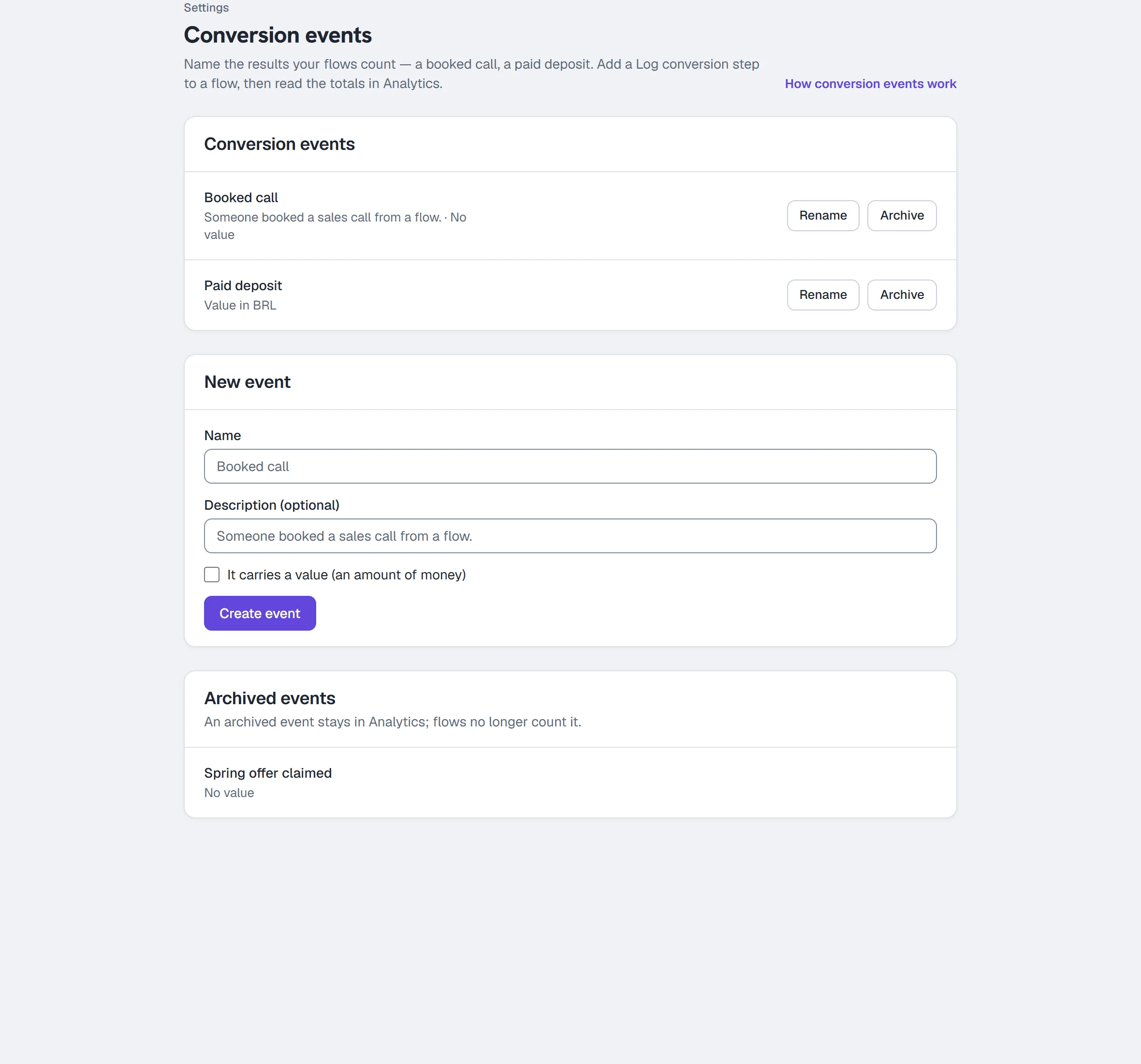
Create an event
- Open Settings → Conversion events.
- Under New event, type a Name — up to 50 characters, like
Booked call. Each name is used once in your workspace, ignoring capitals, and an archived event keeps its name. A workspace can hold up to 500 events, archived ones included. - Optionally add a Description (up to 200 characters), so your team knows what counts.
- If the result is worth money, tick It carries a value (an amount of money) and pick a Currency. This can't change later: the conversions already logged were counted in it.
- Click Create event.
To change a name or description, click Rename on its row, edit it, and click Save. If someone changed the same event in another tab after you opened the page, your edit isn't saved — reload to see theirs, then edit again.
Log it from a flow
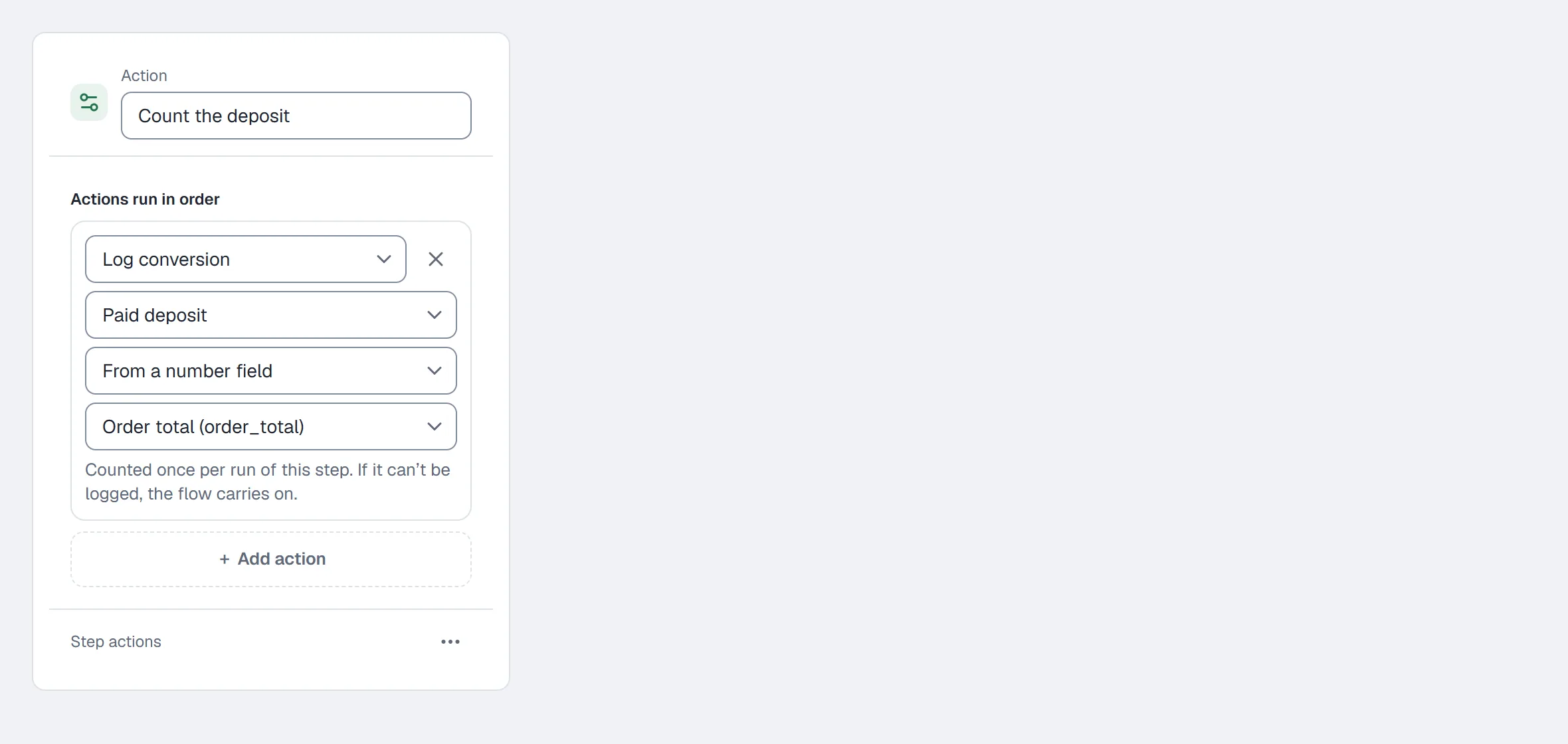
- In the flow builder, add an Action step where the result happens — after the booking question, say — and pick Log conversion.
- Pick the Conversion event it counts.
- For an event that carries a value, pick the Value: No value, A fixed amount (type it, like
49.99), or From a number field — the number that field holds when the step runs. - Set the flow live. A Log conversion step with no event picked can't go live: Design checks says it "needs setup".
Each run of the flow counts the step once: if the run comes back to the step (a loop), or is re-delivered, the conversion isn't counted twice. If the step can't log the conversion, the flow carries on. A field that holds no number logs the conversion without a value.
A Log conversion step saved before conversion events existed logs nothing until you pick its event — Design checks says it needs setup. A flow you export or share never takes your events with it: whoever installs it picks their own.
Read the totals
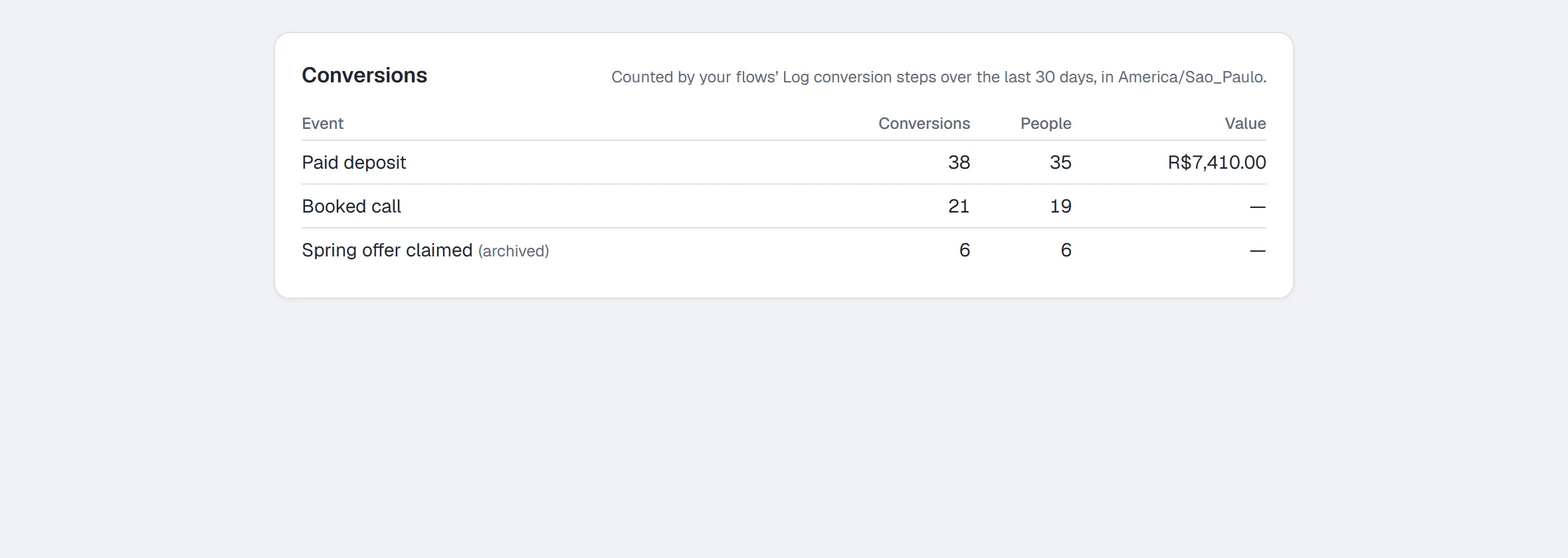
Open Analytics and pick Automations. The Conversions card lists each event that had conversions in the range you picked — 7, 14, 30 or 90 days, 14 unless you change it — counted on your workspace's own calendar days. An event with no conversions in that range isn't listed:
- Conversions — how many were logged.
- People — how many different people they came from. Contacts you merged, and a person's linked channels, count as one.
- Value — the total, in the event's currency.
The Conversions card is part of full analytics, on Growth and up.
A contact's own conversions are in their drawer on Contacts, under Conversions, and in their data export.
Archive an event
Click Archive on its row. First you see which flows use it — live ones, and ones that only have it in an unpublished draft. If HyperDM couldn't check every flow, it says so: archive only when you're sure. Archived, the event is no longer offered, a step that logs it needs setup before its flow can go live again, and the conversions already logged stay in Analytics.
When someone asks you to delete their data
Erasing a contact keeps their conversions in your totals but removes the link to them — the same as orders. Their conversions are in the file when they ask for their data.
More in Flows
- Build your first flowOpen the canvas, start from a template or a description, add and connect steps, run the design checks and the preview, and set the flow live.Read
- Flow builderThe visual canvas end to end: every node and block type, connecting, design checks, preview, publishing, templates, sharing and the keyboard shortcuts.Read
- Add or find rows in Google SheetsConnect a Google account, then use a Google Sheets step in a flow to add a row for each person or look them up — with a test before anything is written.Read
Try HyperDM for free
50 free conversations a month, no card. Connect Instagram and follow the guide you just read.