Flow builder
The visual canvas end to end: every node and block type, connecting, design checks, preview, publishing, templates, sharing and the keyboard shortcuts.
Sidebar: Automate → Flow builder. The visual canvas. Use it when a conversation needs branches, waits, conditions, media or an AI hand-off — anything the simple automation builder form can't express.
Needs the manage_automations capability — owner, admin and agent.
Deleting or restoring the whole flow, and revoking its shared link, requires an owner or admin. Agents can still create, edit, publish, pause and duplicate flows.
The flow builder opens outside the app shell. No sidebar and no app header — the canvas takes the whole window under its own top bar, whose Help menu has the help assistant, the help centre and Send feedback. ‹ Automations at its left takes you back.
Start a flow
Opening /flow with nothing loaded offers three ways in:
- Start from a template — pick a recipe, or import a flow file. You review it before saving.
- Create with AI — describe what you want and have the graph drafted.
- Start from scratch (badged Advanced) — a blank canvas called Untitled flow with one step, Choose a trigger, for when you want full control. Nothing is pre-filled: a new flow holds no sample keyword, tag or message, and it can't go live until you pick what starts it (Set live says Pick what starts this flow.).
Templates can be searched, filtered By trigger, or browsed by category.
The canvas
- Scroll to pan. Ctrl/⌘ + scroll to zoom. Drag empty canvas to pan.
- Double-click empty canvas to add a step right there.
- Drag a port onto another step to connect them — or click the port, then the step. Click empty space to cancel.
- Alt + drag a step to duplicate it (or the whole selection).
- Select two or more steps (Shift + click, Shift + drag on empty canvas, or Ctrl/⌘ + A) and the panel on the right says N steps selected. Duplicate N steps copies them together (with the connections between them), Delete selected removes them, and Clear selection lets go. The trigger is skipped by both, and one Undo reverses either.
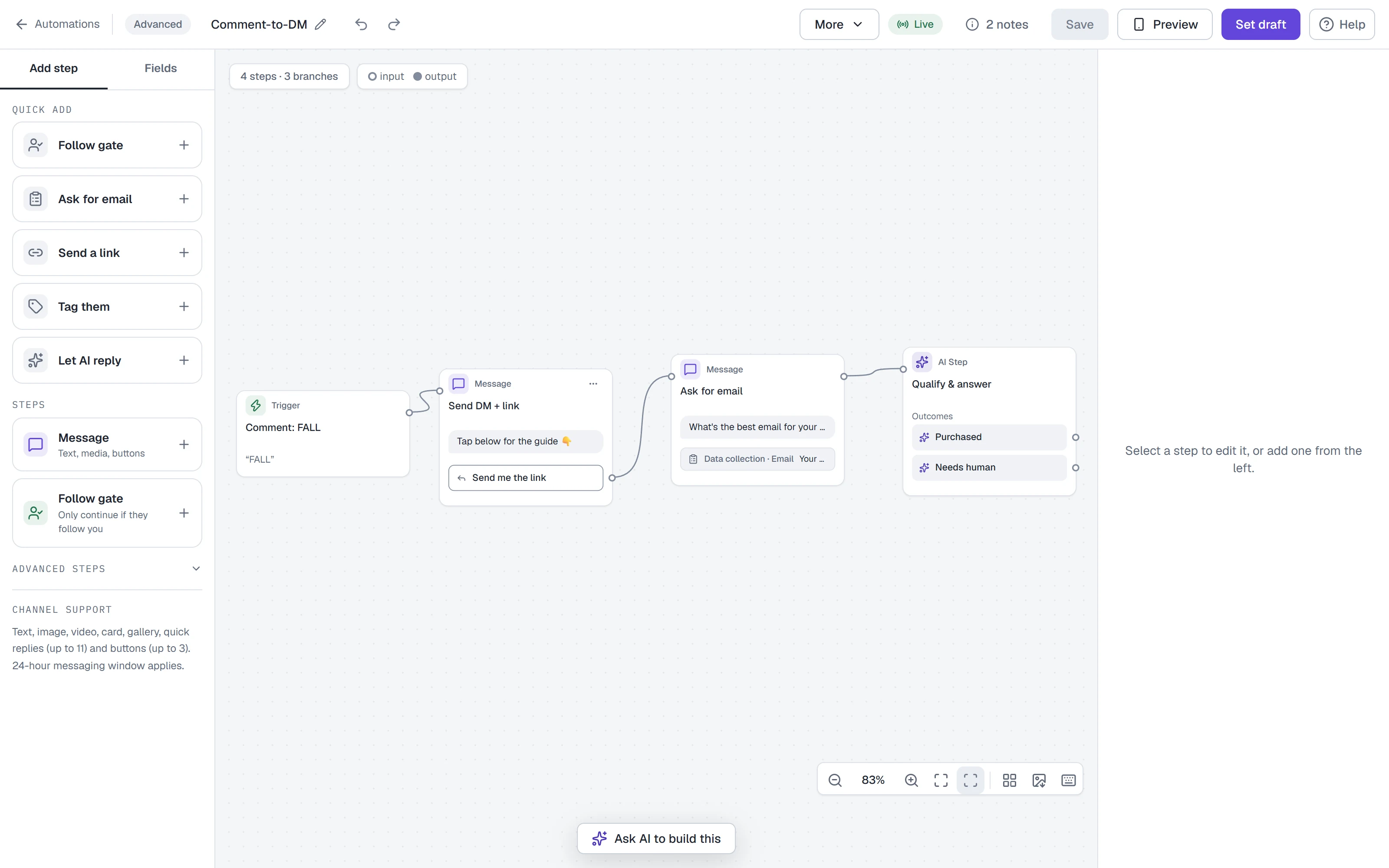
- The canvas controls sit together at the bottom-right of the canvas, each named on hover: Zoom out, the zoom percentage (press it to Reset zoom and position, key 0), Zoom in, Fit all, Fit selection, then Arrange steps (tidies the layout into columns), Export as PNG and Keyboard shortcuts.
- Fit all (key 1) zooms and pans so every step is on screen; Fit selection (key 2) does the same for the selected steps and is greyed out until something is selected. Both aim at the part of the canvas nothing is floating over, so a fitted flow never sits under the preview, the editor or the Finish setup panel. 0 resets zoom and position. The zoom buttons zoom around the middle of the canvas, and you can pan to the far edge of a big flow at any zoom.
- Opening or closing a panel moves the canvas as little as it must. If the preview or the step editor would cover the step you have selected, the canvas slides just enough to keep it clear; closing the panel moves nothing, and nothing moves while you are typing or dragging.
- Export as PNG downloads the whole flow as a picture, drawn the way the canvas draws it.
- The top bar keeps Save, Preview, Set live and Help in view, together, at any window width. On a narrower window the bar wraps onto a second row rather than hiding anything, and those four stay side by side on one row instead of splitting. On a phone the status next to them is shortened (Live, edited for "Live, unpublished changes"). The channel picker and the builder's other tools — Basic builder, Templates, Share, Responses and Test on Instagram — sit under More until the window is wide enough to show them all. Help is at the end of the bar.
- The flow's state is a chip beside its name — Draft, Live, Live, unpublished changes, Saving…, Saved — whose colour follows the state and whose words are always there (an unsaved state is never hidden). Next to it, 1 issue, 1 note or Ready opens Design checks.
- The step editor (the panel on the right) keeps the step's name at the top while you scroll — type the name there — and its More actions menu at the bottom holds Duplicate step and Delete step, so the destructive one is never at the end of a long form. Settings that are rarely changed sit under a fold such as Retries and timeout, whose one-line summary says what is set while it is closed.
- The Steps palette folds to a narrow rail when the preview or Finish setup needs the room; Show the steps palette on the rail unfolds it, and that choice is remembered on this device. The preview docks beside the canvas while 640 pixels of canvas remain, and opens as a dialog otherwise.
- On a phone, or at 200% browser zoom, the panels take turns. Below 768 pixels of window width the Steps palette, the step editor and Finish setup no longer sit side by side. A bar under the canvas, Panels, has one button each — Steps, Edit, Preview and (while there is something to finish) Setup — and exactly one of them is open at a time. Press the open panel's button again, the Close panel control, or Esc to put it away; the step you selected stays selected. Tapping a step opens Edit for it. The open panel sits between the canvas and the Panels bar, so it never covers the top bar or a button on the canvas: the canvas simply gets shorter, and on a very short window it is put out of reach while the panel has the room. Questions that need an answer — Someone else saved this flow while you were editing, Compare with live and Design checks — appear above the canvas on a narrow window, each in a box that scrolls, so the panel never lies over their buttons.
- Unsaved work survives a closed tab. A copy of what you are editing is kept on this device a second after your last change. If you come back and the copy differs from the saved flow, a strip under the top bar says You have unsaved changes from … on this device with Restore and Discard. Restore puts it on the canvas as one undoable step; Discard throws the copy away. Restore is switched off (hover it: Use or discard the new flow first) while an AI draft you left with ↩ Refine in chat is waiting to be used or discarded, so a later Discard can never remove the only copy of your work. The copy is removed once you Save. The browser also asks before you close the tab or reload while there is something unsaved. If the flow is too large to keep a copy of (2 MB), the editor says so instead of promising one.
- A link to a flow that isn't there says so. A flow that was deleted, belongs to another workspace, or has a malformed link opens Flow not found with Back to Automations, not an empty canvas. If the flow couldn't be read, you get Couldn't load this flow and Try again.
- A member who can't change flows gets a canvas they can read. For someone without the
manage_automationscapability (a client-role member) every editing control is gone or disabled, the keyboard can't change anything, nothing is saved on the device, and a line says Only owners, admins and agents can change flows. Preview still works.
Node types
Added from the Add step panel on the left.
| Node | Does |
|---|---|
| Trigger | Starts the flow (implicit — every flow has exactly one) |
| Message | Text, media, buttons |
| Follow gate | Only continue if they follow you |
| Action | Tags, fields, requests |
| Condition | Send people different ways |
| Randomizer | Randomly split your audience (A/B) |
| Smart delay | Wait, then continue |
| AI Step | Hand this turn to the agent |
| Start flow | Jump to another flow |
| End this flow | Stops the flow here for the person who reaches it. Nobody is paused |
| Google Sheets | Add a row, or find one — only where Google Sheets is switched on |
| Send email | Email the address linked to this contact, from one of your email templates — only where customer email is switched on |
| Ask an AI model | Coming soon. Send an instruction to ChatGPT, Claude or DeepSeek on your own account and branch on the answer — only where AI model steps are switched on |
AI Step and Randomizer are the two advanced nodes — they need Growth or above.
End this flow is the way to finish a branch on purpose. It sits under Advanced steps in the Add step panel, and it has an input dot and no output, so nothing can follow it. The person who reaches it simply leaves the flow: their other automations and the AI keep working, and nothing is written on their contact. It is not a pause. To stand the AI and automations down for someone, add an Action step with Pause automations and choose how long (see Action types).
A Condition says what it checks. Its name follows its rules: a new one reads Email is set, and changing a rule's field, test or value, adding or removing a rule, or switching between Match ALL and Match ANY renames the step to match. The card shows the rule under the name. Type your own name in Step name and it stays yours, whatever you do to the rules; the rule still shows under it. Name it after the rule (shown only while the name is your own) hands the name back. A Condition saved earlier under the old default names Has email? or Condition is treated as not yet renamed by you, so it shows what its rule checks.
A Smart delay waits a Duration or until a Specific date. Waiting until a date stored on the contact isn't available yet: a step saved earlier with Date from a contact field says so and waits the duration shown under it.
A Specific date is read in UTC and written YYYY-MM-DD HH:MM: 2026-07-01 09:00 means 9:00 UTC, not 9:00 where you are. The note under the date says what the step will do. With no date, it waits the duration the note names. A date that has passed isn't waited for. One the note says it can't check may wait until a different date than you meant, or not wait at all. Allowed days can still move the day it continues, and those days are judged in your workspace's time zone (Settings → Workspace; UTC if none is set): a date that is Sunday evening for you but already Monday in UTC is a Sunday. When they can move it, the note says so and names the day in your zone. On the canvas the step's card shows the date in UTC, or "no date set" with the duration, or "Date can't be checked".
Add or find a row in Google Sheets
Where it's switched on, Advanced steps includes Google Sheets: Add a row to a worksheet for each person, or Find a row and use its values later as {{sheet.<name>}}. Its branches are Row added / Didn't work, or Found / No match / More than one match (only if you chose that) / Didn't work. The Google account is connected in Settings → Channels → Google Sheets; the spreadsheet is chosen on the step. Full walkthrough: Add or find rows in Google Sheets.
Ask an AI model
Coming soon. AI model steps aren't switched on for workspaces yet; until they are for yours, the step isn't in the Add step panel. Where they are, Advanced steps includes Ask an AI model: it sends an instruction you write — plus only the inputs you tick — to ChatGPT (OpenAI), Claude (Anthropic) or DeepSeek on your own account. You connect your own API key in Settings → Integrations → AI model providers; the provider bills your account for what your steps use, and HyperDM charges nothing for these steps. The answer is kept for the rest of the run as {{ai.<name>}} in messages and as a Condition field. Its branches are Answered — only when the answer matches the format you set — and Didn't work for everything else: a timeout, an answer in the wrong shape, a key the provider stopped accepting, or your monthly token limit. The flow can't go live until the provider is connected, a monthly token limit is set and the step is set up. Full walkthrough: Ask an AI model in a flow.
Send an email from a flow
Where customer email is switched on, the Add step panel includes Send email. Pick the template under Email to send (✎ Edit template opens it). The email goes to the address linked to this contact — not to the conversation — and anyone with no address on file, or who hasn't subscribed, is skipped and carries on down Sent or skipped, like everyone it emails. Didn't work is for a step that couldn't run. Under the step, the canvas counts how many it skipped and why: no email address, a merge tag nothing filled, never subscribed, unsubscribed, suppressed, or a reason on your side (your sending domain not ready, sending paused, no monthly limit set or the limit reached). The flow can't go live until your email setup is finished and the template has been saved, and it sends the version that was current when you set it live. Full walkthrough: Write and send an email.
Message blocks
A Message node has its message text, plus any of these blocks:
Image, Voice message, Video, Document (PDF), Data collection.
Each block has a header with its kind, Move up and Move down, and a More actions menu with Duplicate block and Remove block (a question is never duplicated: a step asks one). Add block opens a menu with one line on each kind.
Cards, galleries, lists, dynamic blocks and text blocks can't be sent yet, so Add block doesn't offer them. A step that still has one — from an older draft or an imported flow — shows it marked Can't be sent yet (with Remove block only), and the flow can't go live until you remove it: nobody would see it, and a step with nothing else would arrive as "…". To send a product with its picture and buy link, use an Action step with Send product, or put the words and the link in the message text.
A step sends one picture or attachment. These can't go live, because the picture or attachment would never arrive — put it on its own step instead:
- an Image block with no picture link;
- an Image on a step that also has message text (a voice message, video or PDF is fine with text: the text goes first, then the attachment);
- a second picture or attachment on the same step;
- a picture or attachment on a step that asks a question (Data collection);
- a picture or attachment on a step with buttons.
Voice, video and PDF blocks pick from your Media library — paid plans only. Image blocks take a pasted URL.
Instagram accepts PDF and nothing else as a document attachment, which is why there is a "Document (PDF)" option and no generic "File".
TikTok DMs can't carry voice messages, video or documents — only text and quick replies. A link button on a TikTok step arrives as a labelled web address inside the message text, not as a card, so tell people they may need to copy it. HyperDM can't send images on TikTok either: TikTok needs the picture uploaded to it first, and that step isn't built yet. A flow set to TikTok containing a media or image block is flagged as a problem while you edit, not after a failed send.
Three more TikTok limits are flagged the same way, while you edit:
- Every button on a TikTok step needs a web address. On TikTok a tap sends the button's own words back to you as a message, so there is nowhere for a "Go to step", "Buy" or "Call" button to go — and a link button whose address you haven't filled in yet counts as one. Give each button an address, or ask in words with quick replies instead.
- At most three quick replies per step. TikTok's card carries three. A fourth isn't quietly dropped — the whole message is refused — so the builder asks you to trim it.
- A question with quick replies stops at 40 characters. TikTok puts it on a card with a short title. Send the long version as its own message and ask the short one with the chips. Merge tags aren't counted against you: the check measures the question without them.
Buttons
Each button has a type:
| Type | Config | Status |
|---|---|---|
| Open URL | https://… | Live — note a URL tap leaves the DM, so it ends that path of the conversation |
| Go to step | pick a step | Live |
| Copy code | CODE | Live — tapping it makes the bot send the code as a message to copy |
| Call number | +1… | Coming soon — a tap just advances the flow; can't be newly picked |
| Buy product | a product id | Coming soon — a tap just advances the flow; use the Send product action instead |
Constraints the builder enforces: don't mix buttons and quick replies in one message; labels are capped at 20 characters; Instagram allows up to 3 buttons or 11 quick replies per message; and an image or attachment plus buttons in one step would send only the buttons, so the flow can't go live until you put the image in its own step above. Add button and Add quick reply add one; the counter under a label turns red past 20 characters, and a link, call or buy button with nothing filled in shows Choose a destination until it has one.
A step that waits on a tap can carry a no-response timeout (in hours): a Follow gate starts with 24h (set 0 to disable), a Message step's is opt-in. When it expires the flow follows the Timeout branch if you wired one, otherwise it simply ends there.
Data collection reply types
In the editor they read in plain words — Free text, Email, Phone, Number, Multiple choice, First name, Last name, Link, File, Image, Location, Date, Date & time — and are stored as text, email, phone, number, multiple_choice, first_name, last_name, url, file, image, location, date, datetime.
Once a flow contains a Data collection block, a ⤓ Responses button appears in the header: it lists every collected answer for the saved flow and exports them as CSV. Answers also save onto the contact field the block names.
Save to field always shows the field the question saves to. If that field doesn't exist yet it reads, for example, email (new field) — the first answer creates it as a contact field. An archived field reads (archived): answers still save to it, but it's hidden in Contacts, so pick another field to keep answers where you can see them. If your fields couldn't be loaded it reads (couldn't check). Nothing changes until you pick a different field.
What happens after a question. A question waits for a typed reply, and it ends in one of three ways: the person answers in the format you set, they reply with the skip word (Skip button label, Skip by default), or a reply still doesn't fit after the re-asks you allowed (Retry limit — with the default of 1, that's their second reply that doesn't fit). Only an answer is saved; the other two leave the field as it was. If they don't reply within the No-response timeout, the flow ends there.
Separate exit for skips gives the question two exits on the canvas: Answered, taken only when they answer in this conversation, and Skipped, taken when they reply with the skip word or run out of re-asks. A question you add now starts with it on — one you add to a step that already has buttons starts with it off, so its buttons keep their lines — and so does one Create with AI drafts. A draft never lets Skipped lead on to a Set opt-in or Subscribe to sequence step before another question: if the assistant tried, that line is left out and Review your flow says so under What the assistant guessed. Put Set opt-in, Subscribe to sequence, Send to CRM or email tool, Send to webhook, Send Meta CAPI event and Send email steps on a path that only Answered leads to: then nobody who skipped reaches them, even when their email is already saved on the contact from an earlier conversation, an import or a manual edit. A step that both exits lead to — a confirmation everyone gets, say — is reached by people who skipped too, so don't put one of those steps after it. Leave Skipped empty to end the flow for people who skip (the Design checks list says so, and it doesn't block going live), or connect it to a step everyone should still get. If people who skip can still reach one of those steps, Design checks shows a note naming the step and the question. Every template in the Vault that asks a question before opting people in is built this way, and Preview lets you walk both exits. A question with this switch on can't also carry buttons, because they'd never be sent. A step asks one question: once it has a Data collection block, the builder doesn't offer a second one.
A question added before this switch existed has it off: it has one exit, and the flow takes it in all three cases, as before. To split it, open the step, turn on Separate exit for skips and check the lines: the one that left the step now leaves from Answered, and Skipped starts empty. A Condition such as email is set is not a substitute, because it reads what's saved on the contact — it is also true for someone who skipped this time but gave you their email before.
Answered tells you they answered, not that they said yes. On an email, phone, number, url, date or datetime question the answer has to fit the format, so a "no" doesn't count as one. On a text question (and first_name, last_name, file, image or location) any written reply is the answer, "no thanks" included — don't put Set opt-in behind a free-text answer. On a multiple_choice question any of your choices is a valid answer, "No" included. To opt someone in only when they say yes, connect Answered to a Condition on the field equals your yes choice, spelled as in your choices (for example share_ok equals Yes), and Set opt-in to that Condition's Yes.
Capture opt-in consent on a question that isn't email or phone opts the contact in the moment they give a valid answer, with no step needed. Leave it off: any valid answer opts them in, a "No" included — use a Set opt-in step after Answered instead. On an email or phone question it only marks the saved answer as given with consent (it shows in ⤓ Responses); it doesn't change the contact's opt-in.
Asking for an email address. Where customer email is switched on for your workspace, a Data collection block set to email has an Ask permission to email them switch. Turn it on and write the Consent line — a sentence saying what people will receive. It is sent under your question, word for word, and anyone who answers with their address is subscribed to your emails, with that sentence kept as the record of what they agreed to — unless the address unsubscribed, bounced or reported spam before: an answer never takes an address off your do-not-email list, because anyone can type anyone's address. Leave it off and the address is still saved and linked to the contact, but nobody is emailed until they give permission. The Capture opt-in consent switch doesn't count for email — only a consent line they can read does. A consent line can't be empty and can't use merge tags (it is kept as proof of what they read, so it is sent exactly as written). A reply with other words around the address fills the field but isn't saved as an email address.
Action types
| Action | Config |
|---|---|
| Add tag / Remove tag | tag |
| Set field | pick one of your contact fields, then the value |
| Increment field (+/-) | pick one of your contact fields, then the amount (10, -5) |
| Update number field | pick one of your number fields, then how to change it: Replace with, Add, Take away, Multiply by, Divide by an amount, or Work it out with a calculation — see Update number field |
| Clear field | pick one of your contact fields |
| Set opt-in / Set opt-out | — |
| Send product | product id |
| Subscribe / Unsubscribe from sequence | sequence |
| Assign conversation | a teammate, a group's queue, or the team — or, where there is no one to pick, an optional note for the Inbox |
| Send to CRM or email tool | set up in the step — see below |
| Pause automations | a duration you choose: 30 minutes, 1 hour, 3 hours, 6 hours, 12 hours, 1 day or Forever. There is no default |
| Log conversion | one of your conversion events, and for an event that carries a value: none, a fixed amount, or a number field |
| Send to webhook | one of your webhook endpoints — only where API keys and webhooks are turned on |
| Send Meta CAPI event | one of Meta's events: Lead, Contact, Schedule, Complete registration or Submit application — only where Meta conversion reporting is turned on and your plan includes it |
Update number field
Update number field changes a number field — a lead score, a points total, a visit count — or works it out from other number fields. The older Increment field step still works: a step that already has one shows it as "Update number field: add (older step)", and a new step uses Add here.
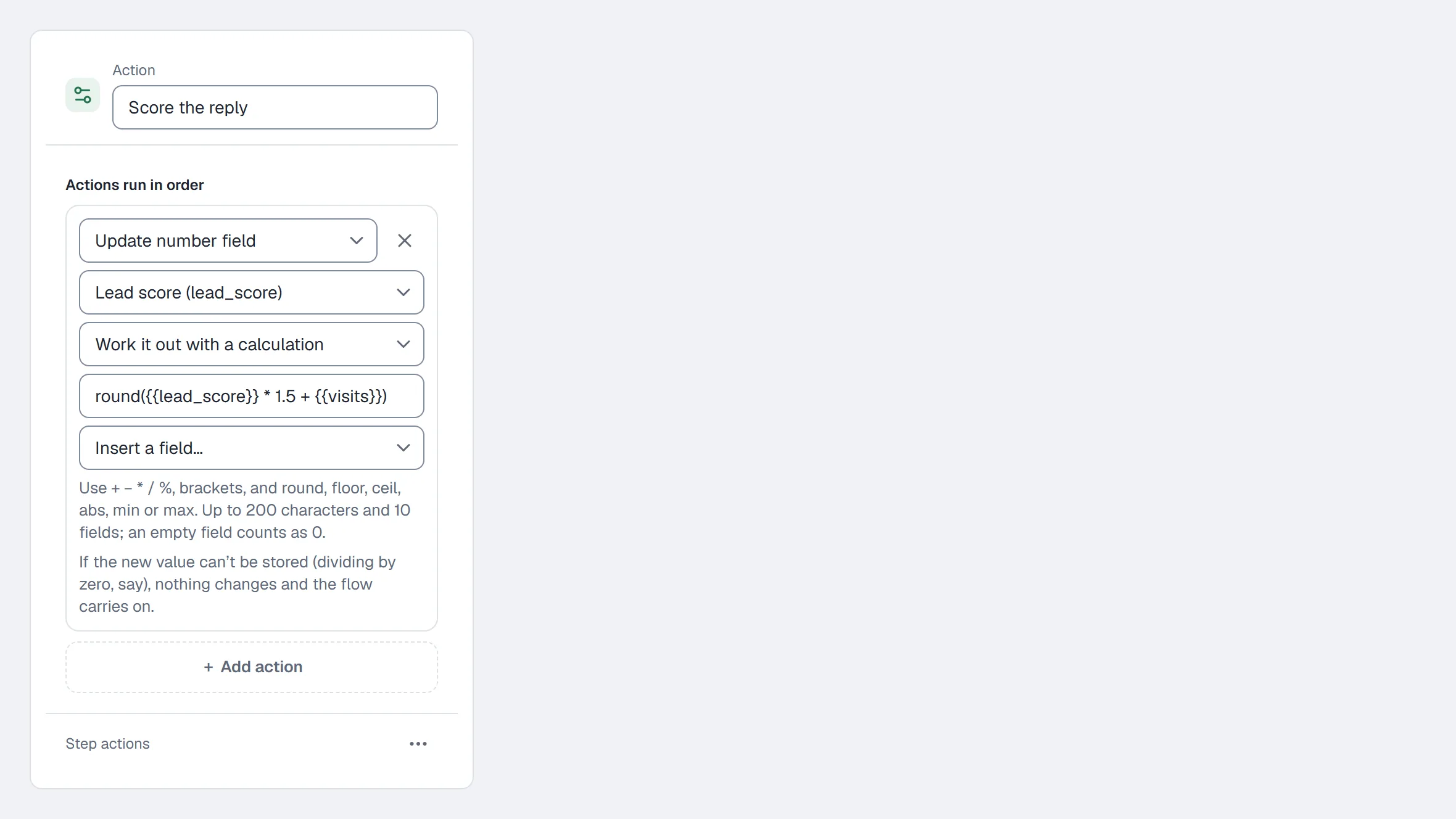
- Add an Action step and pick Update number field.
- Pick the Number field to change. Only number fields are listed.
- Pick How to change it: Replace with, Add, Take away, Multiply by or Divide by — then type the Amount — or Work it out with a calculation.
- For a calculation, type it in Calculation, like
{{lead_score}} * 2, or pick a field in Insert a field… to add it. If something can't be read, the line under the box says what to fix.
A calculation can use numbers (10, 2.5, .5), number fields written like {{lead_score}}, + - * / %, brackets, and round, floor, ceil, abs, min and max: round({{lead_score}} * 1.5), round({{total}} / 3, 2), min({{lead_score}}, 100). It can be up to 200 characters and use up to 10 fields. An empty field counts as 0, and a field holding a number saved as text — 10 from a Set field step, say — counts as that number. round rounds halves away from zero (round(2.345, 2) is 2.35). Every result is kept to 10 decimal places, so dividing 10 by 3 stores 3.3333333333.
If the new value can't be stored — dividing by zero, a result over 1,000,000,000,000,000, or a field that holds something that isn't a number — nothing changes and the flow carries on to the next step. A step that names a field that doesn't exist or isn't a number can't go live: Design checks says which. If Update number field is ever turned off for your workspace, a step you already have still opens, but it won't run — Design checks says so — and the rest of the flow carries on.
Log conversion
Log conversion counts one of your conversion events once per run of the flow: if the run comes back to the step (a loop), or is delivered again, it isn't counted twice. Pick the Conversion event, then, for an event that carries a value, its Value: No value, A fixed amount, or From a number field. A step with no event picked, or one saved before conversion events existed, "needs setup" and can't go live until you pick one — and it can't be added to a live flow either. If a conversion can't be logged, the flow carries on.
Other actions
Send to webhook sends this contact to another app. Pick an endpoint that listens for Automation step events — you add those in Settings → API & webhooks (see Settings). When the step runs, HyperDM sends the contact as they are at that moment (name, username, permission, tags and field values), which automation and step sent it, and a signature. The flow doesn't wait for the other app: it carries straight on, and a busy endpoint is tried again later. You can't type a web address into the step, so everything an automation sends to was checked when its endpoint was added. The step is skipped while its endpoint is paused or deleted, and where webhooks aren't turned on. A flow can't go live with this step empty, and a shared or exported flow arrives with it blank for the new owner to pick their own endpoint. AI drafting never adds it. It's not the External request action below, which is still coming soon.
Four more action types show in the picker marked coming soon — External request, Mark conversation open / closed, and Notify assignees. They can't be newly configured, and at runtime they are skipped with a note while the rest of the flow runs.
Send Meta CAPI event reports a conversion to your own Meta dataset. It's live where Meta conversion reporting is turned on for your workspace and your plan includes it (the paid plans, Starter and up). Anywhere else it reads coming soon: it saves, reports nothing, and never stops the flow going live.
- Open the step's Meta event list (Choose an event…) and pick Lead, Contact, Schedule, Complete registration or Submit application. A flow never sends
Purchase— a purchase's value only ever comes from a recorded order. - The step records only once Settings → Integrations → Meta conversion reporting is set up: your dataset connected and verified by a test event, and Report: A flow's Send Meta CAPI event step switched on.
- Going live. Until that's done, the flow can't go live — the step says This flow can’t go live until your Meta dataset is connected and verified, with Send Meta CAPI event steps switched on in Settings → Integrations — or remove this step.
- Editing a live flow. Adding the step, or changing its event, saves as a draft, but Publish changes refuses it until setup is finished. If the flow already has the step and your Meta dataset stops being verified (for example after a reconnect) or Report: A flow's Send Meta CAPI event step is switched off, Publish changes stays off for every edit until setup is back (or you remove the step); Save still keeps your edits as a draft. On a plan without reporting the step reads coming soon and blocks nothing.
- If setup lapses later — for example after a reconnect that isn't verified yet, or a move to a plan without reporting — a live flow keeps running and the step records nothing until it's back.
- It never stops the flow, reports once per run, and only for contacts who may be shared and have an email or phone number.
- You add it yourself. Create with AI never puts this step in a flow it drafts.
The full walkthrough is in Report conversions to Meta.
Send to CRM or email tool adds the contact to Flodesk, HubSpot, ActiveCampaign, Klaviyo, Mailchimp or Kit. It appears where integrations are turned on for your workspace, and needs a connection from Settings → Integrations and a saved flow. The flow never waits for it: the contact is sent in the background, and the step's result shows in that integration's Recent runs.
- Choose the connection under Send to.
- Choose the List, Segment, Audience, Tag or Form the provider offers. Refresh reads them again. Choosing a different list clears the field mapping, because its fields belong to the list you chose before.
- Under Fields, pick the contact field for each provider field. Email is always required, and so is any field the provider marks with
*. Only fields of a matching type are offered. - Under Subscription, choose Never change their subscription, or Subscribe only when they've said yes and the contact field that records their yes. Only a Yes/No field that's Yes, or a text field that says exactly "yes", counts, and it's checked when the step runs. Adding someone to a Flodesk segment, an ActiveCampaign list or a Kit form subscribes them, so those need this setting.
- Click Save, then save the flow.
Before going live, Preview with a contact shows what would happen to one of your contacts — nothing is sent — and Send a test writes the saved setup for an address you type, with sample values. A test never subscribes anyone and never sends a campaign, but automations in the provider that start on a tag or list can still run for that address.
HyperDM never subscribes someone who unsubscribed, bounced or complained in the provider, and never changes their status. Duplicating or sharing a flow doesn't copy this step's setup — set it up again in the copy.
Pause automations is terminal, and you choose how long. It pauses every automation and the AI for the person who reaches it, so nothing runs after it. A new Pause step shows Pick a duration… and has no default: the flow can't go live until you pick 30 minutes, 1 hour, 3 hours, 6 hours, 12 hours, 1 day or Forever. The sentence under the choice says what it will do ("Pauses every automation and the AI for this person for 1 hour. Nothing in this flow runs after it."). The builder warns you if you try to attach a step below one, and the button that adds it says so on hover. HyperDM never adds a Pause for you: ending a branch is End this flow, which pauses nobody.
An Action that would do nothing can't go live, and Design checks says which: Add tag or Remove tag with no tag, Set field, Increment field or Clear field with no field (or one of the read-only system fields, or an amount that isn't a number), Update number field with no field, a field that isn't one of your number fields, an amount that isn't a number, a division by zero or a calculation that can't be read, Subscribe or Unsubscribe with no sequence, and an action type this version of HyperDM doesn't recognise (Remove takes it out). Fix it → lands on the action's own control. A flow that is already live keeps running as it was; the check applies the next time you Set live or Publish.
Assign conversation hands the conversation to a human. HyperDM stops replying on it, and the Inbox shows a note saying the automation handed it over. The step has two states:
- Where there is someone to pick (the team inbox is on and you have a teammate or a group), pick who from the list:
- A teammate — the conversation becomes theirs.
- A group's queue — it waits there until someone in the group takes it.
- The team — no one in particular — it waits in Unassigned, or auto-assignment picks someone if it's on.
- Where there is not (the team inbox is off, or there are no teammates or groups yet), the step shows a sentence instead of a list — "Hands the conversation to your team. The team inbox is off in this workspace." or "…There are no teammates or groups to pick from yet." — and an optional Note shown in the Inbox. It never pretends to name a person.
If you named a teammate or a group and they have since left the workspace or been deleted, the step says so, and the flow can't be set live until you pick someone else or hand it to the team. A live flow where this happens afterwards keeps running: the conversation is left unassigned. Where the team inbox is off, a teammate named earlier is not used at run time — the conversation goes to the team — and Design checks says so in a note. A name typed in before the team inbox existed is kept only as the Inbox note's wording — it's never looked up as a person.
Changing an action's type clears its setting, so nothing from the old type carries over — a Pause step's forever can't turn into the person an Assign step picks.
Condition operators
equals, not equals, contains, greater than, less than, is set, is empty, before, after. In the editor each test reads as a verb the value can follow — is, is not, contains, is more than, is less than, is set, is empty, is before, is after — and is stored under the name above.
before and after work exactly like less than and greater than. Two numbers compare as numbers. Otherwise, if both values read as dates they compare as dates — and a bare number such as 5 or 42 can read as a date, so a number against a date compares as two dates. A number against anything else is never before or after it (nor greater or less than it). Two other texts compare as text.
is set is true when the contact's field has any value. That includes a value saved before this run — in an earlier conversation, by an import or by hand — so email is set after an email question is also true for someone who skipped it this time but gave you their email before. To act only on an answer given now, use the question's Answered exit (see Data collection reply types).
A rule always shows the field it reads. If that field isn't one of your contact fields yet it reads, for example, email (not a field yet): the rule finds no value until a question or action saves one, so is empty is true and every other test is false. An archived field reads (archived), and the rule still reads the values contacts have in it. (couldn't check) means your fields couldn't be loaded just then. A sheet. or ai. value whose Find a row or Ask an AI model step is gone reads (no lookup step gives this) or (no AI step gives this). Nothing changes until you pick a different field.
The rule list doesn't offer flow_name or current_step: they name the flow or the step, not something about the contact, and a Condition can't read that. A rule saved on one reads, for example, flow_name (flow info, not a contact field). Unless a question or action saves a contact field with that key, the rule finds no value, so is empty is true and every other test is false. If you have your own contact field called flow_name, the list offers it like any other field.
A rule always shows the test it runs. An imported or shared flow can carry a test spelled differently from the list. A listed test in different capitals, or with spaces before or after it, runs as that test and reads, for example, Is Set (same as is set). A test HyperDM doesn't know reads, for example, != (runs as equals): it runs as equals — != is not not equals, so check what the rule meant. A test spaced differently from a listed one reads (unusual spacing, runs as equals), and constructor (never true) is never true for anyone. A rule with no test shows Pick a test… and runs as equals. Nothing changes until you pick a test.
Channels and triggers
Instagram is the live channel. WhatsApp, TikTok and SMS each join once they're switched on for your workspace; a channel that isn't shows in the picker but is disabled "coming soon", so you can't pick it. A flow that is already on one of them still saves as a draft, but it can't go live: Set live is refused and says which channels are live for you.
Facebook Page can be picked once a Page is connected in Settings; its support is built and its wider release is still being validated. The separate Messenger entry stays disabled — Messenger DMs run through Facebook Page.
A TikTok flow is answering, never opening: TikTok allows a message only within 48 hours of the customer's last one. A step that waits longer than that is flagged as a note while you edit. At the run it is sent if they've written again. If they haven't, it can still go as one of the up to 3 more messages TikTok allows after 48 quiet hours — but only in a conversation they've replied in. Otherwise it's skipped, with the reason recorded on the conversation.
| Channel | Triggers in the picker |
|---|---|
| Comment-to-DM, DM keyword, Story reply, Story mention, Live comment, New follower†, Ref link / QR, Shopify checkout not completed, Hotmart event, Manual | |
| DM keyword, Opt-in widget, Manual | |
| Facebook Page | Comment-to-DM§, DM keyword, Ref link / m.me‡, Manual |
| TikTok | DM keyword, Manual |
| SMS | Keyword, Manual |
\* Flag-gated — Ref link / QR, Live comment, Shopify checkout not completed and Hotmart event appear only where the deployment can actually route them (all four Instagram-only). A trigger you could pick but the webhook would never deliver is a flow that sits "live" and permanently silent, so these are hidden until armed.
† Coming soon, pickable: New follower (waiting on Instagram follow access) can be selected and pre-built — the builder shows an amber ⏳ notice, and the flow saves and can go live but will not start until access lands.
‡ Ref link / m.me appears only where Messenger entry points are switched on for the deployment.
§ Coming soon, greyed out: on a Facebook Page flow, the picker shows Comment-to-DM · coming soon and you can't pick it. Comments on your Page are answered by automations for now — build a comment automation in Automations and choose Facebook Page under Which account? (in its Advanced channel rules) instead. A Facebook Page flow that already has a Comment-to-DM trigger (for example, a new flow you switched over from Instagram) keeps it, says why under Trigger type, and can't go live until you pick another trigger. A flow that is live can't change channel at all: Save says "This flow is live, so its channel is locked. Set the flow to draft to change its channel." To move a live Comment-to-DM flow to Facebook Page, set it to draft, switch the channel, then pick another trigger before you publish. Comment-to-DM on an Instagram flow works as normal.
Reply publicly under the comment
A Comment-to-DM trigger sends a private reply (a DM) to each matching comment on your posts and Reels — that is the flow's first message. On an Instagram flow, the trigger can also post a reply under the comment, where everyone can see it:
- Click the trigger. With Trigger type set to Comment-to-DM, find Reply publicly under the comment.
- Type the reply, e.g.
Sent! Check your DMs (or Message Requests) ✨. - Click + Add variation for up to 3 replies. One is picked at random for each comment, so the replies under a busy post don't all read the same. The ✕ beside a variation removes it. Two variations that read the same, ignoring capitals and spacing, are kept as one when you save — Instagram treats the same comment posted over and over as spam.
- Leave it empty for no public reply. Save (or Set live) to keep it.
✨ Personalize under a variation adds a merge tag such as {{first_name}} or one of your custom fields; it's filled in for each commenter. A public reply never goes out with a gap where a merge tag was. If a commenter has no value for one (no name on their profile, say), HyperDM posts one of your other variations that doesn't need it, preferring one with no merge tags at all. If none fits, or HyperDM can't look up the commenter's details just then, that comment gets no public reply. The DM is sent as usual either way. One variation without merge tags, like Sent! Check your DMs ✨, gives HyperDM something to fall back on. While the trigger has a public reply, its card on the canvas says so: + public reply, or + public reply · 2 variations.
It's posted only after the DM is delivered. HyperDM waits until the flow's first message — the comment's one private reply — comes back delivered, then posts the public reply. If that DM isn't confirmed delivered — Instagram refused it, it was held back or skipped, or we can't tell whether it arrived — the comment gets no public reply, so it never tells someone to check a DM that isn't there. It doesn't wait for anything later in the flow: a Follow gate, a button tap or a question after the first message doesn't hold it back.
Once per comment. It's posted at most once for each comment, even if Instagram sends the same comment to HyperDM again. If Instagram refuses the public reply, it isn't retried, and the DM and the rest of the flow carry on as normal. A flow that answers comments on your ads follows the same rules under an ad comment.
If you gate on following, say where the DM went. Most people commenting on a follow-gated campaign don't follow you yet, so the DM often lands in their Message Requests rather than their main inbox. A reply like Sent! Check your DMs (or Message Requests) ✨ tells them where to look.
What it doesn't cover:
- Live comment triggers — nothing is posted under a comment during a live broadcast.
- Other triggers and other channels. The section appears only on an Instagram flow whose trigger is Comment-to-DM — on a Facebook Page flow, Comment-to-DM is still coming soon. If you switch a flow to another channel and save, its public replies are removed; switching back doesn't bring them back.
- A comment a live automation answers. Automations win keyword conflicts: if one listens for the same keyword on that post, it answers the comment with its own public reply, and the flow doesn't run.
Hotmart event
Starts when Hotmart reports a purchase or an abandoned checkout for someone already in your contacts. Set up the connection first on Settings → Commerce → Hotmart — the full walkthrough is Start flows from Hotmart purchases.
What you set
- Hotmart event — Purchase approved (once per purchase, when Hotmart first reports it paid; refunds and chargebacks never start it) or Cart abandoned (once per contact and product; skipped if they buy that product before it runs). An event Hotmart hasn't sent your connection yet is marked "not received from Hotmart yet", and the flow can't go live on it.
- Products — all Hotmart products, or specific ones: tick products Hotmart has sent events about, or type a product ID and click Add.
- Also start on subscription renewals — purchases only.
Merge tags: {{hotmart_event}}, {{hotmart_product_name}}, {{hotmart_product_id}}, {{hotmart_transaction}}, {{hotmart_offer_code}}, {{hotmart_total}}, {{hotmart_currency}} — about the product and the order, never the buyer. Preview fills them with sample values.
Readiness shows three rows: Instagram connected, Hotmart connected, and the chosen event received from Hotmart. While the connection is in test mode, the flow is only previewed.
What it will never do: start for someone who isn't already a contact, treat a purchase as permission to message (the reply window and consent still apply), or start twice for the same purchase. Two live Hotmart flows can't claim the same event and products; a flow for specific products beside one for all products is fine — the specific one runs for its products.
Flows on SMS
SMS is coming soon — it isn't switched on for workspaces yet, and the picker reads SMS · coming soon. Where it is switched on but your SMS number isn't ready yet, the picker reads SMS (number not ready), and an SMS flow shows a strip under the top bar: "Your SMS number isn't ready: … This flow won't send until it is." You can keep editing and saving; Set live waits until the number is ready. On Automations, the SMS filter shows your SMS flows.
An SMS flow starts from a Keyword trigger ("Text keyword(s)" — someone texts one of your words to your SMS number) or Manual. STOP, START and HELP words are reserved on SMS: a trigger listening for one can't go live. SMS carries plain text — and pictures, where picture messages (MMS) are switched on for your number — so these can't go live on an SMS flow, each listed in Design checks with a Fix it → button:
- buttons (including copy-code) and quick replies — put a link in the text, or ask people to reply with a word;
- cards, galleries, lists, a Send product action, a follow gate and a dynamic block;
- voice messages, videos and files, and a picture unless picture messages are on;
- any message, question or retry message over 1,600 characters.
The step inspector leaves out the adders that would make one of those, and shows the SMS meter under every message and question: how many texts it goes out as, the characters it uses and the estimated cost per person, using sample values for merge tags. A message of two or more texts gets a note in the design checks with the count, the characters that made it longer, and the cost — it can still go live.
Smart delay on SMS. There's no 8:00–22:00 toggle and no 24-hour warning: "SMS quiet hours apply automatically (Settings → Channels → SMS). Messages after a delay need documented permission." A flow started by someone's text replies straight away as a conversation; anything after a delay, and a flow started by hand, needs documented permission to text them (imported in Contacts). A message or question held by quiet hours waits and is sent when their window opens; an AI step held that way is not sent later.
Shopify checkout not completed
Runs once when someone opens Shopify checkout from a HyperDM product link and stops making progress. It only works for people already talking to you on Instagram, while Instagram's reply window is still open.
What you set
- Wait after checkout activity — 5 to 180 minutes, 30 by default. The timer restarts if Shopify reports more checkout activity. If the reply window will close before your wait is up, HyperDM does not send: we never shorten your wait to squeeze a message in.
- Products — all eligible Shopify products, or a list you choose. A product is eligible when it's synced from your connected store, active, and has a direct checkout link. Products with size or colour choices open their product page instead, so they can't carry the checkout reference through and aren't offered yet.
Readiness shows four rows: Instagram connected, Shopify app connected, checkout webhooks active, at least one eligible product. "Waiting for Shopify" on the third row means Shopify hasn't approved checkout access for the app yet — there's nothing for you to fix.
It needs link tracking on. Where your workspace sends links exactly as typed (see Link tracking), the trigger says Needs link tracking on and Set live is refused: a product link has to pass through a tracked link to start the follow-up. Switch Settings → Workspace → Links back to Tracked first.
It has to open with a message. The step straight after the trigger must be a Message with words of its own. A Wait, a Condition, an AI step, an action or a follow gate can't come first, and neither can a message that is only buttons or only a merge tag like {{first_name}} (it can come out blank). You don't need a Wait first — the trigger already waits after checkout activity. Until it opens with a message, Design checks says why and Set live stays off. Once the flow is live, HyperDM won't publish a change that breaks this; switch the flow off first to rework it. A follow-up that is live without one (set live before this check existed) sends nothing, and its funnel lists those checkouts under Flow switched off or changed.
It can't subscribe anyone to a sequence. A sequence keeps messaging on its own schedule, even after the shopper has paid, so an Action step in a checkout follow-up doesn't offer Subscribe to sequence. One added before shows as Subscribe to sequence · not on a checkout nudge and can't be picked again; it keeps Set live off, and Design checks takes you to the step so you can change it. Unsubscribe from sequence is fine. As with the first step, HyperDM won't publish one into a live flow, and a live follow-up that has one sends nothing and is listed the same way. If the follow-up hands over to another flow with Start flow, a Subscribe to sequence step there is skipped. And rules set off by the follow-up's tag and field steps still tag and update the contact, but don't start a flow or subscribe anyone.
Only a Shopify checkout starts it. A rule, a main menu item or another flow's Start flow step can't start a checkout follow-up, so it isn't offered as their target, and one picked before is refused.
What it will never do
- Message anyone who already ordered. An order — even a pending or manual-payment one — stops the follow-up. If the order comes in after the follow-up was sent, the rest of the flow stops too — a message after a Wait, or the next step after they tap a button, doesn't run — once the order can be tied to the checkout they opened from your link.
- Message anyone twice. One per checkout, and at most one checkout nudge per person per 24 hours across all your products and flows.
- Message anyone after the reply window closes. There's no way to send a promotional reminder on Instagram outside that window, so the follow-up is dropped rather than saved for later.
- Message someone who replied in the meantime, opted out, or whose conversation you took over in the Inbox.
- Reach anyone who never messaged you. This isn't a way to contact store visitors.
A follow-up already under way is checked again each time it picks up. After a Wait, or when they tap a button or reply, HyperDM looks at the checkout again before going on — in the checkout flow and in any flow it hands over to. The rest of the flow stops for good, with nothing more sent, if:
- Shopify tells us they've ordered or paid for this checkout, or that it was completed or deleted;
- you've taken the conversation over in the Inbox — handing it back doesn't restart it;
- your Shopify store was disconnected, or connected again since the checkout began (see Settings); or
- HyperDM has switched checkout follow-ups off for your workspace — switching them back on doesn't restart it.
This happens at the follow-up's next step, not instantly — but nothing is sent in between.
⚠️ Links can be forwarded. If someone shares your product link, the checkout is matched to the link you sent, not to a verified buyer — so the follow-up may reach the person who received it rather than whoever opened checkout. Your funnel numbers say link/session attribution for the same reason.
Checkout results (under More in a saved checkout flow's top bar, or in the bar itself on a very wide window) counts the last 30 days: Checkout opened, Eligible (a follow-up was scheduled — a checkout that arrived already finished, or whose wait wouldn't fit before the reply window closes, isn't counted), Nudge sent, Returned to checkout, Order created and Paid — the last two only for orders matched to the link you sent. Not sent, and why lists the follow-ups that didn't go out, by reason. A few to know:
- Flow switched off or changed — you switched the flow off, narrowed its products, or its first step is no longer a message with text.
- Checkout webhooks not active — your store is connected, but Shopify's checkout and order updates weren't confirmed to be reaching us, so we couldn't have known about an order. Check the readiness rows.
- Shopify reconnected after this checkout began — your store was connected again (after a disconnect, a reinstall or a Reconnect) once this checkout had started, so we can't be sure we heard about an order placed in between (see Settings). Checkouts that start after that aren't affected.
- Delivery failed — we tried to send it, and it didn't go through.
- Sending interrupted — it may have arrived — we started sending and can't confirm how it ended, so it may have reached them.
If the panel says it couldn't load, try again in a moment — it never shows zeros for a count it couldn't read.
Suggested message. Lead with help, not a discount: sizing, stock and shipping are what actually stop a checkout, and opening with money reads as pressure. {{checkout_product_name}} names what they were looking at and {{checkout_url}} takes them back to their own checkout. The Checkout nudge recipe in the Vault is set up this way.
TikTok has no comment trigger. HyperDM doesn't do comment-to-DM on TikTok. TikTok runs a version of its own, but only for Business Accounts registered in Vietnam, Indonesia and Thailand, and only for comments TikTok itself picks as high-intent — and HyperDM doesn't offer it there either. Listing the trigger as "coming soon" would be a promise we can't keep.
Check it before you publish
Design checks
Open the panel from the ⚠ issues or ⓘ notes pill in the top bar. It lists problems with the flow as you build, in two tiers. Red issues disable Set live (hover it to read the first one): a flow with no trigger chosen (Pick what starts this flow.), a keyword trigger with no keyword, an unwired trigger, an unwired button/quick-reply or Follow-gate branch, a randomizer branch going nowhere, a message with nothing in it, an AI step with no goal, an Action with nothing set, missing or still-processing media, an unswapped template placeholder, a step wired after a Pause automations, or a Google Sheets step that isn't set up or needs review. Grey notes advise without blocking.
Branches are named the way you wrote them. A problem with a branch reads, for example, “Welcome” has a “Not now” branch with no next step — connect it to another step, or add End this flow. The branch name is the button's or quick reply's own label (or Yes / No, Following / Not yet, Outcome 2, Variation A), never an internal code. The same rule runs when a flow is set live from anywhere else, so a flow with a button that goes nowhere is refused with the same sentence. A Condition branch, an AI outcome, a plain last step and a no-reply branch that go nowhere are the flow ending, and stay grey notes.
Fix it → lands on the control. It selects the flagged step on its own, slides the canvas to it, and puts the cursor in the exact box the problem is about: the trigger type, the keyword, the message text, one button's label, one action's setting, one rule's field. On a phone it opens the Edit panel for you, even when that step was already the selected one, so the box is on screen with the cursor in it. For a branch it rings the exit on the card and moves focus to its + step button. A screen reader hears Showing: … once per click. If the step has since been deleted it says That step isn't on the canvas any more.
End this flow adds a step, and says what it does. A branch that goes nowhere offers an End this flow button, with the sentence Adds an End step here. The flow stops on this branch; nobody is paused. under it. One click adds an End this flow step to that branch and selects it; Undo removes it again in one step. The button only appears for a branch with nothing connected; it never changes a branch that already leads somewhere.
An old "End the flow" step is flagged, never changed for you. Before this, the one-click fix added an Action step titled End the flow that paused the person for ever. If a flow still has that exact step (a single Pause automations action set to Forever), Design checks carries a grey note: “End the flow” pauses every automation for this person, for ever — the old one-click fix added it. If you meant to end the flow only, replace it with End this flow. The note never blocks going live. Replace with End this flow asks first (People who reach this step will no longer be paused — the flow just ends for them.), swaps the step in place keeping its connections, and can be undone. A pause you added yourself — a timed one, a renamed step, a step with other actions — is yours and is never flagged.
On a comment trigger, the first private reply may hold one text or one image block only — buttons and quick replies are fine (the tap opens the 24-hour window), but a second block, an attachment, or a data-collection ask in that first step is a go-live blocker. Put the richer content in the step after the tap.
Preview
Preview in the top bar is the one way to play a flow, at every window width. On a wide window it opens a phone beside the canvas — your connected account's name at the top when it is known, and the chip Simulated — nothing is sent — and where there is no room beside the canvas (a phone, 200% zoom, or a 1280px window with the step editor open) it opens the same phone in a dialog (Esc or Close closes it and puts you back on the Preview button). Its header reads Preview — plays your flow for a sample person. Nothing is sent. It cannot send: it never calls Instagram, your email, your sheets or an AI model. Test on Instagram (under More) says it is the only real test.
It plays the flow the way a live run does. It walks the same steps and exits, so a link button is shown as a link and not as a choice (a live conversation never waits on one), a Condition is decided by its rules against a sample person, merge tags are filled with sample values, a Randomizer offers its variations, and a Specific-date Smart delay is worded the way it will run. At each stop it offers the replies a person could make; tap one to follow that branch. A question with separate exits offers a sample reply, the skip word (if you set one), and a reply that doesn't fit the format so you can walk Skipped.
The canvas shows where the preview is. The step it is on has an outline, the branches it has walked are drawn heavier, and the way it ended is a badge under the last step. How it ended is spelled out, never just "Flow complete":
- Flow ended here. Nothing else happens to this person. — a wired End this flow step. It is green.
- This branch has nowhere to go — the run would stop here. Connect it, or add End this flow. — an exit with nothing connected. It is amber, the exit is ringed, and Design checks names the same step and branch.
- Pauses every automation for this person for 1 hour — the flow ends here. — a Pause automations step you placed. A pause with no duration reads as for ever and says so.
- A message of link buttons only, a run that expires with no reply, an AI step that hands over to a person, and a flow that loops back on itself each say what happened too. A loop that goes round through a Smart delay (a daily reminder, say) is not a fault: the preview skips each wait, plays the loop on, and only if it never ends stops after 50 rounds and says that it is the preview that stops, because live the flow carries on each time the wait ends.
A screen reader hears the ending too. In the docked preview it is said once; in the dialog on a phone it is said from the dialog itself.
Restart replays from the trigger. Edit the flow and the preview starts again from the trigger; moving a step doesn't restart it. While the canvas holds unpublished changes (where reviewed publication is on), the header adds Previewing unpublished changes.
A Follow gate says Simulated follow check — no network request. Choose Following (simulated), Not following (simulated), Unknown (simulated), or Timeout (simulated) to explore its existing branches and retry limit; each tap is logged as a Simulated manual tap, and nothing is checked on Instagram. Unknown re-asks neutrally and cannot grant the reward. These fixture choices do not verify a real Instagram follow.
Select a saved Follow gate and click Observed live follow checks to read retained live executions. The panel distinguishes lifecycle from following/not following/ unknown and shows observed application-dispatched requests. Opening it makes no follow request. Older runs without retained facts show Details unavailable. Refresh observed details rechecks your current workspace and permissions.
An unknown live check says it could not check the follow. Your custom “Not yet” reply remains the confirmed-false reply. If your saved gate uses an identified old default, its settings show Preview replacement; click Use neutral default and Save to apply that replacement deliberately.
Drop-offs
Toggle Drop-offs to shade steps by how many people are lost there. Each step also shows its own entered / completed counters once the flow has real traffic. On a phone, Drop-offs hides while a step's settings are open at the bottom of the screen; tap empty canvas to close them and it comes back.
Finish setup
When a flow arrives from a template or the community gallery it comes with placeholders. Finish setup collects every one of them into a checklist — "pick or record a voice message", "choose a product", "choose the flow to jump to", "choose a spreadsheet" — so you can swap the template's placeholders for your own before going live.
Save and publish
Save and Set live refuse a reachable activation requiring more than fifty synchronous steps, counting the trigger. The message identifies the path and step. Split it with a real reply, tap or Smart delay wait. More than fifty total steps can work when each activation is bounded; an unreachable branch does not use that budget.
- Save — writes the flow. The header says You have unsaved changes or All changes saved, and a screen reader hears Saved once the save is really accepted. A save that fails shows a dismissable alert and leaves your canvas, and the copy kept on this device, as they were.
- Set live — saves and publishes. Once a flow is saved the same button reads Publish (a flow that has never been live), Publish changes on a live flow, and Set live again on a paused one (see Reviewed publication); wherever this guide says Set live, the same checks apply to them. It runs the go-live checks first and changes nothing if one fails, and it puts live exactly the version the checks passed: if a teammate saves the flow in the instant between the checks and going live, their newer, unchecked version is not what goes live.
- Set draft — returns a live flow to draft. It changes the status only and saves no edits: anything unsaved stays on the canvas, and the announcement says so.
Publishing a live flow can't introduce a problem. On a live flow Save keeps your edit as a draft, and the people getting the flow keep the version that was live. Publish changes stays off while Design checks shows a red issue — including one the flow already had — so fix it first (hover the button to read the first one). The checks that run as it publishes say what to fix, and the live flow stays as it was until they pass (see Reviewed publication).
A template or an AI draft isn't saved or set live until you decide. When you pick a template, the canvas clears and the steps are added back one by one — Save, Set live and undo/redo are greyed out meanwhile (hover one: "Wait for the flow to finish loading") — then the review opens and holds the keyboard focus until you choose:
- Use this flow keeps it.
- Discard gets back exactly the flow you had when the steps started appearing — steps, connections, name and channel, and your undo history — along with anything you changed or saved while the AI was still writing it.
- ↩ Refine in chat (or Escape, or a click outside the review) closes the review and leaves the new flow on the canvas for you to work on. A bar above the chat box says it isn't kept yet, with Discard and Use this flow. Save and Set live stay off (hover one: "Use or discard the new flow first"), undo/redo stay greyed out, and editing the flow does not keep it: only Use this flow does. Anything you edit while it waits is still there after you use it.
If a "This would break the live intent automation …" notice is open while a new flow is appearing, its buttons wait ("This can run once you've kept or discarded the new flow") instead of saving nothing.
An automation installed from a template package (Settings → Templates) can't be set live while something it needs is still missing — Instagram not connected, a sequence it subscribes people to, a workspace variable it uses that's still blank, or a step that jumps to an automation nobody chose. Set live says which; fix it and Set live works.
Free is capped at 5 flows. Every paid plan is unlimited. The canvas itself is free — the cap is on how many flows you keep.
Create with AI: the review
The AI bar lists your requests as you make them (Create and Refine lines), each with what became of it — Drafting…, On your canvas, Replaced, Used, Discarded, Didn’t work (hover for the reason) or Stopped. A request that failed or was stopped has Reuse, which puts your words back in the box. A refinement keeps the earlier requests in view, and what you said earlier still counts: "actually I'll start it by hand" overrides a first request that said comment. Review your flow shows, before you can use the draft:
- You asked to start with … and This draft starts on …. The assistant never invents a trigger. If you didn't say one, or said two, it starts the flow manually and tells you. Only words about how the flow starts count: "start it by hand" or "manually" does, but "candles poured by hand" or "the product manual" doesn't, and neither does "reply to their story" in a flow that starts when someone mentions you in theirs. Picking people by hand counts: "I'll check the comments by hand and send the code to the ones I pick" names a comment and a manual start, so you pick one. So does turning a trigger down: "instead of when someone comments, I'll approve each one by hand" names both, and "switch it to the manual" asks for a manual start. When what you asked for and what it drafted differ, or it couldn't tell, Use this flow is off until you answer: Switch to … changes the draft's trigger to the one you asked for, and Keep … anyway keeps what it drafted. Either answer is remembered if you go back to chat and come to the review again. The buttons are replaced by a sentence saying what you chose, and the keyboard focus moves onto it, so Esc and Tab still work in the review.
- What the assistant guessed — the assumptions it made, such as a keyword it had to make up.
- This version leaves out a step you had (or … N steps …) when a refinement dropped steps from your flow, by name.
- Still needed before this can go live — the go-live blockers the draft already carries, the same ones Set live will enforce.
- N people are partway through this flow right now. On a saved flow, using a draft replaces every step, so anyone waiting on a step stops where they are. The review tells you how many before you decide, and says so if it couldn't check. It informs; it never blocks Use this flow.
The same two answers and the same count are on the strip above the AI bar when you left the review with ↩ Refine in chat. Nothing from an earlier visit is ever put on the canvas for you, used as the draft being refined, or sent to the model.
Reviewed publication
Reviewed publication is on for every workspace. It changes what Save and Set live do on a flow that has been saved:
- Save keeps a draft on a live flow. Hover Save: "Save your changes as a draft. The live flow stays as it is until you publish." The people getting the flow keep getting the version that was live. The pill reads Live, unpublished changes (Live, edited on a phone), and Live — unsaved changes while you have edits you haven't saved yet.
- The lifecycle button changes its words, not its place. Publish (a flow that has never been live), Publish changes (a live flow — greyed out while there is nothing unpublished) and Set live (a paused flow). Publish runs the whole set of go-live checks over the draft and then puts it live in one step. If a check fails, someone else saved first, or anything else goes wrong, nothing at all is written. A paused flow that holds unpublished changes goes live with those changes. On a live flow, Publish changes stays off while Design checks shows a red issue, including one the flow already had. The checks Design checks can't make, which only run as it publishes (for example a connected store or Hotmart account, what a template package needs, or the products and flows your steps point at), refuse only a problem your edit adds: renaming a step that already has a problem doesn't count as a new one, and a second step with the same problem as an existing one does. The sentence tells you what to fix (or set the flow to draft first).
- Under More (or in the bar itself on a very wide window): Set draft, Discard unpublished changes (asks Discard unpublished changes? and puts the canvas back to the live version; Discard changes confirms, and one Undo brings your edits back) and Compare with live (Compare with last published on a paused flow), which lays your draft beside what people get, field by field. When the only difference is where steps sit on the canvas, it says so.
- A new name waits for Publish too. Renaming a live flow is saved with the draft, because a flow's name appears in messages (the flow name merge tag), in the Google Sheets Flow name column and in what an AI step is told. People keep seeing the old name until you Publish changes, which puts the new name live with the steps. The canvas, Compare with live and a save conflict show the new name, Duplicate copies it and Discard unpublished changes drops it. The go-live checks measure the name that will go out.
- A template package update never overwrites your unpublished changes. If a flow installed from a package holds changes you haven't published, the update doesn't touch it; the new version arrives beside it as a draft.
- The channel of a live flow is locked: "This flow is live, so its channel is locked. Set the flow to draft to change its channel." Set it to draft, change the channel, then publish.
- Duplicate, Export and Share copy the draft — what you see on the canvas — and say Includes unpublished changes. The copy is a draft of its own.
- If someone else saved the flow while you were editing, nothing is overwritten. A panel, Someone else saved this flow while you were editing, shows both versions and offers three ways forward, all of which keep your work: Save my version over theirs, Load their version (your version is kept on this device first, and one Undo brings it back) and Save mine as a copy (a new draft called "… (copy)"; yours isn't touched). When the two versions differ only in where steps sit (and nobody published, set live, paused or discarded anything meanwhile), the panel says: "The saved version has the same name, channel and steps you have on screen — only where the steps sit on the canvas differs." When the copy kept on this device is older than the saved flow, the recovery strip offers Review instead of Restore, with Put my changes on the canvas, Keep the saved version and Save my changes as a copy.
- Your requests to AI are kept for the flow. After a reload the AI bar still lists them, with Used, Discarded, Replaced, Didn’t work or Not used (the draft was on the canvas when the page closed and was never answered). Reuse puts the words back in the box.
Share a flow
- Save the flow first — Share works on the saved version.
- Click the share button in the header.
- Fill in Title, Description, and Shared by.
- Optionally tick Also submit to the community gallery and pick a Category. It goes live there once automatic checks pass.
- Click Create link.
A share is a frozen snapshot: later edits don't change what installers get. Voice notes, videos, documents, products and jump-to-flow targets don't travel — the dialog counts what won't come along, and installers see placeholders to fill via Finish setup.
You get a link anyone can install the flow from. It installs on their canvas as a draft — they review it, swap in their own links, and decide whether it ever goes live.
Manage what you've shared at Settings → Shared flows.
Keyboard shortcuts
Press ? on the canvas for the cheat-sheet.
Editing
| Keys | Does |
|---|---|
| Ctrl/⌘ + Z | Undo |
| Ctrl/⌘ + Shift + Z, or Ctrl/⌘ + Y | Redo |
| Ctrl/⌘ + C | Copy the selected steps |
| Ctrl/⌘ + V | Paste them back, wiring and all |
| Delete / Backspace | Delete the selected steps (not the trigger) |
| Ctrl/⌘ + D | Duplicate the selected steps (not the trigger); focus moves to the copy |
Selecting
| Keys | Does |
|---|---|
| Tab | Move between steps — every step is a stop, and its name, type and whether it is selected are read out |
| Enter, or Space | Select the step Tab has landed on; with Shift or Ctrl/⌘ it adds the step to, or takes it out of, the selection |
| Ctrl/⌘ + A | Select every step (the trigger stays put) |
| Shift + click | Add or remove one step from the selection |
| Shift + drag | Rubber-band a rectangle of steps |
| Esc | Put the open side panel away, then clear the selection, or cancel connecting |
Moving and connecting
| Keys | Does |
|---|---|
| ← → ↑ ↓ | Nudge the selected steps (or the focused step) 8 pixels; hold Shift for 40. A burst of presses is one Undo |
| Shift + A | Add the next step at the focused step's first open branch (the + add next step menu opens with focus in it; Esc returns to the step) |
| Enter on a branch dot | Start connecting from that branch, then Enter on the step to connect to (Esc cancels). Each dot is labelled with its branch |
Canvas
| Keys | Does |
|---|---|
| 0 | Reset zoom and position |
| 1 | Fit all — every step on screen |
| 2 | Fit selection — the selected steps on screen |
Pointer
| Gesture | Does |
|---|---|
| Scroll | Pan around |
| Ctrl/⌘ + scroll | Zoom in and out |
| Drag empty space | Pan the canvas |
| Double-click empty space | Add a step right there |
| Alt + drag | Duplicate a step (or the whole selection) |
| Drag a branch dot | Connect it to a step — or click the dot, then the step |
Keys act on the canvas only when you aren't typing in a field and no dialog is open. Everything a mouse does to a step has a key: select, move, duplicate, delete, connect, and add the next step. Each result is announced to a screen reader — Connected “Welcome” to “Next step”, Deleted 2 steps, Saved — and Undo and Redo say what they undid or redid. For a member who can only read the flow, none of the keys that change anything do anything.
The Fields tab
Beside Add step there is a Fields tab listing System fields, Custom user fields and Bot fields — the merge tags you can drop into any message. The bot fields fill in with the flow's name ({{flow_name}}) and the name of the step that sends the message ({{current_step}}) — so name a flow you use them in the way you want people to read it. You can create a custom field here without leaving the canvas. Archive one here and a Condition rule or a question's Save to field still using it says (archived). A key that belongs to a field you archived doesn't make a new field — the tab says so; pick another key.
The first time you save a flow from a template, any contact fields it needs that you don't have yet are created, and show straight away in the Fields tab, Save to field and Condition rules. If one has the same name as a field you archived, answers go to that archived field and it reads (archived) — unless the names differ only in capitals, when a question's Save to field still says (new field).
Flows vs automations
Most automations can be converted: use Open as flow in its row's ⋯ menu in Automations. Your automation keeps running and you get an editable visual copy on the same channel — but automations win keyword conflicts, so once your converted flow is live, pause the original automation or it will keep answering that keyword and the flow never runs.
An Instagram comment automation's public replies come across too, into the trigger's Reply publicly under the comment (up to 3). The flow posts them only after the DM is delivered, where the automation posted them before sending the DM.
A Facebook Page comment automation can't be converted yet: a flow can't start from a comment on your Facebook Page, so Open as flow is greyed out in that row's menu and says why. A Facebook Page DM keyword automation converts into a Facebook Page flow.
If the automation asks for an email, the copy asks with your question and keeps your confirmation: Ask for email has separate Answered and Skipped exits, and a Confirm email step behind Answered sends your confirmation (or "Got it — you're on the list." if you left it blank). Someone who types Skip or never sends a valid address doesn't get the confirmation. A comment automation's follow-up still goes to both. If a copy you converted earlier has no Confirm email step, it was made before the confirmation carried across, and it asks "Your email": put your question in the block's Prompt, turn on Separate exit for skips, and add a message with your confirmation after Answered (or convert the automation again and delete the old copy).
There is no way back from a flow to the form. ⇄ Basic builder in the top bar (under More until the window is wide enough) opens the form-based builder to create a new automation — the flow you're in isn't converted, and nothing in it is copied across. If you then set that automation live on the same keyword as the flow, the automation answers and the flow doesn't run.
Common questions
Why can't I add an AI Step or a Randomizer? Both are advanced nodes and need Growth or above. See Plans and billing.
Why is a media block flagged? Either your plan doesn't include media (paid plans only), the asset isn't finished processing, or the flow's channel can't carry it (TikTok).
My flow's DM went out, but nothing was posted under the comment. Check that the flow is on Instagram, its trigger is Comment-to-DM, and Reply publicly under the comment has at least one variation, saved. The public reply is posted only after the DM is confirmed delivered — if we couldn't confirm it, nothing is posted under the comment — and at most once per comment, with no retry if Instagram refused it. A comment answered by a live automation on the same keyword gets that automation's reply instead. See Reply publicly under the comment.
Nothing runs after my Pause automations step. Correct, and deliberate — the step is terminal. Put anything that must happen before it.
How do I end a branch without pausing anyone? Connect it to an End this flow step: click End this flow on the branch's design check, or add one from Advanced steps. The person simply leaves the flow; nothing is written to their contact. Only a Pause automations step you add yourself pauses anyone.
Set live is off and says "Pick what starts this flow." A new flow starts with a Choose a trigger step and no trigger type. Click it and pick one; a keyword trigger also needs a keyword.
I can see the flow but I can't change it. Your role can read flows but not edit them (a client). The line under the top bar says so. Ask an owner, admin or agent.
Where did my sidebar go? The flow builder lives outside the app shell. Use the back button.
Can I get my flow back after deleting it? Yes — an owner or admin can restore it from the Trash tab on the Automations page, for 30 days.
More in Flows
- Build your first flowOpen the canvas, start from a template or a description, add and connect steps, run the design checks and the preview, and set the flow live.Read
- Add or find rows in Google SheetsConnect a Google account, then use a Google Sheets step in a flow to add a row for each person or look them up — with a test before anything is written.Read
- Start flows from Hotmart purchasesConnect Hotmart, verify its webhook with a test event, then start an Instagram flow when a contact's purchase is approved or their checkout is abandoned.Read
Try HyperDM for free
50 free conversations a month, no card. Connect Instagram and follow the guide you just read.