How to start flows from Hotmart purchases
Connect Hotmart, verify its webhook with a test event, then start an Instagram flow when a contact's purchase is approved or their checkout is abandoned.
When someone who already talks to you on Instagram buys on Hotmart — or fills in Hotmart's checkout and leaves — HyperDM can start a flow for them: a thank-you with access instructions, or a reminder that answers the question that stopped them.
Where it's on: Hotmart is being turned on workspace by workspace. If Settings → Commerce has a Hotmart card, it's on for yours.
Who can set it up: owners and admins connect, switch modes and disconnect. Everyone can read the card. See Roles and permissions.
What it will never do:
- Message someone just because they bought. A purchase is not permission to message. HyperDM only starts a flow for a person already in your contacts, and every message still needs Instagram's 24-hour reply window and their consent — exactly like any other flow.
- Guess who bought. A buyer is matched only by an email that contact gave you (captured by an automation, or saved in an
emailfield) or by their WhatsApp number, exactly. If the email and the number point at different people, or more than one contact has that email, nobody is matched. - Add anyone to your contacts from a Hotmart order, or keep the buyer's email, phone or document.
- Start twice for the same purchase. One start per purchase per flow, and one abandoned-checkout reminder per person per product.
Step 1: set up the connection
- Open Settings → Commerce.
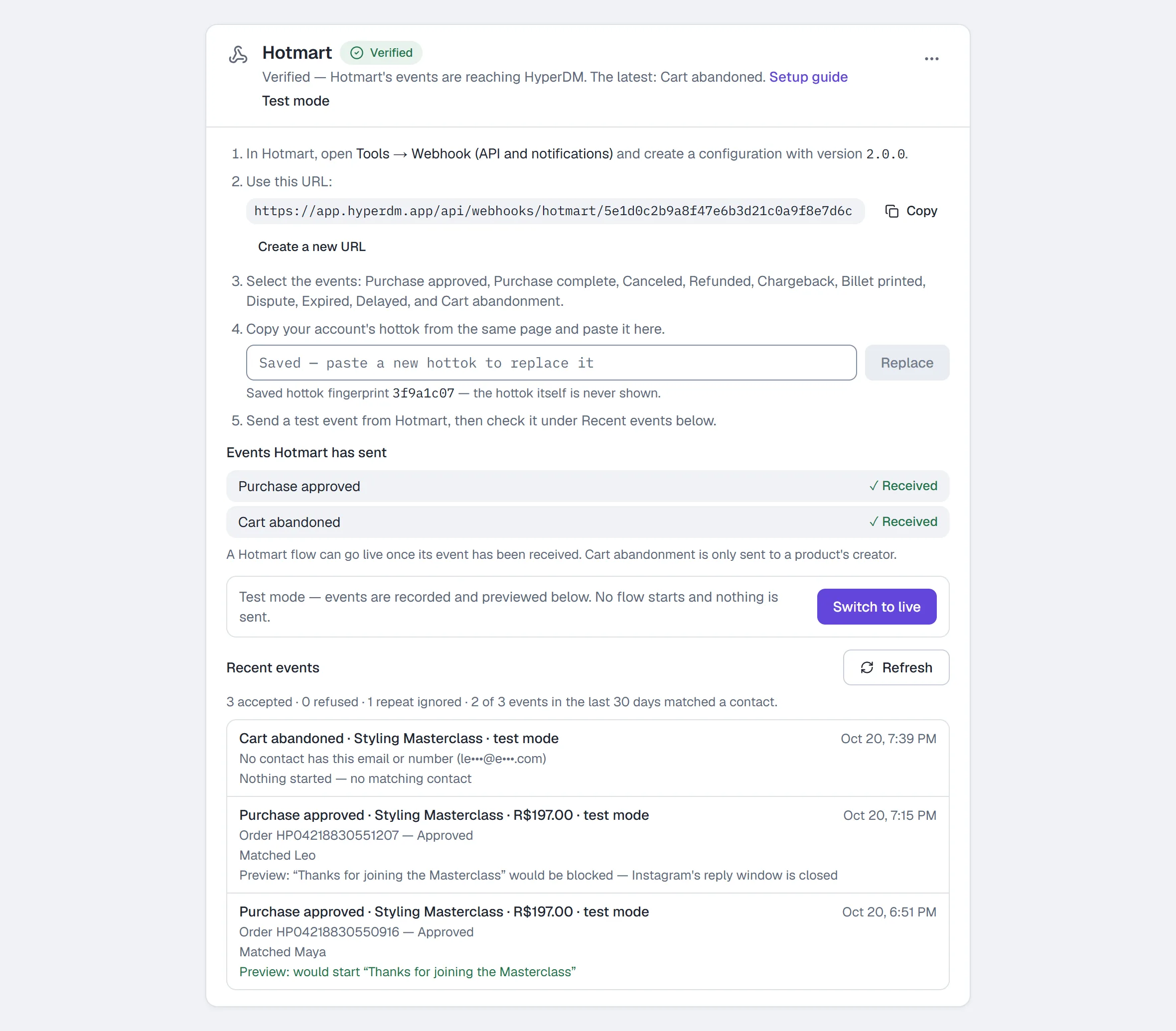
- On the Hotmart card, click Set up Hotmart. The card shows your webhook URL.
- In Hotmart, open Tools → Webhook (API and notifications) and create a configuration.
- Paste the URL from HyperDM, and choose version 2.0.0.
- Select the events: Purchase approved, Purchase complete, Canceled, Refunded, Chargeback, Billet printed, Dispute, Expired, Delayed, and Cart abandonment. The status events keep each order's state right even though only two of them start flows.
- Copy your account's hottok from Hotmart's webhook page, paste it into the Hotmart card and click Save. The card shows a short fingerprint of it — the hottok itself is never shown again.
Step 2: verify it with a test event
- In Hotmart's webhook page, send a test event for your configuration.
- Back in HyperDM, click Refresh under Recent events.
- The badge turns Verified, and Events Hotmart has sent ticks the events that arrived.
If the card says Hotmart's last delivery was refused, it names why — most often the hottok doesn't match the one saved, or the configuration isn't version 2.0.0. Paste the hottok again and resend.
Cart abandoned only appears for a product's creator. Hotmart doesn't send it to affiliate accounts, so a flow on that event can't go live until Hotmart has actually sent one.
Step 3: build the flow
- Open Flows and create a flow on Instagram.
- Click the trigger step and choose Hotmart event as the trigger type.
- Pick the Hotmart event: Purchase approved (once per purchase, when Hotmart first reports it paid) or Cart abandoned (once per contact and product, and skipped if they buy it first).
- Choose All Hotmart products, or Specific products — tick products Hotmart has sent events about, or type a product ID and click Add.
- For purchases, tick Also start on subscription renewals if renewals should start it too.
- Write your messages. These merge tags fill in from the event:
{{hotmart_product_name}},{{hotmart_total}},{{hotmart_transaction}},{{hotmart_offer_code}},{{hotmart_product_id}},{{hotmart_currency}}and{{hotmart_event}}. - Click Set live. The Readiness list shows what's still missing if it can't.
Step 4: preview in test mode, then go live
A new connection starts in test mode. Every event Hotmart sends is recorded, matched and previewed under Recent events — for example “Preview: would start “Thanks for buying”” or “would be blocked — Instagram's reply window is closed” — and nothing is sent.
- Watch a few real events arrive and check the matches look right.
- Click Switch to live and confirm. From now on a matched event starts its flow within about a minute.
- Back to test mode stops new starts straight away; events keep being recorded.
Reading Recent events
Each event shows the product and price, the order and its current status, who it matched (or why it didn't, with a masked hint like ma•••@g•••.com), and what happened:
- Started — the flow began.
- Not started — the send was blocked (window closed) — the person hadn't messaged you in the last 24 hours, so Instagram won't accept a message.
- Not started — we couldn't confirm whether its first WhatsApp message reached them — WhatsApp didn't confirm the flow's first message in time, so it may have arrived. HyperDM never sends it a second time: check the conversation before you message them about the purchase.
- Not started — the purchase was refunded or cancelled first — checked again just before starting.
- Already triggered — Hotmart sent another update for a purchase that already started this flow.
- Recorded, not acted on — the event was created more than 30 days ago (for example a resend from Hotmart's history).
Rotating or disconnecting
- Create a new URL if the webhook URL was shared somewhere it shouldn't be. Paste the new one into Hotmart — the old one keeps working for 24 hours.
- Pasting a new hottok replaces the saved one; the previous one keeps working for 24 hours.
- More actions (⋯) → Disconnect refuses events at the old URL, erases the hottok, cancels flows waiting to start, and keeps your past events. Setting it up again gives you a new URL.
More in Flows
- Build your first flowOpen the canvas, start from a template or a description, add and connect steps, run the design checks and the preview, and set the flow live.Read
- Flow builderThe visual canvas end to end: every node and block type, connecting, design checks, preview, publishing, templates, sharing and the keyboard shortcuts.Read
- Add or find rows in Google SheetsConnect a Google account, then use a Google Sheets step in a flow to add a row for each person or look them up — with a test before anything is written.Read
Try HyperDM for free
50 free conversations a month, no card. Connect Instagram and follow the guide you just read.