How to add or find rows in Google Sheets
Connect a Google account, then use a Google Sheets step in a flow to add a row for each person or look them up — with a test before anything is written.
A Google Sheets step in a flow does one of two things with a worksheet you choose:
- Add a row — for example, log every new lead with their handle, email and the date.
- Find a row — look the person up by a column (their handle, their email) and use what's in that row later in the flow, like a discount code or a VIP tier.
Where it's on: Google Sheets steps are being turned on workspace by workspace. If Settings → Channels has a Google Sheets card and the flow builder offers a Google Sheets step, it's on for yours.
Who can do what: owners and admins connect and disconnect the Google account. Owners, admins and agents set up, test and read the results of Google Sheets steps. See Roles and permissions.
Connect your Google account
- Go to Settings → Channels and find the Google Sheets card.
- Click Connect Google Sheets and sign in to Google.
- On Google's screen, leave See, edit, create and delete only the specific Google Drive files you use with this app ticked, and click Continue.
The card now says Connected as your Google address. HyperDM can open only the spreadsheets you choose on a step — not the rest of your Drive. One Google account per workspace.
Add a Google Sheets step
- Open a flow and Save it — a step can only be set up on a saved flow.
- From Add step → Advanced steps, add Google Sheets.
- In the step's panel, click Set up.
- Click Choose with Google, and pick the spreadsheet. Choose it while signed in to Google as the account shown on the Settings card — a spreadsheet picked with a different account can't be opened.
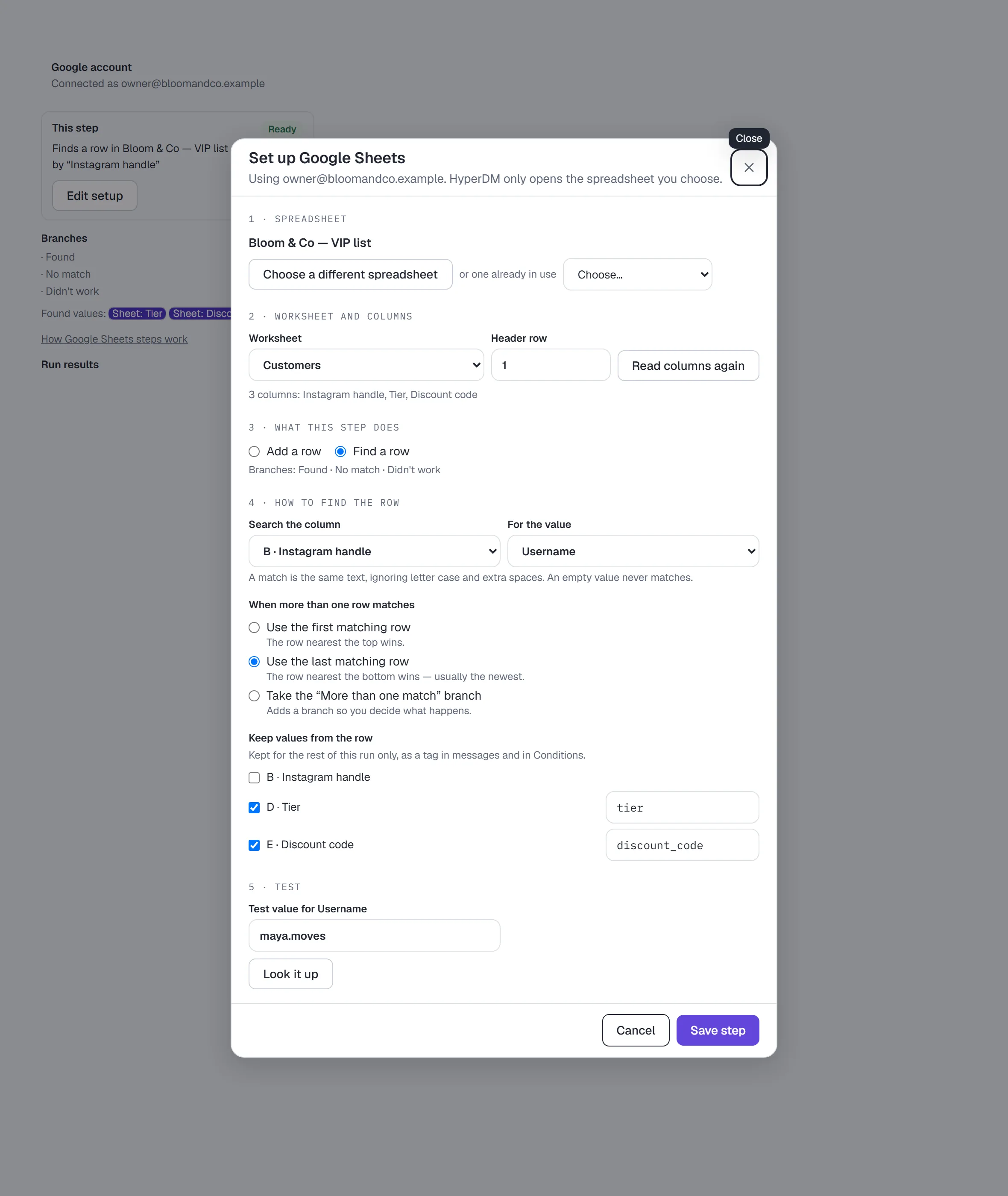
- Choose the Worksheet and the Header row (the row with your column names), then click Read columns.
- Under What this step does, choose Add a row or Find a row.
Add a row for each person
- For each column, choose what it receives: a contact field like Email, a contact detail like Username, a value an earlier Google Sheets step found, the date of the run, or Fixed text…. Leave a column on Don't write this column to skip it.
- Choose each value's type — Text, Number, Yes / no or Date.
- Choose How values are stored:
- Exactly as sent (recommended) — what the person wrote is stored as-is. Anything that looks like a formula stays text and never runs.
- As if typed into Google Sheets — numbers and dates in text are recognised; anything that would start a formula is kept as text.
- Under Record a run key, pick an empty column if you have one. If Google ever doesn't confirm a row was added, HyperDM looks for that key before trying again, so the row is never added twice.
The step has two branches: Row added and Didn't work.
Find a row and use what's in it
- Search the column — the column that identifies the person, like Instagram handle.
- For the value — what to search for, like Username. A match is the same text, ignoring capital letters and extra spaces. An empty value never matches.
- When more than one row matches — you must choose: Use the first matching row, Use the last matching row, or Take the “More than one match” branch.
- Under Keep values from the row, tick the columns you want to use and give each a name. Use them later in this run as the Sheet: Tier tag in a message, or
sheet.tierin a Condition.
The step's branches: Found, No match, More than one match (only if you chose it) and Didn't work. On any branch but Found, the kept values are empty — never a previous person's.
Test before you save
- Under Test, check the test values (they're pretend — nothing is sent to anyone).
- For Add a row, click Preview the row to see exactly what would be written. Nothing is written yet.
- To really add it, click Add this test row…, read where it will go, then click Add 1 row to your spreadsheet › tab. Delete that row in Google Sheets afterwards.
- For Find a row, click Look it up to see the value searched for, which branch a run would take, and the values found.
- Click Save step. HyperDM checks the worksheet one more time and saves only if every column is where you mapped it. Then Save the flow.
If saving fails, everything you chose stays in the dialog, with the reason.
Check how the step is doing
Open the step and expand Run results: each recent run and test, what happened, the row number, how many attempts it took, and Google's own message when something went wrong.
If Google didn't confirm a row was added and there's no run key column, the result says Needs checking. Look in the sheet, then click The row is there or It isn't there.
When a step needs review
A step shows Needs review, and takes its Didn't work branch, when:
- a mapped column was renamed, deleted, or its name now appears twice — the panel says which;
- the worksheet was deleted;
- the connected Google account can't open the spreadsheet any more;
- Google Sheets was reconnected with a different Google account.
A column that only moved (say, a new column was inserted before it) is followed automatically. To fix a step, click Review setup, choose again or click Read columns again, and Save step.
If Google stops accepting HyperDM's access
If you remove HyperDM from your Google account's permissions, or Google stops accepting the access, the Settings card says Reconnect needed and every Google Sheets step takes its Didn't work branch. Click Reconnect on the card.
When Google asks HyperDM to slow down or is briefly unavailable, a step waits and tries again — up to three more times, at least 1, 5 and 15 minutes apart — before taking Didn't work.
What Google Sheets steps don't do
- They don't update or delete rows, or create new spreadsheets.
- A Find a row step searches at most 10,000 rows; a bigger sheet is refused rather than searched in part.
- They can't be set live until they're set up, the Google account is connected, and nothing needs review.
- A flow copied, shared or imported from elsewhere keeps its Google Sheets steps but not their spreadsheets — set each one up again. A step copied inside a flow offers Copy the original's setup.
More in Flows
- Build your first flowOpen the canvas, start from a template or a description, add and connect steps, run the design checks and the preview, and set the flow live.Read
- Flow builderThe visual canvas end to end: every node and block type, connecting, design checks, preview, publishing, templates, sharing and the keyboard shortcuts.Read
- Start flows from Hotmart purchasesConnect Hotmart, verify its webhook with a test event, then start an Instagram flow when a contact's purchase is approved or their checkout is abandoned.Read
Try HyperDM for free
50 free conversations a month, no card. Connect Instagram and follow the guide you just read.