Automations
The guided builder: all six triggers, every field, the preview, drafts and publishing, results, priority, search, folders, testing and the trash.
Sidebar: Automate → Automations. A trigger, a reply, a DM. Describe it or fill in the fields — no canvas required. The visual flow builder still exists for people who want it, but nothing here requires it.
Needs the manage_automations capability — owner, admin and agent. A client sees the page read-only: every automation, flow, rule and sequence with its status and stats, but no create, edit, pause or delete controls, and a line saying who can make changes. Each automation's Results stays open to them.
Deleting or restoring a flow requires an owner or admin. Agents keep ordinary builder creation, editing, publishing and pausing; flow Delete and flow Restore are hidden.
The six trigger types
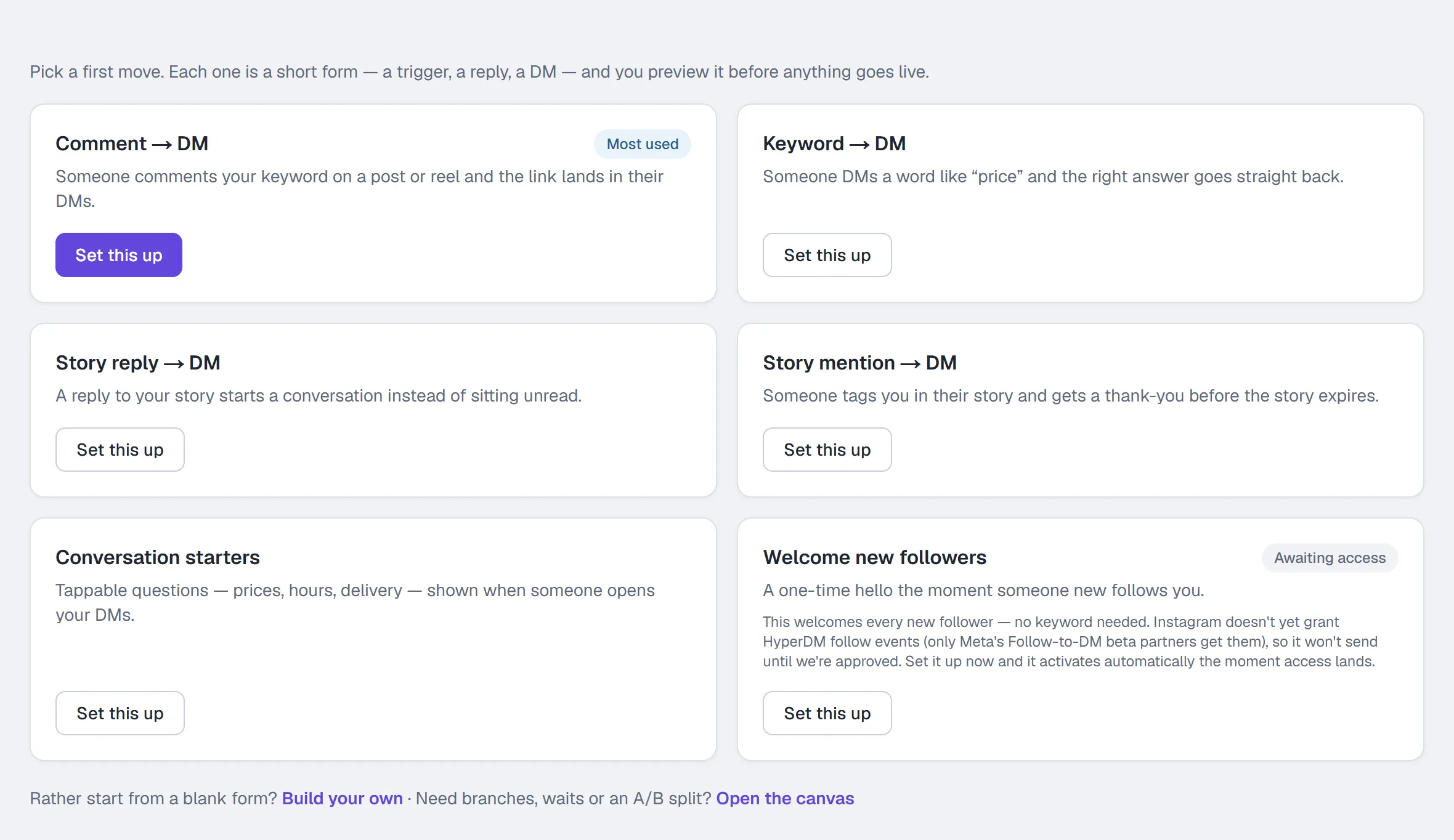
| Trigger | Fires when | Card name |
|---|---|---|
comment_keyword | Someone comments a keyword on your post, reel, or Instagram ad | Comment → DM |
dm_keyword | Someone DMs a keyword | Keyword → DM |
story_reply | Someone replies to your story | Story reply → DM |
story_mention | Someone mentions you in their story | Story mention → DM |
ice_breaker | Someone opens your DMs (the welcome prompts) | Conversation starters |
new_follower | Someone new follows you | Welcome new followers |
Story reply and story mention are different events. One is them answering your story; the other is them tagging you in theirs. They never fire each other's automations.
New follower is not yet routable. The trigger exists and the form works, but Instagram has not granted follow events, so the card and the form both say so honestly rather than letting you build something that will never fire.
*Story mention is routable today* — it needs no beta and no keyword. That gate belongs to new follower and to nothing else. If you ever saw a "Waiting on Instagram access" notice on the story-mention form, that was the new-follower notice showing on the wrong trigger: story mentions have worked the whole time. If you shelved one because of it, set it live — it will run.
First run
A workspace that has built nothing sees "Let's build your first automation" and six curated cards, one per trigger type, in the All tab. Click a card and the builder opens pre-set to that trigger. The search box, the filters and the Rules, Sequences and Trash tabs are there from the start.
Once you have built anything at all (including something you've since deleted), the cards make way for your lists.
The list
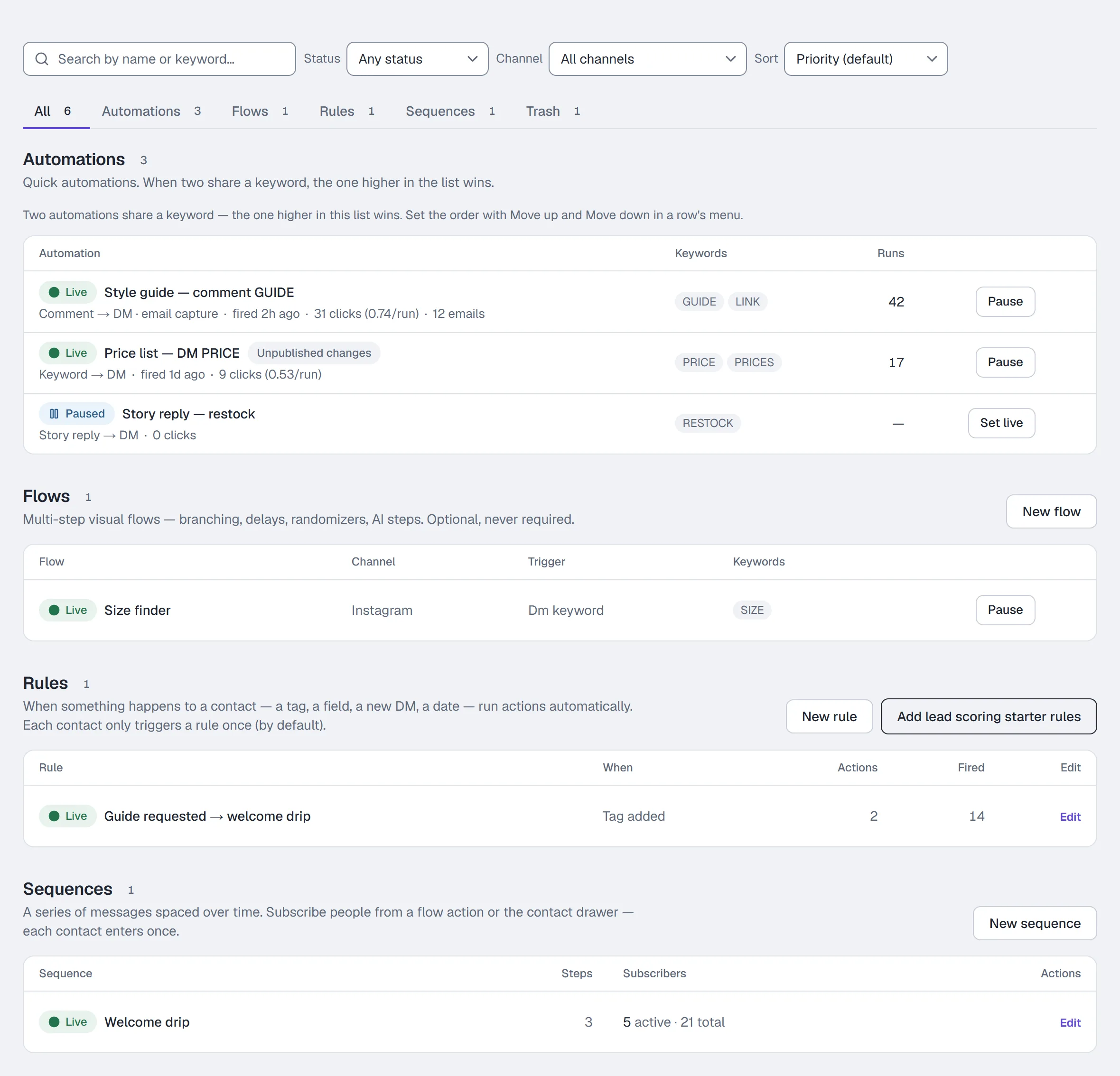
Everything you build here is on this one page: automations, flows, rules and sequences. Automation rows show the Automation (its name, with one line under it), Keywords (the first three, then "+N" — hover for all of them), Runs, and Pause / Set live.
Above the lists:
- A search box. It searches all four types at once — names, keywords, and the trigger a rule is shown with.
- Status: any status, Live, or Draft or paused — a paused automation is one that was live and was stopped.
- Channel: the channels your workspace can use. Rules and sequences aren't tied to one channel, so a channel filter leaves them out — and the page says so under the tabs.
- Sort: Priority (default) — the real execution order — plus Name (A–Z), Newest, Most triggered, Most clicks per run and Most leads. The non-priority sorts are view-only; reordering only works in the Priority view with nothing filtered.
Under them, the tabs: All, Automations, Flows, Rules, Sequences and Trash, each showing how many match your search and filters. When a search finds nothing of one type, the All tab leaves that type out and says so — "No rules or sequences match" — rather than showing an empty section that looks like you have none.
Your filters, sort and tab are kept in the page address, so a bookmark or a shared link opens the same view, and the sidebar's Automations link opens the page as it starts: the All tab, no filters. What you type in the search box isn't in the address: it stays in this browser tab until you clear it.
Each row shows its status — Live, Draft (never published) or Paused (was live, now stopped) — and its name, and under the name one line: its trigger, for live rows when it last fired ("fired 2h ago" / "never fired"), and the rest of its funnel — clicked, with clicks per run when it has a link, then emails when it captures them. Where your workspace sends links exactly as typed, hovering clicked adds "Links go out exactly as typed — taps not counted": the count stands, but DMs sent from then on can't add to it. The runs are the Runs column's. A live row with edits saved in the builder but not yet published also shows Unpublished changes: the live version keeps running exactly as it is until you publish them.
A live automation that hasn't fired for a week or more gets a warning mark beside its name, and the list says how many there are once, above the lists — "2 live automations have had no triggers for 7+ days". Check their keywords or post binding.
Click a row's name to open it in the builder. Pause / Set live sits on the row; everything else is in the row's ⋯ menu: Edit, Results (see Results), Open as flow (rebuilds it as an editable visual flow on the same channel — an Instagram comment automation's public replies included; your automation keeps running — and greyed out on a Facebook Page comment automation, see Common questions), Move up / Move down, and Delete. Move up and Move down are there only in the Priority sort with nothing filtered — order changes an outcome only when two automations share a keyword, and the higher one wins. On the first row Move up is greyed out, as is Move down on the last. After a delete, the keyboard lands on the next row's ⋯.
Set live on a row checks everything Publish checks in the builder. If something is missing — a keyword, the DM, a picked post that's gone — it says what, and to open the automation and finish it.
Delete stops it immediately and is restorable for 30 days from the Trash tab. The Trash also holds deleted flows and sequences, so there is one place to look for "I deleted the wrong thing": Recently deleted lists each one with its type and the days left, and Restore on its row brings it back. Rules don't go to the Trash: deleting a rule is permanent.
Flow rows work the same way: click the name to open the canvas, Pause / Set live on the row, and Open, Duplicate, Export JSON, Share link (where sharing is on) and Delete in the ⋯ menu. A copy or an export made from unpublished changes says so on the list.
If a sequence uses it, the delete dialog for an automation or a flow adds a line such as "Used by 2 live sequence steps — those hold until you repair them." The delete still goes ahead: from then on those steps wait instead of sending, and each is marked in its sequence until you pick other content for it or restore what you deleted. Steps you've switched off aren't counted: a step that's off is skipped, so it never waits on anything. See Sequences.
A restore brings an automation back as it was — live if it was live — unless it can no longer publish as it is (a merge tag this workspace no longer has, say, or Follow-to-DM access): then it comes back as a draft and says what to fix. Nothing goes live on a check that couldn't run: if the check can't run just then, a restore comes back as a draft and says so, and Publish or Set live asks you to try again.
Folders and moving things
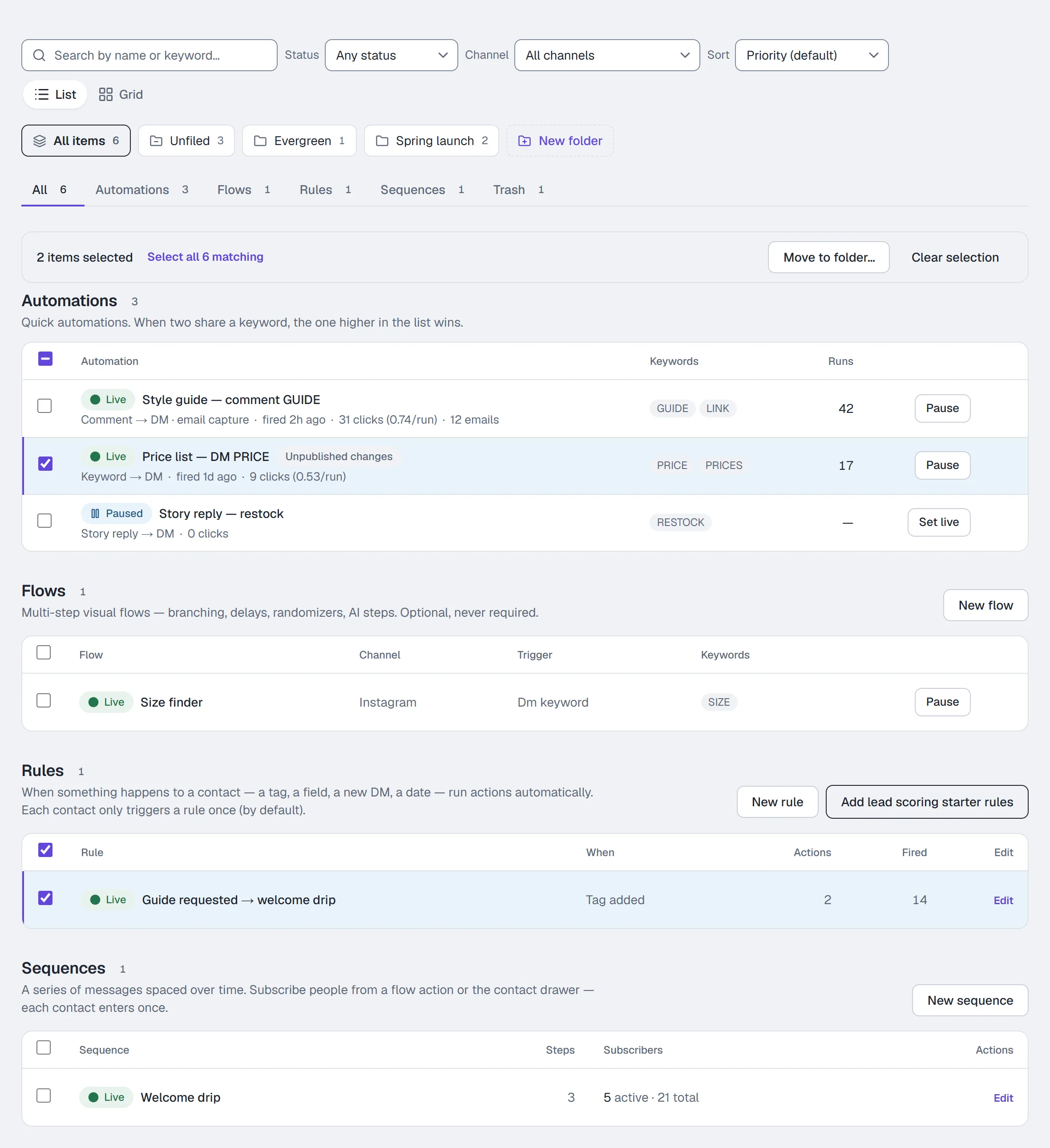
A row of folders sits above the tabs — All items, Unfiled and New folder — along with a List / Grid switch.
To create a folder:
- Click New folder.
- Type a name — up to 60 characters — and click Create folder.
To move automations, flows, rules or sequences into a folder:
- Tick the box beside each one. To take everything your search and filters show, tick one and then click Select all … matching — it says how many.
- Click Move to folder….
- Choose the folder (or Unfiled, or New folder… to make one), then click the Move button — it says how many items it will move.
The result says how many moved, and names anything that didn't and why — for example, if it was deleted or moved to another folder in another tab since you loaded the page. Undo puts back what moved; Open takes you to the folder.
Putting something in a folder never changes how it runs. Open a folder to find Rename and Delete folder at its top. Deleting a folder moves everything in it to Unfiled — nothing is deleted, paused or changed. Owners, admins and agents can create, rename, delete and move; everyone can open folders. Grid shows the same items in the same order as cards, with the same Paused and Unpublished changes labels and a Results link on every automation. Each person's List or Grid choice is remembered for them.
Build an automation
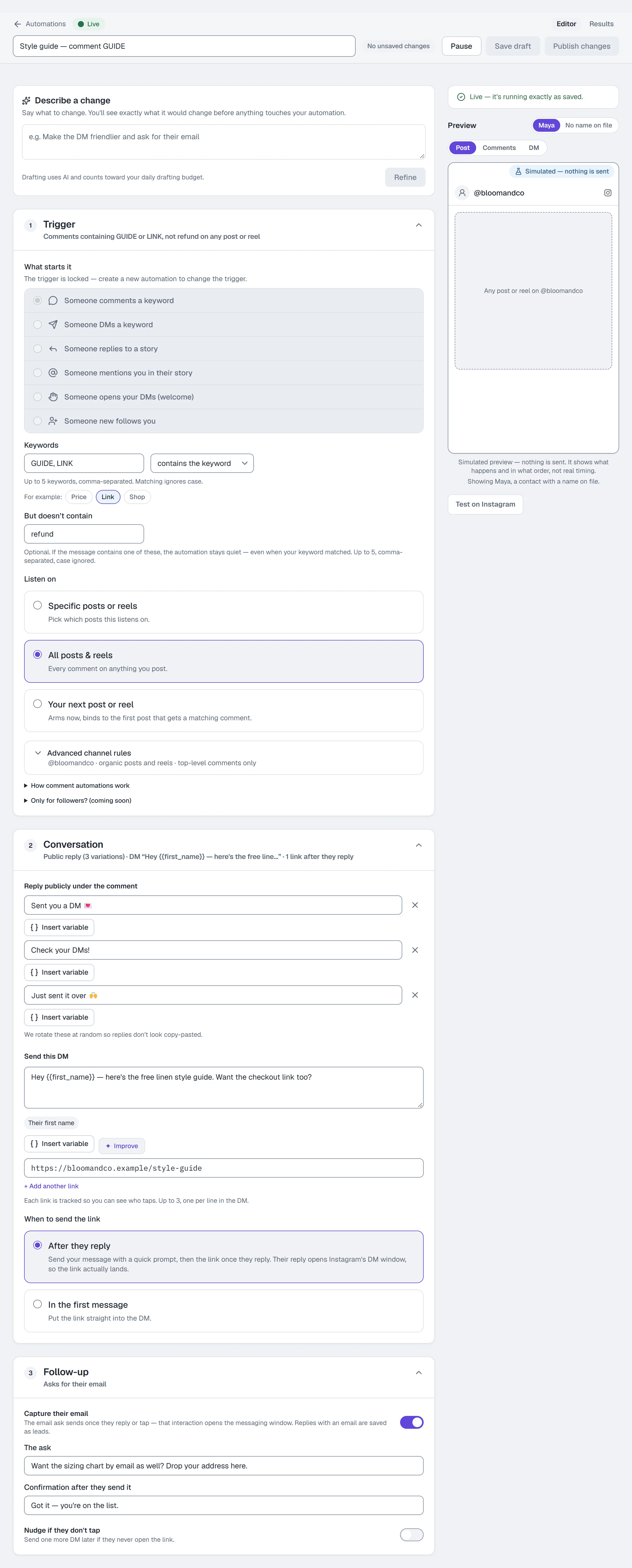
Click New automation, or a first-run card. The builder has three numbered sections — Trigger, Conversation and Follow-up — with a preview beside them. Each section's header shows a one-line summary of what it is set to, so a collapsed section still tells you what it does; click the header to open or close it. Edited marks a section with changes since your last save, and N to fix one with something to finish before you can publish.
The bar at the top stays in view while you scroll: the automation's name (leave it blank and one is made from the trigger), its status, a chip that says where your edits stand (Unsaved changes, Saving draft…, Saved or Published), Save draft and Publish. Once it is saved, Editor and Results switch between building it and seeing what it did. On a phone, Preview jumps to the preview.
Describe it (optional AI draft)
The Describe it panel at the top drafts from a sentence.
- Say what should happen, in your own words, and click Draft it for me.
- The proposal is shown as the changes it would make — each field, before → after — with anything it assumed and anything that would still stop it publishing. Nothing on the form has changed yet.
- Click Use these changes to apply them, or Discard. To adjust it first, type what to change and click Refine: only what you ask about changes. Earlier proposals stay in the list — Review it again reopens one.
On a saved automation the panel reads Describe a change, and the trigger can't change, so a proposal never moves it. If the trigger it proposes doesn't match the one you described, it says so, and Use these changes waits until you tick Use it with this trigger anyway. Stop waiting abandons a slow draft and Try again repeats a failed one — the form stays as it was either way.
The 👍 / 👎 buttons save your rating with the proposal and the drafting version, so we can review how drafting is doing. They don't train an AI model. Drafting counts toward your daily AI drafting allowance.
The preview
The setup page's Create stage has a separate customer example: Example customer comment or Example customer DM, then Preview. Optional hypothetical owner, comment-surface and applicable post-scope checks sit under the collapsed Test trigger rules control. An owner exclusion is expected; Try as a customer keeps the input and reruns it as a customer example. Example posts never select or bind a real post. Connection, real post selection and activation stay on Review. See Getting started.
The preview shows your connected account — its handle and picture — in up to three tabs: Post (the post or reel it listens on, or what the scope means when none is picked), Comments (a comment and your public reply; ‹ › steps through the variations) and DM (the conversation in order: your DM, the tap-then-link prompt and the link, the email ask and its confirmation, the nudge after its wait). A trigger without a post shows the DM only.
Maya / No name on file switches the sample contact, so you can see your merge tags with and without a name — a tag with nothing to fill shows blank, as it would send. Your workspace variables (Settings → Workspace) fill in too, for both samples, exactly as they would in a real DM: a {{booking_link}} you saved shows its link, and one you saved blank shows blank. If the variables can't be loaded, a line under the preview names the tags it couldn't fill, because they may not be blank when it sends. The frame is marked Simulated — nothing is sent: it shows what happens and in what order, not real delivery or timing. To test for real, see Test it on Instagram.
Step 1 — Trigger
Under What starts it, pick one of the six above — one list, each option with its own icon.
When editing an existing automation the trigger is locked — create a new automation to change the trigger. The list says so under it.
Keywords (comment and DM triggers)
- Enter up to 5 keywords, comma-separated, e.g.
GUIDE, LINK. Matching ignores case. - Choose the match mode: contains the keyword or is exactly the keyword.
- Optionally click + Exclude words and add but doesn't contain words, e.g.
shipping, refund. If the message contains one of these, the automation stays quiet even when your keyword matched. Up to 5, case ignored. (An automation that already has exclusions shows the box open.)
Starter chips — Price, Link, Shop — fill the keyword box with one tap. A chip already added shows as selected; past the 5-keyword cap it is disabled.
The exclusion list only ever narrows a keyword match. If you fill it in without a keyword, the form tells you so: "Words to exclude only filter a keyword — add the keyword this should fire on." A word can't be both a keyword and an exclusion — it would cancel itself out — so publishing stops and points at it.
Only for followers? A note at the bottom of this section, marked coming soon — it can't be switched on yet: Instagram doesn't tell apps whether a fresh commenter follows you. To gate on following today, use the flow builder's Follow gate node mid-conversation.
Recognize intention (DM keyword only)
Instead of keywords, a DM automation can compare each message with a short description you write, and send your DM when a message is worded close to it.
- Above the keyword box, click Recognize intention instead of Detect keywords.
- Describe what the customer is trying to do. Writing it the way a customer would ask works best — e.g.
how much is the course?. Up to 500 characters. - Before you rely on it, test it: from a second Instagram account, DM a few real example messages — written the way your customers actually write — and check which ones get your reply.
If you see Example messages and Test messages: your workspace has the experimental V2 builder. Review 4–10 customer messages (or use Suggest examples), then enter a distinct Should match and Should not match message and click Check both. Both must pass before Publish. Try a message checks the current routing without sending a DM. V2 compares a message with your reviewed examples; close competing intents can make it stay quiet. Still test real DMs before relying on it. Older automations keep their matcher until you explicitly choose Review and upgrade matcher. The experimental rollout is not a guarantee of matching accuracy.
What to expect from the older matcher. It catches messages worded close to your description, and even a close rewording can miss. In our own test, how much does the course cost? matched how much is the course?, but whats the price of the course and how much is it? did not. Slang, shorthand and very short questions usually won't match. When nothing matches, no automated reply is sent — unless you have turned on the AI agent, which answers instead. For a question that must always get a reply, use keywords: a keyword anywhere in the message still matches.
It runs after your keyword automations and before the AI agent — a DM a keyword already caught never reaches it. The reply is always the DM you wrote: intent matching decides whether to send it, never what it says.
Only the DM trigger offers this, because it is the only path with an AI-agent fallback for intent to sit ahead of.
Listen on (comment triggers)
Choose which posts this listens on:
| Option | Behaviour |
|---|---|
| Specific posts or reels (default for new automations) | Pick which posts. Your newest posts and reels show as thumbnails — click one to pick it. |
| All posts & reels | Every comment on anything you post. |
| Your next post or reel | Arms now, binds to the first post that gets a matching comment. |
The thumbnails are never cropped, so a tall reel and a wide post both show whole; hover over one, or tab to it, to see its caption and date. A picked post has a ring and a check. Show all opens every post in a larger grid: click the ones you want, Load more fetches older ones, and Done closes it.
Listen on always stays in view. The less common rules — which account, where the comment can happen, and replies in threads — are folded under Advanced channel rules, described next.
Listen on (story reply)
Story reply automations currently listen on every story you post — there is no per-story choice right now. Instagram stopped returning the list of your active stories to apps connected the way ours is, so we can't show you stories to pick from, and we'd rather hide the option than show one that can never find anything.
If you built a story automation earlier that is set to specific stories, it can't fire — open it and press Listen on every story to switch it over.
There is no "next story" option either: a story dies in 24 hours, so arming against one would target something that expires before you notice.
For the story reply trigger you can leave the keywords blank to reply to every story reply, or add up to 5 to fire only on those words. The story mention trigger has no keyword filter at all — a mention arrives with no message text to match on.
Where can the comment happen? (comment triggers only)
The whole job for ads — from the offer to the first DM, boosting vs Ads Manager, testing it, and what Facebook placements do — is walked through in Comment-to-DM on Instagram ads.
The control itself sits under Advanced channel rules, below Listen on. It is closed at first — click it to open. The line under it says what the rules are set to, e.g. @yourhandle · organic posts and reels · replies in threads included, so you can check them without opening it. Advanced channel rules appears when a Facebook Page is connected, when ad comments are available on your workspace, or when the automation already listens on ads. Inside, as they apply: Which account? (when a Facebook Page is connected), Where can the comment happen? and Top-level comments only.
A comment automation listens on one of three surfaces:
- Organic posts and reels — comments on what you post yourself. The default, and what every automation created before September 2026 uses.
- Instagram ads — comments left directly on a supported ad: an ad built in Ads Manager (Create ad) or the ad version of a post you boosted.
- Both — organic comments and ad comments run this automation.
Boosted a post? Read this sentence. Instagram keeps the comments on the boosted (ad) version of a post separate from the comments on the post itself. An automation set to Organic answers only the post's own comments — it will not answer comments left on the boosted version. If you want one automation to cover both, choose Both.
Rules that apply to ad comments:
- Instagram allows one private reply per comment, ever, and only within 7 days of the comment. HyperDM sends it once and can only continue the conversation after the person replies — so make that first DM worth answering.
- Top-level comments only is always on for ad comments: replies inside someone else's comment thread on an ad don't trigger anything.
- If the person's comment is answered by an ad automation, HyperDM's AI comment replies stay out of it. AI comment replies never post under an ad on their own.
- Ad comments go through a small queue: if your account has reached HyperDM's hourly sending limit (we pace sends to protect your account) or Instagram is rate-limiting it, the DM waits and retries for up to 7 days from the comment rather than being dropped.
- Comments on Facebook placements of an ad are not covered — only Instagram comments.
- For Instagram ads or Both, set the post scope to All posts & reels. An ad has its own media id that the post picker cannot see — a boost is a second copy of the post, and an ad built in Ads Manager was never a post at all — so Specific posts or reels covers only the post's own comments, never the ad's. Choosing which ads an automation answers is not available yet.
Story mention
Nothing to configure. The Trigger section shows a short note instead of a keyword box: when someone @mentions you in their story, Instagram delivers it to your inbox and the automation sends your DM back. Every mention gets the same reply. Saving a story-mention automation with keywords is refused, because a keyword could never match one.
Step 2 — Conversation
Reply publicly under the comment (comment triggers only)
- Write a public reply. This is what appears under their comment on the post.
- Click + Add a variation for up to 3 replies — HyperDM rotates them at random so they don't look copy-pasted.
One reply is a perfectly valid automation; the nudge toward three is advice, not a requirement. Two identical variations stop publishing — the repeat is pointed out so you can reword it.
Send this DM
- Write the DM, e.g.
Here's your free style guide — enjoy.Up to 1,000 characters, Instagram's limit. - Insert merge tags with the variable picker: First name, Last name, Username, plus every custom field you've created in Contacts. Workspace variables from Settings work too, typed as
{{key}}. A tag this workspace doesn't have — a misspelt{{frist_name}}, say — would send as a blank, so publishing stops at it; a draft still saves. - Add up to 3 links, one per line. Each link is tracked, so you can see who taps — unless your workspace sends links exactly as typed (Settings → Workspace → Links, where it's offered). A link typed into the message itself is sent as written, and so is a link with a variable in it (such as
{{first_name}}): neither is counted.
When to send the link (comment triggers)
Shown once the DM has a link.
| Option | Behaviour |
|---|---|
| After they reply (default for new comment automations) | Send your message with a quick prompt, then the link once they reply. Their reply opens Instagram's DM window, so the link actually lands. |
| In the first message | Put the link straight into the DM. |
The default is not arbitrary: Instagram will not reliably deliver an unsolicited link to someone who has never messaged you, so the tap-then-link path is the one that actually works.
If the opening DM or later link has an uncertain result, HyperDM holds it rather than sending another copy. A known accepted message can recover after a temporary recording failure. A later comment is a separate opportunity and does not prove an earlier message arrived. Check the conversation in Inbox; if the outcome is still unknown, contact support before sending a replacement. An optional email ask runs after the accepted link; a failed ask does not undo the link or mean the person's email was captured. An uncertain email ask does not block the person's later messages from your flows or agent; the original ask stays held to avoid sending it twice. When a known earlier ask recovers after a recording failure, the person's later email reply can be stored in that same turn; they do not need to send the email again merely because the ask was being recovered.
React to their story reply (story replies)
Sends a ❤️ on their story reply before the DM. Best effort; it activates once Instagram reactions are enabled for the account.
Step 3 — Follow-up
- Capture their email — asks for an email and saves it onto the contact. You write the ask and the Confirmation after they send it (e.g.
Got it — you're on the list.). - Nudge if they don't tap (comment triggers) — sends one more DM later if they never open the link. Set Wait N hours, up to 168. Needs a DM link above that isn't already a HyperDM tracked link (
hyperdm.app/l/…) — paste the page's own address, because a nudge can't watch a link made somewhere else — and needs link tracking on: where your workspace sends links exactly as typed, the nudge can't see a tap, so DMs sent from then on get no nudge, and the builder says Needs link tracking on beside the switch. The DM preview then shows "No nudge — link tracking is off for this workspace" where the wait and the nudge would be, and the Follow-up summary says the same. Nudges for DMs sent before the change still go out when due. With After they reply, the nudge follows the link that's waiting for their reply: someone who comments again while still waiting for a link that was going out exactly as typed gets no nudge, even after tracking is back on.
Conversation starters (ice breaker)
Tappable questions shown when someone opens your DMs — prices, hours, delivery. Up to 4 prompts of 80 characters each — Instagram's own limit, shared across ALL your ice-breaker automations (a second automation's prompts count against the same 4). Tapping any prompt in an automation sends that automation's one DM — to give different questions different answers, build separate ice-breaker automations, one prompt each. Tap counts are tracked per prompt and survive editing.
Instagram is told about your prompts whenever you save, set live, pause, delete or restore an ice breaker — and it can refuse. When it does, the app says so on that action instead of showing you a green badge over prompts that never arrived: which prompts it took, and which it didn't. If it refuses to remove the prompts (on pause or delete), you'll be told they may still show in your DM opener — tapping one then does nothing, so re-save the ice breaker to push the set again.
The Free plan shows 3 Instagram menu items; paid plans show 20. See Settings.
Save draft and Publish
- Save draft saves it without running it. A draft can be unfinished — no keyword yet, no DM yet — and it reopens exactly as you left it. While it saves, the button reads Saving…; the status beside it says Saved only once the save has landed. If it fails, it says so and everything you typed stays on the page.
- Publish saves it and runs it — so everything has to be finished first. The panel beside the preview lists what's left (N things to finish before you publish), each with a Fix that takes you to the field, before you press anything. Press Publish with something unfinished and the builder opens that section, puts you on the field and says what's wrong under it.
Editing a live automation. Publish reads Publish changes, and Save draft keeps your edits as an unpublished draft beside the live version, which carries on running exactly as it was — the list shows Unpublished changes on that row. Reopen it and you're back on your draft, with Compare with the live version to see what differs and Discard draft to throw it away. Publish changes replaces the live version with your draft.
Pause (in the bar, on a live automation) stops it; a paused automation reads Paused, and Publish reads Set live.
If someone else saved it while you were editing — a teammate, another tab, or a Pause from the list — your save is refused and nothing is overwritten. The builder shows both versions side by side, with three ways out: Save my version over theirs, Load their version, or Keep both — save mine as a new draft.
A member whose role can't change automations (the client role) sees the builder read-only, with the reason.
Test it on Instagram
When Instagram is connected, every trigger that a second account can actually fire shows a Test on Instagram button, and the instruction is specific to that trigger:
| Trigger | What to do from a different Instagram account |
|---|---|
| Comment → DM | Comment the keyword on one of the posts it listens on |
| Keyword → DM | DM the keyword to your connected account |
| Story reply | Reply to one of your active stories (any reply, if no keyword) |
| Story mention | Post a story and tag your account in it — no keyword, every mention fires |
| Conversation starters | Open the thread from an account that has never messaged you |
| Welcome new followers | Nothing yet — Instagram doesn’t grant HyperDM follow events |
The reply lands in your Inbox in real time. There is no simulated send: HyperDM only replies to a real event that reaches Instagram’s webhook.
Two things worth knowing about the trickier two. A story mention needs the story to tag your exact handle (the @ sticker, or an @mention in the text) — Instagram delivers it to you as a DM. Conversation starters only appear the first time a thread is opened, so an account you have already talked to will not see them.
Three Instagram platform limits worth knowing while testing comment triggers:
- Only comments made after the automation went live are processed.
- Instagram allows a private reply to a comment only within 7 days of the comment.
- On collab posts, comment events go to the original author's account — a collaborator's automation won't see them.
- A DM to someone who has never messaged you can land in their Requests folder.
Results
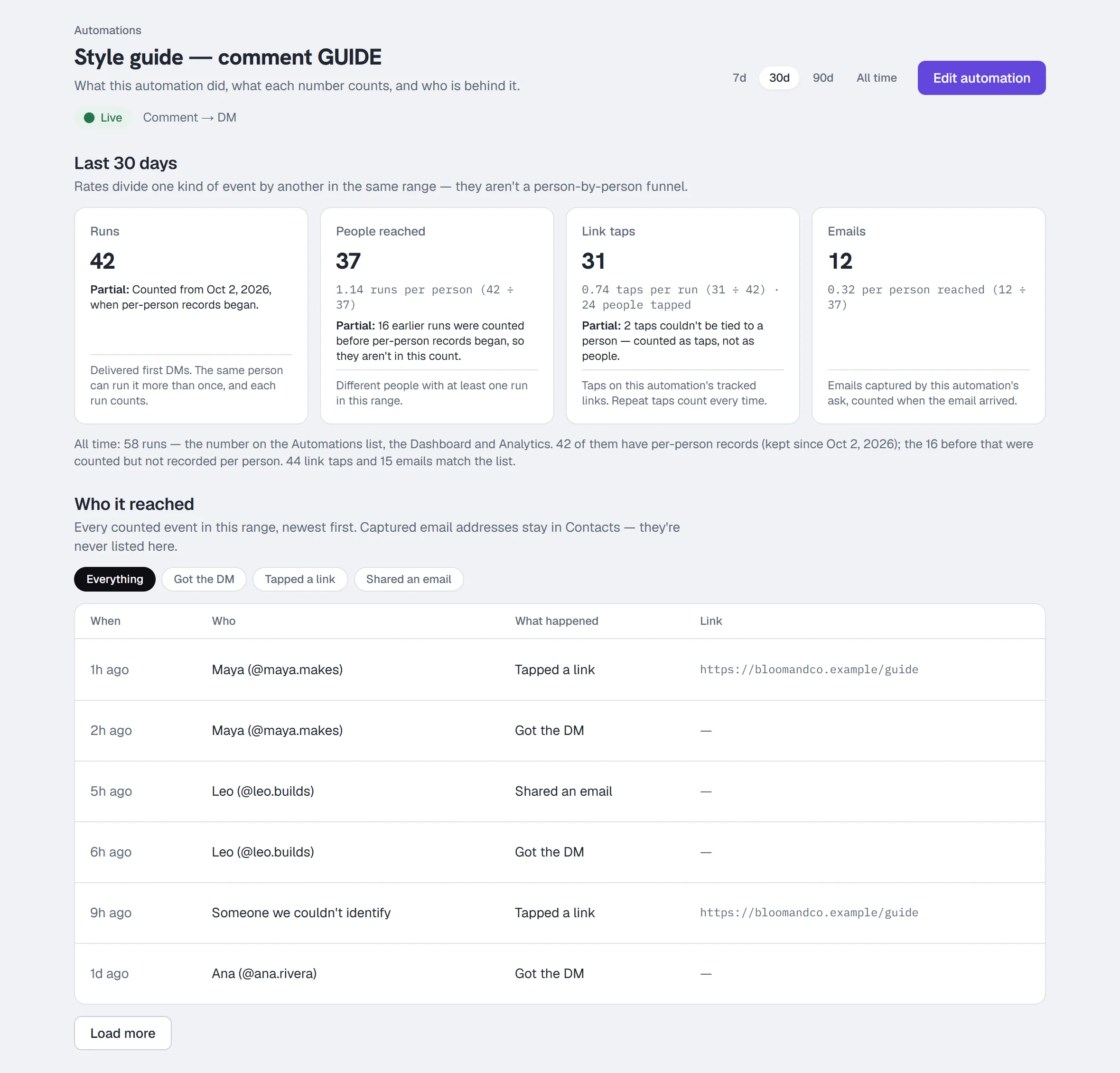
Every automation has a Results page: Results on its row in the list, or Results in the bar at the top of the builder. Choose 7d, 30d, 90d or All time; Edit automation takes you back to the builder.
Four numbers, each saying what it counts:
| Number | Counts |
|---|---|
| Runs | Delivered first DMs. The same person can run it more than once, and each run counts. |
| People reached | Different people with at least one run in the range. |
| Link taps | Taps on this automation's tracked links. Repeat taps count every time. Links sent while your workspace sends links exactly as typed aren't counted. |
| Emails | Emails captured by this automation's ask, counted when the email arrived. |
Under each number is the rate it's measured against — runs per person, taps per run, emails per person reached — with the sum shown. They divide one kind of event by another in the same range; they aren't a person-by-person funnel, since a tap this week can come from a DM sent last week.
A number that is zero, unavailable or still arriving says why, on its card:
- Why it's zero — it's paused, it has never been live, or nothing matched in this range (with the day it last ran); taps and emails say when nothing ran to produce them.
- Not available — the DM has no link, the link has a variable in it (those aren't tracked), the link is already a HyperDM tracked link (
hyperdm.app/l/…) made elsewhere — its taps count where it was made, not here — your workspace sends links exactly as typed (Settings → Workspace → Links, where it's offered — taps on DMs sent from then on can't be counted, so there is no taps-per-run rate either), or email capture is off. - Still arriving — taps and emails can come hours or days after the DM.
- Partial — taps that couldn't be tied to a person, or runs from before per-person records began.
- From an earlier version — taps counted before the link was removed (or given a variable, or before link tracking was turned off for your workspace) stay on the card; the note says no new ones will count.
All time matches the rest of the app. The line under the numbers ties the all-time totals to the Automations list, Home and Analytics. An automation older than the Results page has runs that were counted before per-person records began; the line says how many, rather than showing two numbers that disagree.
Who it reached lists the events behind the numbers, newest first — when, who, and what happened (Got the DM, Tapped a link, Shared an email). Filter by those, or Load more for older ones. It never shows a captured email address; that's on the contact in Contacts.
If per-person results aren't available on your workspace yet, the page shows the all-time totals only, and says so.
Priority: which automation wins
When two live automations could match the same message, first match wins in priority order, top to bottom in the list. Move up and Move down in each row's ⋯ menu set that order; it changes an outcome only when there is an actual keyword overlap.
Above all of your automations sit two rules you cannot outrank:
- Opt-out (
STOP) — always wins. - Opt-in (
START).
Below them all sits the AI agent, as the open-ended fallback. See Core concepts.
Rules and Sequences
Two sub-items in the sidebar under Automations open this same page on its Rules and Sequences tabs, from any tab and on a brand-new workspace too:
- Rules → Automation rules — event automations (tag added, field changed, date reached).
- Sequences → Sequences — drip campaigns.
Common questions
My automation didn't fire. Check, in order: is it Live (a Draft or Paused automation doesn't run); does the message actually contain the keyword (case is ignored, but the exclusion list wins); for a Recognize intention automation, is the message worded close to your description (see What to expect above); is a higher-priority automation catching it first; for comment triggers, is the automation bound to that post; for story replies, have you picked the story. Full list in Troubleshooting.
I pressed Publish and it opened a section instead. Something is unfinished. The builder opens the section, puts you on the field and says what's wrong under it; the list beside the preview shows everything that's left. Nothing you typed is lost — and Save draft still works, so you can finish later.
I edited a live automation, but it still sends the old DM. You used Save draft: on a live automation that keeps your edits as an unpublished draft while the live version keeps running. Open it and press Publish changes.
Two of us edited the same automation. The second save is refused and nothing is overwritten. The builder shows both versions side by side: Save my version over theirs, Load their version, or Keep both — save mine as a new draft.
I saved, but my change isn't there. If you switched workspaces while the form was open, the save is refused and you are told to reload — nothing is written to either workspace. This is deliberate: the page you were looking at belonged to the workspace you left, so saving would have aimed your edit at the wrong account. Reload the automation in the workspace you want and make the change again.
The same applies to Set live, Pause, Delete, Restore, reordering and Open as flow — and to flows and sequences, which share the same Trash — and to creating, renaming or deleting a folder and moving things between folders. If something was deleted in another tab while you had it open, you are told it is gone rather than shown a success: a save, a Set live or a Restore never reports green over a change that did not land.
Can I change the trigger on an existing automation? No — it is locked on edit. Create a new one.
What's the difference between this and the flow builder? This is a form for the common shape: trigger → public reply → DM → optional email ask. The flow builder is a canvas for anything with branches, waits, conditions or an AI step. Use Open as flow on an automation to convert it — your automation keeps running. The flow is on the automation's channel: a Facebook Page DM keyword automation becomes a Facebook Page flow. The one exception is a Facebook Page comment automation (next question).
Can I open a Facebook Page comment automation as a flow? Not yet. A flow can't start from a comment on your Facebook Page — only an automation can answer one — so converting it would give you a flow that never runs. In that row's ⋯ menu Open as flow is greyed out, and hovering it says why (a screen reader reads the reason too). Keep the automation; it carries on answering your Page's comments. Facebook Page DM keyword automations convert as usual.
Do my public replies come across when I use Open as flow? Yes, for an Instagram comment automation: its replies (up to 3) land in the flow trigger's Reply publicly under the comment, still picked at random for each comment. One difference: the flow posts its public reply only after the DM is delivered, where the automation posts it before sending the DM. A Facebook Page comment automation isn't converted at all (see the question above). See Flow builder.
I deleted something by mistake. The Trash tab on the Automations page, for 30 days. (Rules are the exception — deleting a rule is permanent.)
My search finds a flow but the Automations section is gone. That's the search working: a type with no matches is left out, and the line under the tabs names it ("No automations match"). Every type you do have matches for is shown, and each tab shows its own count.
Does the number of automations count against my plan? Automations don't, but flows do: Free is capped at 5 flows; every paid plan is unlimited.
Does Comment → DM work on my ads? Yes — on the boosted version of a post and on ads built in Ads Manager, as long as the ad runs as your connected Instagram account. Set Listen on to All posts & reels, then open Advanced channel rules and set Where can the comment happen? to Instagram ads or Both. Comments on the Facebook placements of an ad are not covered. Step by step: Comment-to-DM on Instagram ads.
Link clicks, drafts and the follow trigger
Link clicks are events, including repeat taps. Clicks per run can exceed one and are not a unique-person conversion rate. Follow-to-DM can be saved as a draft while platform access is unavailable, but cannot be published or set live — and one that was live when it was deleted comes back as a draft if access still isn't available when you restore it, so a restore never publishes it. The creator onboarding path checks a recorded send after the workflow’s latest edit.
More in Instagram automations
- Set up comment-to-DMReply to a keyword in your comments with a public reply and a DM that carries the link, step by step in the builder, then test it from a second account.Read
- Set up keyword triggersAnswer a DM that contains a keyword with the right reply and link, straight from the builder, with the matching rules and the priority order explained.Read
- Set up intent recognitionSend a saved DM when a message is worded close to a description you write, instead of a keyword, and test it from a second account before you rely on it.Read
Try HyperDM for free
50 free conversations a month, no card. Connect Instagram and follow the guide you just read.