How to set up keyword triggers
Answer a DM that contains a keyword with the right reply and link, straight from the builder, with the matching rules and the priority order explained.

Someone DMs a word like PRICE and the right answer goes straight back. A keyword trigger is the simplest automation there is: a word to watch for, and the DM to send.
Preview a customer example during setup
The Send a link from a DM setup goal opens Create before you need to connect Instagram.
- Fill in Keyword, Link to send and Message.
- Type an Example customer DM and click Preview to test the current edits locally.
- For an exclusion test, open the initially collapsed Test trigger rules and choose Simulate a DM from the account owner, then click Preview. This is a hypothetical scenario; an owner exclusion means the rule worked. Try as a customer keeps your custom input, resets the scenario and runs the customer example again.
- Click Save draft & continue to connect and turn on the saved reply on Review. A passed simulation sends nothing; use the different-account Instagram test below to check a live reply.
The rest of this guide describes the full builder. For the setup page, see Getting started.
Before you start
- Instagram is connected — Connect Instagram.
- You are an owner, admin or agent on the workspace.
Open the builder
- Go to Automations.
- Click the Keyword → DM starter card, or New automation and choose Someone DMs a keyword under What starts it.
Growth tools → Keyword triggers → Configure opens the same builder with this trigger already selected.
Fill in the form
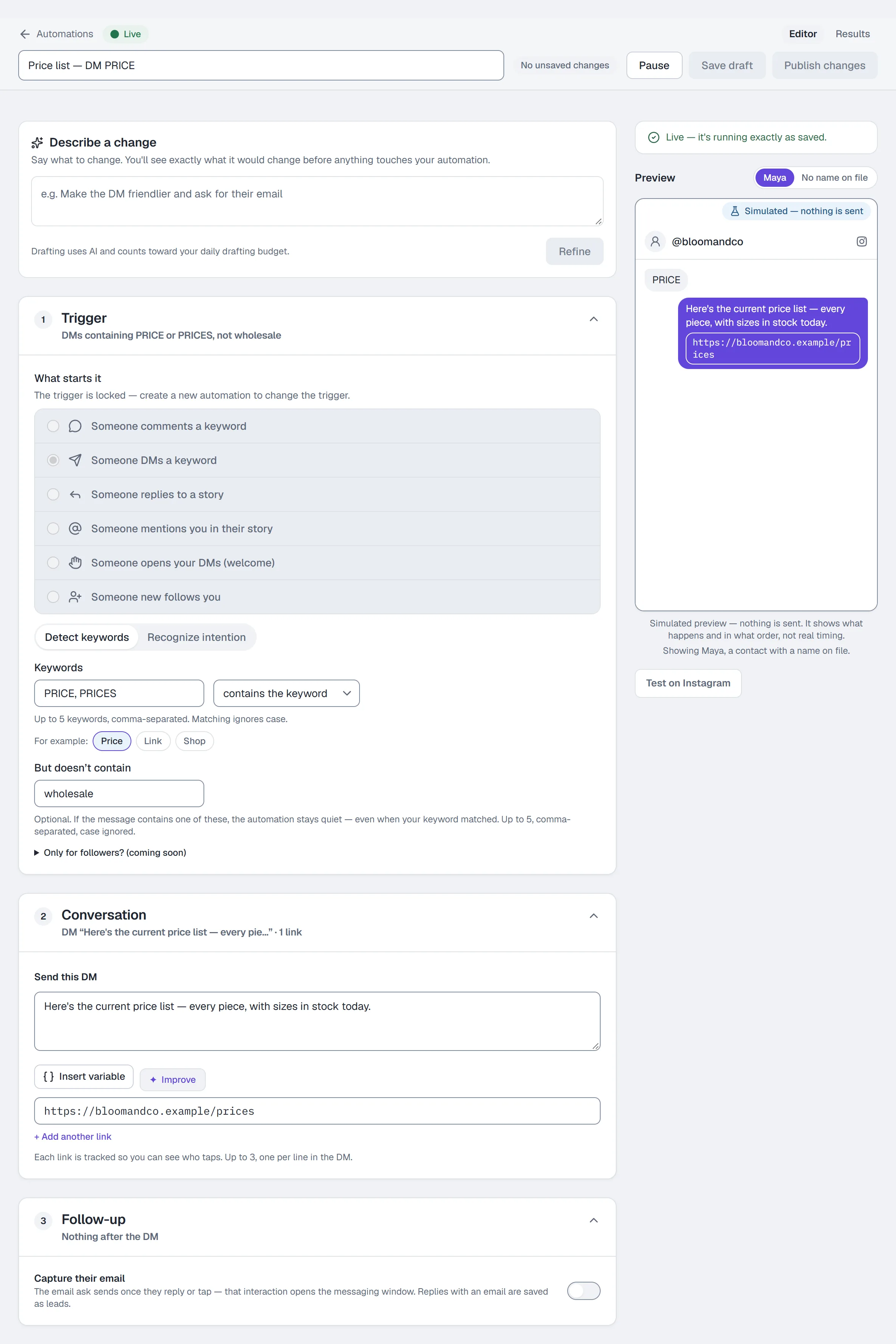
1 — Trigger
- Under What starts it, choose Someone DMs a keyword.
- Leave Detect keywords selected. (Recognize intention is a different matcher — see Set up intent recognition.)
- Enter up to 5 keywords, comma-separated, e.g.
PRICE, PRICES. Matching ignores case, and with contains the keyword a keyword anywhere in the message matches. - Choose contains the keyword or is exactly the keyword.
- Optionally click + Exclude words and add but doesn't contain words, e.g.
wholesale. A message containing one of these is skipped even when the keyword matched.
2 — Conversation
- Write the DM. Insert variable adds First name, Last name, Username or a custom field.
- Add up to 3 links, one per line. Each link is tracked — unless your workspace sends links exactly as typed (Settings → Workspace → Links, where it's offered). A link with a variable in it goes out as written and isn't counted.
The DM tab of the preview shows the reply as it will arrive, for a sample contact with a name and one without — it sends nothing.
3 — Follow-up (optional)
- Capture their email — asks for an email once they reply and saves it onto the contact as a lead.
Save and publish
Name the automation and click Publish, or Save draft to keep it without running. If something is unfinished, Publish takes you to it.
Test it on Instagram
From a different Instagram account, DM the keyword to your connected account. The Test on Instagram button names the account to send it to. The reply lands in that account's inbox and in your Inbox in HyperDM.
Which automation wins
When two live automations could match the same DM, the first match in priority order wins — top to bottom in the Automations list. Move up / Move down in each row's ⋯ menu appear only in the Priority sort, and the order matters only when two automations share a keyword.
Two rules sit above everything you build and cannot be outranked:
- Opt-out —
STOPalways wins, and revokes consent for automated replies. - Opt-in —
STARTre-grants it.
You can add your own opt-out and opt-in words under Settings → Channels → Keywords. Below all your automations sits the AI agent, as the open-ended fallback for DMs nothing caught — if you have switched it on.
Common problems
It did not fire. Is it Live; does the DM actually contain the keyword; is a but doesn't contain word in it; is a higher-priority automation catching it first. Full checklist in Troubleshooting.
I need it to fire on questions worded lots of different ways. Add more keywords (up to five per automation), or build a second automation. For a question that must always get a reply, keywords are the reliable choice.
The same person keeps getting the same DM. That is expected: a keyword automation replies every time the keyword arrives. Put the follow-up in a flow if you want branching or a wait.
Full reference for every field: Automations.
More in Instagram automations
- Set up comment-to-DMReply to a keyword in your comments with a public reply and a DM that carries the link, step by step in the builder, then test it from a second account.Read
- Set up intent recognitionSend a saved DM when a message is worded close to a description you write, instead of a keyword, and test it from a second account before you rely on it.Read
- Set up story reply automationsTurn a reply to your story, or a mention in someone else's, into a DM with the link — two triggers, built the same way and tested from a second account.Read
Try HyperDM for free
50 free conversations a month, no card. Connect Instagram and follow the guide you just read.