How to connect Instagram
Connect your Instagram professional account to HyperDM from the setup page or from Settings, then check that the Instagram card says Connected.
Connecting Instagram lets HyperDM receive your account's supported DMs and comments. Choose when to turn on a saved automation or AI replies separately. A connected badge does not prove a reply was sent; a preview checks your setup, and a real test uses a different Instagram account after you turn replies on.
Before you start
- You need an Instagram professional account — Business or Creator. A personal account cannot be connected, so switch it first: Switch to a professional account shows how to check which kind you have and walks the switch in the Instagram app and on instagram.com.
- Only an owner or admin of the workspace can connect or disconnect a channel. Other roles see the card and its status but no button — see Roles and permissions.
- On the Free plan you can have one DM channel connected at a time. Reconnecting the same account is allowed — that is a re-authorisation, not a second channel. If a connect is turned away with "We couldn't check your plan's channel limit just now", that is a passing fault rather than the limit: nothing changed, and trying again fixes it.
- Do it in Chrome or Safari, not inside the Instagram app. If you opened HyperDM from a link in Instagram, Facebook or Messenger you are in that app's built-in browser, where the connection cannot finish — Instagram intercepts its own sign-in page and the permissions screen never appears. HyperDM spots this and shows Open HyperDM in your browser instead of the Connect button; see Troubleshooting.
Connect from the setup page
The default setup page at /onboarding has Goal, Create and Review stages. Choose a goal and save a reply or reviewed business facts on Create, then open Review and use Connect Instagram in the Connect account row. Review explains any missing permissions and keeps activation separate from connecting, so you can check the reply before turning it on.
If your fallback setup page has dots along the top, Connect Instagram is a separate screen: second on the reply path, last on the AI path. The legacy steps below describe it; the Instagram login and permission checks are the same on both pages.
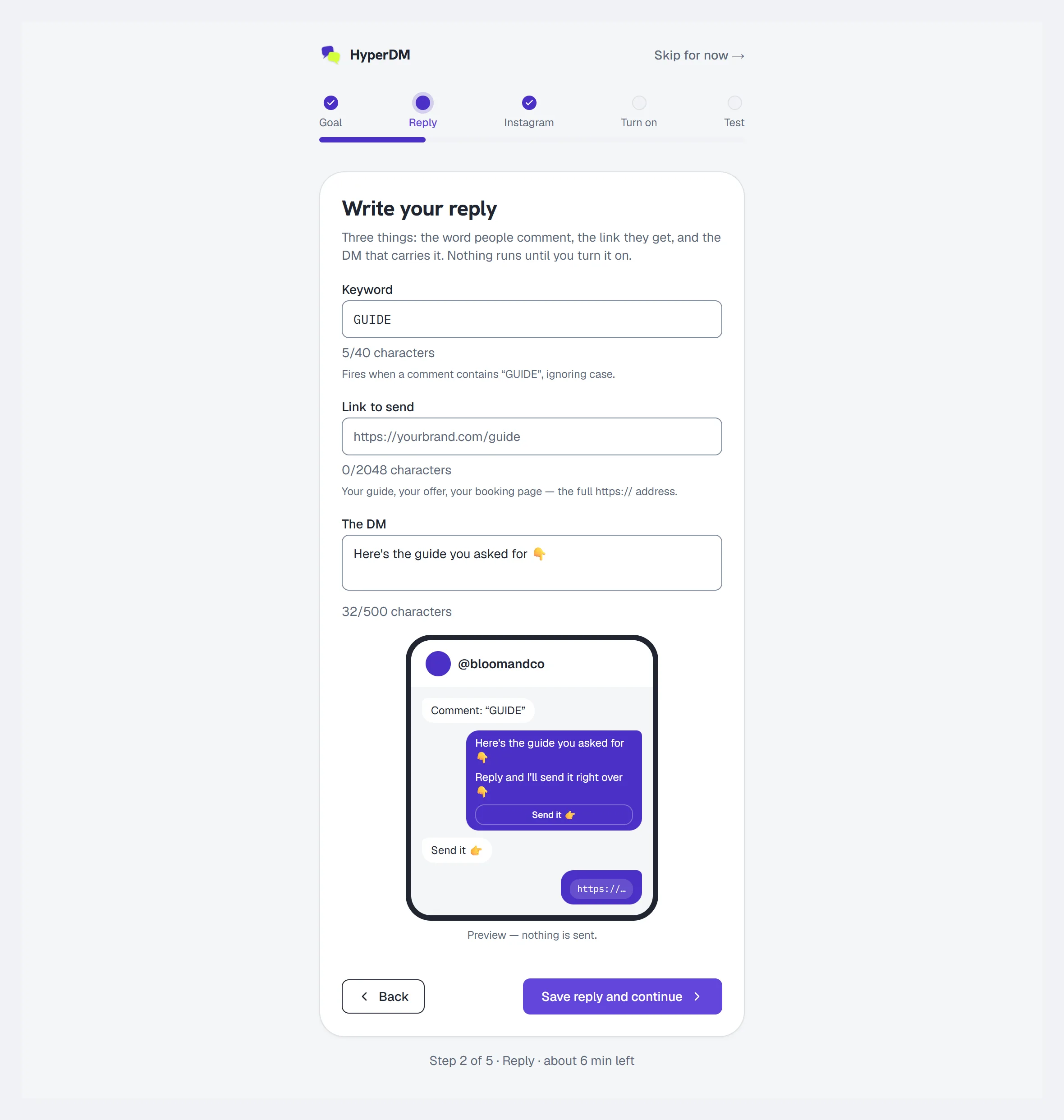
- Pick what HyperDM should do first, and finish the screens before the connect — your reply (or your AI setup) is saved as you go. See Getting started. Don't have your link or business information to hand? No link yet? Connect Instagram first (reply path) or Not to hand? Connect Instagram first (AI path) under the empty box — or Add the link later / Set this up later above the buttons — takes you straight to this screen without saving anything, and Back here returns you to the screen you skipped.
- On the Connect Instagram screen, click Continue with Instagram. You are sent to Instagram to authorise the connection. Instagram asks you to log in in this browser if you are not already, and the account must be Business or Creator — the line under the button says so, and its How to switch a personal account link opens the switch guide.
- Approve the permissions Meta asks for. When you come back from Instagram the setup page opens on this same screen, even if an earlier step is unfinished, so the result is the first thing you see.
- The screen now reads Instagram is connected with your @handle. On the reply path Continue moves you on, and nothing has turned on yet — that is the next screen. On the AI path this is the last screen, and the button is Go to dashboard. If you skipped a step to get here, the button reads Write your reply or Finish setup instead and takes you back to it.
Two more ways a setup-page connect can end also bring you back to the setup page rather than to Settings. If HyperDM asks you to sign in on the way — your session ended before or during the connect — you are brought back to the setup page once you've signed in; nothing was connected, so click Continue with Instagram again. And if HyperDM refuses the connect, the setup page opens on its Instagram screen with the reason — see "It says only owners and admins can connect a channel" under Common problems.
If your setup page shows Goal, Create and Review
Where the three-stage setup page is offered, connecting is a task on Review rather than a screen of its own. The Connect account row has Connect Instagram (or Reconnect Instagram); once the account is connected and working, it reads Connected as your @handle, with no button. You can also connect from Create: on the reply path, No link yet? Connect Instagram first keeps what you typed and is offered until the reply is saved; on the AI path, Facts not to hand? Connect Instagram first shows while the facts box is empty (Connect Instagram now once facts are saved). You come back to the setup page with the result on screen. Reply Create confirms your current draft before opening Instagram, Open in Chrome, Copy link, or either retry action. If saving is taking longer than expected, stay on Create with your edits available, wait for confirmation, and deliberately try again. Connecting turns nothing on — a reply stays a draft, and AI replies stay off, until you press the turn-on button on Review. See Getting started.
Connect from Settings
You can do the same thing any time from the Channels tab, which is also where you come back to reconnect.
- Go to Settings → Channels.
- On the Instagram card, click Connect Instagram.
- Authorise on Instagram and you are returned to Settings — even if you started a connect on the setup page a few minutes earlier and left it unfinished.
- The card shows a green Connected badge, and your @handle and profile picture appear on Home.
Check the badge
The Instagram card always shows one of these badges. Connected means the connection is working; use a separate test to check your first real reply.
| Badge | Means | What to do |
|---|---|---|
| Connected | Working | Nothing |
| Needs attention | Connected, but Meta is not delivering events yet | Click Retry subscription |
| Reconnect needed | The token expired, was revoked, or the permissions are partial | Click Reconnect |
| Not connected | No connection yet | Click Connect Instagram |
| Not on your plan | Your Free plan's one channel slot is already used elsewhere | Click See plans, or disconnect the other channel |
Two more notices can appear on a connected card:
- Webhook subscription failed / gone quiet — DMs and comments will not arrive until this succeeds. Click Retry subscription.
- Profile drift — "Instagram may have changed how your ice breakers/menu appear." Click Re-sync to push your welcome prompts and main menu back. The warning only clears when the push actually reached Instagram, and the message names the handle it ran against.
Test it
From a different Instagram account, send a DM to your connected account. It appears in your Inbox within a few seconds. If nothing arrives, check the badge first: a Needs attention card means events are not being delivered yet.
What to do next
- Build your first reply: Set up comment-to-DM.
- Or teach the agent so it can answer open questions: Add knowledge and sync your catalog.
Common problems
The Connect button is missing. You are not an owner or admin of this workspace, or the card says Not on your plan because another channel holds the Free plan's slot.
It says only owners and admins can connect a channel. The notice reads "Only owners and admins can connect or disconnect a channel. Nothing was connected — ask a workspace owner or admin." HyperDM refused the connect because your role in this workspace can't connect channels — it may have changed since the page loaded. Ask an owner or admin to connect it. A connect you started on the setup page shows this on the setup page, where everything you saved is still saved; one started in Settings shows it in Settings. The same happens, with "Instagram isn't set up yet", when connecting Instagram isn't available on HyperDM's side — nothing you can change; tell us through Help → Send feedback (on the setup page, the Feedback button).
It says the connection was cancelled, but I didn't cancel. The notice reads "Instagram connection was cancelled. If you didn't cancel, check the account is Business or Creator." Instagram sent you back without approving the connection. If you didn't press Cancel, check the account type first — a personal account can't be connected. The notice's Using a personal account? How to switch link opens Switch to a professional account; switch, then click Continue with Instagram again.
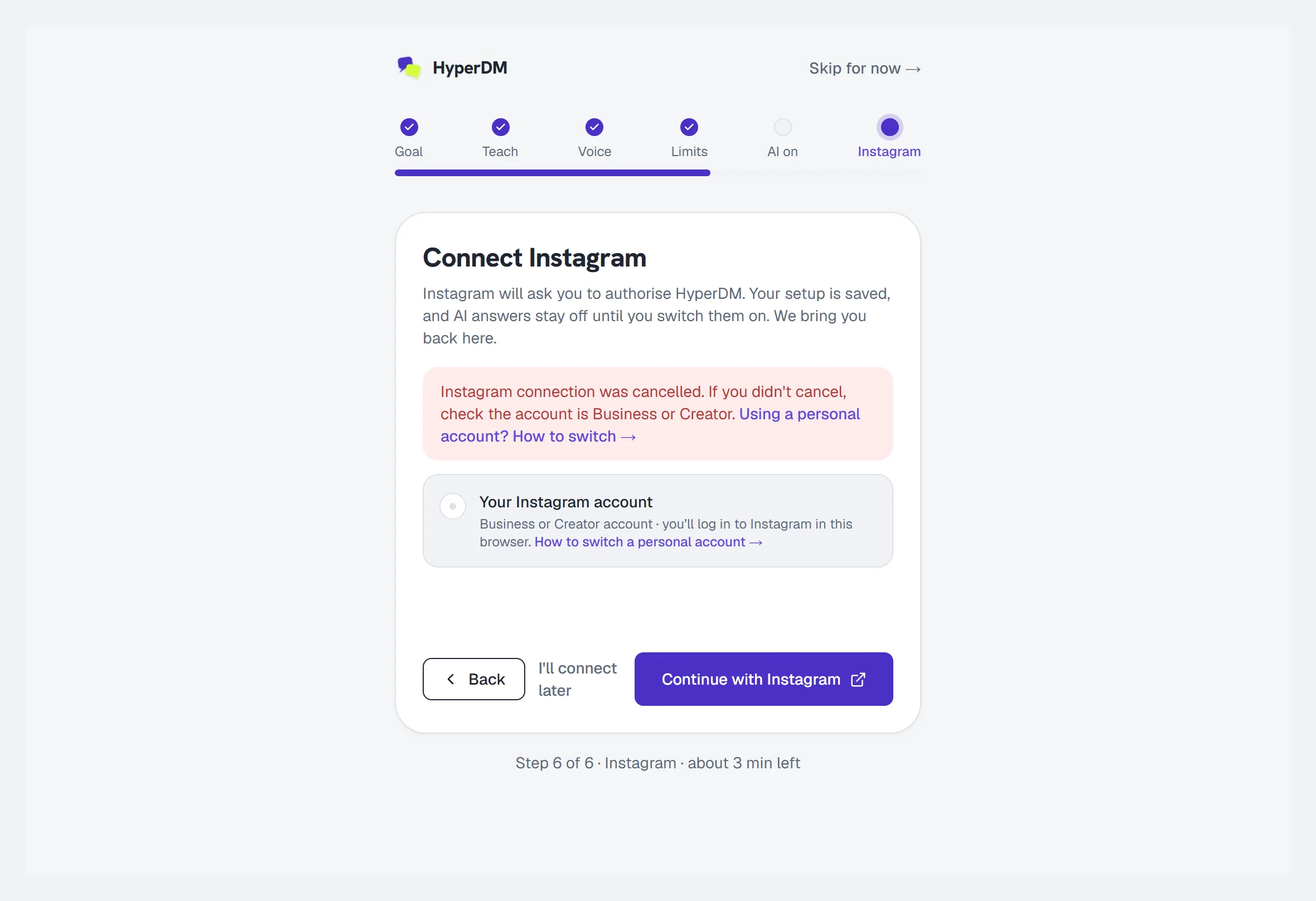
It says something went wrong, or that no authorization code came back. Try again. If it fails the same way, check the account type — both notices carry the same switch link — and see Troubleshooting.
It says Instagram didn't confirm the account identity. Nothing changed. HyperDM could not confirm which professional account to connect, so it kept any previous working connection. Try again. On the three-stage setup page, use Try connecting again when it is offered; your saved goal and draft stay available.
It says the connection attempt couldn't be verified. Start a fresh attempt with Try connecting again or the available Connect Instagram button. An old callback cannot restart itself. If you return much later or the browser lost its cookies, you may land in Settings or need to sign in. Open the setup page intentionally to resume what you saved.
Instagram opened, and I came back with no result at all. The screen shows Didn't make it back from Instagram? with the three usual causes and a Try again link — even if you came back in a new tab or after a reload, within 30 minutes of tapping Connect. See Troubleshooting.
Tapping Connect opened the Instagram app instead of a login page. Come back to your browser, type instagram.com into its address bar (don't tap a link — on a phone a link can open the app again) and log in, then return to HyperDM and tap Try again (or Connect Instagram on Settings → Channels). See Troubleshooting.
There is no Connect button — it says "Open HyperDM in your browser". You are inside the Instagram, Facebook or Messenger app's built-in browser, where the connection cannot complete. On Android tap Open in Chrome; on iPhone use the ⋯ menu → Open in browser, or Copy link and paste into Safari. The copied link works once and expires within five minutes; use Copy link again for a current link. If the clipboard is refused, select the sign-in link shown on the panel and copy it manually. If HyperDM cannot create a link, open app.hyperdm.app in Safari or Chrome and sign in there. Full walkthrough: Troubleshooting.
I connected, but the card says Needs attention. Meta accepted the connection but has not started delivering events. Click Retry subscription. If it keeps failing, see Troubleshooting.
I want to disconnect. On a connected Instagram row, choose More actions (⋯) → Disconnect; a confirm dialog asks you to type the account. Disconnecting drops the stored token and stops inbound DMs until you reconnect.
More in Getting started
- Getting startedFrom sign-up to your first sent link, one screen at a time: write the reply, connect Instagram, choose a post, turn it on and test it — or set up the AI.Read
- Switch to a professional accountCheck whether your Instagram is a Business or Creator account, and switch a personal one in the app or on instagram.com so it can connect.Read
- Core conceptsThe vocabulary HyperDM runs on: conversations, the 24-hour window, consent, grounded answers, the compliance gate and which trigger wins.Read
Try HyperDM for free
50 free conversations a month, no card. Connect Instagram and follow the guide you just read.