How to switch to a professional account
Check whether your Instagram is a Business or Creator account, and switch a personal one in the app or on instagram.com so it can connect.
HyperDM connects through Instagram's own login for businesses, and Instagram opens that only to professional accounts — Business or Creator. A personal account can't be connected. Switching is free, takes a few minutes in the Instagram app or on instagram.com, and you can switch back later.
Which should I pick, Business or Creator?
Either works with HyperDM: comment-to-DM, keyword replies, story replies and the AI agent behave the same on both. Business suits brands, shops and service providers; Creator suits public figures, artists and content creators. Pick the one that describes you — you can change between them later in the same settings.
HyperDM doesn't need a Facebook Page. It connects to the Instagram account directly.
Check which kind of account you have
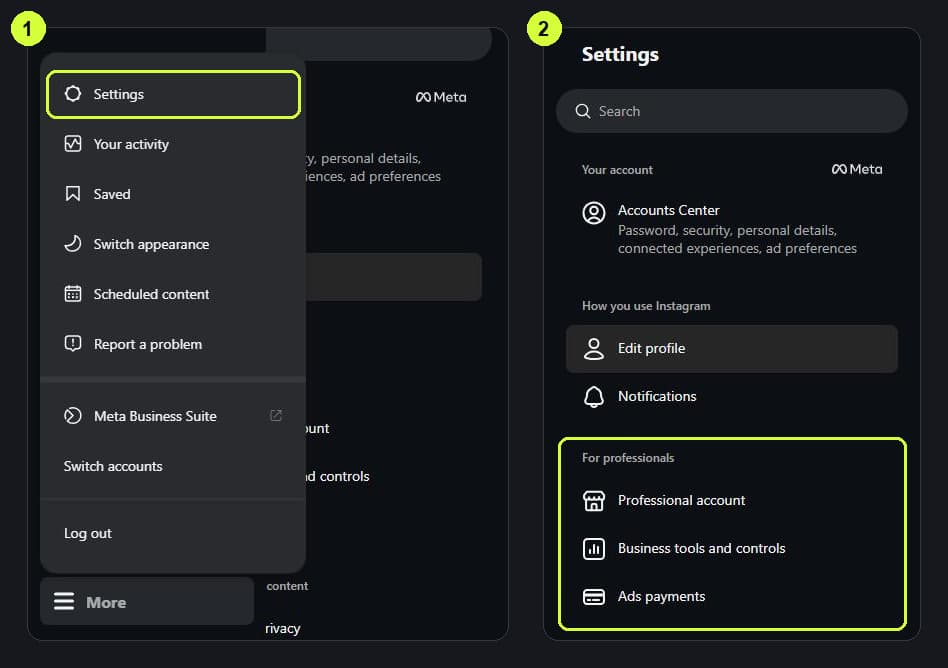
- On a computer, go to instagram.com, click More (bottom left), then Settings.
- Look at the For professionals section. If it lists Professional account, you are already set — go straight to Connect Instagram.
- On a personal account, that section has Account type and tools, which is where the switch is. Follow one of the two ways below.
In the Instagram app, your own profile shows Professional dashboard when the account is professional.
Switch in the Instagram app
- Go to your profile and tap ☰ (More) in the top right to open Settings and activity.
- Tap Account type and tools, then Switch to professional account.
- Follow Instagram's screens: choose Creator or Business, pick a category that describes you, and add contact details if it asks — HyperDM doesn't use them.
Switch on a computer (instagram.com)
- Click More (bottom left), then Settings — step 1 in the picture above.
- Under For professionals, click Account type and tools.
- Click Switch to professional account.
- Choose Creator or Business, click Next, and pick your category.
- Add contact details if it asks, and click Save.
If you don't see Switch to professional account on the computer, do it in the app instead — the connect works the same either way.
What changes when you switch
- Your posts, followers and messages stay as they are.
- A Business account can't be private, so if yours is private, switching to Business makes it public.
- You can switch back to a personal account later in Account type and tools. HyperDM works only with a professional account, so switching back stops it.
Then connect it
Go back to HyperDM and click Continue with Instagram on the setup page, or Connect Instagram in Settings → Channels. Instagram asks you to log in in the browser you're using, even if the app on your phone is logged in. The full walkthrough is Connect Instagram.
Common problems
It still says the connection was cancelled after I switched. Check that you logged in to the account you switched. Instagram connects the account you're logged in to on instagram.com in that browser, which may not be the one on your phone. Then click Continue with Instagram again.
I came back from Instagram with no result at all. That is a different cause — see Troubleshooting.
More in Getting started
- Getting startedFrom sign-up to your first sent link, one screen at a time: write the reply, connect Instagram, choose a post, turn it on and test it — or set up the AI.Read
- Connect InstagramConnect your Instagram professional account to HyperDM from the setup page or from Settings, then check that the Instagram card says Connected.Read
- Core conceptsThe vocabulary HyperDM runs on: conversations, the 24-hour window, consent, grounded answers, the compliance gate and which trigger wins.Read
Try HyperDM for free
50 free conversations a month, no card. Connect Instagram and follow the guide you just read.