How to see how your team replies
Read your team's first reply times, completions and assignments by teammate, open the conversations behind any number, and export the same report.
Analytics → Team shows the work your team does in the Inbox: how quickly a teammate replies after a customer writes, how many conversations each person completed, what was assigned to whom, and what's open right now. Every number can be opened into the conversations behind it, and the whole report exports as a CSV with the same filters.
It counts from the team inbox's history — see Work the Inbox as a team — so it needs the team inbox on in your workspace, and it fills in as your team assigns, replies to and completes conversations.
Where it's on: every workspace has a Team tab on Analytics, after Activity. The report itself is part of full analytics, on Growth and up.
Who sees what: owners and admins see the whole team. Everyone else sees their own work — their replies, completions and assignments — and the queues they can see in the Inbox. See Roles and permissions.
Step 1: open the Team report
- Open Analytics.
- Click Team, the last tab after Activity.
- Click the date-range button beside the title and pick Last 7 days, Last 14 days, Last 30 days or Last 90 days. The range stays when you switch views.
Step 2: choose the team, teammate, channel and time zone
- Under the tabs, pick a Team (one of your groups), a Teammate, a Channel and a Time zone. Teammate is there for owners and admins; everyone else always sees their own.
- Click Apply. Reset goes back to everyone.
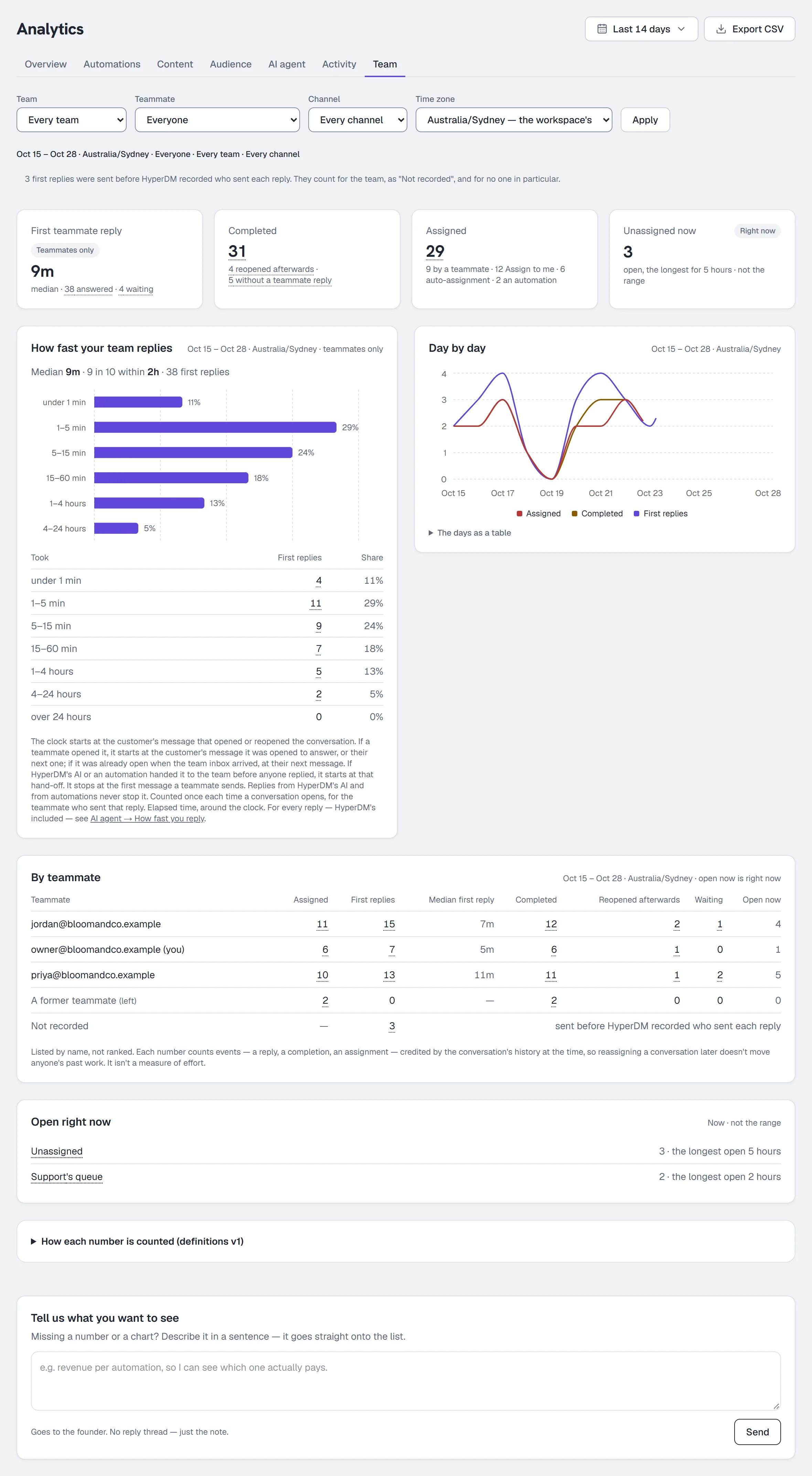
The line under the filters says exactly what you're looking at — for example "Sep 9 – Sep 15 · Australia/Sydney · Everyone · Every team · Every channel". A day is a calendar day in the time zone you chose, so the chart, the tables and the CSV always agree.
Step 3: read the numbers
- First teammate reply — the median time from a customer's message to the first reply a teammate sent, with how many were answered and how many are still waiting. It's labelled Teammates only: replies from HyperDM's AI and from automations never count. For every reply, AI included, use AI agent → How fast you reply.
- Completed — each time a conversation was marked Completed, with how many were reopened afterwards and how many were completed without a teammate reply.
- Assigned — each time a conversation was given to a teammate: by someone, with Assign to me, by auto-assignment or by an automation.
- Unassigned now — conversations nobody owns right now, and how long the longest-open one has been open. It's now, not the range.
Below the tiles: How fast your team replies (the times, bucketed), Day by day, By teammate and Open right now, with links to those queues in the Inbox.
Waiting means a customer is waiting on your team: their message started the clock in the range you picked, and nobody on the team has answered it. A conversation HyperDM's AI or an automation answered isn't waiting — HyperDM has it — until it's handed to your team.
Step 4: open the conversations behind a number
- Click any underlined number — a tile, a bucket, a day in The days as a table, or a cell in By teammate.
- A dialog lists what it counted, newest first (for Waiting, the longest wait first): when, who, the channel, what happened, and a link to the conversation. Click Show more for the next 50.
- Click Close or press Esc.
The list and the number always match, even if you open the list later: it counts as of the moment the page loaded. A conversation you can no longer see — your workspace shows agents and clients only their own, and it moved to someone else — is listed without its name, a link or what happened to it later, so your own numbers still add up. Nothing a customer wrote is shown here.
Step 5: export the same report
Click Export CSV in the header. The file is the report on screen, as of the moment the page loaded: the same range, time zone, team, teammate and channel, the definitions in words, the totals, the days, the teammates, the times and the list behind every total — up to 5,000 of each kind, and the file says when there were more. Its name carries the day and the time zone. Conversations are named by a short reference, not by the customer, and nothing anyone wrote is in it.
How each number is counted
Open How each number is counted at the bottom of the report for the full rules. In short:
- The clock starts at the customer's message that opened or reopened the conversation. If a teammate opened it themselves, it starts at the customer's message they opened it to answer, or at their next one. If it was already open when the team inbox arrived, it starts at the customer's next message. If HyperDM's AI or an automation was answering and handed it to your team before anyone replied, it starts at that hand-off instead. It stops at the first message a teammate sends.
- Elapsed time, around the clock. HyperDM has no business hours, so a message at night that's answered in the morning counts every hour it waited.
- Credited by history. A reply counts for whoever sent it, a completion for whoever completed it, an assignment for whoever received it. Reassigning a conversation later doesn't move anyone's past work, and a teammate who has left keeps theirs.
- A reopen doesn't undo a completion. It's counted as "reopened afterwards" against the completion, and a new first-reply clock starts.
- A reply typed in the Instagram app counts too, from 16 September 2026. It appears in the conversation a few minutes after it's sent and stops the clock like any other reply — but for the team, as Not recorded, because Instagram doesn't tell us who typed it. A photo sent from the Instagram app still doesn't count. Numbers for a range that crosses 16 September show a step up in replies and a step down in waiting: nothing was recalculated, more of what happened is simply visible.
The teammate table is listed by name, not ranked: a count is events, not effort.
Common problems
| What you see | What it means |
|---|---|
| "First teammate replies, completions and assignments by teammate are part of full analytics, on Growth and up — the plan where teammates start." | Your plan is below Growth. |
| "Team analytics is part of full analytics, on Growth and up." (after clicking a number, or on Export CSV) | Your plan is below Growth — for example, it changed while the report was open. |
| "The team inbox isn't on in this workspace yet" | Team analytics counts the team inbox's conversations. Once the team inbox is on, the report fills in from then. |
| "The team inbox's history starts …" | Days before the team inbox arrived have nothing to count — nothing earlier is reconstructed. |
| First replies listed as Not recorded | They were sent before HyperDM recorded who sent each reply. They count for the team, and for no one in particular. |
| A conversation you answered shows as waiting | Give it a few minutes: a reply typed in the Instagram app takes a little while to appear. If it was a photo with no words, it won't count — send a reply with words, from either place. |
| A reply you sent from the Instagram app says Not recorded | That's expected. Instagram doesn't tell us who typed it, so it counts for the team rather than for you. Reply from the Inbox to have it counted as yours. |
| "You can see your own work here." | A link asked for someone else's numbers; only owners and admins see the whole team. |
| "That's a lot of exports in a few minutes" | Exports are limited to a dozen every ten minutes per person. Wait a little and export again. |
Everything else on the page is in Analytics.
More in Inbox & contacts
- Import contactsBring contacts in from a CSV: match the columns, check a dry run that lists every problem, import, then download the rows that didn't make it.Read
- Bulk actions on contactsSelect rows or everyone matching a filter, pick an action under More actions, confirm the count, then watch it run and read the outcome.Read
- Work the Inbox as a teamShare the Inbox with a team: assign conversations to people or groups, complete and reopen them, write internal notes, label them and save views.Read
Try HyperDM for free
50 free conversations a month, no card. Connect Instagram and follow the guide you just read.