How to link one person's channels
When the same person messages you on two channels, link their records so they're one person: tags and fields shared, permission kept per channel.
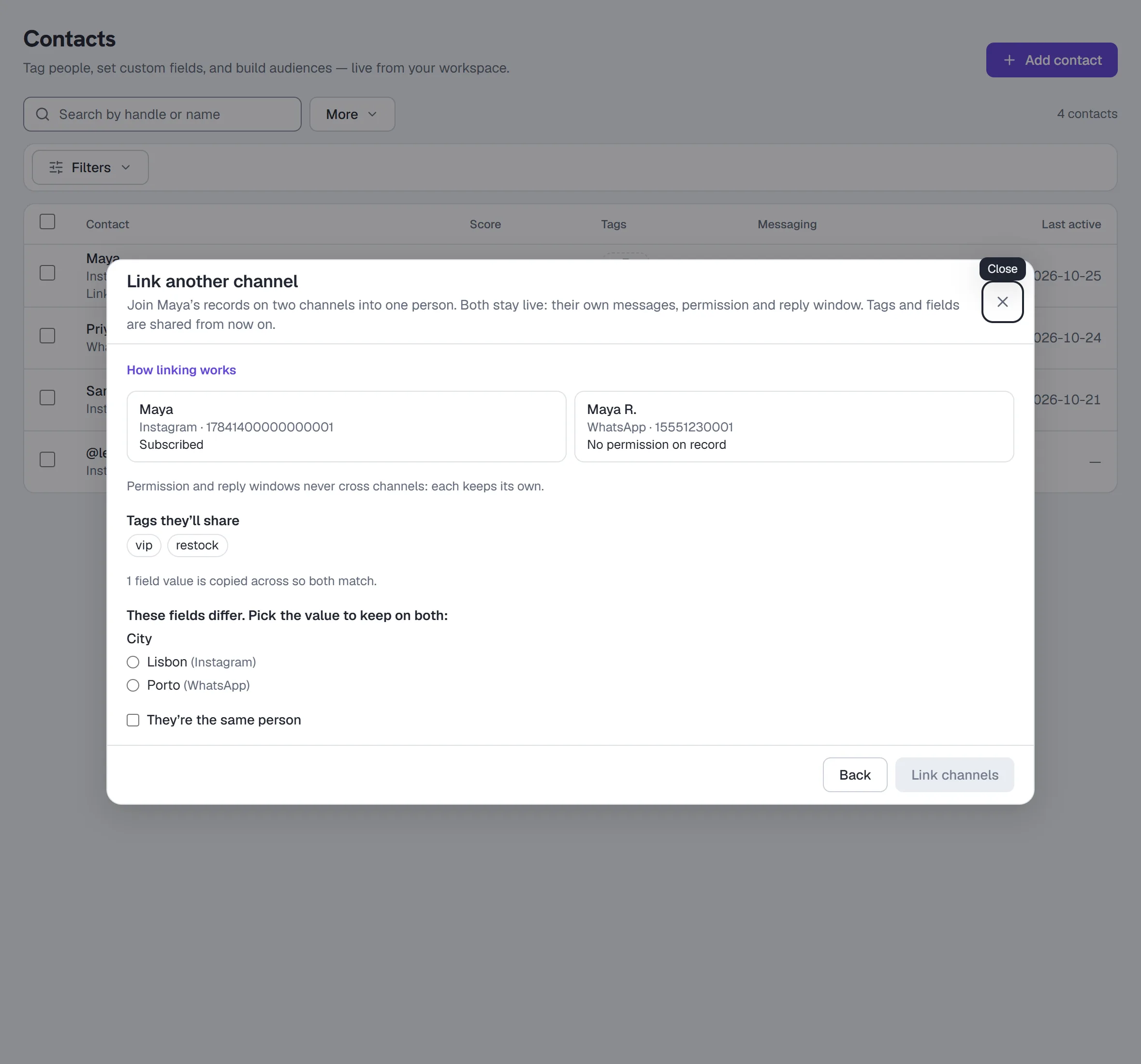
When the same person talks to you on Instagram and on WhatsApp (or Messenger…), you have two contacts — one per channel. Link another channel… makes them one person. Both records stay exactly as they are: each keeps its own messages, permission and reply window. From then on they share tags and custom fields, and a broadcast reaches the person once.
Where it's turned on for your workspace, owners and admins see Link another channel… at the bottom of a contact's drawer, beside Merge with another contact….
Link or merge?
- Link two records on different channels that belong to one person — Maya on Instagram and Maya on WhatsApp. Nothing is retired; you can still reply to her on both.
- Merge two records on the same channel that are duplicates — a contact you typed in by hand and the one Instagram created. One record is retired into the other. Linking refuses two records on one channel and says so: "Use Merge for duplicates on one channel."
Link two records
- On Contacts, open one of the person's records.
- Click Link another channel… at the bottom of the drawer.
- Search by name, @username or ID. Only contacts on a different channel in this workspace are shown. Pick the one that is the same person and click Review.
- Check what linking will do:
- both records, each with its own permission — permission and reply windows never cross channels;
- the tags they'll share;
- any field that differs: pick the value to keep on both. A value only one of them has is copied to the other;
- any sequence both are in: one membership continues, the other stops and doesn't restart.
- Tick They're the same person and click Link channels.
If something changed on either record while you were reviewing, nothing is linked and the dialog shows the new review — check it and link again.
What's shared, and what isn't
- Shared: tags and custom fields. Add a tag, set a field or bump a lead score on either record — by hand, from an automation, a rule, an import or a bulk action — and the other has it too, at once.
- Not shared: permission. An opt-in on Instagram never lets you message them on WhatsApp, and a STOP on WhatsApp opts them out of WhatsApp only. Each channel's reply window is its own too.
- One message per person: a broadcast — a message or Send an automation — reaches the person once, on the record best placed to receive it: the broadcast's channel, then an open reply window, then permission, then the most recent conversation. The review says "N people (M contacts)" when it counted a person's channels as one.
- One membership per person: a person isn't subscribed to the same sequence twice, from any of their channels.
See and unlink a person
The drawer shows Same person on other channels: each linked channel with its own permission and reply window, when they were linked or unlinked, and the latest messages across all of them. In the Contacts list, a linked contact says Linked · also on WhatsApp under its name — each channel is still its own row.
Unlink next to a channel separates it again. Each record keeps the tags and fields it has at that moment; they just stop being shared from then on.
Possibly the same person appears in the drawer when a phone number or email address this contact gave you is exactly another contact's number or address. It never links anyone — Review link… opens the same dialog, and you decide.
Export and delete cover the whole person
Exporting a linked contact's data includes every linked channel. Deleting one — from the drawer, from a bulk delete, or when a person asks Meta to delete their data — deletes the whole person: every linked channel goes with it.
If linking is switched off
Turning linking off hides Link and Unlink and stops counting a person once in broadcasts. It doesn't unlink anyone: people you linked stay one person, and their tags and fields keep being shared.
More in Inbox & contacts
- Import contactsBring contacts in from a CSV: match the columns, check a dry run that lists every problem, import, then download the rows that didn't make it.Read
- Bulk actions on contactsSelect rows or everyone matching a filter, pick an action under More actions, confirm the count, then watch it run and read the outcome.Read
- Work the Inbox as a teamShare the Inbox with a team: assign conversations to people or groups, complete and reopen them, write internal notes, label them and save views.Read
Try HyperDM for free
50 free conversations a month, no card. Connect Instagram and follow the guide you just read.