How to export your contacts
Download your contacts as a CSV with their tags, fields and permission, or as a file for a Facebook or Instagram custom audience.
Download the contacts you're looking at as a spreadsheet, with their tags, fields and permission on each channel — or as Meta's customer file, ready to upload as a Facebook or Instagram custom audience.
Where it's turned on for your workspace, owners and admins see Export… in the Contacts toolbar, and two more entries under the bulk bar's More actions…: Facebook custom audience and Instagram custom audience.
Export a spreadsheet (CSV)
- On Contacts, tick the rows you want — or tick none, and the export covers every contact matching your current filter (everyone, with no filter). Search, lead score and the email filter only narrow the page: with one of them on and nothing ticked, the export covers exactly the contacts you can see (up to 5,000).
- Click Export…. The dialog says which contacts it covers.
- Click Create the link. The dialog says how many rows the file holds.
- Click Download the file. It downloads; if the link can't be used any more (expired, or you're in another workspace), a new tab says why.
The file has one row per contact: id, name, channel, handle or number, how they were added, whether the platform verified them, when they were added and last wrote, their permission on each messaging channel, whether their automations are paused, their tags, and one column for each of your fields. It never holds a message, and an Instagram or Facebook id shows only its last four characters, as in the list.
Export a custom audience for Meta ads
- Tick the rows you want, or tick every visible row and choose Select all N contacts matching this filter.
- Open More actions… and pick Facebook custom audience or Instagram custom audience.
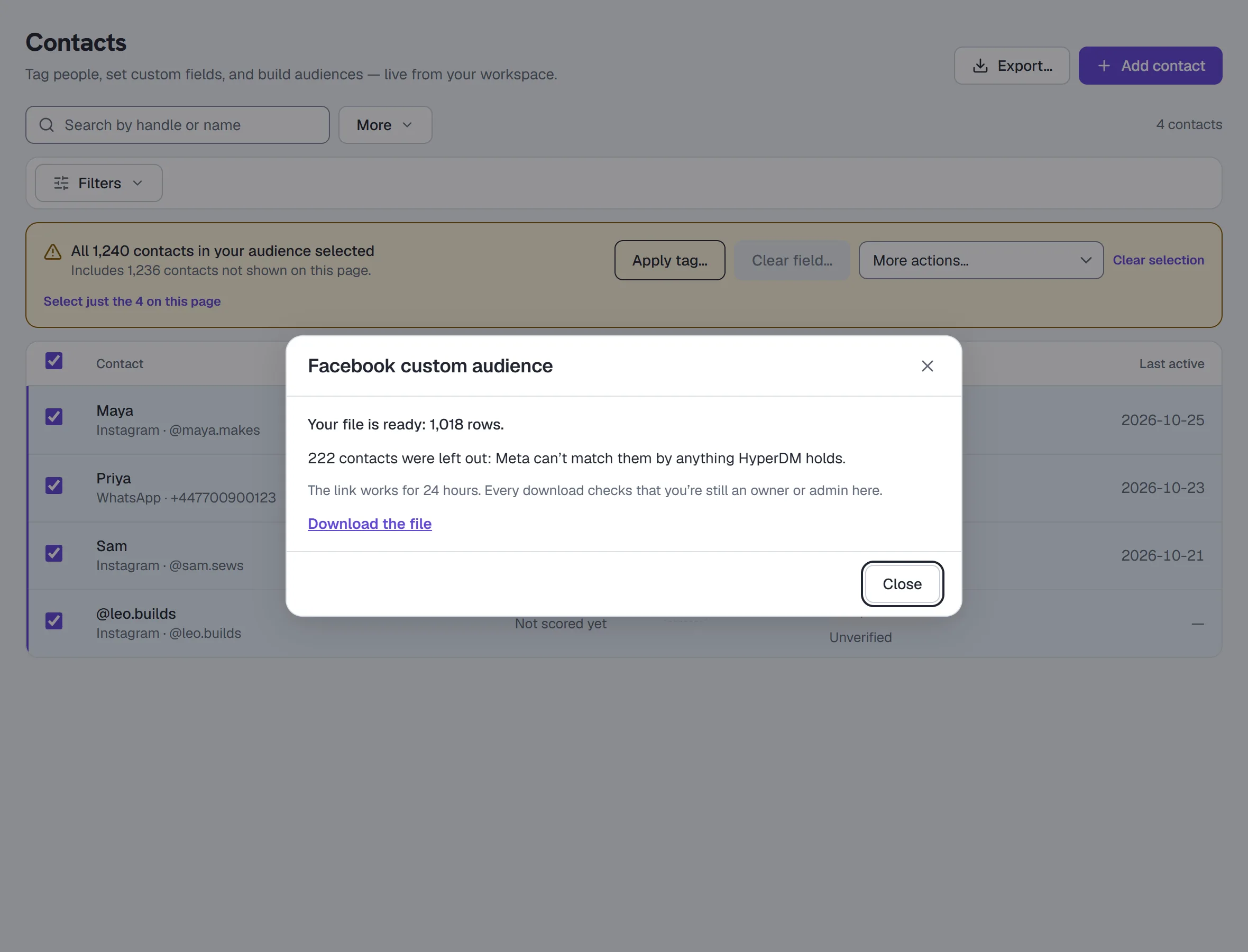
- Click Create the link. The dialog says how many contacts are in the file and how many were left out.
- Click Download the file, then upload it in Meta Ads Manager, under Audiences, as a customer list.
Meta matches people by what you give it, so a contact goes in only with something Meta accepts: an email address linked to them, a WhatsApp or SMS number, or — on the Facebook file — a Messenger contact. Meta doesn't accept Instagram IDs, so an Instagram contact goes in only with a linked email — or, where you've linked them to their WhatsApp or SMS record as one person, with that number, but only if they're subscribed on WhatsApp or SMS itself. Everyone else is left out and counted.
People who said no are never put in an ads audience. Anyone who opted out on their channel or on the file's (Instagram for the Instagram file, Facebook or Messenger for the Facebook file), or whose email address is unsubscribed, bounced, marked as spam or otherwise suppressed, is left out of a custom-audience file — the dialog says how many. The spreadsheet export still lists everyone, with their permission on each channel.
Good to know
- The link works for 24 hours, for owners and admins of this workspace. Every download checks that you're still one, in this workspace — switch to it first if you have several.
- The file is made when you open the link, from what HyperDM holds then, and HyperDM keeps no copy. Someone you've deleted since is not in it.
- Up to 50,000 contacts per file, and up to 5 exports per workspace per hour. A bigger filter is refused with no file — narrow it and export in parts.
- Merged records aren't in the file: a merged contact is one row, under the contact it was merged into.
- If a download is cut short, nothing is saved half-way: create the link again. If nobody the export covered is still in your contacts (or nobody can go in an audience file), the link makes no file and says so.
- Exports are on every plan. Each completed download is a line in the Activity log, with the count and never anyone's name.
More in Inbox & contacts
- Import contactsBring contacts in from a CSV: match the columns, check a dry run that lists every problem, import, then download the rows that didn't make it.Read
- Bulk actions on contactsSelect rows or everyone matching a filter, pick an action under More actions, confirm the count, then watch it run and read the outcome.Read
- Work the Inbox as a teamShare the Inbox with a team: assign conversations to people or groups, complete and reopen them, write internal notes, label them and save views.Read
Try HyperDM for free
50 free conversations a month, no card. Connect Instagram and follow the guide you just read.