How to read your error log
Find what failed, what each level means and what to do, retry a failed webhook or integration run, and read Instagram, Facebook and WhatsApp restrictions.
Settings → Logs lists what failed in your workspace: a message that didn't send, a flow step that stopped, a webhook delivery or integration run that failed, an API request that was refused, and a channel that disconnected. Each kind of failure appears once with a count, so a problem that repeats a hundred times is one line, not a hundred. It's for owners and admins, and it appears only where the error log is turned on for your workspace — it isn't on for every workspace yet.
The log records what failed and where. It never keeps a message's text, a customer's name or a password.
Find what failed
- Open Settings, then Logs. A red count on Logs in the menu (or a red dot on Settings while that section is closed, and on More on a phone) means new critical or error entries since you last looked.
- Read the counts under the filters — Critical, Error, Warning and Info — to see how much of each there is in the time range you're viewing.
- Narrow the list with Level, Source, Channel and Time range (Last 24 hours, Last 7 days or Last 30 days). Start with Level set to Critical: those are the ones that stop sending. Reset filters puts the list back.
- Select an entry's title to open it.
Opening the log with no filters clears the red count. A filtered view doesn't, because it might be hiding a newer critical entry — and neither does a time range that hides one (an entry older than Last 24 hours shows, say).
Get an email when something fails
- On Settings → Logs, click Email alerts at the top of the page. It opens Error log emails under Settings → Notifications.
- Leave Critical — sending or a connection stopped on to be emailed straight away when sending stops. A problem that already has its own alert, like a disconnected channel, isn't emailed twice.
- Turn on Errors and Warnings for one email an hour that lists what failed and how often, sent only when something new failed. Each switch saves as you flip it.
What each level means
- Critical — sending or a connection has stopped. Fix this first.
- Error — something didn't go through, and HyperDM won't try it again.
- Warning — something went wrong, but HyperDM is retrying or working around it.
- Info — something recovered, such as a restriction that was lifted. Nothing for you to do.
Open an entry and retry it
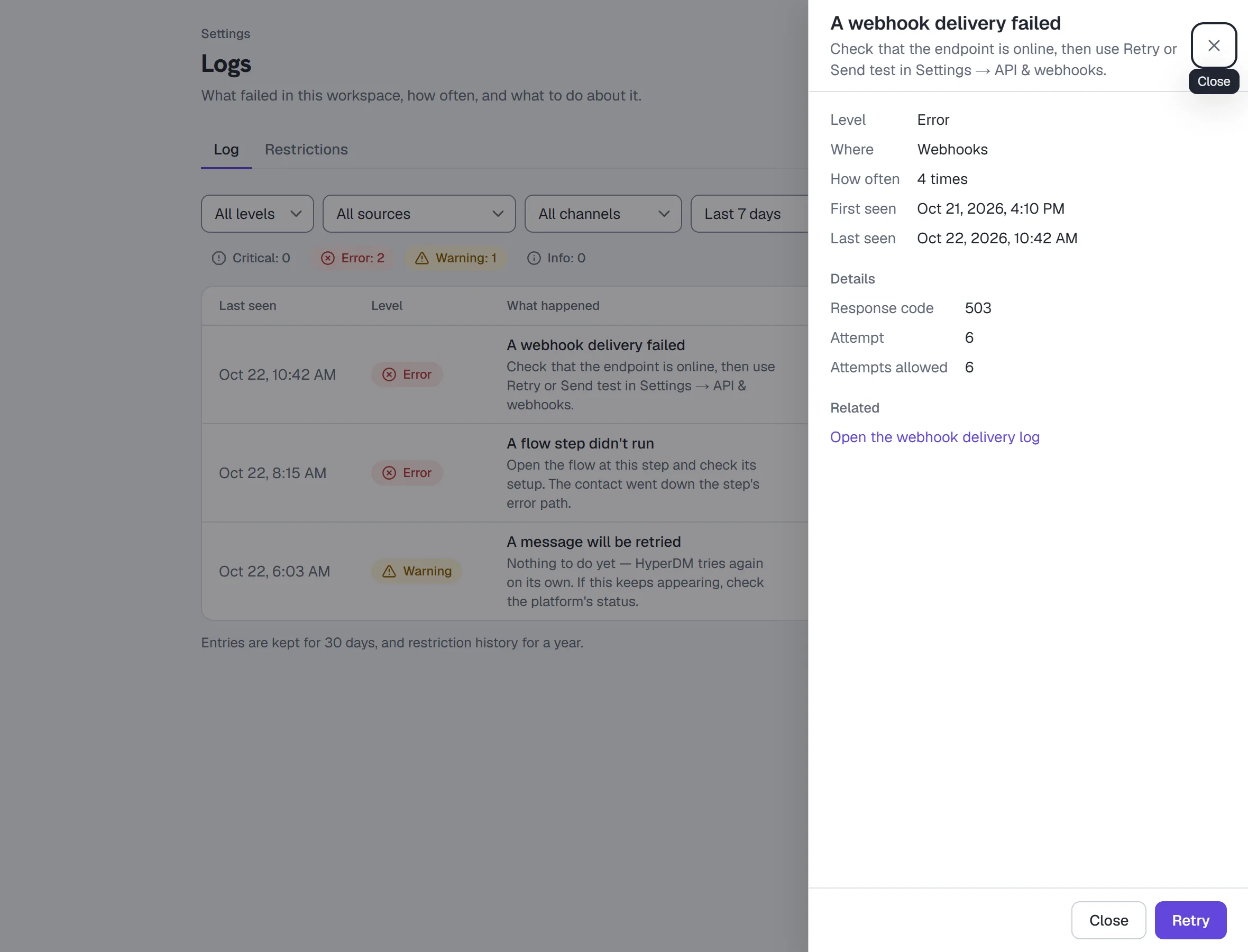
The panel that opens shows the same "what to do" line, how many times it happened, when it was first and last seen, and any numbers that help, such as the Response code or the Attempt.
- Follow its links to where it happened: Open the automation, Open the contact, or the delivery log or Integrations page the failure came from.
- For a failed webhook delivery or integration run, fix the cause first, then select Retry. The panel says whether the retry was accepted, or why it can't be yet (say, the integration needs reconnecting first); the result itself shows on the page the failure came from. Other entries have no Retry — fixing the cause is the retry.
- Select Close, or press Escape.
The panel's address opens the same entry, so you can send it to another owner or admin of the workspace. If the panel says Couldn't open the entry, the log didn't load just then: try again in a moment. Entry not found means the entry is no longer in the log.
What to do about the common entries
| Entry | What to do |
|---|---|
| A channel's connection was cut (critical) | Reconnect the channel in Settings → Channels. Nothing sends on it until you do. |
| A channel disconnected (critical) | Reconnect it in Settings → Channels. You were also emailed about this. |
| Meta blocked a message for policy | Check the Restrictions tab and Meta's notice. Pause the automation that sent it until you know why. |
| A message couldn't be sent | Open the conversation to see what was refused. If it keeps happening, reconnect the channel. |
| A flow step didn't run | Open the flow at this step and check its setup. The contact went down the step's error path. |
| A webhook delivery failed | Check that the endpoint is online, then use Retry here or Send test in Settings → API & webhooks. |
| A webhook endpoint was switched off | The endpoint answered that it no longer exists. Add a new one in Settings → API & webhooks if you still need it. |
| An integration didn't run | Open Settings → Integrations to see the run, then use Retry once the cause is fixed. |
| API requests were slowed down | The app calling HyperDM sent too many requests. Space them out. |
| More failures than this log keeps | Today's limit of new entries was reached; the rest are only counted. Fix the most frequent entry first. |
Read a restriction in the platform's own words
The Restrictions tab is the history of Instagram, Facebook and WhatsApp warning, limiting or blocking one of your accounts, and of those restrictions being lifted.
- Select the Restrictions tab.
- Read each row's Status — Warning, Limited, Blocked or Lifted — and when it happened.
- Where the platform gave a reason, it's under In the platform's own words, exactly as they wrote it. Appeal from the platform's own tools; HyperDM can't lift a restriction for you.
How long entries are kept
Entries are kept for 30 days, and restriction history for a year.
More in Account & billing
- SettingsThe settings tabs: channels, main menu, commerce, integrations, billing, referrals, team, workspace & links, notifications, security, API & webhooks, Profile.Read
- Plans and billingEvery plan and what it includes, each gate, overage protection, a monthly ceiling, AI credits, what stopped your replies, and how to upgrade, pause or cancel.Read
- Roles and permissionsThe six workspace roles, what each may do, what you see instead of a control you lack, inviting teammates, changing a role and how seats are counted.Read
Try HyperDM for free
50 free conversations a month, no card. Connect Instagram and follow the guide you just read.