How to give teammates the right role
Pick a role for each teammate, change a role in place, and see who can do what — including the Editor and Viewer roles.
Every teammate has one role in each workspace, and the role decides what they can change. Editor and Viewer are available where they're turned on for your workspace.
Pick a role
| If they… | Give them |
|---|---|
| Run the business with you, everything but billing | Admin |
| Write broadcasts, build automations and tune the AI, but shouldn't touch connections, billing or customer-data exports | Editor |
| Answer DMs and build automations | Agent |
| Are a client watching their own account, replying and pausing the AI | Client |
| Only need to look — an accountant, an investor, a new hire learning the ropes | Viewer |
The full table of who can do what is in Roles and permissions.
Invite someone with a role
- Open Settings → Team & roles.
- Under Invite a teammate, enter their Email.
- Choose a Role. Owners can pick any role but Owner; admins can pick Editor, Agent, Client or Viewer.
- Click Create invite, then Copy link on the pending invite and send it to them.
Choosing a role other than Agent is on Pro and up. Every role uses a seat.
Invite someone, or let them ask
An invite is for one person you name. A join link is for when you'd rather share one link — in a team chat, say — and approve whoever asks. It's available where join links are turned on for your workspace.
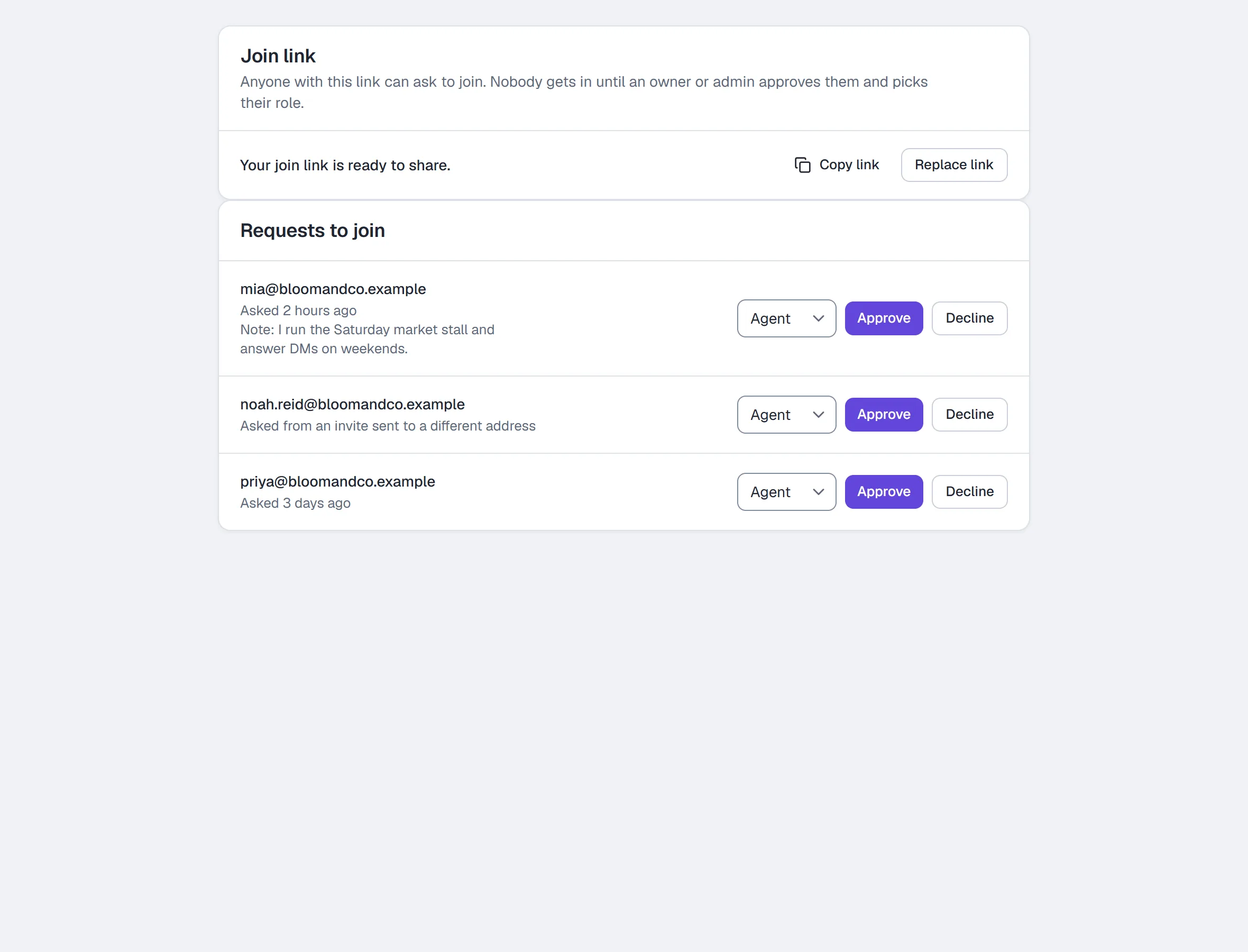
- Open Settings → Team & roles.
- Under Join link, click Create join link, then Copy link, and share it.
- When someone asks, their request appears under Requests to join with their email, when they asked and their note.
- Pick their role in the role box on the row, then click Approve. Or click Decline.
The person asking signs in, sees your workspace's name, and clicks Ask to join. Once approved they click Open workspace on the same link. If they opened an invite while signed in to a different account, they can click Ask for access with this account instead of switching accounts.
- Only owners and admins see the join link and the requests. Admins can approve someone only with a role below admin.
- Approving uses a seat. With every seat taken, Approve is greyed out until one is free.
- Replace link stops the old link at once — use it if the link reached the wrong people.
Change a teammate's role
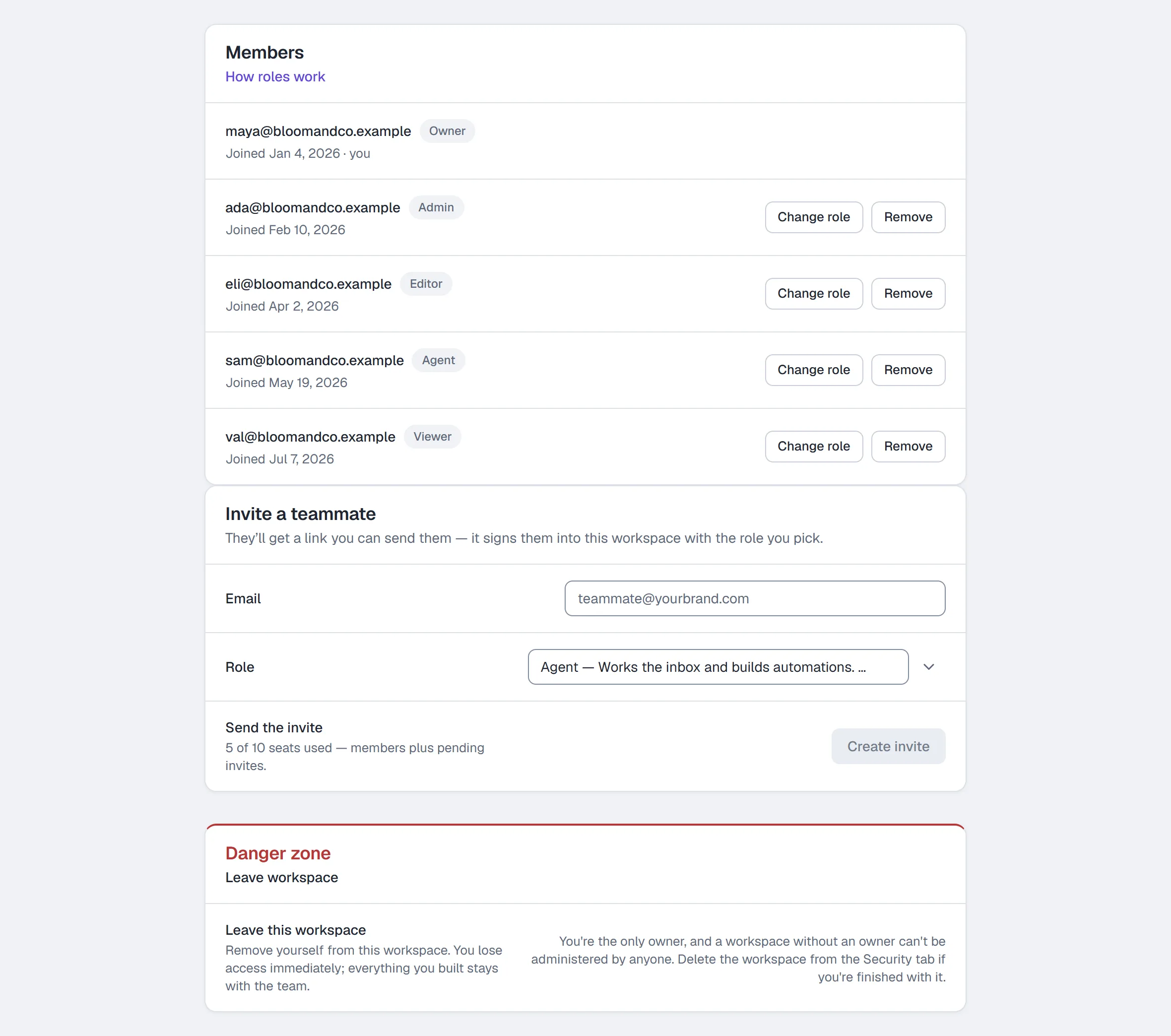
- Open Settings → Team & roles.
- On the teammate's row under Members, click Change role.
- Pick the new role. A role you can't give is greyed out, and hovering it says why.
- Click Change role in the confirmation.
They have the new role the next time they load a page. The change shows in the workspace's Activity.
- The owner can change anyone except the owner.
- An admin can change only the roles below admin (Editor, Agent, Client, Viewer), and only to those.
- Nobody can change their own role — ask another owner or admin.
- A teammate your organization placed in the workspace shows Change role greyed out: their role is managed in the organization.
- Below Pro, you can move someone only to Agent.
Hand the workspace over
Only the owner can hand a workspace over, and only to an admin. Where it's turned on:
- Open Settings → Team & roles and click Transfer ownership on the admin's row.
- Choose whether you Stay as an admin or Leave the workspace, type the workspace name, and click Send the offer.
- The admin accepts from the banner at the top of HyperDM within 72 hours.
The workspace always has exactly one owner: the swap happens in one step when they accept. Steps and what changes: Settings.
Common questions
Do editors and viewers cost a seat? Yes. Every role uses a seat — see the seat table in Roles and permissions.
Can a viewer unsubscribe a contact? Yes. Recording that someone asked to stop hearing from you is open to every role, so an opt-out never waits for a particular teammate. Everything else a viewer can only read.
I don't see Editor or Viewer, or the Change role button. They aren't turned on for your workspace yet.
More in Account & billing
- SettingsThe settings tabs: channels, main menu, commerce, integrations, billing, referrals, team, workspace & links, notifications, security, API & webhooks, Profile.Read
- Plans and billingEvery plan and what it includes, each gate, overage protection, a monthly ceiling, AI credits, what stopped your replies, and how to upgrade, pause or cancel.Read
- Roles and permissionsThe six workspace roles, what each may do, what you see instead of a control you lack, inviting teammates, changing a role and how seats are counted.Read
Try HyperDM for free
50 free conversations a month, no card. Connect Instagram and follow the guide you just read.