Section 4: Templates and use cases
Templates and starting points
You rarely start from a blank screen in HyperDM. There are three kinds of starting point: the starter cards on an empty Automations page, the Growth tools shortcuts, and the recipes behind Start from a template in the flow builder. The first two open the automation form with a trigger already picked. A recipe installs a whole flow that you then make your own.
Screenshots show the real HyperDM app with a demo workspace. Names and numbers are examples.
Starter cards on Automations
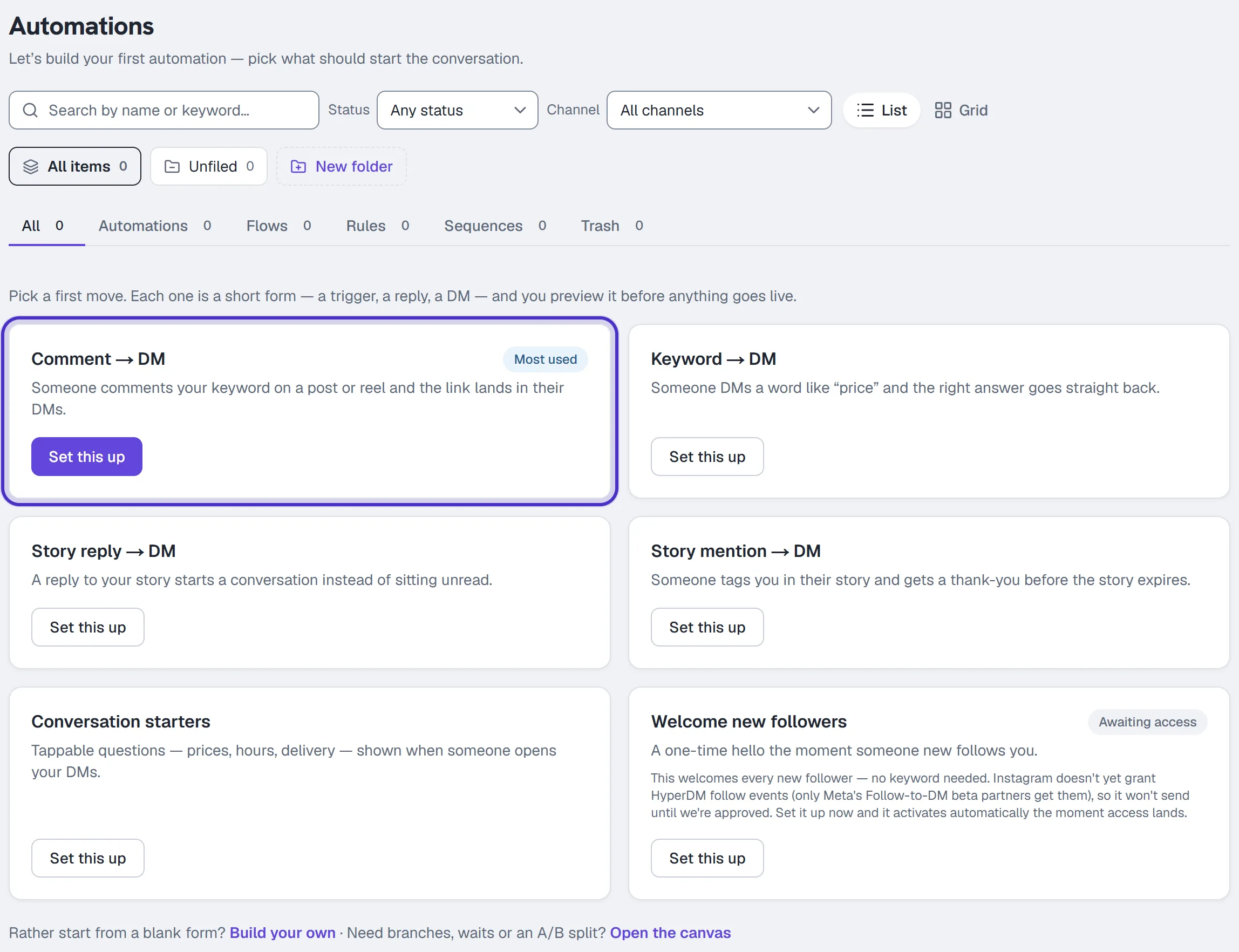
A workspace that hasn't built anything yet sees "Let's build your first automation" on Automate → Automations, with six cards, one per trigger. Click one and the builder opens set to that trigger.
| Card | Starts when |
|---|---|
| Comment → DM | Someone comments your keyword on a post or reel |
| Keyword → DM | Someone DMs your keyword |
| Story reply → DM | Someone replies to your story |
| Story mention → DM | Someone mentions you in their own story |
| Conversation starters | Someone opens your DMs and taps one of your welcome prompts |
| Welcome new followers | Someone follows you. It can't go live yet, because Instagram hasn't granted HyperDM follow events |
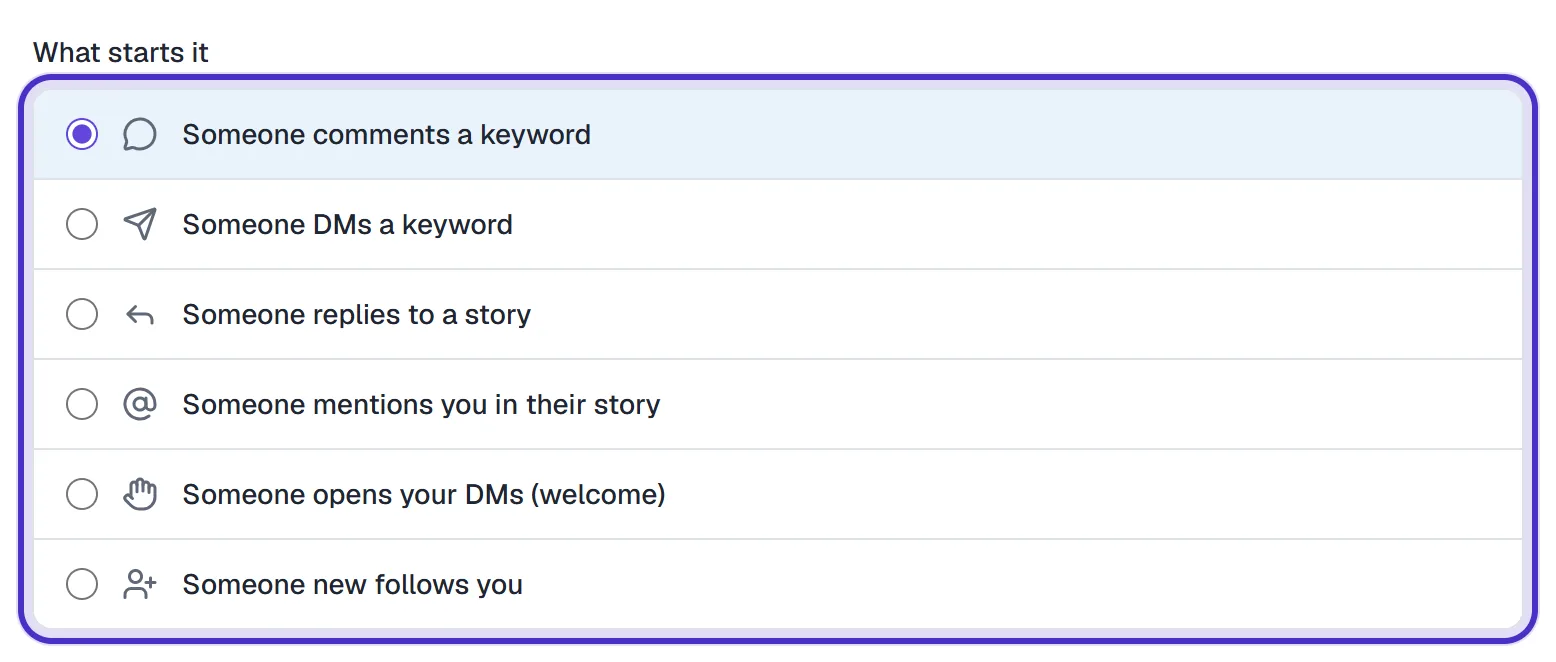
Once you've built anything, the cards make way for your list. From then on, New automation gives you the same choice of triggers under What starts it, and folders keep a long list tidy.
Growth tools
Automate → Growth tools holds two working shortcuts. Configure on Comment-to-DM or on Keyword triggers opens the same builder with that trigger selected, and whatever you build there shows up in Automations. The other two cards, Link in bio and QR code, say Not available yet because they aren't built.
Recipes in the flow builder
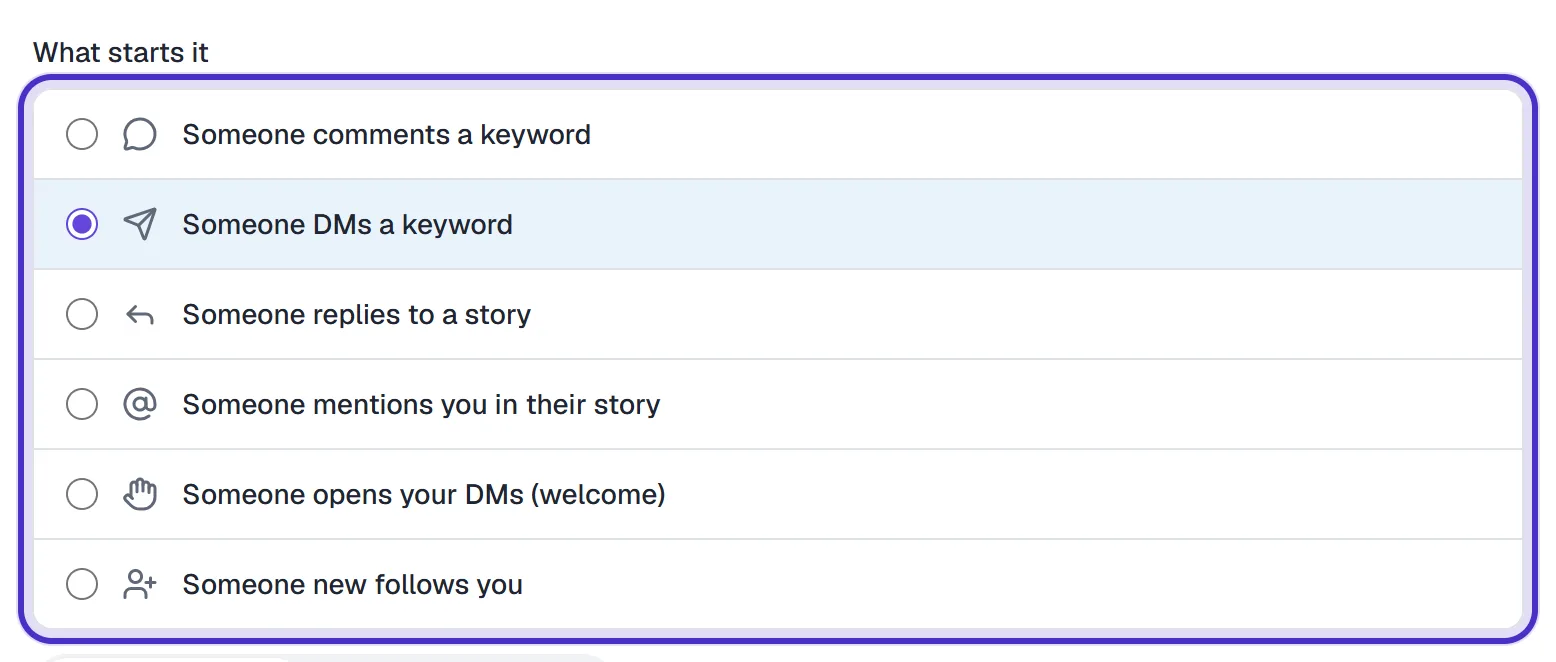
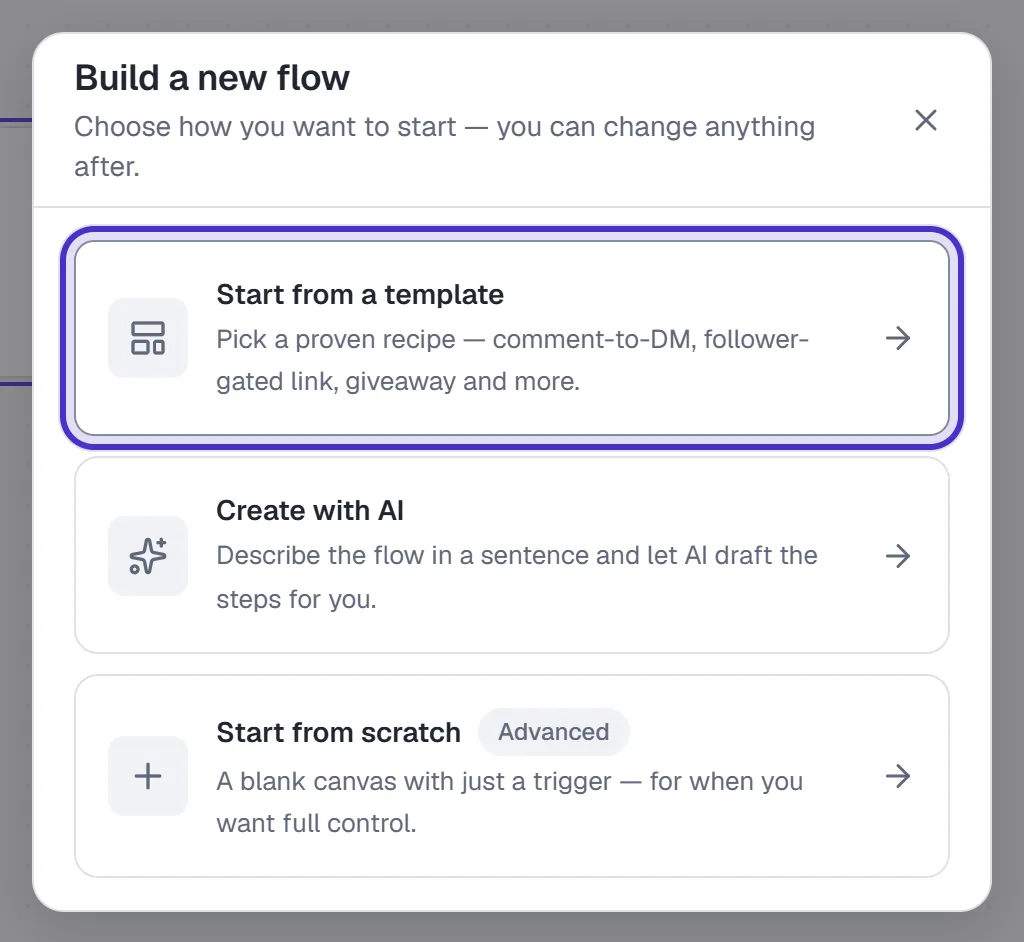
Open Automate → Flow builder and choose Start from a template. You can search the recipes, filter them by their trigger (such as DM keyword or Comment), or browse four categories: Grow & Capture, Sell & Convert, Engage & Delight and Run Your Backend. Home's Quickstarts tab shows eight of them too.
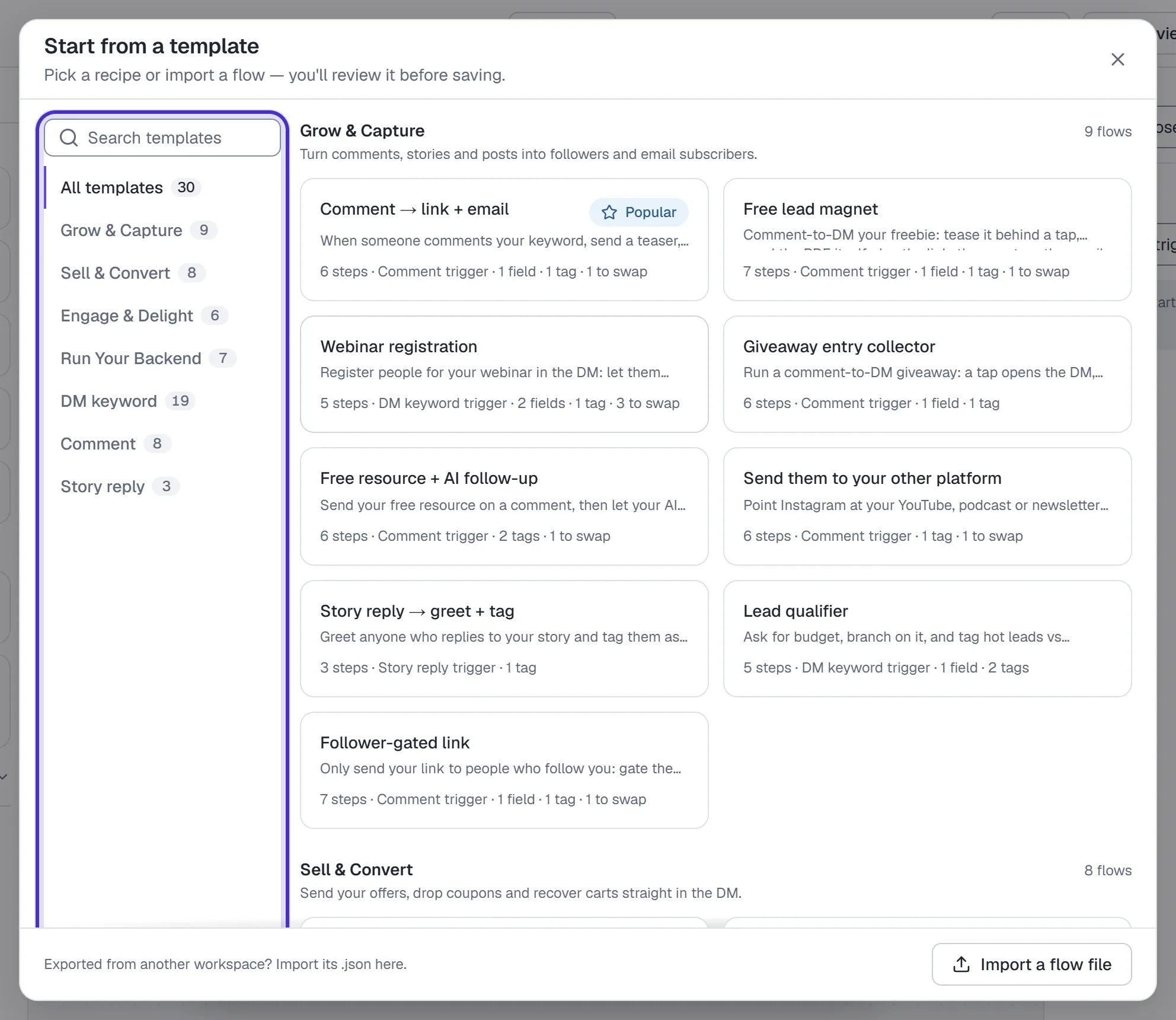
A few to know:
| Recipe | Starts on | What it does |
|---|---|---|
| Comment → link + email | A comment with LINK | Sends a teaser, then the link, then offers to email it |
| Free lead magnet | A comment with FREE or GUIDE | Teases your freebie behind a tap, sends it with the link, then asks for an email |
| Follower-gated link | A comment with LINK | Sends the link only to people who follow you, using a Follow gate step |
| Giveaway entry collector | A comment with WIN | Opens the DM on a tap, takes an email as the entry and tags every entrant |
| Coupon drop | A comment with CODE | Sends your discount code on a line of its own so it's easy to copy, then your shop link |
| Booking request → calendar | A DM with BOOK | Asks which day suits them, tags the request and sends your calendar link |
| Lead qualifier | A DM with QUOTE | Asks for a budget, then tags the person as a hot lead or one to nurture |
| Get me a human | A DM with HUMAN | Says a person will reply, tags them, and pauses your automations and the AI for that person for 3 hours |
Every plan can install recipes. On Free you can hold up to 5 flows. A recipe with an AI Step in it (such as Keyword FAQ → AI agent) needs Growth or higher to save, and a step that sends a file or a voice note needs Starter or higher. Recipes whose trigger isn't available to your workspace aren't listed.
Use a recipe
- Pick it. The canvas fills in step by step, then a review opens.
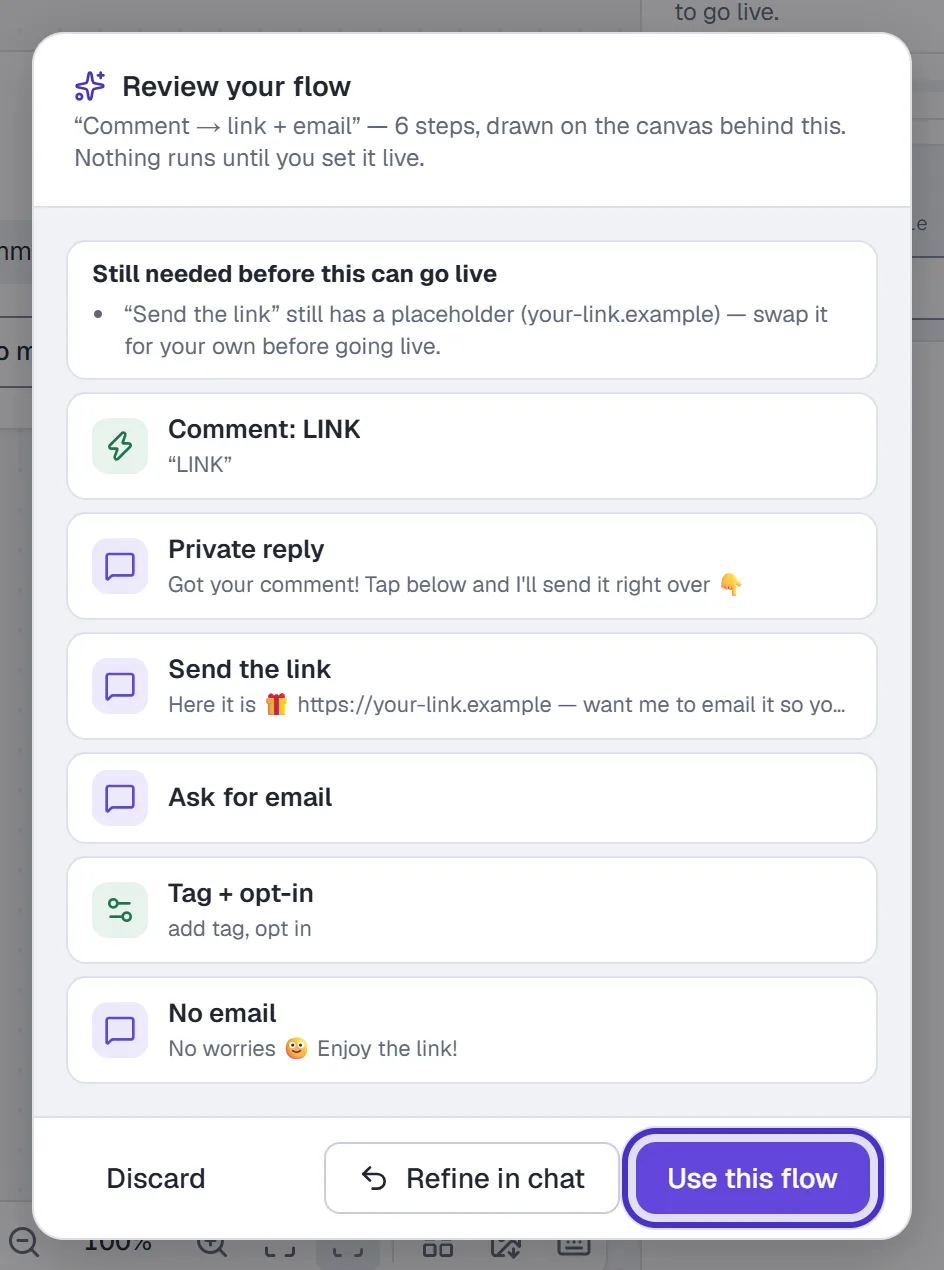
The review after picking Comment → link + email, with Discard and Use this flow - Click Use this flow to keep it, or Discard to get back exactly what you had.
- Open Finish setup. It lists every placeholder the recipe left for you, like your link or the product to send.
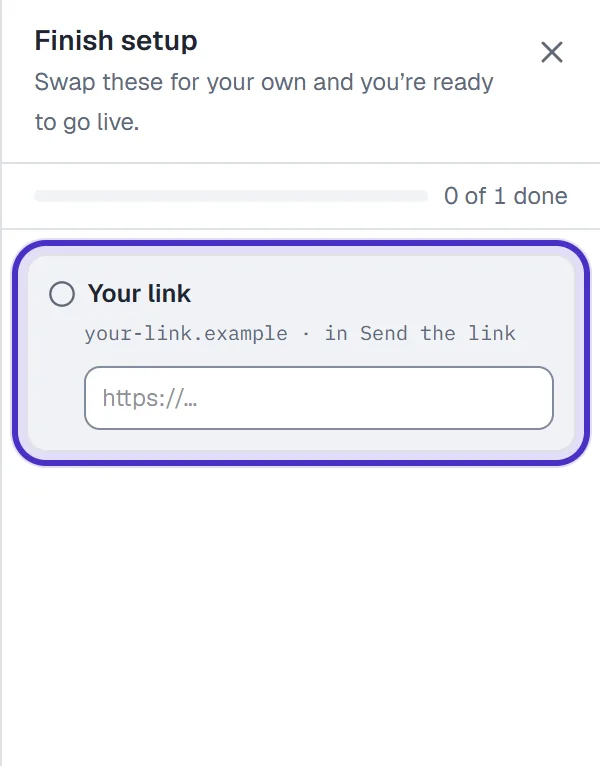
Finish setup, listing the recipe's placeholder link to swap for your own - Change the trigger keyword and rewrite the messages in your own words.
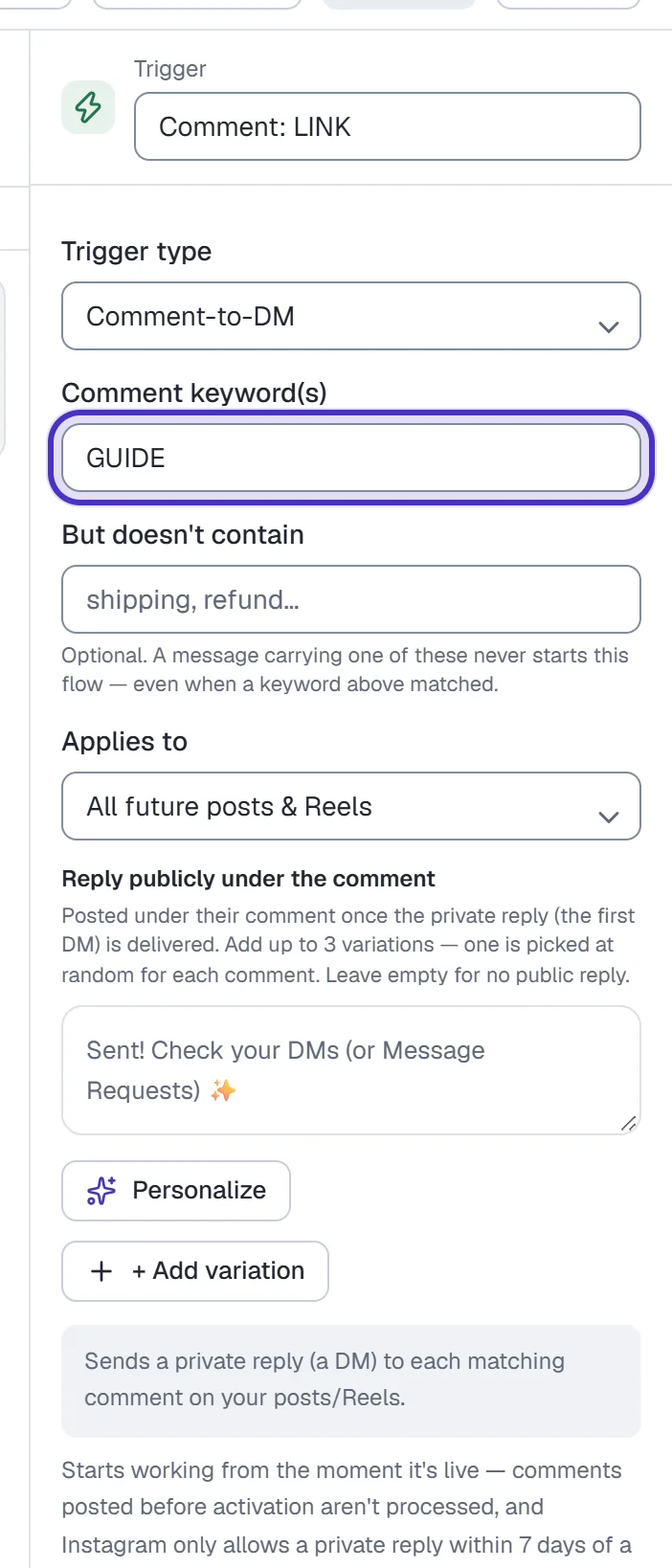
The recipe's trigger step with its keyword changed to GUIDE - Read Design checks, fix anything red, then click Set live.
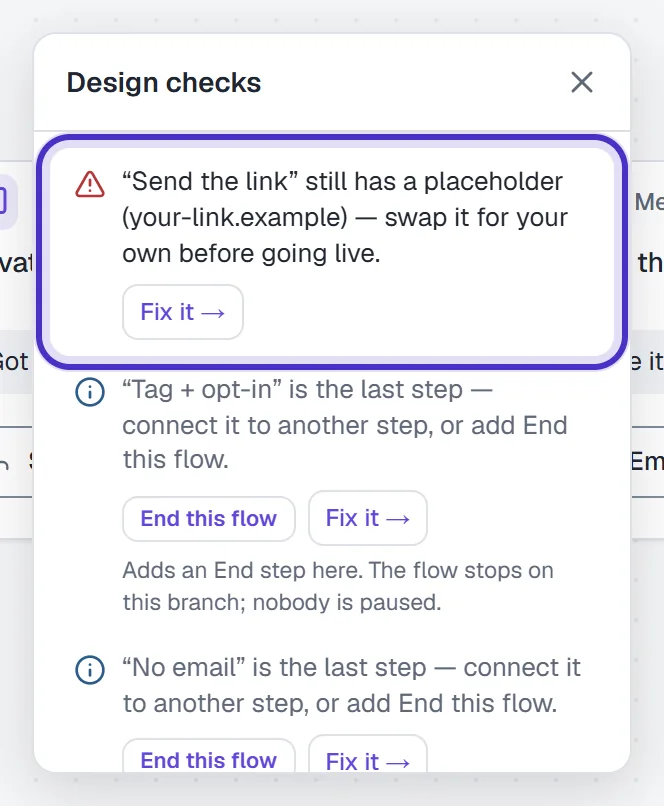
Design checks, with the placeholder link flagged red and Fix it
The first time you save a flow from a recipe, HyperDM creates any contact fields it needs. A recipe is an ordinary flow once installed, so you can change any step.
Heads up. A live automation on the same keyword wins the comment, and the flow never runs. If you rebuild an automation as a flow, pause the automation once the flow is live.
Which starting point to use
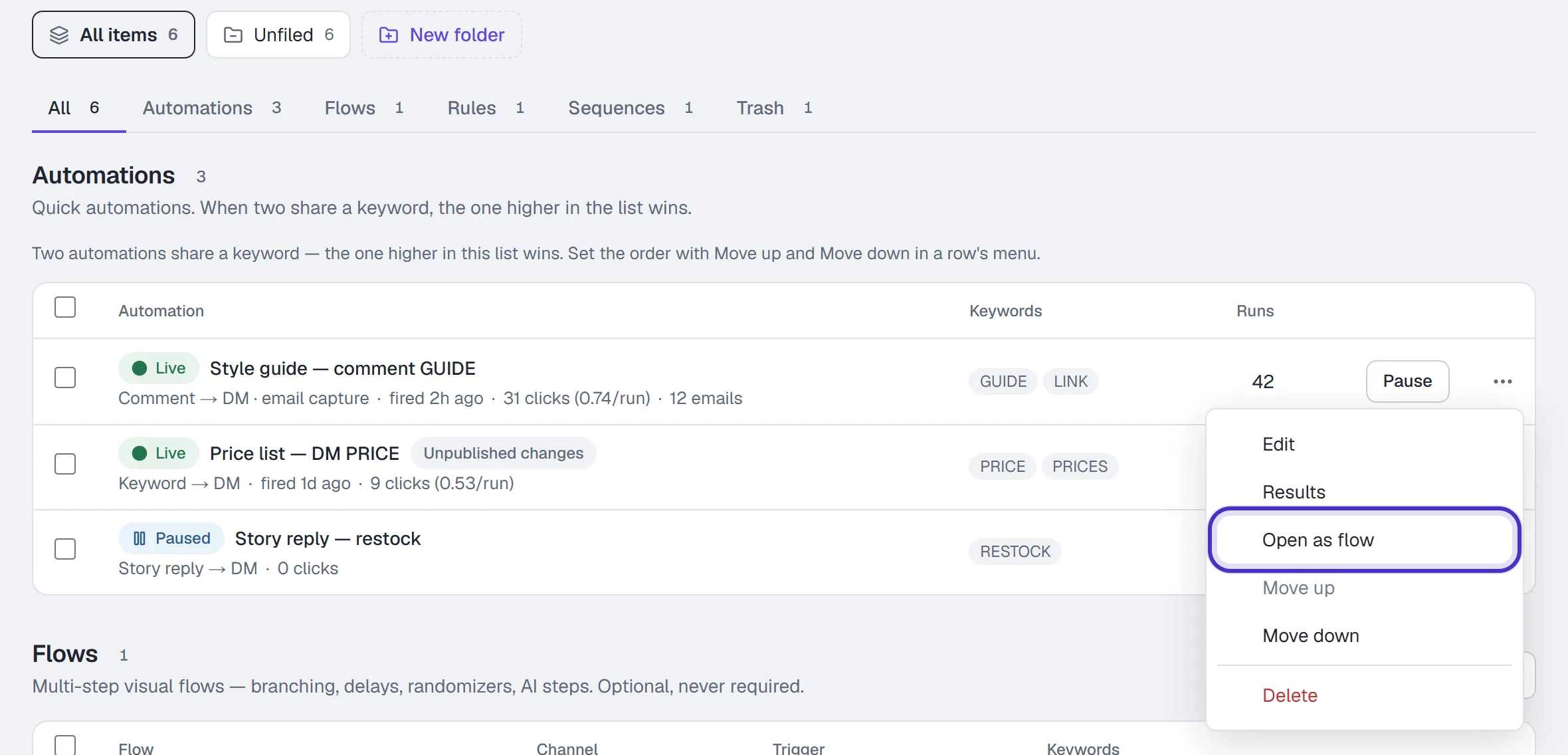
Use a starter card when you have one keyword and one link. It's a short form, and Publish puts it live. Reach for a recipe when the conversation needs more than one turn, like a question, a follow check, a wait or a branch. An automation you've already built can become a flow later with Open as flow in its row's ⋯ menu.
Next, see the starting points in use: affiliate links, lead generation and selling in DMs.
FAQ
Are templates free to use?
Yes, on every plan. Free holds up to 5 flows, a recipe with an AI Step needs Growth or higher to save, and sending a file or voice note needs Starter or higher.
Can I edit a template after installing it?
Yes. An installed recipe is an ordinary flow, so you can change the trigger keyword, the messages and any step before or after it goes live.
Can I reuse a flow I built myself?
Yes. A flow's row menu on Automations has Duplicate and Export JSON, and Start from a template can import a flow file.
Why can't Welcome new followers go live?
It waits on Instagram granting HyperDM follow events. The card and the form say so rather than letting you build something that would never run.