Selling in DMs comes down to three jobs: having your products where HyperDM can read them, sending the checkout link when someone asks, and answering the questions people have before they buy. HyperDM uses a different tool for each, and you can start with just the second.
Screenshots show the real HyperDM app with a demo workspace. Names and numbers are examples.
Put your products in the catalog
Content → Products is the catalog the AI agent quotes from and sells from.
- Click New product (on an empty catalog, Add your first product).
- Fill in Name, Price and Currency, and optionally a Description and an Image URL.
- Leave Active ticked. Only active products are quoted by the agent and offered in the Inbox picker.
- Click Add product.
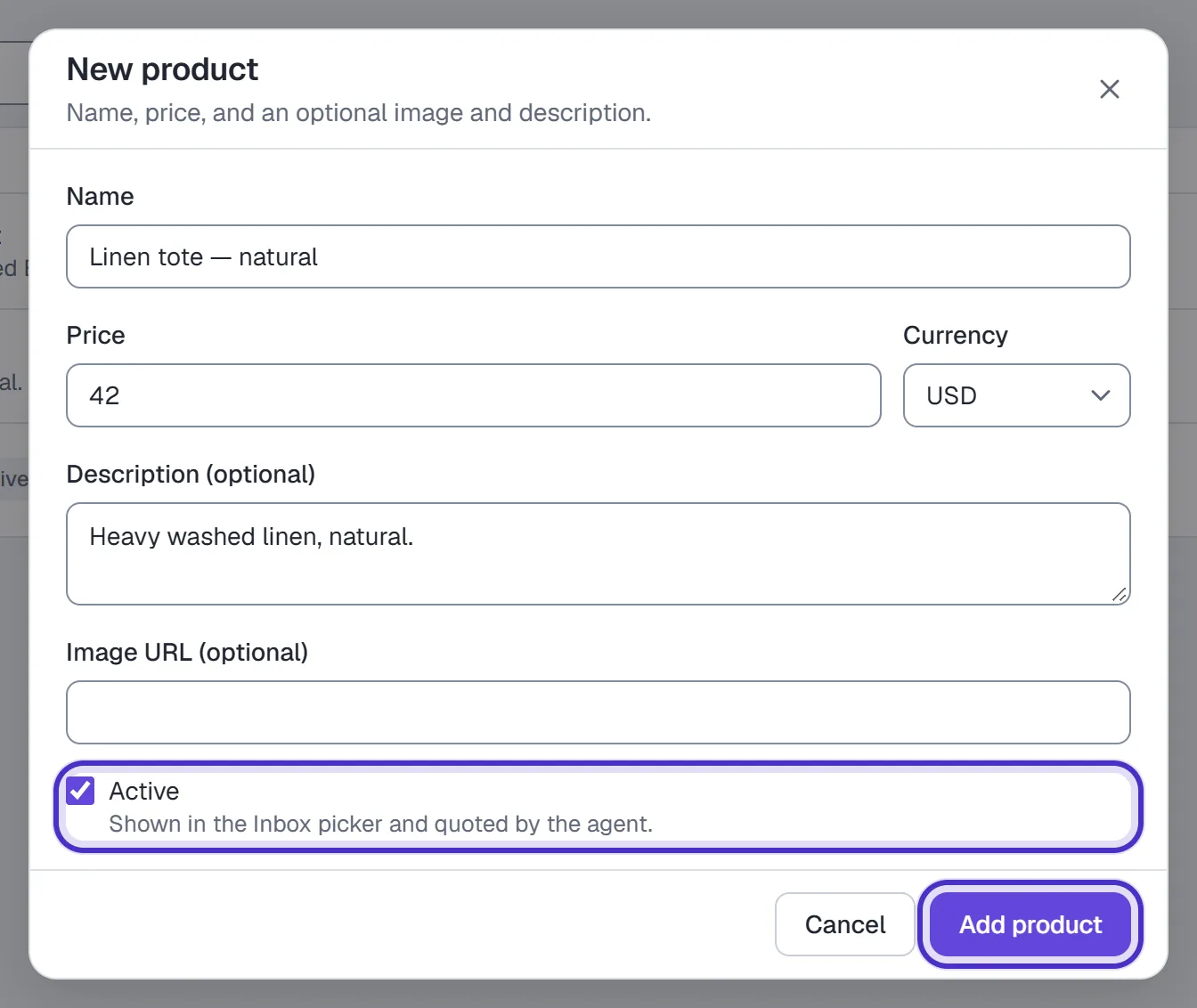
New product with a name, price, currency and description filled in, Active ticked, and Add product
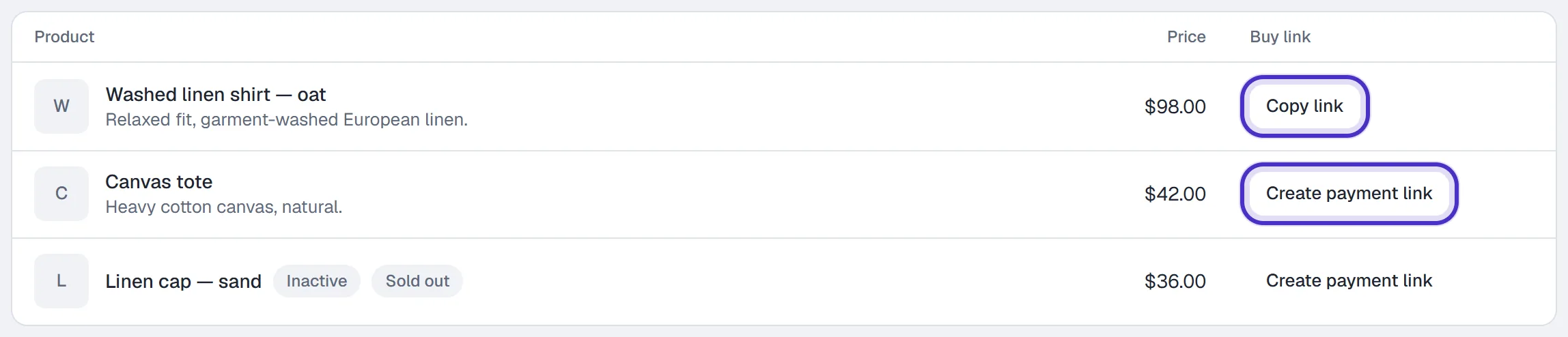
There's no free-text buy-link field. A product you type in gets its buy link from Stripe: the workspace owner connects Stripe in Settings → Commerce, then you click Create payment link in the product's Buy link column. Changing a product's price or currency clears that link, so create a new one at the new price.
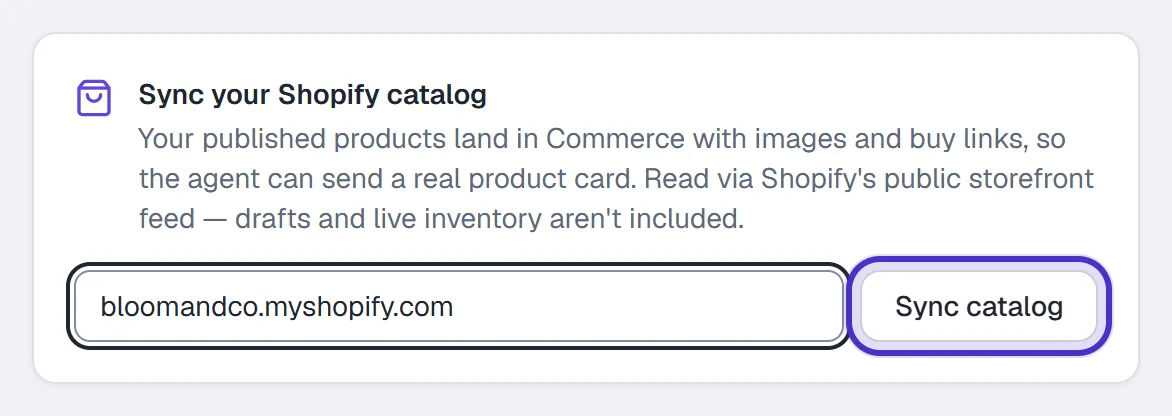
With a Shopify store you can skip the typing. In Agent → Knowledge, open Sync your Shopify catalog, enter store.myshopify.com and click Sync catalog. Your published products arrive in Products with images and buy links. This reads your store's public catalog, so drafts and live inventory aren't included, and synced products are edited in Shopify, not here. Under Connected sources you can sync by hand or set it to daily or weekly. The sync doesn't count toward Free's one knowledge source.
An owner or admin can connect the store itself instead, in Settings → Channels. It isn't a channel, so it doesn't use Free's one channel slot.
- On the Shopify row, type your permanent
your-store.myshopify.comaddress, not your custom domain, and click Connect Shopify.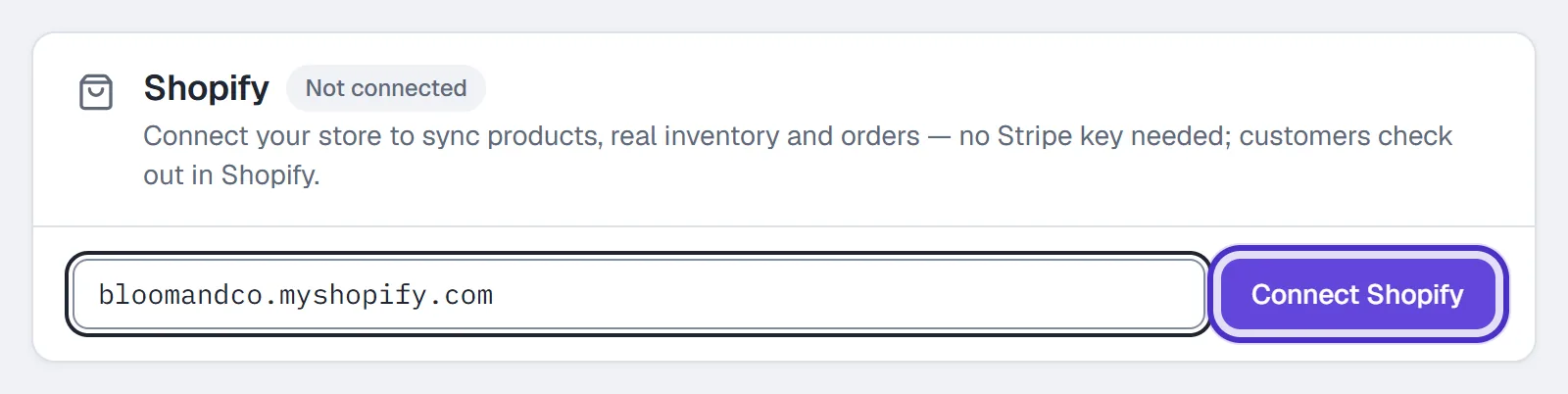
The Shopify row with a store address typed in and Connect Shopify - Approve the app on Shopify's permission screen. HyperDM requests read-only access to products, inventory and orders, and what arrives depends on what Shopify grants.
- Back in Settings, the row shows your store with Sync now.

The Shopify row connected to the store, with Connected and Sync now
Shopify then sends product changes as they happen, with a daily re-sync as a safety net, and products that are drafts or aren't published to your Online Store stay out. Synced products are still edited in Shopify, and customers still check out there.
Answer PRICE with a checkout link
The simplest sale is a DM keyword:
- In Automations, click New automation and choose Someone DMs a keyword.
- Type
PRICE, PRICES, COSTand keep contains the keyword. Add + Exclude words likewholesaleif those questions need you.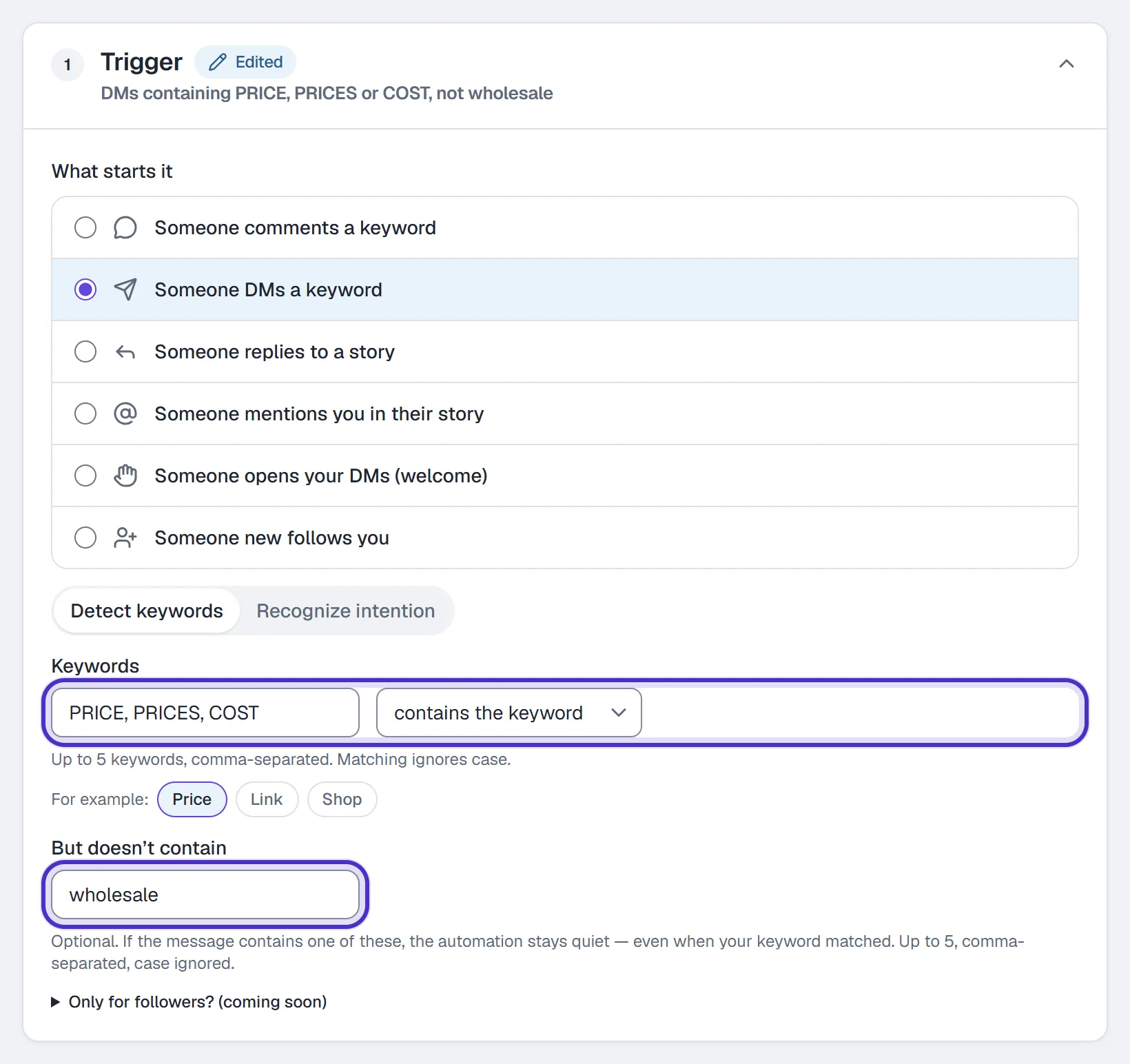
Someone DMs a keyword with PRICE, PRICES and COST, contains the keyword, and wholesale excluded - Write the DM, like
The Aurora Serum is $42. You can check out here:, and put the checkout link in the link field. Copy link on a product in Products gives you its Stripe payment link, or use your store's product page. Up to 3 links fit, one per size or bundle.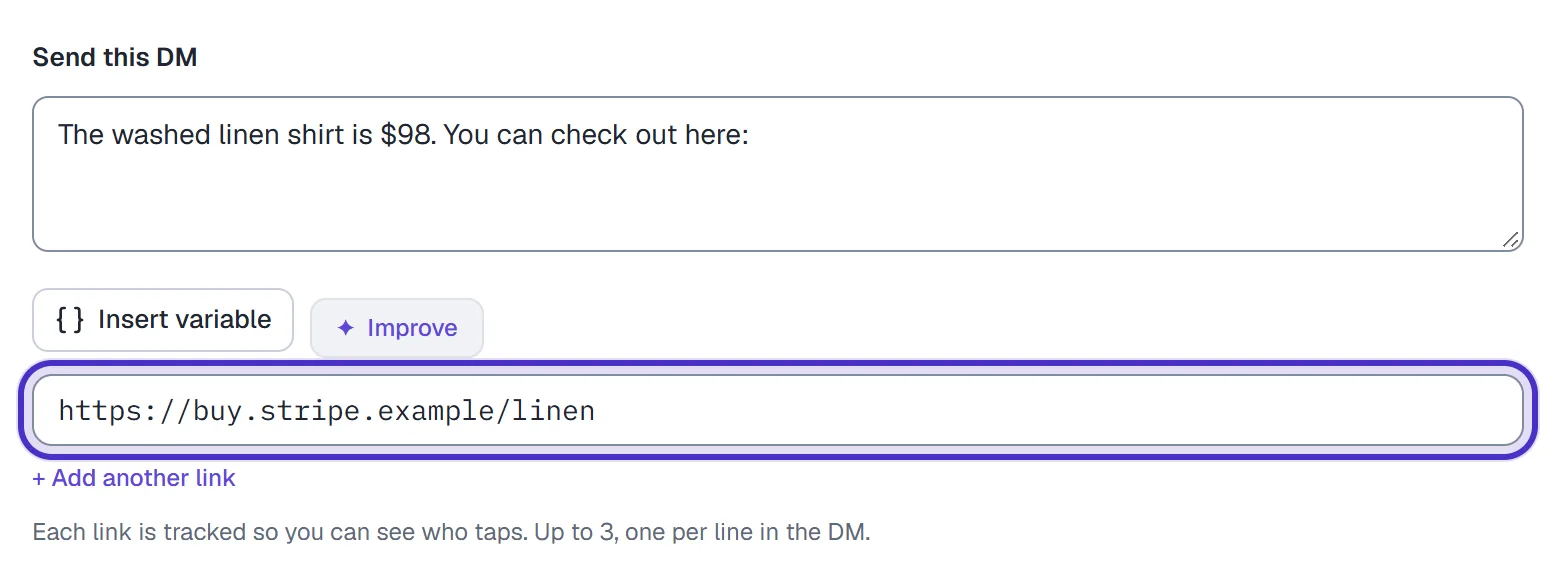
The DM with the price and the payment link in the link field - Optionally switch on Capture their email.
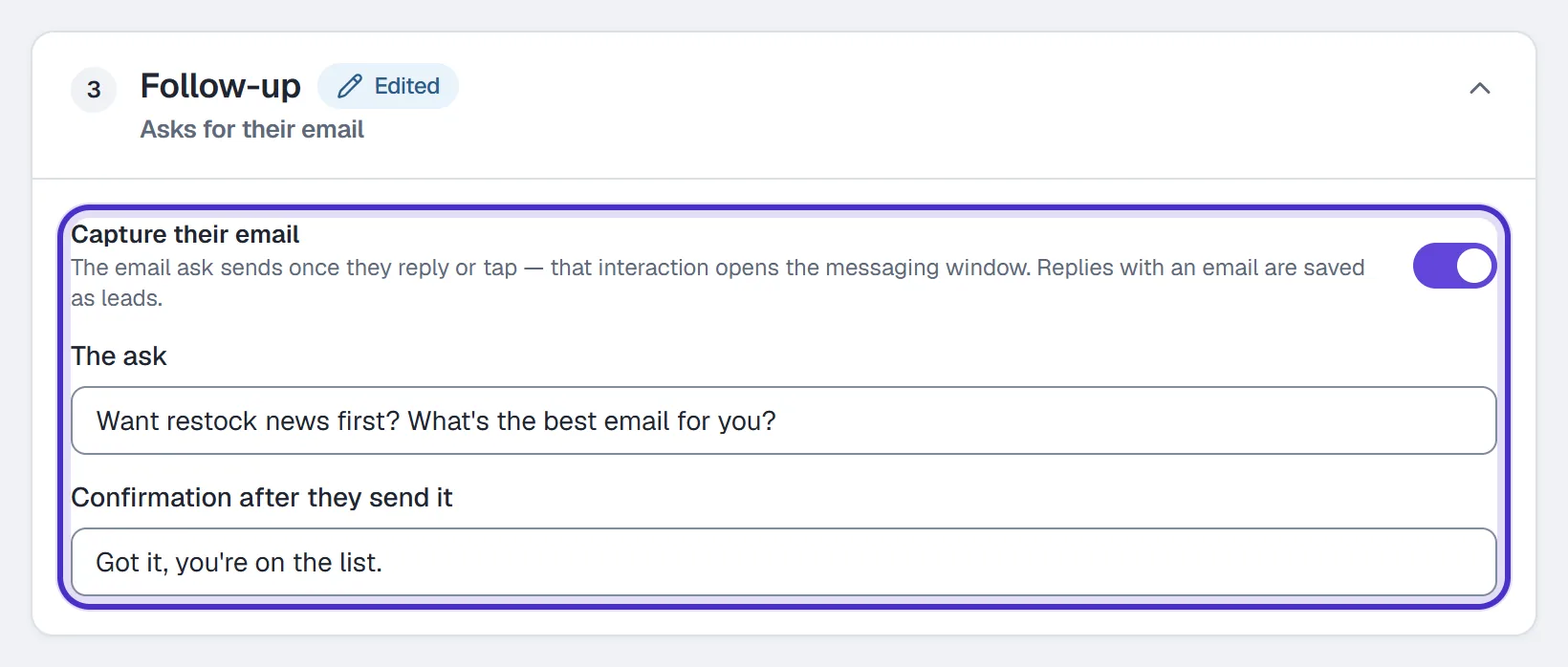
Follow-up with Capture their email switched on - Click Publish and test it by DMing
PRICEfrom a second Instagram account.
To sell one product from one post, use Someone comments a keyword with Listen on set to that post. The link follows once they tap or reply.
Heads up. A price typed into an automation's message doesn't update itself. When a price changes, edit the DM and swap in the new payment link.
Let the agent answer product questions
Turn the AI agent on and it answers the DMs your automations don't catch, from your catalog and your knowledge.
- Add your shipping, returns and sizing answers in Agent → Knowledge, then review them. The catalog supplies each product's price, stock status and buy link; anything else about a product needs reviewed knowledge.

Agent Knowledge with every passage reviewed, Your knowledge is ready - Ask it what customers ask in the AI Playground. A good answer is labelled grounded and names its source. Nothing is sent.
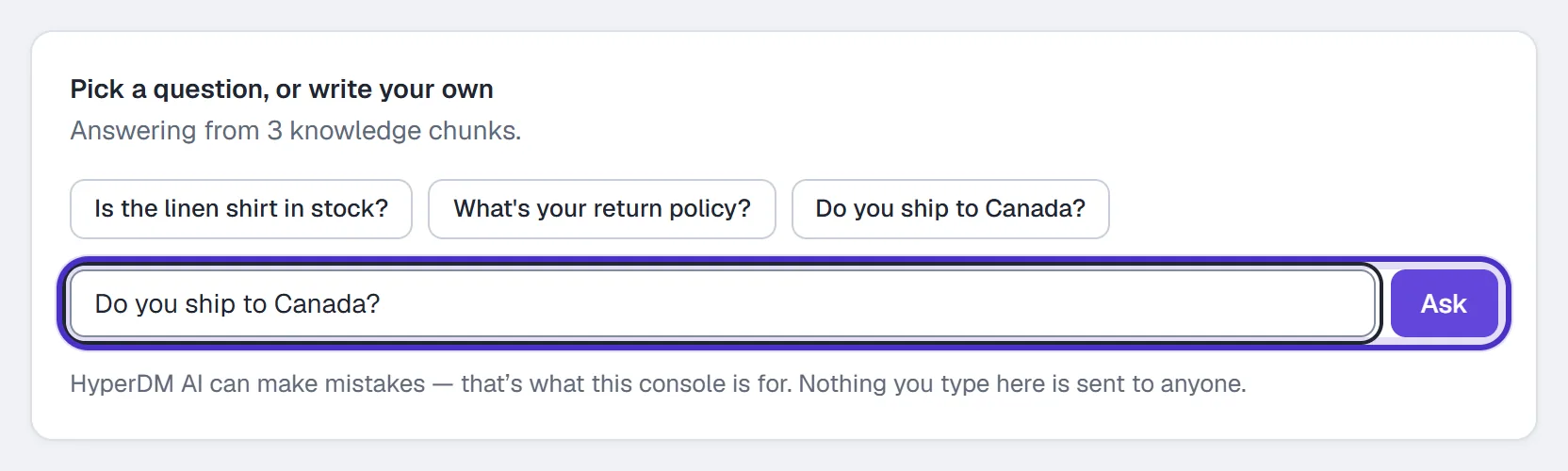
The AI Playground with a customer's question typed in, and Ask - Check Trust & Guardrails: set Cap the discount the agent can offer, add phrases it must never use, and keep Refund requests on so those come to you.
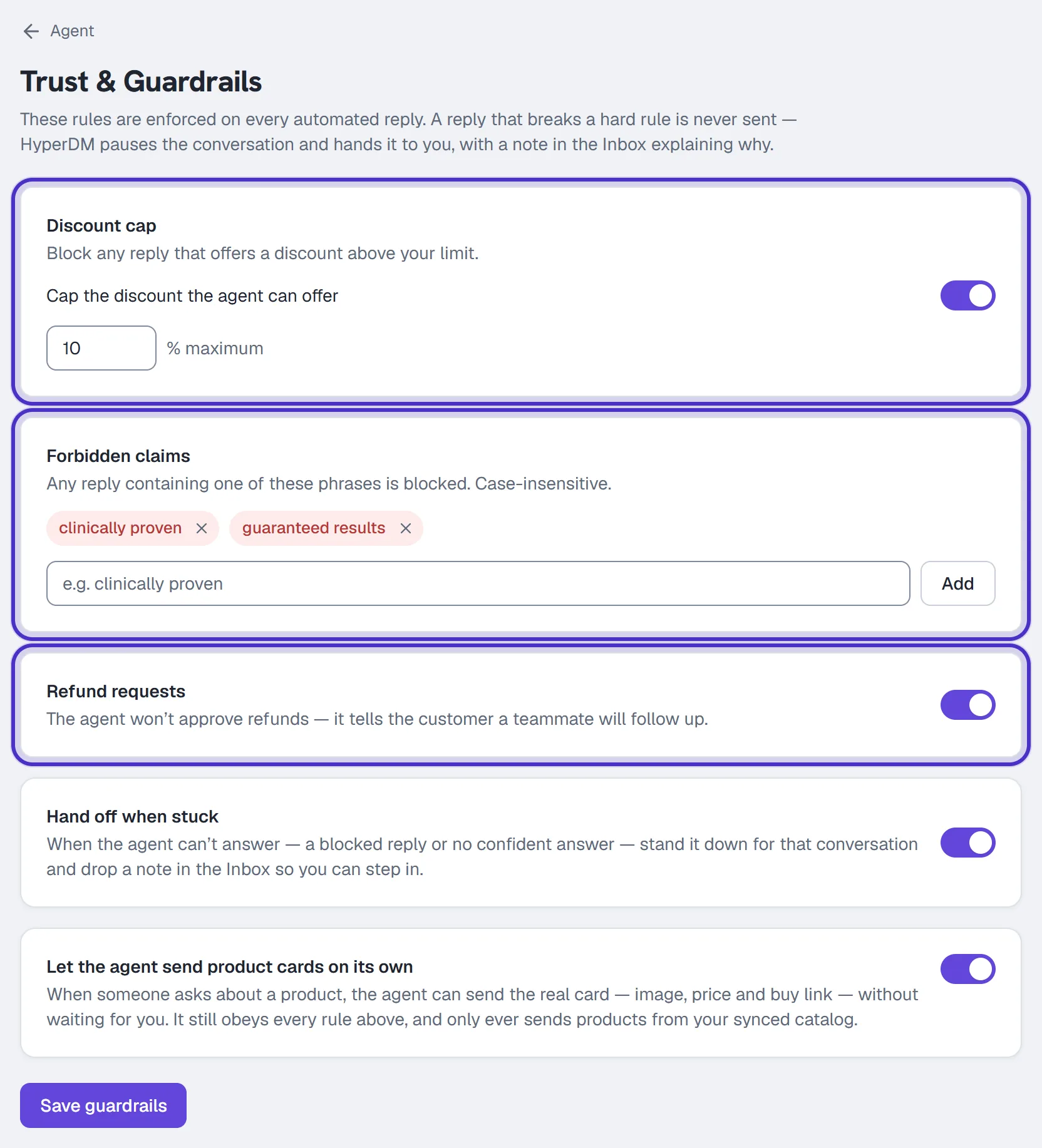
Trust and Guardrails, with the discount cap, the forbidden claims and Refund requests set - Turn on Reply to DMs automatically in Agent → Overview.

Agent Overview, with Reply to DMs automatically switched on
Set your current price and approved links, then test the answers. On Starter and up, Let the agent send product cards on its own in Trust & Guardrails lets it send the real product card, with its image, price and buy link, from your active products.
What HyperDM doesn't do
- HyperDM doesn't offer abandoned-cart recovery.
- It doesn't take payment. The buy link does, through Stripe or your own store.
- It doesn't read live stock. The agent answers from its synced copy of your catalog, so hide or untick Active on anything you can't sell.
- It doesn't reach out to strangers. Every DM answers something the person did, like a comment or a message, and Instagram's 24-hour window limits when HyperDM can write to someone after their last message.
Paid orders show in Analytics on Growth and up, once Stripe's revenue webhook is set up in Settings → Commerce. For more on the agent, see the AI agent.
FAQ
Do I need Shopify to sell in my DMs?
No. You can type products into Products and create Stripe payment links for them, or paste any checkout link into a keyword automation.
Does the agent know when something sells out?
It answers from its synced copy of your catalog, not from live stock. Untick Active or hide a product you can't sell right now.
Can the agent offer a discount?
Set a limit first. With Cap the discount the agent can offer on in Trust and Guardrails, a reply offering more than your percentage is held and handed to you. With the cap off there is no limit.
What's the difference between syncing my catalog and connecting Shopify?
Sync your Shopify catalog reads your store's public catalog, by hand or on a schedule, with no install. Connect Shopify is an app you authorize in Settings, Channels, and product changes then reach HyperDM as they happen.
Does HyperDM follow up on abandoned carts?
No. HyperDM does not offer abandoned-cart recovery. It answers questions and sends links when a customer messages you.
Who can change the catalog?
Owners, admins and agents can add and edit products. Connecting Stripe in Settings, Commerce is owner only.