The automation form covers the common shape: a trigger, a public reply, a DM and an optional email ask. When a conversation needs branches, waits, conditions or an AI hand-off, build it on the canvas. No flow is required to get started; the canvas is there for the paths you want fixed.
Screenshots show the real HyperDM app with a demo workspace. Names and numbers are examples.
Open the canvas
- Go to Automations, scroll to the Flows section and click New flow, or Open the canvas on a workspace with no flows yet. The sidebar route is Automate → Flow builder.

The Flows section of Automations with New flow - Pick a way in:
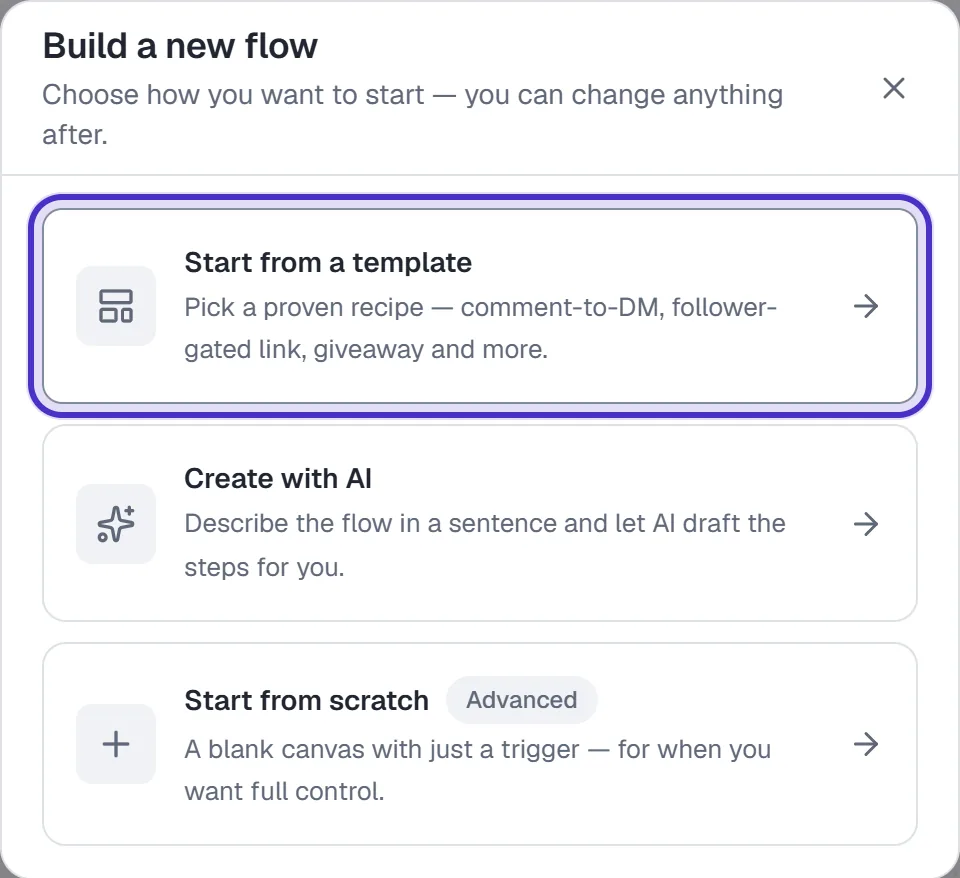
Build a new flow with Start from a template, Create with AI and Start from scratch - Start from a template: a ready recipe such as Follower-gated link, Free lead magnet or Giveaway entry collector, which you review before saving. Search them, filter By trigger or browse by category.
- Create with AI: describe the flow in a sentence and HyperDM drafts it. Nothing is kept until you click Use this flow in Review your flow.
- Start from scratch: a blank Untitled flow with one step, Choose a trigger.
Already have an automation? Open as flow in its row's ⋯ menu rebuilds it as an editable flow, and the automation keeps running. The canvas opens outside the app shell; ‹ Automations at the top left takes you back.
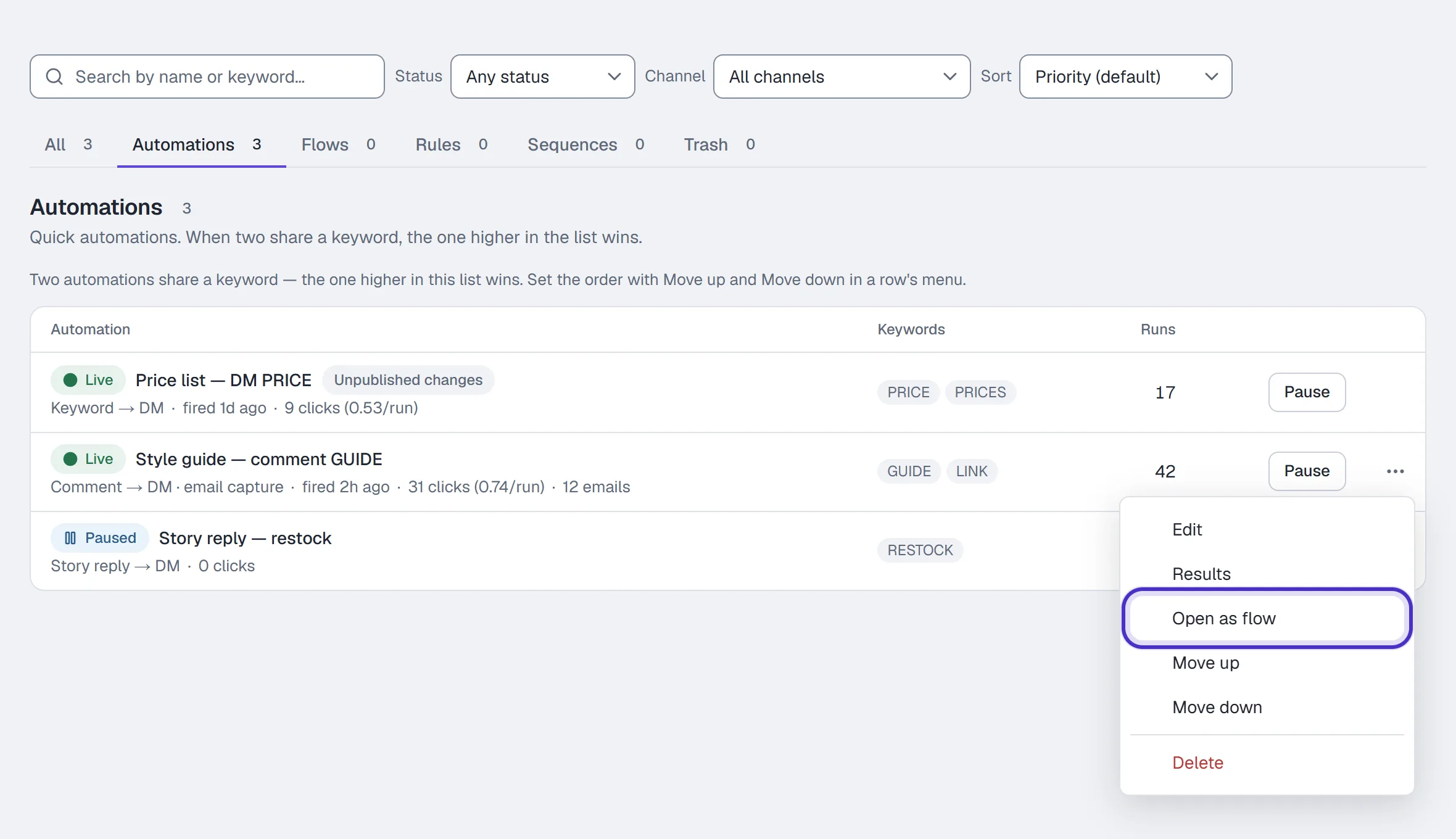
Pick a trigger, then add steps
- Click the trigger and choose a Trigger type. On Instagram that includes Comment-to-DM, DM keyword, Story reply, Story mention and Manual. A keyword trigger needs its keyword, and Set live stays off until a trigger is picked.
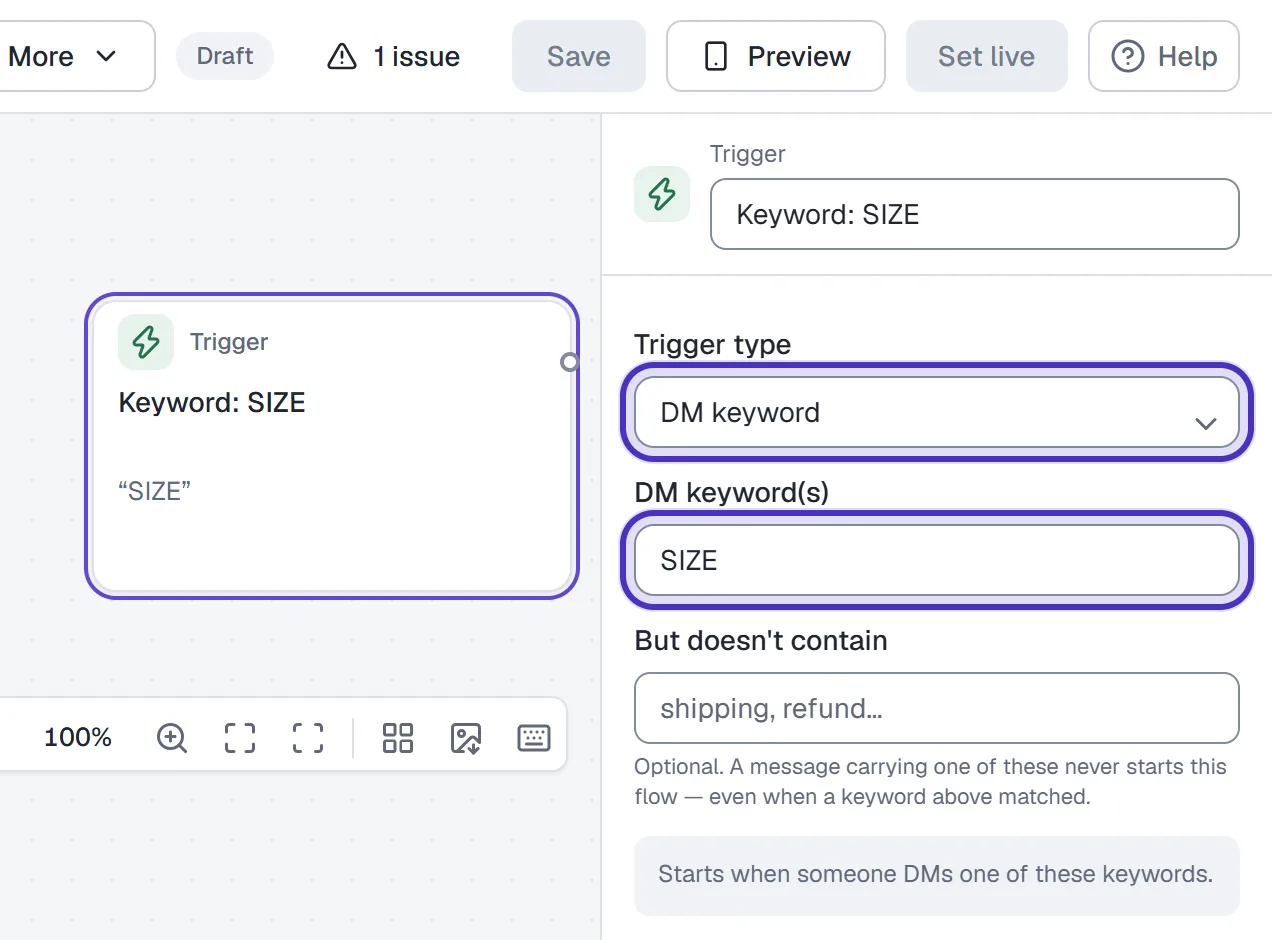
The trigger set to DM keyword with the keyword SIZE - Add steps from the Add step panel on the left, or double-click empty canvas.
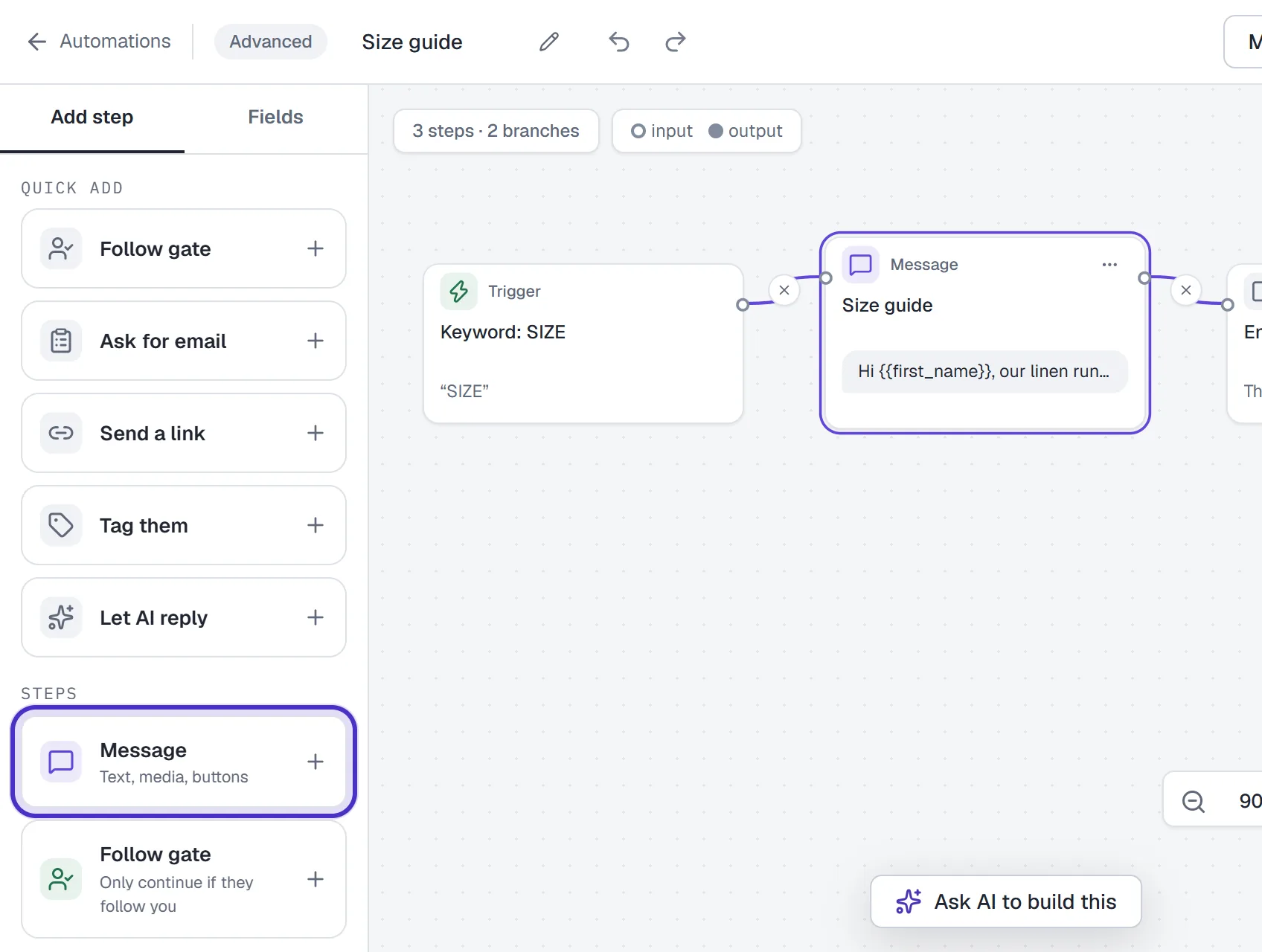
The Add step panel with Quick add, Message, Follow gate and Advanced steps - Drag a step's port onto another step to connect them, or click the port and then the step. To finish a branch on purpose, connect it to End this flow.
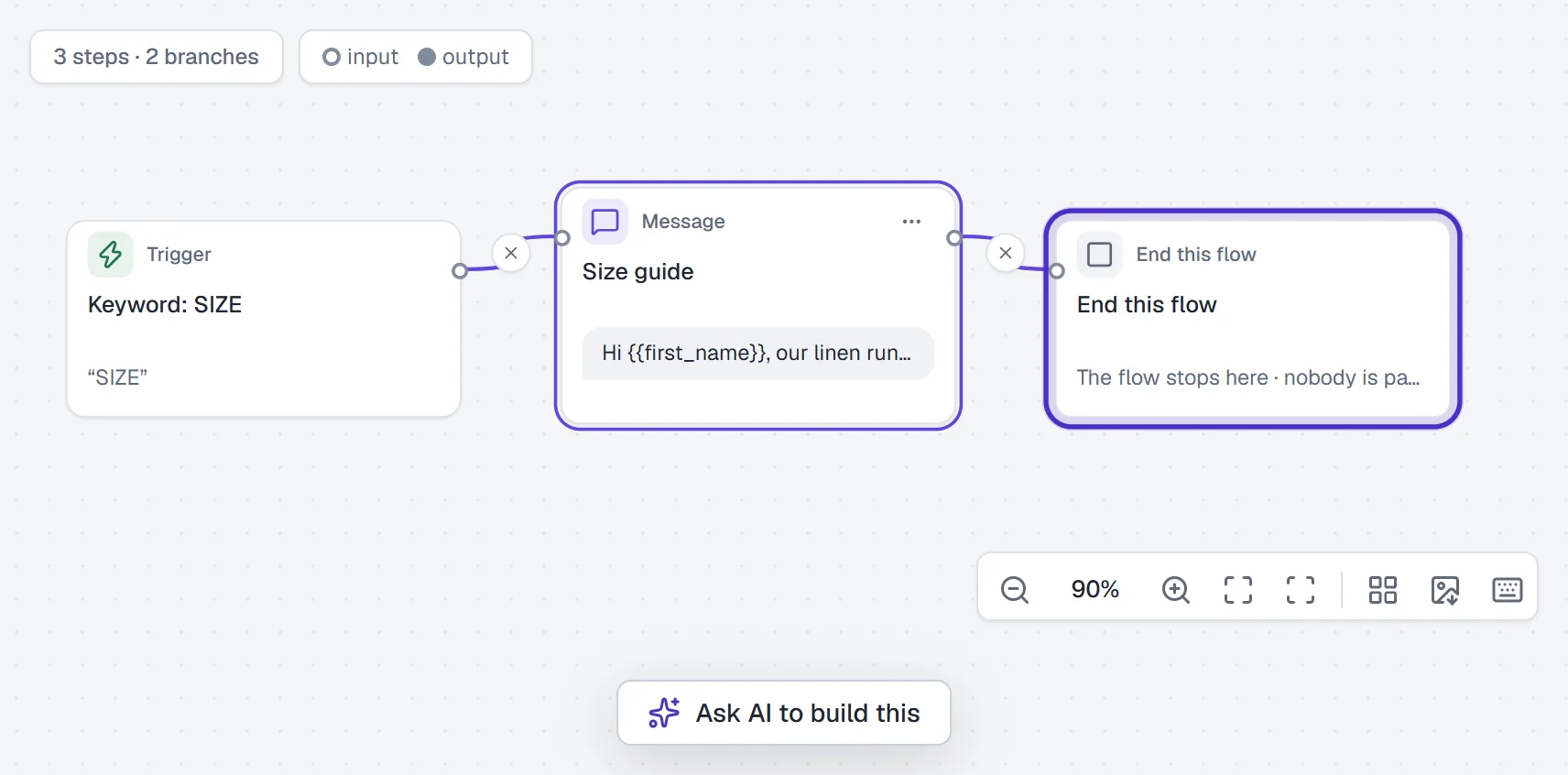
The trigger connected to a message, and the message connected to End this flow
| Step | What it does |
|---|---|
| Message | Text, media, buttons or quick replies. A Data collection block turns it into a question |
| Follow gate | Continues only if they follow you, checked on Instagram when they tap |
| Action | Tags, fields, opt-in, Update number field, Log conversion, Subscribe to sequence, Pause automations |
| Condition | Sends people different ways based on their contact fields |
| Smart delay | Waits a set time, or until a date read in UTC, then continues |
| Randomizer | Splits people at random for an A/B test (Growth or above) |
| AI Step | Hands this turn to the agent (Growth or above) |
| Start flow | Jumps to another flow |
| End this flow | Stops the flow here for that person. Nobody is paused |
A message holds up to 3 buttons, with labels up to 20 characters, or up to 11 quick replies, never both. A Smart delay over 24 hours warns you that the window closes: on Instagram the next step reaches the person only if they've messaged you again. On a comment trigger, the first DM may hold one text or one image block. Buttons are fine there, because the tap opens the 24-hour window, so put richer content in the step after the tap.
Count results with an Action step
Two kinds of Action keep count as people move through a flow. Neither sends the person anything, and both are on every plan.
Log conversion
Log conversion counts a result you named, such as a booked call or a paid deposit. Setting up the events and reading the totals are in conversion events.
- Add an Action step where the result happens and pick Log conversion.
- Pick the Conversion event.
- If the event carries a value, choose No value, A fixed amount or From a number field, which reads the number that field holds when the step runs.
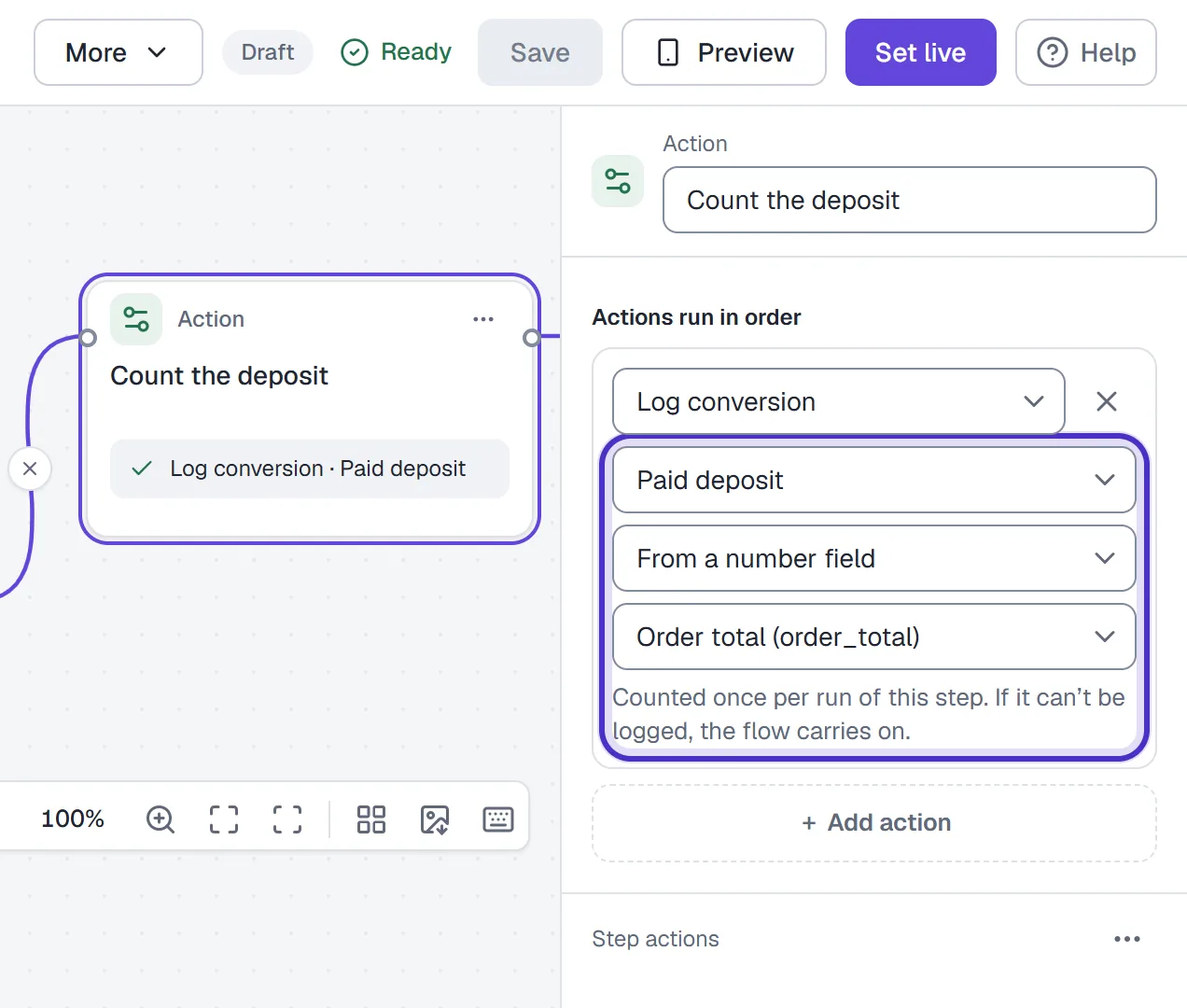
An Action step on Log conversion counting Paid deposit, its value from the Order total number field
Each run of the flow counts the step once, even if the run loops back to it. If a conversion can't be logged, the flow carries on. A step with no event picked is a red design check and keeps Set live off.
Update number field
Update number field changes a number field, such as a lead score or a visit count.
- Add an Action step and pick Update number field.
- Pick the Number field. Only number fields are listed.
- Under How to change it, choose Replace with, Add, Take away, Multiply by or Divide by, then type the Amount.
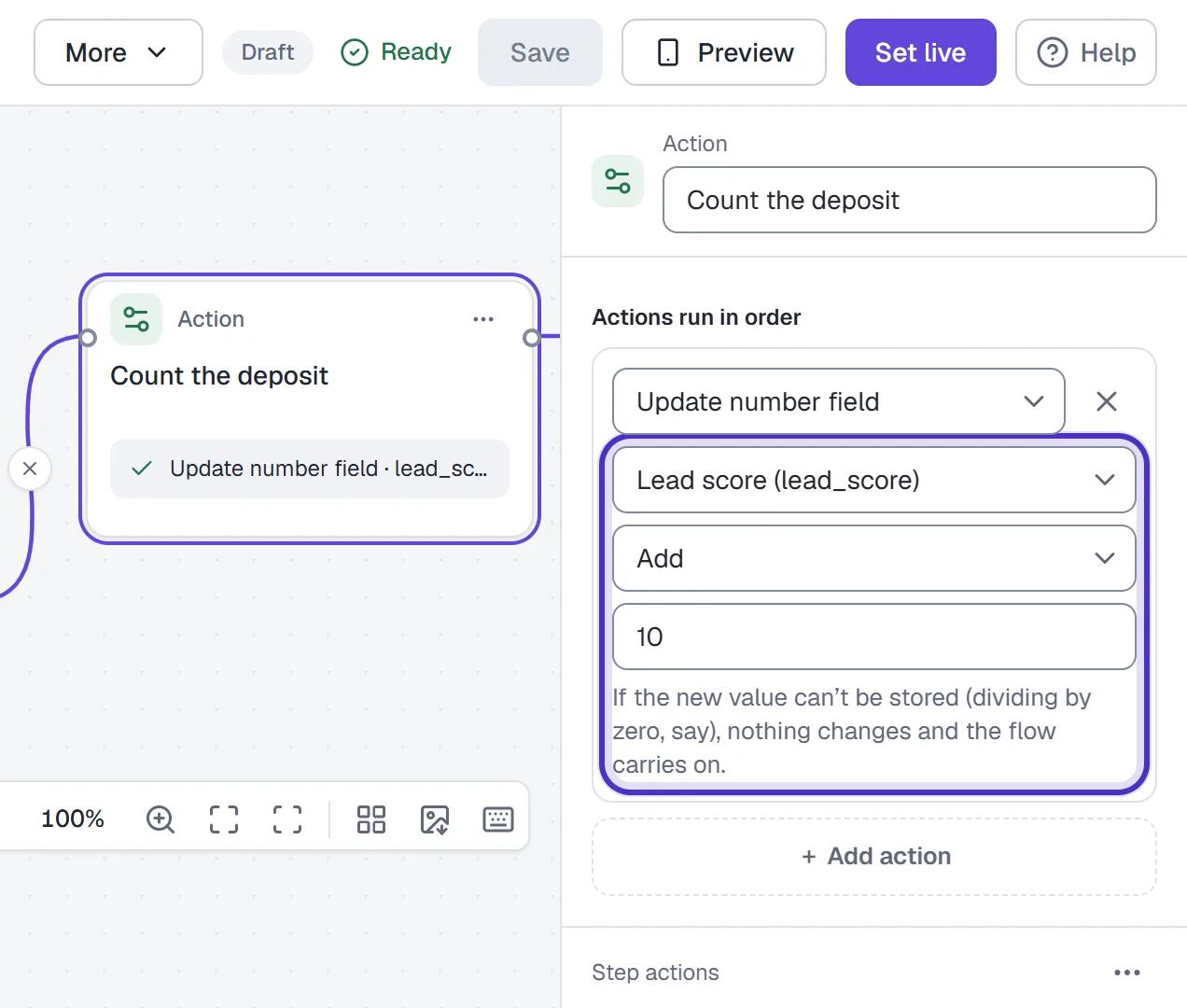
An Action step on Update number field: Lead score, Add, 10 - To work the number out from other fields instead, choose Work it out with a calculation and type it in Calculation, like
{{lead_score}} * 2. Insert a field… adds a field for you.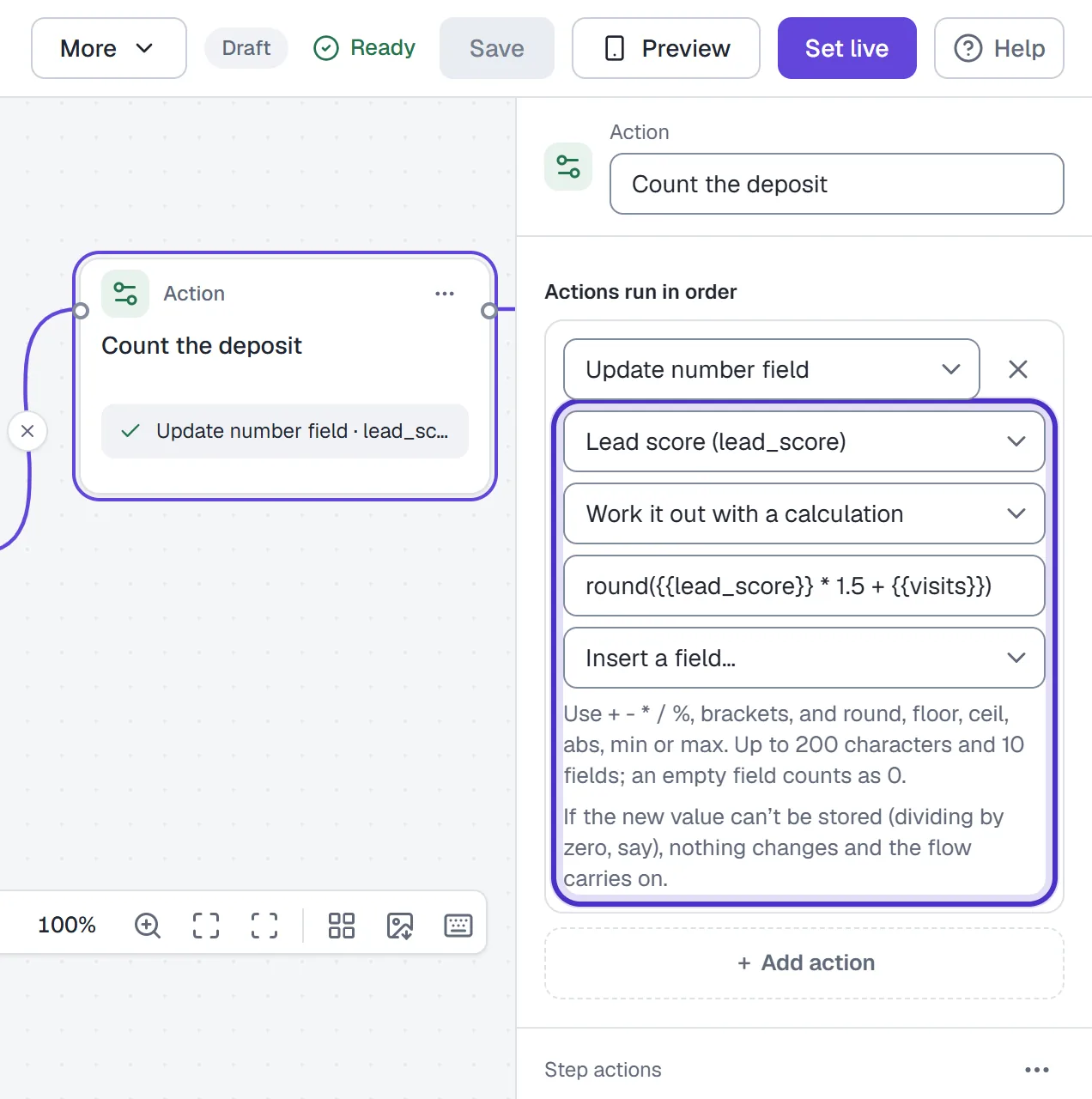
Update number field working the lead score out with a calculation, and Insert a field below it
A calculation can use numbers, number fields written like {{lead_score}}, + - * / %, brackets, and round, floor, ceil, abs, min and max, up to 200 characters and 10 fields. An empty field counts as 0.
If the new value can't be stored, such as when dividing by zero, nothing changes and the flow carries on. A step that names a field that doesn't exist or isn't a number is a red design check. Rules offer the same action.
What each plan gets
| Plan | On the canvas |
|---|---|
| Free | The canvas, every step except the AI Step and Randomizer, and up to 5 flows. Live and draft flows count; deleted ones don't |
| Starter | Unlimited flows, plus voice, video and PDF blocks from your Media library |
| Growth and up | Everything above, plus the AI Step and the A/B split (Randomizer) |
Templates are on every plan, but a template that uses an AI Step or A/B split needs Growth or above to save. That gate applies when you add or save those steps. If your plan goes down, anything the new plan doesn't include is paused, never deleted: a flow with an AI Step or Randomizer, and on Free any flow past your 5 oldest. It says which plan it needs, and moving back up to that plan turns it back on as it was.
Check it, then set it live
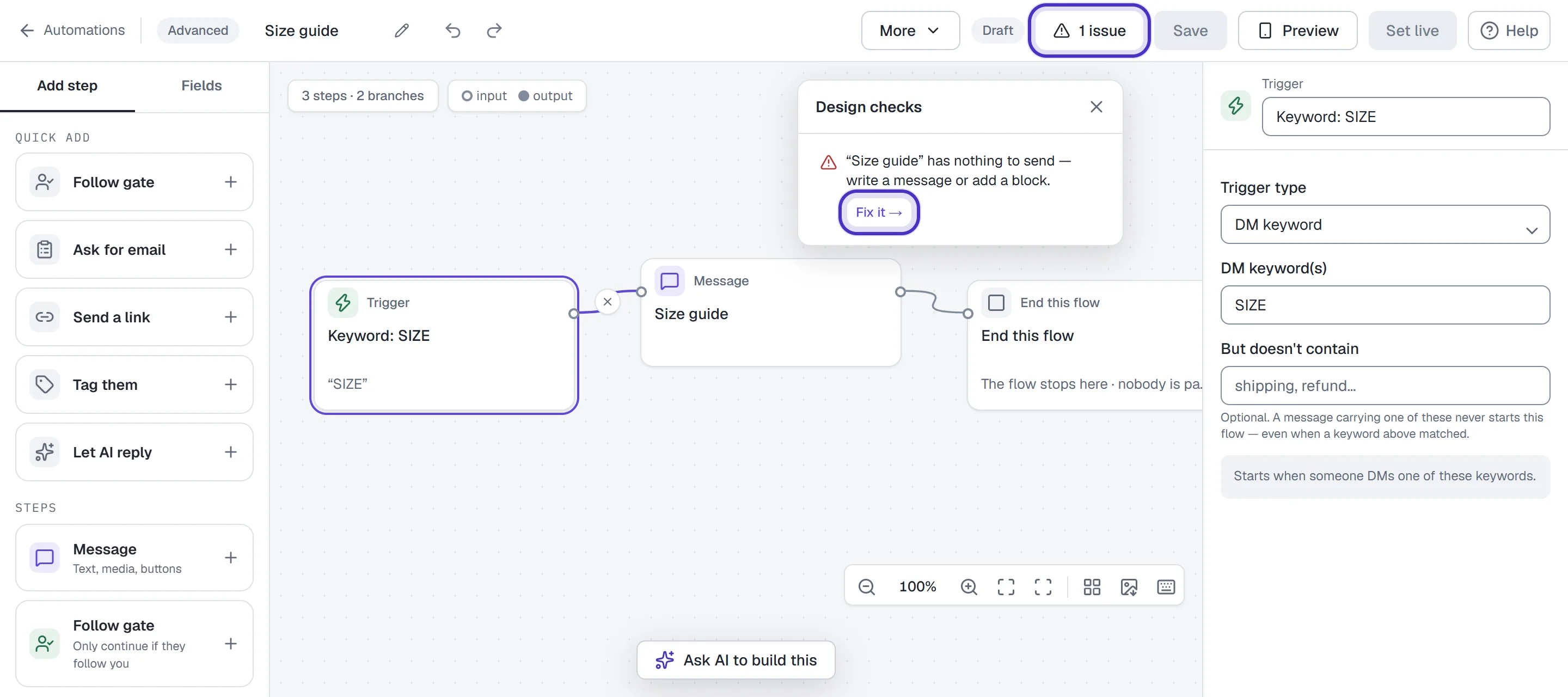
- Open Design checks from the pill beside the flow's status, which reads 1 issue, 1 note or Ready. Red issues turn Set live off: no trigger picked, a button going nowhere, a message with nothing in it, an AI Step with no goal, an Action with nothing set. Grey notes advise without blocking. Fix it → selects the step and puts your cursor in the box the problem is about.
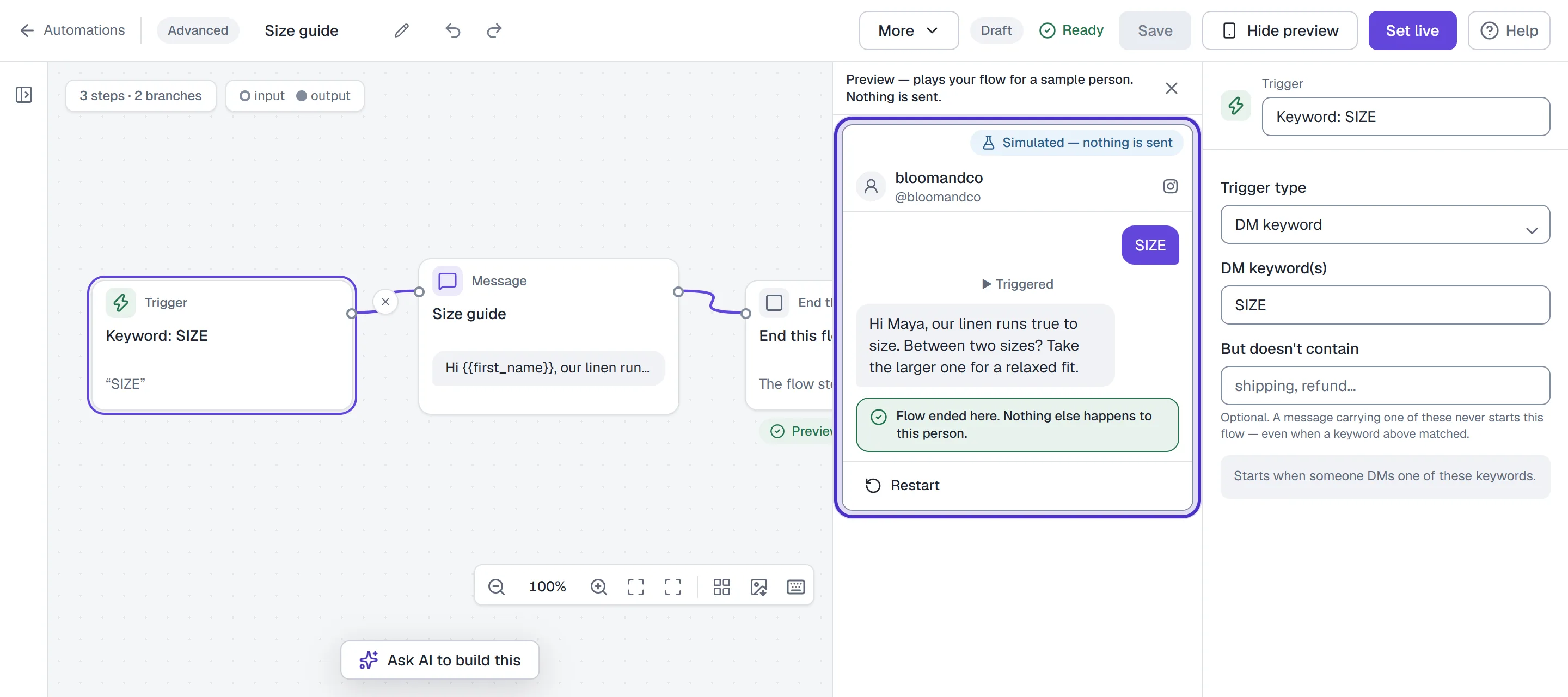
Design checks with one red issue, a message with nothing in it, Fix it and Set live off - Click Preview: a phone that plays the flow for a sample person and sends nothing. Tap the choices to walk each branch.
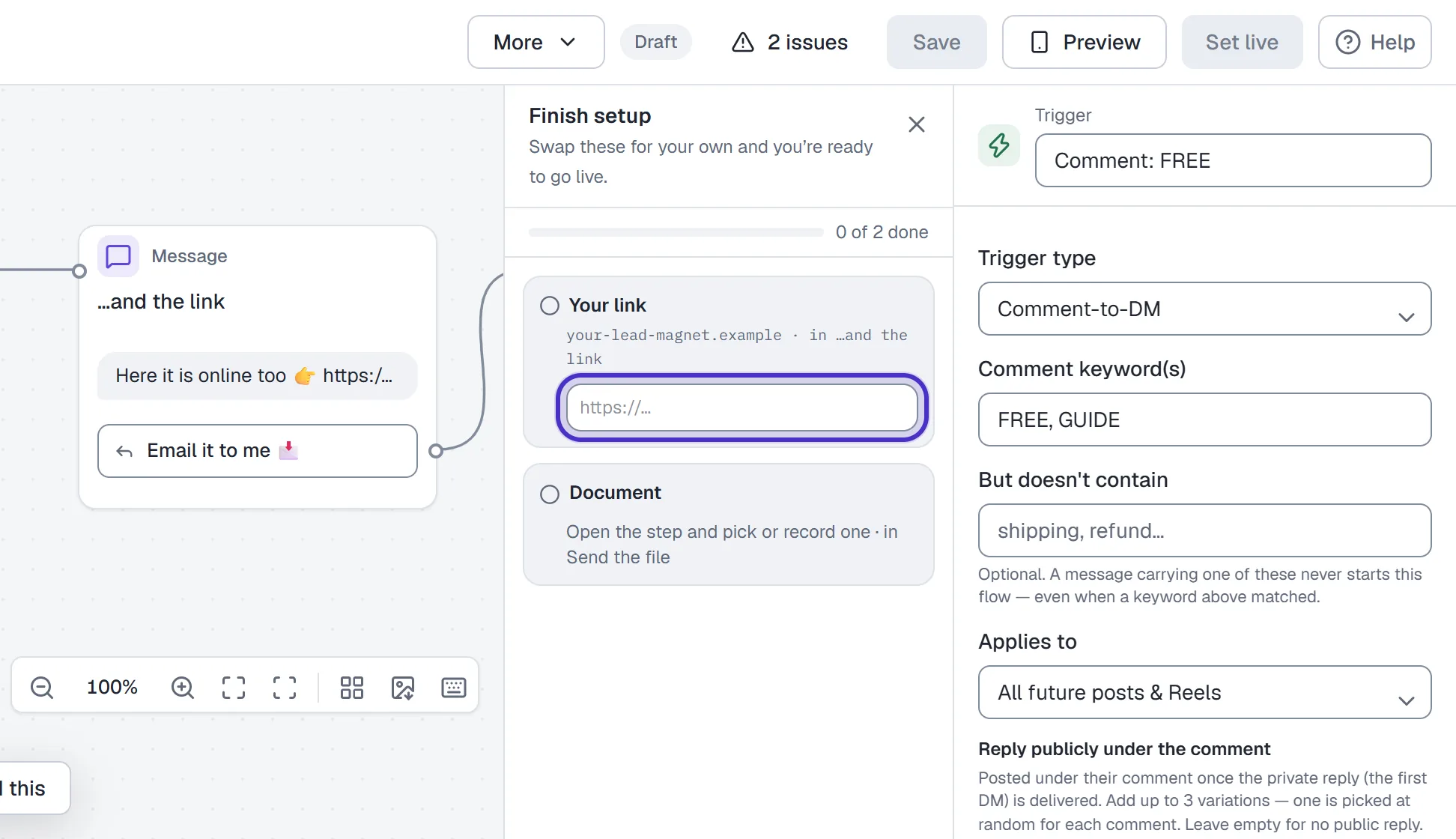
Preview docked beside the canvas with the sample person's keyword and the message it sends - If the flow came from a template, open Finish setup and swap every placeholder for your own.
Finish setup on a template with each placeholder to swap, 0 of 2 done - Click Set live. Once the flow is saved, the same button reads Publish until it has been live. On a live flow, Save keeps your edits as a draft, the people in the flow keep the live version, and Publish changes puts your edits live.

The canvas top bar with Design checks reading Ready and Set live - Test from a second Instagram account. Comments and DMs from your own connected account never trigger anything.
Flows and automations on the same keyword
A live automation wins a keyword conflict with a flow. If you rebuilt an automation with Open as flow, pause the original once the flow is live, or it keeps answering and the flow never runs. For DMs the order is fixed: opt-out and opt-in keywords, then keyword automations, then flows, then Recognize intention automations, then the AI agent if you've switched AI replies on. The one-turn hand-off is covered in the AI Step.
FAQ
Is the flow builder free?
Yes. Free has the canvas and every step except the AI Step and Randomizer, which need Growth or above, and keeps up to 5 flows. Every paid plan has unlimited flows.
Why is Set live greyed out?
A red design check is open, or a Create with AI draft hasn't been accepted with Use this flow yet. Hover the button to read why, then use Fix it in Design checks.
Why didn't my flow answer its keyword?
Check whether a live automation listens for the same keyword. Automations win keyword conflicts, so pause the automation once the flow is live.
Can I turn a flow back into an automation?
No. Basic builder opens the form to create a new automation; it doesn't convert the flow or copy anything from it.
What happens to my flows if I downgrade?
Anything the new plan doesn't include is paused, never deleted: a flow with an AI Step or Randomizer, and on Free any flow past your 5 oldest. Moving back up to the plan it needs turns it back on as it was.
How do I add points to a lead score in a flow?
Add an Action step, pick Update number field, choose the field and Add, then type the amount. It is on every plan and sends the person nothing.