Rules: act when a contact's data changes
An automation reacts to a message. A rule reacts to a change in your contact data: a tag is added, a field changes, a date arrives. It then runs the actions you pick, in order. A rule can't send a DM by itself, but it can start a flow or subscribe someone to a sequence that does. Any plan can build a rule; setting one live needs the Starter plan or above.
Screenshots show the real HyperDM app with a demo workspace. Names and numbers are examples.
What a rule reacts to
| Event | Fires when |
|---|---|
| New contact | A contact is created |
| Tag added | A specific tag, or Any tag, is applied |
| Tag removed | A specific tag, or Any tag, is removed |
| Field changed | A specific field, or Any field, changes value |
| Date field reached | A date-type custom field arrives, on the day or a set number of days before or after |
Rules fire from automated events only. A flow adding a tag or an automation capturing an email fires them. Tagging someone by hand, bulk-tagging a segment or editing a field yourself in Contacts doesn't, so cleaning up your data never sets anything off.
Build a rule
- Go to Automations, open the Rules tab and click New rule. On a brand-new workspace, open
/rules/newdirectly: the tab appears once you've built your first automation.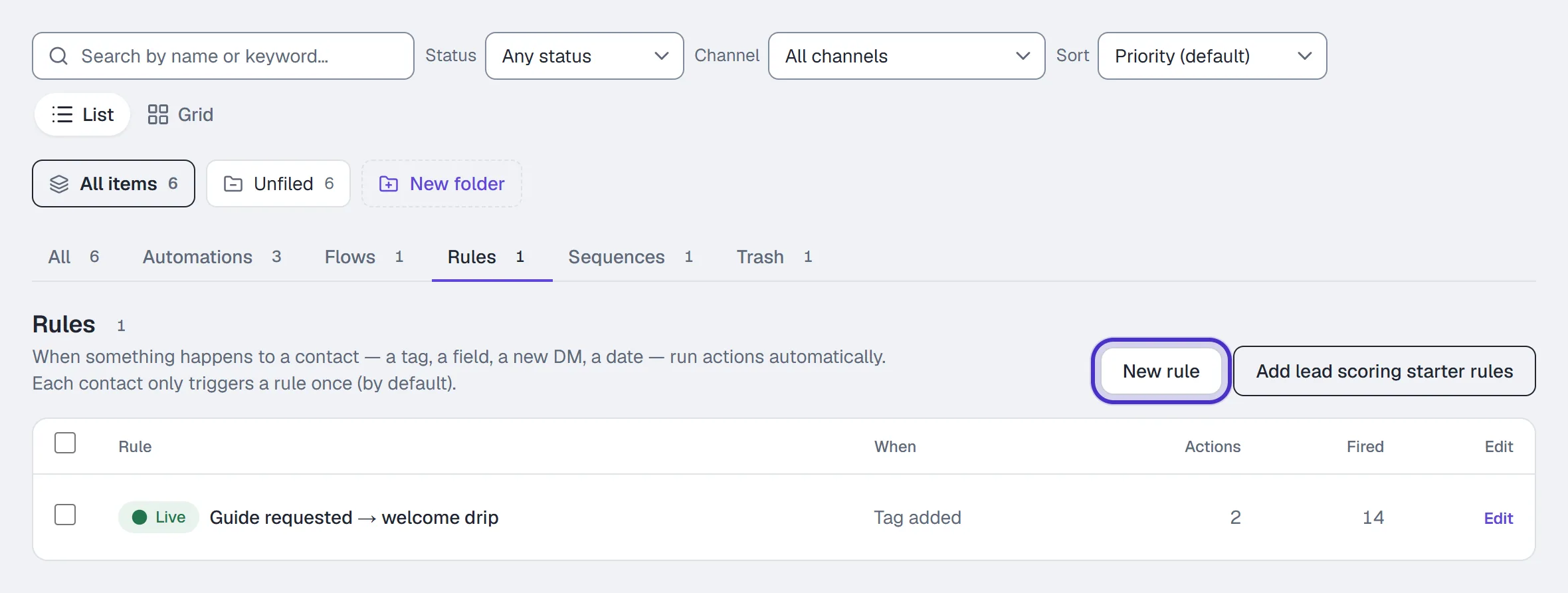
Automations on the Rules tab with New rule, and a rule's row with how many times it fired - Type a Name, for example
Guide requested, start follow-up. - Under When, pick the Event and its detail, such as which tag.
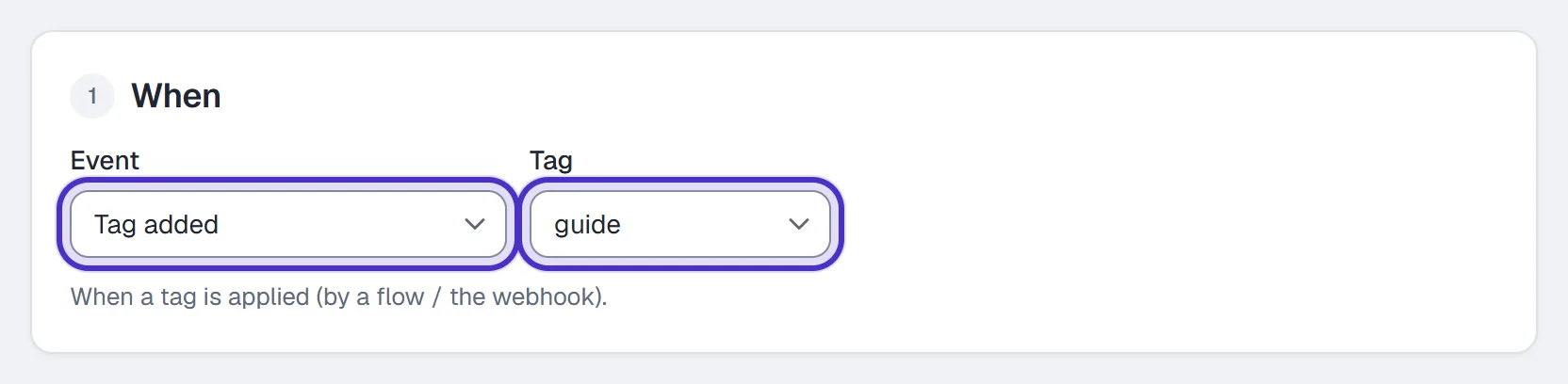
When with the event Tag added and the tag guide - Under Then, set the first action, and click Add an action for each one after it. They run in order. The Remove action button at the end of a row takes it out, and a rule always keeps at least one.
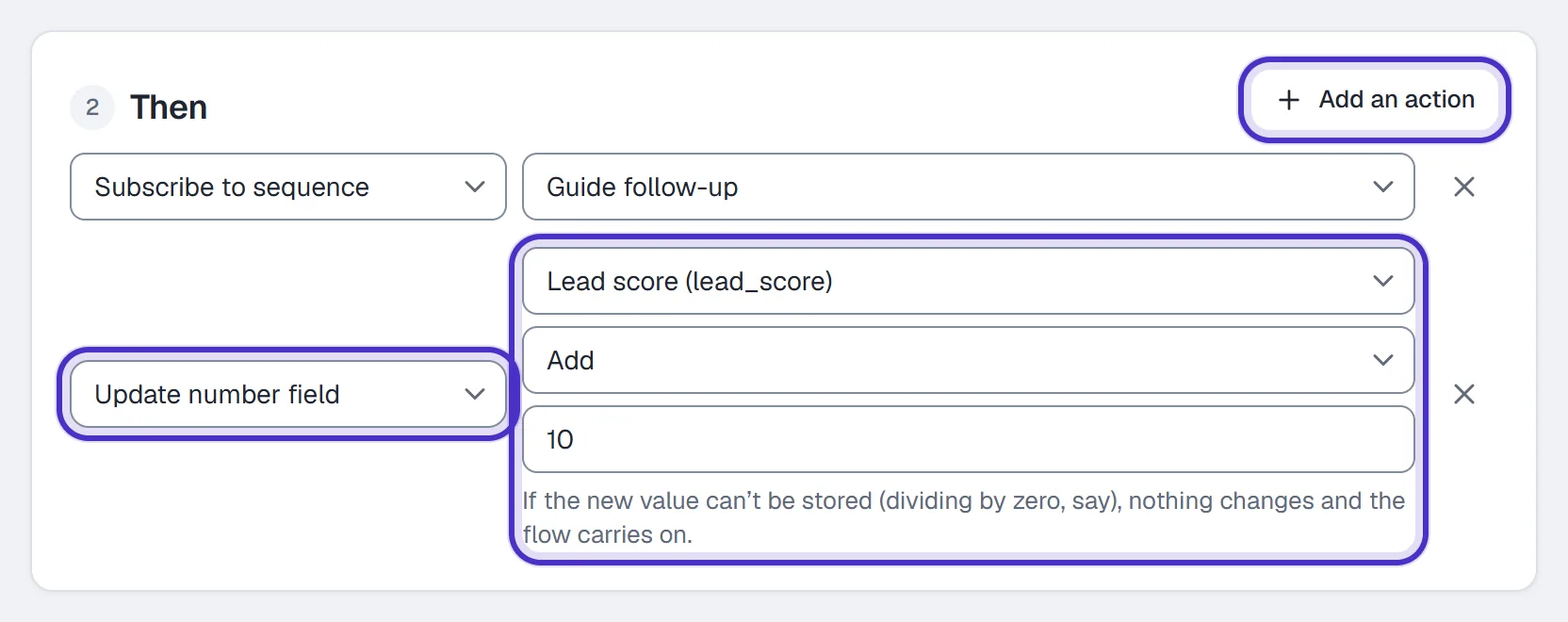
Then with Subscribe to sequence, and Update number field adding 10 to the lead score - Leave Only once per contact on, or turn it off for an event that should repeat.
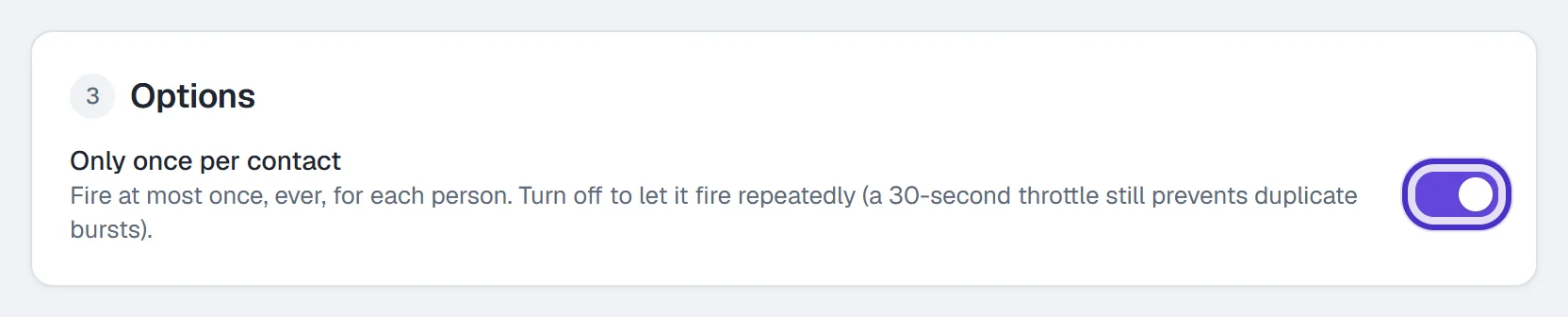
Options with Only once per contact on - Flip Live on and click Save & go live, or leave it off and click Save draft. If a save is refused, the bar says why and keeps everything you typed.
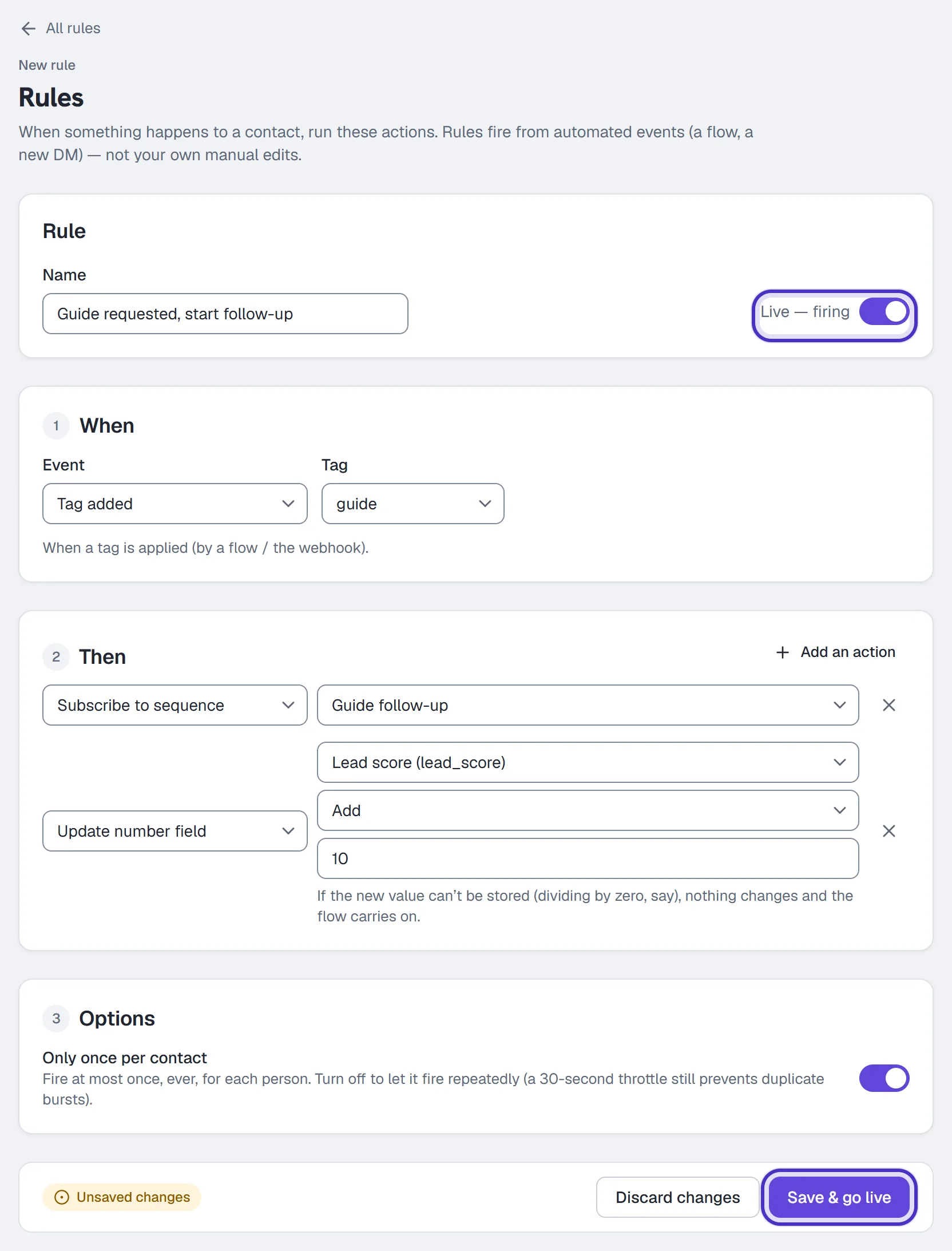
The finished rule with Live on and Save and go live
What a rule can do
| Action | What it uses |
|---|---|
| Add tag, Remove tag | A tag name |
| Set field | field = value |
| Increment field (+/-) | lead_score = 10, negative allowed |
| Update number field | A number field, how to change it, and an amount or a calculation |
| Subscribe to sequence, Unsubscribe from sequence | A sequence |
| Start flow | A flow |
| Notify (Inbox note) | An optional note for the Inbox |
Update number field is the same control as the flow step: Replace with, Add, Take away, Multiply by, Divide by or Work it out with a calculation. Saving checks that every field it names is one of your number fields.
To message someone, point the rule at a small flow or a one-step sequence. What they send still has to pass the 24-hour window, consent and rate caps. Start flow runs only for someone on that flow's channel.
Add lead scoring starter rules, next to New rule, adds two draft rules for you to review: an email captured adds 30 to lead_score and a new contact adds 10. It creates the field if you don't have it, and clicking again never duplicates them.
Dates and repeat firing
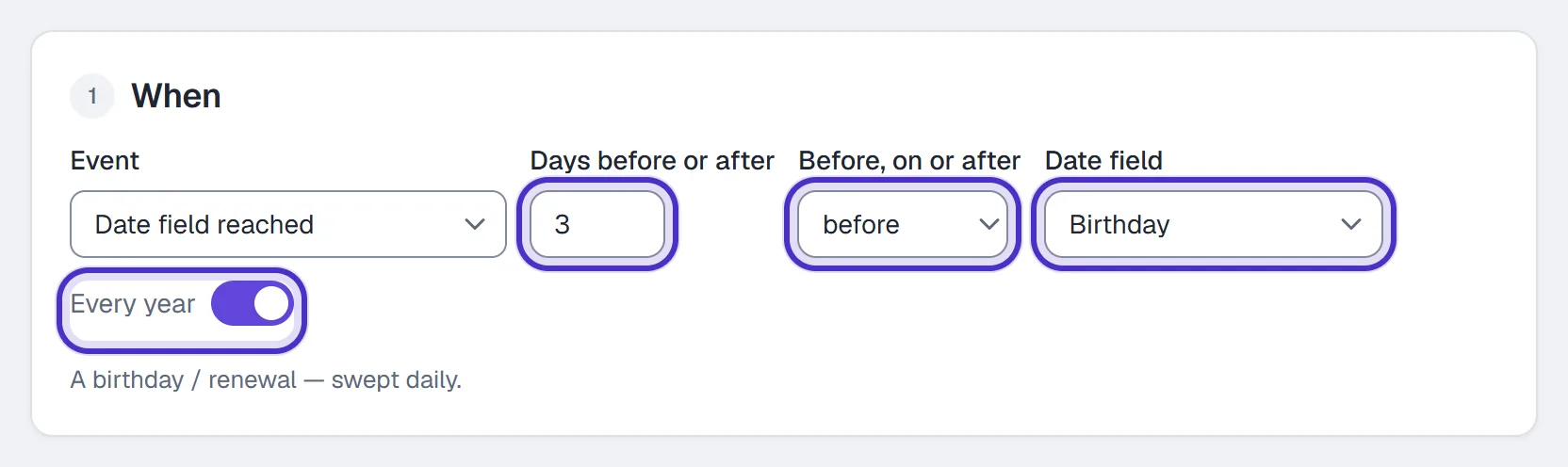
Date field reached needs a date-type custom field first. If you have none, the form says so and points you to Contacts. Set the number of days, before, on or after, and the Date field. Every year, on by default, is what turns a birthday field into a yearly reminder.
Only once per contact is on by default, so a new rule catches each person at most once, ever. Turn it off for an event that should repeat, such as a repeat-purchase tag. Two details answer most questions about repeats:
- Even with it off, a 30-second limit applies per rule and per person, so a burst of identical events fires the rule once.
- Date field reached rules ignore the toggle. Every year decides: once ever without it, once a year with it.
Plans and the Rules list
Rules are on Starter and up. On Free you can build a rule and save it as a draft, and Save & go live is refused with an upgrade message. If your plan goes below Starter, live rules are paused, never deleted, and moving back up turns them back on as they were.
Each row on the Rules tab shows the rule's name, a Live or Draft badge, its trigger, how many actions it has and how many times it has Fired.
Rule, automation or sequence
| Use | When you want to react to |
|---|---|
| An automation | A message: a comment, a DM or a story reply |
| A rule | A change in your contact data: a tag, a field or a date |
| A sequence | Not a reaction: it is a timed series of messages someone gets after joining |
They work together. A flow adds a tag, a rule sees the tag and subscribes the person to a sequence, and the sequence sends the follow-ups.
FAQ
Can a rule send a DM directly?
Not on its own. Its send actions are Subscribe to sequence and Start flow, so point it at a one-step sequence or a small flow when you want it to message someone.
Why can't I set my rule live?
Rules need the Starter plan or above. Any plan can build a rule and save it as a draft.
Why didn't my rule fire when I tagged someone by hand?
Rules fire from automated events only. Hand-tagging, bulk-tagging and editing a field yourself in Contacts deliberately don't fire them, so cleaning up your data never sets anything off.
Why did my rule fire more than once for the same person?
Only once per contact is probably off. Turn it on and the rule catches each person at most once, ever. A date rule ignores that toggle and follows Every year instead.
How do I run a birthday message every year?
Create a date-type custom field for the birthday, then build a rule on Date field reached with Every year on, and have it start a small flow. The flow's message still needs an open 24-hour window to reach them.