Section 2: Your first automations
Keep your automations organized with folders
Once you've built a handful of things, the Automations page gets long. Folders group your automations, flows, rules and sequences by launch, product or client, and the Grid view shows the same items as cards. They're on every plan, and none of this changes how anything runs.
Screenshots show the real HyperDM app with a demo workspace. Names and numbers are examples.
Where folders live
Automate → Automations holds everything you build in one place, and the search box, the filters and the tabs work across all of it. A row of folders sits above the tabs: All items, Unfiled, your folders in alphabetical order and New folder. Each one shows how many items it holds. The List and Grid switch sits with the filters.

Owners, admins and agents can create, rename, delete and move. Everyone else can open folders and browse them.
Create a folder
- Click New folder.
- Type a Folder name of up to 60 characters and click Create folder. Two folders can't share a name, and a workspace holds up to 100.
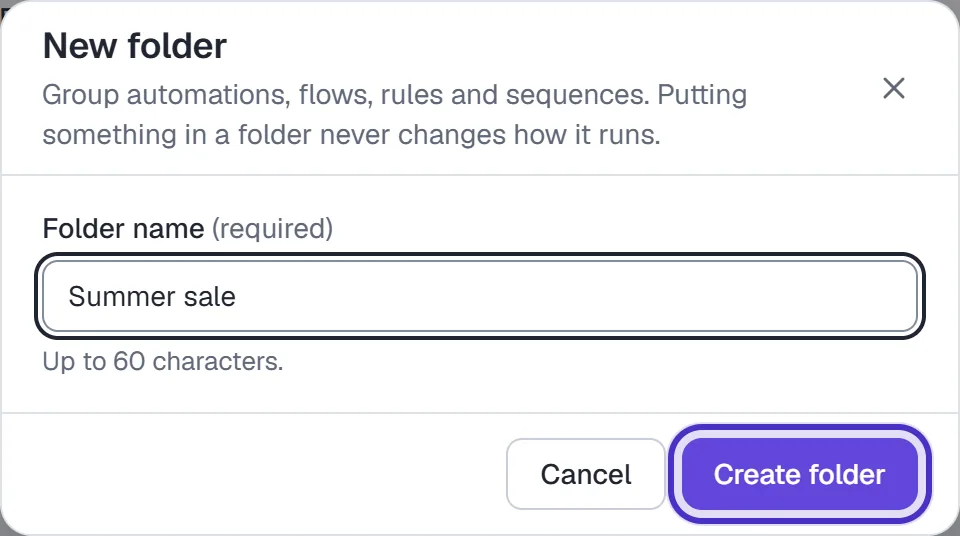
New folder with a name typed in and Create folder
Move things into a folder
- Tick the box beside each item. A selection can mix automations, flows, rules and sequences. To take everything your search and filters show, tick one and then click Select all … matching, which says how many.
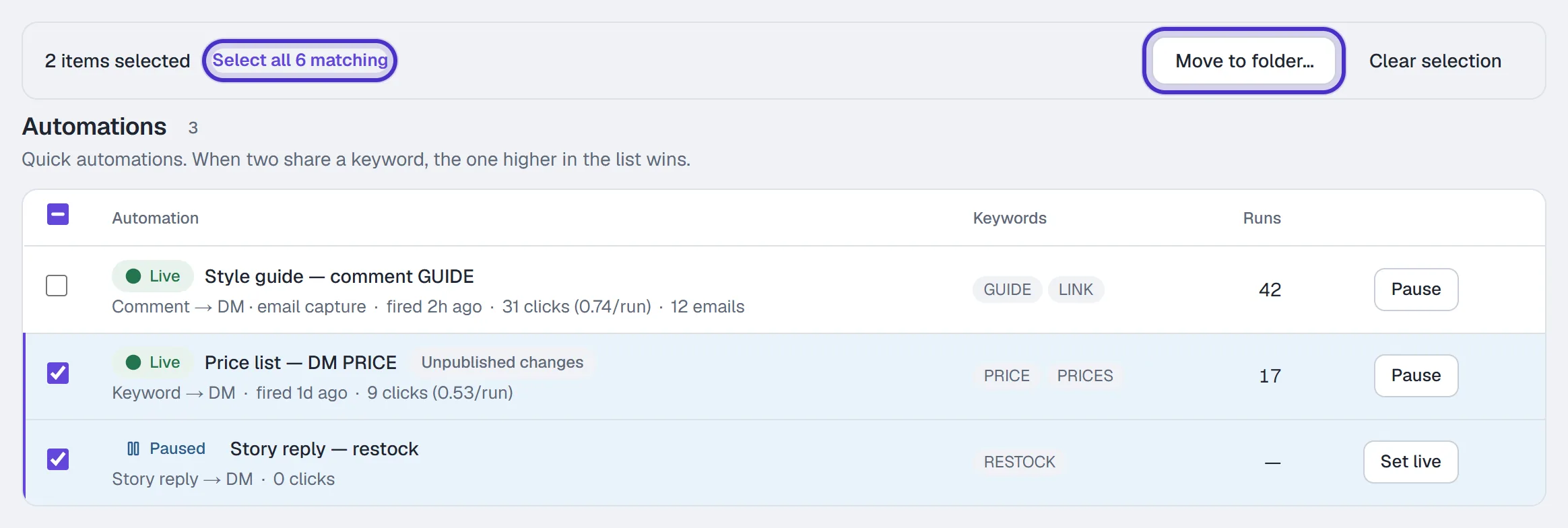
Two automations ticked, and the bar with Select all 6 matching and Move to folder - Click Move to folder….
- Under Move to, choose the folder, Unfiled, or New folder… to make one on the spot.
- Click the button that says how many items it will move, such as Move 2 items.
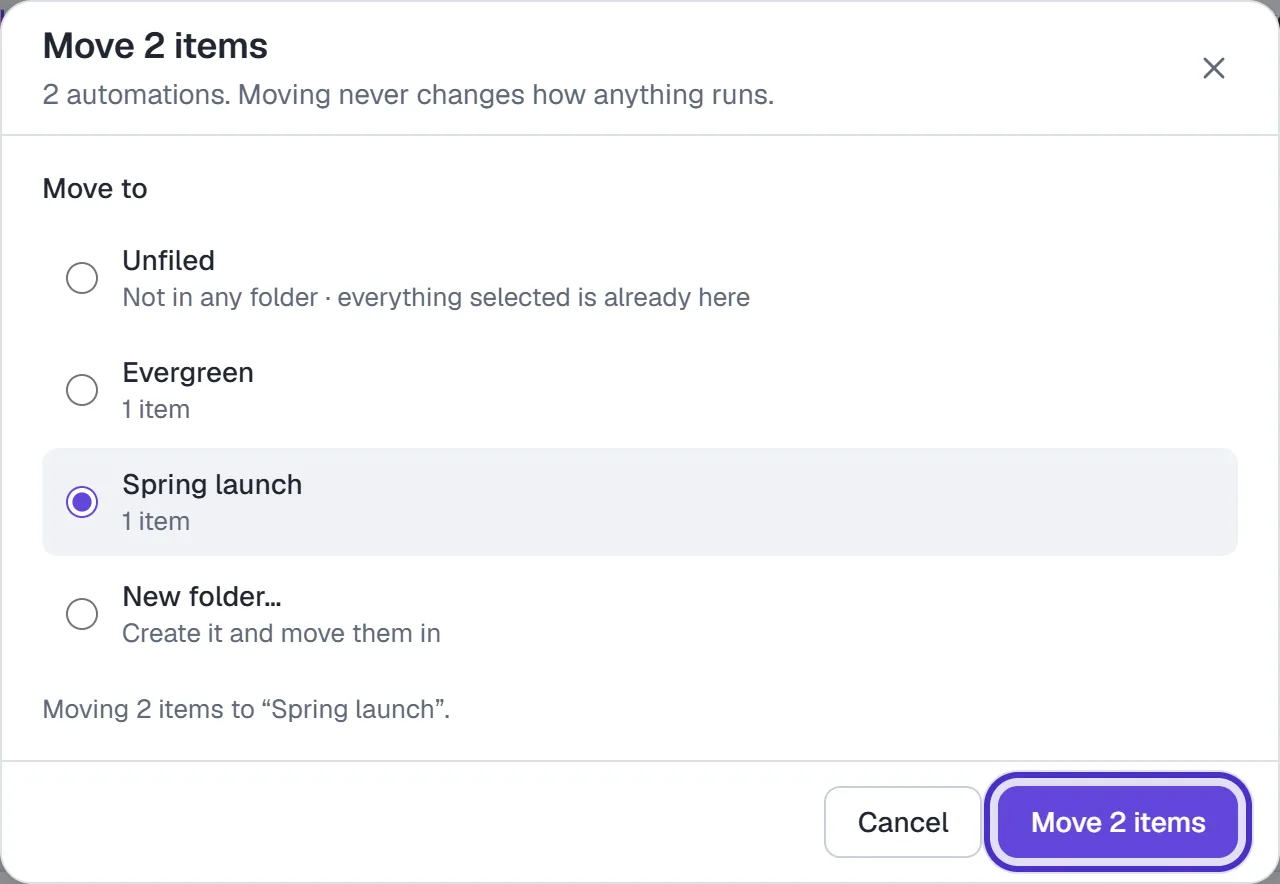
Move 2 items, with Spring launch chosen under Move to
The line that comes back says how many moved, and names anything that didn't and why, such as an item deleted in another tab. Undo puts back what moved, and the link beside it opens the folder.

Changing a filter or a folder clears any selection the new view hides, so a move can only reach items you can see.
Open, rename or delete a folder
Click a folder in the row to see only what's in it. Its heading has Rename and Delete folder.

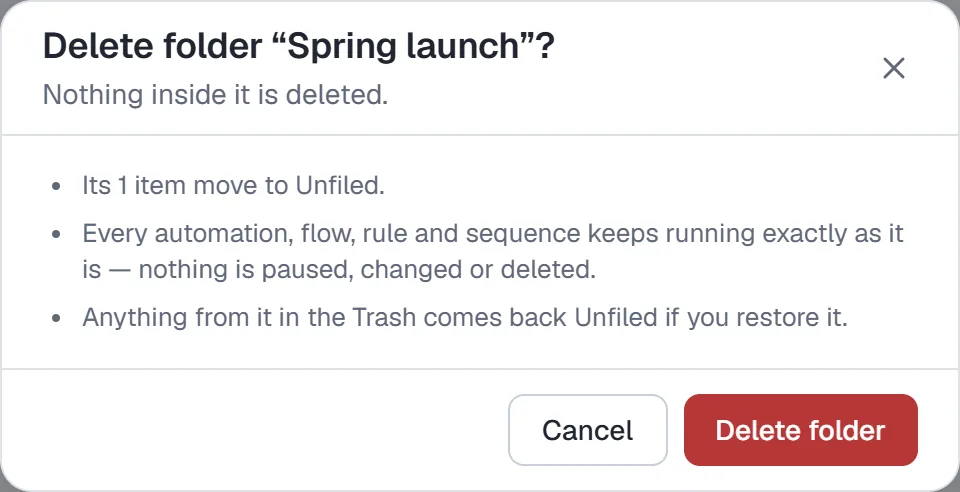
Delete folder asks first, then moves everything in the folder to Unfiled. Nothing inside is deleted, paused or changed, and anything from the folder that's in the Trash comes back Unfiled if you restore it.
Switch to the grid
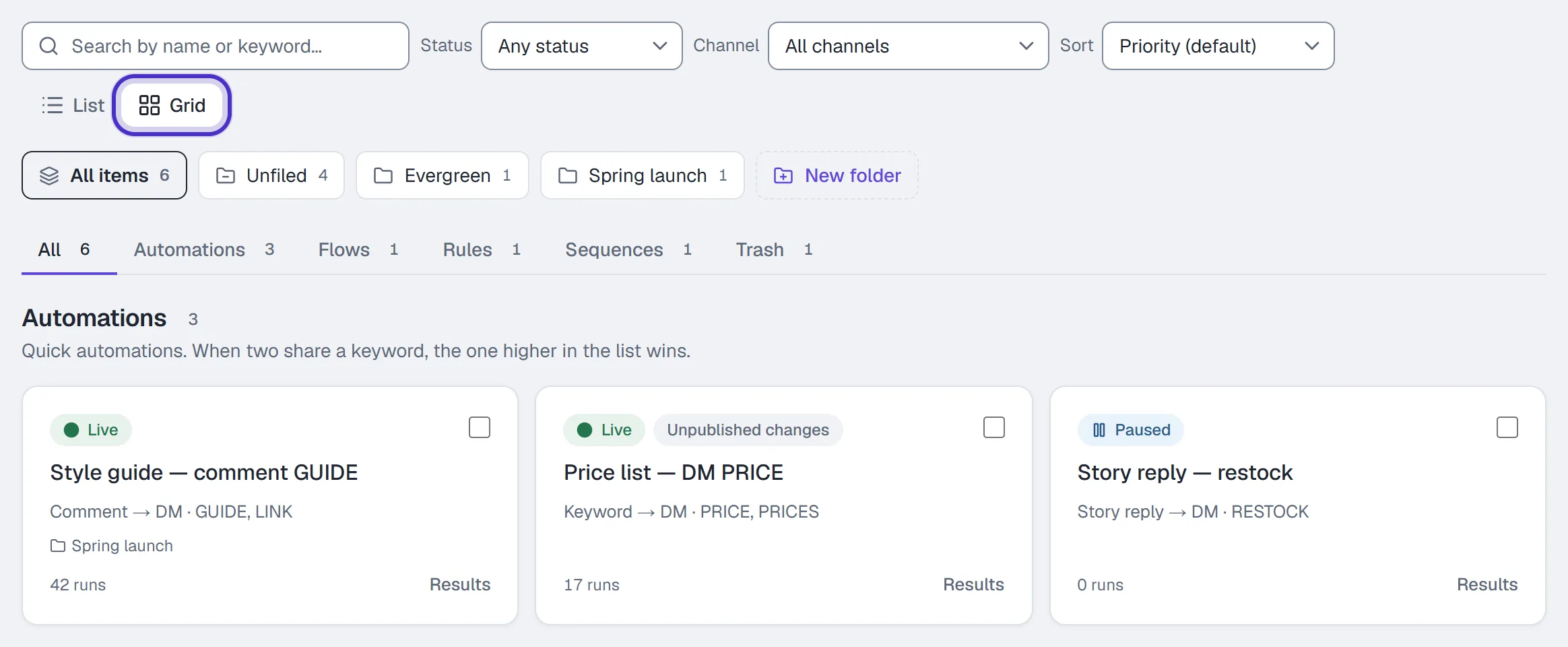
Click Grid beside the filters. It shows the same items in the same order, as cards, with the same Paused and Unpublished changes labels and a Results link on every automation. The cards keep their tick boxes for moving things. Pausing, deleting and reordering stay in List. Each person's choice is remembered for them.
What folders don't change
- How anything runs. A folder is only a label for your own view. Triggers, keywords and what your customers receive stay as they were.
- Which automation wins. Priority covers your whole list, not one folder. Move up and Move down appear only in the Priority sort, on All items, with nothing filtered (lesson 2.2).
On Growth and up, Analytics adds By folder totals on its Automations tab, once your automations are spread across more than one folder. Folders themselves have no plan limit.
FAQ
Do folders change how my automations run?
No. A folder is only a way to group things on the Automations page. Triggers, priority and what your customers receive stay the same.
Can a folder hold flows and rules as well as automations?
Yes. One folder can hold automations, flows, rules and sequences together.
What happens to the items when I delete a folder?
They move to Unfiled. Nothing is deleted, paused or changed.
Which plans have folders?
Every plan, Free included. The folder totals in Analytics are on Growth and up.
Who can create folders and move things?
Owners, admins and agents. Anyone else can open folders and browse them.