Section 2: Your first automations
Build and test your first automation
This lesson walks the whole path once, on HyperDM's setup page: someone comments a keyword on your post and gets a DM with your link. You write the reply, connect Instagram, choose the post, turn it on and test it from a second account. The rest of this section adds detail to each of those steps.
Screenshots show the real HyperDM app with a demo workspace. Names and numbers are examples.
What you'll have at the end
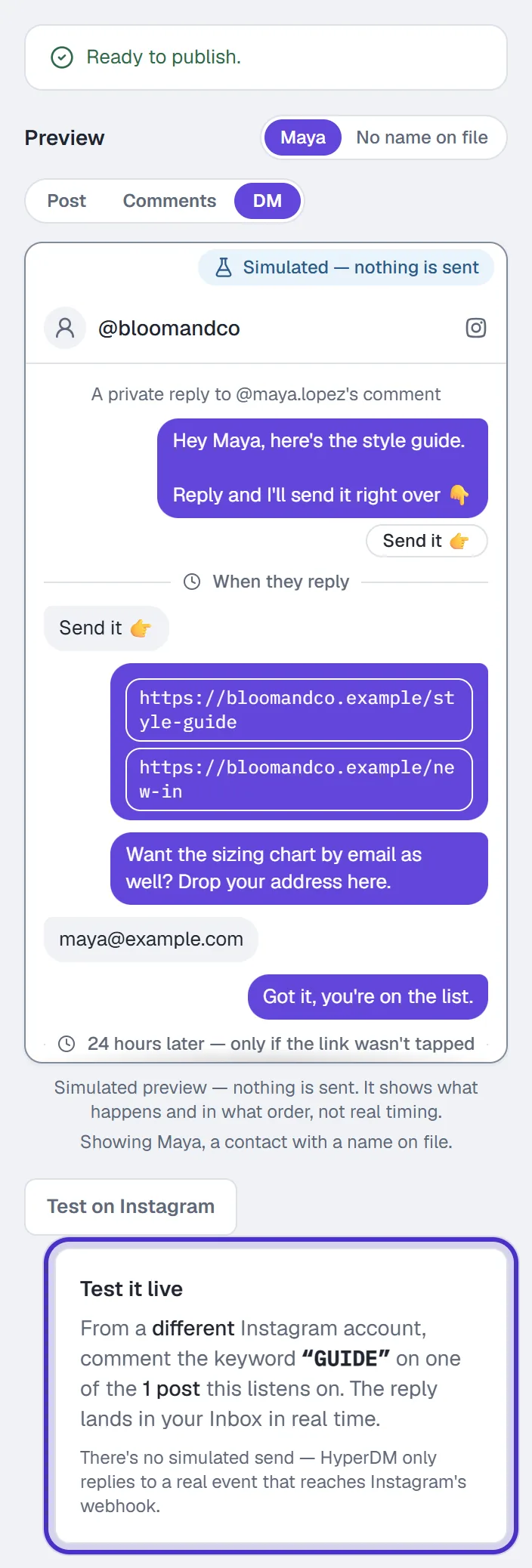
A comment-to-DM reply on one of your posts. Someone comments GUIDE, HyperDM sends them a short DM with a Send it 👉 chip, and when they tap it or reply, the link to your guide follows.
The link waits for their reply on purpose. Instagram won't reliably deliver a link to someone who has never messaged you, and their reply opens the DM window, so the link lands.
You build it on the setup page that opens after sign-up (/onboarding). Its three stages run along the top: Goal, Create and Review. A stage that can't open yet says why. Look Around First, in the header, takes you to the dashboard with what you saved kept. Once you've picked a goal, a card there offers Continue setup.
Goal: pick what to do first
What would you like to do first? has three cards, and nothing is picked for you:
- Send a link from a comment, the one this lesson takes.
- Send a link from a DM: someone DMs you a word like
PRICEand gets the link back. Same steps, without choosing a post (lesson 2.5). - Answer questions with AI, covered in lesson 6.1.
- Pick Send a link from a comment.
- If you like, answer Who are you setting this up for? (Optional). It only changes the wording on later stages.
- Click Create my first reply.
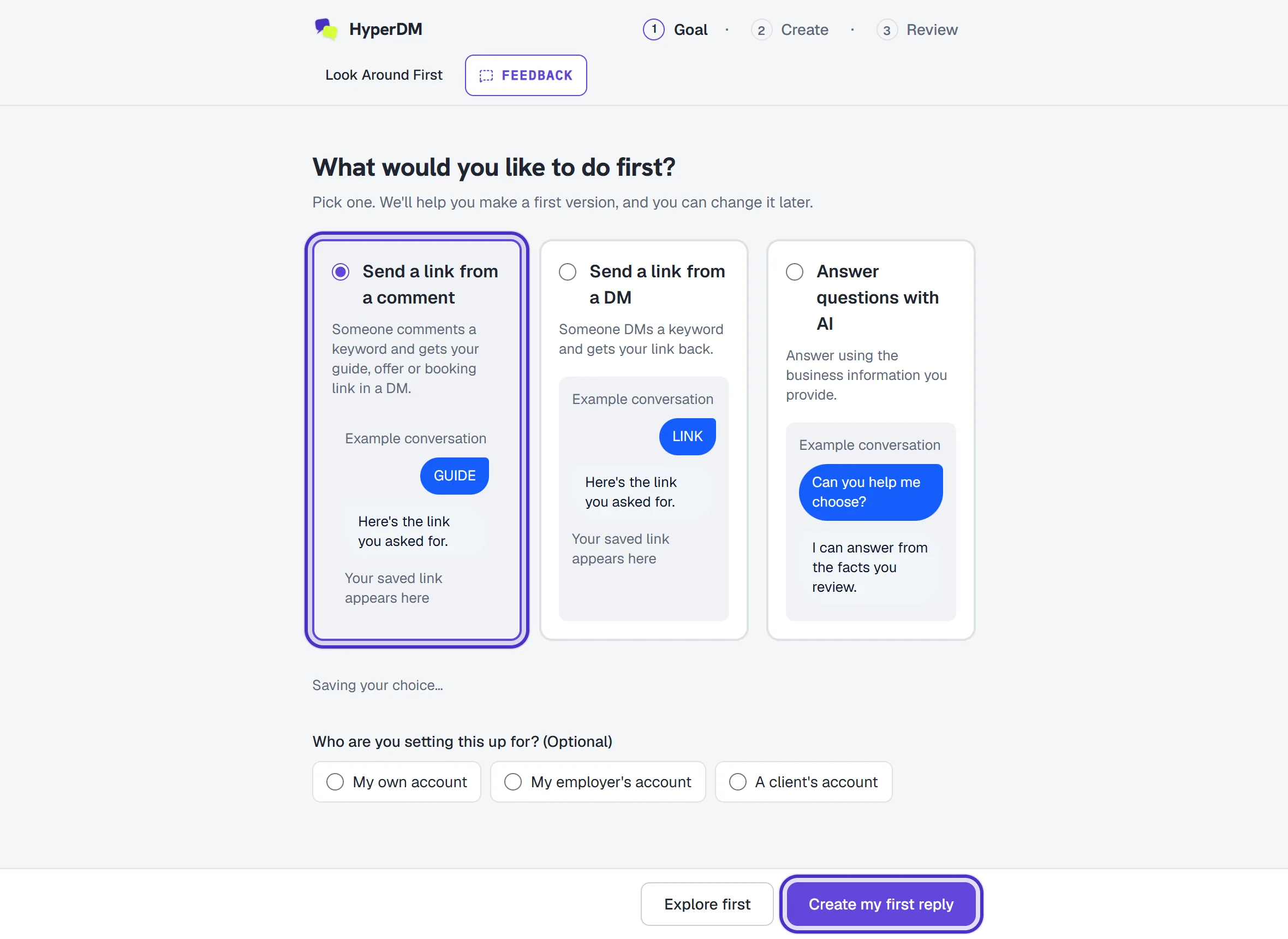
The Goal stage with Send a link from a comment chosen and Create my first reply
You can change your pick later, and anything you saved stays in Automations.
Create: write the reply and preview it
Make your first reply has three fields:
- Keyword: the word people will comment. It starts with the example
GUIDE, which you can change. It fires when a comment contains the word, ignoring case. - Link to send: the full
https://address of your guide, offer or booking page. - Message: the DM they receive with your link. One friendly line is plenty.
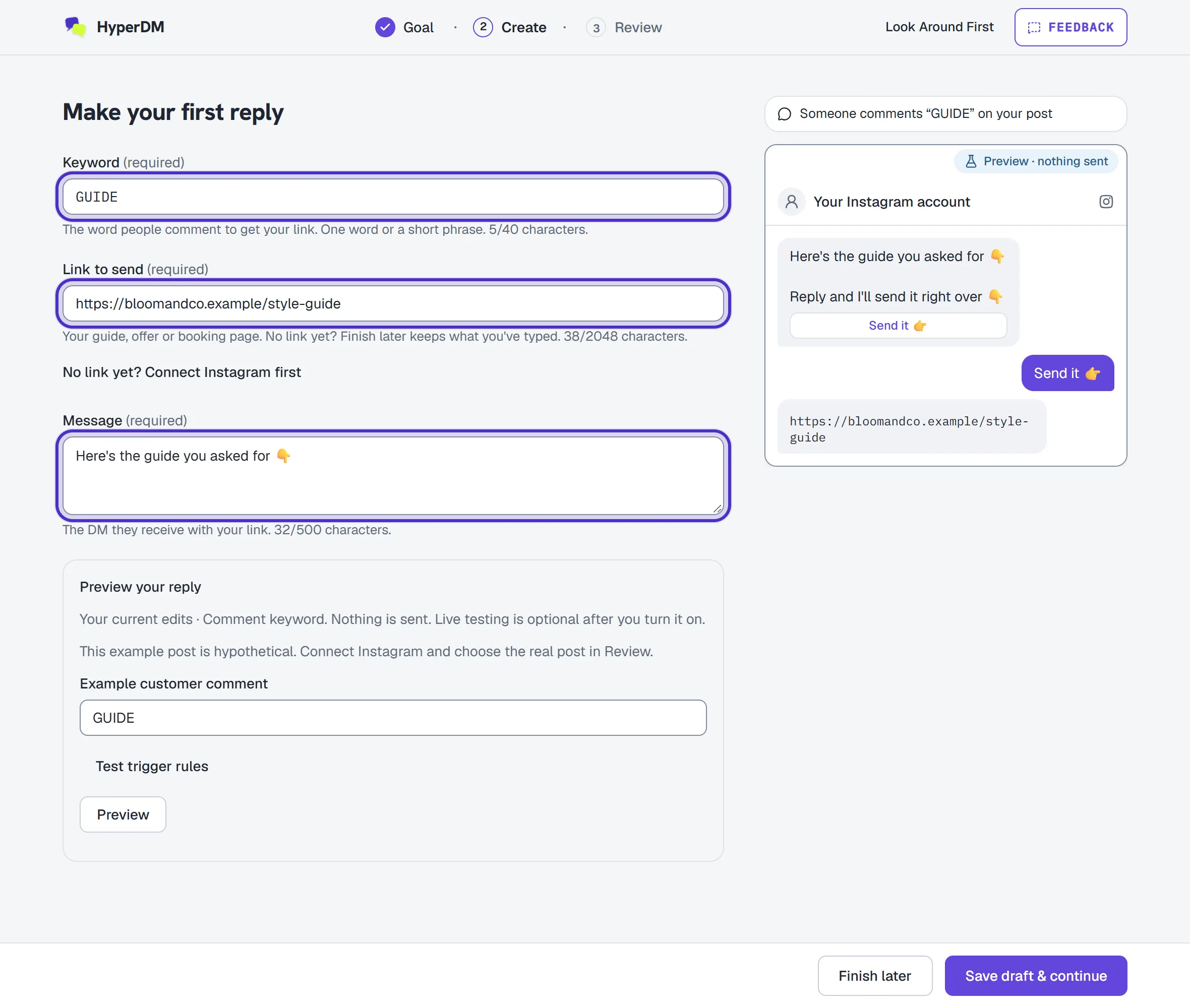
Make your first reply with the keyword, the link and the message - Under Preview your reply, keep or change the Example customer comment and click Preview. Simulation passed · nothing sent means that comment would match. It only checks what you typed, and the phone beside it is marked Preview · nothing sent. The optional question about other tools under it connects nothing, so you can leave it.
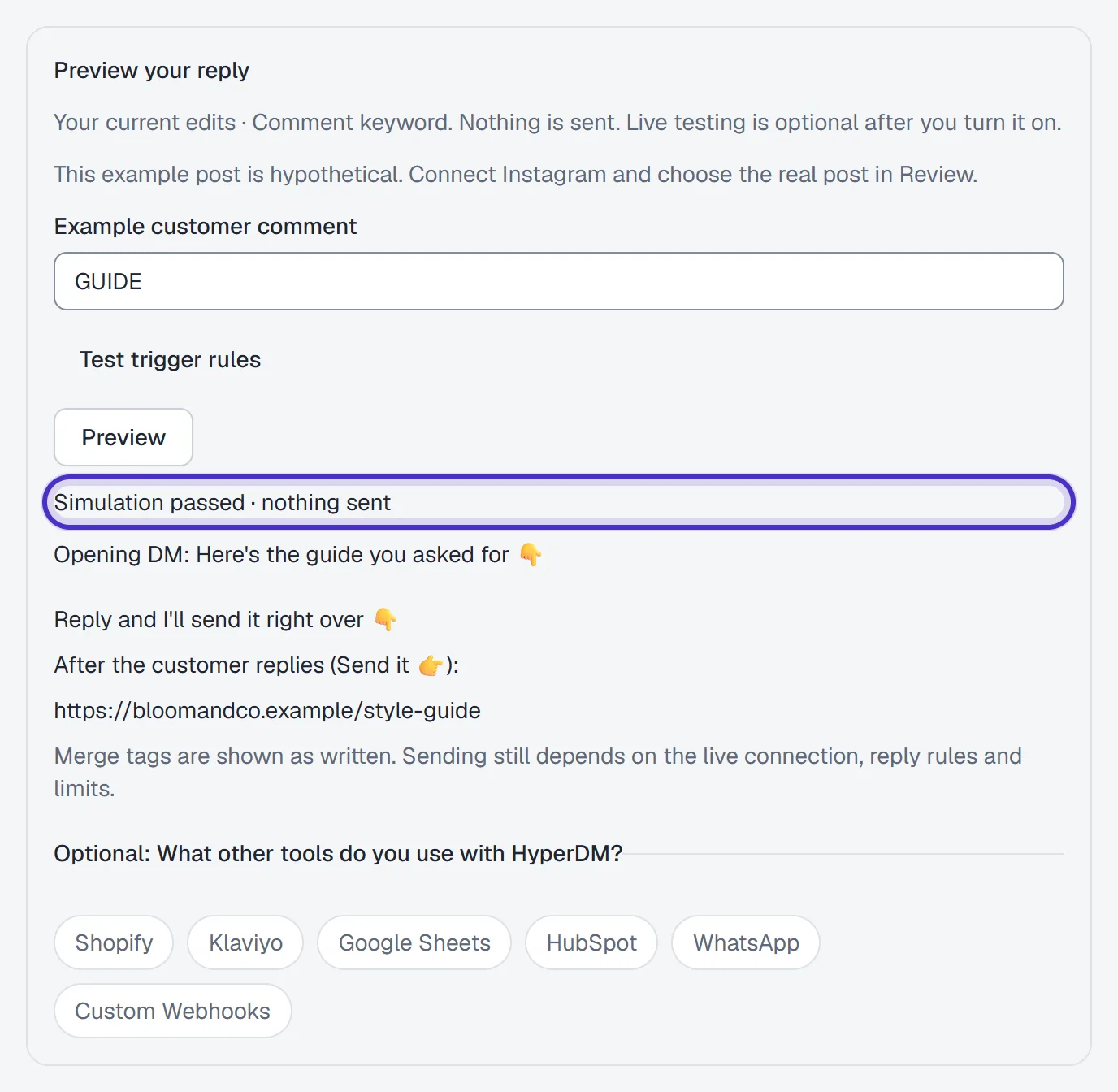
Preview your reply with an example comment, Simulation passed and the DM as it would land - Click Save draft & continue. The reply is saved as a draft in Automations, listening on no posts yet, so nothing runs. Review opens next.

Finish later and Save draft & continue at the foot of the stage
No link to hand? No link yet? Connect Instagram first keeps what you typed, takes you to Instagram and brings you back to this stage. Finish later keeps it too and takes you to the dashboard.
Review: connect Instagram
Review opens on Your setup, a summary of the reply, then a list of tasks, each with at most one button. The first is Connect account.
- Click Connect Instagram in that row.
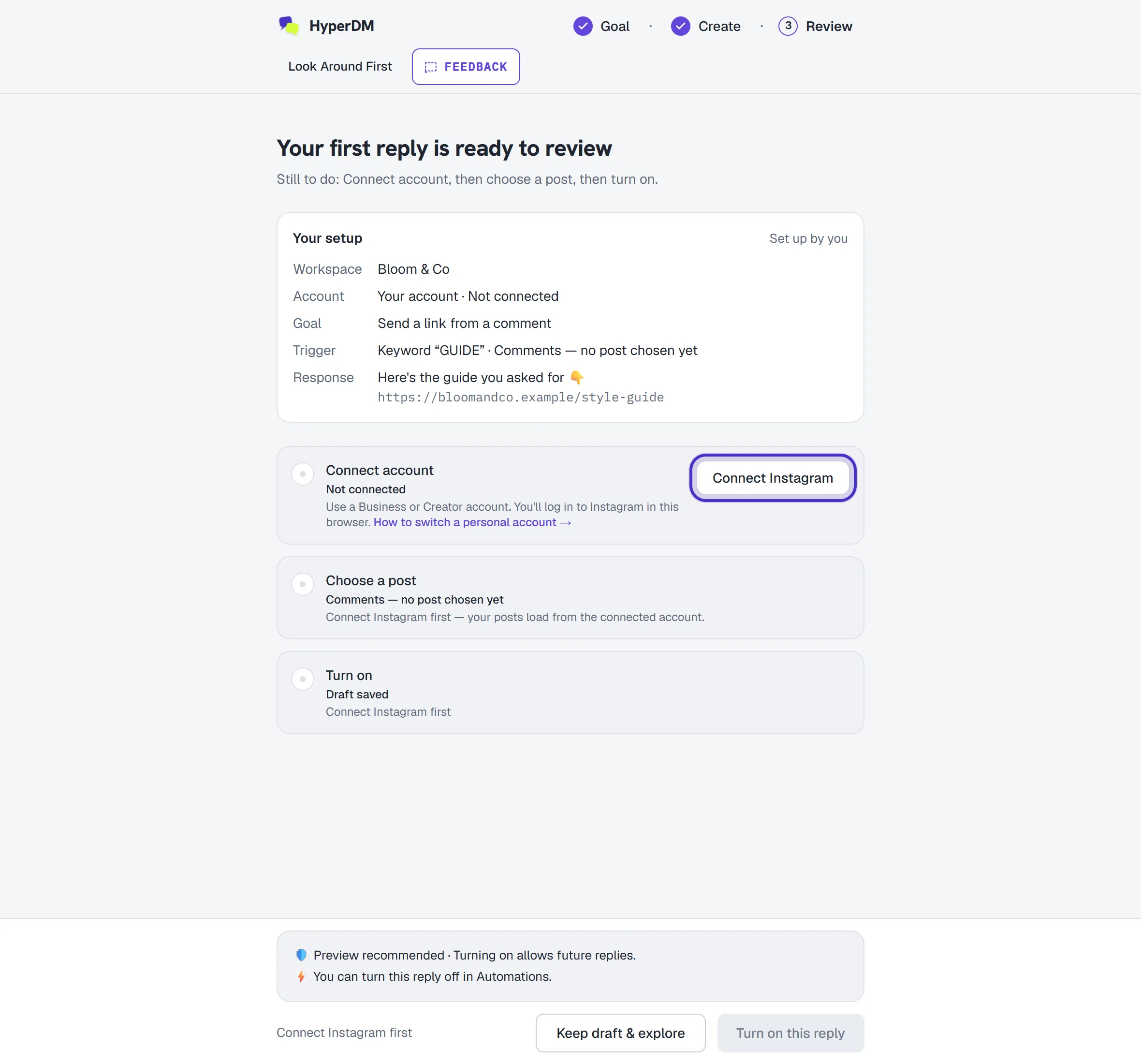
Review with the reply saved, and Connect Instagram in the Connect account row - Instagram asks you to authorise HyperDM, then sends you back to this stage.
- The row now reads Connected as your @handle. Connecting doesn't turn the reply on.

The Connect account row reading Connected as @bloomandco
Check three things before you click:
- You need a Business or Creator account. If yours is personal, switch it to Creator or Business in the Instagram app (it's free, and you can switch back later), then connect. Lesson 1.2 covers it.
- Instagram asks you to log in on instagram.com in the browser you're using, even when the app on your phone is logged in. Have your password and 2-step code ready.
- Connect from Chrome or Safari, not from inside the Instagram app. If you opened HyperDM from a link in Instagram, the row offers Open HyperDM in your browser instead of the button.
Choose the post and turn it on
- Under Choose a post, click the post or reel. Show all opens the rest, and you can pick more than one. Your pick is saved when you turn the reply on, so if you leave Review first, you pick again.
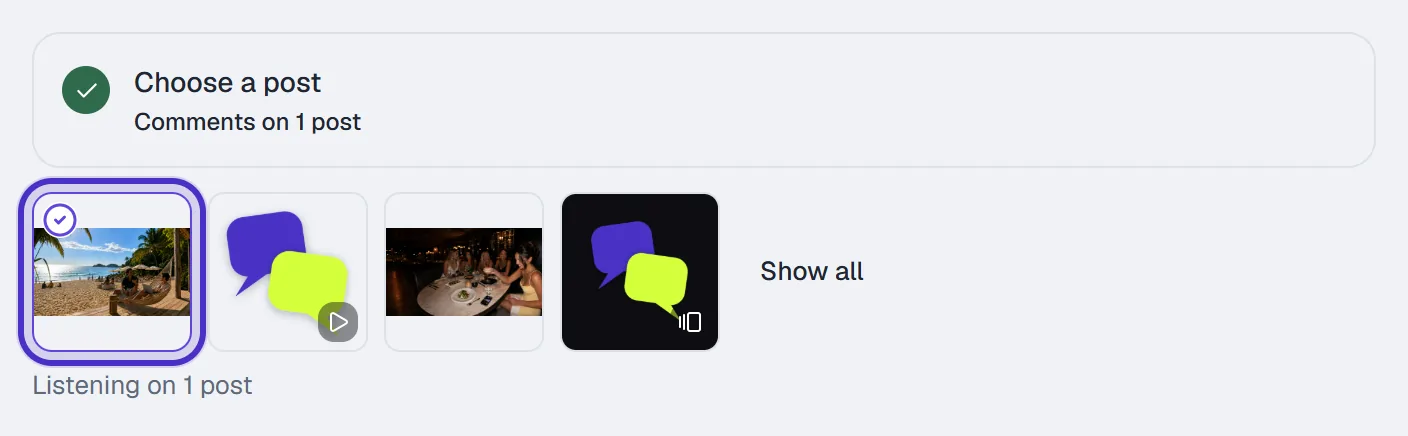
Choose a post with one post picked and Show all - Click the main button, which names what it turns on: Turn on this reply on 1 post. Until the steps before it are done it's greyed out, with the missing one named beside it, such as "Choose a post first".
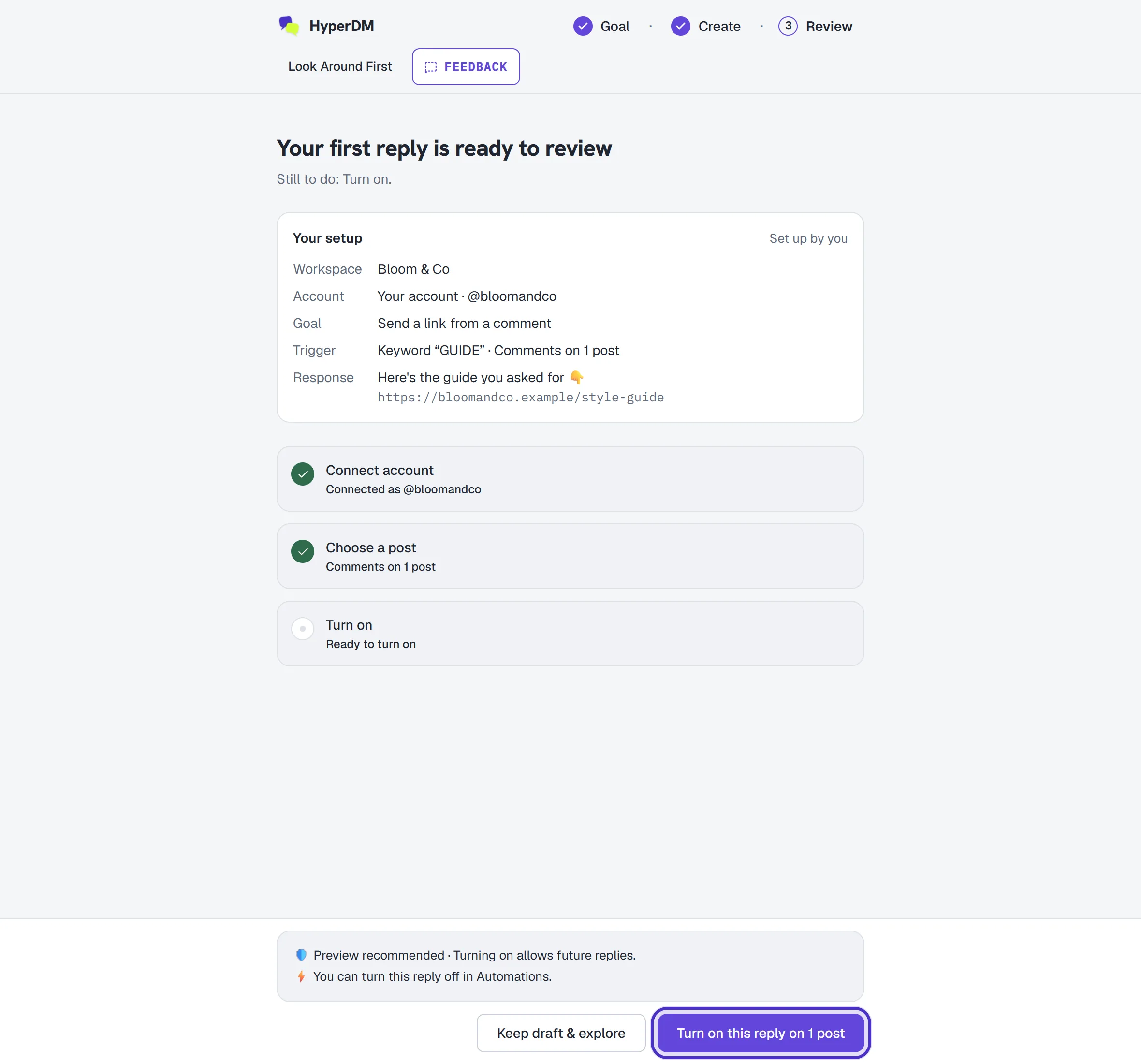
Review with the post chosen and Turn on this reply on 1 post
There's no every-post choice on this page. To listen on everything you post, open the automation in Automations afterwards and set Listen on to All posts & reels (lesson 2.2).
Only this reply turns on. AI answers stay off until you switch them on in Agent.
Test it from a second account
Instagram's rule. A comment from the account you connected is never answered. Instagram won't let an app send a private reply to the account that owns the post, and HyperDM skips those comments on purpose so its own public reply can't set the automation off. A test from your own account can't work.
- In the Test row, click Test it now.
- From a different Instagram account, comment the keyword on the post you picked. Copy puts the keyword on your clipboard.
- On the test account, open the DM that arrives and tap Send it 👉 or reply with anything. That reply is what lets the link through.
- Watch the three status rows: Turned on, Opening message sent, Link sent. The page updates itself; Refresh forces it, and Open Inbox shows the conversation.
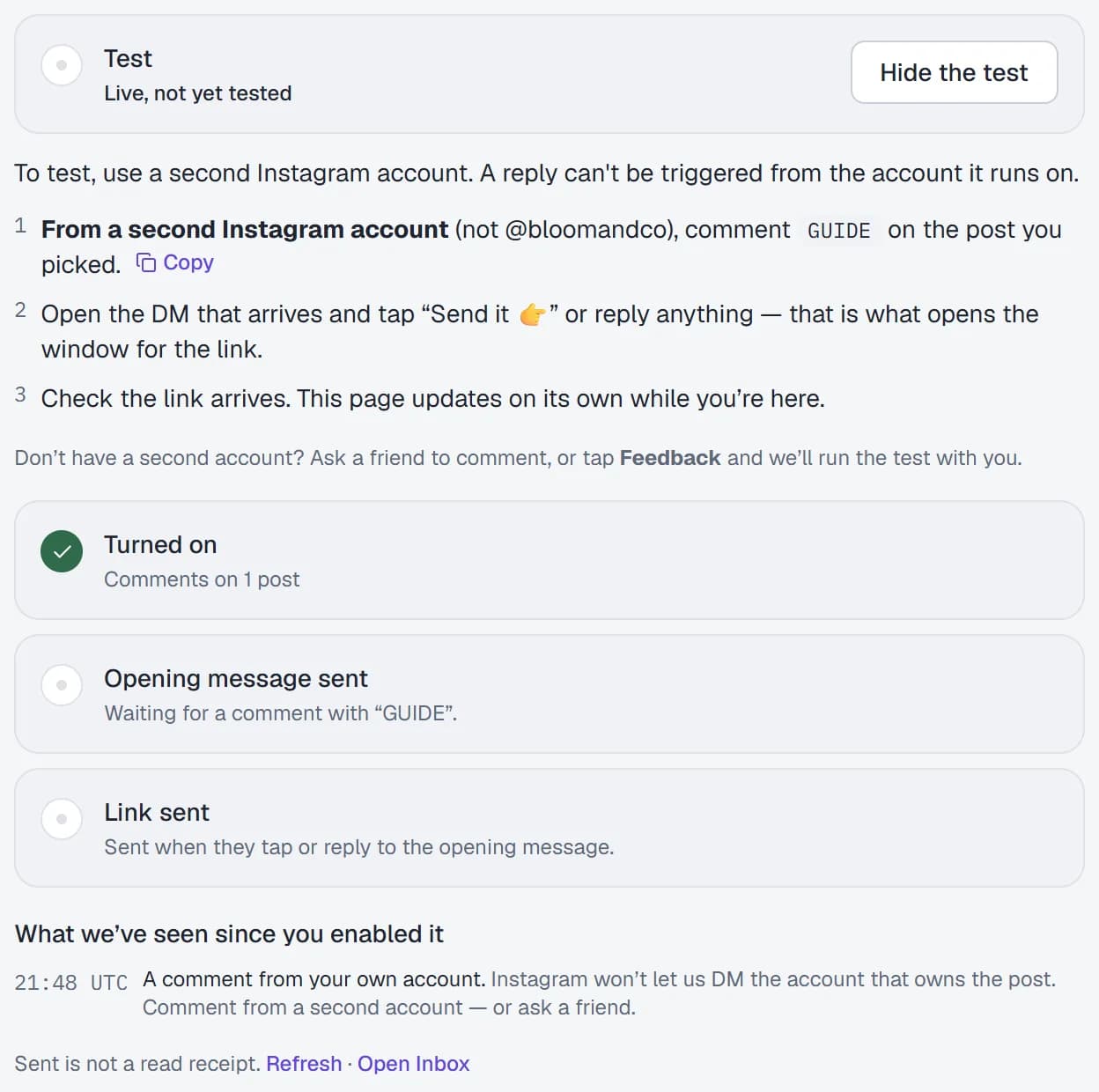
The Test row open, with its three status rows and what HyperDM has seen
Under the rows, What we've seen since you enabled it lists each comment and DM that has reached your account since the reply went live, with a verdict such as "a comment from your own account" or "matched" and what to do about it. It never shows the message itself.
When the link has gone out, the page says Your link was sent and offers Open dashboard. Testing is optional: Test later & open dashboard leaves it for another time, and the dashboard's card brings you back.
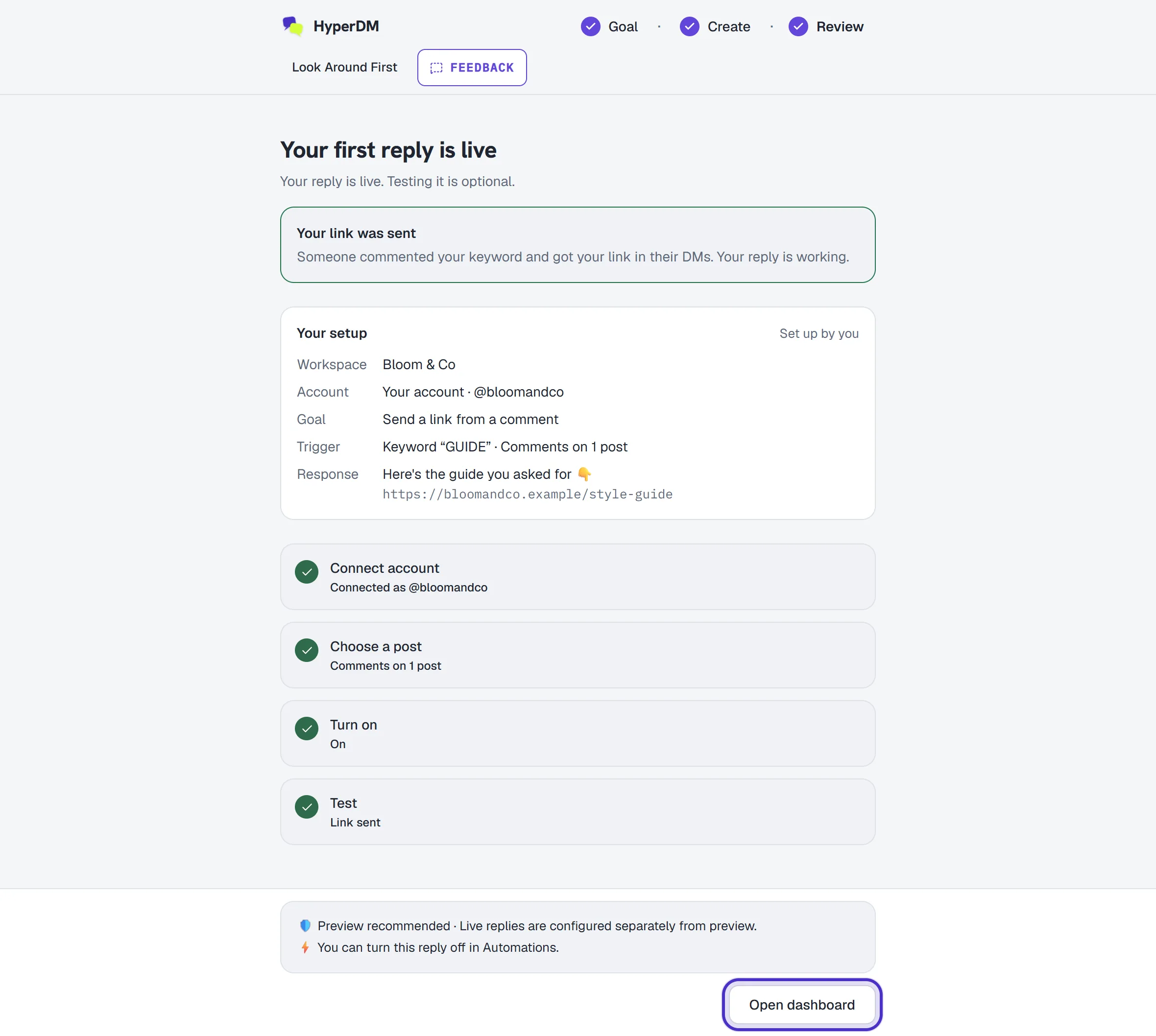
If you don't have a second account, ask a friend to comment, or tap Feedback and ask for help with the test.
Three more limits apply to every test. Only comments made after the reply went live count. Instagram allows a private reply only within 7 days of the comment. And a DM to someone who has never messaged you can land in their Requests folder.
Build the next one from Automations
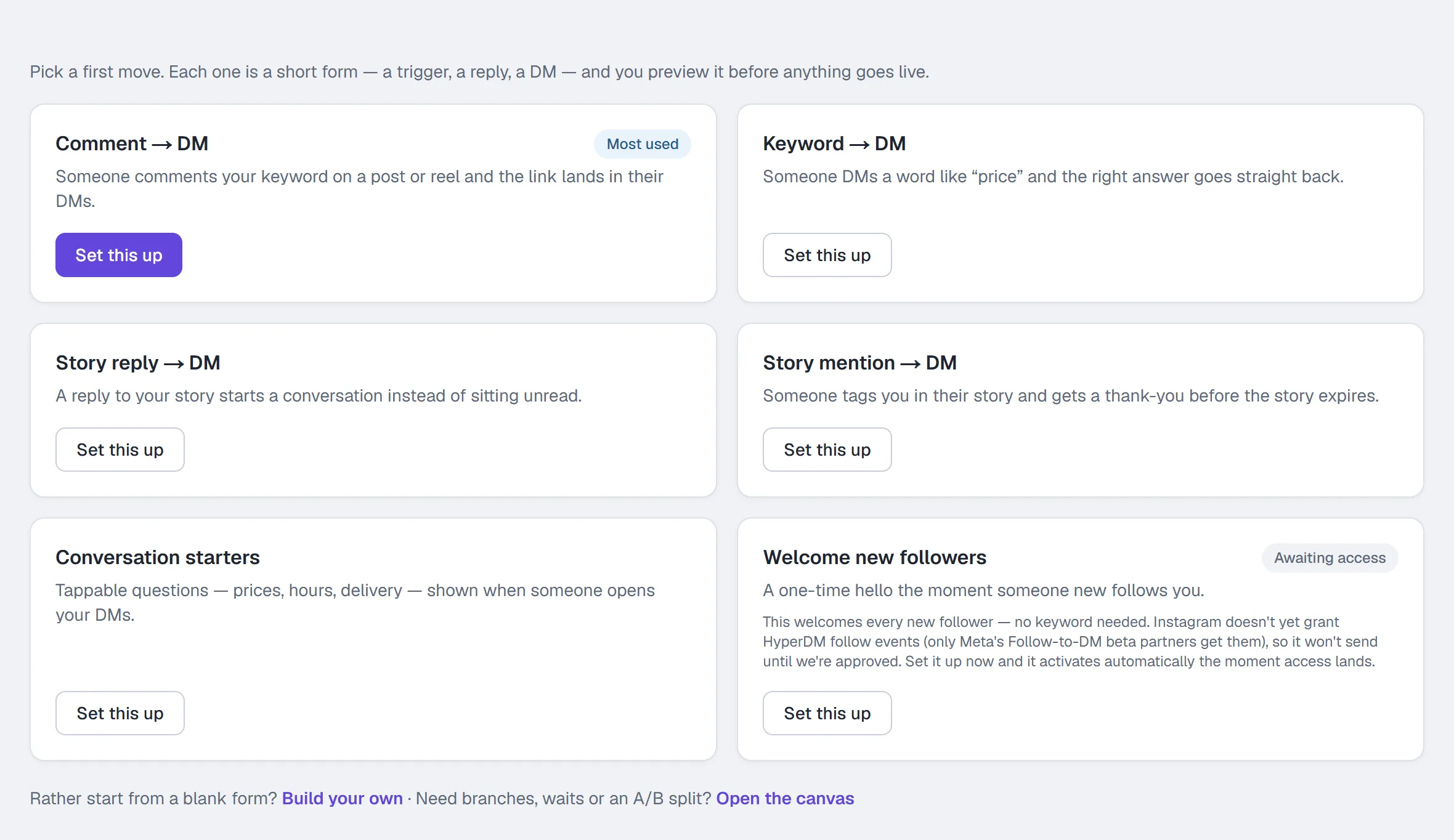
Setup builds one reply. Everything after it starts in Automations, under Automate in the sidebar. A workspace that hasn't built anything sees six starter cards, one per trigger. Click a card and the builder opens set to that trigger; once you've built something, use New automation.
The builder has three sections, Trigger, Conversation and Follow-up, with a preview beside them. Publish turns the automation on and Save draft keeps it without running. With Instagram connected, a Test on Instagram button says exactly what to do from your second account for that trigger.
One card can't go live yet. Welcome new followers waits on Instagram granting HyperDM follow events, and its form says so. The other five work today, starting with comment-to-DM.
FAQ
Why didn't my own comment trigger the automation?
Instagram doesn't let an app send a private reply to the account that owns the post, and HyperDM skips those comments so its own public reply can't trigger itself. Test from a second Instagram account.
Will it work on posts I published before I set it up?
Yes, if the automation listens on that post or on all your posts and reels. Only comments made after it went live count; older comments on the same post are never picked up.
Can I edit an automation after it's live?
Yes. On a live automation, Save draft keeps your edits beside the live version, which keeps running unchanged until you press Publish changes. The trigger can't be changed, so create a new automation for a different trigger.
Is there a limit on how many automations I can build?
Automations don't count against your plan. Flows do: the Free plan allows 5 flows. What every plan limits is conversations, and Free includes 50 a month.
Why does my automated DM end with Powered by HyperDM?
On the Free plan, automated replies end with a short Powered by HyperDM line. Paid plans send nothing extra.