A workspace is one brand's HyperDM. Teammates join a workspace by invite, and the role you give them decides what they can change. Seats start on Growth, so on Free and Starter a workspace holds just you.
Screenshots show the real HyperDM app with a demo workspace. Names and numbers are examples.
What a workspace holds
Each workspace has its own contacts, automations, flows, products, knowledge, connected Instagram account, plan and billing. Nothing crosses between workspaces, so a second brand or a client account belongs in a workspace of its own.
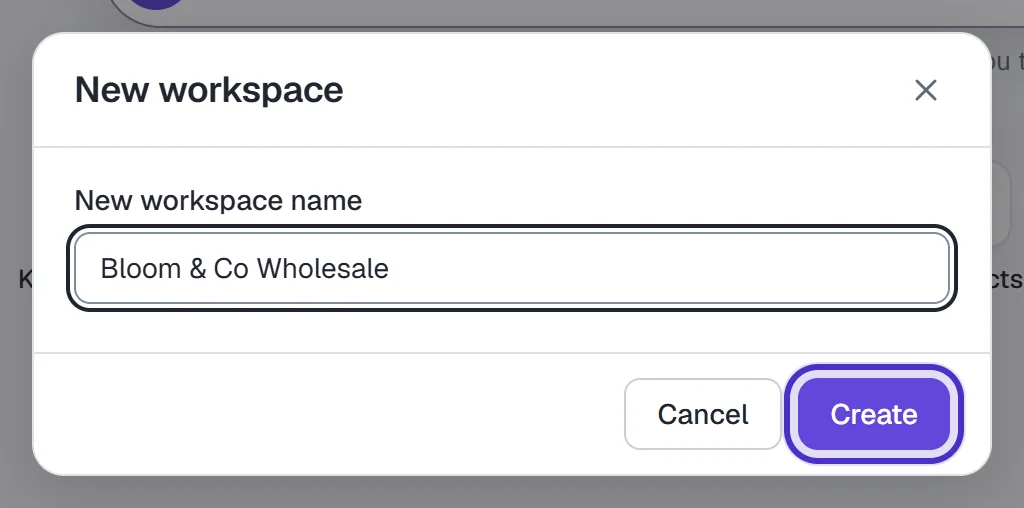
To make one, open the workspace switcher in the app header, choose New workspace, type its name in New workspace name and click Create. You become its owner. An account can create up to 2 workspaces, and workspaces you were invited to don't count toward that.
Your role is set per workspace, so you can be the owner of one and an agent in another. HyperDM never puts a workspace in a page address, which means a link you paste to a teammate opens in their current workspace, not yours.
The roles
| Role | Can | Can't |
|---|---|---|
| Owner | Everything, including billing, payment settings and deleting the workspace | Nothing |
| Admin | Connect Instagram, run the AI agent, send broadcasts, import contacts, invite and remove teammates, change workspace settings | Billing and payment settings, deleting the workspace |
| Agent | Work the Inbox, and build automations, flows, rules, tags, fields and products | Connect channels, billing, switch on or change the AI agent, send broadcasts, import or export contact data, invite teammates |
| Client | Read the Inbox and Contacts, reply by hand, add notes and complete conversations, and pause the AI | Change automations, flows, tags or products, assign a conversation to someone else, connect channels, billing, send broadcasts, invite teammates |
Every role can read the Inbox, Contacts, Analytics, the Activity log and the AI Playground, and every role can record that a contact asked to opt out.
The limit on agents and the AI is deliberate. Agent is the role an invite gets by default, so a new hire can't switch the AI on for your whole audience on their first day. A client is the other way round: they can't change your setup, but they can stop the AI replying when they need to.
Invite a teammate
Owners and admins invite from Settings → Team & roles:
- Enter their Email, for example
teammate@yourbrand.com. - Choose a Role. The list offers Admin, Agent and Client, each with a line on what it can do. Below Pro, every invite has to be Agent, and picking another role is refused with an upgrade message. Choosing Admin or Client is on Pro and up.
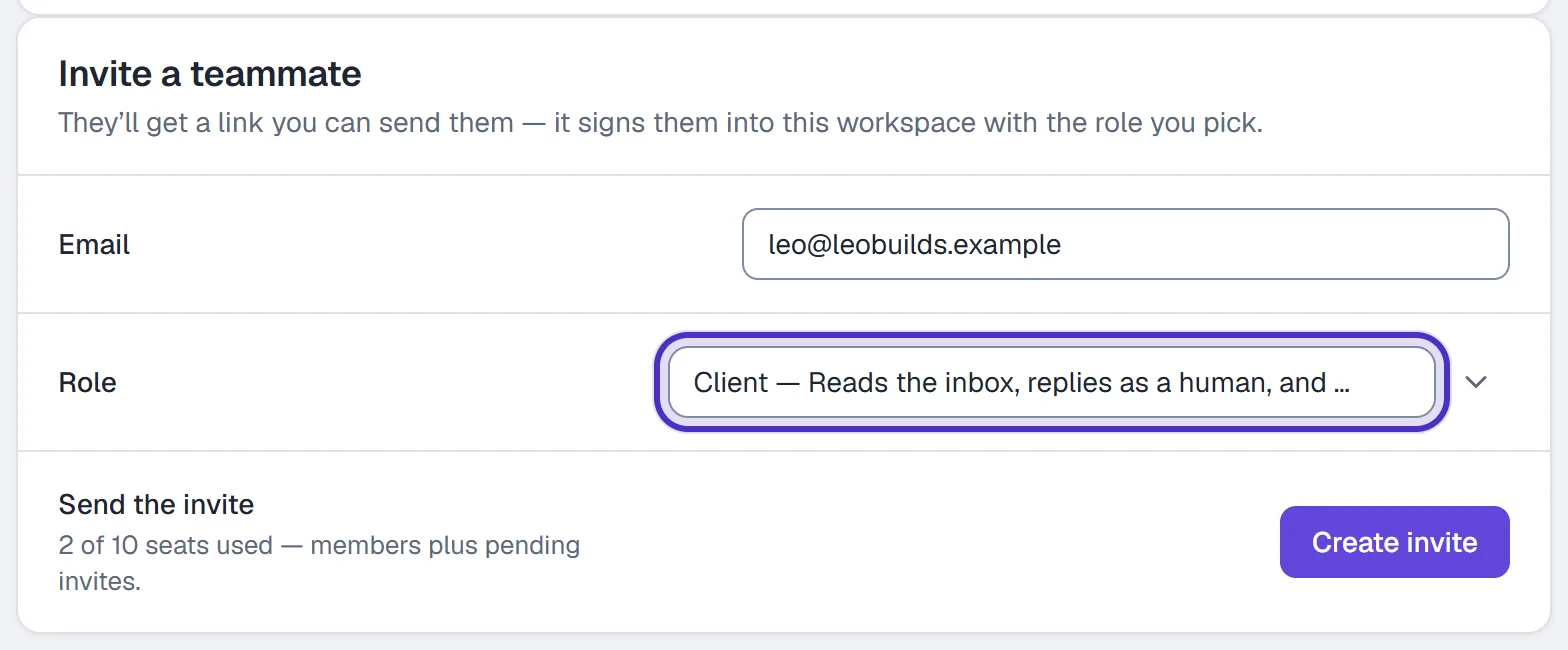
Invite a teammate with Client chosen under Role, and what that role can do - Click Create invite.
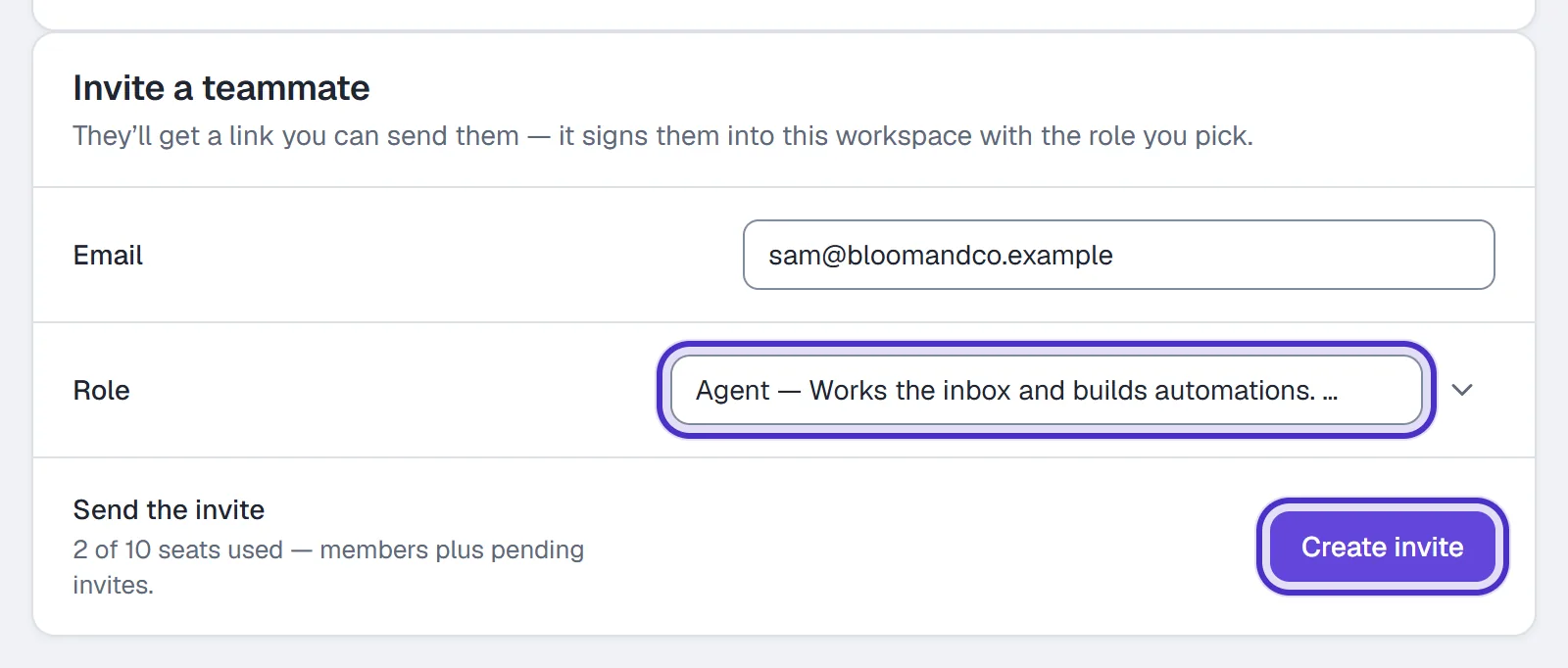
Invite a teammate with an Email typed in, the Agent role chosen, and Create invite - Click Copy link on the pending invite and send it to them yourself.
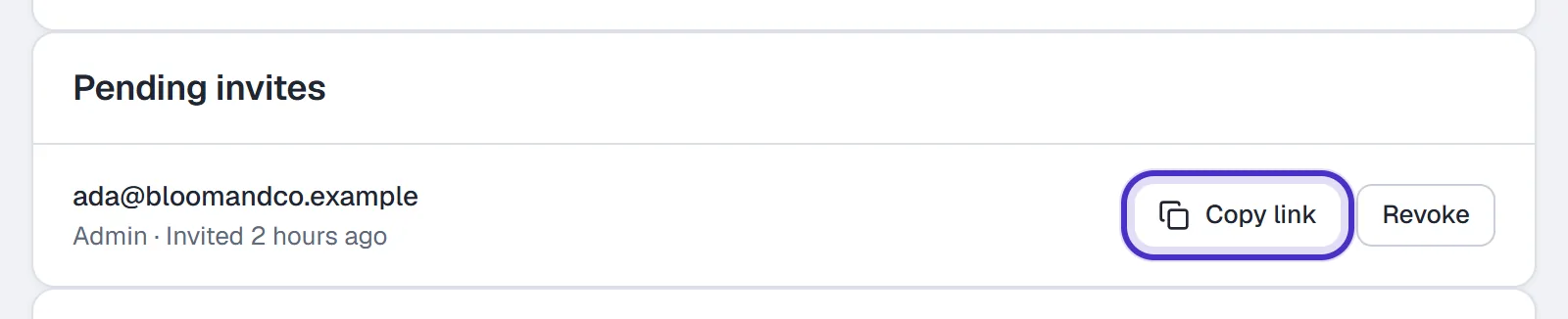
A pending invite with Copy link and Revoke
They open the link, sign in or create an account with the address you invited, and land in your workspace. Invites are good for 7 days. A link opened while signed in with a different address doesn't work: they sign out, sign back in with the invited address and open it again.
Owners can invite admins, agents and clients. Admins can invite agents and clients. Anyone else sees the form greyed out with the reason.
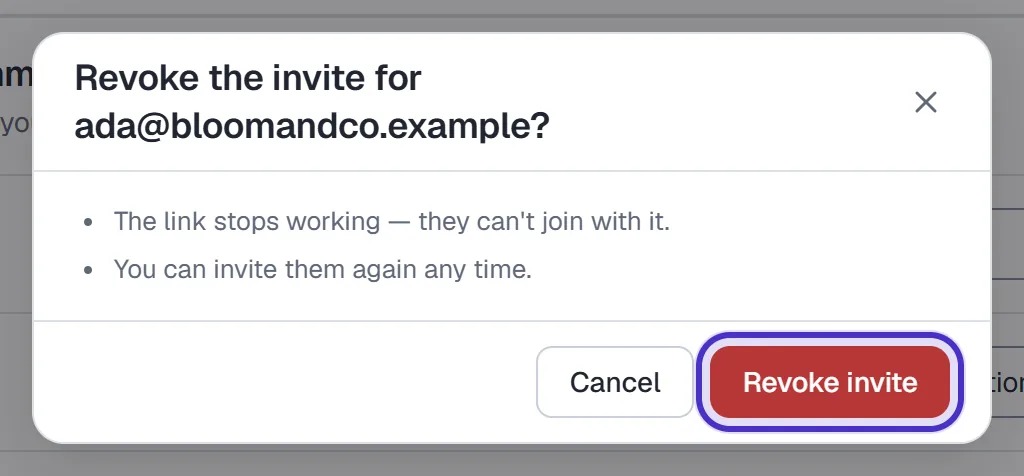
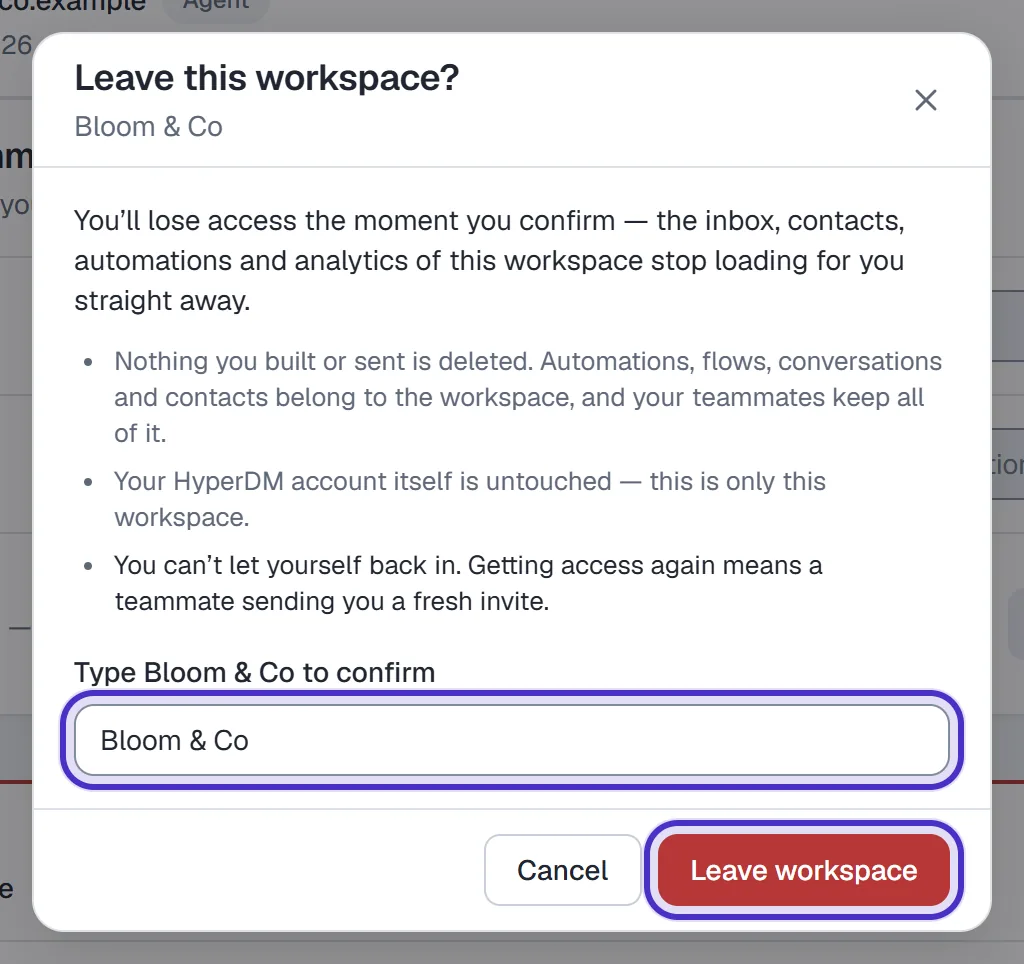
To tidy up, Revoke on a pending invite (then Revoke invite) stops its link working, and Remove on a member (then Remove member) takes them out. A workspace always keeps at least one owner, so the last owner can't leave or be removed. To leave a workspace yourself, use Leave workspace in the tab's Danger zone and type the workspace name to confirm.
Seats per plan
A seat is a person, and you count. A pending invite holds a seat until it's accepted or revoked.
| Plan | Seats, including you | Teammates you can invite |
|---|---|---|
| Free | 1 | 0 |
| Starter | 1 | 0 |
| Growth | 2 | 1 |
| Pro | 10 | 9 |
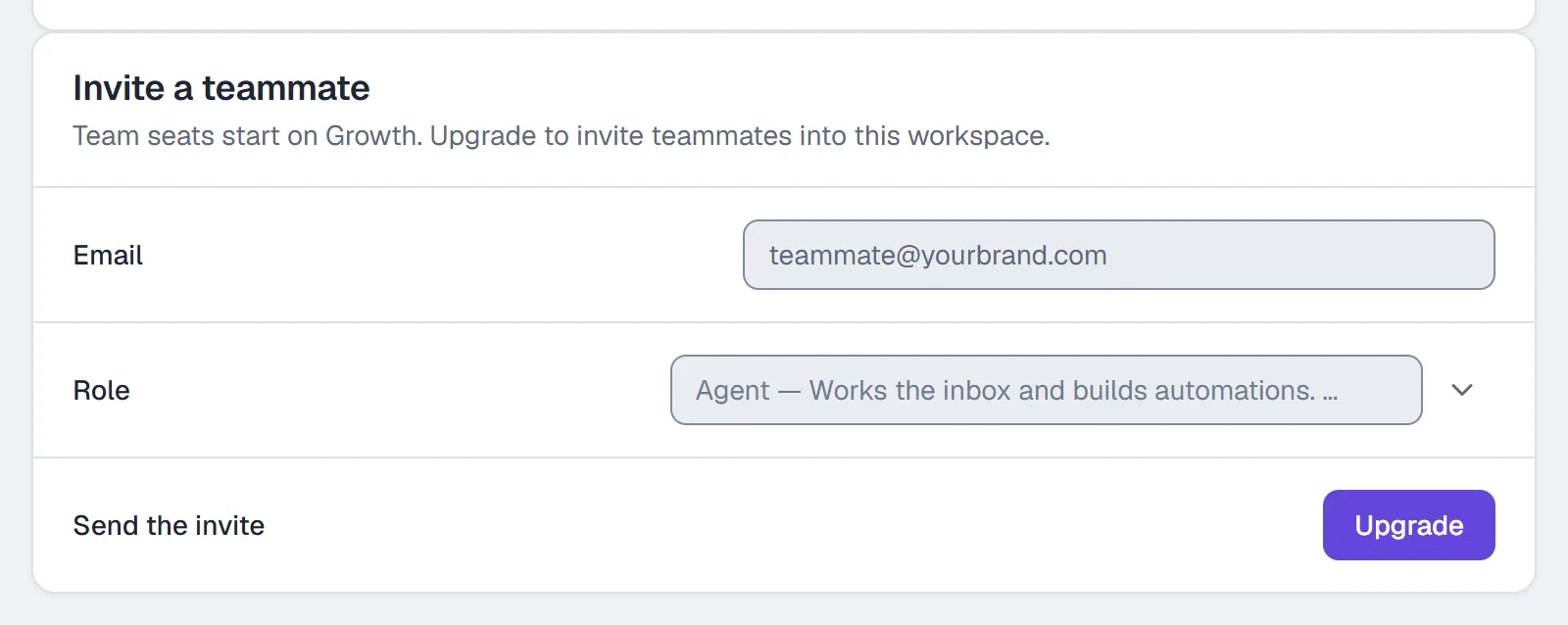
Below Growth, the invite form says "Team seats start on Growth. Upgrade to invite teammates into this workspace." Seats are per workspace, like every other allowance.
Pick the right role
A VA who answers DMs and sets up automations fits the Agent role. They can work the Inbox and build, without touching billing, connections or the AI's settings.
A partner who runs the account with you needs Admin, and picking any role other than Agent takes Pro. As an admin they can connect Instagram, run the AI and manage the team, while billing stays with you as the owner.
A client who wants to watch their own account fits the Client role, which also takes Pro. They can read everything, reply by hand and stop the AI, and they can't change your automations, connections or billing.
To change someone's role, Remove them and send a new invite with the role you want.
If someone can't find a control, the page usually says who can use it, right where the control would be. The full table of who can do what is in Roles and permissions.
FAQ
Can one person be in more than one workspace?
Yes. They switch between workspaces from the switcher in the app header, and they can hold a different role in each one.
Why can't I choose a role when I invite someone?
Choosing a role is on Pro and up. Below Pro, every invite carries the Agent role.
Do invites expire?
Yes, after 7 days. Revoke the old one and create a fresh invite from Settings, Team & roles.
Can an agent switch on the AI agent or connect Instagram?
No. Both need an owner or admin. Agents work the Inbox and build automations.
What can someone with the Client role do?
Read everything, reply in the Inbox by hand and pause the AI. They can't change automations, connections or billing. Inviting someone as a client is on Pro and up.
Does each workspace need its own plan?
Yes. Each workspace has its own plan, billing and seats, and nothing is shared between them.