Everything in HyperDM hangs off one sidebar, grouped into Daily, AI agent, Automate, Content and Account. This lesson walks it top to bottom so you know where things live before you build anything. Your role decides some of what you see: a page you can't use isn't shown.
Screenshots show the real HyperDM app with a demo workspace. Names and numbers are examples.
Home
Home is the page you land on (its address is /dashboard). Start something new at the top, and further down check how busy you are and whether anything is waiting on you.
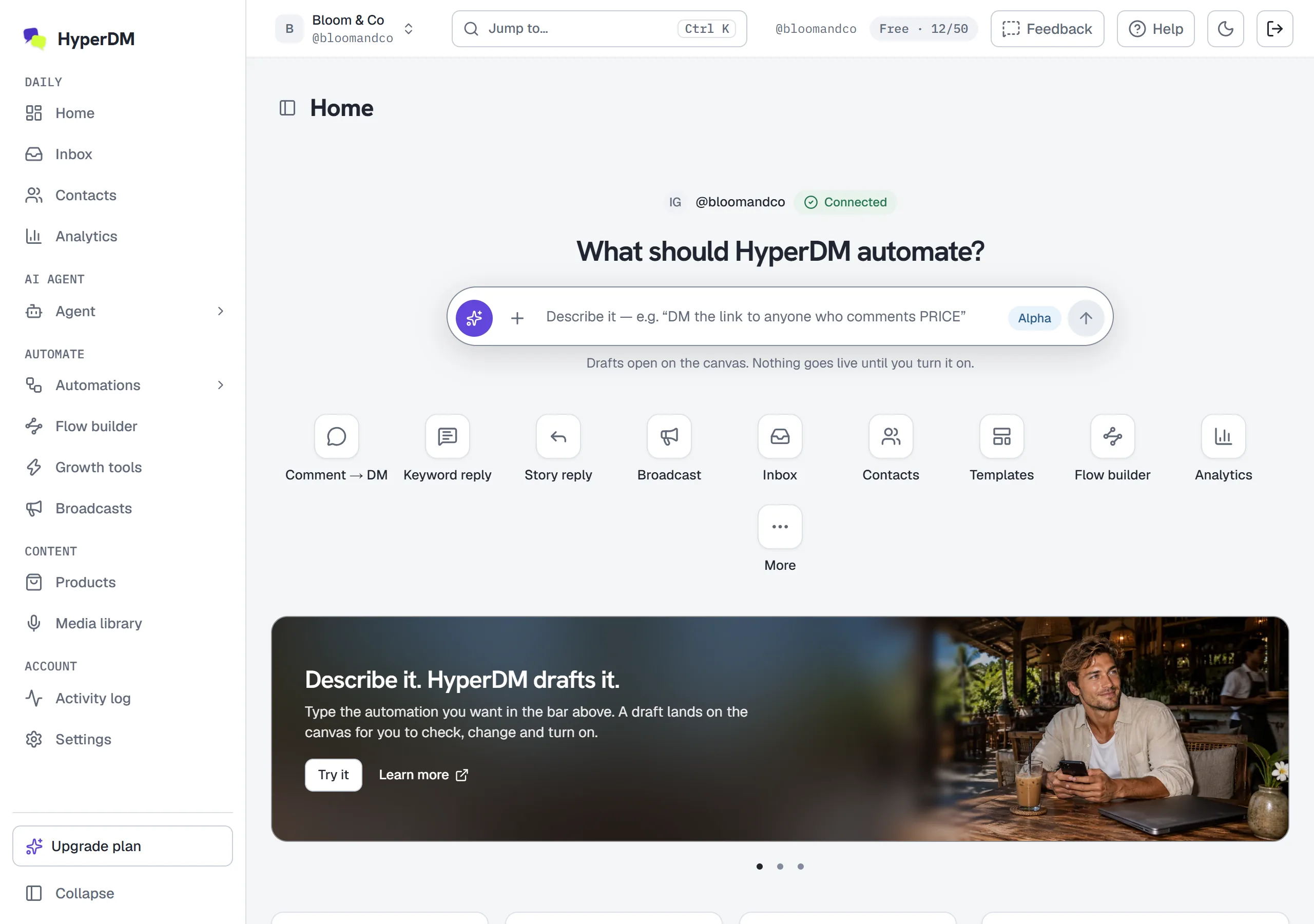
- The connected account. One line names the Instagram account HyperDM is running on, with a green Connected chip.
- What should HyperDM automate? Type a sentence such as "When someone comments PRICE on my reel, DM them the link" and press Enter. The flow builder opens and drafts it, and nothing goes live until you turn it on. It carries an Alpha badge because it's new.
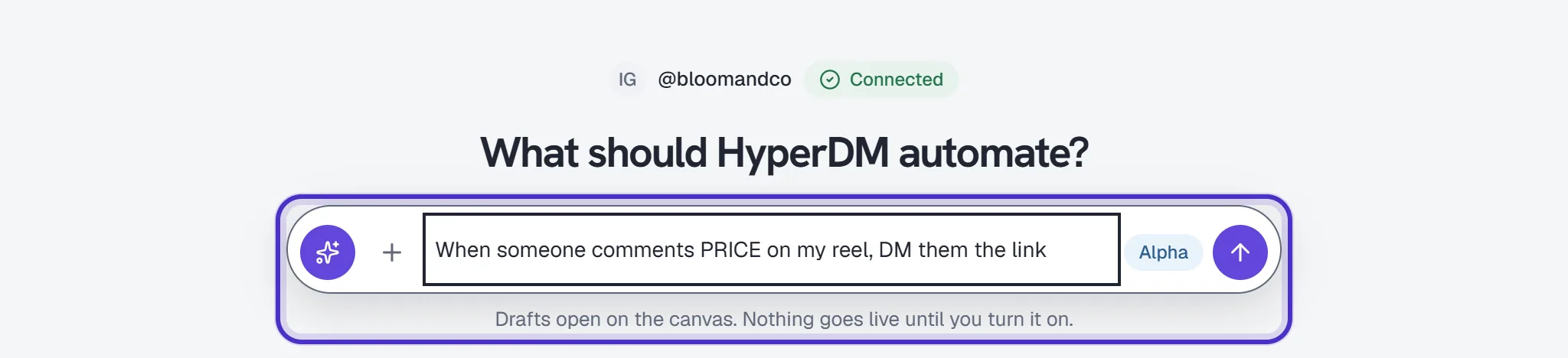
What should HyperDM automate? with a sentence typed into the prompt bar - Quick actions. Comment → DM, Keyword reply and Story reply open the builder with that trigger picked. Broadcast, Inbox, Contacts, Analytics, Templates and Flow builder do what they say, and More holds the rest.
- The numbers. Conversations this month, Contacts and Automation runs, plus Revenue once a real paid order lands (revenue reporting is on Growth and up).
- Usage this month. How much of your plan's allowance you've used.
- Needs attention. Conversations you've taken over from the AI. When nothing is flagged, it tells you whether the AI is answering or your Inbox is.
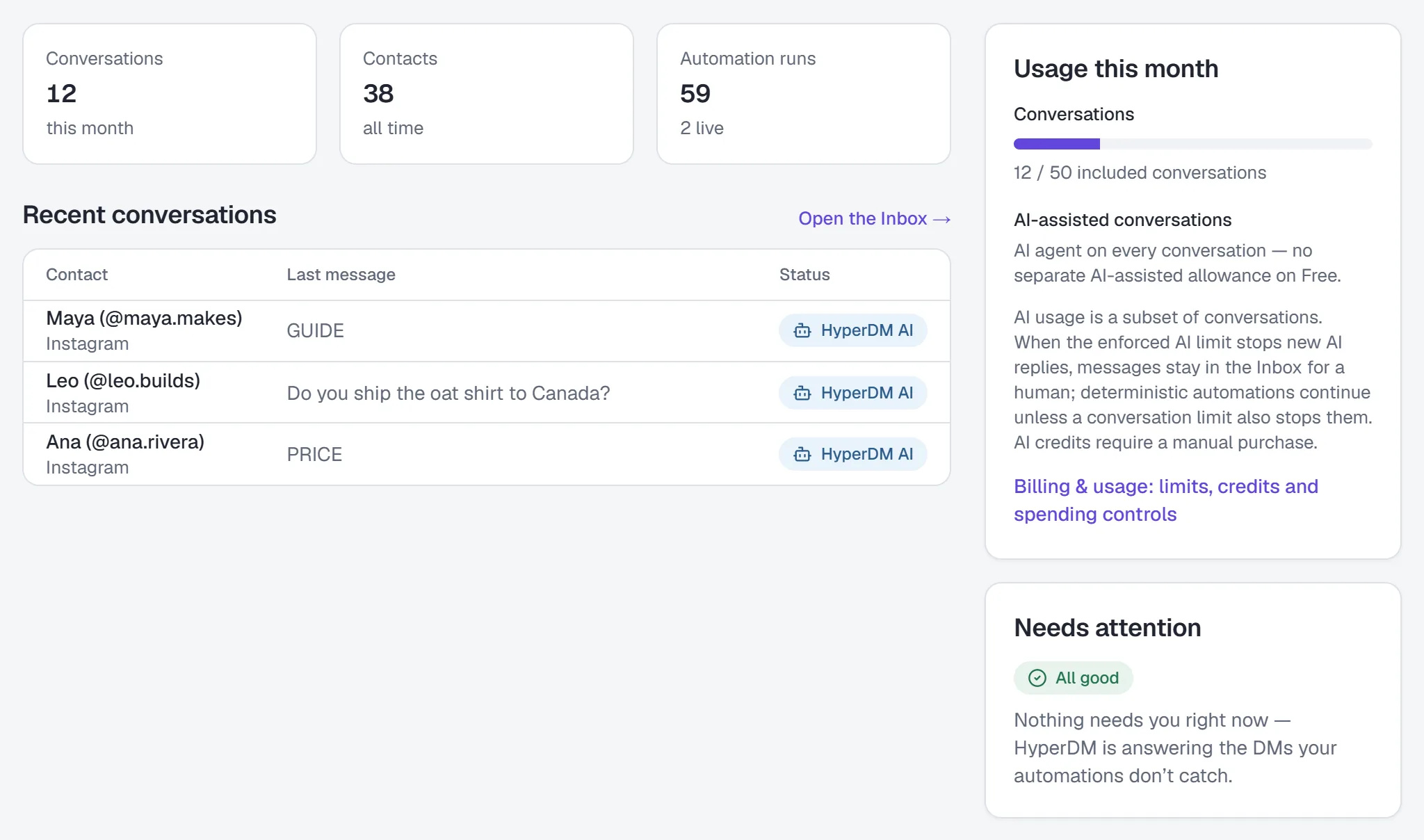
Home's numbers, Recent conversations, Usage this month and Needs attention - Recents and Quickstarts. The things you edited last, and eight official templates to start from.
- During your Pro trial. The owner also sees a Try what Pro adds card here, and a badge such as Pro trial · 12 days left in the sidebar (on a phone it's at the top of Home). The figures on this page show a workspace on Free, so they don't have them. See Use your 14-day Pro trial.
The sidebar
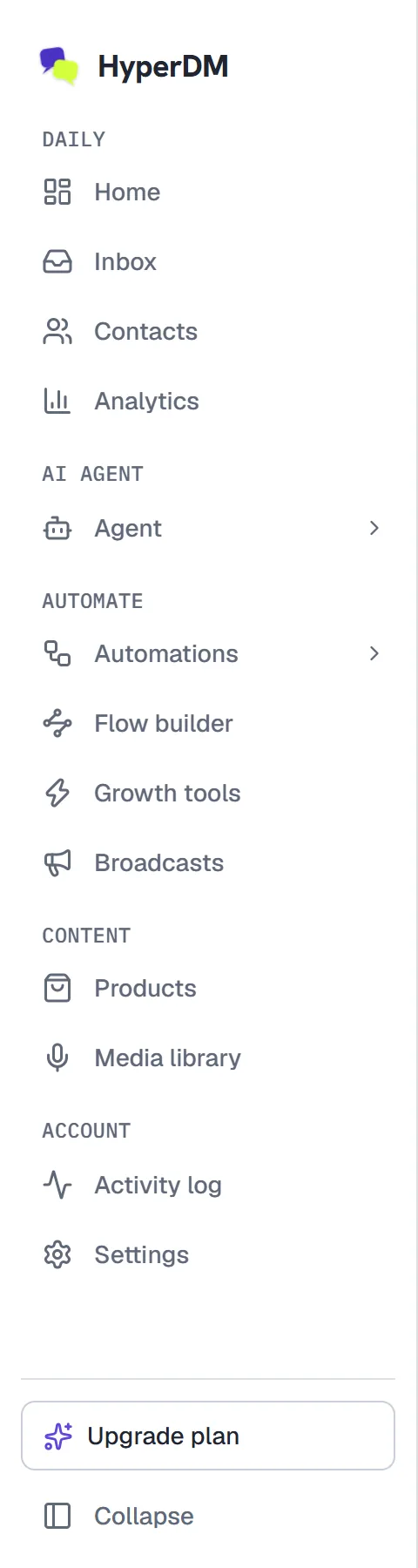
| Group | Page | What it's for |
|---|---|---|
| Daily | Home | The page above |
| Daily | Inbox | Every conversation. Read, reply by hand, or take one over from the AI |
| Daily | Contacts | Everyone who has messaged you, with tags and custom fields |
| Daily | Analytics | Key metrics, the automation table and an activity log on every plan, with more on each plan up |
| AI agent | Agent | Whether the AI replies at all, its voice, its goals and the knowledge it answers from. It ships switched off |
| AI agent | AI Playground | Ask the agent a question and see its answer and sources. Nothing is sent |
| AI agent | Trust & Guardrails | The discount cap, forbidden claims, refund hand-off and other rules every AI reply is checked against |
| Automate | Automations | Comment, keyword, story and conversation-starter automations, with Rules and Sequences under it, and folders to sort them into |
| Automate | Flow builder | The visual canvas for conversations with several steps |
| Automate | Growth tools | Shortcuts into comment-to-DM and keyword triggers |
| Automate | Broadcasts | A one-off message to opted-in contacts, on Growth and up |
| Content | Products | The catalog the AI quotes prices and buy links from |
| Content | Media library | Voice notes, video and documents for your flows |
| Account | Activity log | A record of every send, every compliance check and every settings change |
| Account | Settings | Channels, billing, team and workspace settings |
A few pages depend on your plan. A rule goes live on Starter and up, the Media library is for paid plans, and sequences and broadcasts need Growth or higher to go out. Upgrade plan sits at the bottom of the sidebar. On a phone, the sidebar becomes tabs along the bottom of the screen.
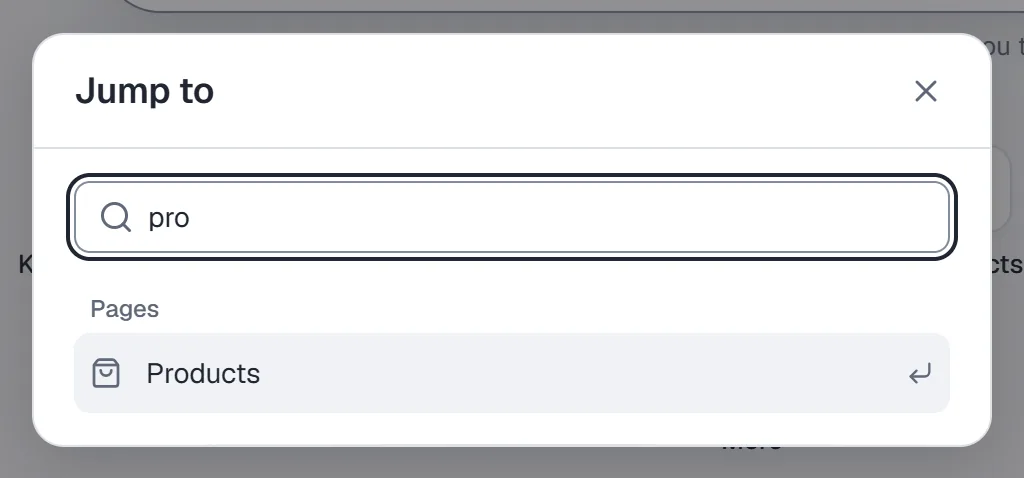
To get somewhere fast on a computer, press ⌘K (Mac) or Ctrl K to open Jump to…, type part of a page name, then press Enter. It searches pages and a few actions, not your contacts or messages.
Switch workspaces
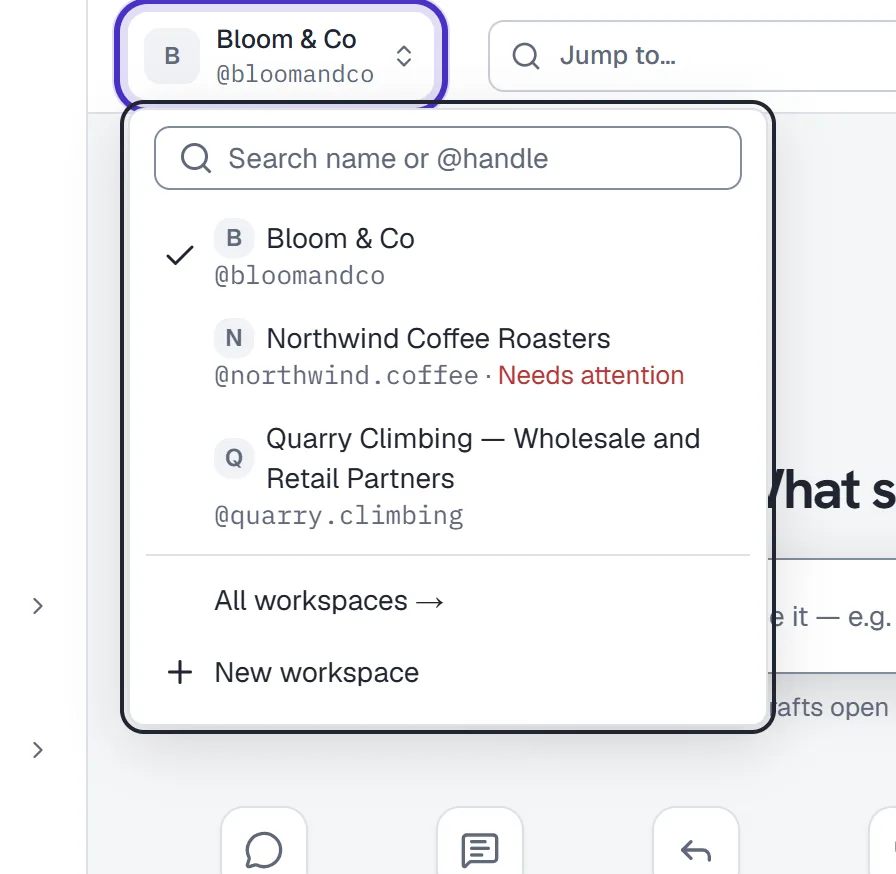
The workspace switcher is in the app header, showing the current workspace's name. Click it, search by name or @handle, and pick another to move there. New workspace, in the same menu, creates one. Each workspace is a separate brand with its own contacts, automations and plan, which the next lesson covers.
Settings
Settings lives under Account → Settings. Its categories run down the left on a computer and along a row you scroll sideways on a phone. The ones you'll open first:
- Channels: connect, reconnect or disconnect Instagram, and read its badge.
- Main menu: the menu people see in your Instagram DMs. Free allows 3 items and paid plans 20.
- Billing & usage: your plan, usage and upgrades. Owner only.
- Team & roles: invite and remove teammates.
- Workspace: the name and the timezone. The timezone sets every analytics week boundary.
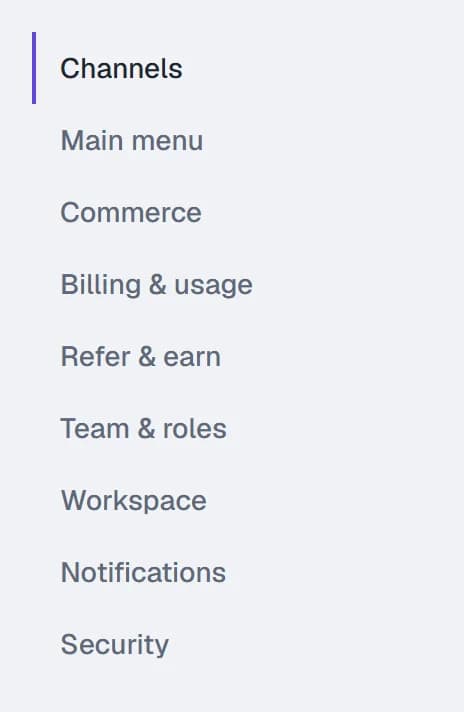
Most tabs show their state to everyone and limit only the controls, depending on your role.
Get help without leaving the app
Click Help in the header for three options: Ask the help assistant, Help centre and Send feedback. On a computer, Feedback also sits right next to Help.
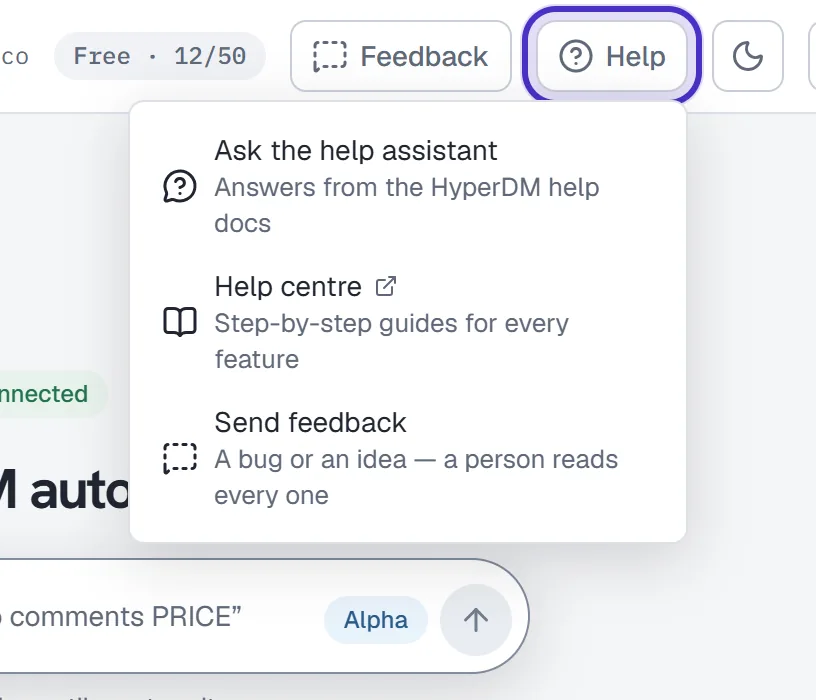
The help assistant answers in plain words from HyperDM's own help guides, and under most answers From: names the guides it used. It can't change anything or see your contacts, conversations or settings. When the guides don't cover a question, it says so and points you to Send feedback, which reaches the HyperDM team. You can ask it up to 40 questions a day.
FAQ
Why can't I see some pages in the sidebar?
Your role decides it. Automations, Flow builder, Growth tools and Media library need a role that can change automations, and Broadcasts needs one that can send broadcasts. Ask a workspace owner or admin.
Can I change what's on Home?
No. The layout is fixed. The quick actions you see depend on your role.
How many workspaces can I have?
You can create up to 2 workspaces yourself. Workspaces you were invited to don't count toward that.
Where do I see how an automation is doing?
Each row on Automations shows its runs and its taps, and Results in the row's menu has the detail. Analytics has the workspace totals.
Can the help assistant see my account?
No. It answers only from HyperDM's help guides and can't read your data or change anything. It tells you how to do things yourself.