HyperDM connects through Instagram's own login for businesses, and that login opens for professional accounts: Business or Creator. If yours is still personal, switch it first. It's free, your posts and followers stay put, and you can switch back later. Then you connect once, from the setup page or from Settings.
Screenshots show the real HyperDM app with a demo workspace. Names and numbers are examples.
Before you connect
Use a Business or Creator account
Both types work with HyperDM, and comment-to-DM, keyword replies, story replies and the AI agent behave the same on either. Business suits brands, shops and service providers. Creator suits creators, artists and public figures. You don't need a Facebook Page: HyperDM connects to the Instagram account directly.
To check which kind you have, go to instagram.com, click More (bottom left), then Settings, and look at For professionals. If it lists Professional account, you're set. If it shows Account type and tools, the account is personal and that's where the switch is.
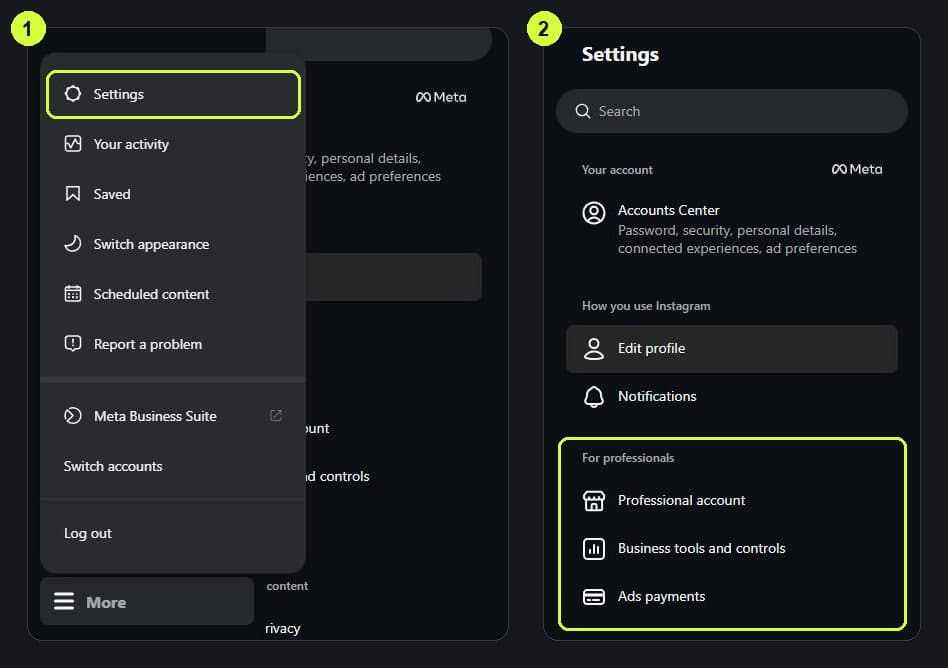
To switch in the Instagram app:
- Go to your profile and tap ☰ to open Settings and activity.
- Tap Account type and tools, then Switch to professional account.
- Choose Creator or Business and pick a category. HyperDM doesn't use the contact details Instagram may ask for.
Your posts, followers and messages stay as they are. A Business account can't be private, though, so a private account becomes public when it switches to Business.
Check who and where
- Only an owner or admin of the workspace can connect or disconnect Instagram. Other roles see the card and its status, with no button.
- On Free you can have one DM channel connected at a time. Reconnecting the same account is always allowed.
- Use Chrome or Safari. Inside the Instagram, Facebook or Messenger app's own browser the connection can't finish, so HyperDM swaps the button for Open HyperDM in your browser. On Android tap Open in Chrome. On iPhone use the ⋯ menu and Open in browser, or Copy link and paste it into Safari.
Connect
You can connect from the setup page or from Settings. The Instagram side is the same.
- On the setup page, open Review once your reply or your AI facts are saved, and click Connect Instagram in the Connect account row. Create can also take you there first: No link yet? Connect Instagram first keeps what you typed. Or go to Settings → Channels and click Connect Instagram on the Instagram card.

The setup page's Connect account row, with Connect Instagram 
The Instagram card in Settings, Channels, with Connect Instagram - Instagram opens and asks you to log in on instagram.com in this browser, even if the app on your phone is logged in. Have your password and any 2-step code ready, and log in to the account you want HyperDM to use.
- Approve the permissions Instagram lists.
- You come back to HyperDM. On the setup page the Connect account row reads Connected as your @handle, and in Settings the card shows a green Connected badge.

The Connect account row reading Connected as @bloomandco 
The Instagram card in Settings, Channels, with the green Connected badge
Connecting doesn't switch anything on. A reply you saved stays a draft, and AI replies stay off, until you press the turn-on button on Review or switch them on yourself.
Read the badge
The Instagram card in Settings → Channels always shows one of these.
| Badge | What it means | What to do |
|---|---|---|
| Connected | The connection is working | Nothing |
| Needs attention | Connected, but Meta isn't delivering events yet | Click Retry subscription |
| Reconnect needed | The token expired or was revoked, or a permission is missing | Click Reconnect |
| Not connected | No connection yet | Click Connect Instagram |
| Not on your plan | Free's one channel slot is used by another channel | Click See plans, or disconnect the other channel |
Connected means the connection works. It doesn't prove a reply went out. To check that, send a DM to your connected account from a different Instagram account (a friend's, or a second one of yours). It should show up in your Inbox in HyperDM. If it doesn't, look at the badge first.
Instagram's rule. Instagram won't let HyperDM send a DM to the account that owns the post, so a comment or message from your own connected account never gets a reply. Test from a second account.
When it doesn't connect
- "Instagram connection was cancelled", and you didn't cancel. The usual cause is a personal account. Switch it, then click Try connecting again. If you've already switched, check you're logged in on instagram.com to the account you switched, not a different one.
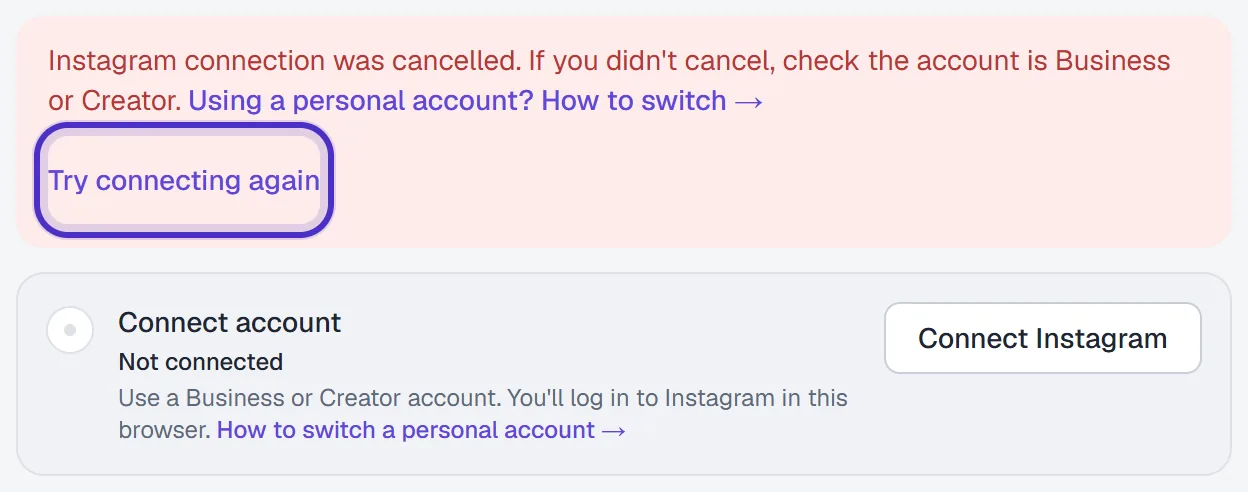
The Connect account row after the Instagram connection was cancelled, with Try connecting again - You came back from Instagram with no result. HyperDM shows Didn't make it back from Instagram? with three checks: log in on instagram.com in this browser, use a professional account, and don't use the Instagram app's browser. Fix the one that applies and tap Try again.
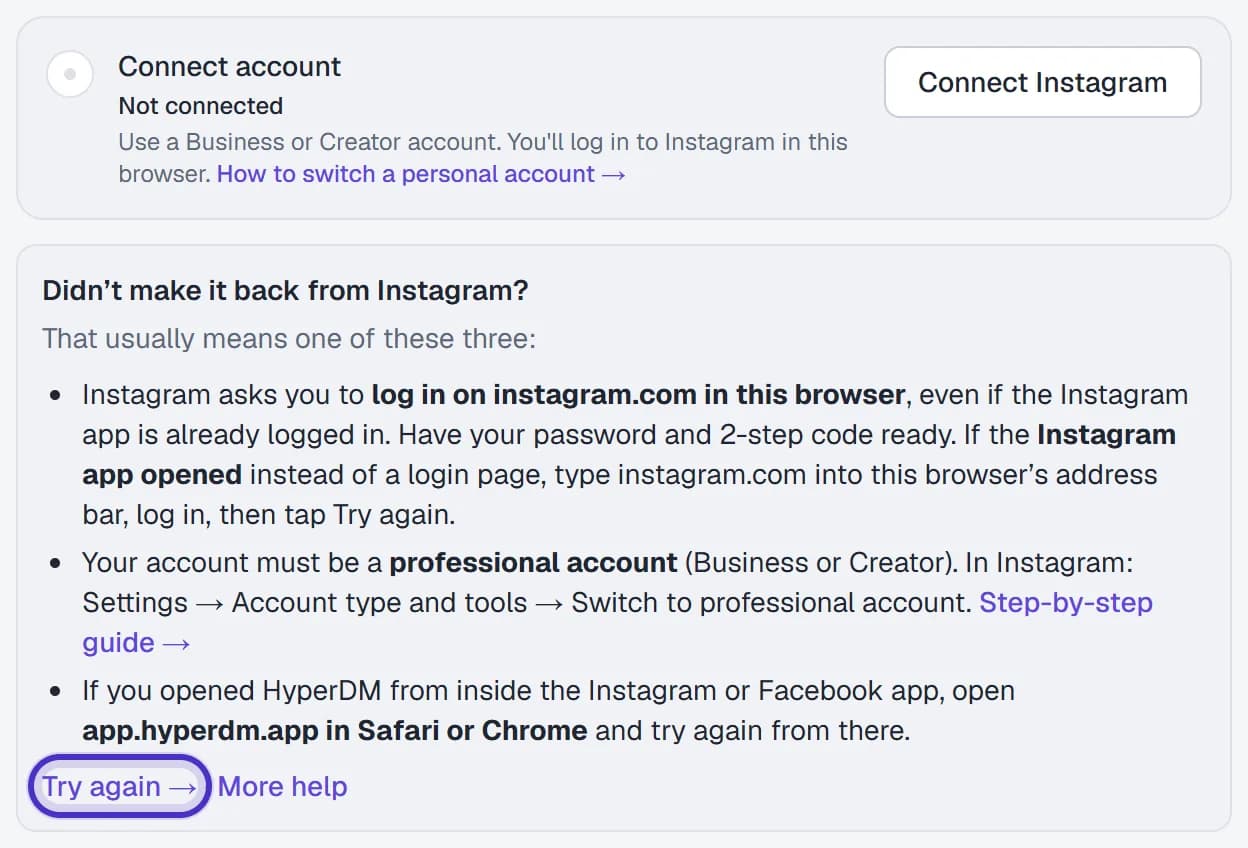
Didn't make it back from Instagram? with its three checks and Try again - Tapping Connect opened the Instagram app. Go back to your browser, type instagram.com into the address bar, log in, then return to HyperDM and tap Try again.
- "Only owners and admins can connect or disconnect a channel." Your role can't connect channels. Nothing was connected, so ask an owner or admin.
- The Connect button is missing. You aren't an owner or admin, or the card says Not on your plan.
To disconnect later, open More actions (⋯) on the Instagram row, choose Disconnect and type the account to confirm. DMs stop arriving until you reconnect.
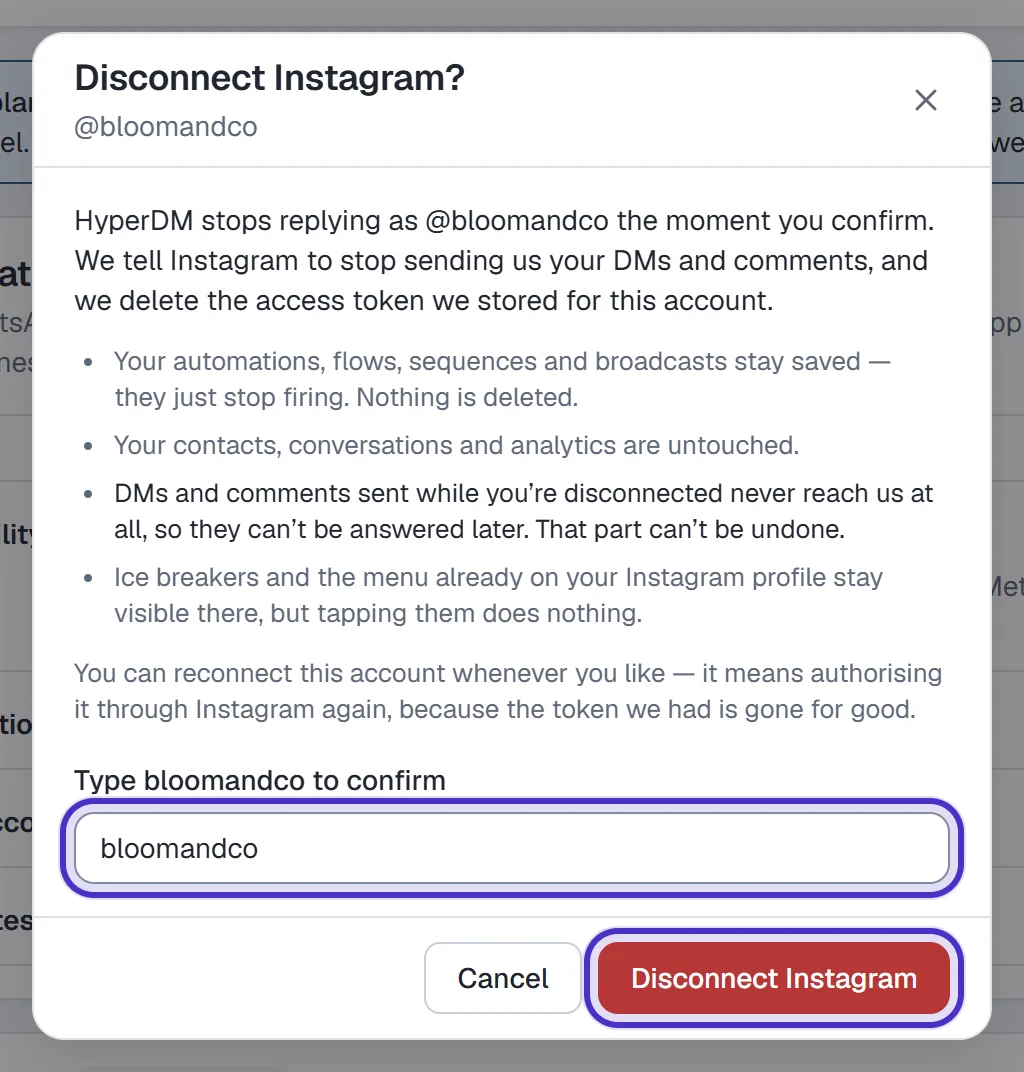
With Instagram connected, you're ready for the dashboard tour.
FAQ
Can I connect a personal Instagram account?
Switch it to a Creator or Business account first, then connect. Switching is free, your posts and followers stay as they are, and you can switch back later, though HyperDM stops working if you do.
Do I need a Facebook Page?
No. HyperDM connects to your Instagram professional account directly.
I just switched to a professional account. Why won't it connect?
Instagram connects whichever account is logged in on instagram.com in the browser you're using, which may not be the one on your phone. Log in there to the account you switched, then try again.
Who on my team can connect Instagram?
Owners and admins. Other roles can see the card and its status but not the Connect button.
Can I disconnect later?
Yes. Open More actions on the Instagram row in Settings, choose Disconnect and confirm. New DMs stop arriving until you reconnect.