Contacts, tags and custom fields
Contacts holds everyone who has messaged you, plus anyone you added by hand. Tags and custom fields are how you sort them, and the same fields fill variables like {{first_name}} in your DMs.
Screenshots show the real HyperDM app with a demo workspace. Names and numbers are examples.
Read the list
Open Daily → Contacts. Each row shows a name and, under it, the channel and handle in words, like Instagram · @maya.makes. The Messaging column shows their permission:
| Shows | Means |
|---|---|
| Subscribed | HyperDM may message them, within Instagram's rules. |
| Unsubscribed | They opted out, for example by sending STOP. Nothing is sent to them. |
| No permission | Nothing is recorded, so nothing is sent until they message you. |
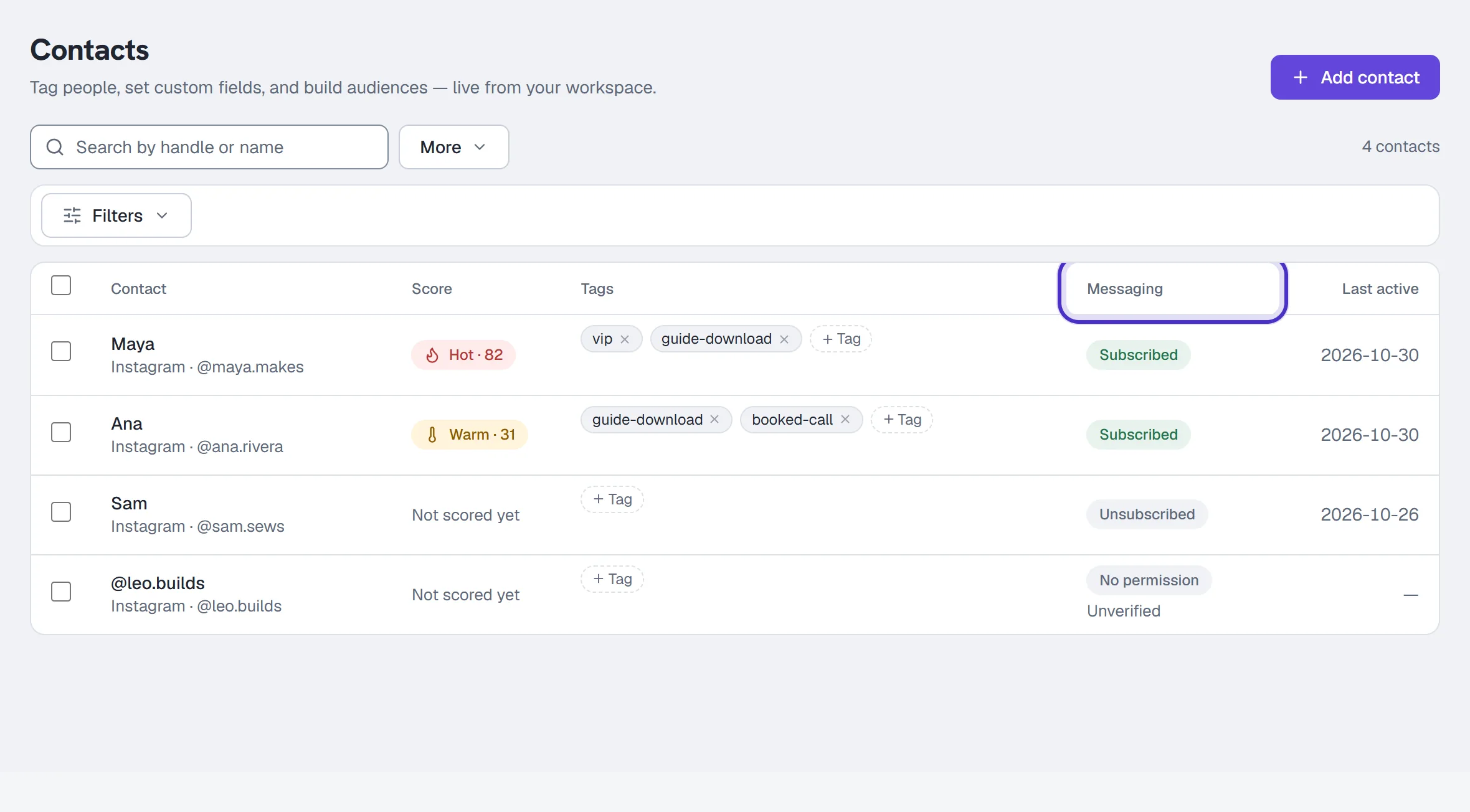
Add contact lets you type an Instagram username, but that makes a record, not a conversation. It's marked Unverified, and HyperDM can't message it until that person messages you first.
Open a contact's profile
Click a row, or Tab to a name and press Enter, to open the drawer:
| Section | What it holds |
|---|---|
| Identity | Channel, handle, how they were added, and whether Instagram verified them |
| Messaging permission | Their permission and where it came from, such as "They sent a stop keyword" |
| System fields | First and last name, username, opt-in, the reply window, last interaction, follower count (read-only) |
| Custom fields | Your own fields, edited inline |
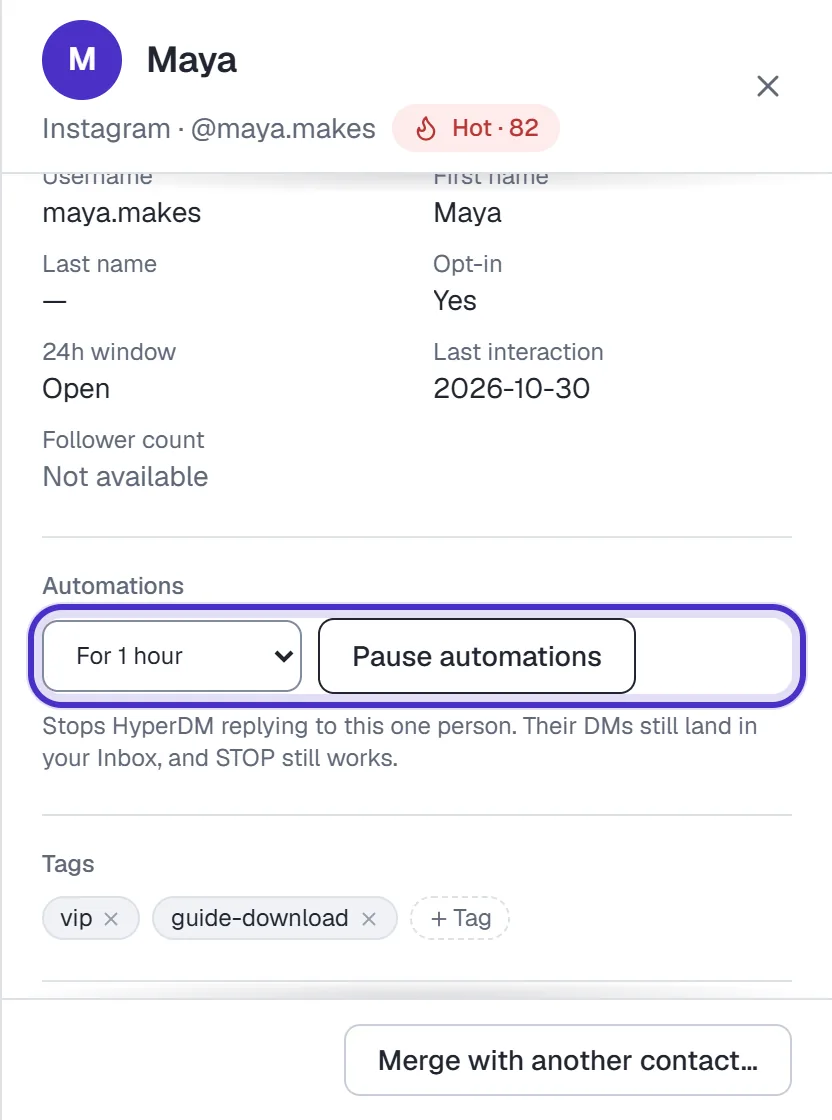
| Pause automations | Stops HyperDM replying to this person, Until I resume or for 30 minutes up to 1 day |
| Conversions | The conversions your flows logged for them: the event, its value, the flow and when |
| Sequences | Every live sequence and where they are in it (Sequences) |
Pause automations is the same state as Take over in the Inbox, so the two always agree.
Tags
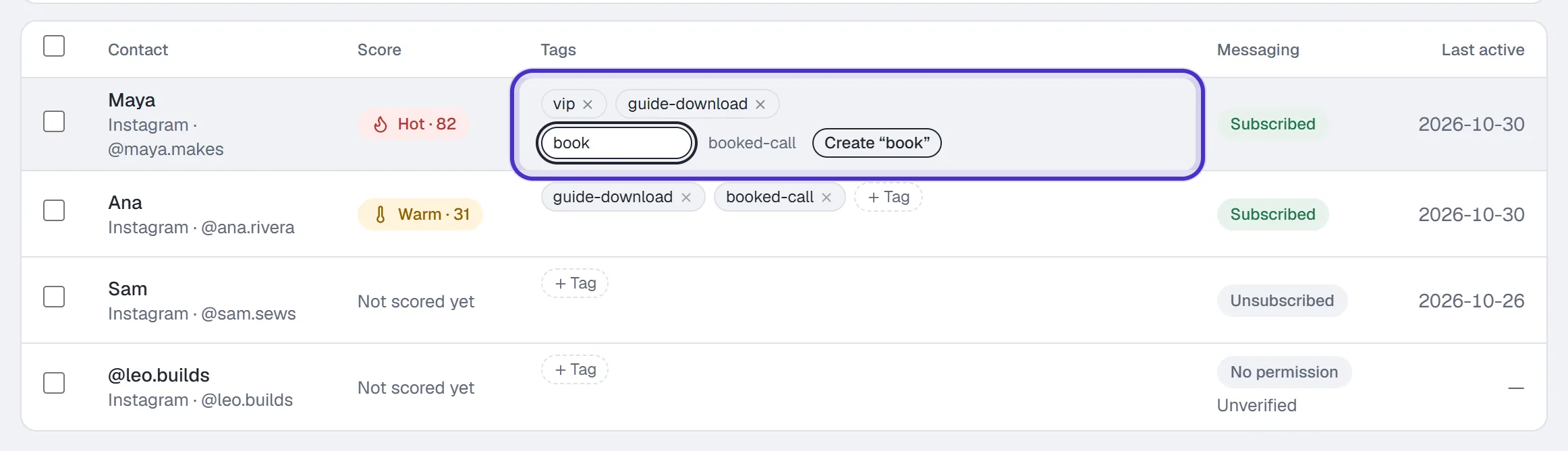
Tags are labels like vip, guide-download or booked-call. On a row or in the drawer, type in the tag field and press Enter; a tag that doesn't exist yet is created and applied in one step. Flows and rules can add tags for you as people move through them.
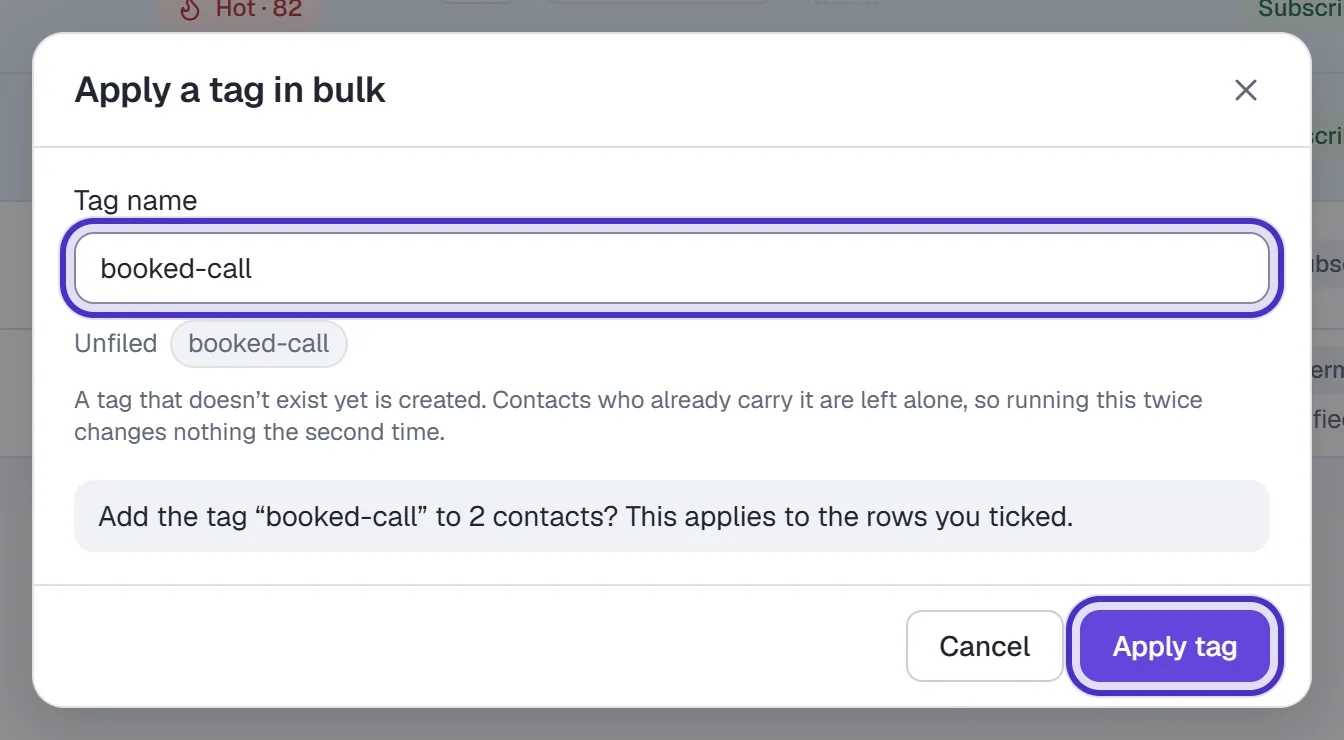
To tag many people at once, tick their rows and choose Apply tag in the bar that appears. With every visible row ticked, Select all N contacts matching this filter reaches the whole filtered audience rather than this page. Running it again changes nobody twice.
More → Manage tags lists every tag with how many contacts carry it and where it's used, and lets you Rename, Merge or Delete one. Flows and rules store a tag by its name, so update them after a rename. Deleting a tag a live flow uses asks you a second time.
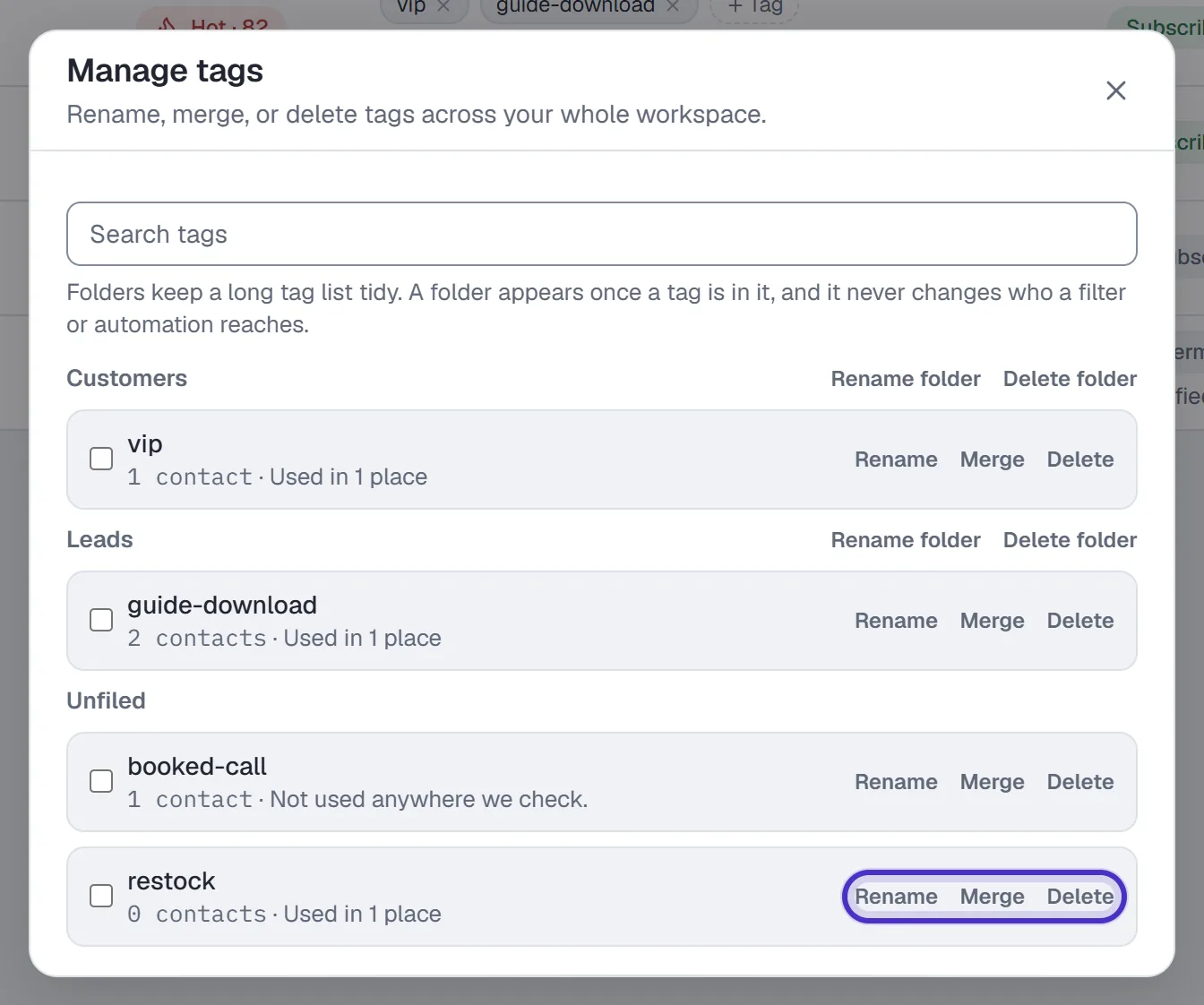
Folders keep a long list easy to scan. A folder only organizes, so it never changes who a filter, a segment or an automation reaches.
- In Manage tags, tick the tags you want to move.
- Pick a folder in the bar that appears, or New folder… and type its name, or No folder to take them out.
- Click Move.
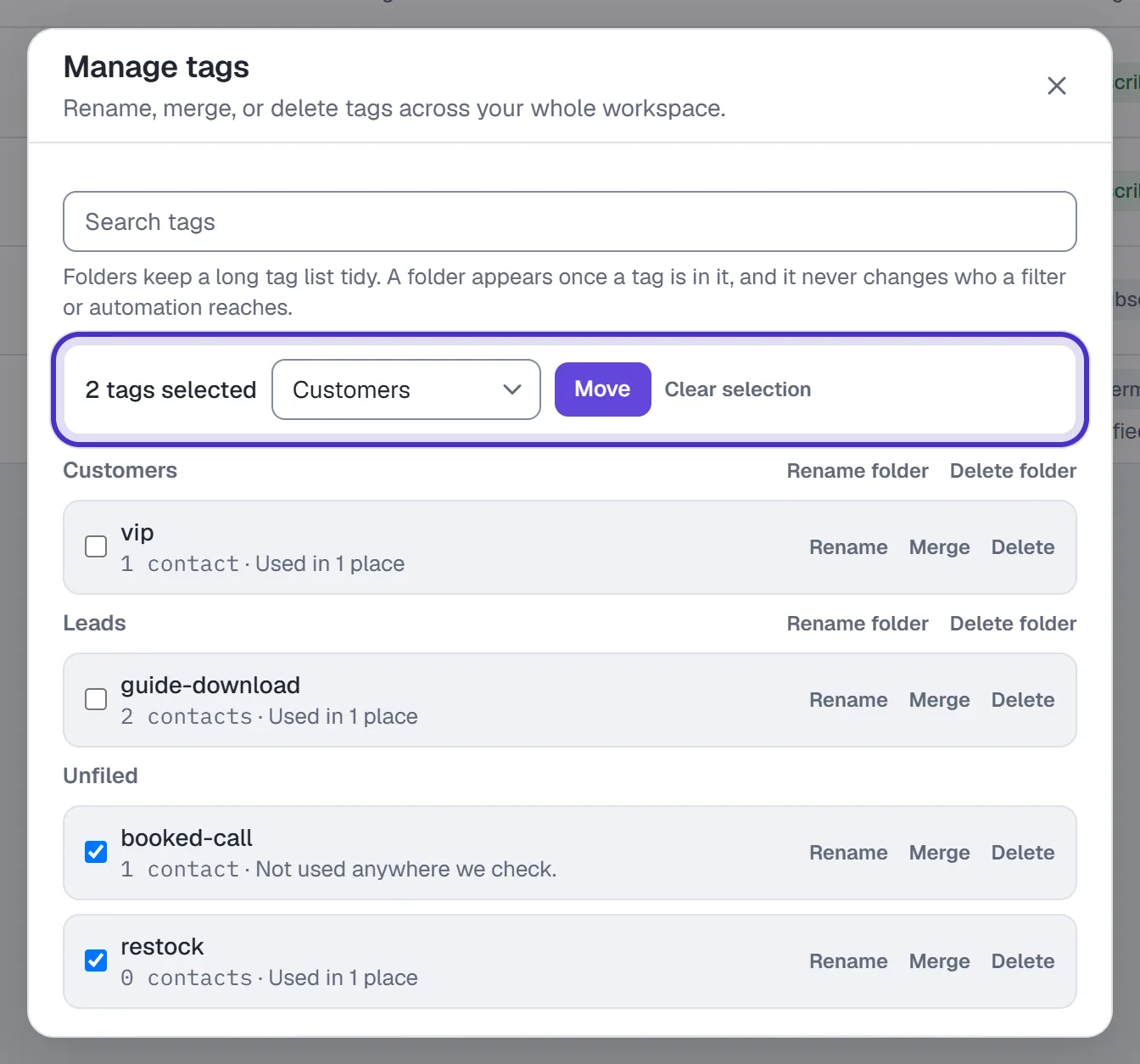
Manage tags with folders, two tags ticked and Customers chosen, with Move
Each folder's heading has Rename folder and Delete folder. Deleting one keeps its tags, unfiled, and every contact keeps every tag. A folder appears once a tag is in it, and Search tags finds a tag in any folder.
Custom fields, and using them in DMs
Custom fields hold what your business needs to know: shoe size, the package someone bought, a renewal date.
- Click More in the toolbar, then Fields.
- Enter a Label (
Shoe size) and a key in snakecase (`shoesize`). - Choose a type: Text, Number, Yes / No, Date or Date & time.
- Click Add field.
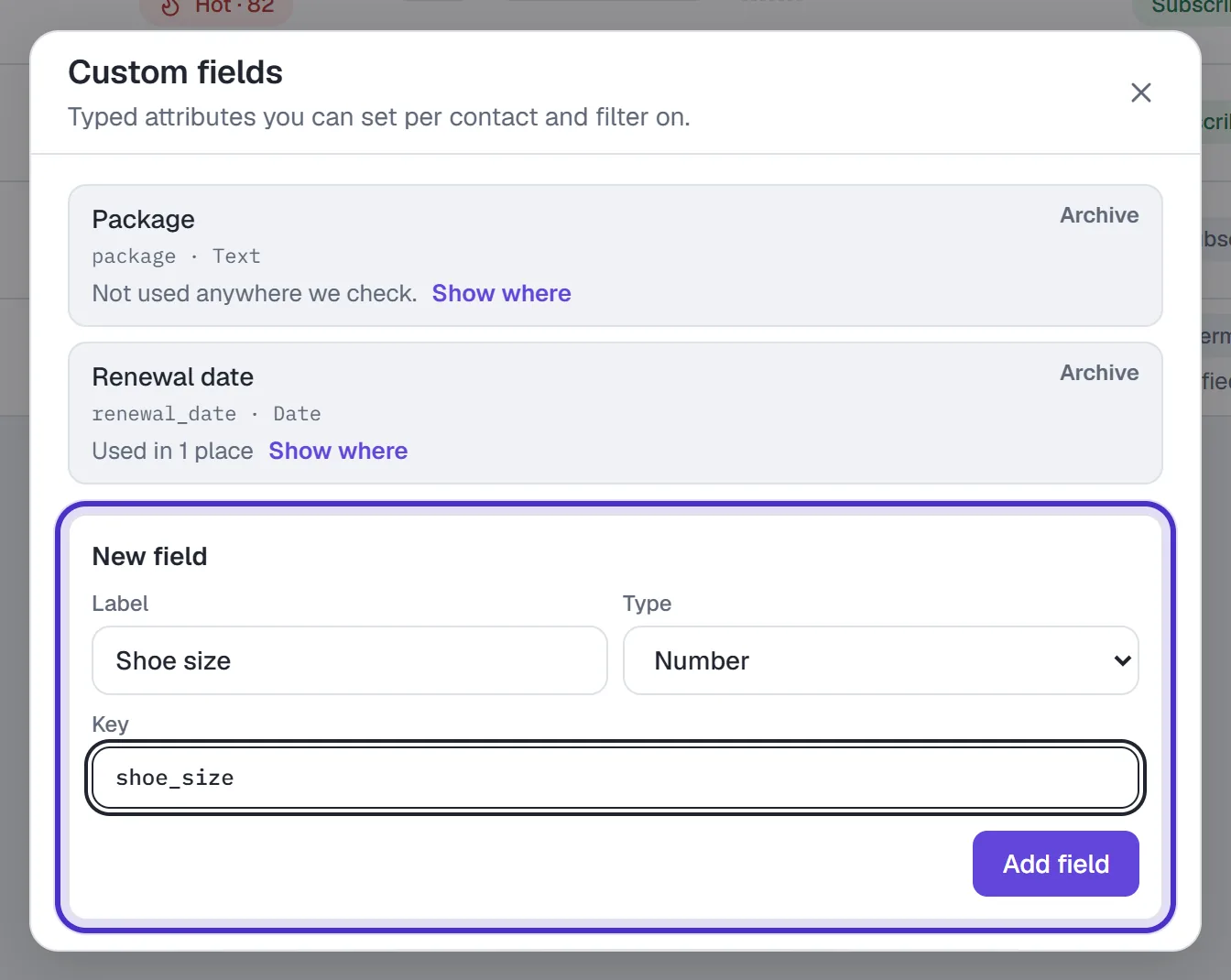
Custom fields with a new Shoe size field, its key and the Number type
The key and type are fixed once the field exists. Fields are archived rather than deleted, so old values survive.
Before you archive a field or rename a tag, check what uses it. Both managers say Used in N places for each one, and Show where lists them: a flow step, a rule, a sequence, a segment, a draft or scheduled broadcast. Live marks something running now. If a source can't be read, it says Couldn't check rather than Not used.
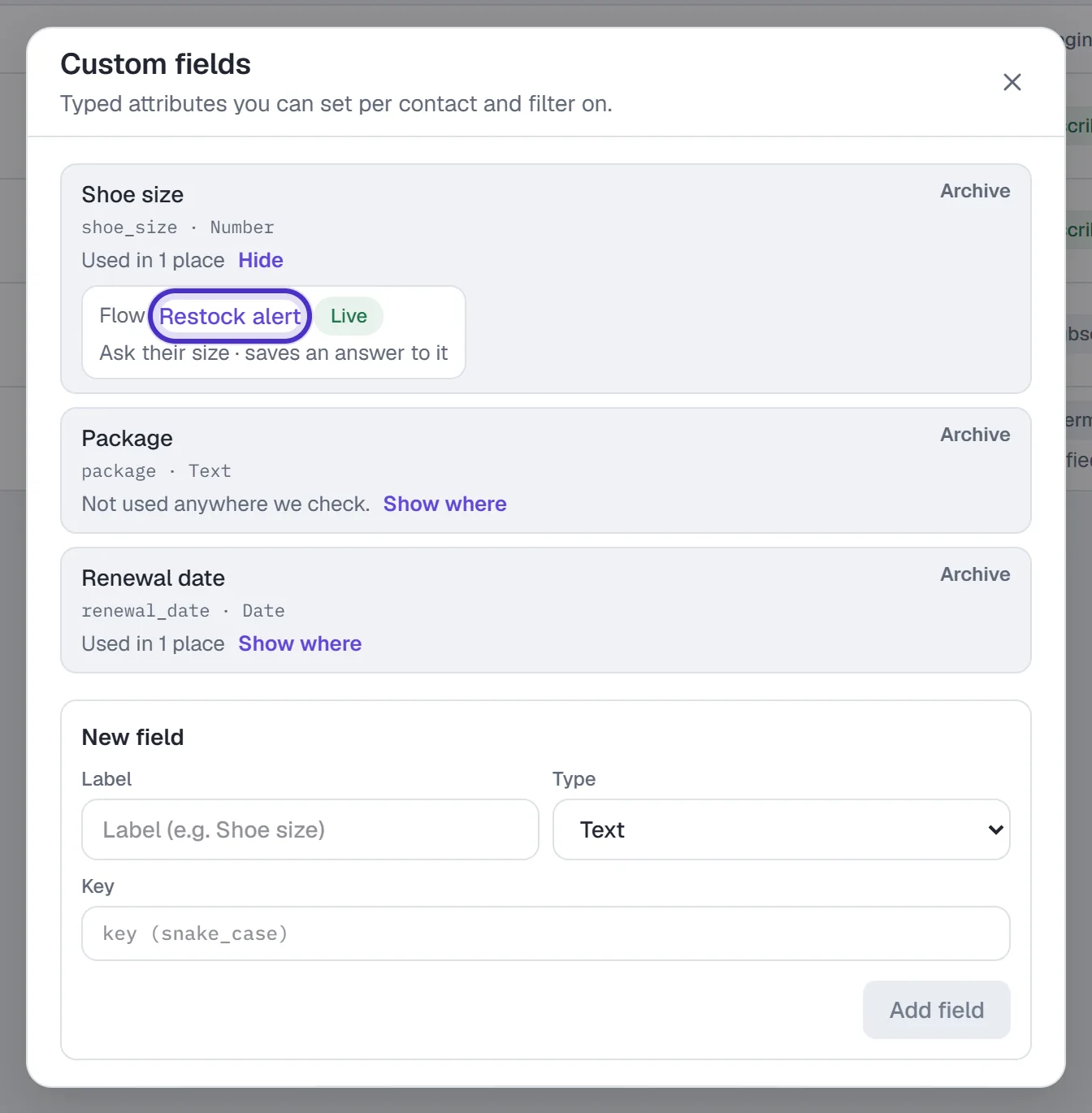
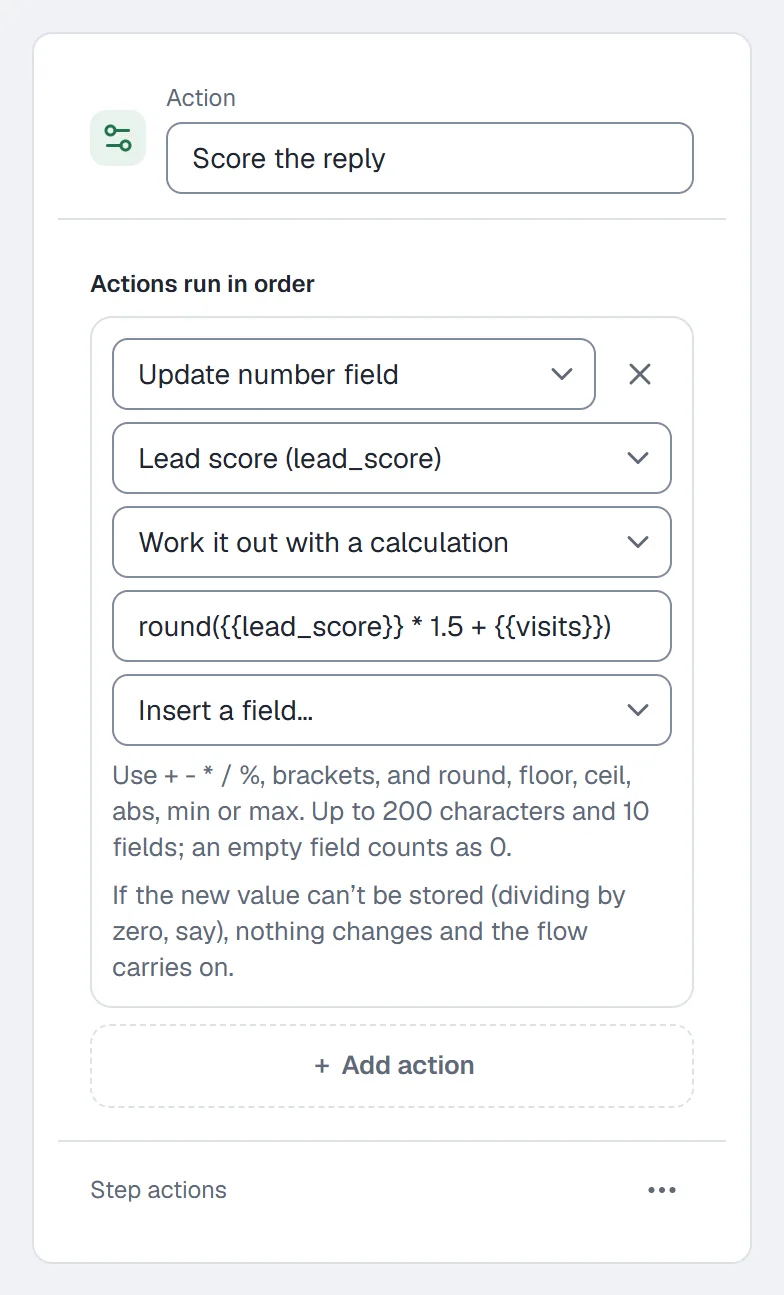
A Number field can also change on its own. In a flow, add an Action step and pick Update number field, then the field, then how to change it: Replace with, Add, Take away, Multiply by, Divide by or Work it out with a calculation. If the new value can't be stored, nothing changes and the flow carries on.
When you write an automation's DM, the variable picker offers First name, Last name, Username and every custom field, written as {{first_name}} or {{shoe_size}}. A person with no value gets a blank where the tag was, so write sentences that still read well without it. A misspelt tag such as {{frist_name}} stops the automation publishing until you fix it. Captured emails land in a field too; see Email capture.
Filter, then save a segment
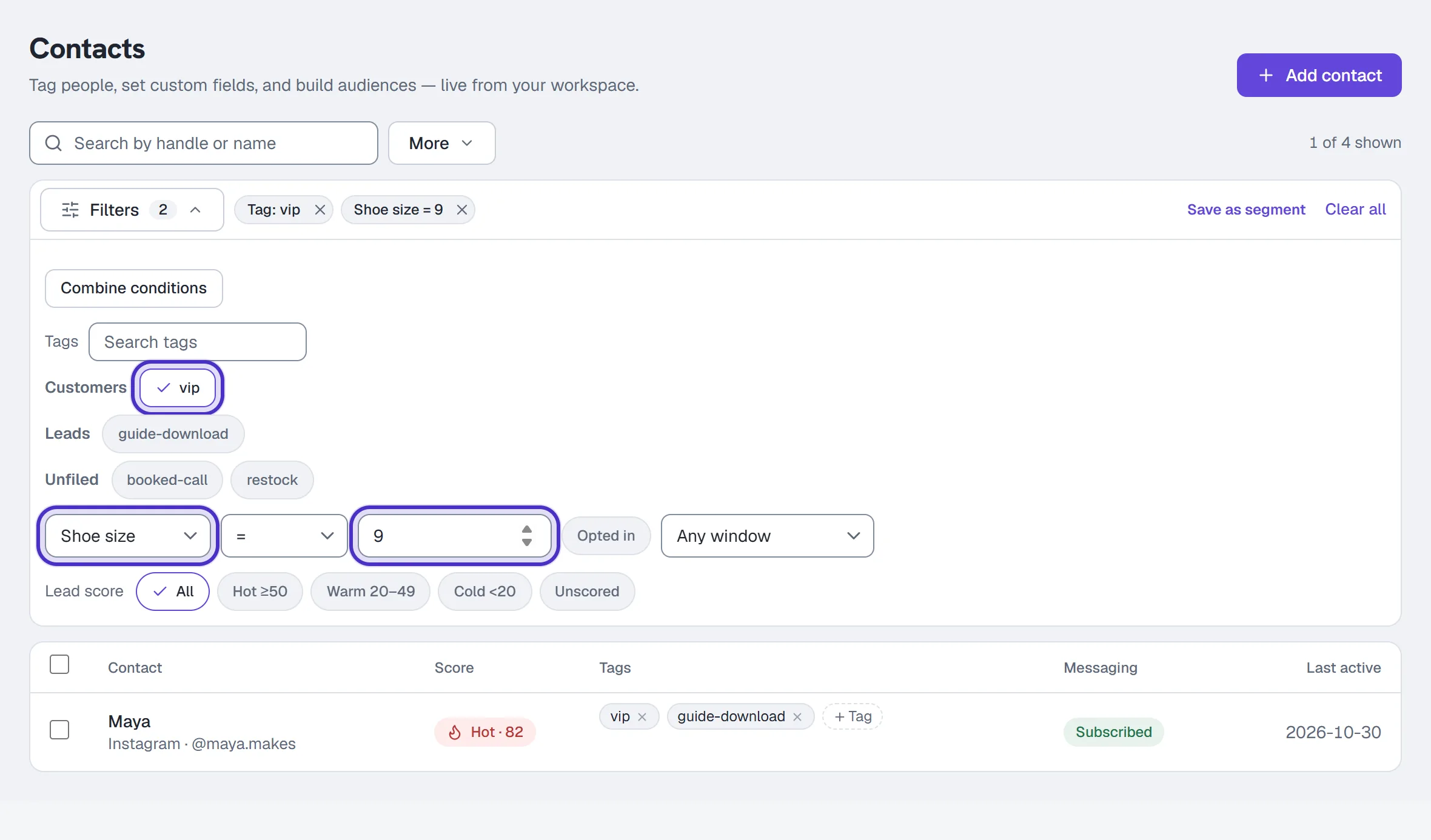
Click Filters to narrow the list, and everything you pick combines. Choosing more than one tag means "has all selected". A field condition takes a field, an operator and a value, such as Shoe size = 9; text fields offer is, is not and contains, number fields =, ≠, > and <, and every type has is set and is empty. You can also filter on Opted in, the Messaging window (Any window, Reply window open, Window closed) and Lead score.
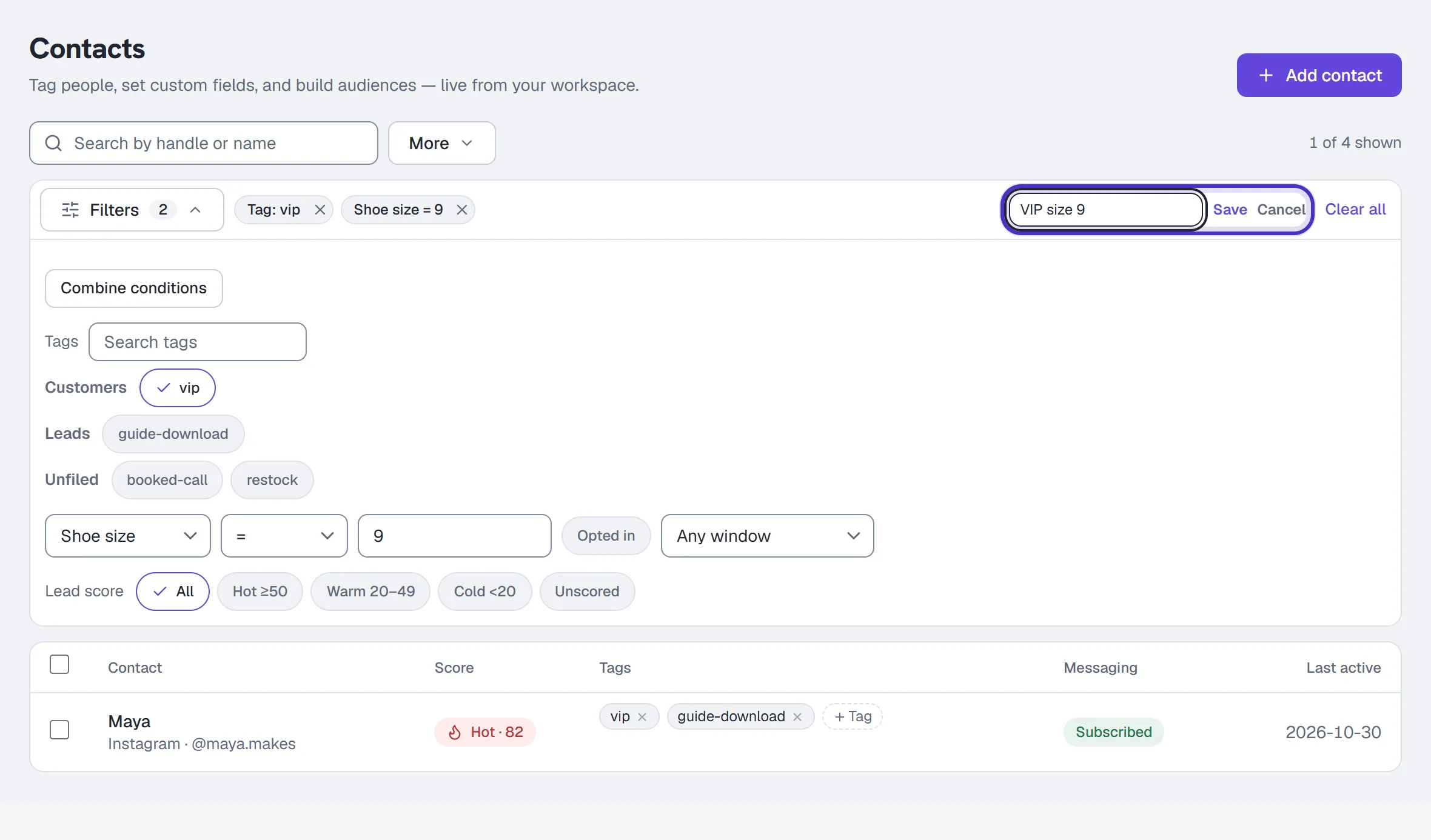
Click Save as segment, type a name and press Enter. A segment keeps the tags, one field condition, Opted in and the messaging window, or everything you build with Combine conditions. The lead-score band and the search box only narrow what's on screen. Saved segments show as chips above the list and as audiences in Broadcasts.
Heads up. Filtering works on every plan. Saving a filter as a segment needs Growth or above.
Combine conditions for "this or that"
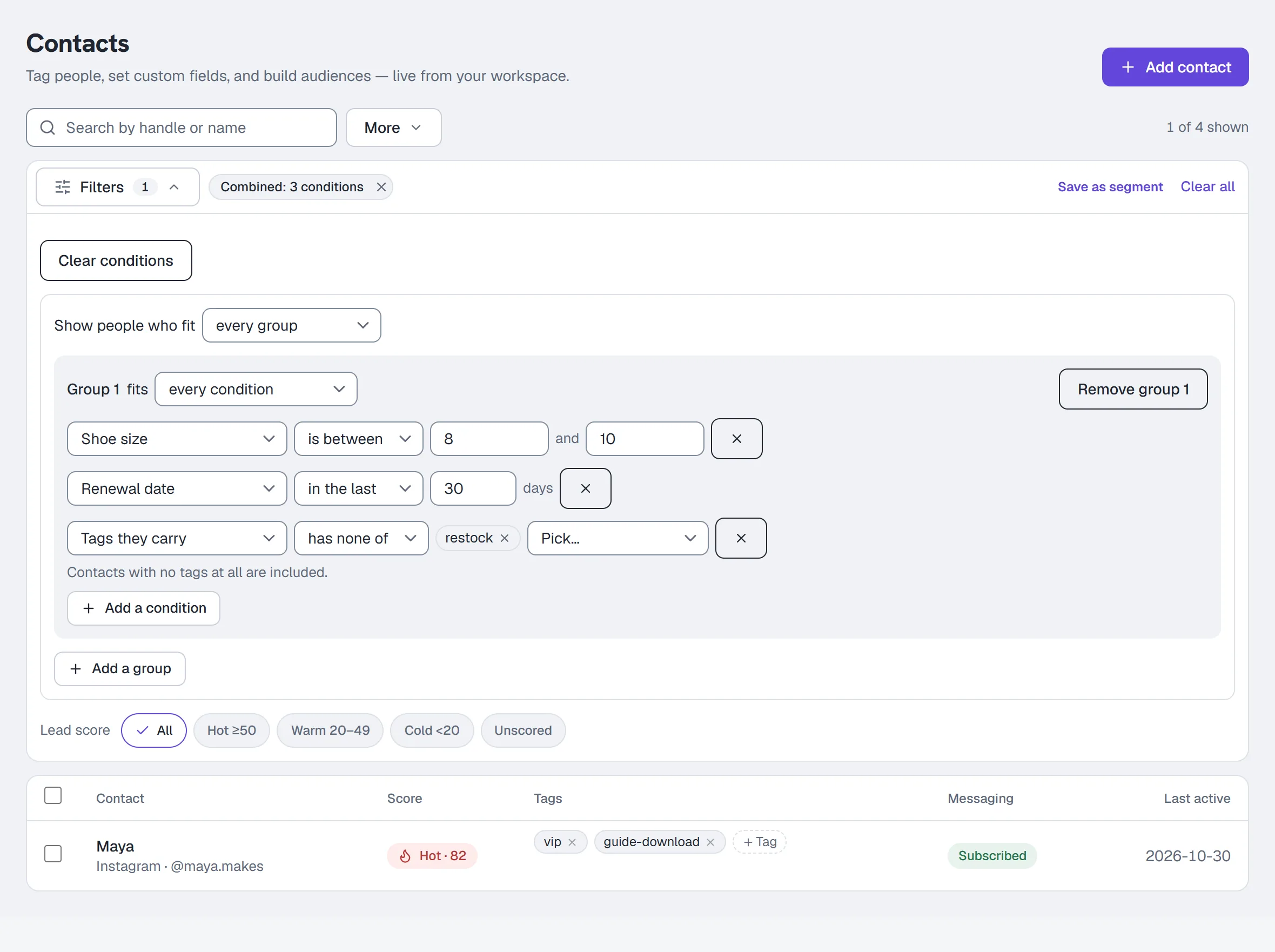
The plain filter means "all of these". Combine conditions builds one filter out of groups, so you can say "tagged vip or shoe size over 9, and subscribed on Instagram".
- Click Filters, then Combine conditions. Whatever the filter already held moves into it.
- Next to Show people who fit, pick every group or at least one group.
- In Group 1, after fits, pick every condition or at least one condition.
- In the condition, open Pick what to check and choose Tags they carry, one of Your fields, or one of the Contact details. Then pick the comparison and the value.
- Click Add a condition for another in the same group, or Add a group for a new group.
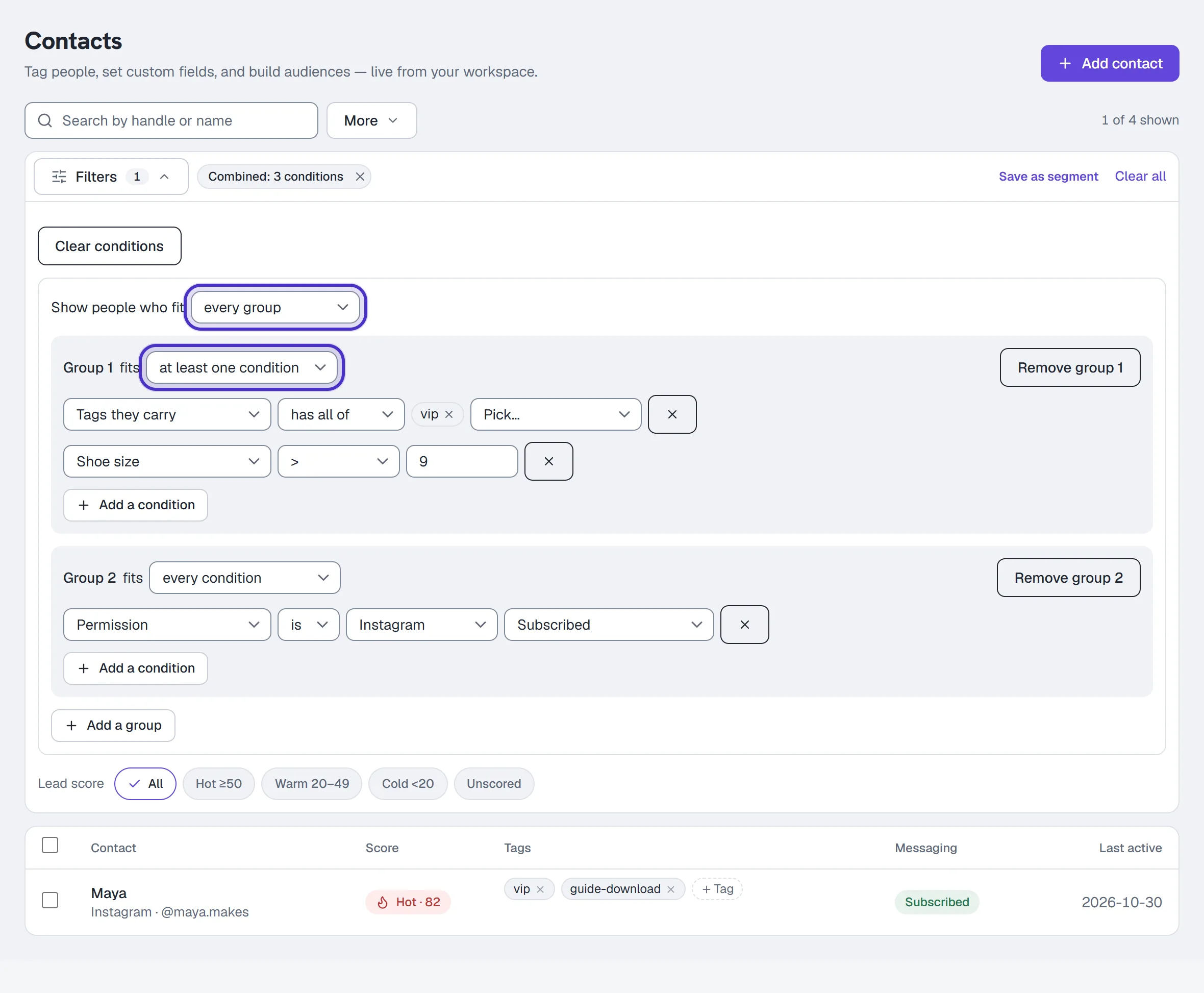
Combine conditions with tagged vip or shoe size over 9, and subscribed on Instagram
The list updates as you go, and the filter shows as a Combined: chip. Save as segment saves it, and Clear conditions puts the plain filter back. You can have up to 5 groups, 10 conditions in a group and 25 in all. A condition you haven't finished isn't used yet, and says so.
| What you check | Comparisons this adds |
|---|---|
| Text fields | doesn't contain, starts with |
| Number fields | ≥, ≤, is between (both ends included) |
| Date fields | is between, in the last N days, more than N days ago |
| Tags | has all of, has any of, has none of |
The contact details you can check are Permission, Channel, Reply window, Opted in on, Sequence, Segment, How they were added, Added on, Last interaction, Automations paused, Follows you, Follower count and Username. Permission is the same permission the send check reads.
For your fields, is not and doesn't contain never include a contact who has no value there, so use is empty to find them. has none of does include contacts with no tags at all. Days are counted in your workspace's timezone with today as day 1, so "in the last 7 days" and "more than 7 days ago" never overlap. A segment built this way works anywhere a segment does in a DM broadcast.
Merge duplicate contacts
When the same person is in your contacts twice, usually because you added them by hand before they messaged you, merge the two records. Merging needs an owner or admin.
- Open either contact, and click Merge with another contact… at the bottom of the drawer.
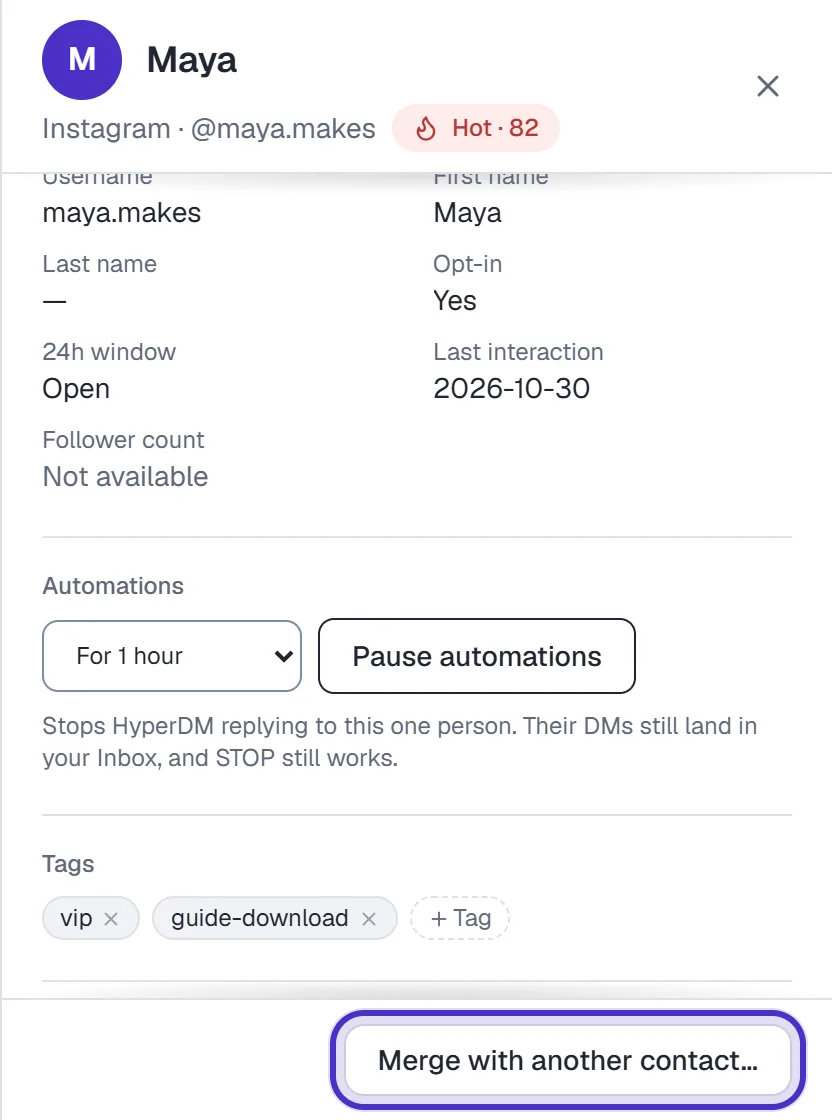
Merge with another contact at the bottom of Maya's drawer - Type part of the other record's name, @username or the ID from a DM, and pick it from the list. A matching name isn't proof, so only merge records that are the same person.
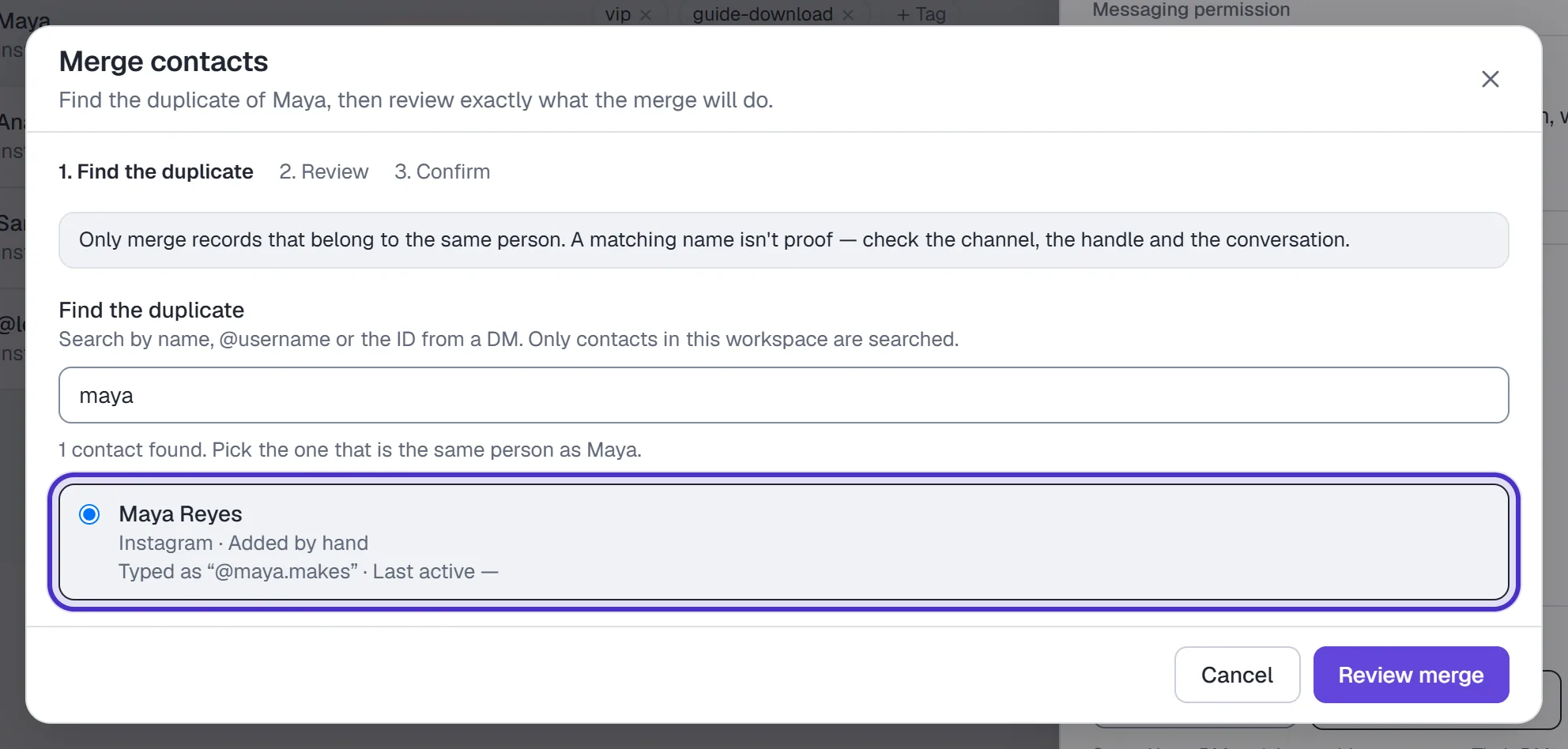
Finding the duplicate, with the record typed in by hand picked from the list - Click Review merge. Check which record Stays, and for every value that differs, pick the one to keep under Choose what to keep.
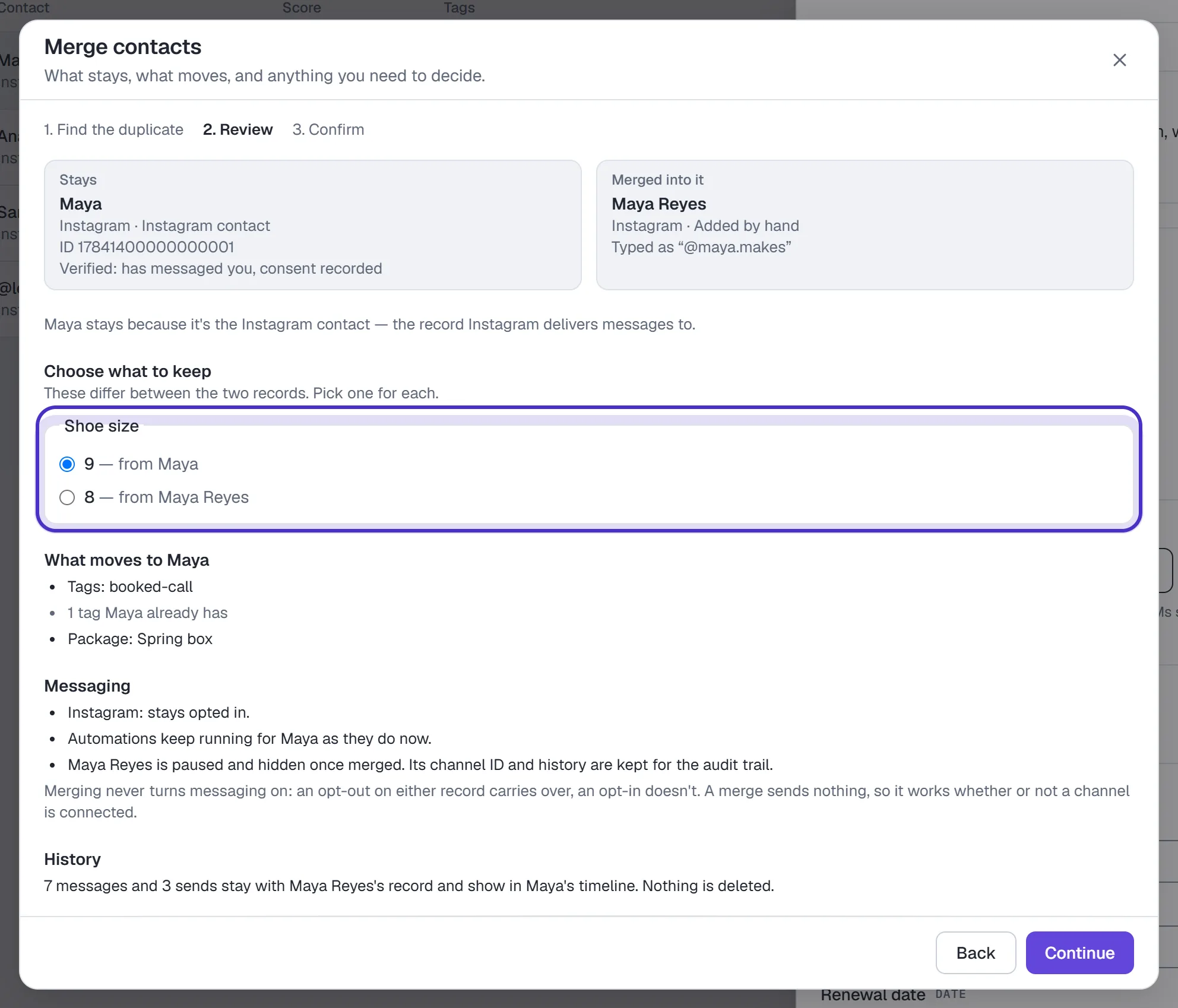
Review merge with which record stays, what to keep, what moves and what happens to messaging - Click Continue, tick I've checked that these records are the same person, and click Merge contacts.
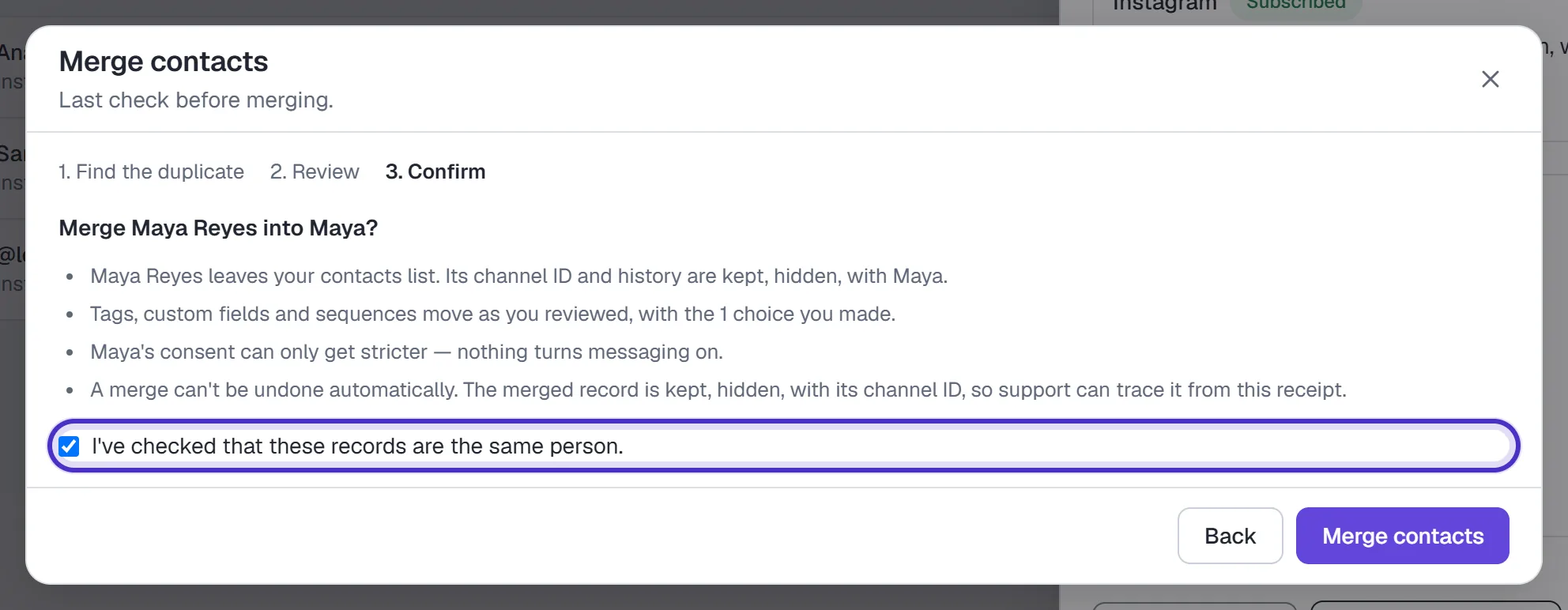
The last check, with the same-person box ticked and Merge contacts
Tags, field values and sequence memberships move to the record that stays. Consent can only get stricter: an opt-out on either record carries over, and an opt-in on the merged record doesn't. Nothing is deleted. The merged record is kept, hidden, with its channel ID and message history, and the drawer's Merged records shows what moved. A merge can't be undone automatically, and it never sends anything.
Some merges are blocked. Two records that have both been in touch through a channel stay separate, because each channel keeps its own consent and window on its own record. A contact with an automation in progress, such as a flow waiting for a reply, can be merged once it has finished. When one record came from a channel and the other was added by hand, the channel's record always stays, because it's the one that channel delivers messages to.
FAQ
Can I merge two contacts?
Yes, if you're an owner or admin and the two haven't both been in touch through a channel. Use Merge with another contact in the drawer. Consent can only get stricter, and a merge can't be undone automatically.
Can I message a contact I added by hand?
Not until they message you. Instagram only lets a business message people who wrote first, so a hand-added contact stays Unverified with no permission until then.
What happens if a contact has no first name?
A {{first_name}} tag sends as a blank for them, so write the sentence so it reads well without the name.
Do I need a paid plan for segments?
Filtering contacts works on every plan. Saving a filter as a segment needs Growth or above.
Can I delete a custom field?
Fields are archived, not deleted, so historical values survive. The field manager shows where a field is used before you archive it.
How do I stop automations for one contact?
Open their drawer and use Pause automations, until you resume or for a set time. It's the same state as Take over in the Inbox.