Work the Inbox and take over a conversation
Every Instagram conversation lands in the Inbox, whether HyperDM answered it or not. It's where you read what the agent said, step into a thread yourself, reply with the tools under the box, and hand it back when you're done.
Screenshots show the real HyperDM app with a demo workspace. Names and numbers are examples.
Find the conversations that need you
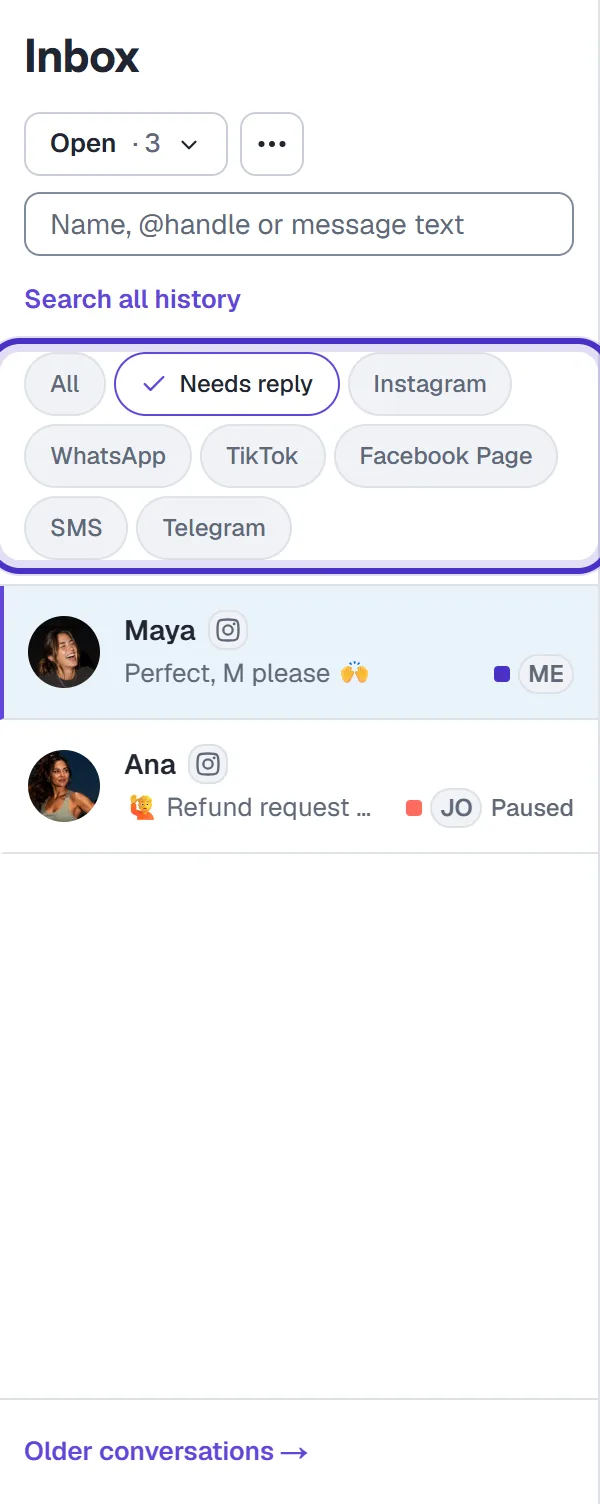
Open Daily → Inbox in the sidebar. The list on the left runs newest first, and a name in bold means the customer sent the last message.
The All and Needs reply chips filter the list. Needs reply clears when a reply goes out, yours or the agent's, not when you open the thread. To find someone, type a name, @handle or words from a message and click Search all history, which reaches older threads too. Each page holds up to 200 conversations, and Older conversations → loads the next. The menu above the search box picks a queue, which Run the Inbox as a team covers.
The red count on the sidebar's Inbox row counts conversations that need a human: HyperDM is paused there, because you took over or the agent handed off, and the customer wrote last.
Read a thread
Customer messages sit on the left. Yours and the agent's sit on the right, with a line under each such as HyperDM AI · 2:14 PM or You · 2:14 PM. Under an agent reply you may see the sources it answered from (click 2 sources to list them) or an unsourced warning. Read the unsourced ones: the agent couldn't trace that answer to your knowledge.
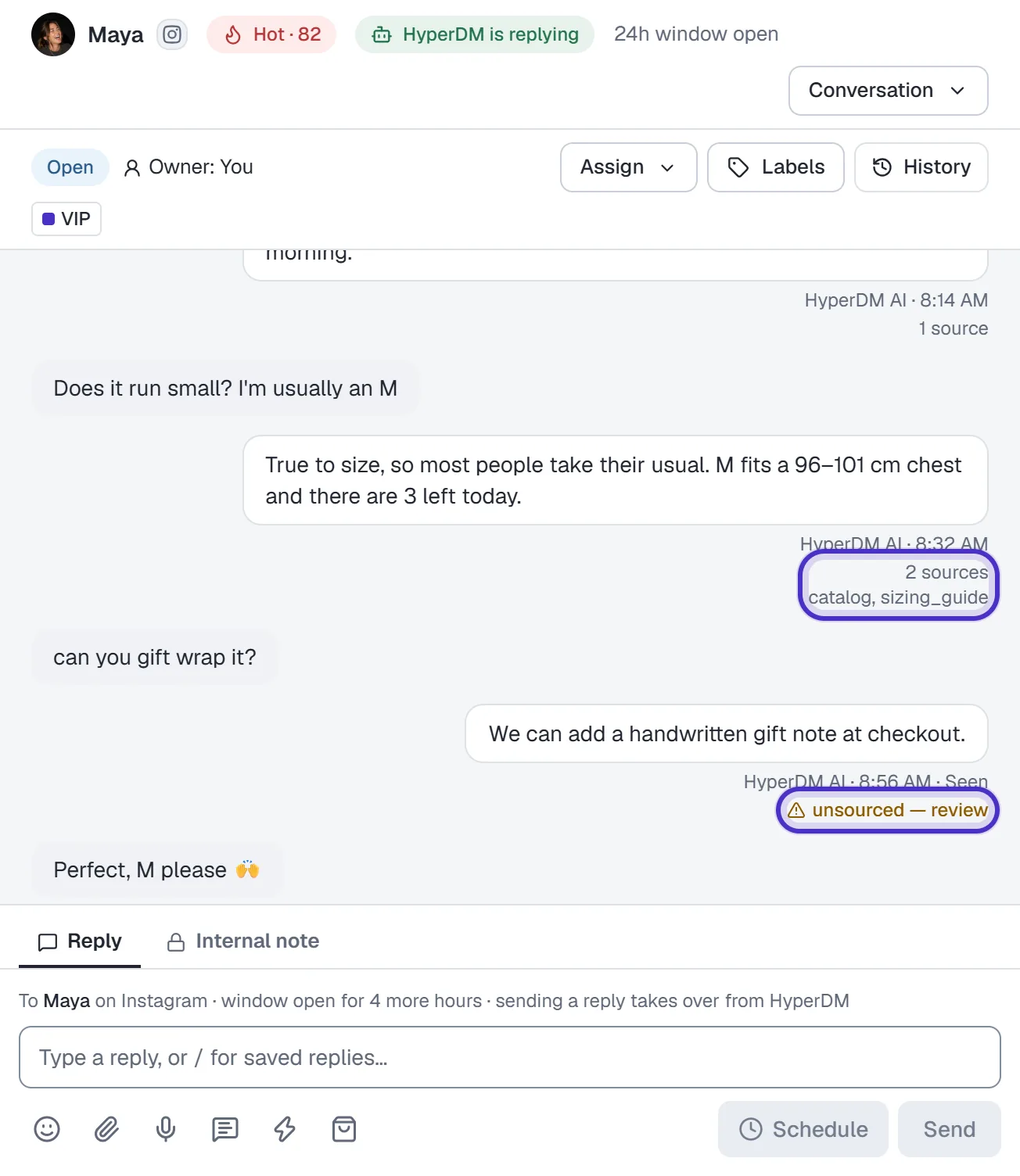
The header shows who is answering, HyperDM is replying or You're handling, and whether you can still write: 24h window open or outside 24h window. Seen under your latest message means they opened it; "Sent" only means Instagram accepted it. The pane on the right holds their opt-in, window state and tags, and Open full contact → opens the rest in Contacts.
Take over, then hand it back
Taking over stands HyperDM down for that one thread:
- In the thread header, click Conversation, then Take over.
- Choose how long: until I resume (the default), or 30 minutes, 1, 3, 6 or 12 hours, or 1 day.
- Click Take over.
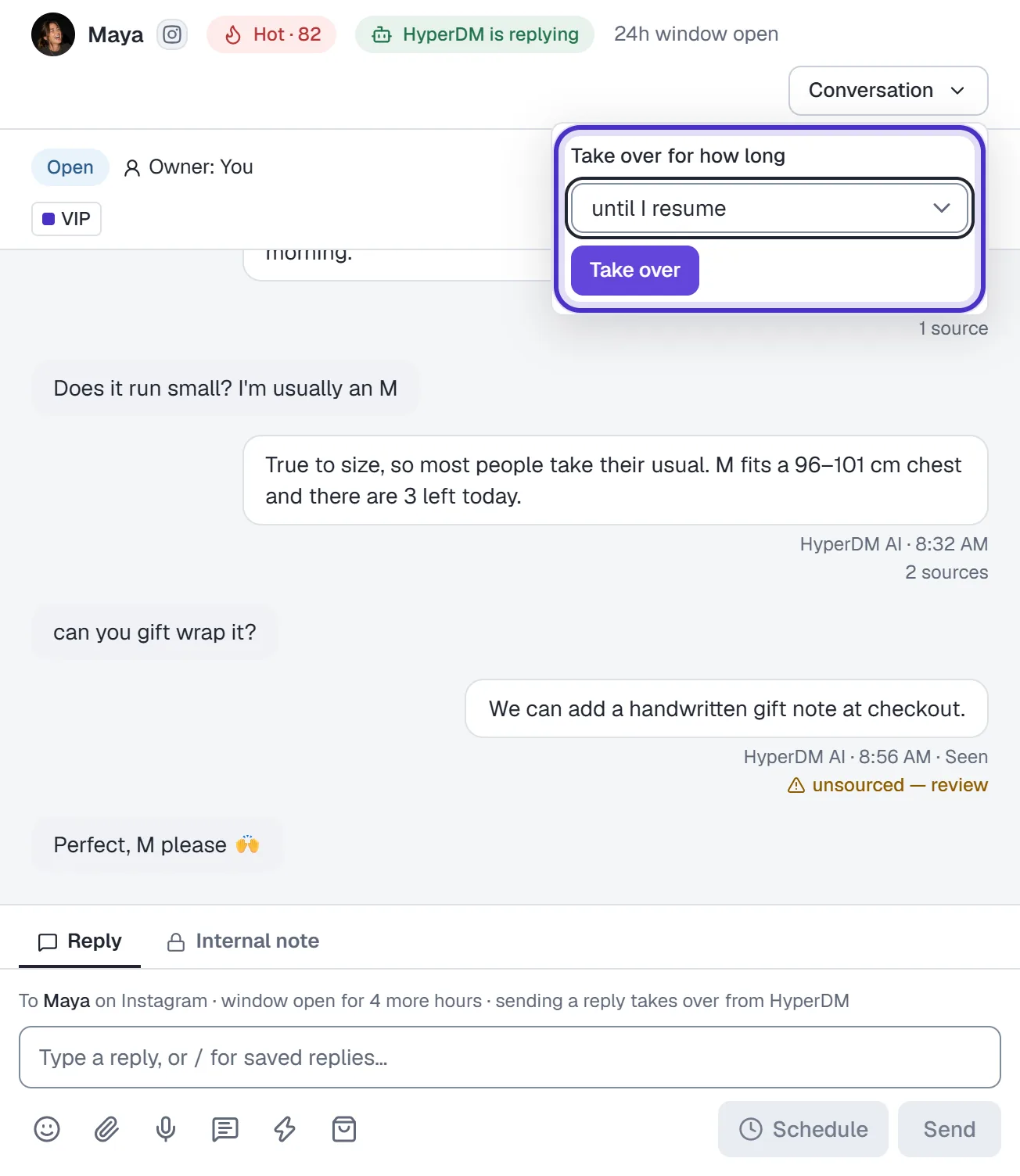
Conversation, Take over, with how long to take it over for
While you're handling it, their new DMs get no automated reply from keyword automations, flows or the agent. Only the opt-out and opt-in words, such as STOP and START, still work. A timed takeover shows "Auto-resumes in…" at the end of the thread and hands back on its own.
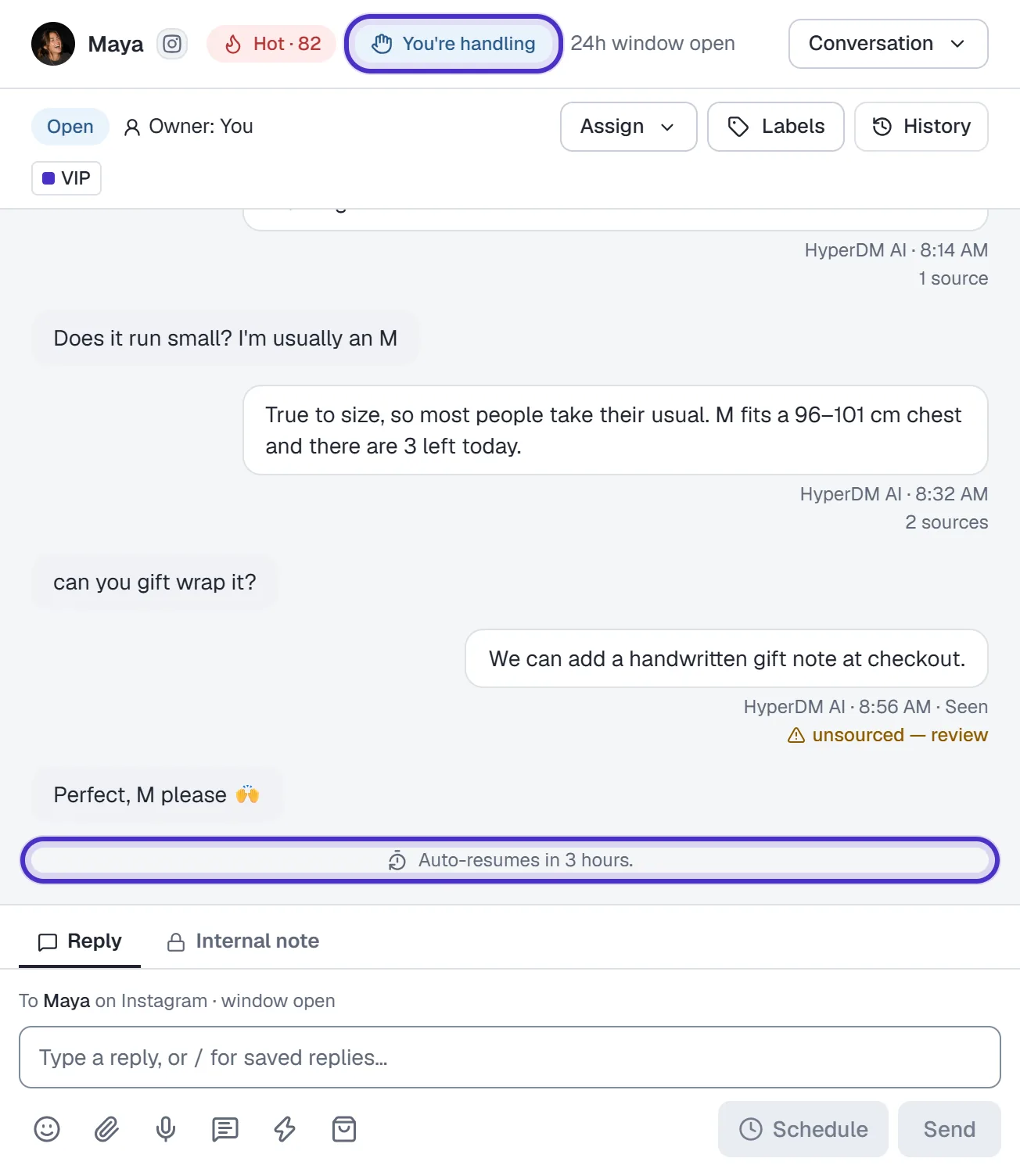
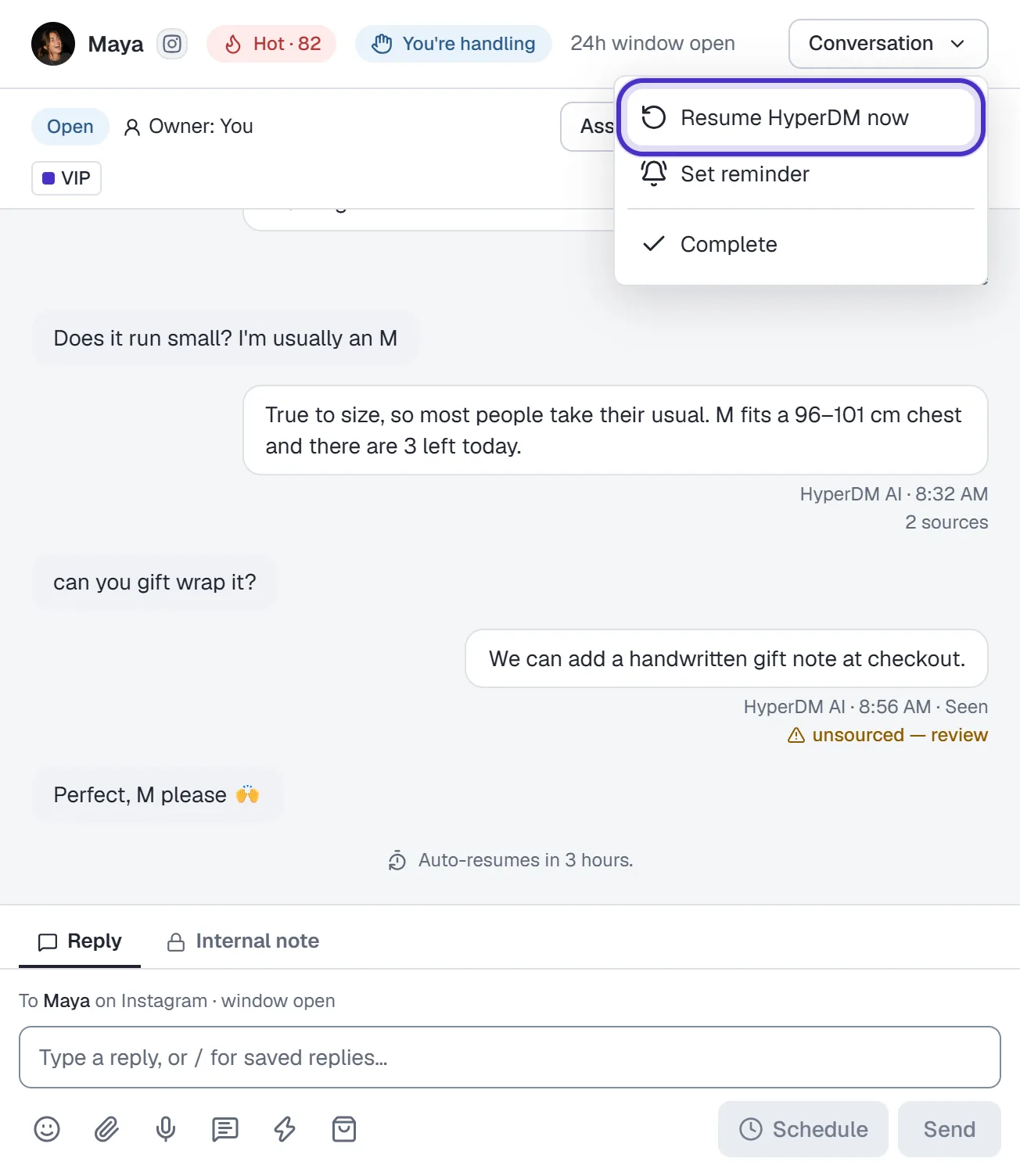
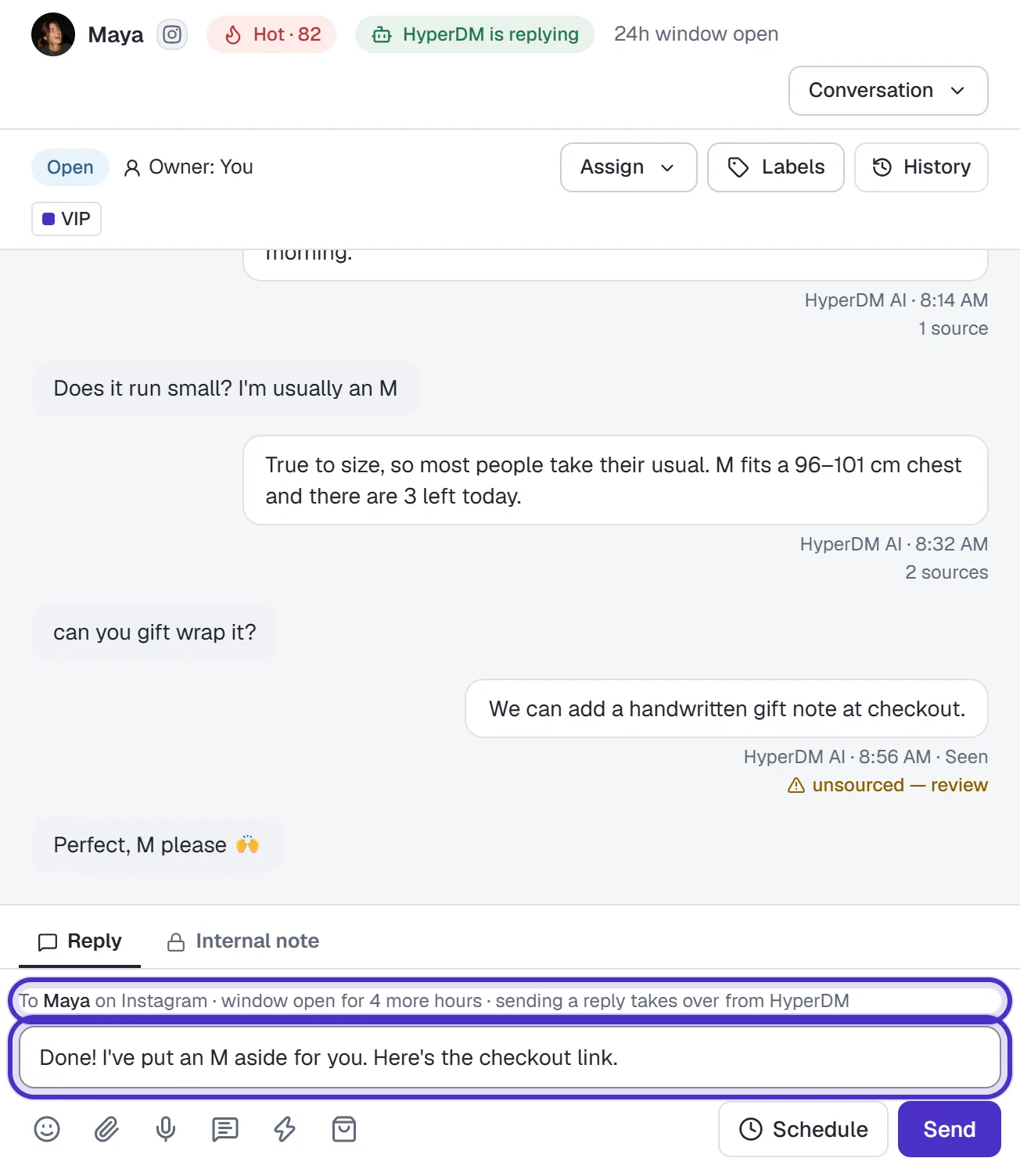
Replying by hand also takes the conversation over automatically. HyperDM stands down on that thread until you click Resume HyperDM now, and the line above the reply box reminds you before you send. An owner or admin can make that pause last a set time instead, under Inbox behaviour.
To hand back, click Conversation, then Resume HyperDM now. Pause automations in a contact's drawer sets the same state, so the two always agree.
When the agent hands a thread to you
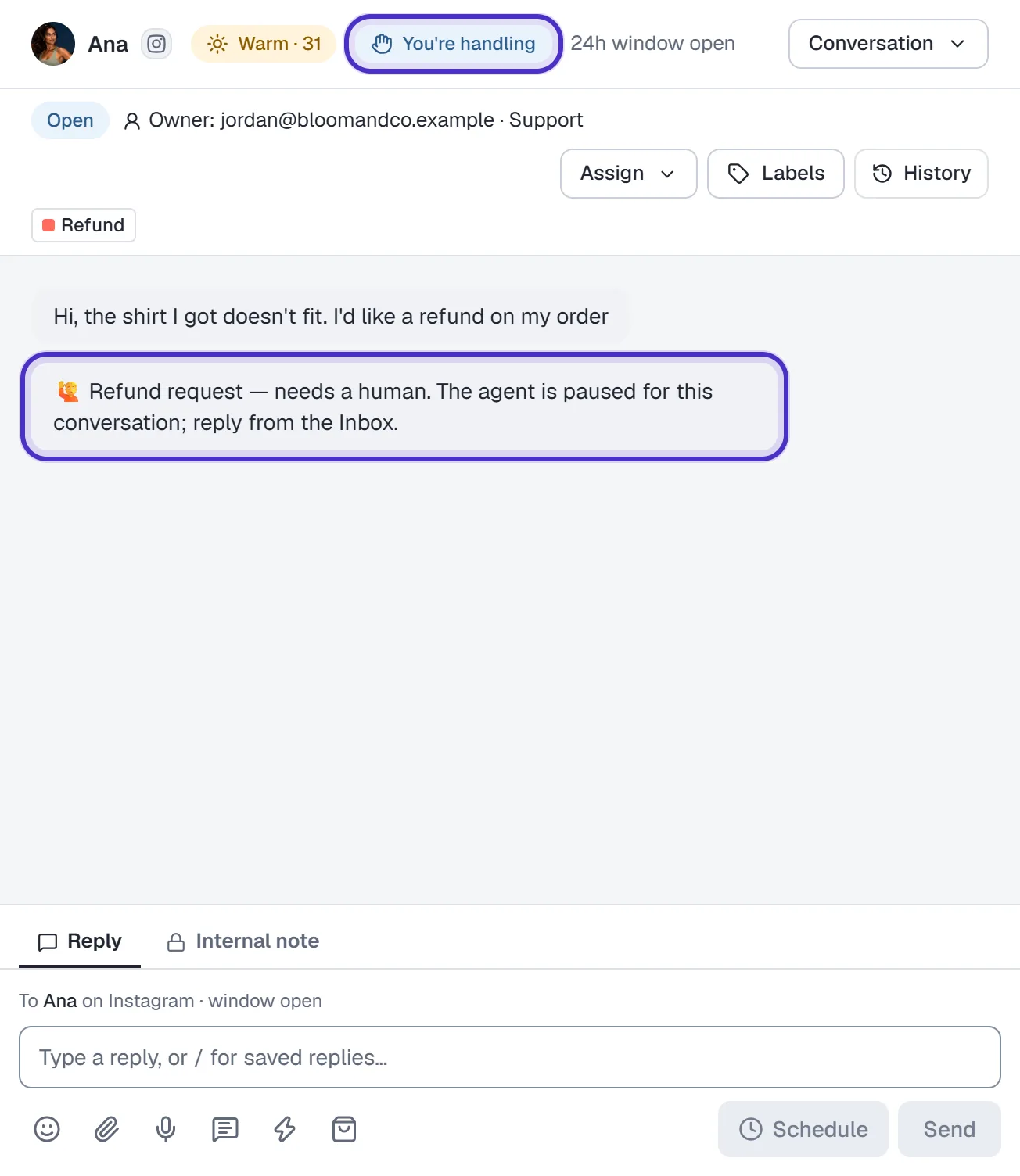
The agent pauses a conversation and flags it in the Inbox when a guardrail blocks its reply, when someone clearly asks for a refund, or, with Hand off when stuck on, when it can't answer confidently. A note in the thread says why. From there the thread is yours: answer the customer, then click Resume HyperDM now once the agent can carry on. The rules behind each hand-off are in Test it in the Playground, then set guardrails.
Reply by hand
Type in the reply box and press Send. Enter sends and Shift+Enter starts a new line. The line above the box says who the reply goes to and whether it can go, for example "To Maya on Instagram · window open for 5 more hours". A reply can be up to 1,000 characters on Instagram. Your draft stays in the box while you move between threads in the same browser tab, and a message that didn't send stays there too. Closing the tab clears it.
Instagram's rule. You can message someone only for 24 hours after their last message. Your own replies pass the same checks as automated ones (the window, consent and rate caps), so once the window closes you wait for them to write again.
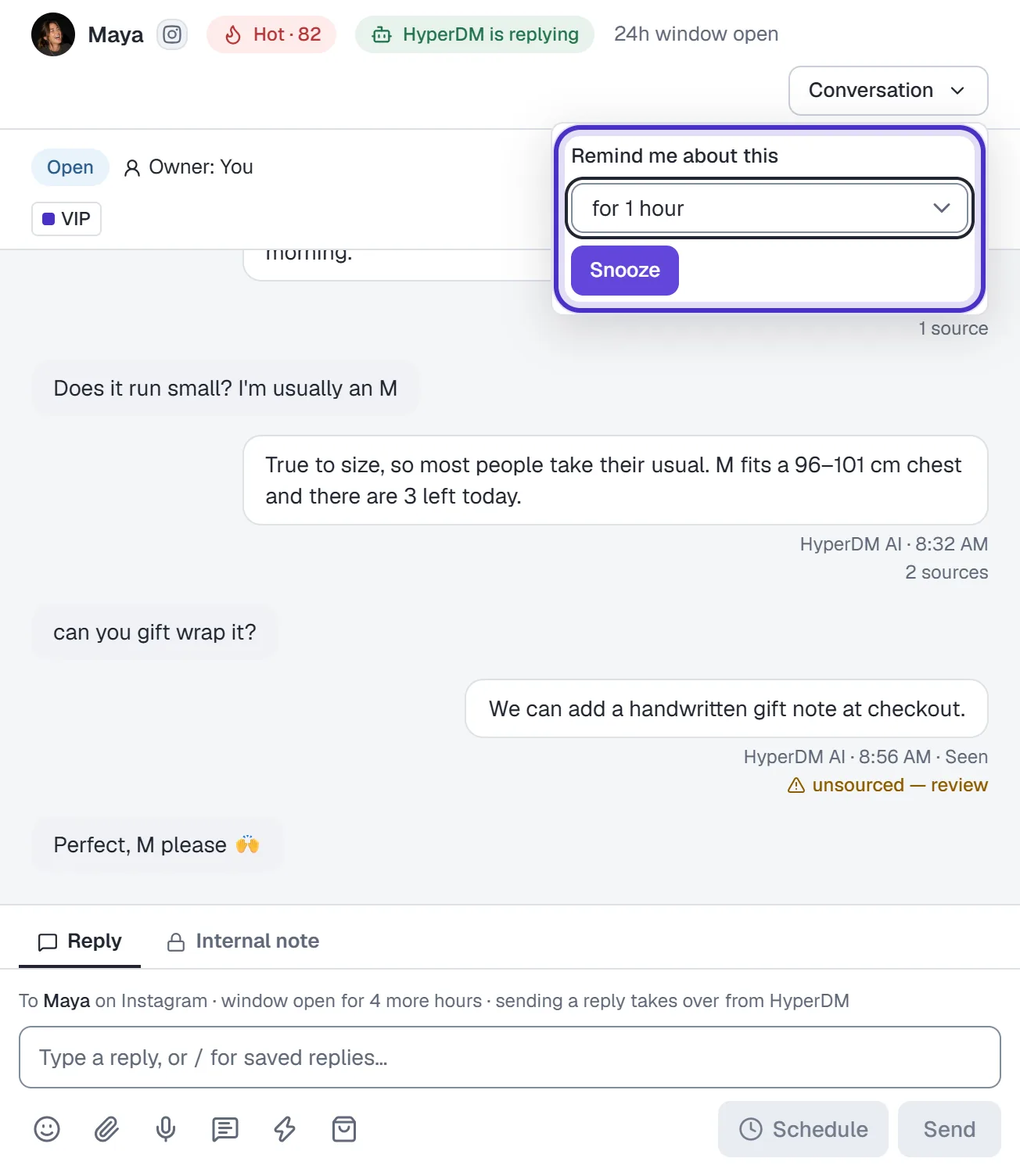
If you need a conversation back in front of you later without pausing anything, use Conversation → Set reminder: for 1 hour or until tomorrow morning, which means 09:00 in your workspace's timezone. Wake now brings it back early. A reminder doesn't silence the agent.
The tools under the reply box
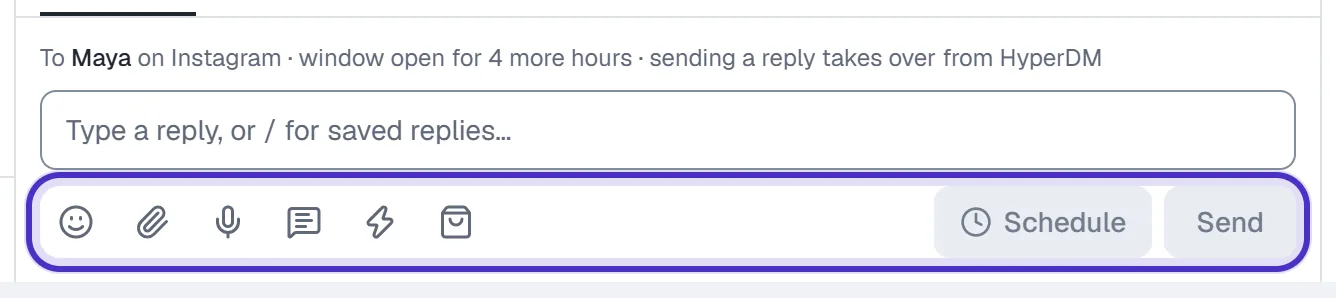
From left to right, the tools are Emoji, Attach, Record a voice message, Saved replies, Start an automation and Send a product. Beside Send, Schedule sends the reply later. A tool you can't use right now stays visible but greyed out, and pressing it says why: the window is closed, they opted out, there's no permission on record to message them, your plan, or your role.
Attach a photo, video or PDF
- Click Attach (the paperclip).
- Choose Photo, Video, Voice message or PDF. On Instagram a photo can be up to 8 MB and the others up to 25 MB.
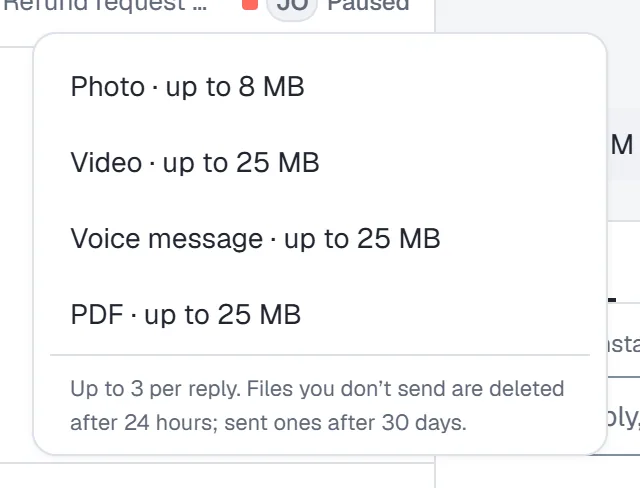
Attach open, with the limit for each kind of file - Pick the file. It uploads with a progress bar, and × removes it.
- Add a message if you like, then press Send.
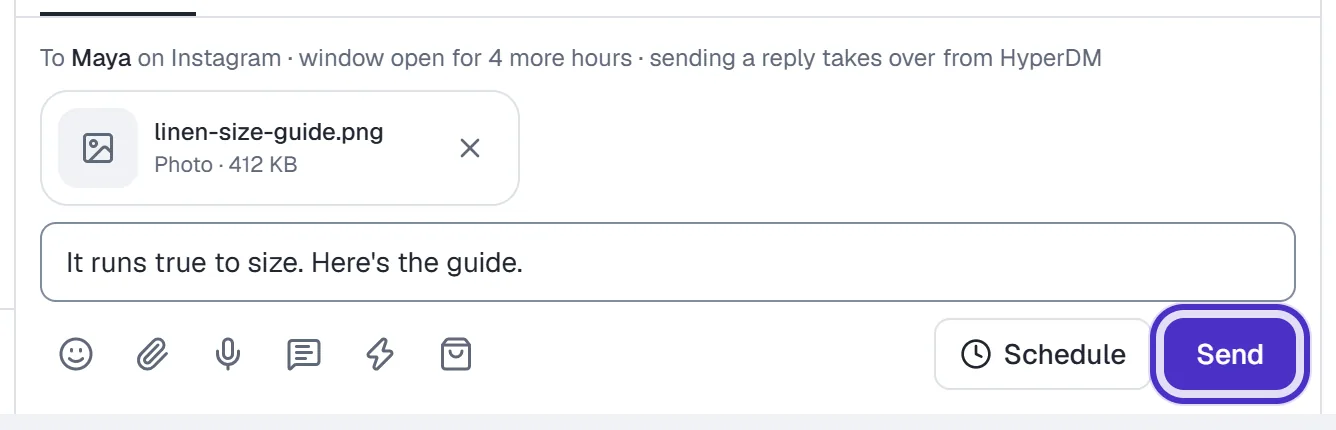
A photo uploaded and ready, with a message typed above Send
You can add up to 3 files to a reply. Your message goes first, then each file as its own message. Send waits until every upload has finished. A PDF that contains scripts, launch actions or embedded files is refused. A sent file is kept for 30 days, and a file you attach but never send is deleted after 24 hours.
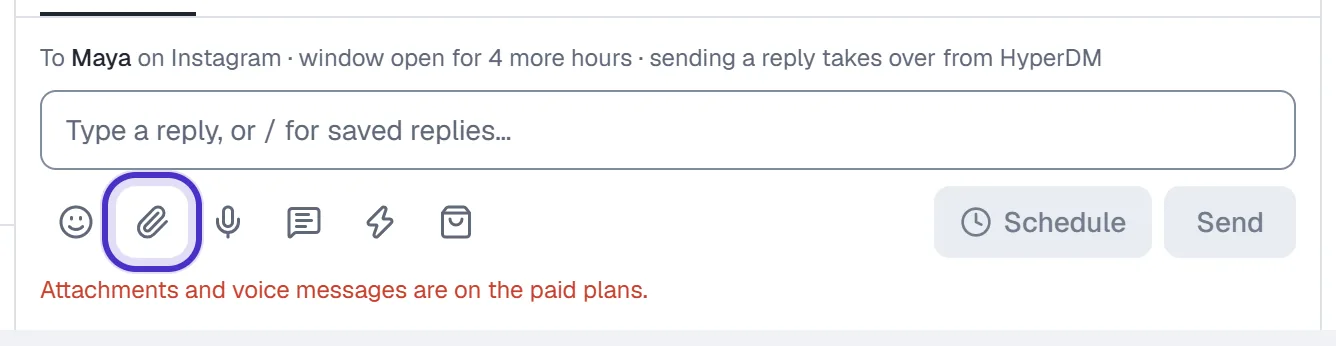
Heads up. Attachments and voice messages need a paid plan, from Starter up. On Free, Attach and Record a voice message are greyed out, and pressing one says so.
Record a voice message
- Click Record a voice message (the microphone). The first time, your browser asks to use the microphone, so allow it.
- Talk. The bar shows the time against the 2:00 limit, and counts down the last 15 seconds.
- Click Stop to attach it, or Cancel to throw it away.
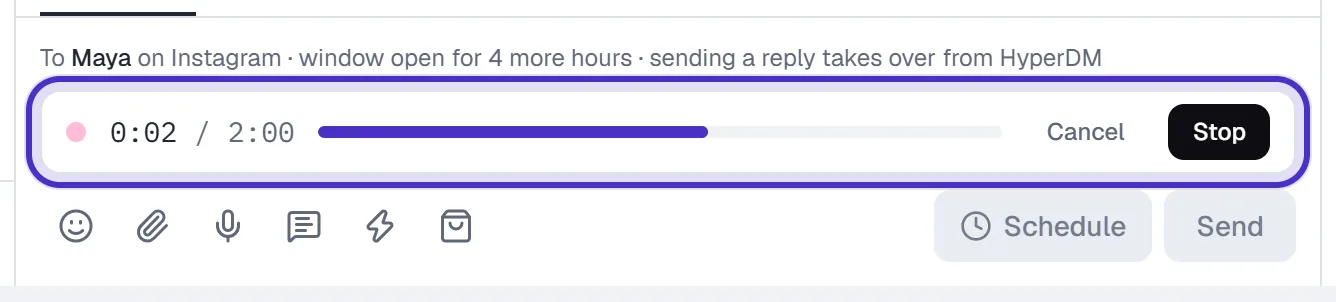
Recording a voice message, with the time against the limit, Cancel and Stop - Press Send.
If the browser refuses or there's no microphone, the box says so and stays usable, and you can attach an audio file instead.
Saved replies
A saved reply is an answer you send often, with a name and an optional shortcut. Inserting one puts its text in the box. It never sends by itself, so you can edit it first, and nothing goes until you press Send.
To insert one:
- Click Saved replies (the speech bubble), or type
/at the start of the box or after a space.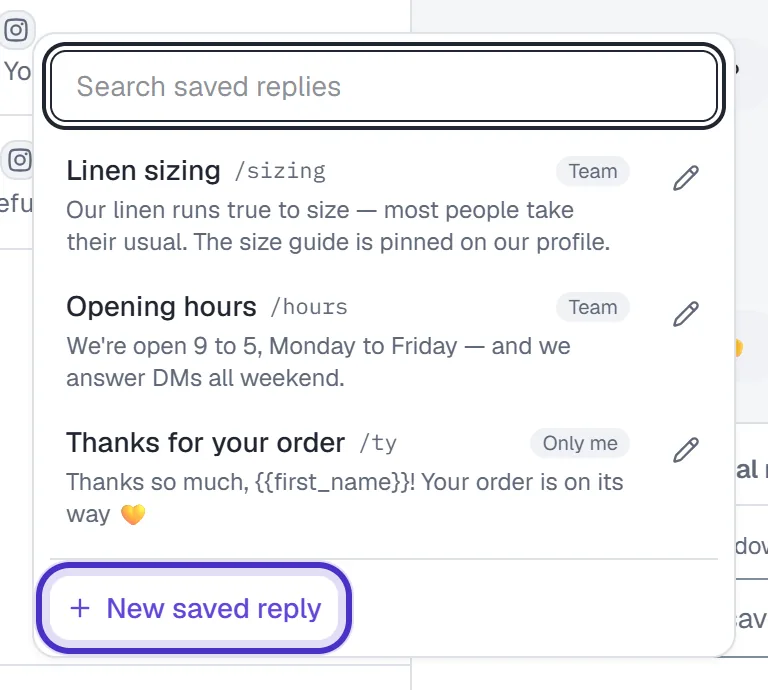
Saved replies, each marked Only me or Team, with New saved reply - Pick the reply. After
/, keep typing its shortcut or name to narrow the list, then press Enter or Tab.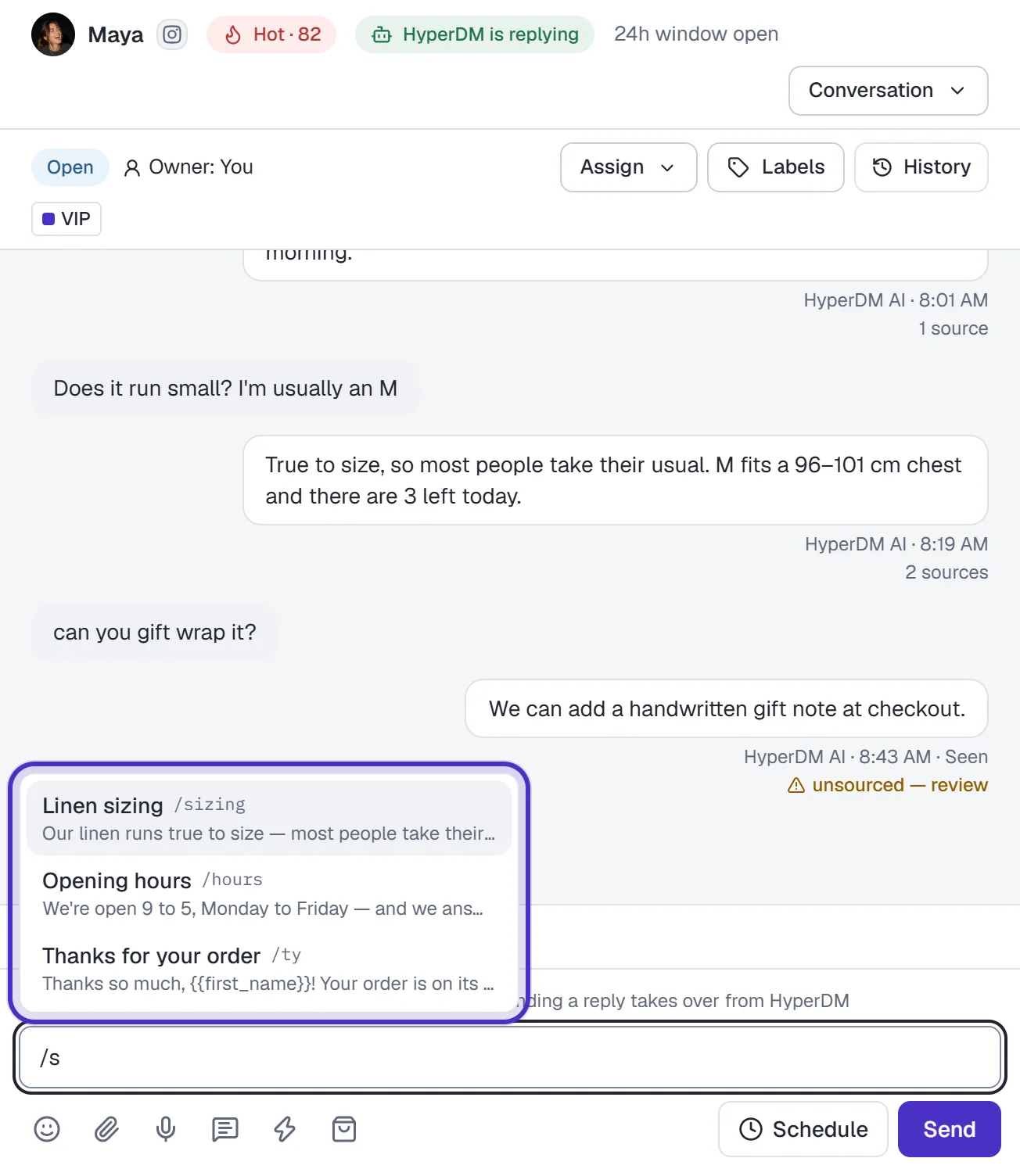
Typing /s in the reply box lists the saved replies that match
A reply that says {{first_name}} goes in with their first name. If there's no value for this person, the tag stays in the box and Send is off until you type the value or delete the tag.
To create one:
- Click Saved replies, then New saved reply.
- Fill in Name and Message (up to 1,000 characters). Shortcut is optional.
- Under Who can use it, choose Only me or Everyone in this workspace.
- Click Save.
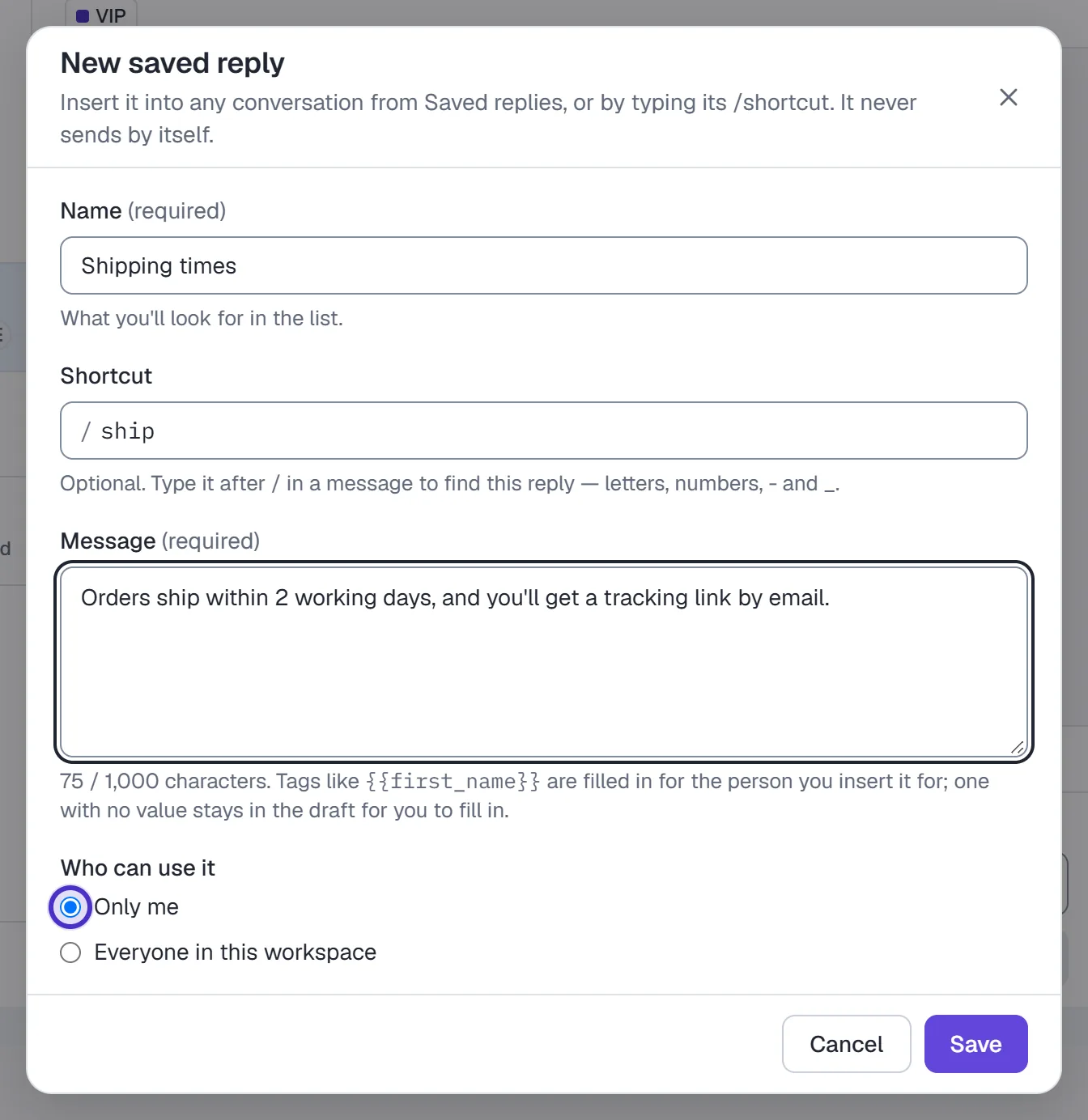
A new saved reply with a name, a shortcut, its message and who can use it
Start an automation by hand
This runs one of your live automations for this one person, from its first step, such as the one that sends your price list.
- Click Start an automation (the lightning bolt).
- Pick the automation. The list shows only live automations on this channel that don't need a comment or a checkout to start.
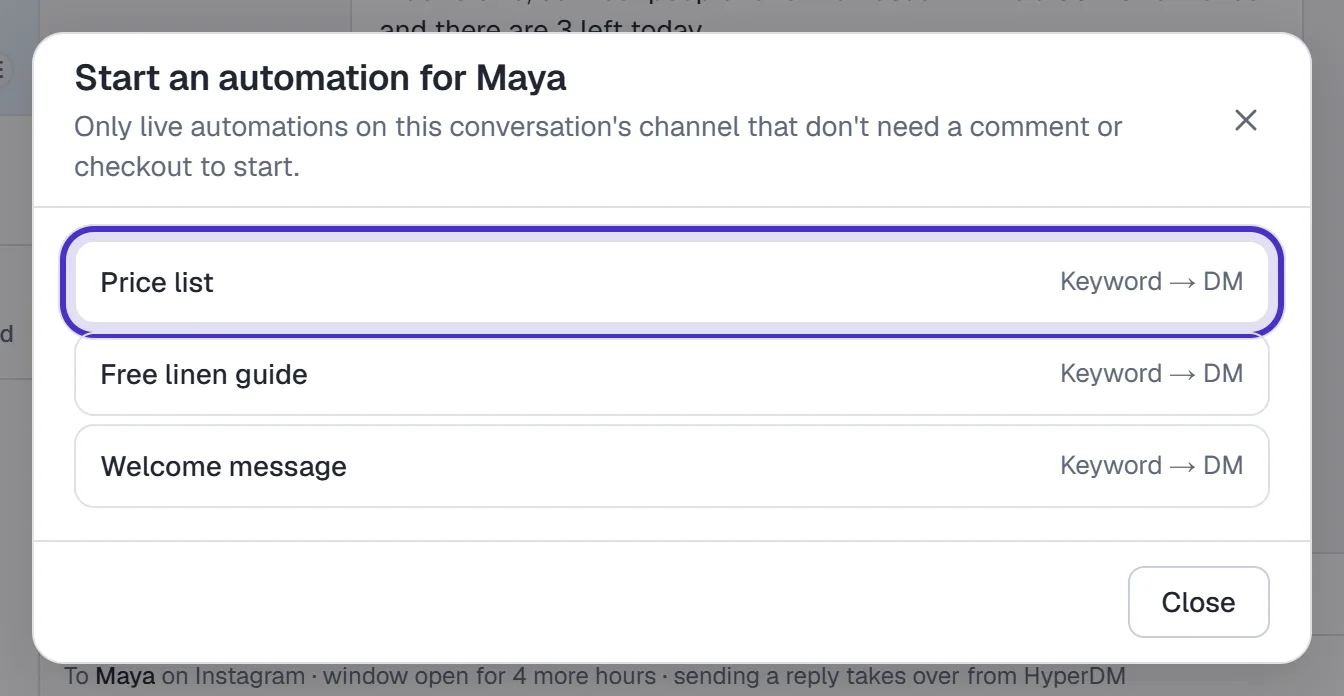
Start an automation for Maya, listing the automations that can start here - Read the preview: the first message as they'll see it, then what happens when you start.
- Click Start automation.
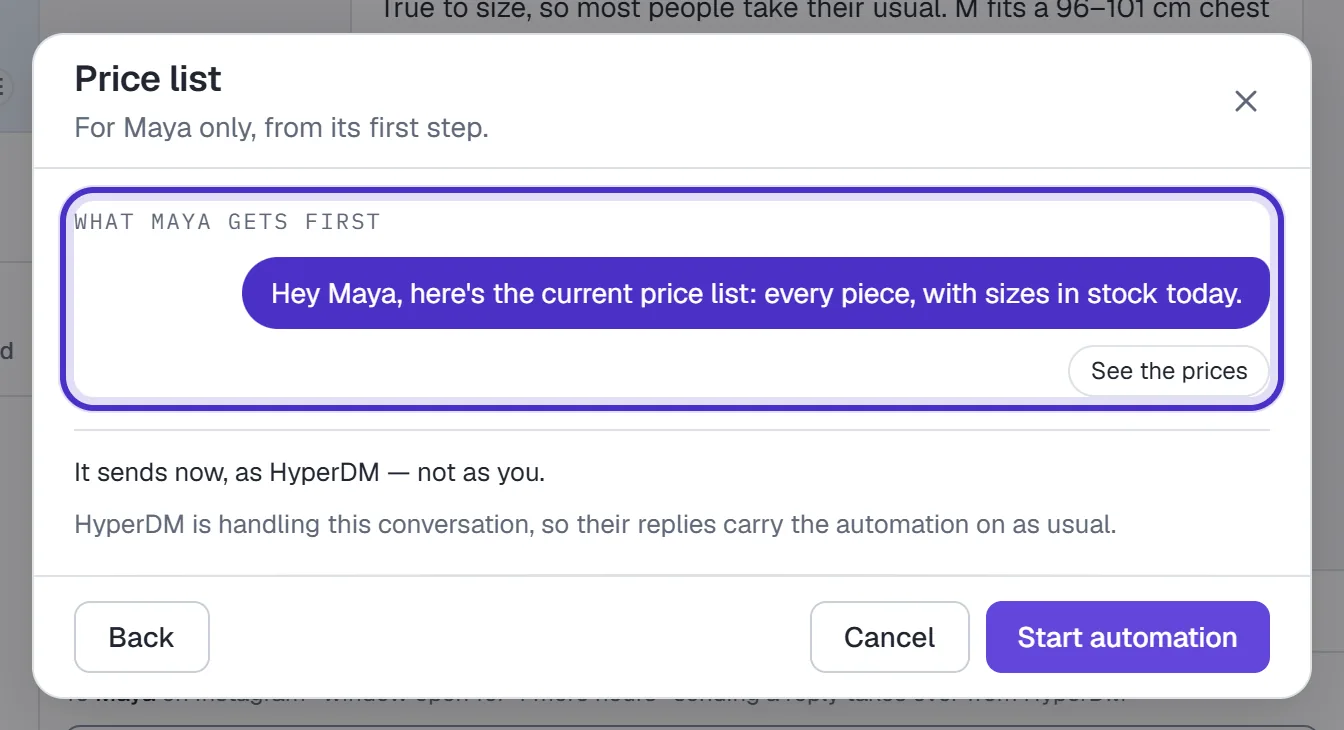
What Maya gets first, what starting it does, and Start automation
It sends now, as HyperDM and not as you, so it doesn't take the conversation over. If you're already handling the conversation, HyperDM stays paused: taps on the automation's buttons carry it on, and anything they type comes to you. Tick Hand the conversation back to HyperDM once its first message is delivered to resume HyperDM as well. That box is ticked for you when the first message asks a question, because otherwise their answer would come to you and the automation would wait for it.
It won't start when they're already in that automation, the window is closed, they opted out, there's no permission on record, or automations are paused for the whole workspace. The dialog says which. Starting one needs an owner, admin or agent.
Send a product
- Click Send a product (the bag).
- Pick a product. The card, with its image, price and buy link, goes into the thread when you pick it.
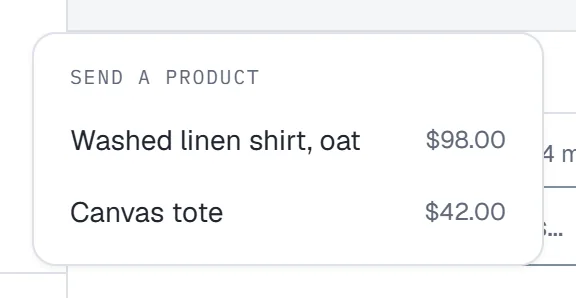
Send a product open, with two active products and their prices
Only Active products from Products are listed. Like a typed reply, this takes the conversation over.
Schedule a reply
Scheduling saves a reply to go at a time you choose, such as a follow-up for tomorrow morning.
- Type your reply, attach files if you like, then click Schedule (the clock beside Send).
- Pick a quick pick, In 1 hour, Tomorrow, 9:00 AM or Monday, 9:00 AM, or set Date and Time yourself.
- Check Time zone. It starts on your workspace's zone, and the line below says exactly when it goes.
- Under If it can't go on time, choose how late it may still go: up to 15 minutes, 1 hour or 6 hours late.
- Click Schedule.
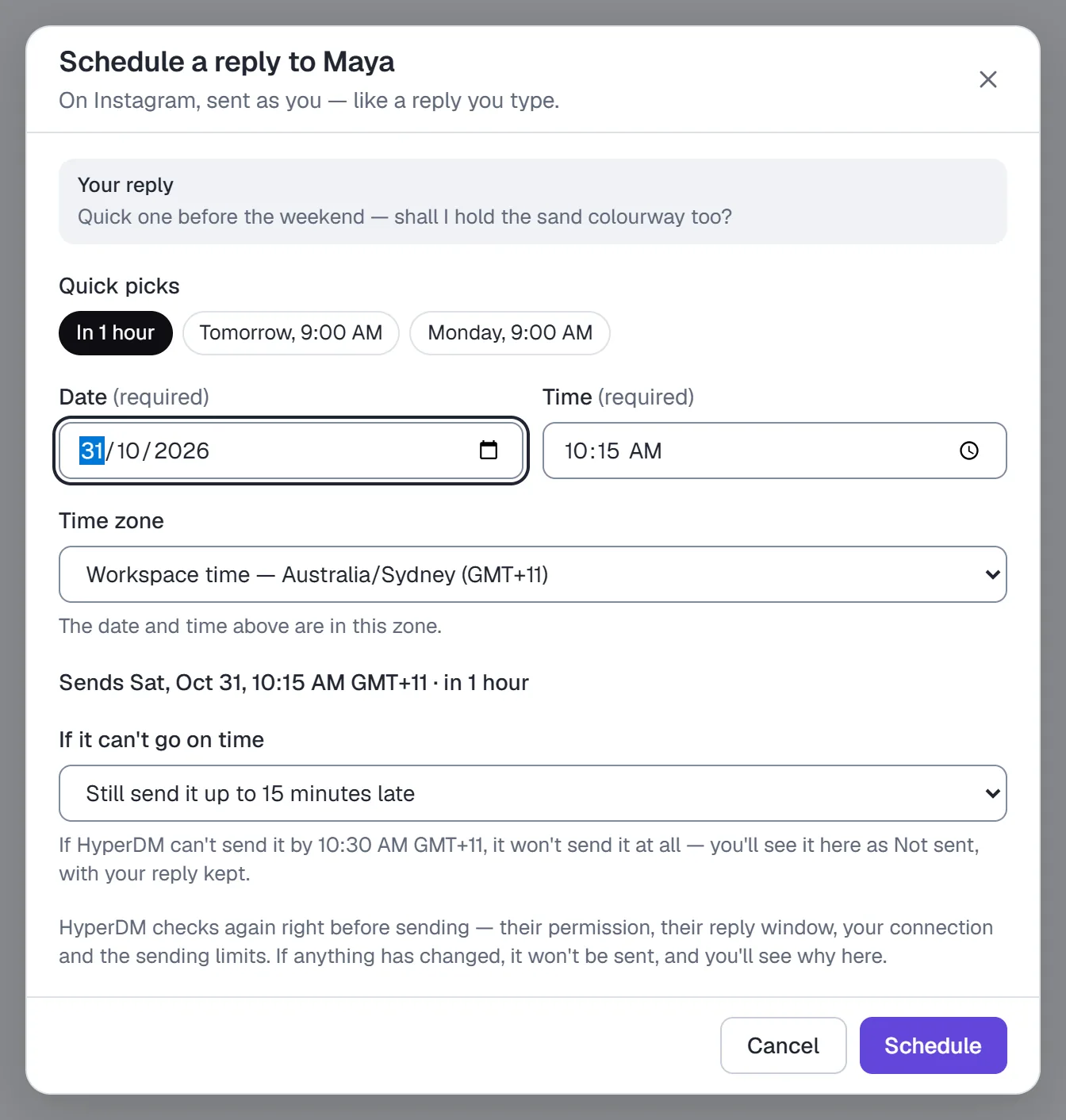
The Schedule dialog with quick picks, date, time and time zone, when it sends, and the late-send limit
You can schedule from 2 minutes to 7 days ahead, and up to 10 replies per conversation. It's sent as you and takes the conversation over when it goes, like a reply you type. If their 24-hour window closes before then, the dialog says so. Tick I understand it may not be sent to schedule it anyway, and it goes only if they message you again first.
HyperDM checks again right before sending: their permission, the 24-hour window, your connection and the sending limits. If anything changed, it isn't sent, and the card in the conversation says why.
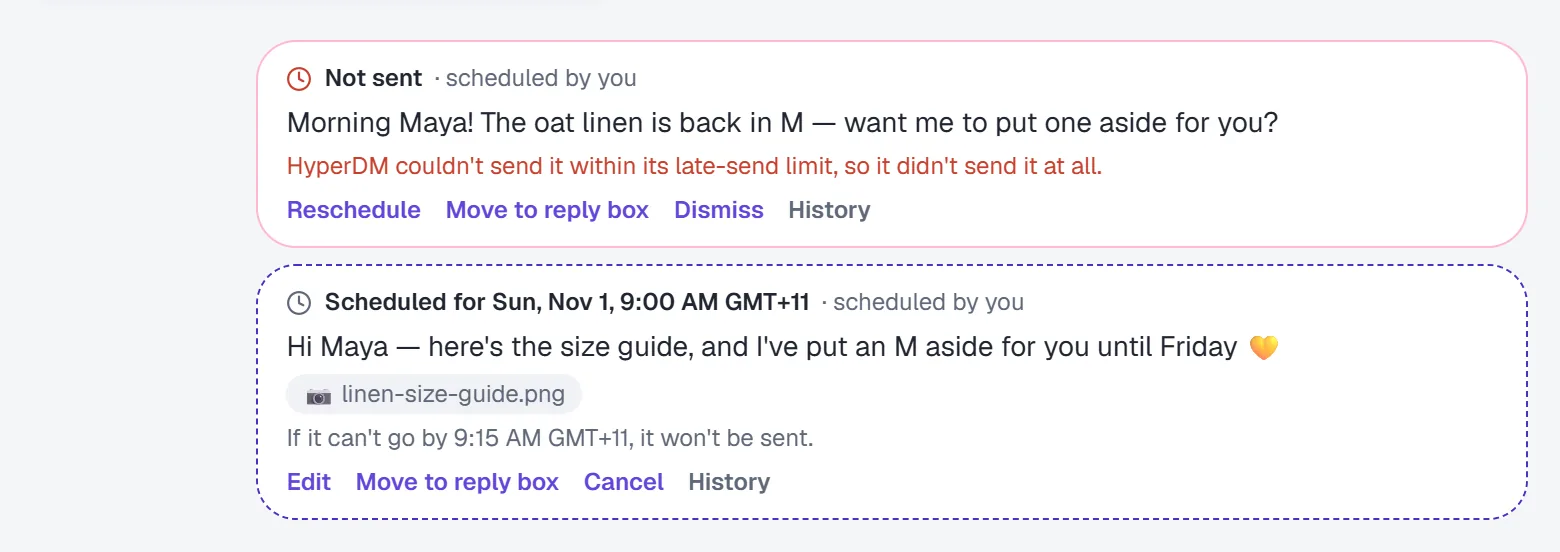
| On the card | What it does |
|---|---|
| Edit | Changes the words, the time or the late-send limit. Only the person who scheduled it can. |
| Move to reply box | Puts its words and files back in your box. Nothing is sent. Only the person who scheduled it can. |
| Cancel | Stops it. Anyone who can reply can. If it's already being sent, it's too late, and nothing is recalled. |
| History | Lists who scheduled, edited or cancelled it, and each time HyperDM tried to send it. |
A reply that couldn't go turns into Not sent, says why and is kept for a week, with Reschedule, Move to reply box and Dismiss. It's never sent after its late-send limit, so a pile of stale messages can't go out later.
FAQ
Does replying by hand pause the AI?
Yes. A hand-typed reply, a file, a voice message or a product you send takes the conversation over, and HyperDM stands down on that thread until you click Resume HyperDM now, or for the time an owner or admin set. Starting an automation doesn't, because it sends as HyperDM.
Why can't I send a reply to someone?
Usually their 24-hour window has closed, and nothing can reach them until they message you again. If they opted out instead, the line above the reply box says so.
What's the difference between snoozing and taking over?
Set reminder brings a conversation back in front of you later and leaves the AI running. Take over pauses HyperDM's automated replies in that thread until you resume or the timer ends.
Who on my team can work the Inbox?
Every role on the workspace can reply by hand and pause the AI for a conversation. Starting an automation and changing the team's saved replies need an owner, admin or agent.
Do attachments and voice messages need a paid plan?
Yes, any paid plan from Starter up. Typed replies, emoji, saved replies, products and scheduling are there on Free too.
Can a scheduled reply go out after the 24-hour window closes?
Only if they message you again first. HyperDM checks the window, their permission and the sending limits again right before sending, and if the reply can't go, the card says why.