How to import your help centre
Paste your help centre's address, import its guides in one click and approve them: the agent answers how-do-I questions with your steps and a link.
When a customer asks "how do I…", the agent can only answer with steps it has been given. If you already have a help centre or a docs site, you don't need to paste your guides one by one: point the agent at it and it reads them all. Each guide's sections become passages that keep their steps together and name the guide they came from, so the agent can give the steps and link the full guide.
Where it's turned on for your workspace, the Knowledge tab has an Import your help centre card. Only an owner, admin or editor can import or review knowledge.
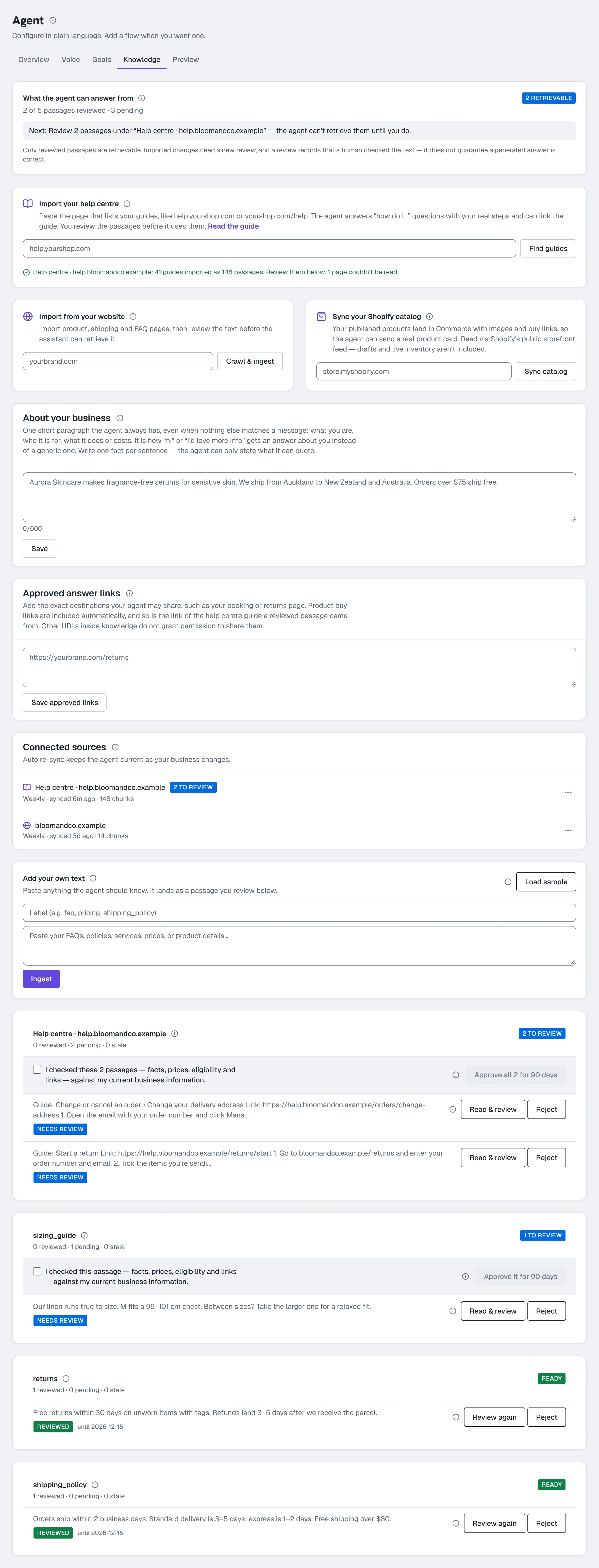
Import your help centre
- Go to Agent → Knowledge.
- In Import your help centre, paste the address of the page that lists your guides, such as
help.yourshop.comoryourshop.com/help. - Click Find guides. HyperDM reads your site's sitemap and the links on that page, and tells you what it found: "Found 62 guides under help.yourshop.com". Nothing is imported yet.
- Click Import 62 guides. A progress line shows each step: reading guides, then preparing passages, then how many passages were imported. You can leave the page; the import keeps going and the line is there when you come back.
- Review the passages (next section). Until you approve them, the agent doesn't use them.
To stop an import while it runs (a wrong address, say), click Stop on its progress line. Nothing it read is added, and anything the agent already knew stays as it was. Once it has started saving its passages (the last step) it can no longer be stopped, even if that save has to be retried; remove the source afterwards if you don't want it.
Which pages it reads
- Only pages on the same site as the address you pasted, and under that address: pasting
yourshop.com/helpreadsyourshop.com/help/returnsbut neveryourshop.com/products. Another subdomain is another site. The help centre must open over https (anhttp://address is read as https), without a port number in the address. - Not sign-in, account, cart or checkout pages, and not a page that asks for a password.
- Not pages your site's robots.txt asks bots not to read. If it closes the whole help centre, Find guides says so.
- From each page, the main content only. Menus, the site's header and footer, text repeated on most pages (like "Was this article helpful?") and lists of other articles shown on many pages are left out. Notes and warnings inside a guide are kept.
Your plan sets how many pages one import reads: Free 25, Starter 60, Growth 150, Pro and Agency
- If your help centre has more, Find guides says how many it found and how many your plan imports. On Free, the
help centre is your one knowledge source of your own.
Approve the passages
The help centre appears in the passage list as Help centre · and its address. Each passage starts with the guide it came from and its link, then the steps.
- Read a few passages to check they say what your guides say.
- Tick the confirmation under the source's header and click Approve all N for 90 days. A very large import is approved in batches of 500: the page shows the next 500 waiting for review (plus up to 100 that look like a footer or a menu, which you approve or reject one by one), and the source says how many more are waiting. Once you approve or reject those, the next ones appear.
- Or approve or Reject passages one by one. The list shows 25 at a time, those waiting for review first; use Previous and Next under it to move through the rest. Approve all covers the waiting passages on every page (up to 500 at a time), not only the one you're looking at.
Once approved, the agent can answer from those steps and link the guide a passage came from. Any other link in your knowledge still needs to be in Approved answer links before the agent may share it.
Keep it current
The help centre is listed under Connected sources as Help centre · and its address. Open its ⋯ menu to:
- Click Sync now to read it again (once every 15 minutes). New guides are picked up, and passages whose text didn't change keep their approval. Only changed passages need a new review.
- Click Change frequency and pick Manual, Daily or Weekly.
- Click Remove, then confirm. Its passages are deleted, and an import still running stops.
Common problems
"No guides were found under that address." Paste the page that links to your guides, not a single guide, and check it opens in a browser without signing in.
"That page didn't open." The address may be mistyped, or the help centre may need a login. Help centres behind a login can't be imported.
"Today's import allowance is used up." A workspace imports up to 2,000 new passages a day; passages whose text didn't change since the last sync don't count. A big help centre takes more than one day: the line says how many passages are ready (for example 2,000 of 7,000 passages ready) and about how many more days it needs. It carries on by itself after midnight UTC, and the agent gets the new passages once they're all ready and you've reviewed them. To call it off, click Stop before it starts adding them.
"…passages past the 10,000-passage limit weren't imported." One help centre holds up to 10,000 passages. Import the part of it your customers ask about most: paste the address of that section instead of the whole help centre.
Some guides couldn't be read. The progress line says how many. A page that timed out or needs a login is skipped; the rest are imported. Run Sync now later to try again.
The agent still hands off a how-to question. Check the guide's passages are approved, then ask the question in the AI Playground: the label under the reply should read grounded and name the help centre.
Full reference: The AI agent and Add knowledge and sync your catalog.
More in AI agent
- Set up the AI sales agentTeach the agent, draft its voice, check its sample replies, set its guardrails, test it, activate the revision you tested, then let it answer DMs.Read
- Add knowledge and sync your catalogGive the agent something true to answer from: paste FAQs, crawl your site or sync Shopify, review the passages, and add the products it can quote.Read
- Set up conversation goalsGive the agent one nudge to add after it answers — a link, an email ask or a follow invite — at most once per person in any 24 hours. On all plans.Read
Try HyperDM for free
50 free conversations a month, no card. Connect Instagram and follow the guide you just read.